VectorDB Plugin for LM Studio
v6.11.0 - bug fixes

Requirements • Installation • Using the Program • Request a Feature or Report a Bug • Contact
This repository allows you to create and search a vector database for relevant context across a wide variety of documents and then get a response from the large language model that's more accurate. This is commonly referred to as "retrieval augmented generation" (RAG) and it drastically reduces hallucinations from the LLM! You can watch an introductory Video or read a Medium article about the program.
| Feature | Details |
|---|---|
| General text extraction | .pdf .docx .epub .txt .html .enex .eml .msg .csv .xls .xlsx .rtf .odt |
| "Vision" models to create image summaries | .png .jpg .jpeg .bmp .gif .tif .tiff |
| Transcribe audio files to text | .mp3 .wav .m4a .ogg .wma .flac and more... |
| Type or speak your query | Using a powerful WhisperS2T voice recorder |
| Get a response from an LLM | LM Studio Local Models Chat GPT (coming soon) |
| Text to speech playback of the LLM's response | Bark WhisperSpeech ChatTTS Google TTS |
CPU and Nvidia GPU support |
Looking for testers or contributors for AMD and Intel GPUs as well as Metal/MPS/MLX |
| ? Python 3.11 • ? Git • ? Git LFS • Pandoc • Compiler |
|---|
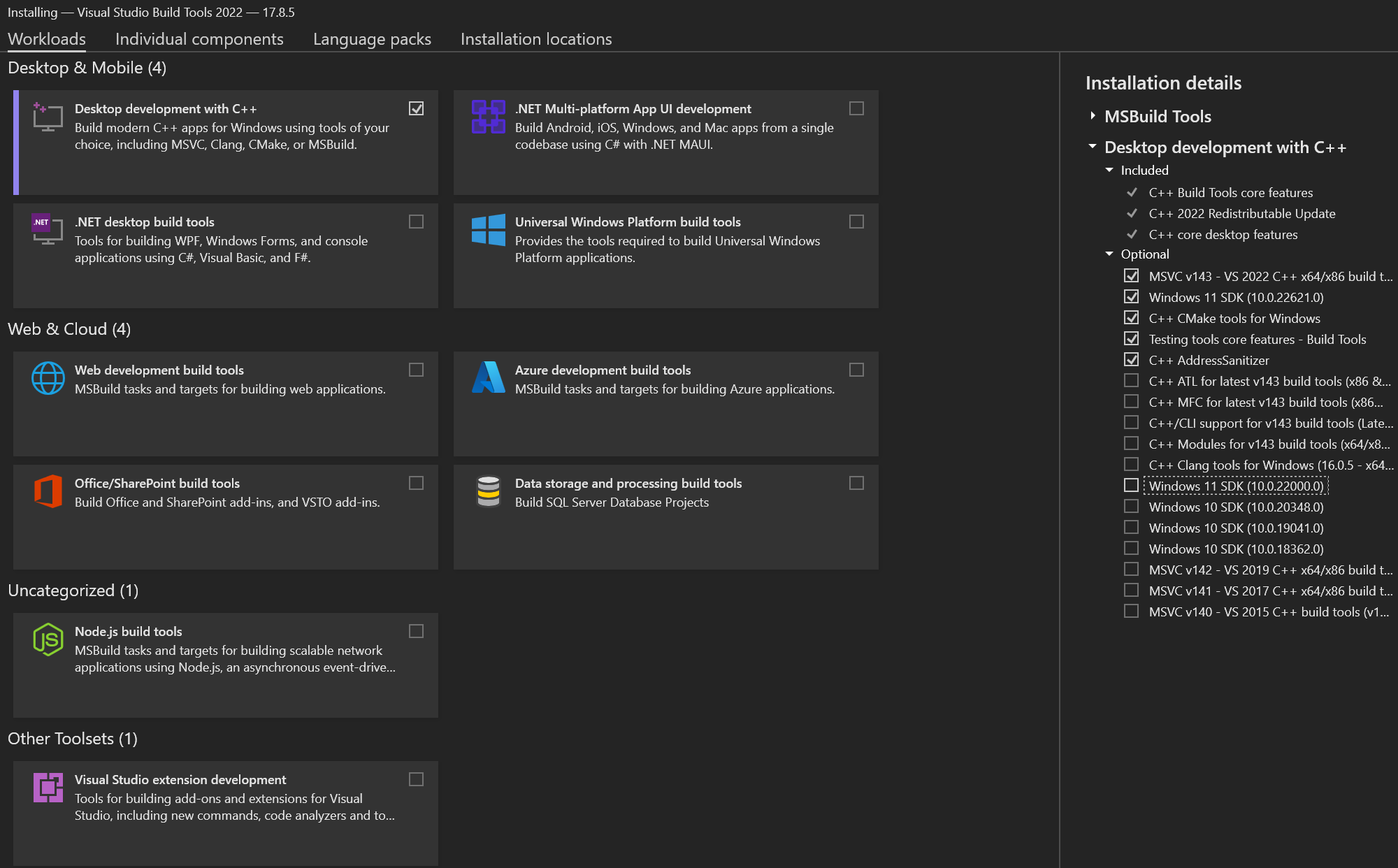
The above link downloads Visual Studio as an example. Make sure to install the required SDKs, however.
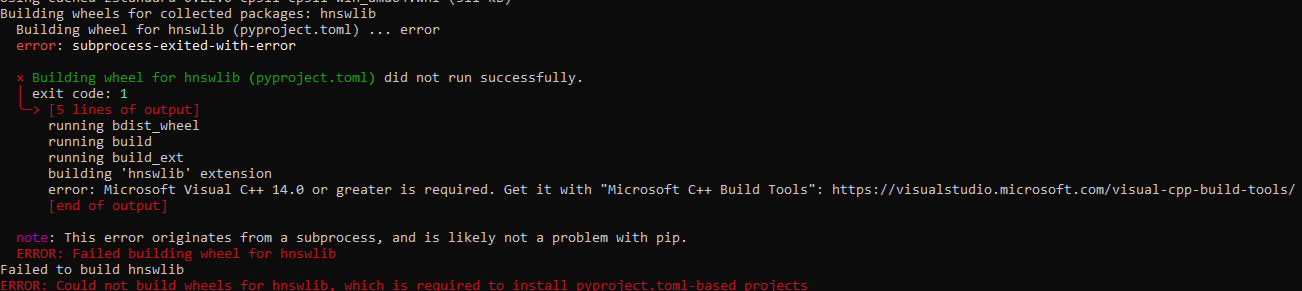
EXAMPLE error when no compiler installed:
EXAMPLE of installing the correct SDKs:
Back to Top
Download the latest "release," extract its contents, and open the "src" folder:
The last attempt to support ? Linux and ? MacOS is Release v3.5.2. Make sure and follow the
readme.mdinstructions there.
Within the src folder, create a virtual environment:
python -m venv .
Activate the virtual environment:
.Scriptsactivate
Run the setup script:
Only for
Windowsfor now.
python setup_windows.py
In order to use the Ask Jeeves functionality you must:
Assets folder;koboldcpp_nocuda.exe;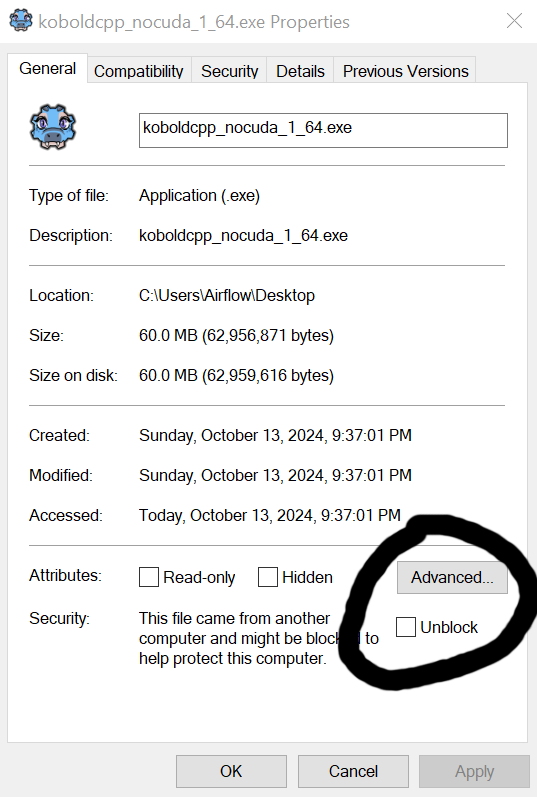
If the "unblock" checkbox is not visible for whatever reason, another option is to doubleclick koboldcpp_nocuda.exe, select the .gguf file within the Assets directory, and start the program. This should (at least on Windows) attempt to start the Kobold program, which will trigger an option to "allow" it and/or create an exception to "Windows Defender" on your computer. Select "Allow" or whatever other message you receive, which will enable it for all future interactions. Please note that you should do this before trying to run the Ask Jeeves functionality in this program; otherwise, it may not work.
Submit a Github
Issueif you encounter any problems asAsk Jeevesis a relatively new feature.
Back to Top
Important for more detailed instructions just Ask Jeeves!
Every time you want to use the program you must activate the virtual environment:
.Scriptsactivate
python gui.py
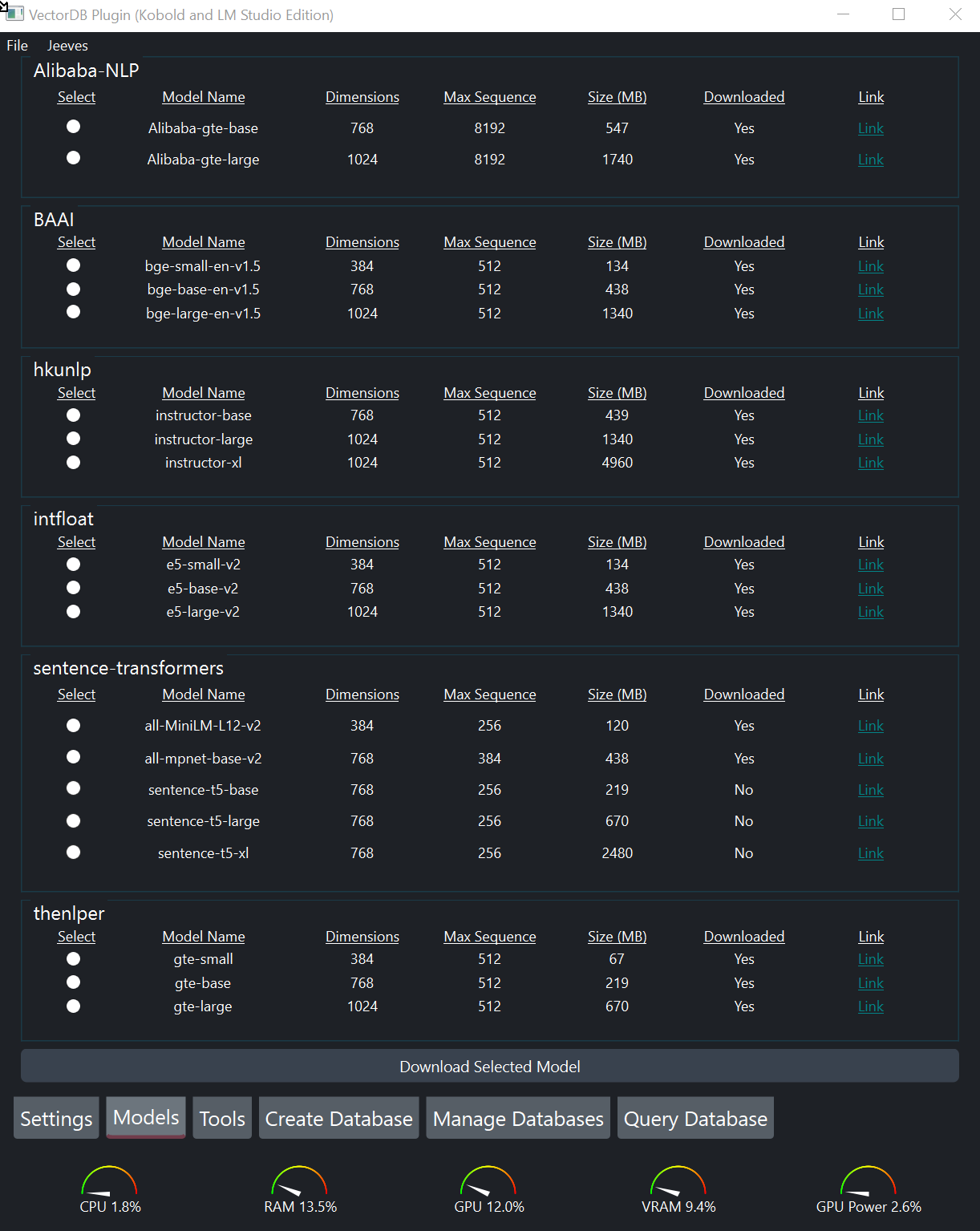
Models Tab.This program extracts the text from a variety of file types and puts them into the vector database. It also allows you to create summarizes of images and transcriptions of audio files to be put into the database.
In the Create Database tab, select files you want to add to the database. You can click the Choose Files button as many times as you want.
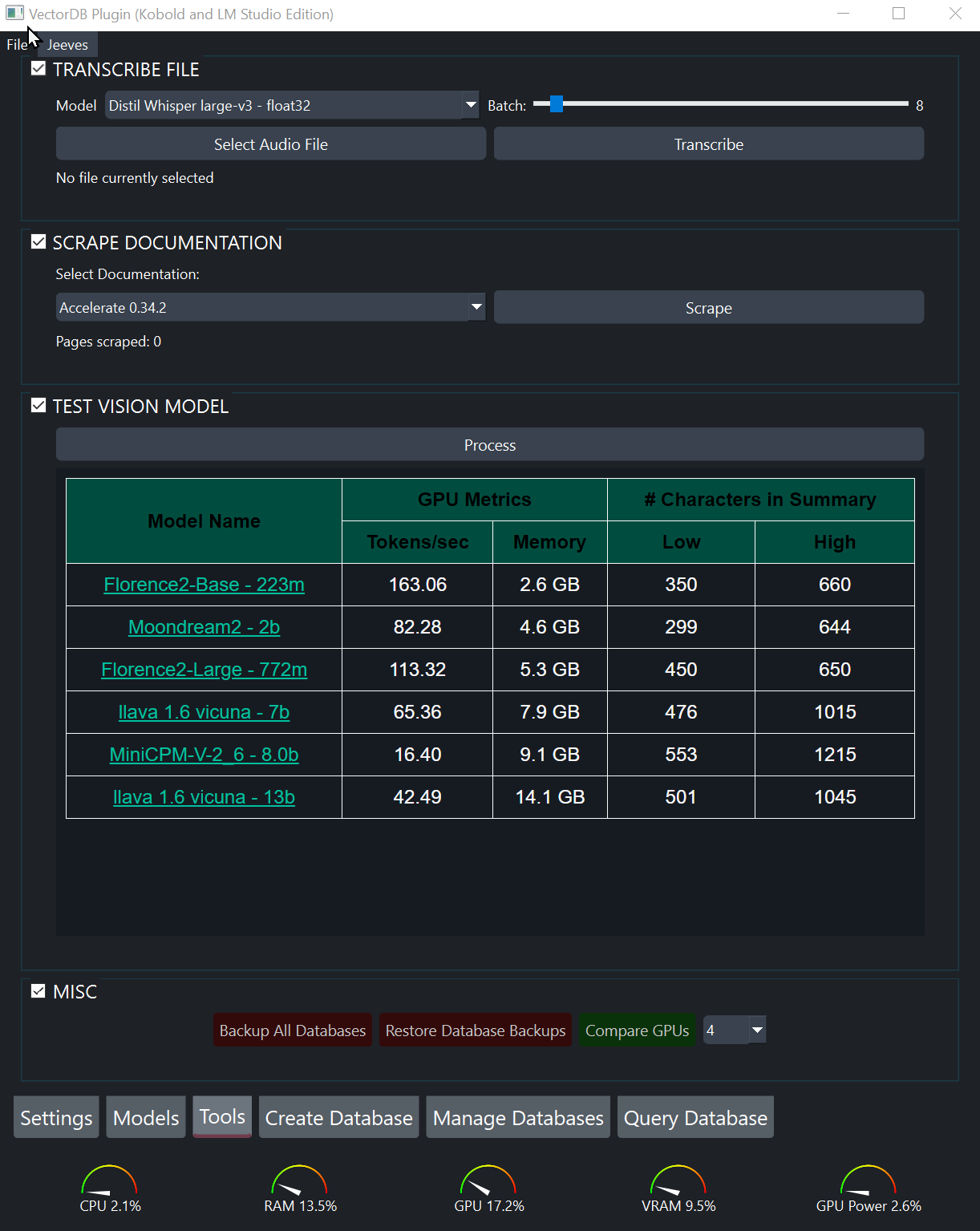
This program uses "vision" models to create summaries of images, which can then be entered into the database and searched. Before inputting images, I highly recommend that you test the various vision models for the one you like the most.
To test a vision model:
Create Database tab, select one or more images.Settings tab, select the vision model you want to test.Tools tab, process the images.After determining which vision model you like, add images to the database by selecting them from the Create Database tab like any other file. When you eventually create the database they will be automatically processed.
Audio files can be transcribed and put into the database to be searched. Before transcribing a long audio file, I highly recommend testing the various Whisper models on a shorter audio file as well as experimenting with different batch settings. Your goal should be to use as large of a Whisper model as your GPU supports and then adjust the batch size to keep the VRAM usage within your available VRAM.
To test optimal settings:
Tools tab, select a short audio file.Whisper model.Create Database tab, doubleclick the transcription that was just created.page content field to get a sense of whether the transcription is accurate enough for your use-case or if you need to selecta more accurate Whisper model.Once you've obtained the optimal settings for your system, it's time to transcribe an audio file into the database:
Create Database tab, delete any transcriptions you don't want entered into the database.Batch processing is not yet available.
Models tab.Create Database tab, create the database.Manage Database tab allows you to view the contents of all databases that you've created and delete them if you want.Query Database tab, select the database you want to use from the pulldown menu.Record Question button.chunks only checkbox to only receive the relevant contexts.Submit Question.
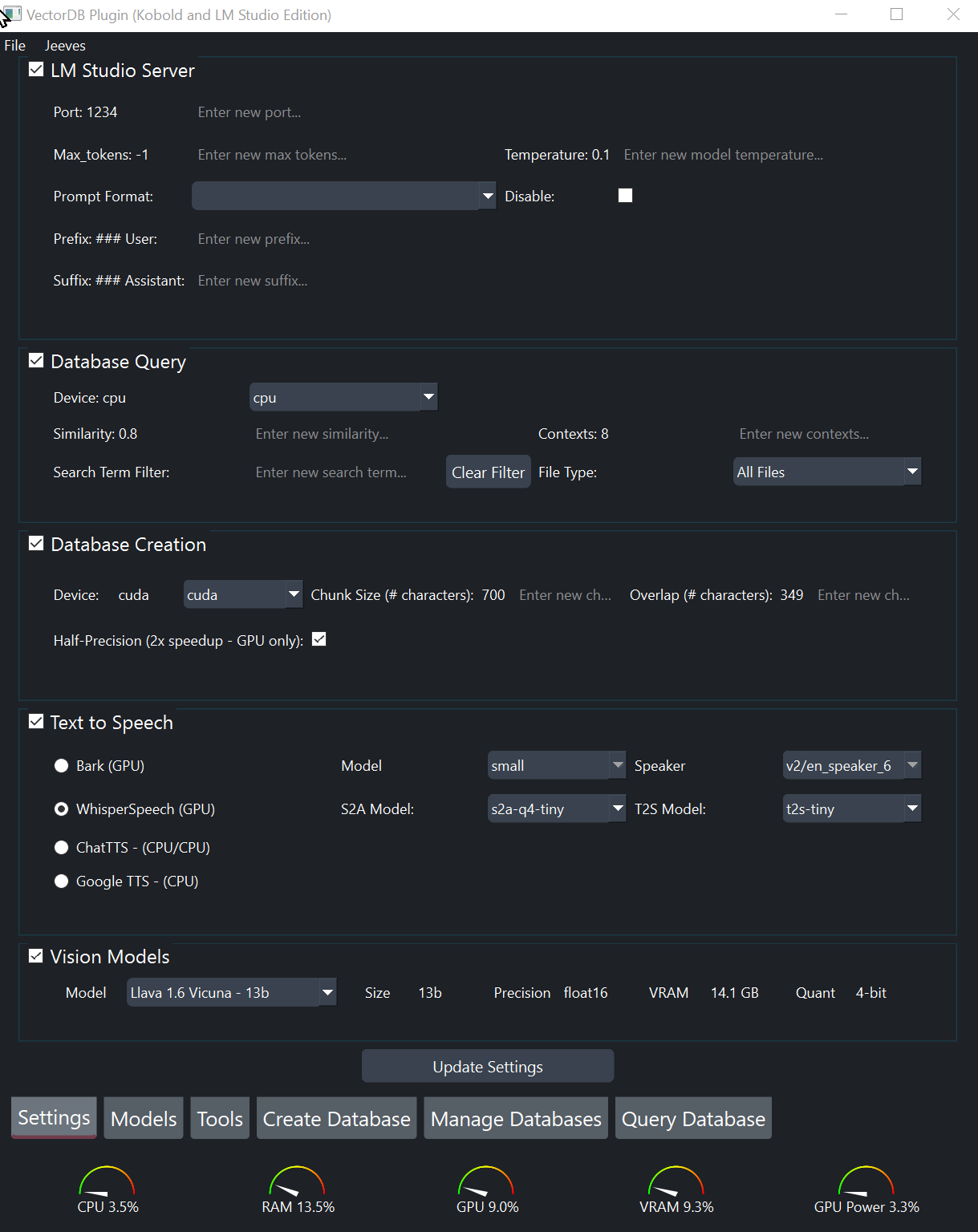
Settings tab, you can change multiple settings regarding querying the database. More information can be found in the User Guide.This program gets relevant chunks from the vector database and forwarding them - along with your question - to LM Studio for an answer!
Chunks Only is UNCHECKED.Apply Prompt Formatting to "OFF."Prompt Format, make sure that all of the following settings are blank:
System Message PrefixSystem Message SuffixUser Message PrefixUser Message SuffixGPU Offload setting to your liking.Settings tab, select the appropriate prompt format for the model loaded in LM Studio, click Update Settings.Start Server.Query Database tab, click Submit Question.Back to Top
Feel free to report bugs or request enhancements by creating an issue on github or contacting me on the LM Studio Discord server (see below link)!
All suggestions (positive and negative) are welcome. "[email protected]" or feel free to message me on the LM Studio Discord Server.