vuejs os template
v0.1.0

| Blueprint Theme | Windows Theme | MacOS Theme |
|---|---|---|
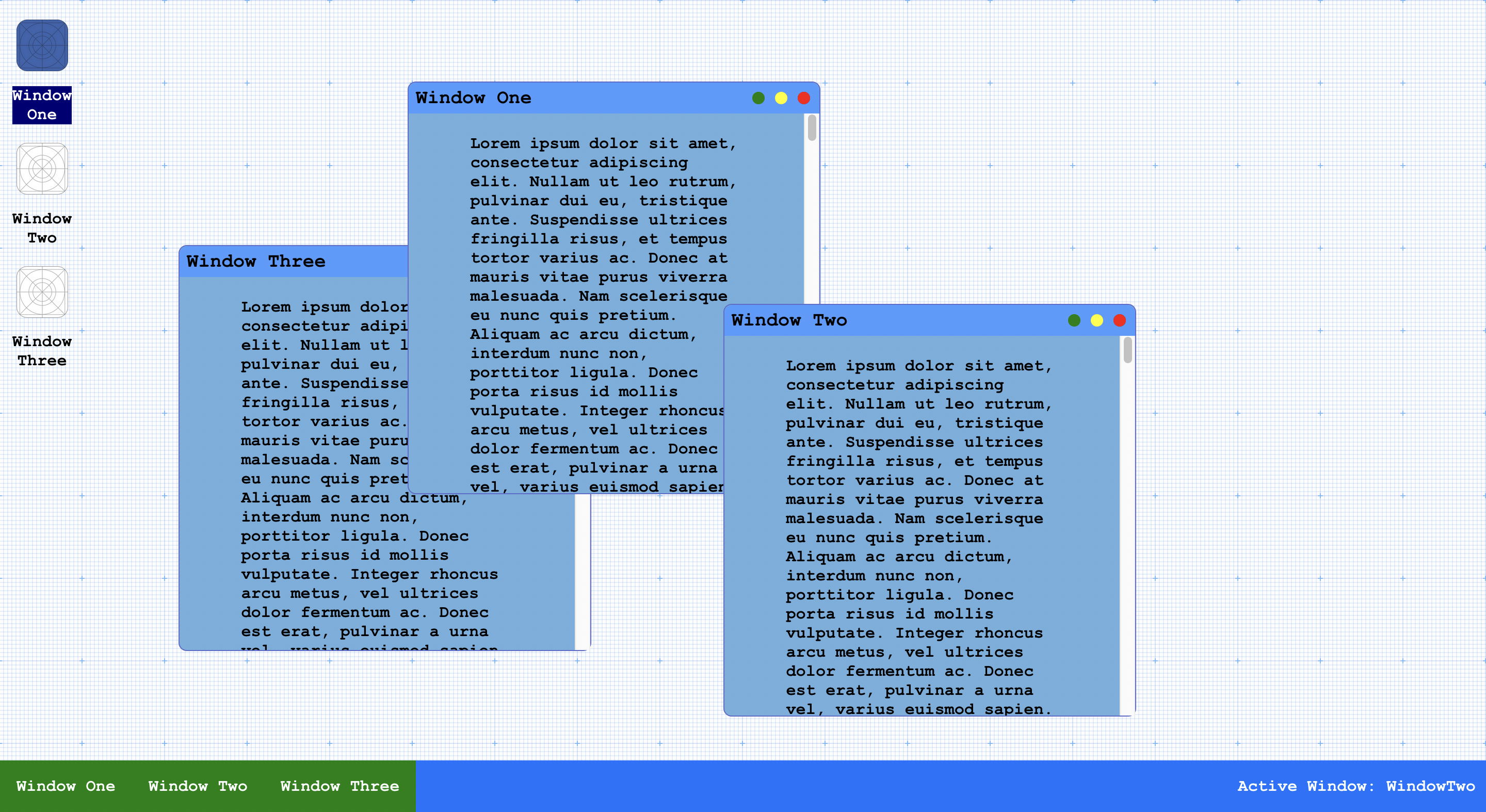 |
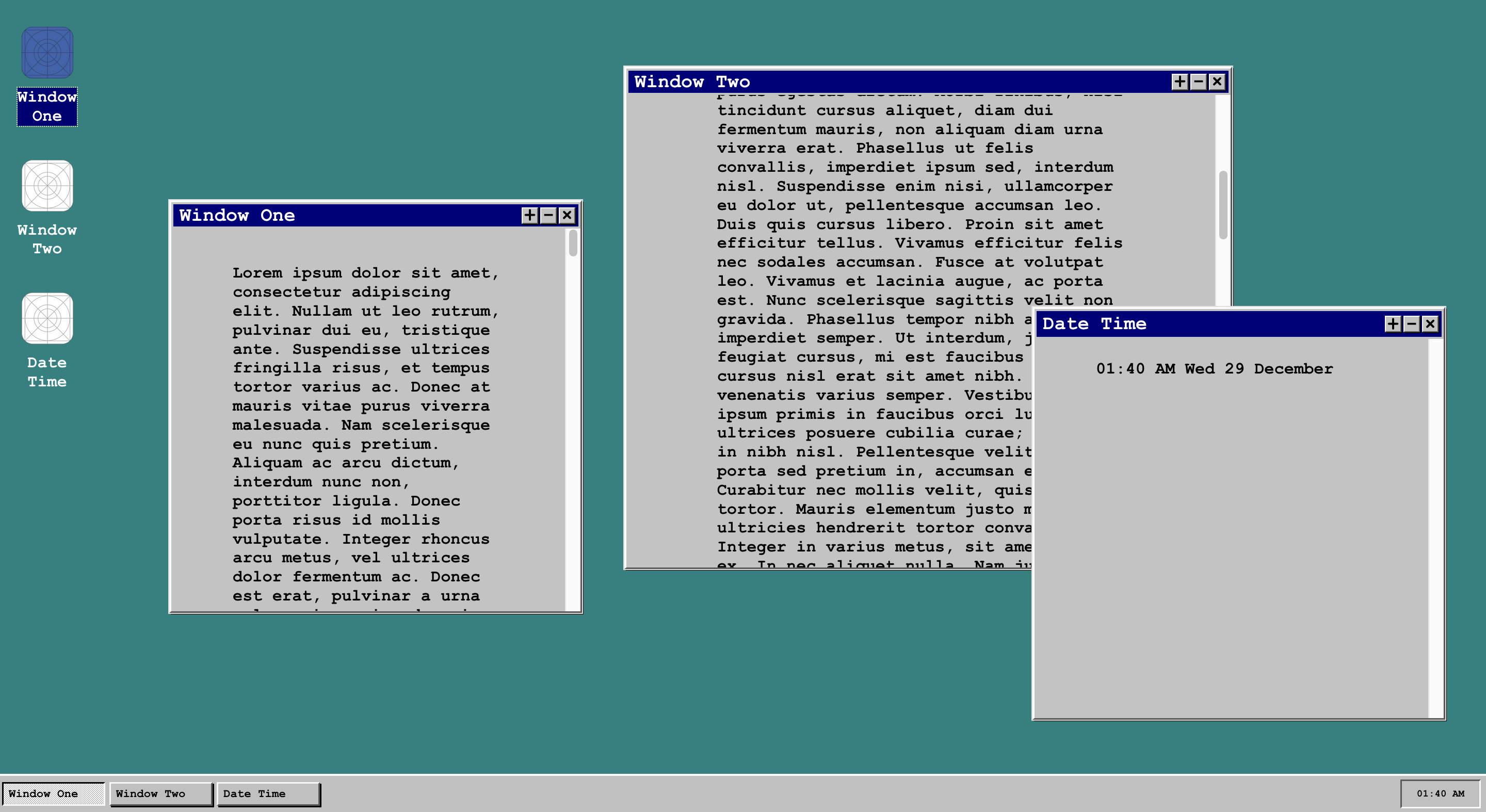 |
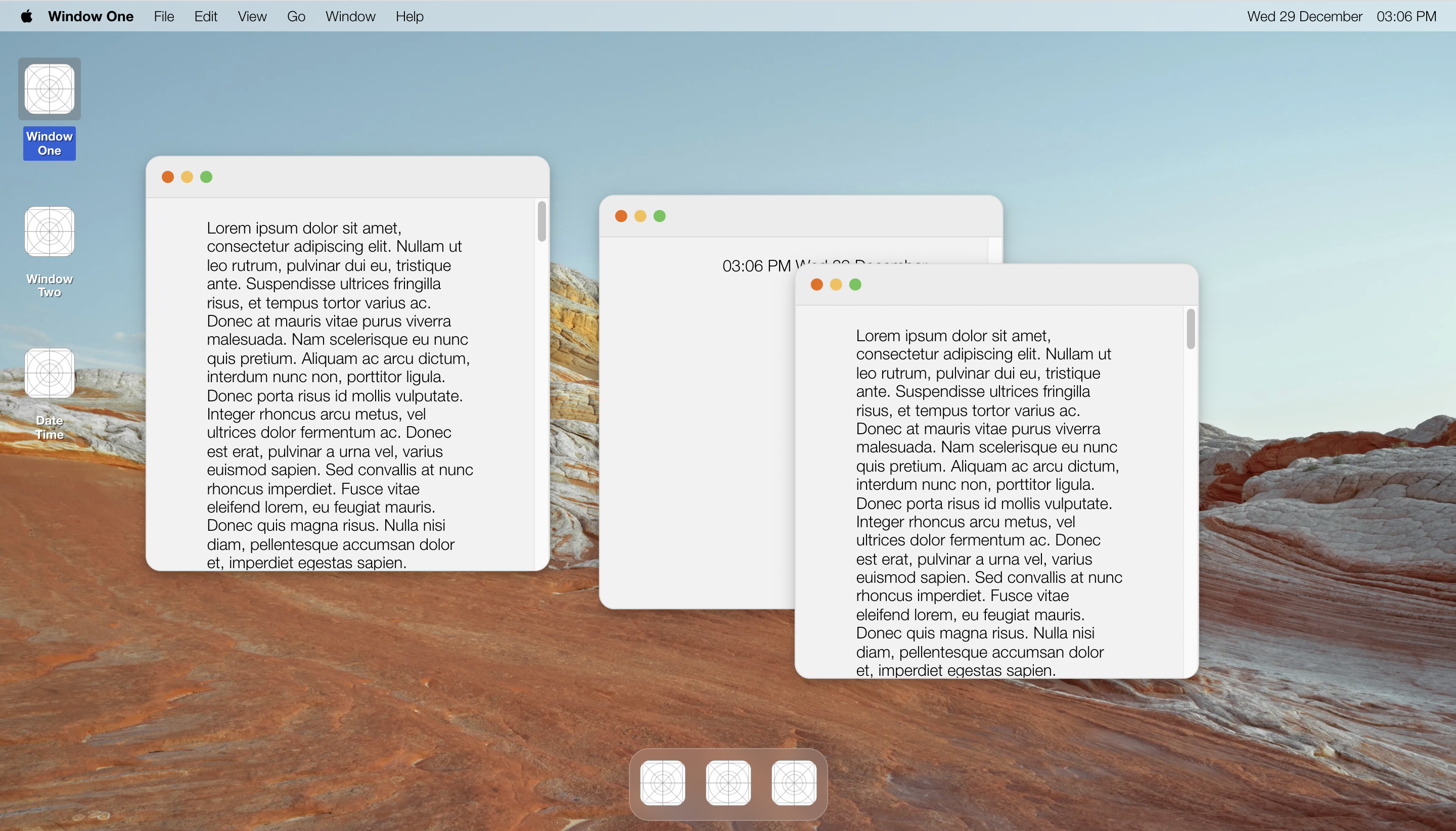 |
This project aims to create an interactive Web OS template for Vue. Included in the template are all necessary logic for individual window components, navbars and app grids. Users are able to register new components (custom or otherwise) easily.
Download the latest release from this page's sidebae
Make sure you have Vue.js installed
Official Documentation from Vue
Rename the folder to vuejs-os-template
Cd into project folder and install packages + dependencies
$ cd vuejs-os-template && npm install$ npm run serveRegistering a window with the slots method will allow you quick access to the pre-made window template. This method is most suited for users who do not require any change in the styling or layout of the window itself.
Head to /src/store/index.js
Register a new window by pasting the following snippet within the windows state array
{
     windowId: "UniqueWindowID",
     windowState: "close",
     displayName: "Unique Window",
     windowComponent: 'window',
     windowContent: 'Placeholder',
     windowContentPadding: {
         top: null,
         right: null,
         bottom: null,
         left: null
     },
     position: "absolute",
     positionX: "10vw",
     positionY: "10vh",
     iconImage: "placeholder.png",
     altText: "Placeholder Icon",
     fullscreen: false
},windowId: "MyNewWindow"displayName: "New Window"/src/components/views folder and replace 'windowContent' with the name of the new content component created.windowContent: "MyNewWindowContent"/src/components/views/MyNewWindowContent.vue
<template>
  <p>this is my new window's content!</p>
</template>/src/App.vue to import and register the new components under the <script> section. import MyNewWindowContent from './components/views/MyNewWindowContent' components: {
...,
MyNewWindowContent
}Registering a custom window is also made relatively simple due to each window having a dedicated object state tracking the window to present. You might want to register a custom window if the layout or styling of the window itself needs to be modified (i.e. removal or addition of buttons in window's top bar).
Head to /src/store/index.js
Register a new window by pasting the following snippet within the windows state array
{
     windowId: "UniqueWindowID",
     windowState: "close",
     displayName: "Unique Window",
     windowComponent: 'window',
     windowContent: 'Placeholder',
     windowContentPadding: {
         top: null,
         right: null,
         bottom: null,
         left: null
     },
     position: "absolute",
     positionX: "10vw",
     positionY: "10vh",
     iconImage: "placeholder.png",
     altText: "Placeholder Icon",
     fullscreen: false
},windowId: "MyCustomWindow"displayName: "Custom Window"windowComponent: 'SpecialWindow'
Create a new window component named SpecialWindow.vue under /src/components/template and copy the contents of Window.vue into this new file.
For demonstration purposes, we will simply change the background of the 'top-bar' of the window and add some content replacing the slot section.
Paste this CSS snippet under the style section.
.top-bar {
     background-color: green !important;
}
Replace the slot tags with this snippet of HTML.
<p>This is my new custom window</p>/src/App.vue to import and register the new components under the <script> section. import SpecialWindow from './components/template/SpecialWindow' components: {
...,
SpecialWindow
}Included in the template are three different themes, the default Blueprint theme, a MacOS theme and a Windows theme. Switching between themes is made relatively easy but certain themes may require some minor tweaking.
/src/App.vue, under the script section, import the Blueprint Navbar variant.import Navbar from './components/blueprint/Navbar'@import './assets/css/blueprint/app.css';
@import './assets/css/blueprint/window.css';
@import './assets/css/blueprint/appgrid.css';/src/App.vue, under the script section, import the Windows Navbar variant.import Navbar from './components/windows/Navbar'@import './assets/css/windows/app.css';
@import './assets/css/windows/window.css';
@import './assets/css/windows/appgrid.css';/src/App.vue, under the script section, import the MacOS Navbar variant and MacOS Top Navbar.import Navbar from './components/macos/Navbar'
import TopNavbar from './components/macos/TopNavbar.vue'components: {
...,
TopNavbar
}```
3. Under the style section of App.vue, import the MacOS CSS variant.
```css
@import './assets/css/macos/app.css';
@import './assets/css/macos/window.css';
@import './assets/css/macos/appgrid.css';| Name | Description | Type |
|---|---|---|
| windowId | Unique ID to identify a window | String |
| windowState | Tracks window's open, close or minimized state | String |
| displayName | Label for window in app grid and window header title | String |
| windowComponent | Window's own UI, can be changed to use a custom window, see custom window registration section | String |
| windowContent | Tracks window's content component, will be inserted in under slots if making use of standard window, see registration of windows with slots section | String |
| windowContentPadding | Sets padding of content within the window | String or null |
| position | Sets CSS position of window | String |
| positionX | Sets initial X displacement of window | String |
| positionY | Sets intial Y displacement of window | String |
| iconImage | Name of icon image of window, icons should be placed in /assets/icons/ |
String |
| altText | Icon's alternative text | String |
| fullscreen | Tracks whether a window is in fullscreen or not | Boolean |
/assets/css/, go wild with it!




