JSP Internet Shopping Mall Project
Project period: 21.01.13 ~ 21.01.29
EC2 deployment link: http://15.164.166.37/shop The free license expires to the EC2 server distribution.
Demonstration Video: https://youtu.be/umdegow_ulq
environment
- Windows 10
- JDK 1.8
- Tomcat 9.0
- STS Tool
- MySQL 8.0
- Lombok
- Gson
- JSTL
- NAVER LUCY FILTER
- SHA-256
- Encoding: UTF-8
Design and product, product image, product description reference site
- brandy
- https://www.brandi.co.kr/
- Trenbi
- Bald
- https://www.balaan.co.kr/
Reference
- The actual payment is made when the payment is completed on the payment screen, and automatic refund is processed before noon.
Use API
- Kakao Login API
- https://developers.kakao.com/product/kakaologin
- Naver Login API
- https://nid.naver.com/user2/campaign/intronaveridlogin.nhn.nhn
- In the case of Naver and Kakao login, when the initial login is moved to the information input window, INSERT was inserted in the user table for the input value and the ID value received from the Naver/Kakao server.
- Later, during the login, Kakao's unique ID and Naver's unique ID values were set to be logged in.
- IMort API (Payment Service)
- https://www.iamport.kr/getStarted
- Summernote API
- Sweetalert2
- https://sweetalert2.github.io/
MYSQL database creation and user creation
 CREATE USER ' shopuser '@ ' % ' identified by ' shop0805 ' ;
GRANT ALL privileges on * . * TO ' shopuser ' @ ' % ' ;
create database shopdb ;
MYSQL table creation
 CREATE TABLE product (
    id int primary key auto_increment,
    productName varchar ( 120 ) unique not null ,
    companyId int not null ,
    price long not null ,
    soldCount int default 0 ,
    detail longtext not null ,
    imgUrl_1 varchar ( 100 ) not null ,
    imgUrl_2 varchar ( 100 ),
    imgUrl_3 varchar ( 100 ),
    imgUrl_4 varchar ( 100 ),
    writerId int ,
    createDate timestamp default now(),
    updateDate timestamp default now()
);
CREATE TABLE user (
id int primary key auto_increment,
username varchar ( 20 ) unique default null ,
name varchar ( 20 ) not null ,
email varchar ( 50 ) not null ,
phone varchar ( 13 ) not null ,
address varchar ( 120 ) not null ,
password char ( 64 ) not null ,
kakaoId long,
naverId long,
auth varchar ( 10 ) default ' user ' ,
createDate timestamp default now()
); CREATE TABLE company (
id int primary key auto_increment,
name varchar ( 40 ) unique not null ,
url varchar ( 80 ) unique
); CREATE TABLE favorite (
id int primary key auto_increment,
userId int not null ,
productId int not null ,
createDate timestamp default now()
); CREATE TABLE cart (
id int primary key auto_increment,
userId int not null ,
productId int not null ,
createDate timestamp default now()
); CREATE TABLE qna (
id int primary key auto_increment,
userId int not null ,
productId int not null ,
optionNo int not null ,
password varchar ( 4 ),
detail longtext,
createDate timestamp default now()
); CREATE TABLE review (
id int primary key auto_increment,
userId int not null ,
productId int not null ,
detail longtext not null ,
createDate timestamp default now(),
updateDate timestamp default now()
); Implemented functions
1. Sign up for membership 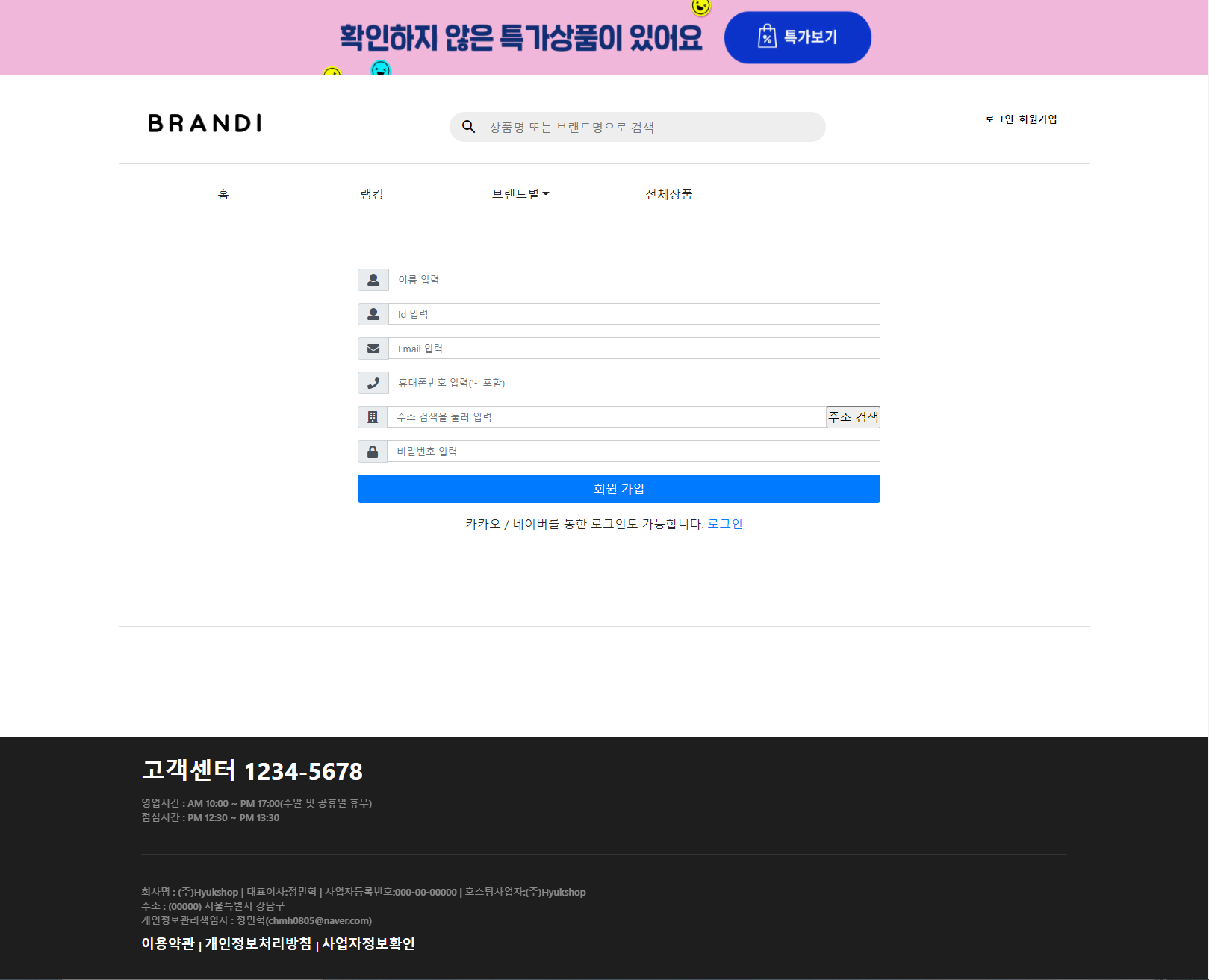
- The password entered when registering is encoded to SHA-256 and stored in the DB.
2. Login 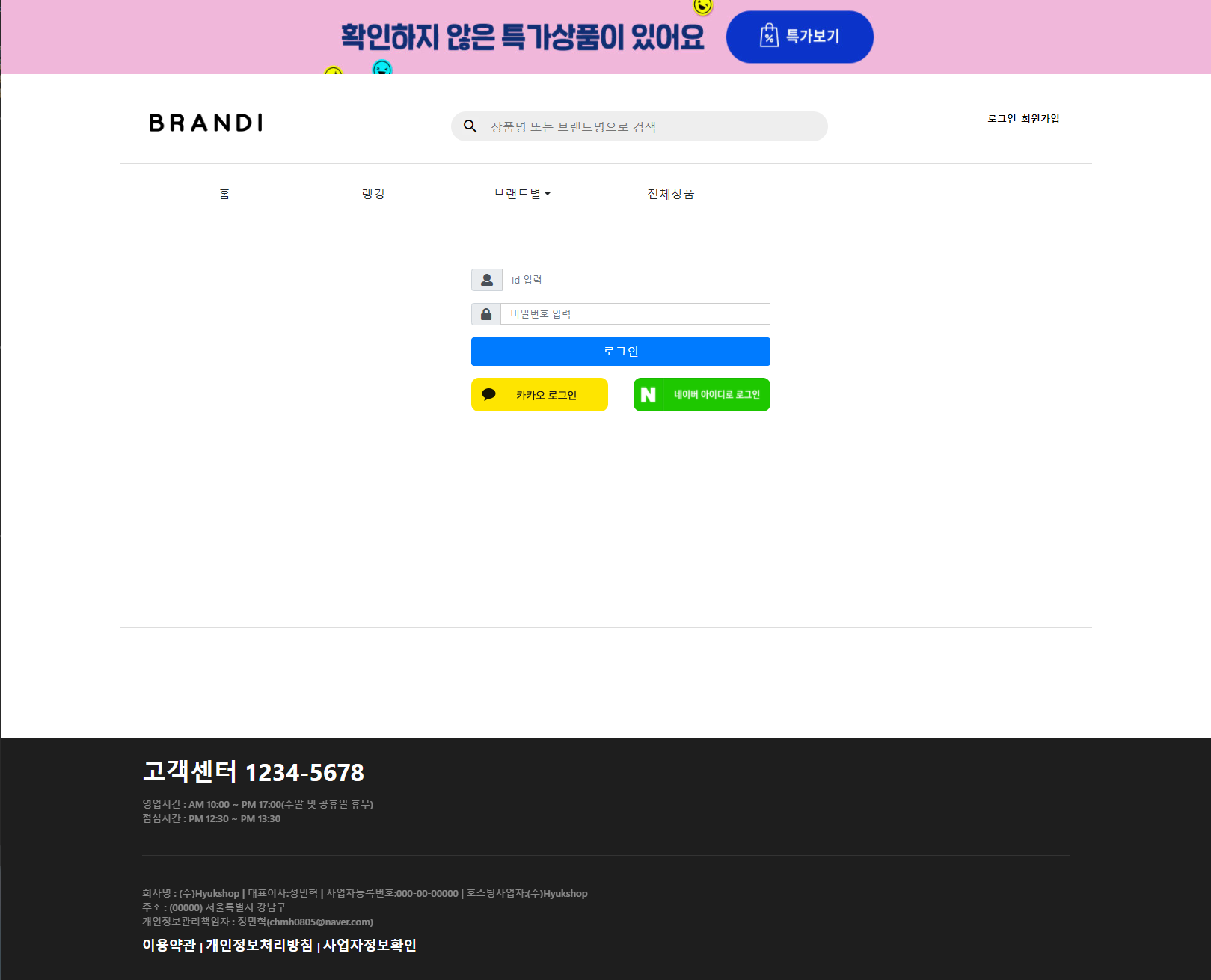
3. Kakao login 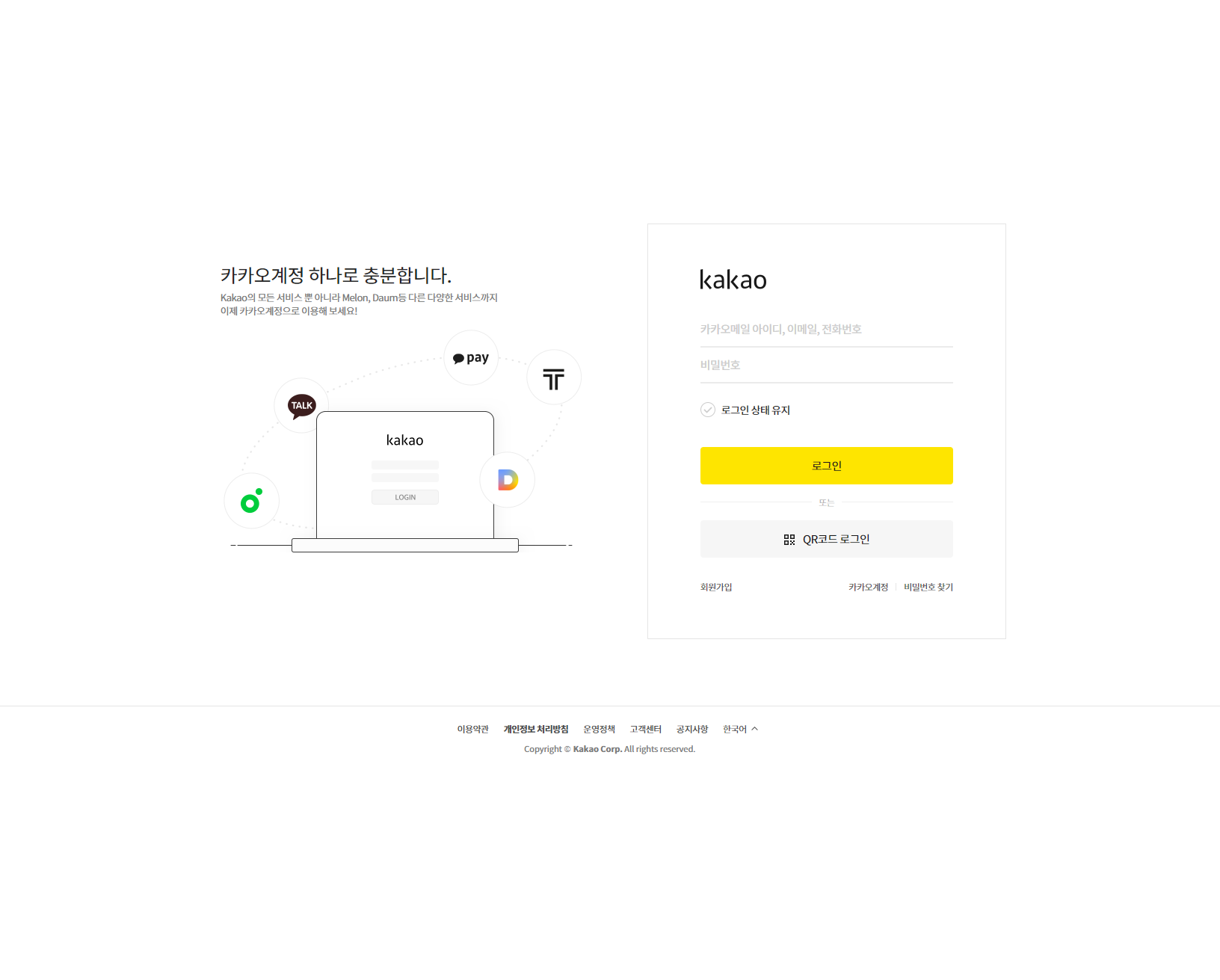
4. Login Naver 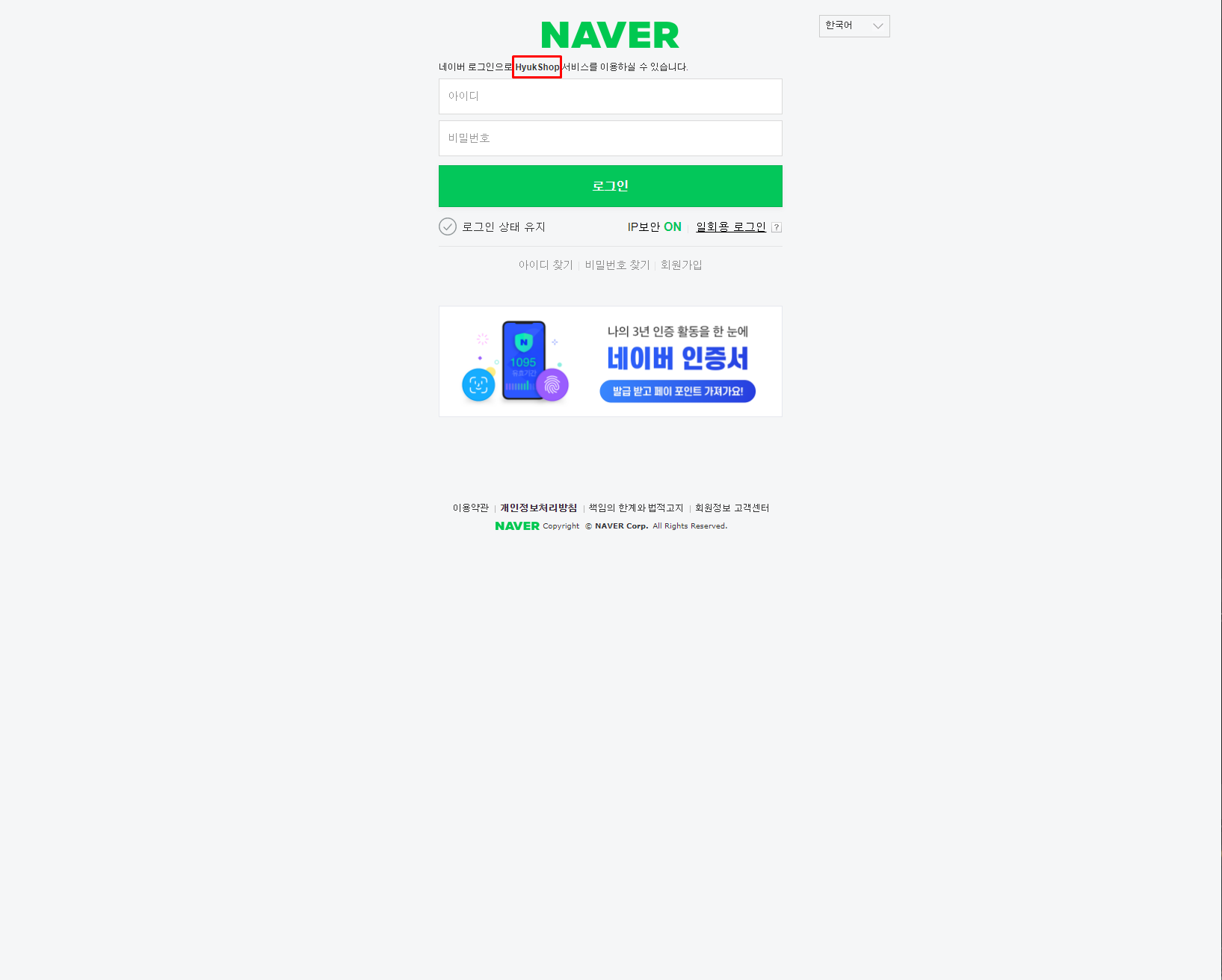
NAVER/Kakao's first login required to enter additional information 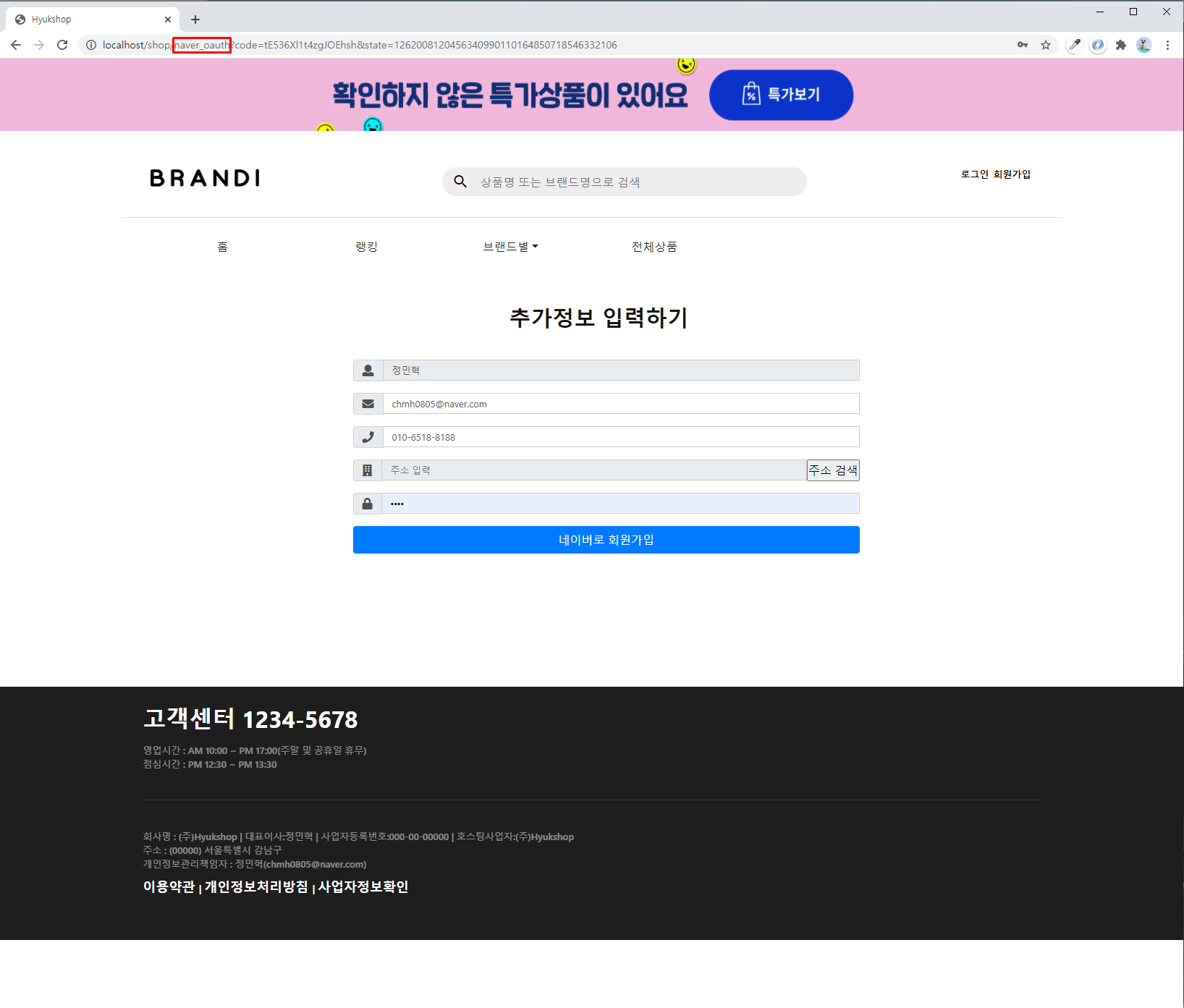
5. Log out
6. Main page 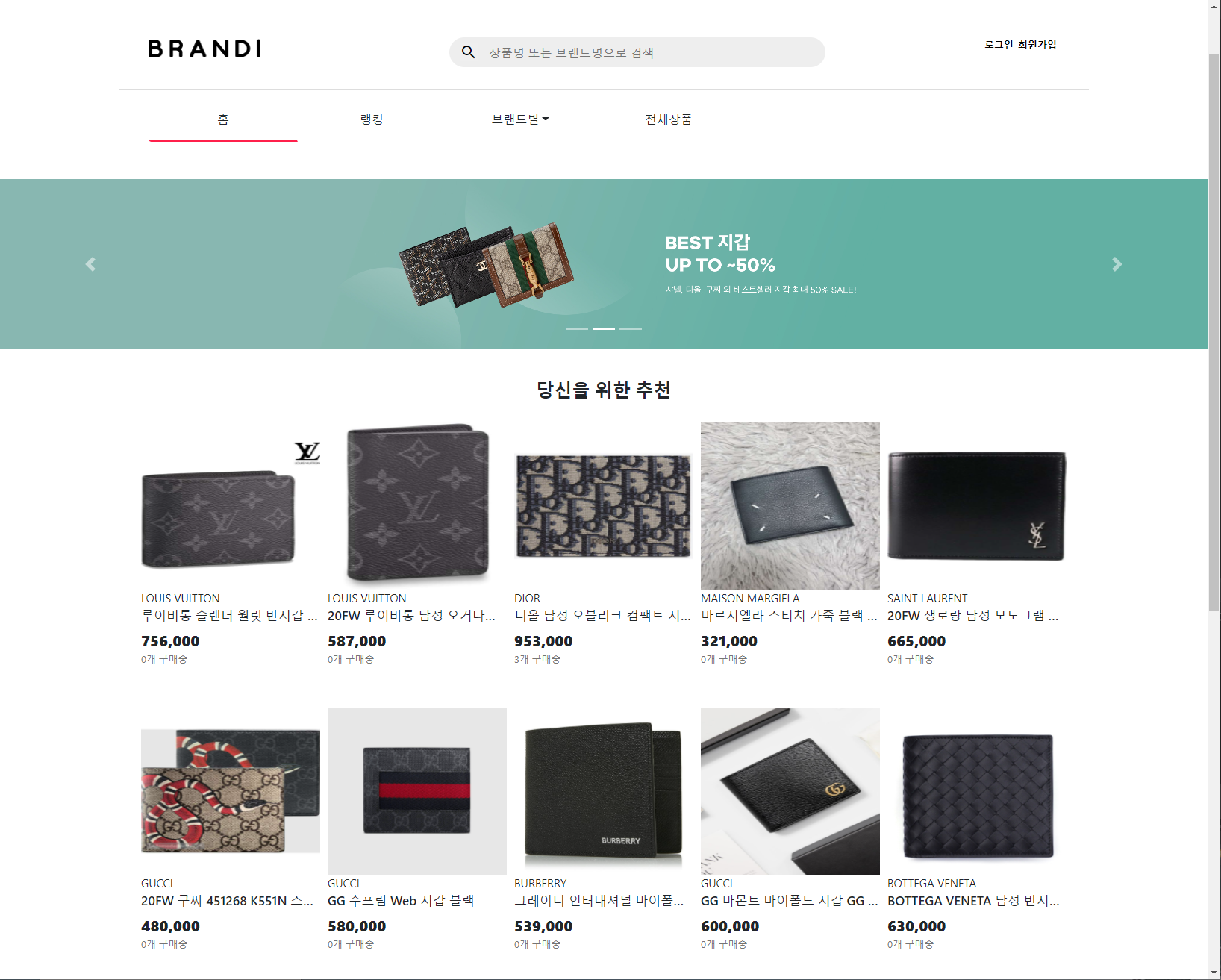
- I used carousel.
- Grid layout is used.
7. Menu by top bar brand 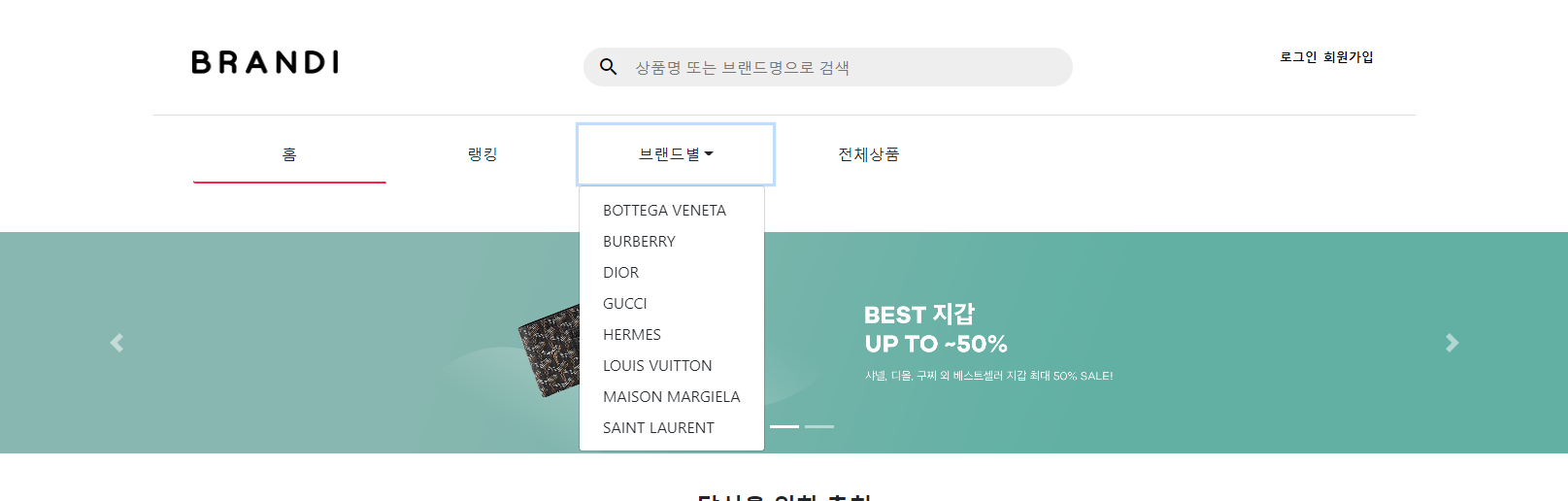
- Use the SELECT statement to bring up all the company name of the Company table. (Even if the company is added, there is no need to modify it separately.)
- There are headers and top bars on all pages, so you can use the Filter to use it on all pages.
8. Brand -by -brand menu page 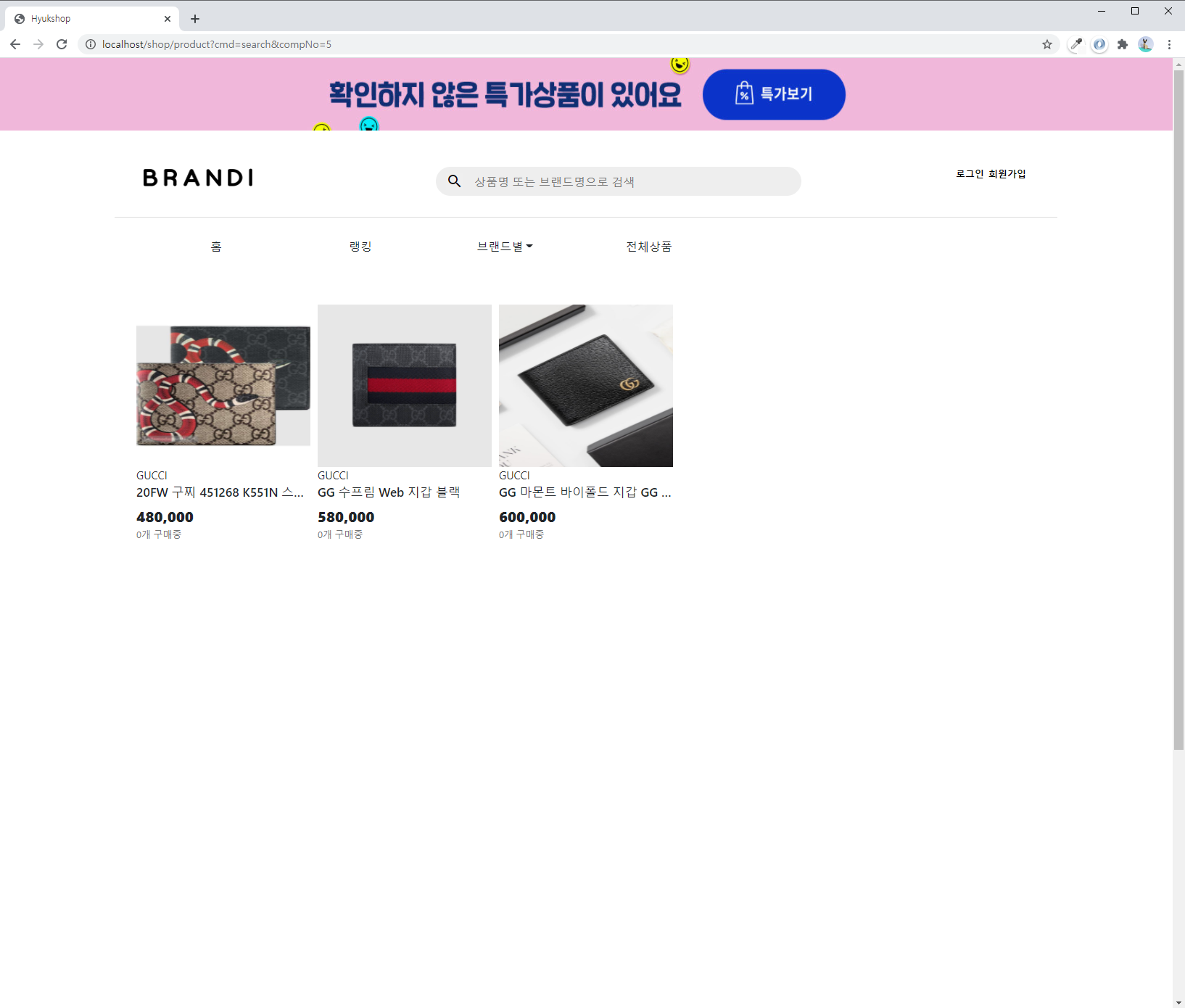
9. Search function 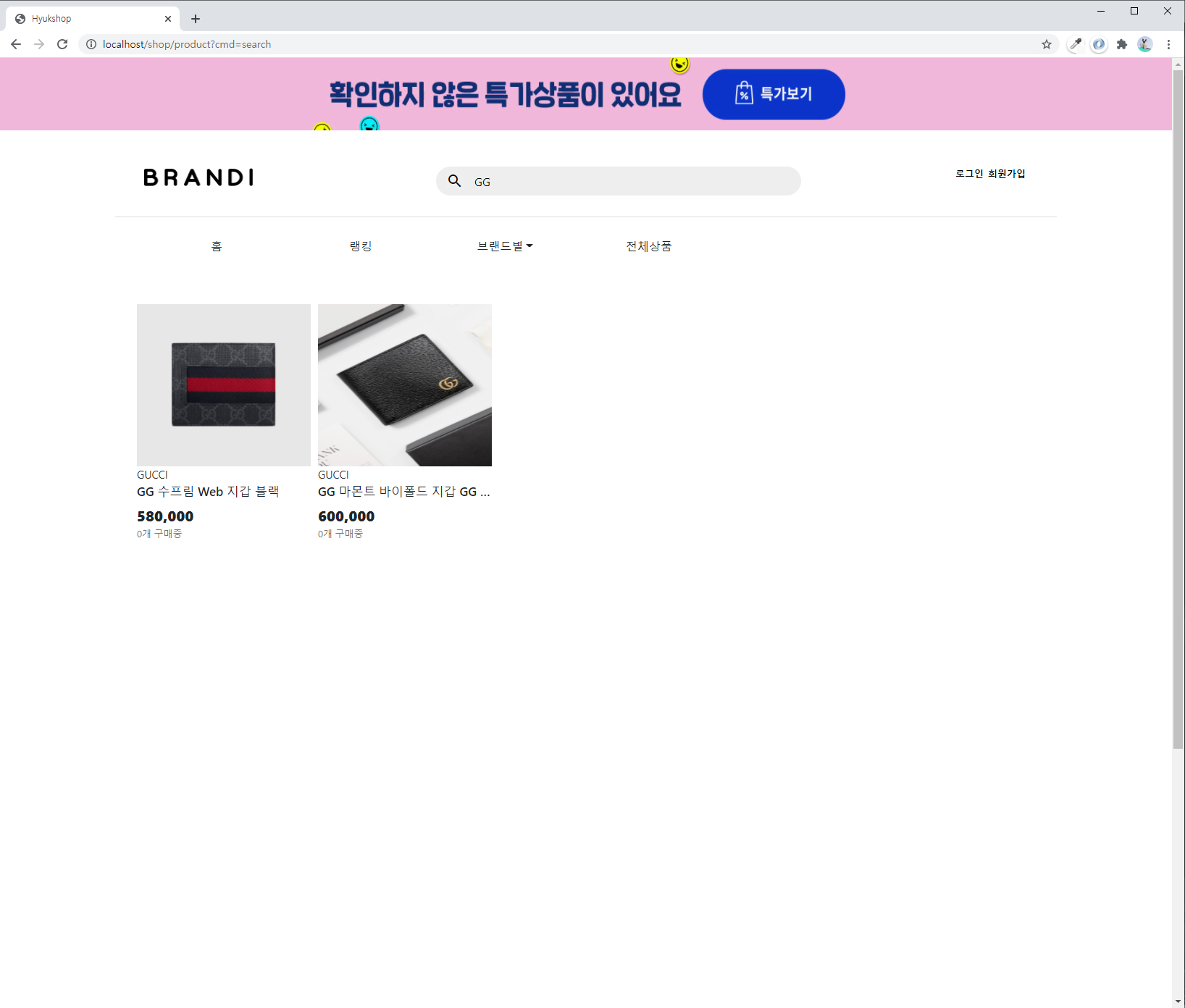
- It shows all the products that contain search terms and all of the company's results.
10. Sales volume net ranking page 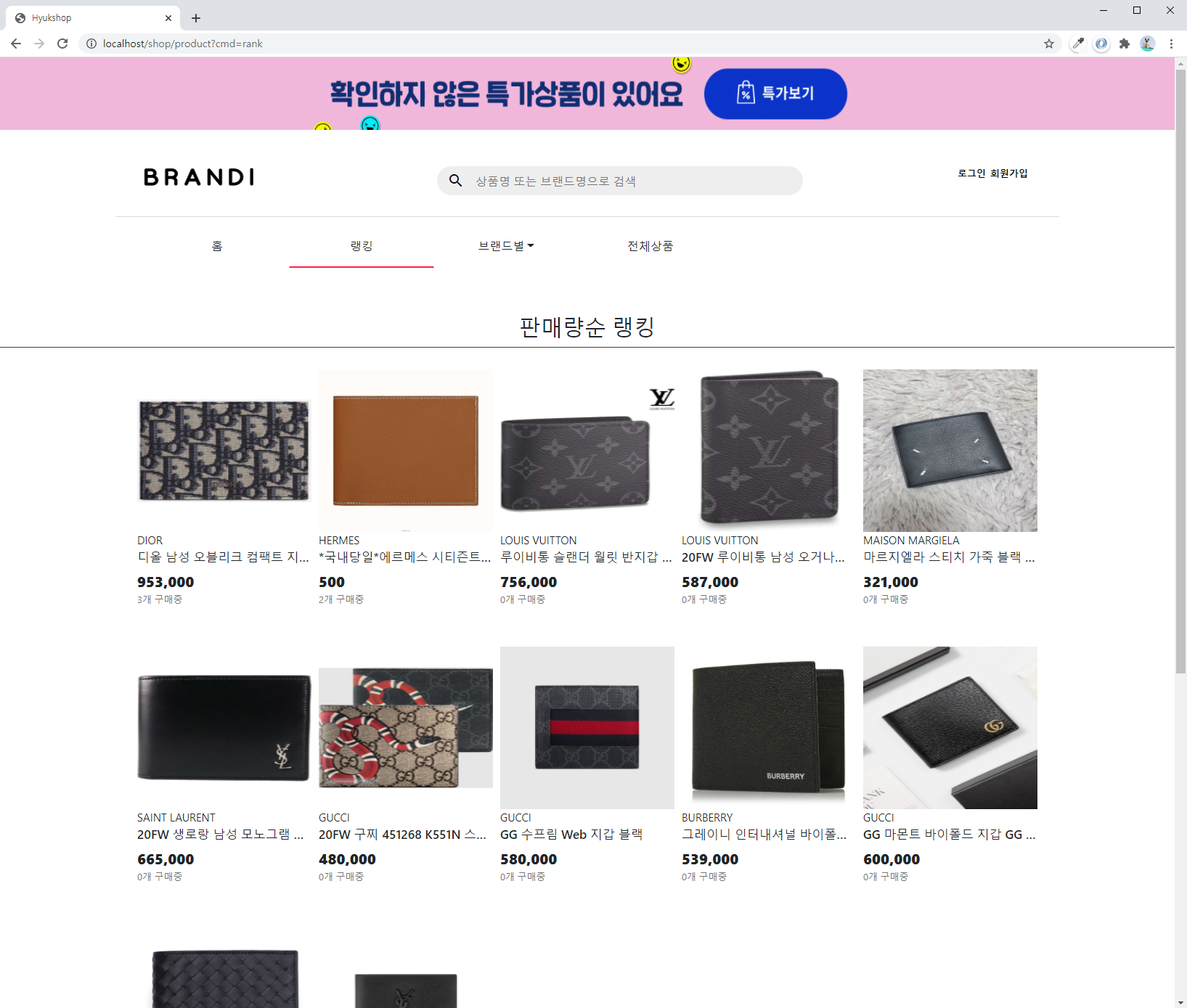
- When a user purchases a product, the number of purchases of the Product table will rise, and the result is the result of the sales volume using Order by Soldcount DESC.
11. On the entire product page, 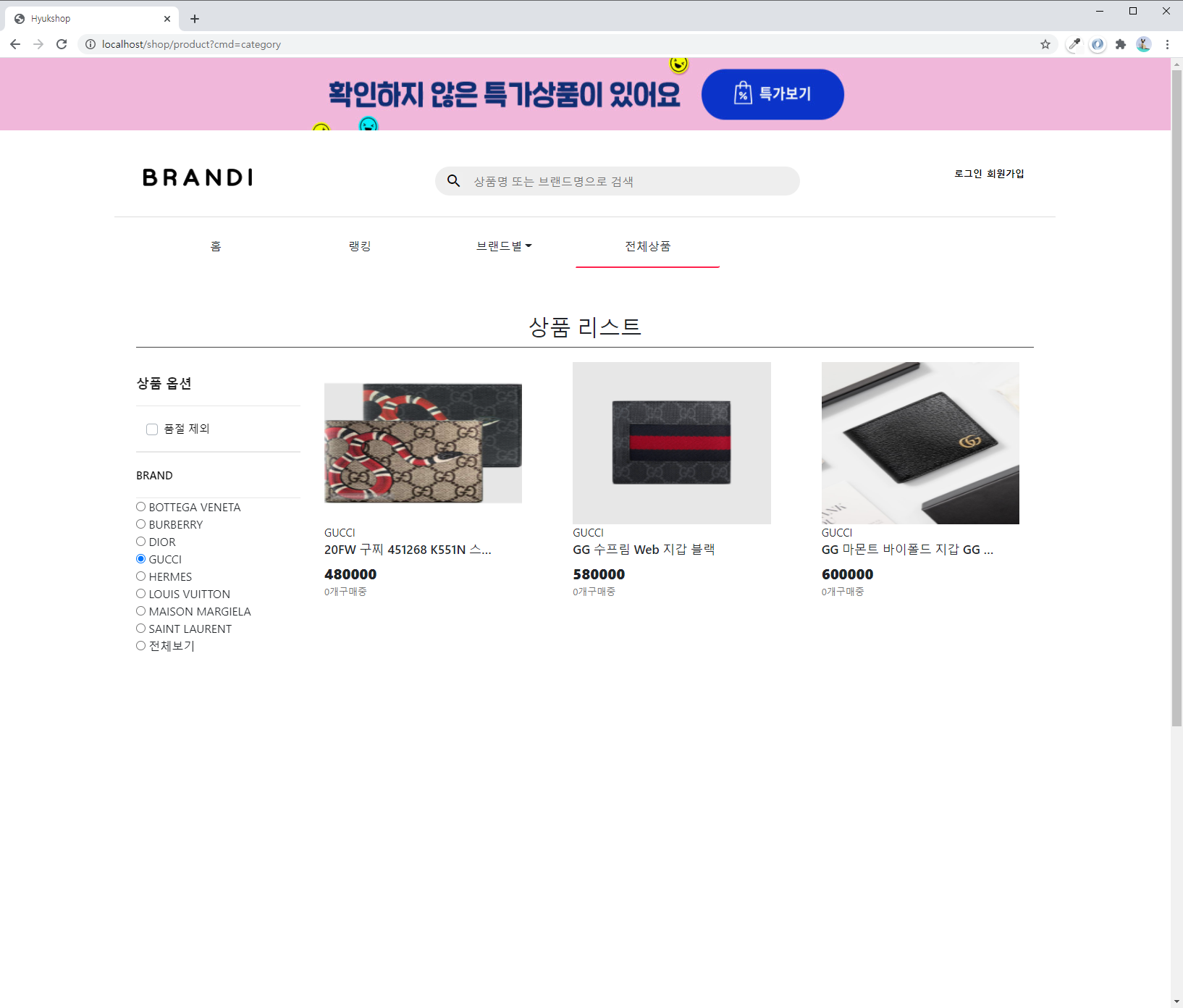
- It is a feature that only sees the products of the branded brand on the left side.
12. Add the top menu when logging in 
- If the user's grade is above Admin, a product registration and product modification menu will be created.
- If the user is more than basic, steamed, shopping cart, information modification, and logout menu will be created.
13. Reconfirm the password when clicking on the information 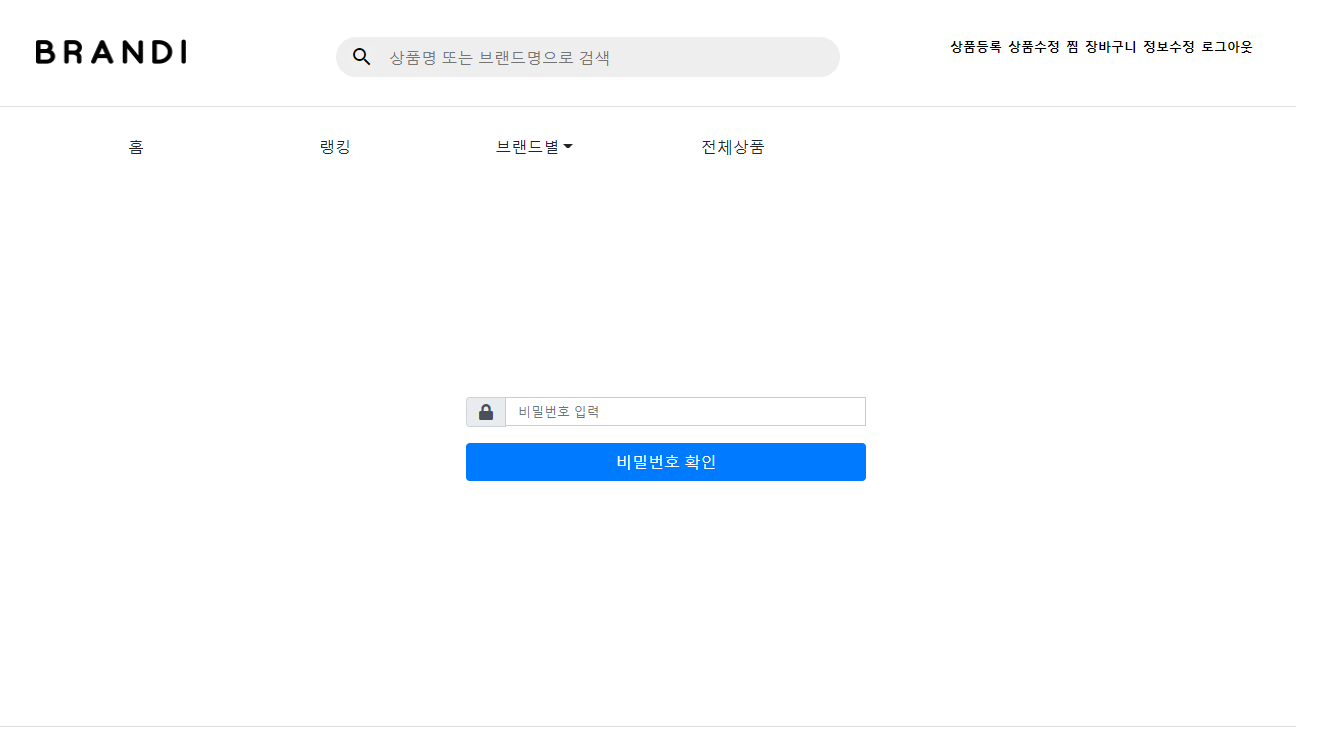
- When the user enters the password he has set, the input value is applied to the sha-256 encoding to compare it with the value stored in the DB.
14. Membership Information Modification 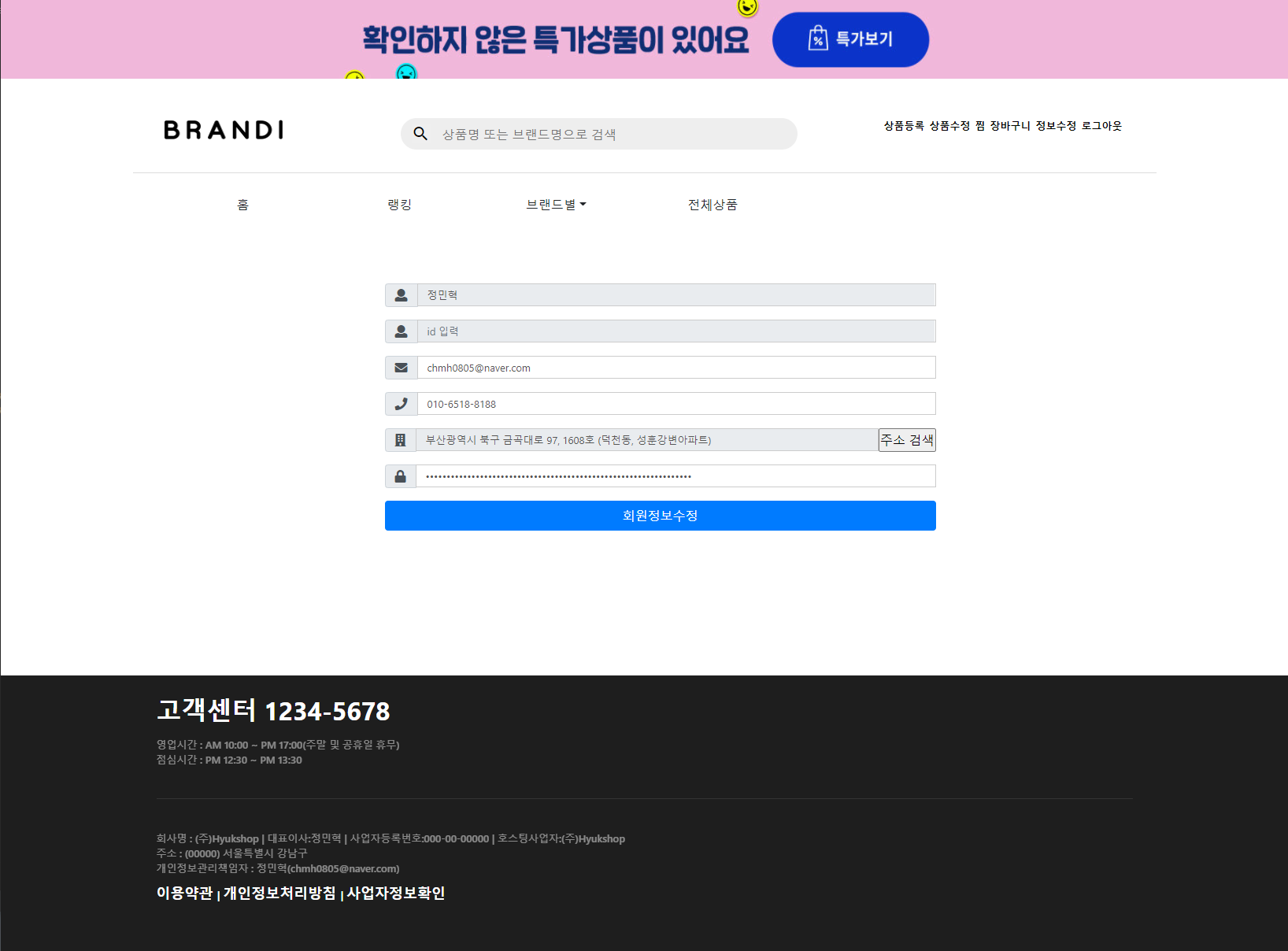
15. Detailed product page -top 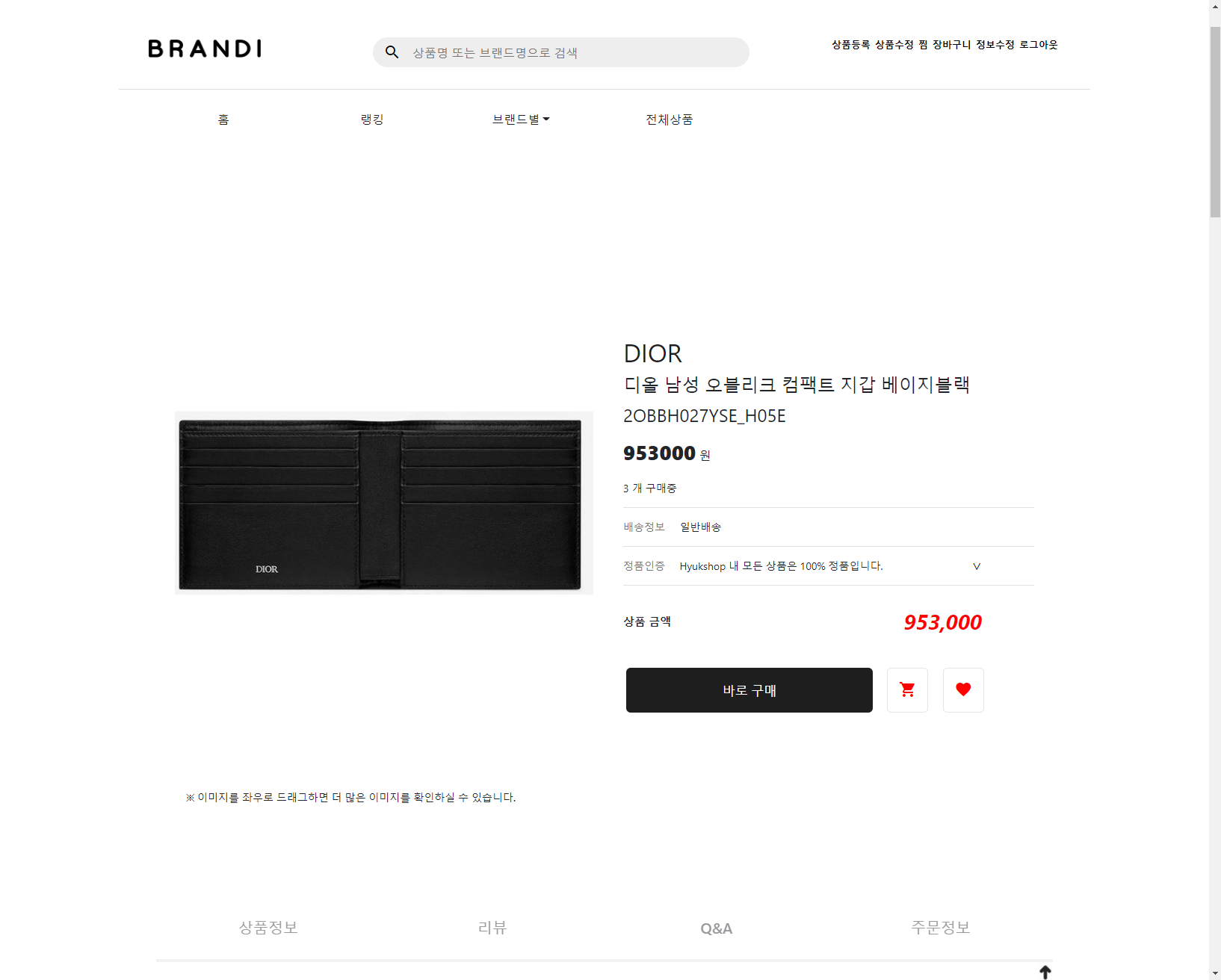
- Select the value of the Product table.
- If you click the purchase button right, go to the payment page. (Only at the time of login)
- If you click the shopping cart button, it is added to the cart. (Only at the time of login)
- If you click the Steaming button, it is added to the steam list. (Only at the time of login)
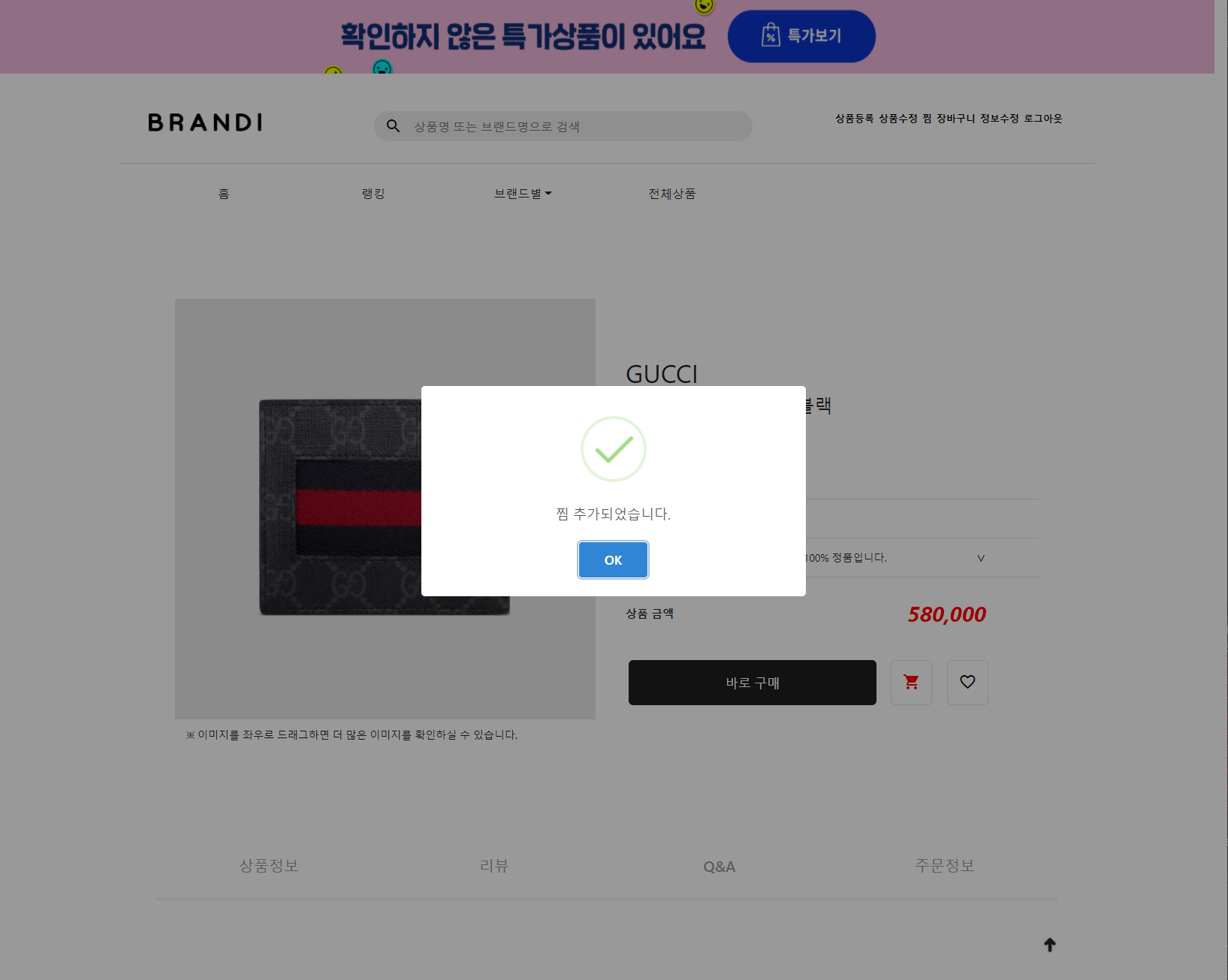
- When clicking button while login
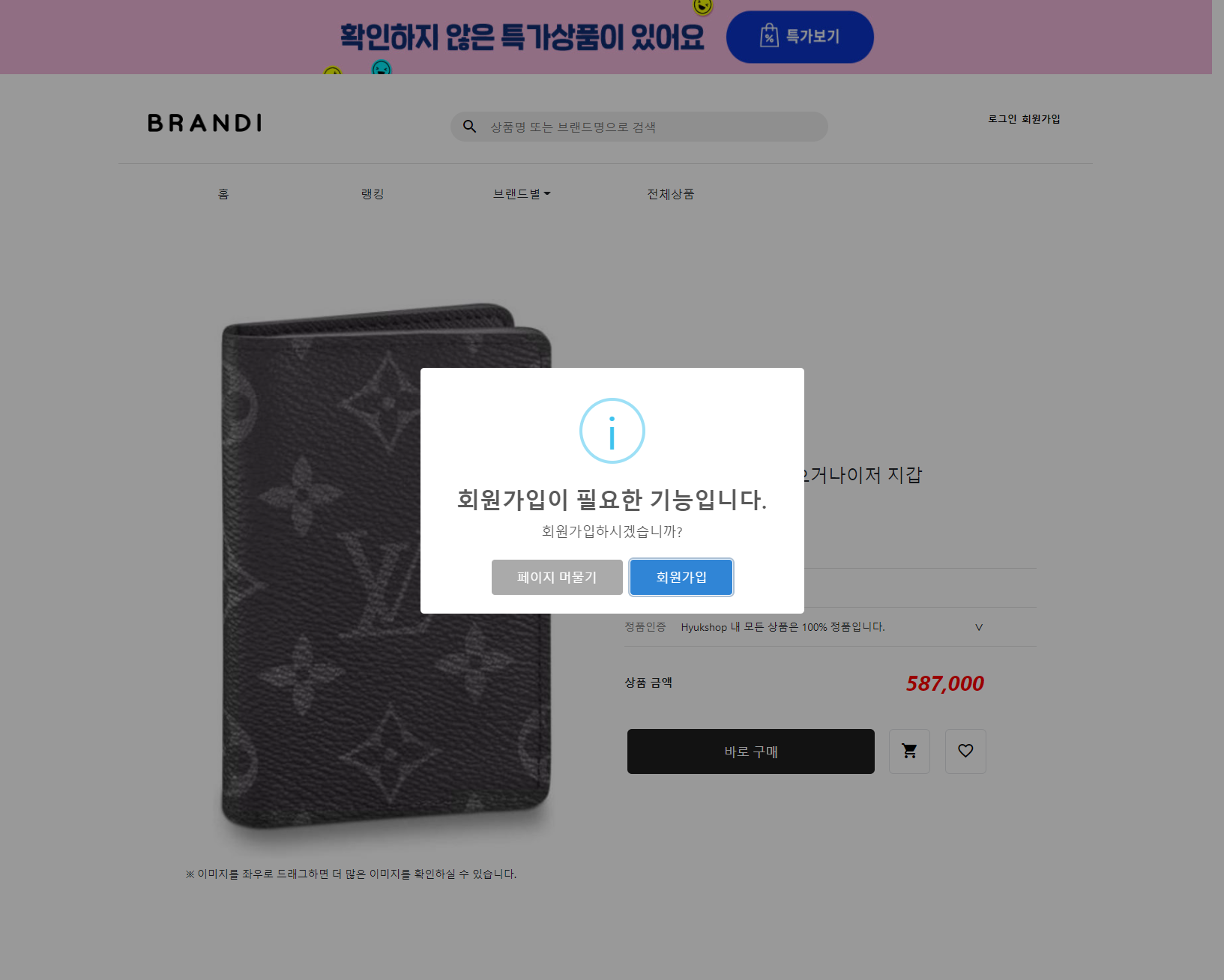
- When clicking the button while in the state
- Go to the membership page when you click on the membership.
16. Detailed Product Page -Tab 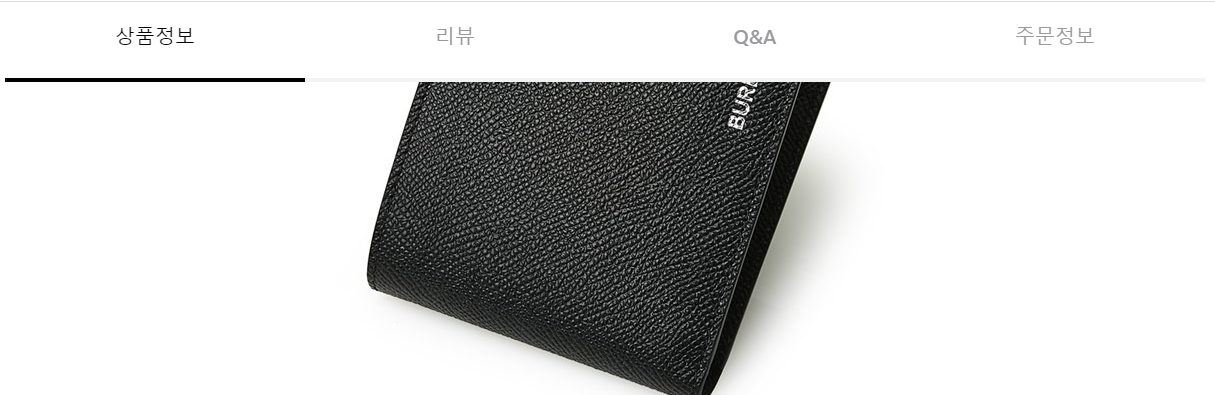
- Click on each tab to go to where the tab is present.
- I used Sticky Position.
- Going to the place where each tab is located, the black line is displayed at the bottom of that tab.
17. Detailed Product Page -Review Tab and Q & A Tab 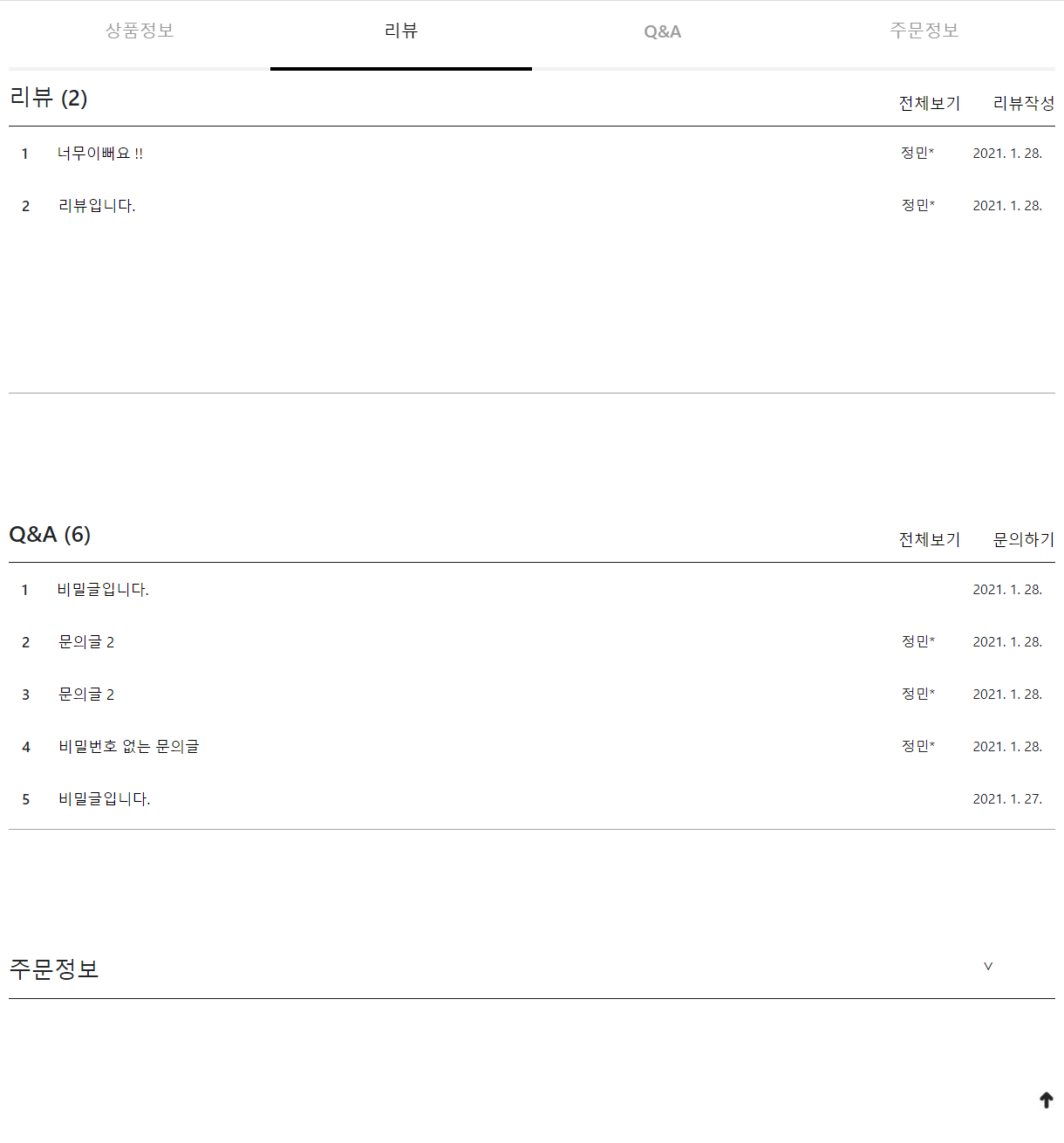
- Click on the title to go to the detailed page.
- In the case of Q & A, if you enter your password when you write, you will not be able to see the title and the author's name.
- Press the arrow at the bottom right to immediately go to the top of the page.
18. Detailed Review, Q & A page 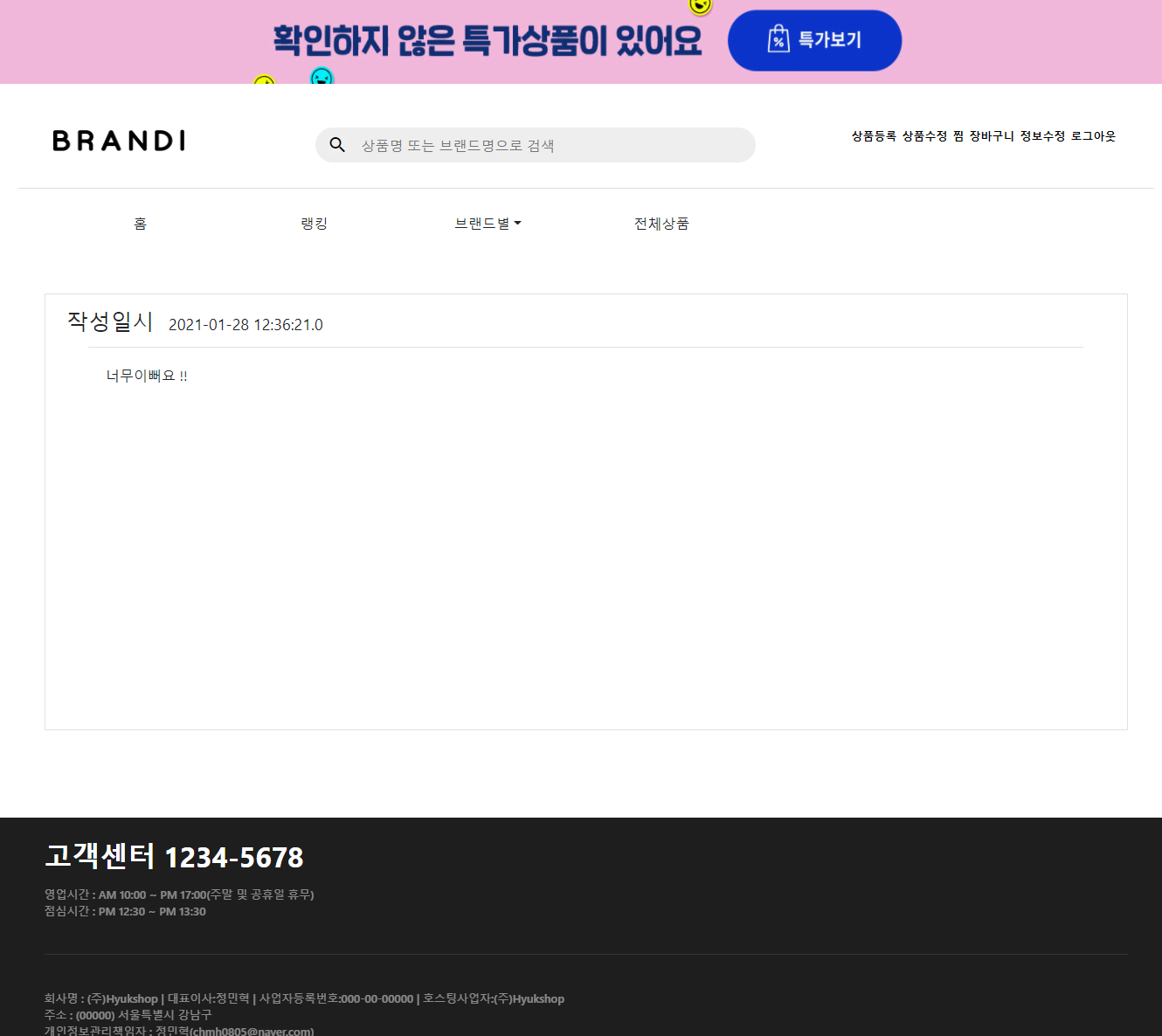
19. 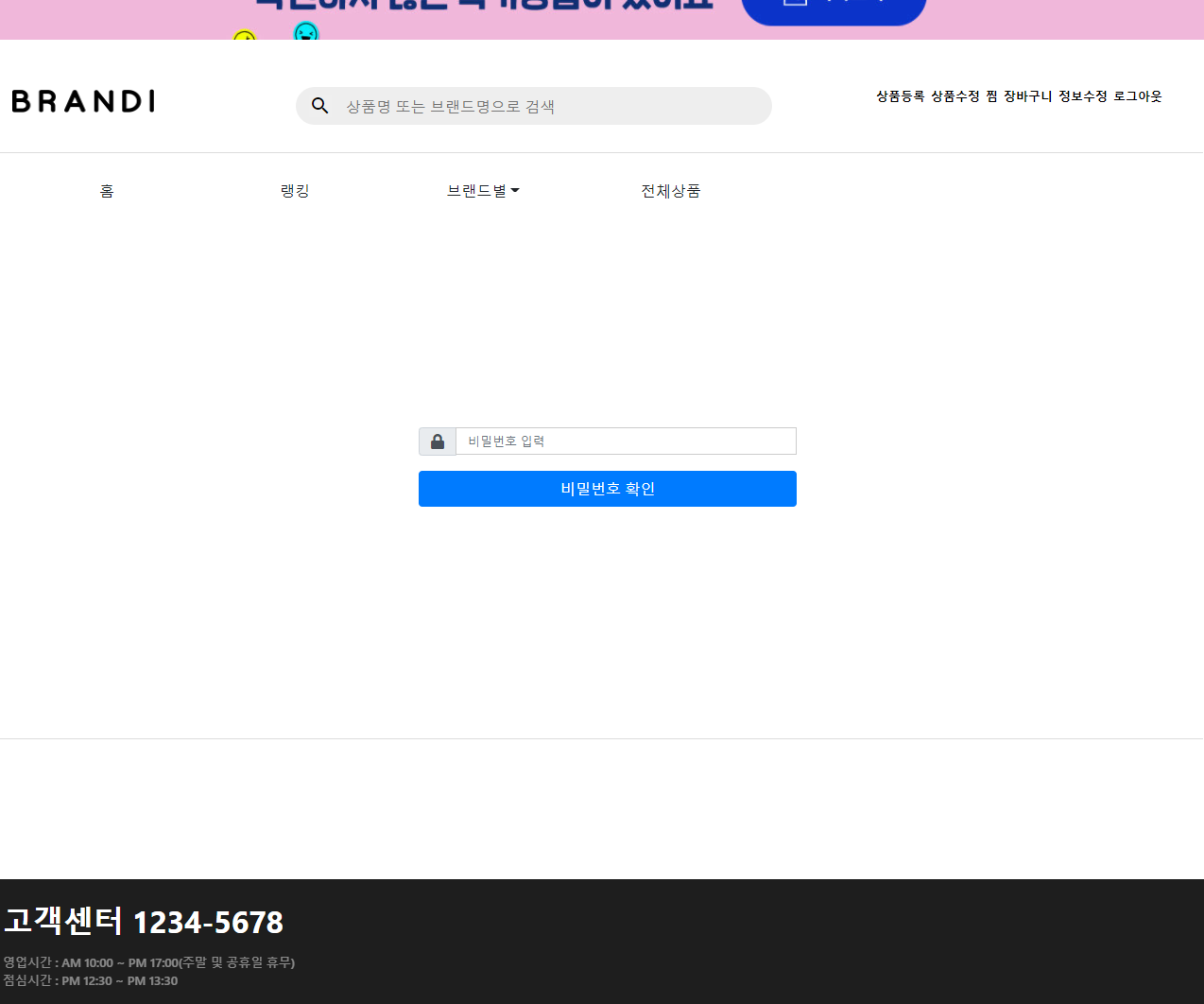
- After confirming the password, if you match, go to the detail page.
20. When clicking the entire review 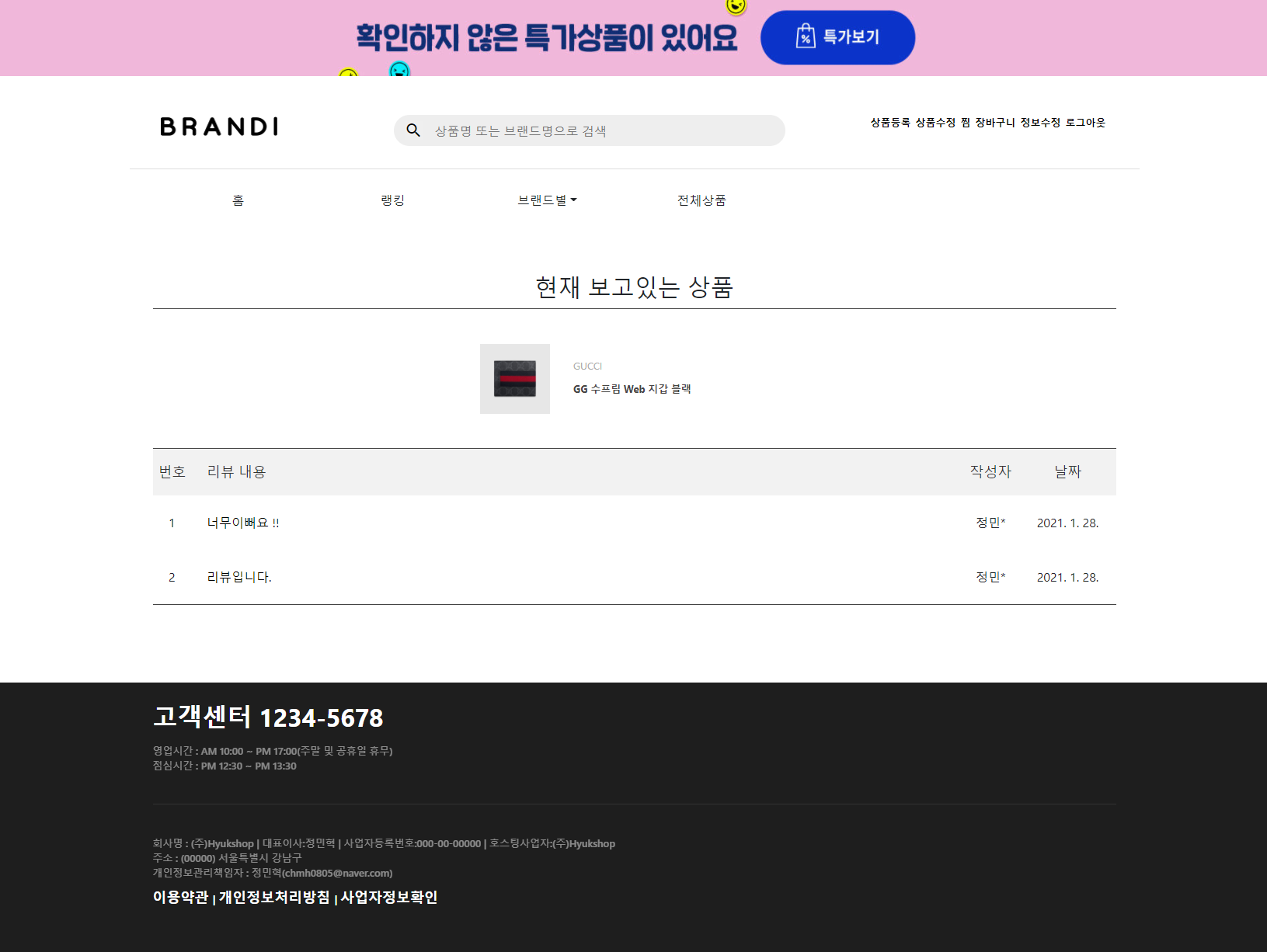
- You can load the contents of the product you were looking at together, and you can go to the product page when you click on the product photo.
21. When clicking the entire Q & A 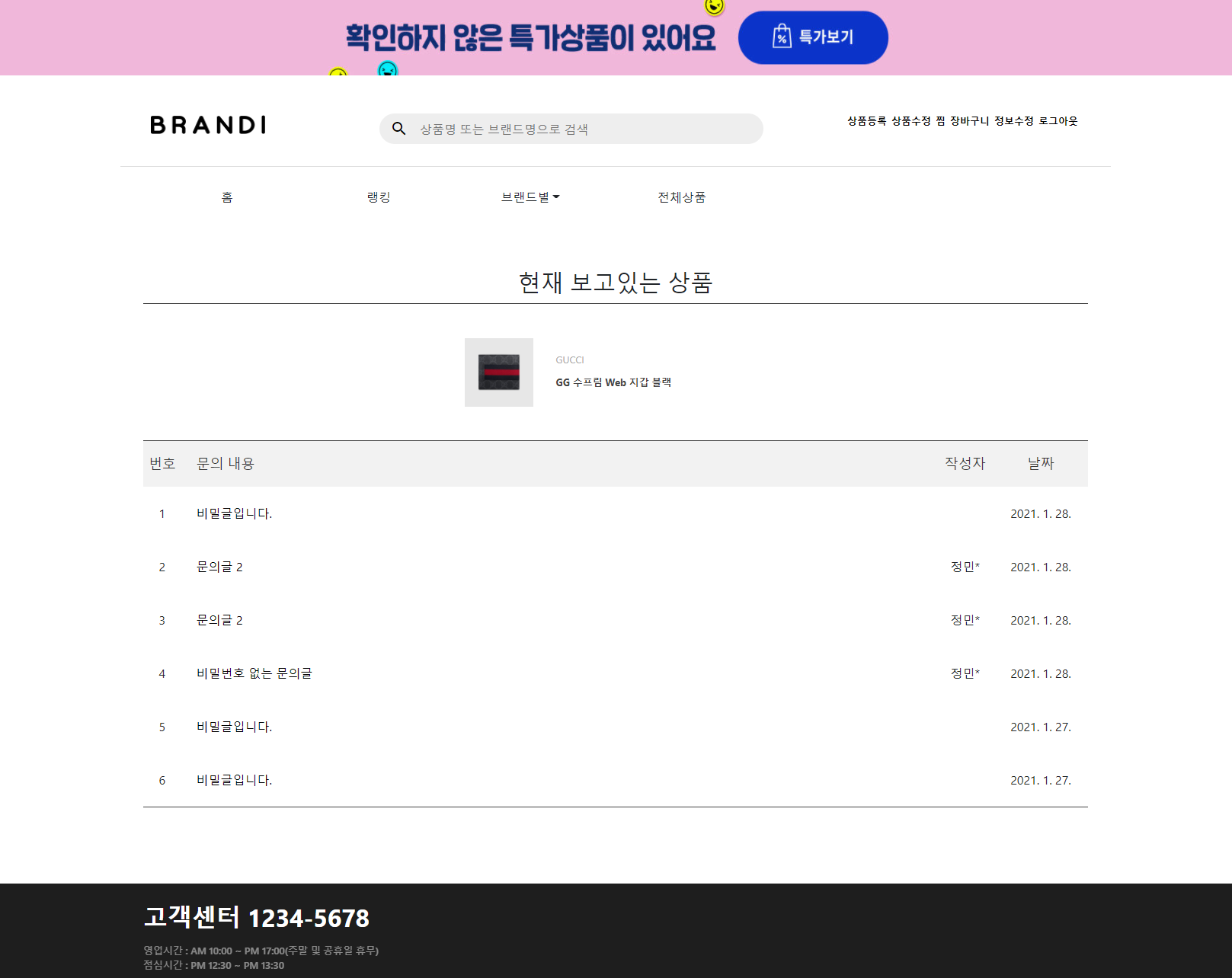
- You can load the contents of the product you were looking at together, and you can go to the product page when you click on the product photo.
- Secrets are also hidden here.
22. When writing a review 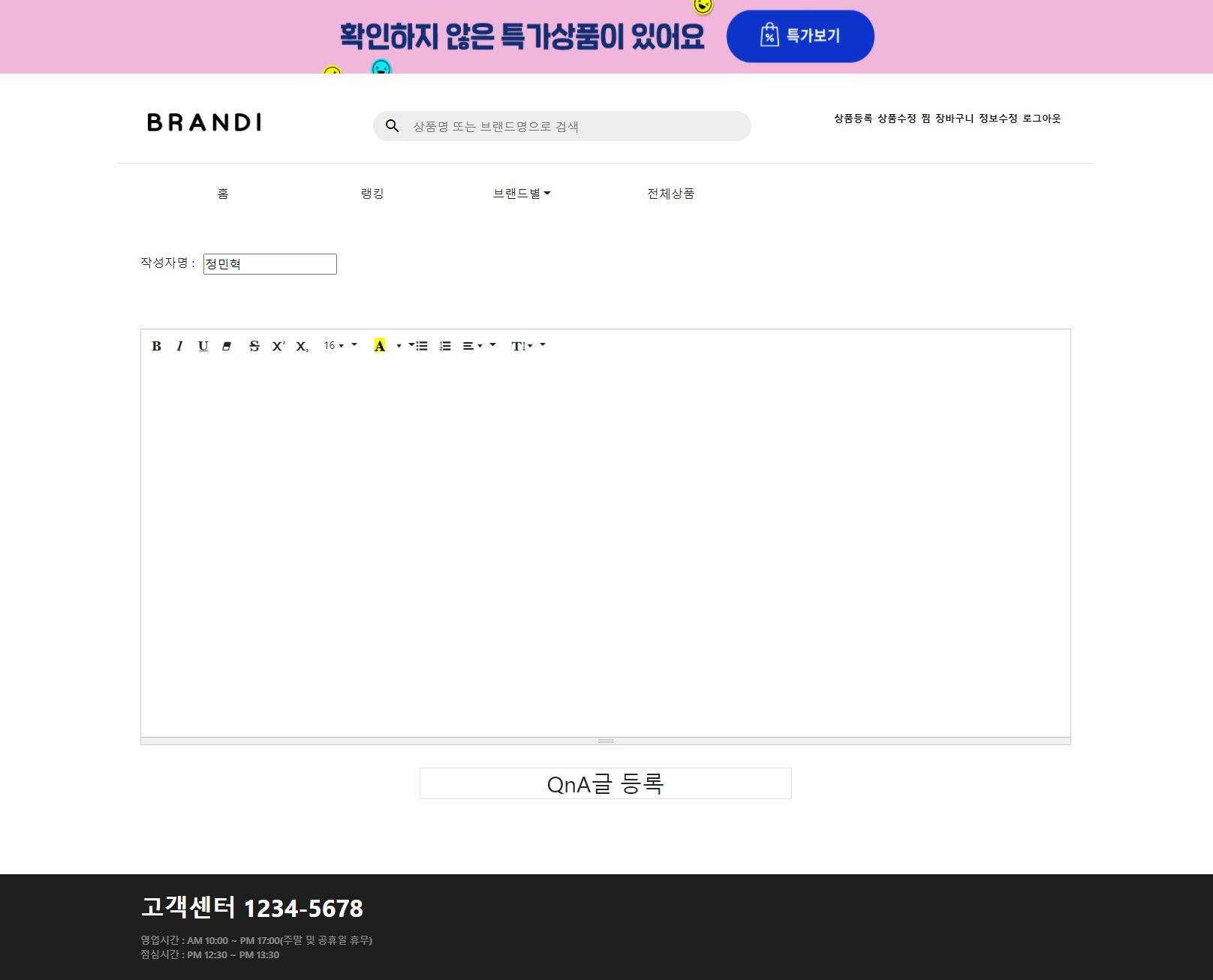
- Summernote was used except for photographs and video functions.
23. When Clicking Q & A 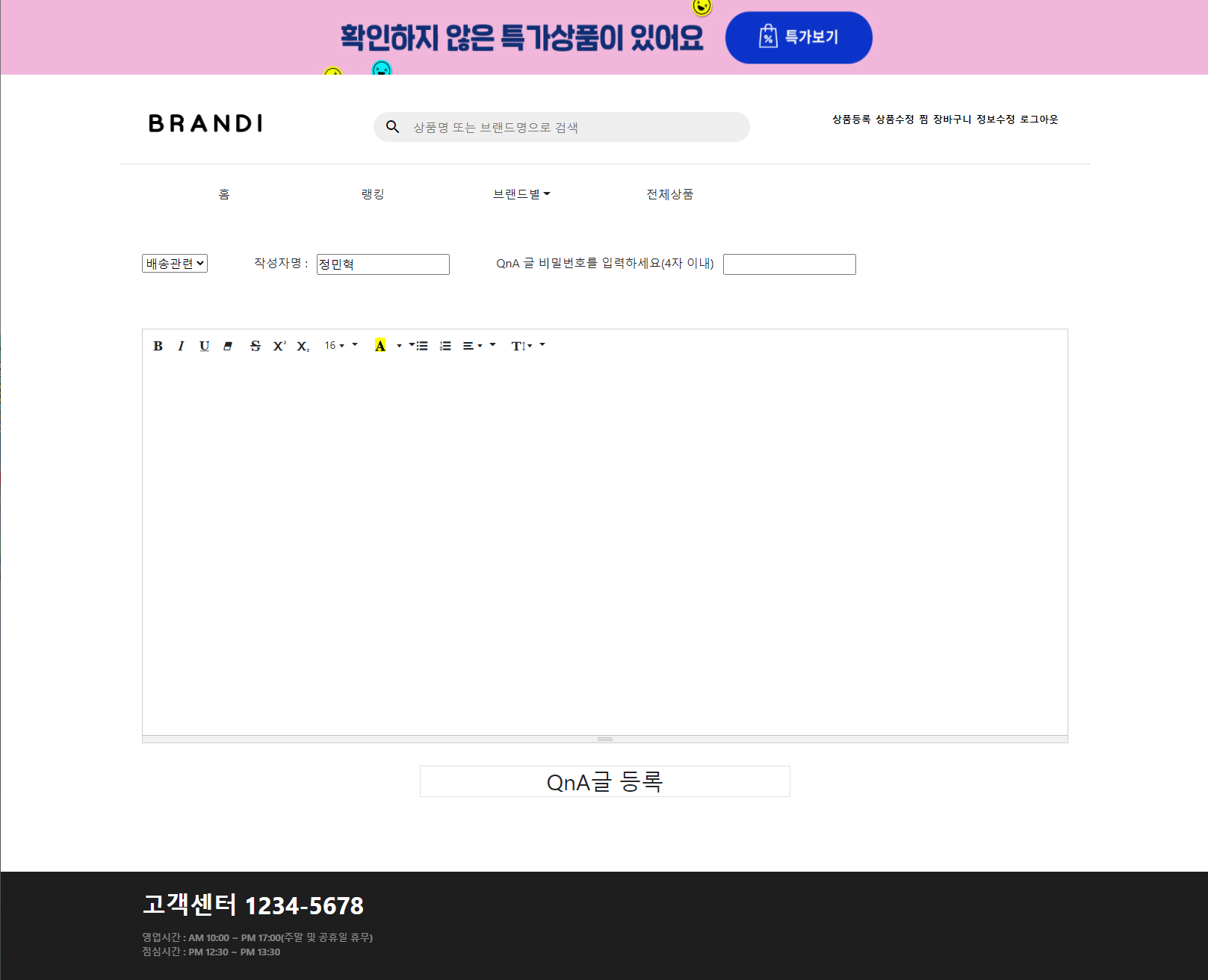
- Summernote was used except for photographs and video functions.
24. Steamed in the top right menu 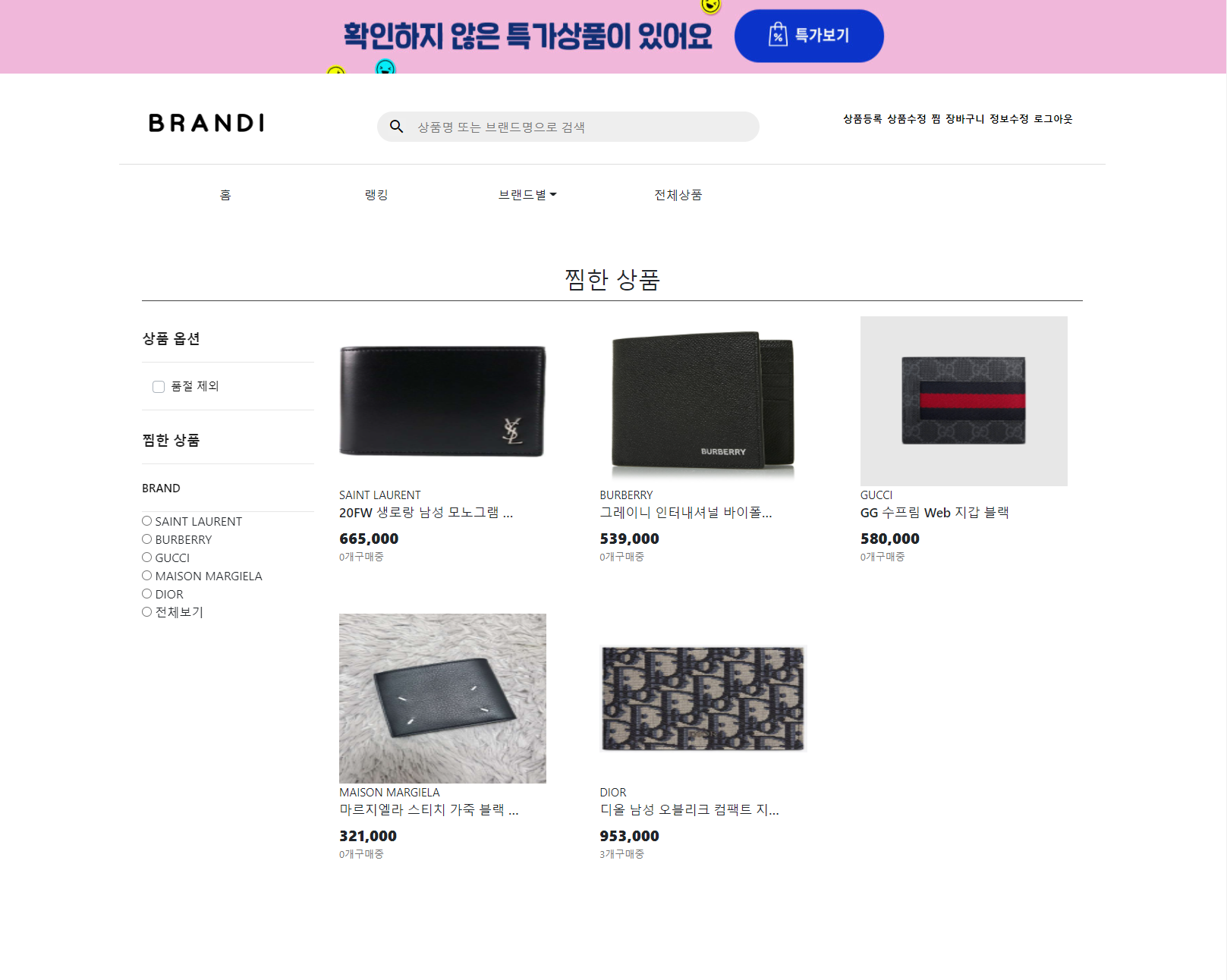
- Only the products that the members steamed are shown.
- Only the brand steamed by the member on the left radio box is also shown.
25. 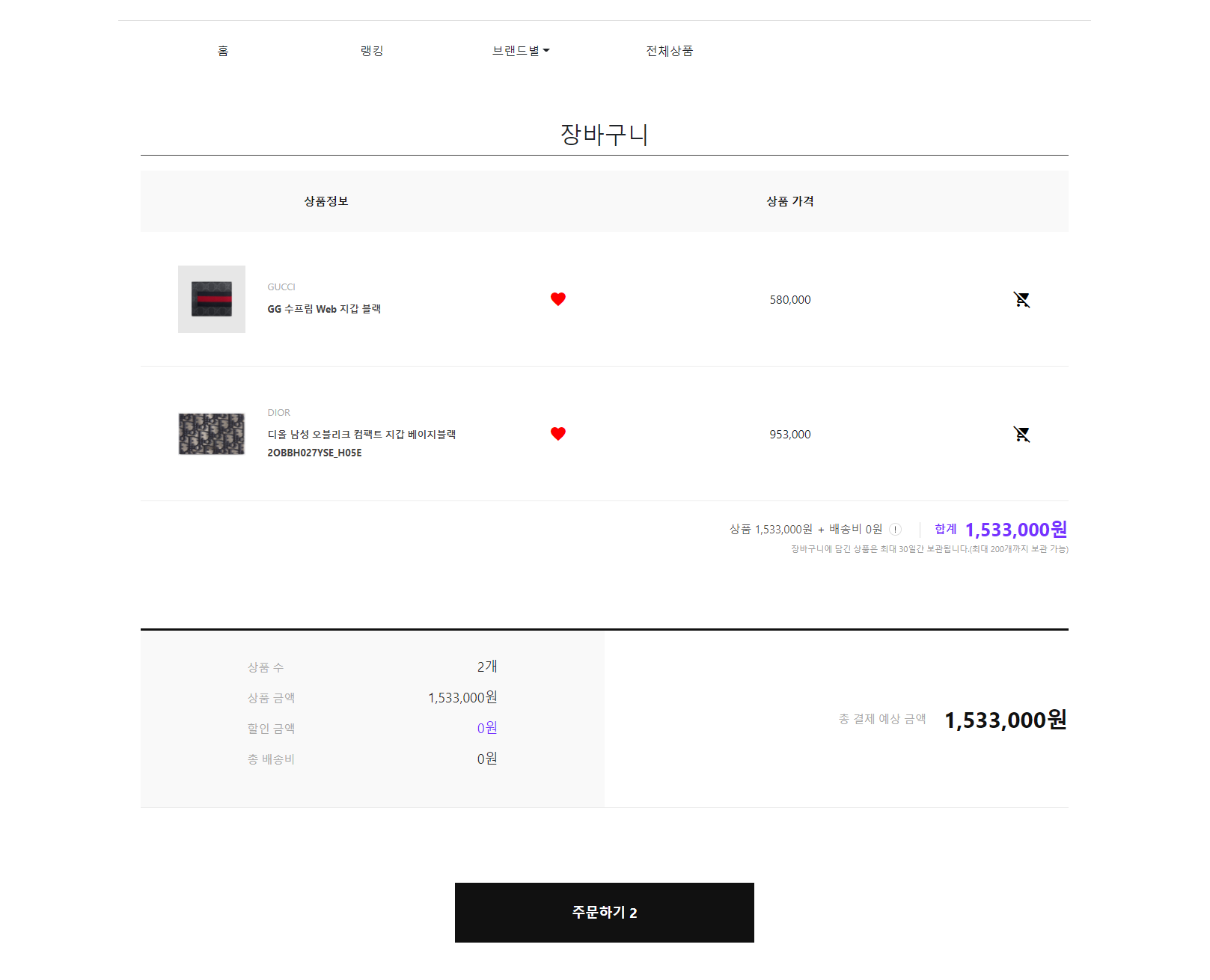
- Only the products that the member added to the shopping cart are shown.
- Click the Heart button on the list to add steamed/deletion features.
- Click the shopping cart button on the right side of the product list to use the cart.
- When you click to order, go to the payment page.
26. Payment page 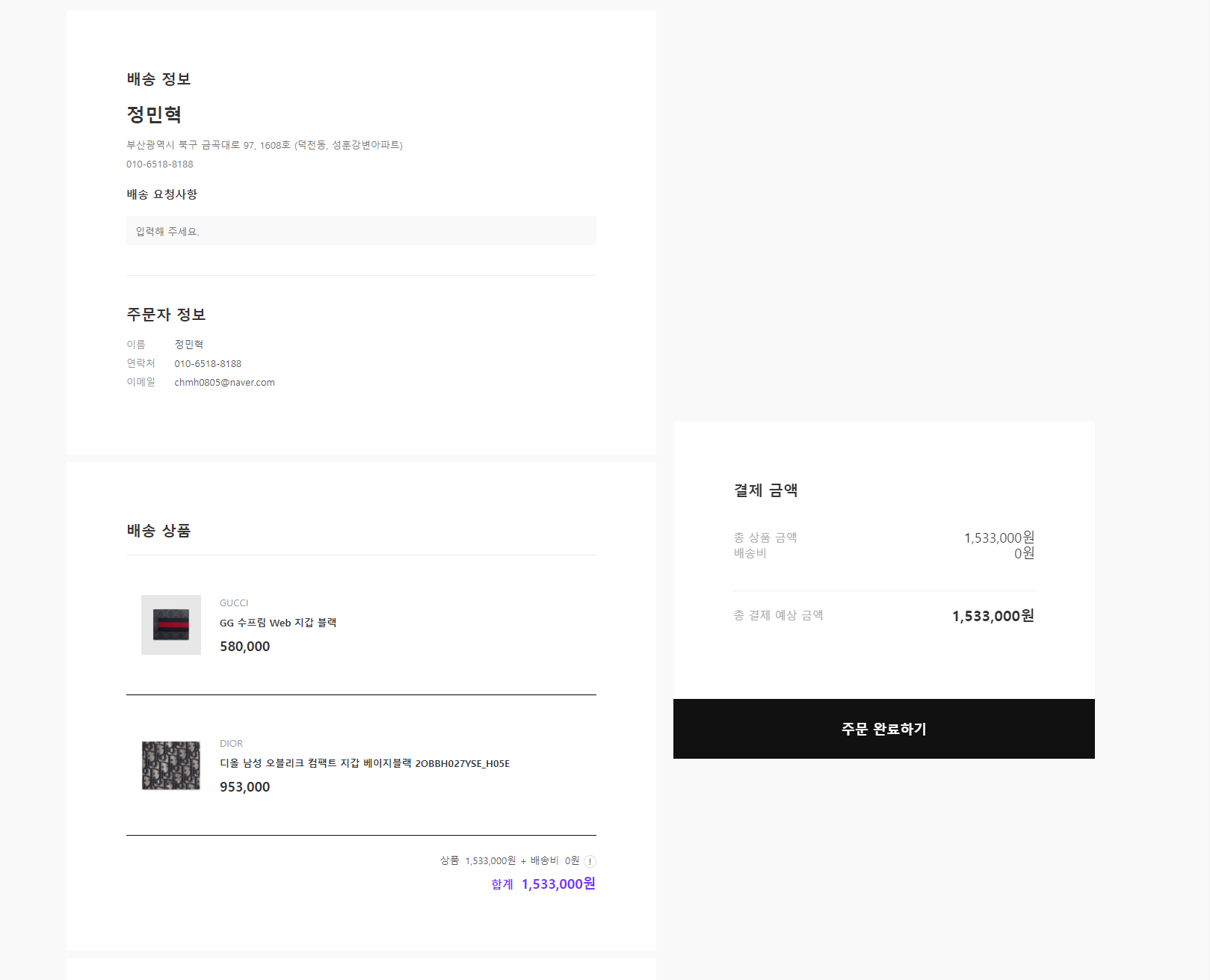
- When you click on your shopping cart, you get the entire product of your cart.
- If you click directly on the product detail page, only the product is imported.
- When you click Click to complete the order, go to the payment page.
27. Payment screen 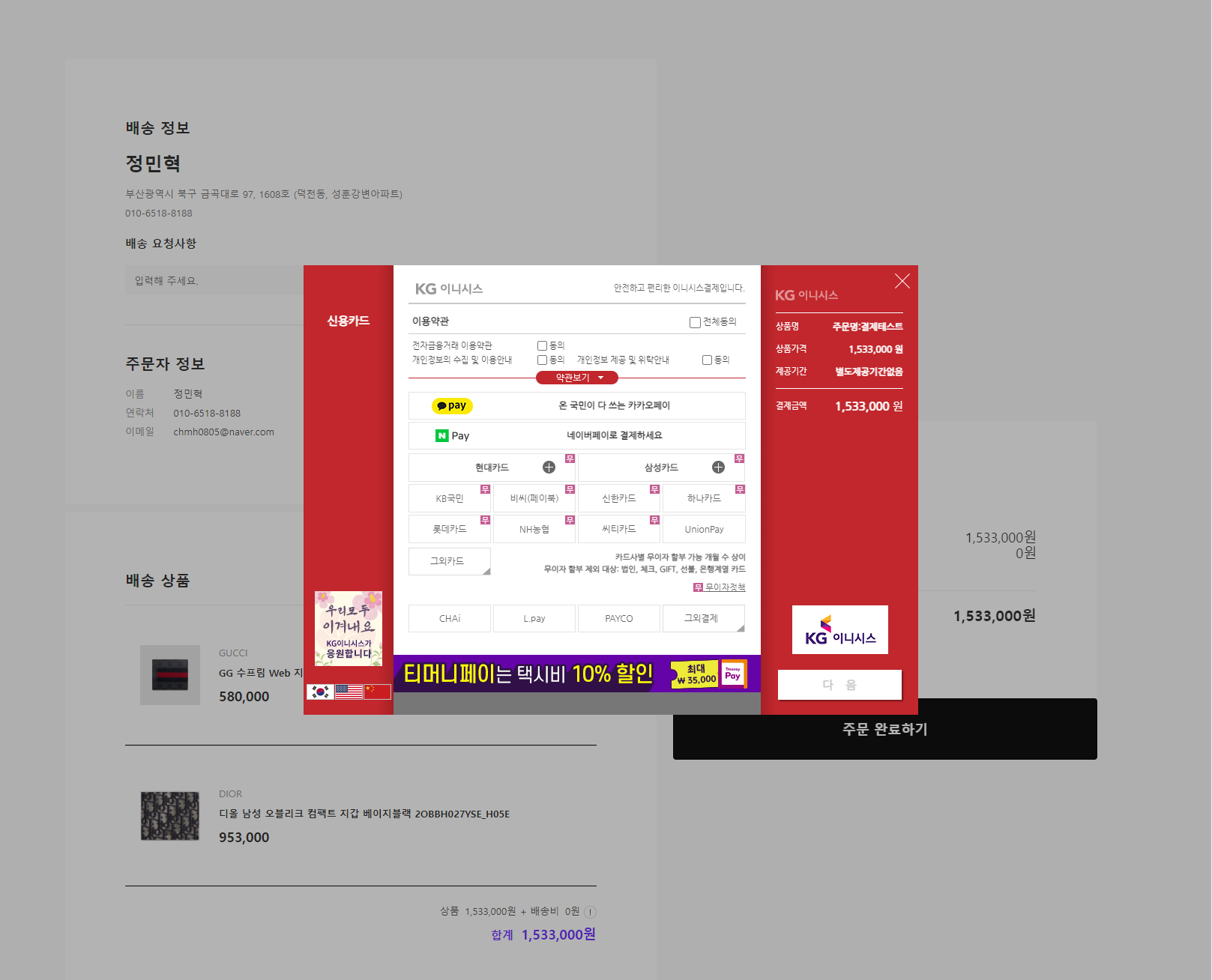
28. When payment failure 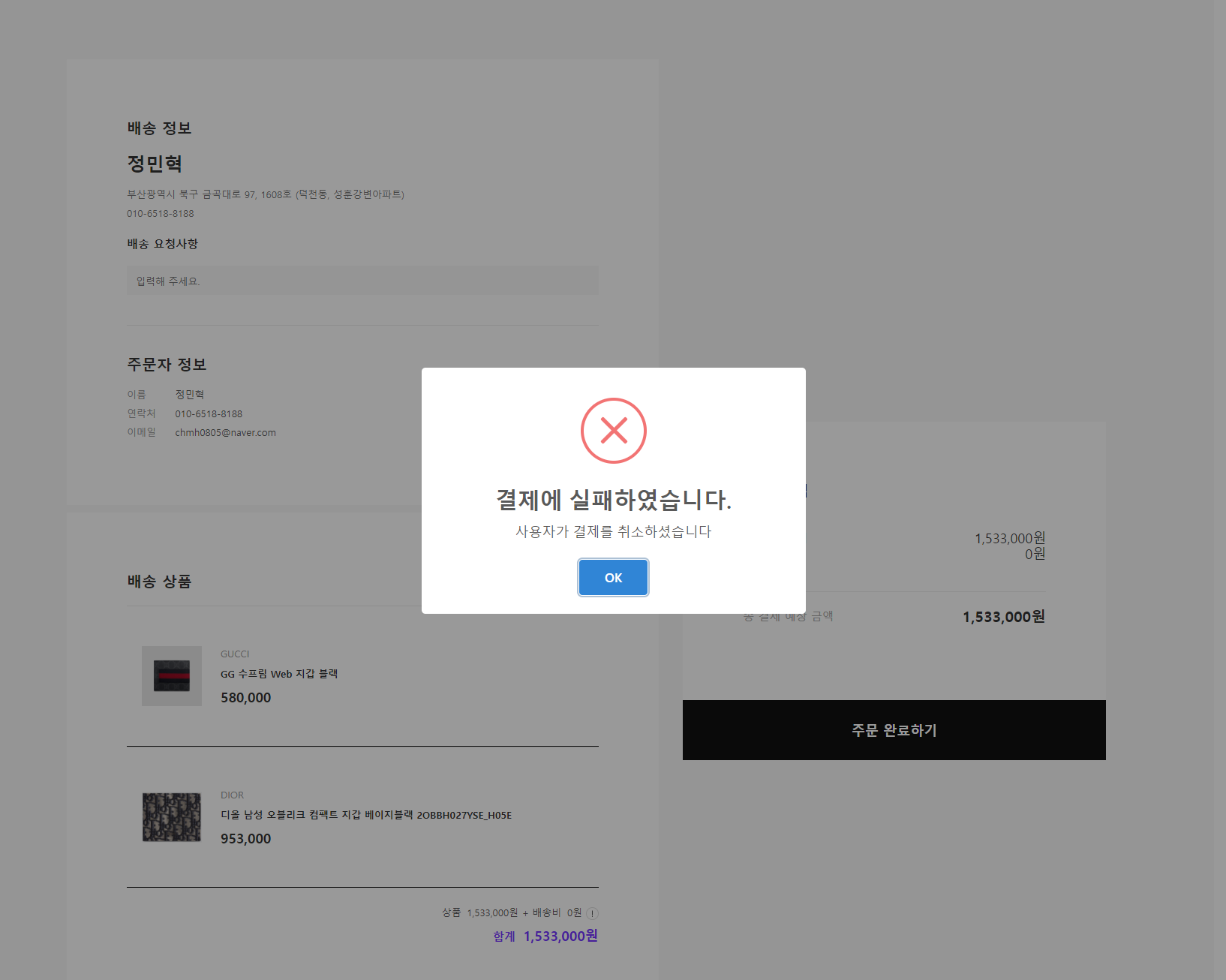
- A notification window containing the error contains a notification window.
29. When payment success 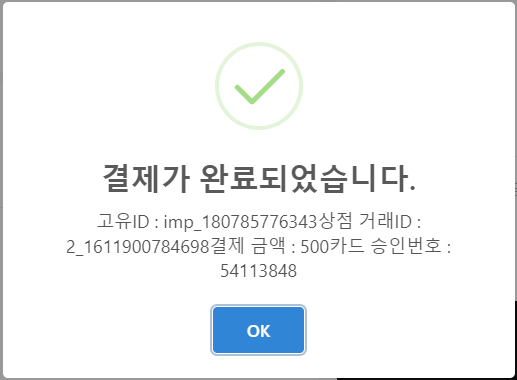
- There is a notification window including success details, and clicks on confirmation will go to the main page.
30. 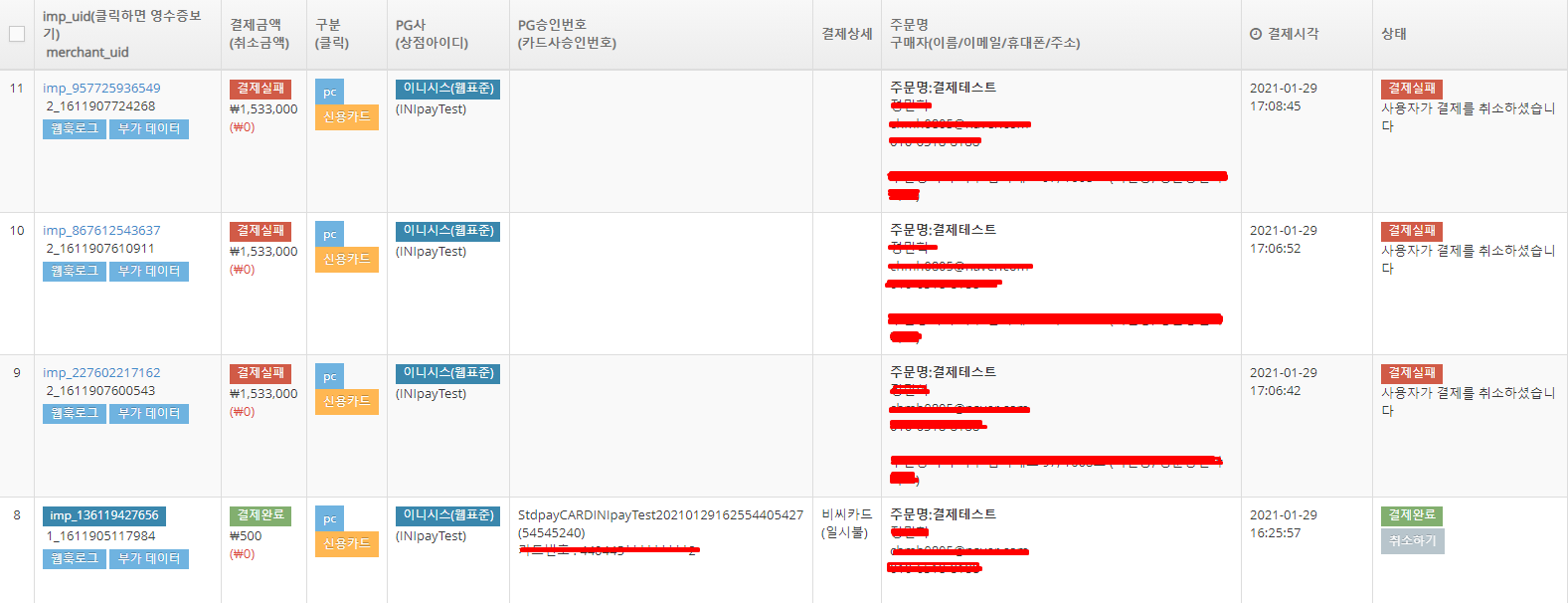
- You can see the success/failure history.