Drawflow
0.0.60

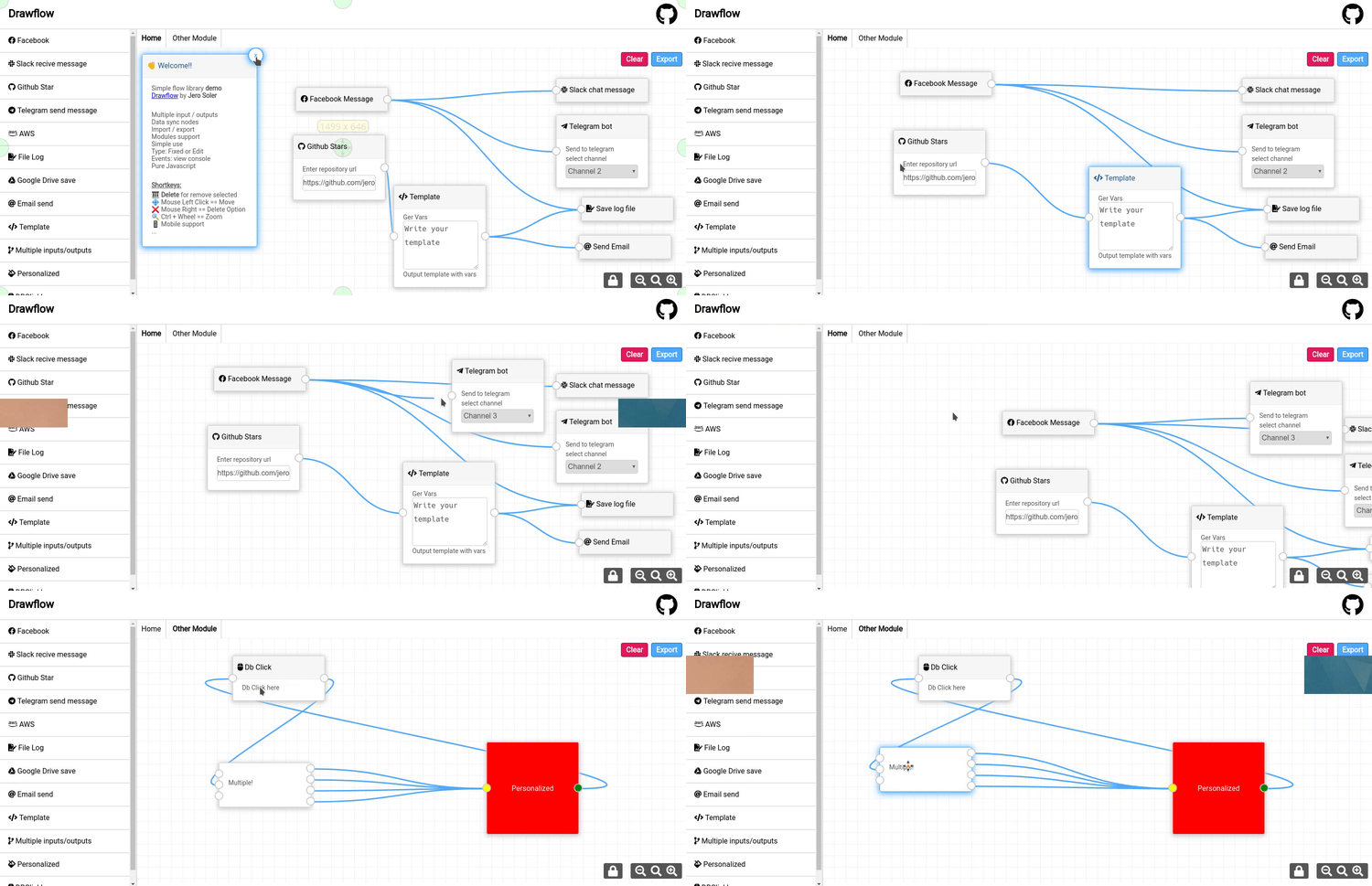
簡單的流庫。
DrawFlow使您可以輕鬆,快速地創建數據流。
僅安裝一個JavaScript庫和四行代碼。
現場演示
?主題編輯生成器
edit , fixed或view下載或克隆存儲庫,然後復制DIST文件夾,CDN選項或NPM。
git clone https://github.com/jerosoler/Drawflow.git
# Last
< link rel =" stylesheet " href =" https://cdn.jsdelivr.net/gh/jerosoler/Drawflow/dist/drawflow.min.css " >
< script src =" https://cdn.jsdelivr.net/gh/jerosoler/Drawflow/dist/drawflow.min.js " > </ script >
# or version view releases https://github.com/jerosoler/Drawflow/releases
< link rel =" stylesheet " href =" https://unpkg.com/[email protected]/dist/drawflow.min.css " />
< script src =" https://unpkg.com/[email protected]/dist/drawflow.min.js " > </ script > npm i drawflow外部包裝。更多信息#119
npm install - D @ types / drawflow import Drawflow from 'drawflow'
import styleDrawflow from 'drawflow/dist/drawflow.min.css' var Drawflow = require ( 'drawflow' )
var styleDrawflow = require ( 'drawflow/dist/drawflow.min.css' )創建DrawFlow的父元素。
< div id =" drawflow " > </ div >啟動drawflow。
 var id = document . getElementById ( "drawflow" ) ;
const editor = new Drawflow ( id ) ;
editor . start ( ) ;| 範圍 | 類型 | 描述 |
|---|---|---|
id | 目的 | 模塊的名稱 |
render | 目的 | 這是為Vue 。 |
parent | 目的 | 這是為Vue 。父實例 |
 import Vue from 'vue'

// Pass render Vue
this . editor = new Drawflow ( id , Vue , this ) ; import { h , getCurrentInstance , render } from 'vue'
const Vue = { version : 3 , h , render } ;
this . editor = new Drawflow ( id , Vue ) ;
// Pass render Vue 3 Instance
const internalInstance = getCurrentInstance ( )
editor . value = new Drawflow ( id , Vue , internalInstance . appContext . app . _context ) ;添加到nuxt.config.js文件
build: {
    transpile : [ 'drawflow' ] ,
    ...
} del key刪除元素。Right click以顯示刪除選項(移動長按)。Left click press以移動選擇的編輯器或節點。Ctrl + Mouse Wheel放大/輸出(移動捏)。 您可以將編輯器更改為固定類型以阻止。只有編輯器才能移動。您可以在開始前將其放置。
 editor . editor_mode = 'edit' ; // Default
editor . editor_mode = 'fixed' ; // Only scroll
您還可以調整縮放值。
 editor . zoom_max = 1.6 ;
editor . zoom_min = 0.5 ;
editor . zoom_value = 0.1 ;| 範圍 | 類型 | 預設 | 描述 |
|---|---|---|---|
reroute | 布爾 | 錯誤的 | 主動重新路由 |
reroute_fix_curvature | 布爾 | 錯誤的 | 修復添加點 |
curvature | 數字 | 0.5 | 曲率 |
reroute_curvature_start_end | 數字 | 0.5 | 曲面重新路由第一點和LAS點 |
reroute_curvature | 數字 | 0.5 | 曲面重新路由 |
reroute_width | 數字 | 6 | 重新路由的寬度 |
line_path | 數字 | 5 | 線的寬度 |
force_first_input | 布爾 | 錯誤的 | 強制第一個輸入將連接放在節點頂部 |
editor_mode | 文字 | edit | 編輯edit , fixed已修復的節點但可用的輸入字段,僅view以查看 |
zoom | 數字 | 1 | 默認縮放 |
zoom_max | 數字 | 1.6 | 默認縮放最大 |
zoom_min | 數字 | 0.5 | 默認變焦最小 |
zoom_value | 數字 | 0.1 | 默認縮放值更新 |
zoom_last_value | 數字 | 1 | 默認縮放最後值 |
draggable_inputs | 布爾 | 真的 | 在單擊輸入上拖動節點 |
useuuid | 布爾 | 錯誤的 | 將UUID用作節點ID代替整數索引。僅影響新創建的節點,不影響導入的節點 |
主動重新路由連接。在start或import之前使用。
editor . reroute = true ;使用雙擊線連接創建點。雙擊點以進行刪除。
在不同的編輯器中分開您的流量。
 editor . addModule ( 'nameNewModule' ) ;
editor . changeModule ( 'nameNewModule' ) ;
editor . removeModule ( 'nameModule' ) ;
// Default Module is Home
editor . changeModule ( 'Home' ) ; RemovedModule是否在同一模塊中,將其重定向到Home模塊
添加節點很簡單。
editor . addNode ( name , inputs , outputs , posx , posy , class , data , html ) ;| 範圍 | 類型 | 描述 |
|---|---|---|
name | 文字 | 模塊的名稱 |
inputs | 數字 | DE輸入數量 |
outputs | 數字 | DE輸出數量 |
pos_x | 數字 | 左開始節點的位置 |
pos_y | 數字 | 在開始節點上的位置 |
class | 文字 | 將className添加到de node。多個班級名稱被空間隔開 |
data | JSON | 傳遞到節點的數據 |
html | 文字 | html在節點或寄存器節點的name上繪製。 |
typenode | 布爾和文字 | 默認為false , true html,vue的vue |
您可以在輸入,TextAarea中使用屬性df-* ,也可以選擇與節點數據同步和可滿足的。
trributs倍增父母支持df-*-*...
 var html = `
<div><input type="text" df-name></div>
` ;
var data = { "name" : '' } ;

editor . addNode ( 'github' , 0 , 1 , 150 , 300 , 'github' , data , html ) ;可以重複使用的註冊節點。
 var html = document . createElement ( "div" ) ;
html . innerHTML =  "Hello Drawflow!!" ;
editor . registerNode ( 'test' , html ) ;
// Use
editor . addNode ( 'github' , 0 , 1 , 150 , 300 , 'github' , data , 'test' , true ) ;

// For vue
import component from '~/components/testcomponent.vue'
editor . registerNode ( 'name' , component , props , options ) ;
// Use for vue
editor . addNode ( 'github' , 0 , 1 , 150 , 300 , 'github' , data , 'name' , 'vue' ) ;| 範圍 | 類型 | 描述 |
|---|---|---|
name | 文字 | 模塊已註冊的名稱。 |
html | 文字 | html到繪製或vue組件。 |
props | JSON | 僅用於vue 。組件的道具。 Not Required |
options | JSON | 僅用於vue 。組件的選項。 Not Required |
其他可用功能。
| Mehtod | 描述 |
|---|---|
zoom_in() | 增量Zoom +0.1 |
zoom_out() | 減速-0.1 |
getNodeFromId(id) | 獲取節點的信息。例如:ID: 5 |
getNodesFromName(name) | 返回節點ID的數組。例如:名稱: telegram |
removeNodeId(id) | 刪除節點。 EX ID: node-x |
updateNodeDataFromId | 更新數據元素。例如: 5, { name: 'Drawflow' } |
addNodeInput(id) | 將輸入添加到節點。 EX ID: 5 |
addNodeOutput(id) | 將輸出添加到節點。 EX ID: 5 |
removeNodeInput(id, input_class) | 刪除輸入到節點。 EX ID: 5 , input_2 |
removeNodeOutput(id, output_class) | 刪除輸出到節點。 EX ID: 5 , output_2 |
addConnection(id_output, id_input, output_class, input_class) | 添加連接。例如: 15,16,'output_1','input_1' |
removeSingleConnection(id_output, id_input, output_class, input_class) | 刪除連接。例如: 15,16,'output_1','input_1' |
updateConnectionNodes(id) | 來自節點EX ID的更新連接位置: node-x |
removeConnectionNodeId(id) | 刪除節點連接。 EX ID: node-x |
getModuleFromNodeId(id) | 獲取模塊的名稱在哪裡ID。 EX ID: 5 |
clearModuleSelected() | 選擇的模塊的清晰數據 |
clear() | 清除所有模塊和模塊的所有數據刪除。 |
editor . removeNodeId ( 'node-4' ) ; 您可以檢測正在發生的事件。
可用事件列表:
| 事件 | 返回 | 描述 |
|---|---|---|
nodeCreated | ID | 節點的id |
nodeRemoved | ID | 節點的id |
nodeDataChanged | ID | 節點df-*屬性的id更改。 |
nodeSelected | ID | 節點的id |
nodeUnselected | 真的 | 取消選擇節點 |
nodeMoved | ID | 節點的id |
connectionStart | {output_id,output_class} | 選定的節點和輸出的id |
connectionCancel | 真的 | 連接取消 |
connectionCreated | {output_id,input_id,output_class,input_class} | 選定的節點和輸出/輸入的id |
connectionRemoved | {output_id,input_id,output_class,input_class} | 選定的節點和輸出/輸入的id |
connectionSelected | {output_id,input_id,output_class,input_class} | 選定的節點和輸出/輸入的id |
connectionUnselected | 真的 | 取消選擇連接 |
addReroute | ID | 節點輸出的id |
removeReroute | ID | 節點輸出的id |
rerouteMoved | ID | 節點輸出的id |
moduleCreated | 姓名 | 模塊的name |
moduleChanged | 姓名 | 模塊的name |
moduleRemoved | 姓名 | 模塊的name |
click | 事件 | 點擊事件 |
clickEnd | 事件 | 單擊更改後 |
contextmenu | 事件 | 單擊第二個按鈕鼠標事件 |
mouseMove | {x,y} | 位置 |
mouseUp | 事件 | MouseUp事件 |
keydown | 事件 | 關鍵事件 |
zoom | zoom_level | 縮放水平 |
translate | {x,y} | 位置翻譯編輯器 |
import | import | 完成導入 |
export | 數據 | 數據導出 |
 editor . on ( 'nodeCreated' , function ( id ) {
  console . log ( "Node created " + id ) ;
} ) 您可以導出和導入數據。
 var exportdata = editor . export ( ) ;
editor . import ( exportdata ) ;導出數據的示例:
{
    "drawflow" : {
        "Home" : {
            "data" : {}
        },
        "Other" : {
            "data" : {
                "16" : {
                    "id" : 16 ,
                    "name" : " facebook " ,
                    "data" : {},
                    "class" : " facebook " ,
                    "html" : "n
n
 Facebook Message
n
n        ",
                    "inputs" : {},
                    "outputs" : {
                        "output_1" : {
                            "connections" : [
                                {
                                    "node" : " 17 " ,
                                    "output" : " input_1 "
                                }
                            ]
                        }
                    },
                    "pos_x" : 226 ,
                    "pos_y" : 138
                },
                "17" : {
                    "id" : 17 ,
                    "name" : " log " ,
                    "data" : {},
                    "class" : " log " ,
                    "html" : "n
n
 Save log file
n
n            ",
                    "inputs" : {
                        "input_1" : {
                            "connections" : [
                                {
                                    "node" : " 16 " ,
                                    "input" : " output_1 "
                                }
                            ]
                        }
                    },
                    "outputs" : {},
                    "pos_x" : 690 ,
                    "pos_y" : 129
                }
            }
        }
    }
}
查看文件夾文檔中的完整示例。
還有一個示例如何在自定義元素中使用DrawFlow。 (基於litelement)。
麻省理工學院許可證






