Image Super Resolution via Iterative Refinement
1.0.0

紙|項目
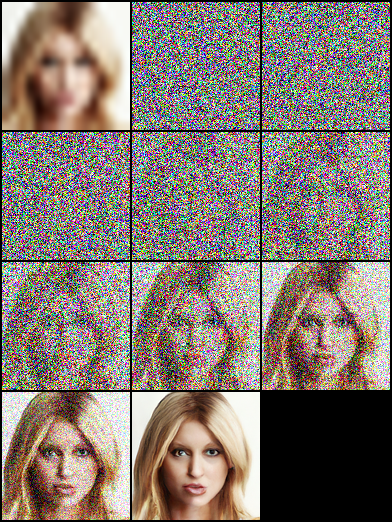
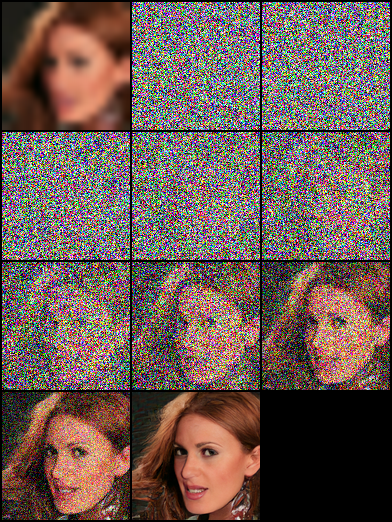
這是Pytorch通過迭代改進(SR3)對圖像超分辨率的非正式實現。
由於缺少詳細信息,因此有一些實施細節可能與本文的描述有所不同,這可能與實際的SR3結構有所不同。具體來說,我們:
DDPM 。DDPM一樣。FilM結構在WaveGrad中所做的那樣,並在沒有仿射轉化的情況下嵌入。如果您只想高檔
★★★New:現在可以使用後續調色板到圖像 - 圖像擴散模型;在此處查看詳細信息★★★
注意:我們將最大反向步驟預算設置為Nvidia 1080Ti中的模型參數,圖像噪聲和色相偏差偶爾出現在高分辨率圖像中,導致得分較低。有很多優化的空間。歡迎我們為更廣泛的實驗和代碼增強的任何貢獻。
| 任務/指標 | SSIM(+) | psnr(+) | fid( - ) | 是(+) |
|---|---|---|---|---|
| 16×16-> 128×128 | 0.675 | 23.26 | - | - |
| 64×64-> 512×512 | 0.445 | 19.87 | - | - |
| 128×128 | - | - | ||
| 1024×1024 | - | - |
 |  | 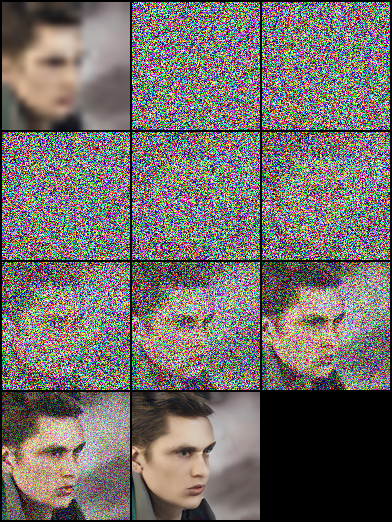 |
|---|
 | 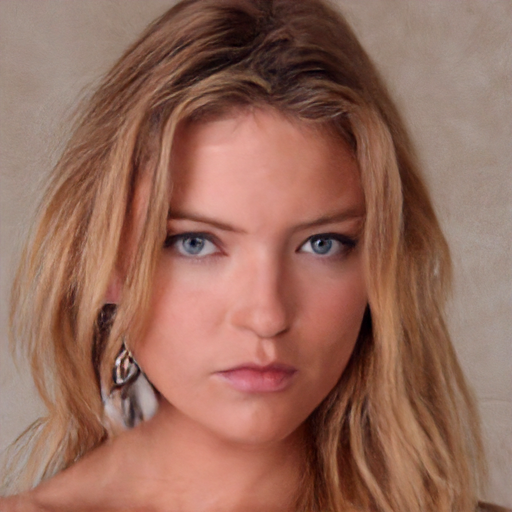 |  |
|---|---|---|
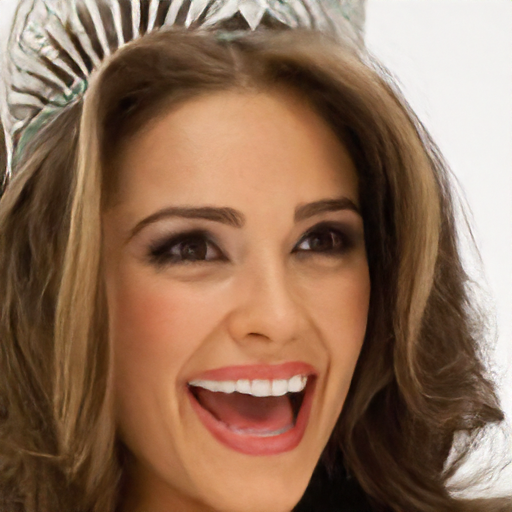 | 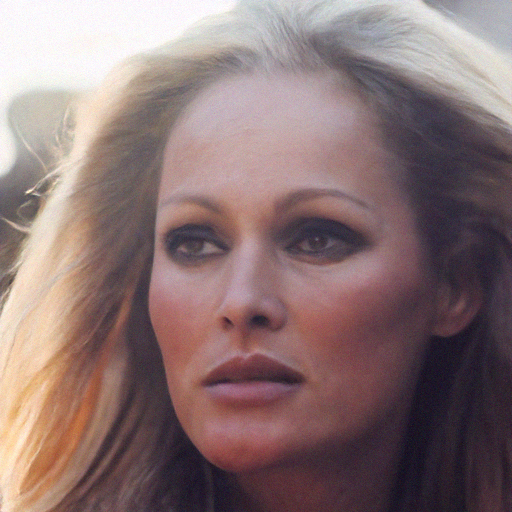 |  |
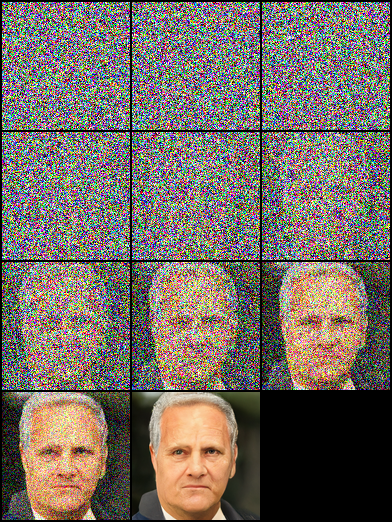 | 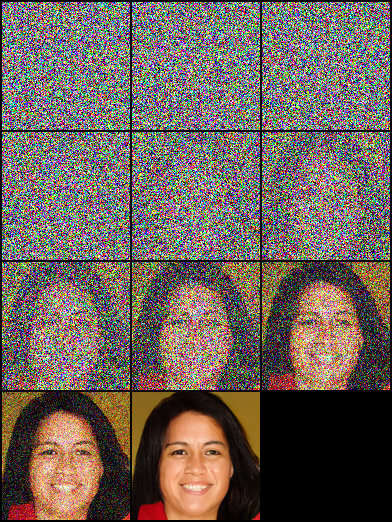 | 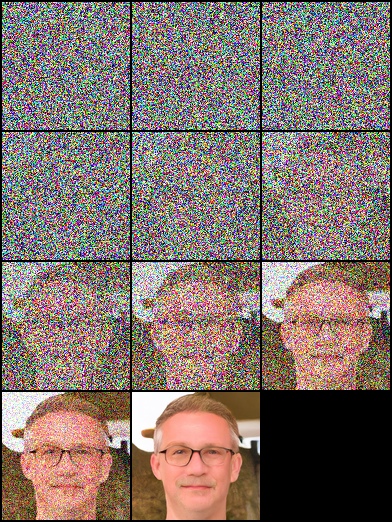 |
|---|
pip install - r requirement . txt本文基於“擴散概率模型”,我們構建了DDPM/SR3網絡結構,分別使用TimeSteps/Gamma作為模型嵌入輸入。在我們的實驗中,SR3模型可以通過相同的反向步驟和學習率獲得更好的視覺結果。您可以選擇帶有帶註釋的後綴名稱的JSON文件來訓練不同的型號。
| 任務 | 平台(代碼:QWER) |
|---|---|
| 16×16-> 128×128在FFHQ -CELEBAHQ上 | Google Drive | Baidu Yun |
| 64×64-> 512×512在FFHQ -CELEBAHQ上 | Google Drive | Baidu Yun |
| FFHQ上的128×128面部生成 | Google Drive | Baidu Yun |
 # Download the pretrained model and edit [sr|sample]_[ddpm|sr3]_[resolution option].json about "resume_state":
"resume_state" : [ your pretrained model ' s path ]如果您沒有數據,則可以通過以下步驟進行準備:
下載數據集並使用腳本以LMDB或PNG格式進行準備。
 # Resize to get 16×16 LR_IMGS and 128×128 HR_IMGS, then prepare 128×128 Fake SR_IMGS by bicubic interpolation
python data / prepare_data . py  - - path [ dataset root ]  - - out [ output root ] - - size 16 , 128 - l
然後,您需要將數據集配置更改為數據路徑和圖像分辨率:
 "datasets" : {
    "train" : {
        "dataroot" : " dataset/ffhq_16_128 " , // [output root] in prepare.py script
        "l_resolution" : 16 , // low resolution need to super_resolution
        "r_resolution" : 128 , // high resolution
        "datatype" : " lmdb " , //lmdb or img, path of img files
    },
    "val" : {
        "dataroot" : " dataset/celebahq_16_128 " , // [output root] in prepare.py script
    }
},您還可以通過以下步驟使用圖像數據,並且我們在數據集文件夾中有一些示例。
首先,您應該像這樣組織圖像佈局,可以通過data/prepare_data.py自動完成此步驟:
 # set the high/low resolution images, bicubic interpolation images path
dataset/celebahq_16_128/
├── hr_128 # it's same with sr_16_128 directory if you don't have ground-truth images.
├── lr_16 # vinilla low resolution images
└── sr_16_128 # images ready to super resolution
# super resolution from 16 to 128
python data / prepare_data . py - - path [ dataset root ] - - out celebahq - - size 16 , 128 - l注意:無論您是否擁有香草高分辨率圖像,都可以使用上面的腳本。
然後,您需要將數據集配置更改為數據路徑和圖像分辨率:
 "datasets" : {
    "train|val" : { // train and validation part
        "dataroot" : " dataset/celebahq_16_128 " ,
        "l_resolution" : 16 , // low resolution need to super_resolution
        "r_resolution" : 128 , // high resolution
        "datatype" : " img " , //lmdb or img, path of img files
    }
}, # Use sr.py and sample.py to train the super resolution task and unconditional generation task, respectively.
# Edit json files to adjust network structure and hyperparameters
python sr . py - p train - c config / sr_sr3 . json # Edit json to add pretrain model path and run the evaluation
python sr . py - p val - c config / sr_sr3 . json
# Quantitative evaluation alone using SSIM/PSNR metrics on given result root
python eval . py - p [ result root ]在Own Data中設置圖像路徑,然後運行腳本:
 # run the script
python infer . py - c [ config file ]現在,該庫支持實驗跟踪,模型檢查點和模型預測可視化,並具有權重和偏見。您將需要使用訪問令牌安裝W&B並登錄。
 pip install wandb

# get your access token from wandb.ai/authorize
wandb login
W&B日誌記錄功能添加到sr.py , sample.py和infer.py文件中。您可以通過-enable_wandb開始記錄。
-log_wandb_ckpt :將此參數與-enable_wandb一起傳遞,以將模型檢查點作為W&B工件保存。 sr.py和sample.py均通過模型檢查點啟用。-log_eval :將此參數與-enable_wandb一起傳遞,以將評估結果保存為交互式W&B表。請注意,此功能僅啟用sr.py如果您在est and模式下運行sample.py ,則生成的圖像將自動記錄為圖像媒體面板。-log_infer :運行infer.py時,將此參數與-enable_wandb一起傳遞此參數,以將推理結果記錄為交互式W&B表。您可以在此處找到有關使用這些功能的更多信息。
我們的工作基於以下理論著作:
此外,我們從以下項目中受益匪淺: