osxphotos
Hot fix for crash on 15.2

Osxphotos提供了與MacOS和Linux上的App庫進行交互和查詢的功能。您可以查詢照片庫數據庫 - 例如,文件名,文件路徑和元數據,例如關鍵字/標籤,人/面,相冊等。您也可以輕鬆地導出原始照片和編輯的照片。 Osxphotos還可以與iPhoto庫一起使用,儘管某些功能僅用於照片。
在Ubuntu Linux和MacOS上測試。許多功能僅在MacOS上可用。
在Linux上,CLI的MACOS特異性特徵將無法可用(在幫助輸出中不會顯示這些特徵)。導出和查詢CLI命令以及Python API將在Linux上使用,使您可以從Linux機器上的照片庫中導出照片。
通過Macos Sonoma(14.1)在Macos Sierra(10.12.6)上測試。在X86和Apple Silicon(M1)上測試。
Osxphotos已通過MACOS紅杉(15個Beta)進行了最小的測試,但新的Beta版本可能會破壞Osxphotos的支持。如果您遇到MacOS 15.0的問題,請打開一個問題。
| MacOS版本 | MacOS名稱 | Photos.App版本 |
|---|---|---|
| 15.0 | 紅杉 | 10.0(Beta支持) |
| 14.0-14.6 | 索諾瑪 | 9.0✅ |
| 13.0-13.6 | 文圖拉 | 8.0✅ |
| 12.0-12.7 | 蒙特雷 | 7.0✅ |
| 10.16,11.0-11.7 | 大蘇爾 | 6.0✅ |
| 10.15.1-10.15.7 | 卡塔琳娜 | 5.0✅ |
| 10.14.5,10.14.6 | 莫哈韋 | 4.0✅ |
| 10.13.6 | 山脈高 | 3.0✅ |
| 10.12.6 | 塞拉 | 2.0✅ |
還提供了有限的支持,用於從iPhoto庫中導出照片和元數據。僅測試了iPhoto 9.6.1(最終版本)。
此軟件包將在任何受支持的MacOS版本上讀取任何支持版本的照片數據庫。例如,您可以在MacOS 10.15上使用Photos 5.0創建的數據庫讀取運行MACOS 10.12的計算機上的5.0,反之亦然。
需要Python> = 3.10 ,<= 3.13 。
對於MACOS 15.0 /紅杉開發人員預覽,提供了α支持(非常初步,不能保證工作)。並非已經測試過Osxphotos的所有功能,並且某些功能可能不起作用。如果您遇到問題,請在Github上打開一個問題。
安裝osxphotos推薦方法是通過UV Python軟件包管理器工具。
uv安裝Terminal (在聚光燈中搜索Terminal或在Applications/Utilities中查找)uv : curl -LsSf https://astral.sh/uv/install.sh | sh如果您以前安裝了uv ,請升級到最新版本:
uv self updateuv tool install --python 3.12 osxphotososxphotos : osxphotos使用uv安裝Osxphotos後,升級到最新版本:
uv tool upgrade osxphotos如果您想在不安裝的情況下嘗試osxphotos ,則可以運行uv tool run --python 3.12 osxphotos或uvx --python 3.12 osxphotos 。
您可以直接從PYPI安裝osxphotos :
python3 -m pip install osxphotos
使用PIP安裝Osxphotos後,升級到最新版本:
python3 -m pip install --upgrade osxphotos
如果您在Mac上使用Macports軟件包管理器:
sudo port install osxphotos
通常在Linux上安裝的Linux特異性python軟件包中的至少一個可能會在使用pip或pipx安裝過程中導致錯誤。如果遇到類似於以下錯誤的錯誤: pip._vendor.packaging.version.InvalidVersion: Invalid version: '6.5.0-1022-generic ,您仍然應該能夠通過創建和激活虛擬環境來安裝Osxphotos:
python3 -m venv .venv-osxphotos
source .venv-osxphotos/bin/activate
python3 -m pip install osxphotos要使用osxphotos,您需要使用source .venv-osxphotos/bin/activate來確保VENV激活。
您可以將任何所需的虛擬環境命名;在此示例中,使用.venv-osxphotos來清楚地表明虛擬環境由Osxphotos使用,並避免與其他虛擬環境衝突,而這些虛擬環境通常被命名為.venv或venv 。
如果您想處理Osxphotos代碼或為該項目做出貢獻,則可以從GIT存儲庫中安裝:
 git clone https://github.com/RhetTbull/osxphotos.git
cd osxphotos
筆記
該項目的GIT存儲庫非常大(> 3GB),因為它包含用於在不同版本的MacOS上測試的多個照片庫。
如果您只想在自己的代碼中使用Osxphotos軟件包,建議您安裝PYPI的最新版本,該版本不包括所有測試庫。如果您只想使用命令行實用程序,則可以下載最新版本的預構建可執行文件,也可以通過pip安裝,該PIP還安裝了命令行應用程序。如果您不滿意在Mac上運行Python,請從預先構建的可執行文件或uv開始,如上所述。
或者,在沒有測試數據的情況下克隆存儲庫:
 git clone --filter=blob:none --no-checkout --sparse https://github.com/RhetTbull/osxphotos.git
cd osxphotos
git sparse-checkout set --no-cone '/*' '!tests'
git checkout
接下來,安裝所需的依賴項和osxphotos本身。我建議您在安裝Osxphotos之前創建虛擬環境。
 python3 -m pip install -r dev_requirements.txt
python3 -m pip install -r requirements.txt
python3 -m pip install -e .
一旦您通過GIT存儲庫安裝了Osxphotos,請升級到最新版本:
 cd osxphotos
git pull
python3 -m pip install -e .
另請參見readme_dev.md中的開發人員註釋。
您還可以下載獨立的預構建可執行文件 - 不需要安裝Python-從發布頁面上。查找具有類似於osxphotos_MacOS_exe_darwin_x86_64_v0.63.5.zip的名稱的文件。在這種情況下, v0.63.5指定版本0.63.5, x86_64指定英特爾X86平台;您應該下載最新版本。對於Apple Silicon,有一個同等的arm64版本的可執行文件。解壓縮文件,然後將隨附的osxphotos二進制放在系統路徑中。當前,二進製文件尚未公告,因此您必須授權該應用程序在系統首選項中運行|安全與隱私設置。如果您不知道該執行此操作,我建議您如上所述使用uv 。
有關使用Osxphotos的更多信息,請參見文檔。
Osxphotos有充分的記錄。有關關鍵功能的描述,請參見教程。可以使用命令行使用命令osxphotos tutorial訪問教程。如果您有興趣在自己的代碼中使用Osxphotos,請參見API_README.MD,以獲取API的說明以及示例程序。完整的文檔可在線獲得,也可以使用命令行使用命令osxphotos docs訪問。運行osxphotos help將在終端顯示幫助。您可以使用osxphotos help COMMAND在命令上獲得幫助。例如, osxphotos help export 。要在特定命令的幫助下搜索,請使用osxphotos help COMMAND TOPIC ,例如osxphotos help export sidecar 。
如果您有疑問,想展示使用Osxphotos創建的項目,或者只想打個招呼,請使用GitHub討論論壇或Reddit上的Osxphotos Subreddit。
該軟件包將安裝一個名為osxphotos的命令行實用程序,該實用程序允許您查詢照片數據庫。另外,您也可以按照這樣的運行命令行實用程序: python3 -m osxphotos
 Usage: osxphotos [OPTIONS] COMMAND [ARGS]...

  OSXPhotos: the multi-tool for your Photos library.

  To get help on a specific command, use "osxphotos COMMAND --help" or
  "osxphotos help COMMAND"; for example, "osxphotos help export".

  To search help for a specific topic within a command, run "osxphotos help
  COMMAND TOPIC"; for example, "osxphotos help export keyword" to get help
  related to keywords when using the export command.

  To see the full documentation in your browser, run "osxphotos docs".

  Some advanced commands are hidden by default. To see all commands, run
  "OSXPHOTOS_SHOW_HIDDEN=1 osxphotos help". Some commands also have hidden
  options. These can be seen by running "OSXPHOTOS_SHOW_HIDDEN=1 osxphotos help
  COMMAND".

Options:
  -v, --version  Show the version and exit.
  -h, --help     Show this message and exit.

Commands:
  about          Print information about osxphotos including license.
  add-locations  Add missing location data to photos in Photos.app using...
  albums         Print out albums found in the Photos library.
  batch-edit     Batch edit photo metadata such as title, description,...
  compare        Compare two Photos libraries to find differences
  docs           Open osxphotos documentation in your browser.
  dump           Print list of all photos & associated info from the Photos...
  exiftool       Run exiftool on previously exported files to update metadata.
  export         Export photos from the Photos database.
  exportdb       Utilities for working with the osxphotos export database
  help           Print help; for help on commands: help <command>.
  import         Import photos and videos into Photos.
  info           Print out descriptive info of the Photos library database.
  inspect        Interactively inspect photos selected in Photos.
  install        Install Python packages into the same environment as...
  keywords       Print out keywords found in the Photos library.
  labels         Print out image classification labels found in the Photos...
  list           Print list of Photos libraries found on the system.
  orphans        Find orphaned photos in a Photos library
  persons        Print out persons (faces) found in the Photos library.
  places         Print out places found in the Photos library.
  push-exif      Write photo metadata to original files in the Photos library
  query          Query the Photos database using 1 or more search options;...
  repl           Run interactive osxphotos REPL shell (useful for...
  run            Run a python file using same environment as osxphotos.
  show           Show photo, album, or folder in Photos from UUID_OR_NAME
  sync           Sync metadata and albums between Photos libraries.
  template       Interactively render templates for selected photo.
  theme          Manage osxphotos color themes.
  timewarp       Adjust date/time/timezone of photos in Apple Photos.
  tutorial       Display osxphotos tutorial.
  uninstall      Uninstall Python packages from the osxphotos environment
  update         Update the installation to the latest version.
  uuid           Print out unique IDs (UUID) of photos selected in Photos
  version        Check for new version of osxphotos.
要獲得特定命令的幫助,請使用osxphotos help COMMAND ,例如, osxphotos help export以獲取export命令的幫助。
某些命令(例如export和query有很多選項。要搜索與特定主題相關的選項,您可以使用osxphotos help COMMAND TOPIC 。例如, osxphotos help export raw查找與RAW文件相關的選項(搜索不敏感):
 Usage: osxphotos export [OPTIONS] ... DEST

  Export photos from the Photos database. Export path DEST is required.
  Optionally, query the Photos database using 1 or more search options; if
  more than one option is provided, they are treated as "AND" (e.g. search for
  photos matching all options). If no query options are provided, all photos
  will be exported. By default, all versions of all photos will be exported
  including edited versions, live photo movies, burst photos, and associated
  raw images. See --skip-edited, --skip-live, --skip-bursts, and --skip-raw
  options to modify this behavior.

Options that match 'raw':

--has-raw                    Search for photos with both a jpeg and
                             raw version
--skip-raw                   Do not export associated RAW image of a
                             RAW+JPEG pair.  Note: this does not skip RAW
                             photos if the RAW photo does not have an
                             associated JPEG image (e.g. the RAW file was
                             imported to Photos without a JPEG preview).
--convert-to-jpeg            Convert all non-JPEG images (e.g. RAW, HEIC,
                             PNG, etc) to JPEG upon export. Note: does not
                             convert the RAW component of a RAW+JPEG pair as
                             the associated JPEG image will be exported. You
                             can use --skip-raw to skip
                             exporting the associated RAW image of a
                             RAW+JPEG pair. See also --jpeg-quality and
                             --jpeg-ext. Only works if your Mac has a GPU
                             (thus may not work on virtual machines).
osxphotos export --export-by-date --library ~/Pictures/Photos Library.photoslibrary ~/Desktop/export
osxphotos query --keyword Kids --json --library ~/Pictures/Photos Library.photoslibrary >results.json
osxphotos query --only-movies --min-size 200MB --add-to-album "Big Videos"
Osxphotos的設計理念是“使簡單的事情變得容易,並使困難的事情成為可能”。為了“使困難的事情成為可能”,Osxphotos非常靈活,並且具有許多配置選項 - 例如, export命令具有100多個命令行選項。因此,osxphotos起初似乎很艱鉅。本教程的目的是用示例解釋許多常見用例,並希望使Osxphotos減少使用的艱鉅使用。 Osxphotos包含幾個命令,用於從您的照片庫中檢索信息,但最感興趣的一個是export命令,該命令從庫中導出照片,因此這是本教程的重點。
osxphotos export /path/to/export
此命令將您的所有照片導出到/path/to/export目錄。
注意:Osxphotos使用術語“照片”來參考照片庫中的通用媒體資產。照片可以是圖像,視頻文件,靜止圖像和視頻文件的組合(例如,Apple“ Live Photo”,它是圖像和關聯的“ Live Preview”視頻文件),帶有關聯的原始圖像的JPEG圖像,等等。
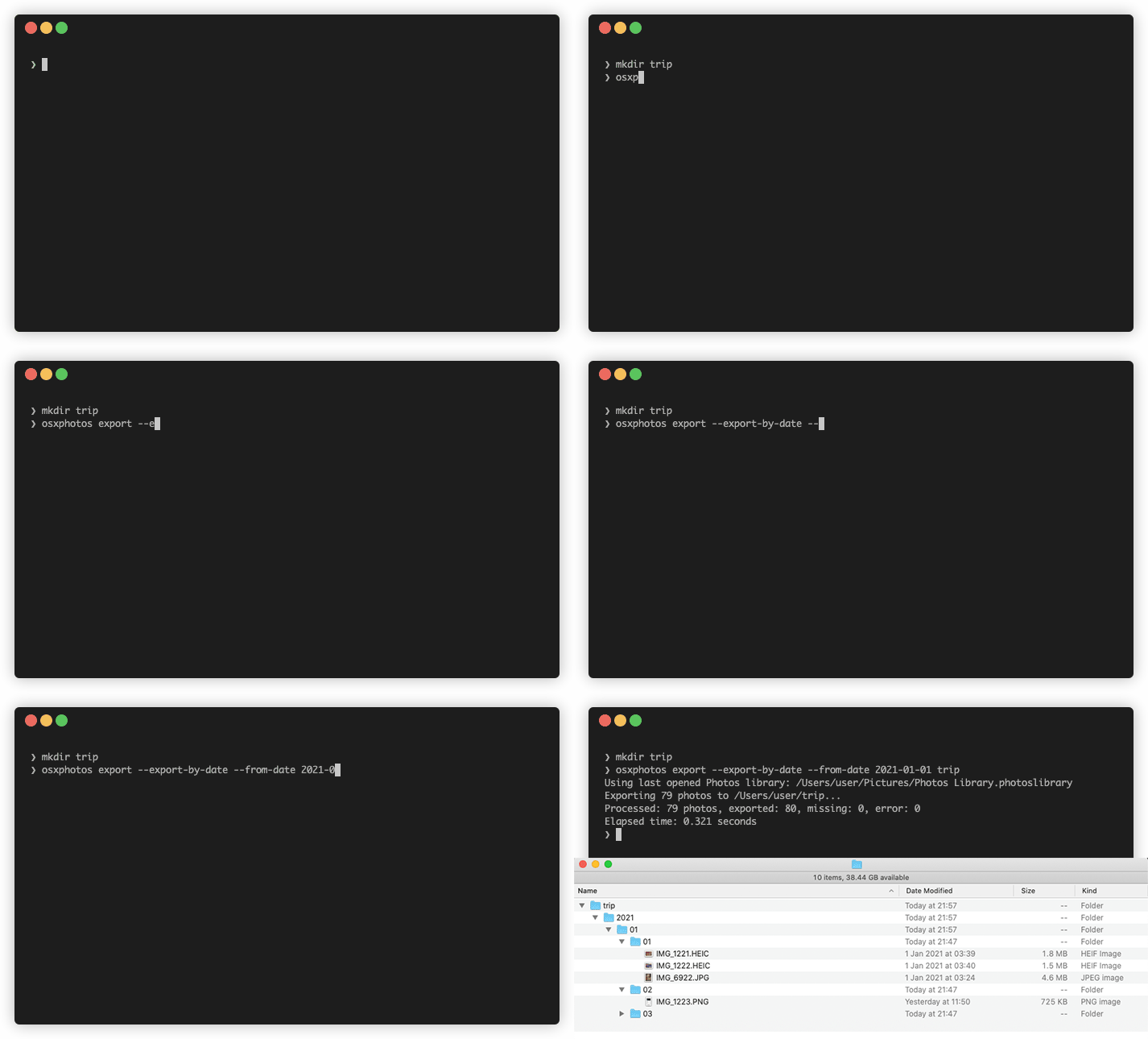
雖然先前的命令將導出您的所有照片(和視頻 - 請參見上面的註釋),但它可能無法完全做您想要的。在上一個示例中,所有照片將導出到單個文件夾: /path/to/export 。如果您有一個具有數千張圖像和視頻的大圖書館,那麼這可能不是很有用。您可以使用--export-by-date選項將照片導出到按年,月,日,例如2021/04/21組織的文件夾結構:
osxphotos export /path/to/export --export-by-date
有了此命令, /path/to/export/2015/05/31 05/31
如果您對導出的圖像更喜歡不同的目錄結構,則OSXPhotos提供了一個非常靈活的模板系統,該系統允許您使用--directory選項指定目錄結構。例如,此命令導出到看起來像: 2015/May (4位年 /月名)的目錄結構:
osxphotos export /path/to/export --directory "{created.year}/{created.month}"
字符串以下--directory是osxphotos template string 。模板字符串在整個Osxphotos中被廣泛使用,值得您進一步了解它們。在模板字符串中,捲曲括號之間的值,例如{created.year} 。在這種情況下, {created.year}是照片創建日期的4位年份,而{created.month}是用戶語言環境中的整個月份名稱(例如, May , mai等)。在Osxphotos模板系統中,這些被稱為模板字段。在這種情況下/在{}對之間未包含的文本是從字面上解釋的,是目錄分離器。
Osxphotos提供了幾乎所有有關圖像照片已知的元數據的訪問權限。例如,照片對包含GPS坐標的照片進行反向地理位置查找,以將位置分配給照片。使用--directory模板,您可以通過國家名稱組織的照片導出照片:
osxphotos export /path/to/export --directory "{created.year}/{place.name.country}"
當然,有些照片可能沒有關聯的位置名稱,因此模板系統允許您指定如果模板字段為null(沒有值),則指定默認值。
osxphotos export /path/to/export --directory "{created.year}/{place.name.country,No-Country}"
模板字符串中的“”之後的值是默認值,在這種情況下,“無國”。注意:如果未指定默認值,並且模板字段為null,則OSXPhotos將使用“ _”(下劃線字符)作為默認值。
某些模板字段(例如{keyword} )可能會擴展到多個值。例如,如果照片具有“旅行”和“度假”的關鍵字, {keyword}將擴展到“旅行”,“度假”。當與--directory一起使用時,這將導致照片被導出到一個以上的目錄(因此將導出照片的一個以上副本)。例如,如果IMG_1234.JPG具有關鍵字Travel和Vacation ,並且您運行以下命令:
osxphotos export /path/to/export --directory "{keyword}"
導出的文件將是:
 /path/to/export/Travel/IMG_1234.JPG
/path/to/export/Vacation/IMG_1234.JPG
如果您的照片是用照片中的文件夾和相冊組織的,則可以使用{folder_album}模板字段與--directory選項保存在導出中。例如,如果您在專輯Vacation中的照片中有一張Travel文件夾中的照片,則以下命令將將照片導出到Travel/Vacation目錄:
osxphotos export /path/to/export --directory "{folder_album}"
照片可以屬於多個專輯。在這種情況下,模板字段{folder_album}將擴展到照片所屬的所有專輯名稱。例如,如果照片屬於專輯的Vacation和Travel ,則模板字段{folder_album}將擴展到Vacation , Travel 。如果照片屬於不屬於專輯,則模板字段{folder_album}將擴展到“ _”(默認值)。
所有{folder_album}字段都可以使用許多不同的過濾器進一步過濾。為了將所有目錄名稱轉換為較低情況,請使用lower過濾器:
osxphotos export /path/to/export --directory "{folder_album|lower}"
如果您的所有照片都在一個名為Events的文件夾下組織成各種專輯,但其中一些也包含在其他頂級專輯中,並且您只想僅導出Events Folder,則可以使用filter選項來過濾其他頂級專輯,僅選擇從Events開始的那些文件夾/專輯路徑:
osxphotos export /path/to/export --directory "{folder_album|filter(startswith Events)}"
您可以使用osxphotos help export有關其他過濾器的更多信息。
默認情況下,Osxphotos導出時將使用照片的原始文件名。也就是說,照片被拍攝或導入照片時的文件名。這通常是IMG_1234.JPG或DSC05678.dng之類的東西。 Osxphotos允許您使用--filename選項指定自定義文件名模板的方式,就像--directory允許您指定自定義目錄名稱。例如,照片允許您指定照片的標題或標題,並且可以代替原始文件名:
osxphotos export /path/to/export --filename "{title}"
上面的命令將使用標題導出照片。請注意,您無需指定擴展名作為--filename模板的一部分,因為Osxphotos會自動添加正確的文件擴展名。有些照片可能沒有標題,因此在這種情況下,您可以使用默認值功能為這些照片指定其他名稱。例如,將標題用作文件名,但是如果未指定標題,請改用原始文件名:
 osxphotos export /path/to/export --filename "{title,{original_name}}"
                                              │    ││  │
                                              │    ││  │
     Use photo's title as the filename <──────┘    ││  │
                                                   ││  │
            Value after comma will be used <───────┘│  │
            if title is blank                       │  │
                                                    │  │
                      The default value can be <────┘  │
                      another template field           │
                                                       │
          Use photo's original name if no title <──────┘
Osxphotos模板系統還允許類型有限的條件邏輯“如果條件為真,則要做一件事情,否則,做另一件事”。例如,您可以使用--filename選項來命名與其他文件不同的照片標記為“收藏夾”的文件。例如,將“#”添加到每個喜歡的照片的名稱中:
 osxphotos export /path/to/export --filename "{original_name}{favorite?#,}"
                                              │              │       │││
                                              │              │       │││
     Use photo's original name as filename <──┘              │       │││
                                                             │       │││
          'favorite' is True if photo is a Favorite, <───────┘       │││
          otherwise, False                                           │││
                                                                     │││
                           '?' specifies a conditional <─────────────┘││
                                                                      ││
                 Value immediately following ? will be used if <──────┘│
                 preceding template field is True or non-blank         │
                                                                       │
              Value immediately following comma will be used if <──────┘
              template field is False or blank (null); in this case
              no value is specified so a blank string "" will be used
與--directory一樣,使用多值模板字段(例如{keyword}可能會導致多個被導出的照片的副本。例如,如果IMG_1234.JPG具有關鍵字Travel和Vacation ,並且您運行以下命令:
osxphotos export /path/to/export --filename "{keyword}-{original_name}"
導出的文件將是:
 /path/to/export/Travel-IMG_1234.JPG
/path/to/export/Vacation-IMG_1234.JPG
如果在照片庫中編輯了照片(例如裁剪,調整等)中的照片(例如裁剪,調整等)。默認情況下,Osxphotos將同時導出原始圖像和編輯圖像。為了區分它們,Osxphotos會將“ _edited”附加到編輯的圖像。例如,如果原始圖像命名為IMG_1234.JPG ,則OSXPHOTOS將導出原始圖像為IMG_1234.JPG ,並且編輯版本為IMG_1234_edited.jpeg 。注意:照片將編輯圖像的擴展擴展為“ .jpeg”,即使原始圖名為“ .jpg”。您可以使用--edited-suffix選項將附加的後綴更改為編輯的圖像:
osxphotos export /path/to/export --edited-suffix "_EDIT"
在此示例中,編輯的映像將命名為IMG_1234_EDIT.jpeg 。像Osxphotos中的許多選項一樣, --edited-suffix選項可以評估OSXPHOTOS模板字符串,因此您可以使用此命令將修改日期(編輯日期編輯的日期編輯日期)附加到所有編輯的照片:
osxphotos export /path/to/export --edited-suffix "_{modified.year}-{modified.mm}-{modified.dd}"
在此示例中,如果照片於2021年4月21日進行了編輯,則導出文件的名稱為: IMG_1234_2021-04-21.jpeg 。
您可以使用--skip-edited告訴osxphotos不導出編輯的照片(也就是僅導出原始未編輯的照片):
osxphotos export /path/to/export --skip-edited
您還可以告訴Osxphotos出口原始照片(如果尚未編輯照片)或已編輯的照片(如果已編輯),但並非兩者都使用--skip-original-if-edited選項:
osxphotos export /path/to/export --skip-original-if-edited
如上所述,照片重命名了已用“ .jpeg”擴展程序編輯的JPEG圖像。一些應用程序使用“ .jpg”,而其他應用程序使用” .jpg”或“ .jpeg”。您可以使用--jpeg-ext選項使Osxphotos重命名所有具有相同擴展名的JPEG文件。有效值是JPEG,JPG,JPEG,JPG;例如--jpeg-ext jpg用於所有jpegs使用'.jpg'。
osxphotos export /path/to/export --jpeg-ext jpg
以上所有命令都在默認照片庫上運行。大多數用戶僅使用單個照片庫,該庫也稱為系統照片庫。可以使用多個庫的照片。例如,如果在打開照片時按下“選項”鍵,則可以選擇替代照片庫。如果您不指定要使用哪個庫,則OSXPHOTO將嘗試找到最後一個打開的庫。有時它無法確定這一點,在這種情況下,它將使用系統照片庫。如果您使用多個照片庫,並且想明確指定要使用的庫,則可以使用--library選項進行操作。
osxphotos export /path/to/export --library ~/Pictures/MyAlternateLibrary.photoslibrary
Osxphotos通過將照片從照片庫文件夾中復制出來來導出它們。您可能會看到Osxphotos報告說缺少一張或多張照片,因此無法導出。這樣做的一個可能原因是,您使用iCloud來同步照片庫,並且照片尚未將雲庫同步到本地Mac,或者您的照片配置為“優化照片偏好”中的“優化MAC存儲”。另一個原因是,即使您的照片配置為將原件下載到Mac上,照片也不總是從共享相冊或原始屏幕截圖下載到Mac的照片。
如果遇到缺少的照片,可以告訴Osxphotos使用--download-missing選項從iCloud下載丟失的照片。 --download-missing使用AppleScript與照片進行通信,並告訴它下載丟失的照片。 Photos的AppleScript界面有些錯誤,您可能會發現照片崩潰了。在這種情況下,Osxphotos將嘗試重新啟動照片以恢復下載過程。還有一個實驗性--use-photokit選項,它將使用不同的“ Photokit”界面與照片進行通信。此選項必須與--download-missing一起使用:
osxphotos export /path/to/export --download-missing
osxphotos export /path/to/export --download-missing --use-photokit
如果您要導出到外部網絡附加存儲(NAS)設備,則如果網絡連接不可靠,則可能會遇到錯誤。在這種情況下,您可以使用--retry選項,以便osxphotos自動重試導出。使用--retry取得一個數字,指定重試導出的次數:
osxphotos export /path/to/export --retry 3
在此示例中,如果遇到錯誤,Osxphotos將嘗試將照片導出最多3次。
除--retry外, --exportdb和--ramdb在導出到外部磁盤或NAS時可能會提高性能。當Osxphotos導出照片時,它將在導出文件夾中創建一個名為.osxphotos_export.db的導出數據庫文件,Osxphotos使用該文件來跟踪哪些照片已導出。這使您可以重新啟動,導出和使用--update以更新現有導出。如果與導出位置的連接緩慢或片狀,則在導出數據庫中位於導出磁盤上的連接可能會降低性能。在這種情況下,您可以使用--exportdb DBPATH指示Osxphotos將導出數據庫存儲在DBPATH上。如果使用此選項,我建議將導出數據庫放在MAC系統磁盤上(例如,在主目錄中)。如果您打算使用--update將來更新導出,則必須記住導出數據庫的位置,並在每次更新導出時使用--exportdb選項。
使用--exportdb的另一個替代方法是使用--ramdb 。此選項指示OSXPHOTOS使用RAM數據庫而不是磁盤上的文件。 RAM數據庫比磁盤上的文件快得多,並且不需要Osxphotos訪問網絡驅動器以查詢或寫入數據庫。當Osxphotos完成導出時,將將RAM數據庫寫入導出位置。這可以提供顯著的性能提升,但是如果Osxphotos崩潰或在出口期間中斷,您將失去狀態信息。
照片跟踪與圖書館中照片相關的大量元數據,例如關鍵字,面和人員,反向地理位置數據和圖像分類標籤。照片的本機出口能力不能保留大部分元數據。但是,Osxphotos可以訪問並保留幾乎所有與照片相關的元數據。使用免費的exiftool應用程序,Osxphotos可以寫元數據以導出照片。請按照Exiftool網站上的說明進行安裝,然後可以使用--exiftool選項將元數據編寫到導出的照片:
osxphotos export /path/to/export --exiftool
這將將基本元數據(例如關鍵字,人員和GPS位置)寫入導出的文件。 Osxphotos包含幾個其他選項,可以與--exiftool一起使用,以修改exiftool編寫的元數據。例如,您可以使用--keyword-template選項來指定自定義關鍵字(再次通過OSXPHOTOS模板系統)。例如,要使用該文件夾和專輯,照片將以Lightroom Classic使用的格式創建層次關鍵字:
 osxphotos export /path/to/export --exiftool --keyword-template "{folder_album(>)}"
                                                                 │            │
                                                                 │            │
                       folder_album results in the folder(s)  <──┘            │
                       and album a photo is contained in                      │
                                                                              │
                       The value in () is used as the path separator  <───────┘
                       for joining the folders and albums.  For example,
                       if photo is in Folder1/Folder2/Album, (>) produces
                       "Folder1>Folder2>Album" which some programs, such as
                       Lightroom Classic, treat as hierarchical keywords
上面的命令將編寫所有常規元數據--exiftool通常在導出時寫入文件,但還將在導出的元數據中以“ folder1> folder2>相冊”的形式添加一個其他關鍵字。如果您未在模板字符串(例如{folder_album} )中包含(>) ,則folder_album將以“ folder1/folder2/相冊”形式呈現。
照片的一個強大功能是,它使用機器學習算法自動對照片進行分類或標記照片。當您在照片中搜索圖像時,使用這些標籤,但用戶無法使用。 Osxphotos能夠讀取與照片關聯的所有標籤,並通過{label}通過模板系統提供這些標籤。將這些視為自動關鍵字,而不是您在照片中手動分配的關鍵字。一種常見的用例是在導出圖像時使用自動標籤來創建新的關鍵字,以便將這些標籤嵌入圖像的元數據中:
osxphotos export /path/to/export --exiftool --keyword-template "{label}"
如果您的某些照片包含一個關鍵字,則不想使用--exiftool添加到導出文件中,您可以使用模板系統從導出的文件中刪除關鍵字。例如,如果您想從所有照片中刪除關鍵字“ mykeyword”:
osxphotos export /path/to/export --exiftool --keyword-template "{keyword|remove(MyKeyword)}" --replace-keywords
在此示例中, |remove(MyKeyword)是一個過濾器,可從每個正在處理的照片的關鍵字列表中刪除MyKeyword 。 --replace-keywords選項指示osxphotos用--keyword-template的過濾關鍵字替換導出文件中的關鍵字。
注意:在評估模板中--directory和--filename時,Osxphotos插入自動默認值“ _”的任何模板字段(null(空或空白))。這是為了確保永遠不會創建無效目錄或文件名。對於諸如--keyword-template之類的元數據模板,OSXPhotos不提供自動默認值,因此如果模板字段為null,則不會創建關鍵字。當然,如果需要,您可以提供默認值,並且Osxphotos將使用此默認值。例如,將“ nolabel”添加為任何沒有標籤的照片的關鍵字:
osxphotos export /path/to/export --exiftool --keyword-template "{label,nolabel}"
導出有關照片的元數據的另一種方法是使用SideCar文件。這些文件的名稱與您的照片具有相同的名稱(但擴展名不同)並攜帶元數據。許多數字資產管理應用程序(例如,光普主義,Lightroom,Digikam等)都可以讀取或編寫SideCar文件。 Osxphotos可以使用--sidecar選項以Exiftool兼容JSON和XMP格式導出元數據。例如,將元數據輸出到XMP側:
osxphotos export /path/to/export --sidecar XMP
與--exiftool不同,您無需安裝Exiftool即可使用--sidecar功能。例如,適用於--exiftool以修改元數據--keyword-template許多相同的配置選項,也可以與--sidecar一起使用。
SideCar文件稱為“ Photoname.ext.Sidecar_ext”。例如,如果該照片命名為IMG_1234.JPG ,而SideCar格式為XMP,則SIDECAR將命名為IMG_1234.JPG.XMP 。某些應用程序期望在這種情況下使用IMG_1234.XMP 。您可以使用--sidecar-drop-ext選項,以這種方式迫使Osxphotos命名SideCar文件:
osxphotos export /path/to/export --sidecar XMP --sidecar-drop-ext
如果您想使用Osxphotos執行照片庫的定期備份,而不是一次性導出,請使用--update選項。當運行osxphotos export時,它將在導出文件夾中創建一個名為.osxphotos_export.db的數據庫文件。 (請注意,因為文件名以“”。。如果您使用--update選項運行OSXPhotos,它將查找此數據庫文件,如果發現它,則使用它從上次運行的狀態信息中檢索它僅導出新或更改的文件。例如:
osxphotos export /path/to/export --update
將讀取位於/path/to/export/.osxphotos_export.db中的導出數據庫,並且自上次運行Osxphotos以來已添加或更改的導出照片。即使以前從未運行,您也可以使用--update選項運行Osxphotos。如果找不到數據庫,則Osxphotos將創建它。如果您運行osxphotos export無需--update在以前出口照片的文件夾中更新,它將重新刪除所有照片。如果您的目的是將照片庫定期備份與Osxphotos保持最新,則應始終使用--update 。
如果您的工作流程涉及將文件從導出目錄中移出(例如,您將其移至數字資產管理應用程序中),但是您想使用--update的功能,則可以使用--only-new with --update來迫使Osxphotos以自上次更新以來僅導出新的照片(添加到庫)。在這種情況下,Osxphotos將忽略現在缺少的先前導出的文件。如果沒有--only-new ,Osxphotos就會看到先前導出的文件丟失並重新出口。
osxphotos export /path/to/export --update --only-new
如果您的工作流程涉及編輯您從照片導出的圖像,但您仍然希望使用--update保持備份,則應使用--ignore-signature選項。 --ignore-signature指示Osxphotos忽略文件的簽名(例如,大小和日期修改)在確定應使用--update更新哪些文件時。如果您在“導出目錄”中編輯文件,然後在沒有--ignore-signature情況下運行--update ,則Osxphotos會看到該文件與照片庫中的文件不同並重新輸入文件。
osxphotos export /path/to/export --update --ignore-signature
您可以使用--dry-run選項將OSXphotos“幹運行”或測試導出而無需實際導出任何文件。當與--verbose選項結合使用,這會導致Osxphotos打印出每個文件的詳細信息,這可能是在實際運行完整導出之前測試導出選項的有用工具。例如,如果您正在學習模板系統,並想驗證您的--directory和--filename名模板是正確的, --dry-run --verbose將打印出每個要導出的文件的名稱。
osxphotos export /path/to/export --dry-run --verbose
您可以使用--report選項以逗號分隔的值(CSV)格式創建報告,該格式將列出所有導出,跳過,跳過,缺少等文件的詳細信息。此文件格式與Microsoft Excel等程序兼容。在--report選項之後提供報告的名稱:
osxphotos export /path/to/export --report export.csv
您還可以通過更改報告文件名的擴展名來創建JSON或SQLITE格式的報告。例如,創建一個JSON報告:
osxphotos export /path/to/export --report export.json
並創建一個sqlite報告:
osxphotos export /path/to/export --report export.sqlite
默認情況下,Osxphotos將導出您的整個照片庫。如果您只想導出某些照片,則OSXPHOTOS提供了一組豐富的“查詢選項”,使您可以查詢照片數據庫僅過濾一些符合查詢標準的照片。該教程並未涵蓋所有查詢選項,因為其中有50個 - 閱讀幫助文本( osxphotos help export ),以更好地了解可用的查詢選項。無論您想導出哪個照片子集,幾乎可以肯定,Osxphotos都可以過濾這些照片。例如,您只能過濾一些包含某些關鍵字或圖像的圖像,而沒有標題,來自一天中的特定時間或特定日期範圍的圖像,特定專輯中包含的圖像等等。
例如,僅導出關鍵字Travel的照片:
osxphotos export /path/to/export --keyword "Travel"
像Osxphotos中的許多選項一樣,可以重複--keyword (以及大多數其他查詢選項)以搜索多個學期。例如,查找具有關鍵字Travel或關鍵字Vacation的照片:
osxphotos export /path/to/export --keyword "Travel" --keyword "Vacation"
僅導出專輯“暑假”中包含的照片:
osxphotos export /path/to/export --album "Summer Vacation"
在照片中,有可能擁有具有相同名稱的多張專輯。在這種情況下,Osxphotos將從所有專輯中導出與傳遞給--album值相匹配的照片。如果您只想導出其中一張專輯,並且該專輯位於文件夾中,則可以與{folder_album}模板一起使用--regex選項(“正則表達式”的簡稱)(“正則表達式”的簡稱),以匹配特定的專輯。例如,如果您在文件夾“ 2018”中有一張“暑假”專輯,並且在文件夾“ 2019”中也有相同名稱,則可以使用此命令僅導出專輯“ 2018/暑假”。
osxphotos export /path/to/export --regex "2018/Summer Vacation" "{folder_album}"
該命令與每張照片的完整文件夾/專輯路徑相匹配。
還有許多查詢選項僅導出某些類型的照片。例如,僅導出使用iPhone“肖像模式”拍攝的照片:
osxphotos export /path/to/export --portrait
您還可以在特定日期範圍內導出照片:
osxphotos export /path/to/export --from-date "2020-01-01" --to-date "2020-02-28"
或上週添加到圖書館的照片:
osxphotos export /path/to/export --added-in-last "1 week"
照片可以以許多不同格式存儲圖像。 Osxphotos可以使用--convert-to-jpeg選項將非JPEG圖像(例如原始照片)轉換為JPEG。您可以使用--jpeg-quality指定JPEG質量(0:最差,1.0:最佳)。例如:
osxphotos export /path/to/export --convert-to-jpeg --jpeg-quality 0.9
除了使用exiftool將元數據直接寫入圖像元數據外,Osxphotos還可以編寫某些可用於Finder和Spotlight可用的元數據,但不會修改實際的圖像文件。這是通過稱為“擴展屬性”的內容來完成的,該屬性存儲在文件系統中,但實際上並未修改文件本身。查找器標籤和查找器評論是這些的常見示例。
例如,osxphotos可以在圖像中寫入任何關鍵字以獲取查找器標籤,以便您可以使用tag:tagname語法:
osxphotos export /path/to/export --finder-tag-keywords
--finder-tag-keywords還與exiftool上的部分所述的--keyword-template一起使用:
osxphotos export /path/to/export --finder-tag-keywords --keyword-template "{label}"
--xattr-template選項允許您設置各種其他擴展屬性。它以格式--xattr-template ATTRIBUTE TEMPLATE使用,其中屬性是“作者”,“註釋”,“版權”,“描述”,“ FinderCommant”,“ findercommomment”,“ headline','keywords'。
例如,將查找器評論設置為照片的標題和描述:
osxphotos export /path/to/export --xattr-template findercomment "{title}{newline}{descr}"
In the template string above, {newline} instructs osxphotos to insert a new line character ("n") between the title and description. In this example, if {title} or {descr} is empty, you'll get "titlen" or "ndescription" which may not be desired so you can use more advanced features of the template system to handle these cases:
osxphotos export /path/to/export --xattr-template findercomment "{title,}{title?{descr?{newline},},}{descr,}"
Explanation of the template string:
 {title,}{title?{descr?{newline},},}{descr,}
 │           │      │ │       │ │  │
 │           │      │ │       │ │  │
 └──> insert title (or nothing if no title)
             │      │ │       │ │  │
             └───> is there a title?
                    │ │       │ │  │
                    └───> if so, is there a description?
                      │       │ │  │
                      └───> if so, insert new line
                              │ │  │
                              └───> if descr is blank, insert nothing
                                │  │
                                └───> if title is blank, insert nothing
                                   │
                                   └───> finally, insert description
                                         (or nothing if no description)
In this example, title? demonstrates use of the boolean (True/False) feature of the template system. title? is read as "Is the title True (or not blank/empty)? If so, then the value immediately following the ? is used in place of title . If title is blank, then the value immediately following the comma is used instead. The format for boolean fields is field?value if true,value if false . Either value if true or value if false may be blank, in which case a blank string ("") is used for the value and both may also be an entirely new template string as seen in the above example. Using this format, template strings may be nested inside each other to form complex if-then-else statements.
The above example, while complex to read, shows how flexible the osxphotos template system is. If you invest a little time learning how to use the template system you can easily handle almost any use case you have.
See Extended Attributes section in the help for osxphotos export for additional information about this feature.
If you repeatedly run a complex osxphotos export command (for example, to regularly back-up your Photos library), you can save all the options to a configuration file for future use ( --save-config FILE ) and then load them ( --load-config FILE ) instead of repeating each option on the command line.
To save the configuration:
osxphotos export /path/to/export <all your options here> --update --save-config osxphotos.toml
Then the next to you run osxphotos, you can simply do this:
osxphotos export /path/to/export --load-config osxphotos.toml
The configuration file is a plain text file in TOML format so the .toml extension is standard but you can name the file anything you like.
You can use the --post-command option to run one or more commands against exported files. The --post-command option takes two arguments: CATEGORY and COMMAND. CATEGORY is a string that describes which category of file to run the command against. The available categories are described in the help text available via: osxphotos help export . For example, the exported category includes all exported photos and the skipped category includes all photos that were skipped when running export with --update . COMMAND is an osxphotos template string which will be rendered then passed to the shell for execution.
For example, the following command generates a log of all exported files and their associated keywords:
osxphotos export /path/to/export --post-command exported "echo {shell_quote,{filepath}{comma}{,+keyword,}} >> {shell_quote,{export_dir}/exported.txt}"
The special template field {shell_quote} ensures a string is properly quoted for execution in the shell. For example, it's possible that a file path or keyword in this example has a space in the value and if not properly quoted, this would cause an error in the execution of the command. When running commands, the template {filepath} is set to the full path of the exported file and {export_dir} is set to the full path of the base export directory.
Explanation of the template string:
 {shell_quote,{filepath}{comma}{,+keyword,}}
 │            │         │      │        │
 │            │         │      |        │
 └──> quote everything after comma for proper execution in the shell
              │         │      │        │
              └───> filepath of the exported file
                       │       │        │
                       └───> insert a comma
                               │        │
                               └───> join the list of keywords together with a ","
                                        │
                                        └───> if no keywords, insert nothing (empty string: "")
Another example: if you had exiftool installed and wanted to wipe all metadata from all exported files, you could use the following:
osxphotos export /path/to/export --post-command exported "/usr/local/bin/exiftool -all= {filepath|shell_quote}"
This command uses the |shell_quote template filter instead of the {shell_quote} template because the only thing that needs to be quoted is the path to the exported file. Template filters filter the value of the rendered template field. A number of other filters are available and are described in the help text.
Here's a comprehensive use case from an actual osxphotos user that integrates many of the concepts discussed in this tutorial (thank-you Philippe for contributing this!):
 I usually import my iPhone’s photo roll on a more or less regular basis, and it
includes photos and videos. As a result, the size ot my Photos library may rise
very quickly. Nevertheless, I will tag and geolocate everything as Photos has a
quite good keyword management system.

After a while, I want to take most of the videos out of the library and move them
to a separate "videos" folder on a different folder / volume. As I might want to
use them in Final Cut Pro, and since Final Cut is able to import Finder tags into
its internal library tagging system, I will use osxphotos to do just this.

Picking the videos can be left to Photos, using a smart folder for instance. Then
just add a keyword to all videos to be processed. Here I chose "Quik" as I wanted
to spot all videos created on my iPhone using the Quik application (now part of
GoPro).

I want to retrieve my keywords only and make sure they populate the Finder tags, as
well as export all the persons identified in the videos by Photos.  I also want to
merge any keywords or persons already in the video metadata with the exported
metadata.

Keeping Photo’s edited titles and descriptions and putting both in the Finder
comments field in a readable manner is also enabled.

And I want to keep the file’s creation date (using `--touch-file`).

Finally, use `--strip` to remove any leading or trailing whitespace from processed
template fields.
osxphotos export ~/Desktop/folder for exported videos/ --keyword Quik --only-movies --library /path to my.photoslibrary --touch-file --finder-tag-keywords --person-keyword --xattr-template findercomment "{title}{title?{descr?{newline},},}{descr}" --exiftool-merge-keywords --exiftool-merge-persons --exiftool --strip
Some osxphotos commands such as export use color themes to colorize the output to make it more legible. The theme may be specified with the --theme option. For example: osxphotos export /path/to/export --verbose --theme dark uses a theme suited for dark terminals. If you don't specify the color theme, osxphotos will select a default theme based on the current terminal settings. You can also specify your own default theme. See osxphotos help theme for more information on themes and for commands to help manage themes. Themes are defined in .theme files in the ~/.osxphotos/themes directory and use style specifications compatible with the rich library.
osxphotos is very flexible. If you merely want to backup your Photos library, then spending a few minutes to understand the --directory option is likely all you need and you can be up and running in minutes. However, if you have a more complex workflow, osxphotos likely provides options to implement your workflow. This tutorial does not attempt to cover every option offered by osxphotos but hopefully it provides a good understanding of what kinds of things are possible and where to explore if you want to learn more.
osxphotos help export
Usage: osxphotos export [OPTIONS] DEST
Export photos from the Photos database. Export path DEST is required.
Optionally, query the Photos database using 1 or more search options; if more
than one different option is provided, they are treated as "AND" (e.g. search
for photos matching all options). If the same query option is provided
multiple times, they are treated as "OR" (e.g. search for photos matching any
of the options). If no query options are provided, all photos will be
exported.
For example, adding the query options:
--person "John Doe" --person "Jane Doe" --keyword "vacation"
will export all photos with either person of ("John Doe" OR "Jane Doe") AND
keyword of "vacation"
By default, all versions of all photos will be exported including edited
versions, live photo movies, burst photos, and associated raw images. See
--skip-edited, --skip-live, --skip-bursts, and --skip-raw options to modify
this behavior.
Options:
--library, --db PHOTOS_LIBRARY_PATH
Specify path to Photos library. If not
provided, will attempt to find the library to
use in the following order: 1. last opened
library, 2. system library, 3.
~/Pictures/Photos Library.photoslibrary
-V, --verbose Print verbose output; may be specified
multiple times for more verbose output.
--timestamp Add time stamp to verbose output
--no-progress Do not display progress bar during export.
--keyword KEYWORD Search for photos with keyword KEYWORD. If
more than one keyword, treated as "OR", e.g.
find photos matching any keyword
--no-keyword Search for photos with no keyword.
--person PERSON Search for photos with person PERSON. If more
than one person, treated as "OR", e.g. find
photos matching any person
--album ALBUM Search for photos in album ALBUM. If more than
one album, treated as "OR", e.g. find photos
matching any album
--folder FOLDER Search for photos in an album in folder
FOLDER. If more than one folder, treated as
"OR", e.g. find photos in any FOLDER. Only
searches top level folders (e.g. does not look
at subfolders)
--name FILENAME Search for photos with filename matching
FILENAME. If more than one --name options is
specified, they are treated as "OR", e.g. find
photos matching any FILENAME.
--uuid UUID Search for photos with UUID(s). May be
repeated to include multiple UUIDs.
--uuid-from-file FILE Search for photos with UUID(s) loaded from
FILE. Format is a single UUID per line. Lines
preceded with # are ignored. If FILE is '-',
read UUIDs from stdin.
--title TITLE Search for TITLE in title of photo.
--no-title Search for photos with no title.
--description DESC Search for DESC in description of photo.
--no-description Search for photos with no description.
--place PLACE Search for PLACE in photo's reverse
geolocation info
--no-place Search for photos with no associated place
name info (no reverse geolocation info)
--location Search for photos with associated location
info (e.g. GPS coordinates)
--no-location Search for photos with no associated location
info (e.g. no GPS coordinates)
--label LABEL Search for photos with image classification
label LABEL (Photos 5+ only). If more than one
label, treated as "OR", e.g. find photos
matching any label
--uti UTI Search for photos whose uniform type
identifier (UTI) matches UTI
-i, --ignore-case Case insensitive search for title,
description, place, keyword, person, or album.
--edited Search for photos that have been edited.
--not-edited Search for photos that have not been edited.
--external-edit Search for photos edited in external editor.
--favorite Search for photos marked favorite.
--not-favorite Search for photos not marked favorite.
--hidden Search for photos marked hidden.
--not-hidden Search for photos not marked hidden.
--shared Search for photos in shared iCloud album
(Photos 5+ only).
--not-shared Search for photos not in shared iCloud album
(Photos 5+ only).
--burst Search for photos that were taken in a burst.
--not-burst Search for photos that are not part of a
burst.
--live Search for Apple live photos
--not-live Search for photos that are not Apple live
photos.
--portrait Search for Apple portrait mode photos.
--not-portrait Search for photos that are not Apple portrait
mode photos.
--screenshot Search for screenshot photos.
--not-screenshot Search for photos that are not screenshot
photos.
--screen-recording Search for screen-recording videos.
--not-screen-recording Search for photos that are not screen
recording videos.
--slow-mo Search for slow motion videos.
--not-slow-mo Search for photos that are not slow motion
videos.
--time-lapse Search for time lapse videos.
--not-time-lapse Search for photos that are not time lapse
videos.
--hdr Search for high dynamic range (HDR) photos.
--not-hdr Search for photos that are not HDR photos.
--selfie Search for selfies (photos taken with front-
facing cameras).
--not-selfie Search for photos that are not selfies.
--panorama Search for panorama photos.
--not-panorama Search for photos that are not panoramas.
--has-raw Search for photos with both a jpeg and raw
version
--only-movies Search only for movies (default searches both
images and movies).
--only-photos Search only for photos/images (default
searches both images and movies).
--from-date DATE Search for items created on or after DATE,
e.g. 2000-01-12T12:00:00,
2001-01-12T12:00:00-07:00, or 2000-12-31 (ISO
8601 with/without timezone).
--to-date DATE Search for items created before DATE, e.g.
2000-01-12T12:00:00,
2001-01-12T12:00:00-07:00, or 2000-12-31 (ISO
8601 with/without timezone).
--from-time TIME Search for items created on or after TIME of
day, e.g. 12:00, or 12:00:00.
--to-time TIME Search for items created before TIME of day,
e.g. 12:00 or 12:00:00.
--year YEAR Search for items from a specific year, e.g.
--year 2022 to find all photos from the year
2022. May be repeated to search multiple
years.
--added-before DATE Search for items added to the library before a
specific date/time, e.g. --added-before e.g.
2000-01-12T12:00:00,
2001-01-12T12:00:00-07:00, or 2000-12-31 (ISO
8601 with/without timezone).
--added-after DATE Search for items added to the library on or
after a specific date/time, e.g. --added-after
e.g. 2000-01-12T12:00:00,
2001-01-12T12:00:00-07:00, or 2000-12-31 (ISO
8601 with/without timezone).
--added-in-last TIME_DELTA Search for items added to the library in the
last TIME_DELTA, where TIME_DELTA is a string
like '12 hrs', '1 day', '1d', '1 week',
'2weeks', '1 month', '1 year'. for example,
`--added-in-last 7d` and `--added-in-last '1
week'` are equivalent. months are assumed to
be 30 days and years are assumed to be 365
days. Common English abbreviations are
accepted, e.g. d, day, days or m, min,
minutes.
--has-comment Search for photos that have comments.
--no-comment Search for photos with no comments.
--has-likes Search for photos that have likes.
--no-likes Search for photos with no likes.
--is-reference Search for photos that were imported as
referenced files (not copied into Photos
library).
--not-reference Search for photos that are not references,
that is, they were copied into the Photos
library and are managed by Photos.
--in-album Search for photos that are in one or more
albums.
--not-in-album Search for photos that are not in any albums.
--duplicate Search for photos with possible duplicates.
osxphotos will compare signatures of photos,
evaluating date created, size, height, width,
and edited status to find *possible*
duplicates. This does not compare images byte-
for-byte nor compare hashes but should find
photos imported multiple times or duplicated
within Photos.
--min-size SIZE Search for photos with size >= SIZE bytes. The
size evaluated is the photo's original size
(when imported to Photos). Size may be
specified as integer bytes or using SI or NIST
units. For example, the following are all
valid and equivalent sizes: '1048576'
'1.048576MB', '1 MiB'.
--max-size SIZE Search for photos with size <= SIZE bytes. The
size evaluated is the photo's original size
(when imported to Photos). Size may be
specified as integer bytes or using SI or NIST
units. For example, the following are all
valid and equivalent sizes: '1048576'
'1.048576MB', '1 MiB'.
--missing Search for photos missing from disk.
--not-missing Search for photos present on disk (e.g. not
missing).
--cloudasset Search for photos that are part of an iCloud
library
--not-cloudasset Search for photos that are not part of an
iCloud library
--incloud Search for photos that are in iCloud (have
been synched)
--not-incloud Search for photos that are not in iCloud (have
not been synched)
--syndicated Search for photos that have been shared via
syndication ('Shared with You' album via
Messages, etc.)
--not-syndicated Search for photos that have not been shared
via syndication ('Shared with You' album via
Messages, etc.)
--saved-to-library Search for syndicated photos that have saved
to the library
--not-saved-to-library Search for syndicated photos that have not
saved to the library
--shared-moment Search for photos that are part of a shared
moment
--not-shared-moment Search for photos that are not part of a
shared moment
--shared-library Search for photos that are part of a shared
library
--not-shared-library Search for photos that are not part of a
shared library
--regex REGEX TEMPLATE Search for photos where TEMPLATE matches
regular expression REGEX. For example, to find
photos in an album that begins with 'Beach': '
--regex "^Beach" "{album}"'. You may specify
more than one regular expression match by
repeating '--regex' with different arguments.
--selected Filter for photos that are currently selected
in Photos.
--exif EXIF_TAG VALUE Search for photos where EXIF_TAG exists in
photo's EXIF data and contains VALUE. For
example, to find photos created by Adobe
Photoshop: `--exif Software 'Adobe Photoshop'
`or to find all photos shot on a Canon camera:
`--exif Make Canon`. EXIF_TAG can be any valid
exiftool tag, with or without group name, e.g.
`EXIF:Make` or `Make`. To use --exif, exiftool
must be installed and in the path.
--query-eval CRITERIA Evaluate CRITERIA to filter photos. CRITERIA
will be evaluated in context of the following
python list comprehension: `photos = [photo
for photo in photos if CRITERIA]` where photo
represents a PhotoInfo object. For example:
`--query-eval photo.favorite` returns all
photos that have been favorited and is
equivalent to --favorite. You may specify more
than one CRITERIA by using --query-eval
multiple times. CRITERIA must be a valid
python expression. See
https://rhettbull.github.io/osxphotos/ for
additional documentation on the PhotoInfo
class.
--query-function filename.py::function
Run function to filter photos. Use this in
format: --query-function filename.py::function
where filename.py is a python file you've
created and function is the name of the
function in the python file you want to call.
Your function will be passed a list of
PhotoInfo objects and is expected to return a
filtered list of PhotoInfo objects. You may
use more than one function by repeating the
--query-function option with a different
value. Your query function will be called
after all other query options have been
evaluated. You may also specify a URL to a
python file in the format: --query-function
https://path/to/module.py::function See https:
//github.com/RhetTbull/osxphotos/blob/master/e
xamples/query_function.py for example of a
query function.
--deleted-only Include only photos from the 'Recently
Deleted' folder.
--deleted Include photos from the 'Recently Deleted'
folder.
--update Only export new or updated files. See also
--force-update and notes below on export and
--update.
--force-update Only export new or updated files. Unlike
--update, --force-update will re-export photos
if their metadata has changed even if this
would not otherwise trigger an export. See
also --update and notes below on export and
--update.
--update-errors Update files that were previously exported but
produced errors during export. For example, if
a file produced an error with --exiftool due
to bad metadata, this option will re-export
the file and attempt to write the metadata
again when used with --exiftool and --update.
Without --update-errors, photos that were
successfully exported but generated an error
or warning during export will not be re-
attempted if metadata has not changed. Must be
used with --update.
--ignore-signature When used with '--update', ignores file
signature when updating files. This is useful
if you have processed or edited exported
photos changing the file signature (size &
modification date). In this case, '--update'
would normally re-export the processed files
but with '--ignore-signature', files which
exist in the export directory will not be re-
exported. If used with '--sidecar', '--ignore-
signature' has the following behavior: 1) if
the metadata (in Photos) that went into the
sidecar did not change, the sidecar will not
be updated; 2) if the metadata (in Photos)
that went into the sidecar did change, a new
sidecar is written but a new image file is
not; 3) if a sidecar does not exist for the
photo, a sidecar will be written whether or
not the photo file was written or updated.
--only-new If used with --update, ignores any previously
exported files, even if missing from the
export folder and only exports new files that
haven't previously been exported.
--limit LIMIT Export at most LIMIT photos. Useful for
testing. May be used with --update to export
incrementally.
--dry-run Dry run (test) the export but don't actually
export any files; most useful with --verbose.
--export-as-hardlink Hardlink files instead of copying them. Cannot
be used with --exiftool which creates copies
of the files with embedded EXIF data. Note: on
APFS volumes, files are cloned when exporting
giving many of the same advantages as
hardlinks without having to use --export-as-
hardlink.
--touch-file Sets the file's modification time to match
photo date.
--overwrite Overwrite existing files. Default behavior is
to add (1), (2), etc to filename if file
already exists. Use this with caution as it
may create name collisions on export. (e.g. if
two files happen to have the same name)
--retry RETRY Automatically retry export up to RETRY times
if an error occurs during export. This may be
useful with network drives that experience
intermittent errors.
--export-by-date Automatically create output folders to
organize photos by date created (e.g.
DEST/2019/12/20/photoname.jpg).
--skip-edited Do not export edited version of photo if an
edited version exists.
--skip-original-if-edited Do not export original if there is an edited
version (exports only the edited version).
--skip-bursts Do not export all associated burst images in
the library if a photo is a burst photo.
--skip-live Do not export the associated live video
component of a live photo.
--skip-raw Do not export associated RAW image of a
RAW+JPEG pair. Note: this does not skip RAW
photos if the RAW photo does not have an
associated JPEG image (e.g. the RAW file was
imported to Photos without a JPEG preview).
--skip-uuid UUID Skip photos with UUID(s) during export. May be
repeated to include multiple UUIDs.
--skip-uuid-from-file FILE Skip photos with UUID(s) loaded from FILE.
Format is a single UUID per line. Lines
preceded with # are ignored.
--current-name Use photo's current filename instead of
original filename for export. Note: Starting
with Photos 5, all photos are renamed upon
import. By default, photos are exported with
the the original name they had before import.
--convert-to-jpeg Convert all non-JPEG images (e.g. RAW, HEIC,
PNG, etc) to JPEG upon export. Note: does not
convert the RAW component of a RAW+JPEG pair
as the associated JPEG image will be exported.
You can use --skip-raw to skip exporting the
associated RAW image of a RAW+JPEG pair. See
also --jpeg-quality and --jpeg-ext. Only works
if your Mac has a GPU (thus may not work on
virtual machines).
--jpeg-quality FLOAT RANGE Value in range 0.0 to 1.0 to use with
--convert-to-jpeg. A value of 1.0 specifies
best quality, a value of 0.0 specifies maximum
compression. Defaults to 1.0 [0.0<=x<=1.0]
--fix-orientation Automatically fix image orientation in
exported photos to match orientation in Photos
database. Requires exiftool be installed and
in the path. This is useful mainly for iPhoto
libraries. When an image is rotated in iPhoto,
the image orientation is not actually changed,
instead the image is tagged with an
orientation value in the iPhoto database. This
means that when the image is exported, the
orientation may not be correct. This option
will read the EXIF orientation data and fix
the image's orientation if necessary. If used
with Photos libraries, this option will result
in the original image also being adjusted upon
export.
--preview Export preview image generated by Photos. This
is a lower-resolution image used by Photos to
quickly preview the image. See also --preview-
suffix and --preview-if-missing.
--preview-if-missing Export preview image generated by Photos if
the actual photo file is missing from the
library. This may be helpful if photos were
not copied to the Photos library and the
original photo is missing. See also --preview-
suffix and --preview.
--preview-suffix SUFFIX Optional suffix template for naming preview
photos. Default name for preview photos is in
form 'photoname_preview.ext'. For example,
with '--preview-suffix _low_res', the preview
photo would be named 'photoname_low_res.ext'.
The default suffix is '_preview'. Multi-value
templates (see Templating System) are not
permitted with --preview-suffix. See also
--preview and --preview-if-missing.
--download-missing Attempt to download missing photos from
iCloud. The current implementation uses
Applescript to interact with Photos to export
the photo which will force Photos to download
from iCloud if the photo does not exist on
disk. This will be slow and will require
internet connection. This obviously only works
if the Photos library is synched to iCloud.
Note: --download-missing does not currently
export all burst images; only the primary
photo will be exported--associated burst
images will be skipped.
--export-aae Also export an adjustments file detailing
edits made to the original. The resulting file
is named photoname.AAE. Note that to import
these files back to Photos succesfully, you
also need to export the edited photo and match
the filename format Photos.app expects:
--filename 'IMG_{edited_version?E,}{id:04d}'
--edited-suffix ''
--sidecar FORMAT Create sidecar for each photo exported; valid
FORMAT values: xmp, json, exiftool; --sidecar
xmp: create XMP sidecar used by Digikam, Adobe
Lightroom, etc. The sidecar file is named in
format photoname.ext.xmp The XMP sidecar
exports the following tags: Description,
Title, Keywords/Tags, Subject (set to Keywords
+ PersonInImage), PersonInImage, CreateDate,
ModifyDate, GPSLongitude, Face Regions
(Metadata Working Group and Microsoft Photo).
--sidecar json: create JSON sidecar useable by
exiftool (https://exiftool.org/) The sidecar
file can be used to apply metadata to the file
with exiftool, for example: "exiftool
-j=photoname.jpg.json photoname.jpg" The
sidecar file is named in format
photoname.ext.json; format includes tag groups
(equivalent to running 'exiftool -G -j').
--sidecar exiftool: create JSON sidecar
compatible with output of 'exiftool -j'.
Unlike '--sidecar json', '--sidecar exiftool'
does not export tag groups. Sidecar filename
is in format photoname.ext.json; For a list of
tags exported in the JSON and exiftool
sidecar, see '--exiftool'. See also '--ignore-
signature'.
--sidecar-drop-ext Drop the photo's extension when naming sidecar
files. By default, sidecar files are named in
format 'photo_filename.photo_ext.sidecar_ext',
e.g. 'IMG_1234.JPG.xmp'. Use '--sidecar-drop-
ext' to ignore the photo extension. Resulting
sidecar files will have name in format
'IMG_1234.xmp'. Warning: this may result in
sidecar filename collisions if there are files
of different types but the same name in the
output directory, e.g. 'IMG_1234.JPG' and
'IMG_1234.MOV'.
--sidecar-template MAKO_TEMPLATE_FILE SIDECAR_FILENAME_TEMPLATE OPTIONS
Create a custom sidecar file for each photo
exported with user provided Mako template
(MAKO_TEMPLATE_FILE). MAKO_TEMPLATE_FILE must
be a valid Mako template (see
https://www.makotemplates.org/). The template
will passed the following variables: photo
(PhotoInfo object for the photo being
exported), sidecar_path (pathlib.Path object
for the path to the sidecar being written),
and photo_path (pathlib.Path object for the
path to the exported photo.
SIDECAR_FILENAME_TEMPLATE must be a valid
template string (see Templating System in
help) which will be rendered to generate the
filename of the sidecar file. The `{filepath}`
template variable may be used in the
SIDECAR_FILENAME_TEMPLATE to refer to the
filename of the photo being exported. OPTIONS
is a comma-separated list of strings providing
additional options to the template. Valid
options are: write_skipped, strip_whitespace,
strip_lines, skip_zero, catch_errors, none.
write_skipped will cause the sidecar file to
be written even if the photo is skipped during
export. If write_skipped is not passed as an
option, the sidecar file will not be written
if the photo is skipped during export.
strip_whitespace and strip_lines indicate
whether or not to strip whitespace and blank
lines, respectively, from the resulting
sidecar file. skip_zero causes the sidecar
file to be skipped if the rendered template is
zero-length. catch_errors causes errors in the
template to be caught and logged but not
raised. Without catch_errors, osxphotos will
abort the export if an error occurs in the
template. For example, to create a sidecar
file with extension .xmp using a template file
named 'sidecar.mako' and write a sidecar for
skipped photos and strip blank lines but not
whitespace: `--sidecar-template sidecar.mako
'{filepath}.xmp' write_skipped,strip_lines`.
To do the same but to drop the photo extension
from the sidecar filename: `--sidecar-template
sidecar.mako
'{filepath.parent}/{filepath.stem}.xmp'
write_skipped,strip_lines`. If you are not
passing any options, you must pass 'none' as
the last argument to --sidecar-template:
`--sidecar-template sidecar.mako
'{filepath}.xmp' none`. For an example Mako
file see https://raw.githubusercontent.com/Rhe
tTbull/osxphotos/main/examples/custom_sidecar.
mako
--exiftool Use exiftool to write metadata directly to
exported photos. To use this option, exiftool
must be installed and in the path. exiftool
may be installed from https://exiftool.org/.
Cannot be used with --export-as-hardlink.
Writes the following metadata:
EXIF:ImageDescription, XMP:Description (see
also --description-template); XMP:Title;
XMP:TagsList, IPTC:Keywords, XMP:Subject (see
also --keyword-template, --person-keyword,
--album-keyword); XMP:PersonInImage;
EXIF:GPSLatitudeRef; EXIF:GPSLongitudeRef;
EXIF:GPSLatitude; EXIF:GPSLongitude;
EXIF:GPSPosition; EXIF:DateTimeOriginal;
EXIF:OffsetTimeOriginal; EXIF:ModifyDate (see
--ignore-date-modified); IPTC:DateCreated;
IPTC:TimeCreated; (video files only):
QuickTime:CreationDate; QuickTime:CreateDate;
QuickTime:ModifyDate (see also --ignore-date-
modified); QuickTime:GPSCoordinates;
UserData:GPSCoordinates.
--exiftool-path EXIFTOOL_PATH Optionally specify path to exiftool; if not
provided, will look for exiftool in $PATH.
--exiftool-option OPTION Optional flag/option to pass to exiftool when
using --exiftool. For example, --exiftool-
option '-m' to ignore minor warnings. Specify
these as you would on the exiftool command
line. See exiftool docs at
https://exiftool.org/exiftool_pod.html for
full list of options. More than one option may
be specified by repeating the option, e.g.
--exiftool-option '-m' --exiftool-option '-F'.
--exiftool-merge-keywords Merge any keywords found in the original file
with keywords used for '--exiftool' and '--
sidecar'.
--exiftool-merge-persons Merge any persons found in the original file
with persons used for '--exiftool' and '--
sidecar'.
--favorite-rating When used with --exiftool or --sidecar, set
XMP:Rating=5 for photos marked as Favorite and
XMP:Rating=0 for non-Favorites. If not
specified, XMP:Rating is not set.
--ignore-date-modified If used with --exiftool or --sidecar, will
ignore the photo modification date and set
EXIF:ModifyDate to EXIF:DateTimeOriginal; this
is consistent with how Photos handles the
EXIF:ModifyDate tag.
--person-keyword Use person in image as keyword/tag when
exporting metadata.
--album-keyword Use album name as keyword/tag when exporting
metadata.
--keyword-template TEMPLATE For use with --exiftool, --sidecar; specify a
template string to use as keyword in the form
'{name,DEFAULT}' This is the same format as
--directory. For example, if you wanted to
add the full path to the folder and album
photo is contained in as a keyword when
exporting you could specify --keyword-template
"{folder_album}" You may specify more than one
template, for example --keyword-template
"{folder_album}" --keyword-template
"{created.year}". See '--replace-keywords' and
Templating System below.
--replace-keywords Replace keywords with any values specified
with --keyword-template. By default,
--keyword-template will add keywords to any
keywords already associated with the photo.
If --replace-keywords is specified, values
from --keyword-template will replace any
existing keywords instead of adding additional
keywords.
--description-template TEMPLATE
For use with --exiftool, --sidecar; specify a
template string to use as description in the
form '{name,DEFAULT}' This is the same format
as --directory. For example, if you wanted to
append 'exported with osxphotos on [today's
date]' to the description, you could specify
--description-template "{descr} exported with
osxphotos on {today.date}" See Templating
System below.
--finder-tag-template TEMPLATE Set MacOS Finder tags to TEMPLATE. These tags
can be searched in the Finder or Spotlight
with 'tag:tagname' format. For example, '--
finder-tag-template "{label}"' to set Finder
tags to photo labels. You may specify multiple
TEMPLATE values by using '--finder-tag-
template' multiple times. See also '--finder-
tag-keywords and Extended Attributes below.'.
--finder-tag-keywords Set MacOS Finder tags to keywords; any
keywords specified via '--keyword-template', '
--person-keyword', etc. will also be used as
Finder tags. See also '--finder-tag-template
and Extended Attributes below.'.
--xattr-template ATTRIBUTE TEMPLATE
Set extended attribute ATTRIBUTE to TEMPLATE
value. Valid attributes are: 'authors',
'comment', 'copyright', 'creator',
'description', 'findercomment', 'headline',
'participants', 'projects', 'starrating',
'subject', 'title', 'version'. For example, to
set Finder comment to the photo's title and
description: '--xattr-template findercomment
"{title}; {descr}" See Extended Attributes
below for additional details on this option.
--directory DIRECTORY Optional template for specifying name of
output directory in the form '{name,DEFAULT}'.
See below for additional details on templating
system.
--filename FILENAME Optional template for specifying name of
output file in the form '{name,DEFAULT}'. File
extension will be added automatically--do not
include an extension in the FILENAME template.
See below for additional details on templating
system.
--jpeg-ext EXTENSION Specify file extension for JPEG files. Photos
uses .jpeg for edited images but many images
are imported with .jpg or .JPG which can
result in multiple different extensions used
for JPEG files upon export. Use --jpeg-ext to
specify a single extension to use for all
exported JPEG images. Valid values are jpeg,
jpg, JPEG, JPG; e.g. '--jpeg-ext jpg' to use
'.jpg' for all JPEGs.
--strip Optionally strip leading and trailing
whitespace from any rendered templates. For
example, if --filename template is "{title,}
{original_name}" and image has no title,
resulting file would have a leading space but
if used with --strip, this will be removed.
--edited-suffix SUFFIX Optional suffix template for naming edited
photos. Default name for edited photos is in
form 'photoname_edited.ext'. For example, with
'--edited-suffix _bearbeiten', the edited
photo would be named
'photoname_bearbeiten.ext'. The default
suffix is '_edited'. Multi-value templates
(see Templating System) are not permitted with
--edited-suffix.
--original-suffix SUFFIX Optional suffix template for naming original
photos. Default name for original photos is
in form 'filename.ext'. For example, with '--
original-suffix _original', the original photo
would be named 'filename_original.ext'. The
default suffix is '' (no suffix). Multi-value
templates (see Templating System) are not
permitted with --original-suffix.
--use-photos-export Force the use of AppleScript or PhotoKit to
export even if not missing (see also '--
download-missing' and '--use-photokit').
--use-photokit Use with '--download-missing' or '--use-
photos-export' to use direct Photos interface
instead of AppleScript to export. Highly
experimental alpha feature; does not work with
iTerm2 (use with Terminal.app). This is faster
and more reliable than the default AppleScript
interface.
--report REPORT_FILE Write a report of all files that were
exported. The extension of the report filename
will be used to determine the format. Valid
extensions are: .csv (CSV file), .json (JSON),
.db and .sqlite (SQLite database). REPORT_FILE
may be a template string (see Templating
System), for example, --report
'export_{today.date}.csv' will write a CSV
report file named with today's date. See also
--append.
--append If used with --report, add data to existing
report file instead of overwriting it. See
also --report.
--cleanup Cleanup export directory by deleting any files
which were not included in this export set.
For example, photos which had previously been
exported and were subsequently deleted in
Photos. WARNING: --cleanup will delete *any*
files in the export directory that were not
exported by osxphotos, for example, your own
scripts or other files. Be sure this is what
you intend before using --cleanup. Use --dry-
run with --cleanup first if you're not
certain. To prevent files not generated by
osxphotos from being deleted, you may specify
one or more rules in a file named
`.osxphotos_keep` in the export directory.
This file uses the same format as a .gitignore
file and should contain one rule per line;
lines starting with a `#` will be ignored.
Reference https://git-
scm.com/docs/gitignore#_pattern_format for
details. In addition to the standard
.gitignore rules, the rules may also be the
absolute path to a file or directory. For
example if export destination is
`/Volumes/Photos` and you want to keep all
`.txt` files, in the top level of the export
directory, you can specify `/*.txt"` in the
.osxphotos_keep file. If you want to keep all
`.txt` files in the export directory and all
subdirectories, you can specify `**/*.txt`. If
present, the .osxphotos_keep file will be read
after the export is completed and any rules
found in the file will be added to the list of
rules to keep. See also --keep.
--keep KEEP_RULE When used with --cleanup, prevents file or
directory matching KEEP_RULE from being
deleted when cleanup is run. Use this if there
are files in the export directory that you
don't want to be deleted when --cleanup is
run. KEEP_RULE follows the same format rules a
.gitignore file. Reference https://git-
scm.com/docs/gitignore#_pattern_format for
details. In addition to the standard
.gitignore rules, KEEP_RULE may also be the
absolute path to a file or directory. For
example if export destination is
`/Volumes/Photos` and you want to keep all
`.txt` files, in the top level of the export
directory, you can specify `--keep "/*.txt"`.
If you want to keep all `.txt` files in the
export directory and all subdirectories, you
can specify `--keep "**/*.txt"`. If wild card
is used, KEEP_RULE must be enclosed in quotes
to prevent the shell from expanding the
wildcard. --keep may be repeated to keep
additional files/directories. Rules may also
be included in a file named `.osxphotos_keep`
in the export directory. If present, this file
will be read after the export is completed and
any rules found in the file will be added to
the list of rules to keep. This file uses the
same format as a .gitignore file and should
contain one rule per line; lines starting with
a `#` will be ignored.
--add-exported-to-album ALBUM Add all exported photos to album ALBUM in
Photos. Album ALBUM will be created if it
doesn't exist. All exported photos will be
added to this album. This only works if the
Photos library being exported is the last-
opened (default) library in Photos.
--add-skipped-to-album ALBUM Add all skipped photos to album ALBUM in
Photos. Album ALBUM will be created if it
doesn't exist. All skipped photos will be
added to this album. This only works if the
Photos library being exported is the last-
opened (default) library in Photos.
--add-missing-to-album ALBUM Add all missing photos to album ALBUM in
Photos. Album ALBUM will be created if it
doesn't exist. All missing photos will be
added to this album. This only works if the
Photos library being exported is the last-
opened (default) library in Photos.
--post-command CATEGORY COMMAND
Run COMMAND on exported files of category
CATEGORY. CATEGORY can be one of: exported,
new, updated, skipped, missing, exif_updated,
touched, converted_to_jpeg,
sidecar_json_written, sidecar_json_skipped,
sidecar_exiftool_written,
sidecar_exiftool_skipped, sidecar_xmp_written,
sidecar_xmp_skipped, error. COMMAND is an
osxphotos template string, for example: '--
post-command exported "echo
{filepath|shell_quote} >>
{export_dir}/exported.txt"', which appends the
full path of all exported files to the file
'exported.txt'. You can run more than one
command by repeating the '--post-command'
option with different arguments. See also
--post-command-error and --post-function.See
Post Command below.
--post-command-error ACTION Specify either `continue` or `break` for
ACTION to control behavior when a post-command
fails. If `continue`, osxphotos will log the
error and continue processing. If `break`,
osxphotos will stop processing any additional
--post-command commands for the current photo
but will continue with the export. Without
--post-command-error, osxphotos will abort the
export if a post-command encounters an error.
--post-function filename.py::function
Run function on exported files. Use this in
format: --post-function filename.py::function
where filename.py is a python file you've
created and function is the name of the
function in the python file you want to call.
The function will be passed information about
the photo that's been exported and a list of
all exported files associated with the photo.
You can run more than one function by
repeating the '--post-function' option with
different arguments. You may also specify a
post function using a URL in format --post-
function 'https://path/to/module.py::function'
See Post Function below.
--exportdb EXPORTDB_FILE Specify alternate path for database file which
stores state information for export and
--update. If --exportdb is not specified,
export database will be saved to
'.osxphotos_export.db' in the export
directory. If --exportdb is specified, it
will be saved to the specified file.
--ramdb Copy export database to memory during export;
will improve performance when exporting over a
network or slow disk. See also --checkpoint.
--checkpoint NUMBER_OF_PHOTOS When used with --ramdb, periodically save the
export database back to disk after processing
NUMBER_OF_PHOTOS. When using --ramdb, the
export database will be automatically saved if
there is a crash or interrupt thus you do not
generally need to specify --checkpoint and
doing so may slow down the export if your
export database is large. This is an advanced
feature for those who need to fine-tune the
behavior of osxphotos. [x>=0]
-F, --ignore-exportdb If exporting to a directory that already
contains an export database and --update is
not specified, do not prompt to continue but
instead continue the export. Normally, if you
export to a directory that already contains an
export database and do not specify --update,
osxphotos will prompt you to continue. This is
because you may be inadvertently merging two
export sets. Use --ignore-exportdb to skip
this prompt and continue the export. The
resulting export database will contain the
combined state of both export sets. Short
option is '-F' (mnemonic: force export). See
also --update.
--no-exportdb Do not create an export database. This exports
all photos in the export set but does not save
any state information in the osxphotos export
database. If you use --no-exportdb, you will
not be able to use --update on subsequent
exports. It is recommended that you do not use
this option unless you are certain you
understand the implications.
--tmpdir DIR Specify alternate temporary directory. Default
is system temporary directory. osxphotos needs
to create a number of temporary files during
export. In some cases, particularly if the
Photos library is on an APFS volume that is
not the system volume, osxphotos may run
faster if you specify a temporary directory on
the same volume as the Photos library.
--alt-copy Use alternate copy method that may be more
reliable for some network attached storage
(NAS) devices. Use --alt-copy if you
experience problems exporting to a NAS device
or SMB volume. Unlike the default copy method,
--alt-copy does not support copy-on-write on
APFS volumes nor does it preserve filesystem
metadata.
--alt-db PATH Specify alternate path to Photos library
database. This is an advanced feature you
probably don't need. This may be useful when
exporting from a library on a very slow
external disk. In this case, you could copy
the `/database` folder from the Photos library
to the internal diskand use `--alt-db` to
specify the path to the database file on the
internal disk. then use `--library` to specify
the path to the Photos library root on the
external disk. For example: `--library
/Volumes/ExternalDisk/Photos.photoslibrary
--alt-db /path/to/database/Photos.sqlite`
--load-config CONFIG_FILE Load options from file as written with --save-
config. This allows you to save a complex
export command to file for later reuse. For
example: 'osxphotos export <lots of options
here> --save-config osxphotos.toml' then
'osxphotos export /path/to/export --load-
config osxphotos.toml'. If any other command
line options are used in conjunction with
--load-config, they will override the
corresponding values in the config file.
--save-config CONFIG_FILE Save options to file for use with --load-
config. File format is TOML. See also
--config-only.
--config-only If specified, saves the config file but does
not export any files; must be used with
--save-config.
--print TEMPLATE Render TEMPLATE string for each photo being
exported and print to stdout. TEMPLATE is an
osxphotos template string. This may be useful
for creating custom reports, etc. TEMPLATE
will be printed after the photo is exported or
skipped. May be repeated to print multiple
template strings.
--theme THEME Specify the color theme to use for output.
Valid themes are 'dark', 'light', 'mono', and
'plain'. Defaults to 'dark' or 'light'
depending on system dark mode setting.
-h, --help Show this message and exit.
Export
When exporting photos, osxphotos creates a database in the top-level export
folder called '.osxphotos_export.db'. This database preserves state
information used for determining which files need to be updated when run with
--update. It is recommended that if you later move the export folder tree you
also move the database file.
The --update option will only copy new or updated files from the library to
the export folder. If a file is changed in the export folder (for example,
you edited the exported image), osxphotos will detect this as a difference and
re-export the original image from the library thus overwriting the changes.
If using --update, the exported library should be treated as a backup, not a
working copy where you intend to make changes. If you do edit or process the
exported files and do not want them to be overwritten withsubsequent --update,
use --ignore-signature which will match filename but not file signature when
exporting.
Note: The number of files reported for export and the number actually exported
may differ due to live photos, associated raw images, and edited photos which
are reported in the total photos exported.
Implementation note: To determine which files need to be updated, osxphotos
stores file signature information in the '.osxphotos_export.db' database. The
signature includes size, modification time, and filename. In order to
minimize run time, --update does not do a full comparison (diff) of the files
nor does it compare hashes of the files. In normal usage, this is sufficient
for updating the library. You can always run export without the --update
option to re-export the entire library thus rebuilding the
'.osxphotos_export.db' database.
Extended Attributes
Some options (currently '--finder-tag-template', '--finder-tag-keywords',
'-xattr-template') write additional metadata accessible by Spotlight
to facilitate searching. For example, --finder-tag-keyword writes all
keywords (including any specified by '--keyword-template' or other
options) to Finder tags that are searchable in Spotlight using the syntax:
'tag:tagname'. For example, if you have images with keyword "Travel"
then using '--finder-tag-keywords' you could quickly find those images
in the Finder by typing 'tag:Travel' in the Spotlight search bar.
Finder tags are written to the 'com.apple.metadata:_kMDItemUserTags'
extended attribute. Unlike EXIF metadata, extended attributes do not
modify the actual file; the metadata is written to extended attributes
associated with the file and the Spotlight metadata database. Most
cloud storage services do not synch extended attributes. Dropbox does
sync them and any changes to a file's extended attributes will cause
Dropbox to re-sync the files.
The following attributes may be used with '--xattr-template':
Attribute Description
authors kMDItemAuthors; com.apple.metadata:kMDItemAuthors; The
author, or authors, of the contents of the file.; list of
strings
comment kMDItemComment; com.apple.metadata:kMDItemComment; A comment
related to the file. This differs from the Finder comment,
kMDItemFinderComment.; string
copyright kMDItemCopyright; com.apple.metadata:kMDItemCopyright; The
copyright owner of the file contents.; string
creator kMDItemCreator; com.apple.metadata:kMDItemCreator;
Application used to create the document content (for example
"Word", "Pages", and so on).; string
description kMDItemDescription; com.apple.metadata:kMDItemDescription; A
description of the content of the resource. The description
may include an abstract, table of contents, reference to a
graphical representation of content or a free-text account of
the content.; string
findercomment kMDItemFinderComment;
com.apple.metadata:kMDItemFinderComment; Finder comments for
this file.; string
headline kMDItemHeadline; com.apple.metadata:kMDItemHeadline; A
publishable entry providing a synopsis of the contents of the
file. For example, "Apple Introduces the iPod Photo".; string
participants kMDItemParticipants; com.apple.metadata:kMDItemParticipants;
The list of people who are visible in an image or movie or
written about in a document.; list of strings
projects kMDItemProjects; com.apple.metadata:kMDItemProjects; The list
of projects that this file is part of. For example, if you
were working on a movie all of the files could be marked as
belonging to the project "My Movie".; list of strings
starrating kMDItemStarRating; com.apple.metadata:kMDItemStarRating; User
rating of this item. For example, the stars rating of an
iTunes track.; number
subject kMDItemSubject; com.apple.metadata:kMDItemSubject; Subject of
the this item.; string
title kMDItemTitle; com.apple.metadata:kMDItemTitle; The title of
the file. For example, this could be the title of a document,
the name of a song, or the subject of an email message.;
string
version kMDItemVersion; com.apple.metadata:kMDItemVersion; The
version number of this file.; string
For additional information on extended attributes see: https://developer.apple
.com/documentation/coreservices/file_metadata/mditem/common_metadata_attribute
_keys
Templating System
The templating system converts one or template statements, written in
osxphotos metadata templating language, to one or more rendered values using
information from the photo being processed.
In its simplest form, a template statement has the form: "{template_field}",
for example "{title}" which would resolve to the title of the photo.
Template statements may contain one or more modifiers. The full syntax is:
"pretext{delim+template_field:subfield(field_arg)|filter[find,replace]
conditional&combine_value?bool_value,default}posttext"
Template statements are white-space sensitive meaning that white space
(spaces, tabs) changes the meaning of the template statement.
pretext and posttext are free form text. For example, if a photo has title
"My Photo Title" the template statement "The title of the photo is {title}",
resolves to "The title of the photo is My Photo Title". The pretext in this
example is "The title if the photo is " and the template_field is {title}.
delim: optional delimiter string to use when expanding multi-valued template
values in-place
+: If present before template name, expands the template in place. If delim
not provided, values are joined with no delimiter.
e.g. if Photo keywords are ["foo","bar"]:
• "{keyword}" renders to "foo", "bar"
• "{,+keyword}" renders to: "foo,bar"
• "{; +keyword}" renders to: "foo; bar"
• "{+keyword}" renders to "foobar"
template_field: The template field to resolve. See Template Substitutions for
full list of template fields.
:subfield: Some templates have sub-fields, For example, {exiftool:IPTC:Make};
the template_field is exiftool and the sub-field is IPTC:Make.
(field_arg): optional arguments to pass to the field; for example, with
{folder_album} this is used to pass the path separator used for joining
folders and albums when rendering the field (default is "/" for
{folder_album}).
|filter: You may optionally append one or more filter commands to the end of
the template field using the vertical pipe ('|') symbol. Filters may be
combined, separated by '|' as in: {keyword|capitalize|parens}.
Valid filters are:
• lower: Convert value to lower case, e.g. 'Value' => 'value'.
• upper: Convert value to upper case, e.g. 'Value' => 'VALUE'.
• strip: Strip whitespace from beginning/end of value, e.g. ' Value ' =>
'Value'.
• titlecase: Convert value to title case, e.g. 'my value' => 'My Value'.
• capitalize: Capitalize first word of value and convert other words to lower
case, e.g. 'MY VALUE' => 'My value'.
• braces: Enclose value in curly braces, e.g. 'value => '{value}'.
• parens: Enclose value in parentheses, e.g. 'value' => '(value')
• brackets: Enclose value in brackets, e.g. 'value' => '[value]'
• shell_quote: Quotes the value for safe usage in the shell, e.g. My
file.jpeg => 'My file.jpeg'; only adds quotes if needed.
• function: Run custom python function to filter value; use in format
'function:/path/to/file.py::function_name'. See example at
https://github.com/RhetTbull/osxphotos/blob/master/examples/template_filter
.py
• split(x): Split value into a list of values using x as delimiter, e.g.
'value1;value2' => ['value1', 'value2'] if used with split(;).
• autosplit: Automatically split delimited string into separate values; will
split strings delimited by comma, semicolon, or space, e.g. 'value1,value2'
=> ['value1', 'value2'].
• chop(x): Remove x characters off the end of value, e.g. chop(1): 'Value' =>
'Valu'; when applied to a list, chops characters from each list value, e.g.
chop(1): ['travel', 'beach']=> ['trave', 'beac'].
• chomp(x): Remove x characters from the beginning of value, e.g. chomp(1):
['Value'] => ['alue']; when applied to a list, removes characters from each
list value, e.g. chomp(1): ['travel', 'beach']=> ['ravel', 'each'].
• sort: Sort list of values, e.g. ['c', 'b', 'a'] => ['a', 'b', 'c'].
• rsort: Sort list of values in reverse order, e.g. ['a', 'b', 'c'] => ['c',
'b', 'a'].
• reverse: Reverse order of values, e.g. ['a', 'b', 'c'] => ['c', 'b', 'a'].
• uniq: Remove duplicate values, e.g. ['a', 'b', 'c', 'b', 'a'] => ['a', 'b',
'c'].
• join(x): Join list of values with delimiter x, e.g. join(,): ['a', 'b',
'c'] => 'a,b,c'; the DELIM option functions similar to join(x) but with
DELIM, the join happens before being passed to any filters.May optionally
be used without an argument, that is 'join()' which joins values together
with no delimiter. e.g. join(): ['a', 'b', 'c'] => 'abc'.
• append(x): Append x to list of values, e.g. append(d): ['a', 'b', 'c'] =>
['a', 'b', 'c', 'd'].
• prepend(x): Prepend x to list of values, e.g. prepend(d): ['a', 'b', 'c']
=> ['d', 'a', 'b', 'c'].
• appends(x): Append s[tring] Append x to each value of list of values, e.g.
appends(d): ['a', 'b', 'c'] => ['ad', 'bd', 'cd'].
• prepends(x): Prepend s[tring] x to each value of list of values, e.g.
prepends(d): ['a', 'b', 'c'] => ['da', 'db', 'dc'].
• remove(x): Remove x from list of values, e.g. remove(b): ['a', 'b', 'c'] =>
['a', 'c'].
• slice(start:stop:step): Slice list using same semantics as Python's list
slicing, e.g. slice(1:3): ['a', 'b', 'c', 'd'] => ['b', 'c']; slice(1:4:2):
['a', 'b', 'c', 'd'] => ['b', 'd']; slice(1:): ['a', 'b', 'c', 'd'] =>
['b', 'c', 'd']; slice(:-1): ['a', 'b', 'c', 'd'] => ['a', 'b', 'c'];
slice(::-1): ['a', 'b', 'c', 'd'] => ['d', 'c', 'b', 'a']. See also
sslice().
• sslice(start:stop:step): [s(tring) slice] Slice values in a list using same
semantics as Python's string slicing, e.g. sslice(1:3):'abcd => 'bc';
sslice(1:4:2): 'abcd' => 'bd', etc. See also slice().
• filter(x): Filter list of values using predicate x; for example,
{folder_album|filter(contains Events)} returns only folders/albums
containing the word 'Events' in their path.
• int: Convert values in list to integer, e.g. 1.0 => 1. If value cannot be
converted to integer, remove value from list. ['1.1', 'x'] => ['1']. See
also float.
• float: Convert values in list to floating point number, e.g. 1 => 1.0. If
value cannot be converted to float, remove value from list. ['1', 'x'] =>
['1.0']. See also int.
e.g. if Photo keywords are ["FOO","bar"]:
• "{keyword|lower}" renders to "foo", "bar"
• "{keyword|upper}" renders to: "FOO", "BAR"
• "{keyword|capitalize}" renders to: "Foo", "Bar"
• "{keyword|lower|parens}" renders to: "(foo)", "(bar)"
e.g. if Photo description is "my description":
• "{descr|titlecase}" renders to: "My Description"
e.g. If Photo is in Album1 in Folder1:
• "{folder_album}" renders to ["Folder1/Album1"]
• "{folder_album(>)}" renders to ["Folder1>Album1"]
• "{folder_album()}" renders to ["Folder1Album1"]
[find,replace]: optional text replacement to perform on rendered template
value. For example, to replace "/" in an album name, you could use the
template "{album[/,-]}". Multiple replacements can be made by appending "|"
and adding another find|replace pair. e.g. to replace both "/" and ":" in
album name: "{album[/,-|:,-]}". find/replace pairs are not limited to single
characters. The "|" character cannot be used in a find/replace pair.
conditional: optional conditional expression that is evaluated as boolean
(True/False) for use with the ?bool_value modifier. Conditional expressions
take the form 'not operator value' where not is an optional modifier that
negates the operator. Note: the space before the conditional expression is
required if you use a conditional expression. Valid comparison operators are:
• contains: template field contains value, similar to python's in
• matches: template field contains exactly value, unlike contains: does not
match partial matches
• startswith: template field starts with value
• endswith: template field ends with value
• <=: template field is less than or equal to value
• >=: template field is greater than or equal to value
• <: template field is less than value
• >: template field is greater than value
• ==: template field equals value
• !=: template field does not equal value
The value part of the conditional expression is treated as a bare (unquoted)
word/phrase. Multiple values may be separated by '|' (the pipe symbol).
value is itself a template statement so you can use one or more template
fields in value which will be resolved before the comparison occurs.
For example:
• {keyword matches Beach} resolves to True if 'Beach' is a keyword. It would
not match keyword 'BeachDay'.
• {keyword contains Beach} resolves to True if any keyword contains the word
'Beach' so it would match both 'Beach' and 'BeachDay'.
• {photo.score.overall > 0.7} resolves to True if the photo's overall
aesthetic score is greater than 0.7.
• {keyword|lower contains beach} uses the lower case filter to do
case-insensitive matching to match any keyword that contains the word
'beach'.
• {keyword|lower not contains beach} uses the not modifier to negate the
comparison so this resolves to True if there is no keyword that matches
'beach'.
Examples: to export photos that contain certain keywords with the osxphotos
export command's --directory option:
--directory "{keyword|lower matches
travel|vacation?Travel-Photos,Not-Travel-Photos}"
This exports any photo that has keywords 'travel' or 'vacation' into a
directory 'Travel-Photos' and all other photos into directory
'Not-Travel-Photos'.
This can be used to rename files as well, for example: --filename
"{favorite?Favorite-{original_name},{original_name}}"
This renames any photo that is a favorite as 'Favorite-ImageName.jpg' (where
'ImageName.jpg' is the original name of the photo) and all other photos with
the unmodified original name.
&combine_value: Template fields may be combined with another template
statement to return multiple values. The combine_value is another template
statement. For example, the template {created.year&{folder_album,}} would
resolve to ["1999", "Vacation"] if the photo was created in 1999 and was in
the album Vacation. Because the combine_value is a template statement,
multiple templates may be combined together by nesting the combine operator:
{template1&{template2&{template3,},},}. In this example, a null default value
is used to prevent the default value from being combined if any of the nested
templates does not resolve to a value
?bool_value: Template fields may be evaluated as boolean (True/False) by
appending "?" after the field name (and following "(field_arg)" or
"[find/replace]". If a field is True (e.g. photo is HDR and field is "{hdr}")
or has any value, the value following the "?" will be used to render the
template instead of the actual field value. If the template field evaluates
to False (e.g. in above example, photo is not HDR) or has no value (e.g. photo
has no title and field is "{title}") then the default value following a ","
will be used.
e.g. if photo is an HDR image,
• "{hdr?ISHDR,NOTHDR}" renders to "ISHDR"
and if it is not an HDR image,
• "{hdr?ISHDR,NOTHDR}" renders to "NOTHDR"
,default: optional default value to use if the template name has no value.
This modifier is also used for the value if False for boolean-type fields (see
above) as well as to hold a sub-template for values like {created.strftime}.
If no default value provided, "_" is used.
e.g., if photo has no title set,
• "{title}" renders to "_"
• "{title,I have no title}" renders to "I have no title"
Template fields such as created.strftime use the default value to pass the
template to use for strftime.
e.g., if photo date is 4 February 2020, 19:07:38,
• "{created.strftime,%Y-%m-%d-%H%M%S}" renders to "2020-02-04-190738"
Some template fields such as "{media_type}" use the default value to allow
customization of the output. For example, "{media_type}" resolves to the
special media type of the photo such as panorama or selfie. You may use the
default value to override these in form:
"{media_type,video=vidéo;time_lapse=vidéo_accélérée}". In this example, if
photo was a time_lapse photo, media_type would resolve to vidéo_accélérée
instead of time_lapse.
Either or both bool_value or default (False value) may be empty which would
result in empty string "" when rendered.
If you want to include "{" or "}" in the output, use "{openbrace}" or
"{closebrace}" template substitution.
e.g. "{created.year}/{openbrace}{title}{closebrace}" would result in
"2020/{Photo Title}".
Variables
You can define variables for later use in the template string using the format
{var:NAME,VALUE} where VALUE is a template statement. Variables may then be
referenced using the format %NAME. For example: {var:foo,bar} defines the
variable %foo to have value bar. This can be useful if you want to re-use a
complex template value in multiple places within your template string or for
allowing the use of characters that would otherwise be prohibited in a
template string. For example, the "pipe" (|) character is not allowed in a
find/replace pair but you can get around this limitation like so:
{var:pipe,{pipe}}{title[-,%pipe]} which replaces the - character with | (the
value of %pipe).
Another use case for variables is filtering combined template values. For
example, using the &combine_value mechanism to combine two template values
that might result in duplicate values, you could do the following:
{var:myvar,{template1&{template2,},}}{%myvar|uniq} which allows the use of the
uniq filter against the combined template values.
Variables can also be referenced as fields in the template string, for
example: {var:year,{created.year}}{original_name}-{%year}. In some cases, use
of variables can make your template string more readable. Variables can be
used as template fields, as values for filters, as values for conditional
operations, or as default values. When used as a conditional value or default
value, variables should be treated like any other field and enclosed in braces
as conditional and default values are evaluated as template strings. For
example: {var:name,Katie}{person contains {%name}?{%name},Not-{%name}}.
If you need to use a % (percent sign character), you can escape the percent
sign by using %%. You can also use the {percent} template field where a
template field is required. For example:
{title[:,%%]} replaces the : with % and {title contains
Foo?{title}{percent},{title}} adds % to the title if it contains Foo.
With the --directory and --filename options you may specify a template for the
export directory or filename, respectively. The directory will be appended to
the export path specified in the export DEST argument to export. For example,
if template is '{created.year}/{created.month}', and export destination DEST
is '/Users/maria/Pictures/export', the actual export directory for a photo
would be '/Users/maria/Pictures/export/2020/March' if the photo was created in
March 2020.
The templating system may also be used with the --keyword-template option to
set keywords on export (with --exiftool or --sidecar), for example, to set a
new keyword in format 'folder/subfolder/album' to preserve the folder/album
structure, you can use --keyword-template "{folder_album}" or in the
'folder>subfolder>album' format used in Lightroom Classic, --keyword-template
"{folder_album(>)}".
In the template, valid template substitutions will be replaced by the
corresponding value from the table below. Invalid substitutions will result
in a an error and the script will abort.
Template Substitutions
Substitution Description
{name} Current filename of the photo
{original_name} Photo's original filename when imported to
Photos
{title} Title of the photo
{descr} Description of the photo
{media_type} Special media type resolved in this
precedence: selfie, time_lapse, panorama,
slow_mo, screenshot, screen_recording,
portrait, live_photo, burst, photo, video.
Defaults to 'photo' or 'video' if no special
type. Customize one or more media types
using format: '{media_type,video=vidéo;time_
lapse=vidéo_accélérée}'
{photo_or_video} 'photo' or 'video' depending on what type
the image is. To customize, use default
value as in
'{photo_or_video,photo=fotos;video=videos}'
{hdr} Photo is HDR?; True/False value, use in
format '{hdr?VALUE_IF_TRUE,VALUE_IF_FALSE}'
{edited} True if photo has been edited (has
adjustments), otherwise False; use in format
'{edited?VALUE_IF_TRUE,VALUE_IF_FALSE}'
{edited_version} True if template is being rendered for the
edited version of a photo, otherwise False.
{favorite} Photo has been marked as favorite?;
True/False value, use in format
'{favorite?VALUE_IF_TRUE,VALUE_IF_FALSE}'
{created} Photo's creation date in ISO format, e.g.
'2020-03-22'
{created.date} Photo's creation date in ISO format, e.g.
'2020-03-22'
{created.year} 4-digit year of photo creation time
{created.yy} 2-digit year of photo creation time
{created.mm} 2-digit month of the photo creation time
(zero padded)
{created.month} Month name in user's locale of the photo
creation time
{created.mon} Month abbreviation in the user's locale of
the photo creation time
{created.dd} 2-digit day of the month (zero padded) of
photo creation time
{created.dow} Day of week in user's locale of the photo
creation time
{created.doy} 3-digit day of year (e.g Julian day) of
photo creation time, starting from 1 (zero
padded)
{created.hour} 2-digit hour of the photo creation time
{created.min} 2-digit minute of the photo creation time
{created.sec} 2-digit second of the photo creation time
{created.strftime} Apply strftime template to file creation
date/time. Should be used in form
{created.strftime,TEMPLATE} where TEMPLATE
is a valid strftime template, e.g.
{created.strftime,%Y-%U} would result in
year-week number of year: '2020-23'. If used
with no template will return null value. See
https://strftime.org/ for help on strftime
templates.
{modified} Photo's modification date in ISO format,
e.g. '2020-03-22'; uses creation date if
photo is not modified
{modified.date} Photo's modification date in ISO format,
e.g. '2020-03-22'; uses creation date if
photo is not modified
{modified.year} 4-digit year of photo modification time;
uses creation date if photo is not modified
{modified.yy} 2-digit year of photo modification time;
uses creation date if photo is not modified
{modified.mm} 2-digit month of the photo modification time
(zero padded); uses creation date if photo
is not modified
{modified.month} Month name in user's locale of the photo
modification time; uses creation date if
photo is not modified
{modified.mon} Month abbreviation in the user's locale of
the photo modification time; uses creation
date if photo is not modified
{modified.dd} 2-digit day of the month (zero padded) of
the photo modification time; uses creation
date if photo is not modified
{modified.dow} Day of week in user's locale of the photo
modification time; uses creation date if
photo is not modified
{modified.doy} 3-digit day of year (e.g Julian day) of
photo modification time, starting from 1
(zero padded); uses creation date if photo
is not modified
{modified.hour} 2-digit hour of the photo modification time;
uses creation date if photo is not modified
{modified.min} 2-digit minute of the photo modification
time; uses creation date if photo is not
modified
{modified.sec} 2-digit second of the photo modification
time; uses creation date if photo is not
modified
{modified.strftime} Apply strftime template to file modification
date/time. Should be used in form
{modified.strftime,TEMPLATE} where TEMPLATE
is a valid strftime template, e.g.
{modified.strftime,%Y-%U} would result in
year-week number of year: '2020-23'. If used
with no template will return null value.
Uses creation date if photo is not modified.
See https://strftime.org/ for help on
strftime templates.
{today} Current date in iso format, e.g.
'2020-03-22'
{today.date} Current date in iso format, e.g.
'2020-03-22'
{today.year} 4-digit year of current date
{today.yy} 2-digit year of current date
{today.mm} 2-digit month of the current date (zero
padded)
{today.month} Month name in user's locale of the current
date
{today.mon} Month abbreviation in the user's locale of
the current date
{today.dd} 2-digit day of the month (zero padded) of
current date
{today.dow} Day of week in user's locale of the current
date
{today.doy} 3-digit day of year (e.g Julian day) of
current date, starting from 1 (zero padded)
{today.hour} 2-digit hour of the current date
{today.min} 2-digit minute of the current date
{today.sec} 2-digit second of the current date
{today.strftime} Apply strftime template to current
date/time. Should be used in form
{today.strftime,TEMPLATE} where TEMPLATE is
a valid strftime template, e.g.
{today.strftime,%Y-%U} would result in year-
week number of year: '2020-23'. If used with
no template will return null value. See
https://strftime.org/ for help on strftime
templates.
{place.name} Place name from the photo's reverse
geolocation data, as displayed in Photos
{place.country_code} The ISO country code from the photo's
reverse geolocation data
{place.name.country} Country name from the photo's reverse
geolocation data
{place.name.state_province} State or province name from the photo's
reverse geolocation data
{place.name.city} City or locality name from the photo's
reverse geolocation data
{place.name.area_of_interest} Area of interest name (e.g. landmark or
public place) from the photo's reverse
geolocation data
{place.address} Postal address from the photo's reverse
geolocation data, e.g. '2007 18th St NW,
Washington, DC 20009, United States'
{place.address.street} Street part of the postal address, e.g.
'2007 18th St NW'
{place.address.city} City part of the postal address, e.g.
'Washington'
{place.address.state_province} State/province part of the postal address,
e.g. 'DC'
{place.address.postal_code} Postal code part of the postal address, e.g.
'20009'
{place.address.country} Country name of the postal address, e.g.
'United States'
{place.address.country_code} ISO country code of the postal address, e.g.
'US'
{searchinfo.season} Season of the year associated with a photo,
e.g. 'Summer'; (Photos 5+ only, applied
automatically by Photos' image
categorization algorithms).
{exif.camera_make} Camera make from original photo's EXIF
information as imported by Photos, e.g.
'Apple'
{exif.camera_model} Camera model from original photo's EXIF
information as imported by Photos, e.g.
'iPhone 6s'
{exif.lens_model} Lens model from original photo's EXIF
information as imported by Photos, e.g.
'iPhone 6s back camera 4.15mm f/2.2'
{moment} The moment title of the photo
{uuid} Photo's internal universally unique
identifier (UUID) for the photo, a
36-character string unique to the photo,
e.g. '128FB4C6-0B16-4E7D-9108-FB2E90DA1546'
{shortuuid} A shorter representation of photo's internal
universally unique identifier (UUID) for the
photo, a 22-character string unique to the
photo, e.g. 'JYsxugP9UjetmCbBCHXcmu'
{id} A unique number for the photo based on its
primary key in the Photos database. A
sequential integer, e.g. 1, 2, 3...etc.
Each asset associated with a photo (e.g. an
image and Live Photo preview) will share the
same id. May be formatted using a python
string format code. For example, to format
as a 5-digit integer and pad with zeros, use
'{id:05d}' which results in 00001, 00002,
00003...etc.
{counter} A sequential counter, starting at 0, that
increments each time it is evaluated.To
start counting at a value other than 0,
append append '(starting_value)' to the
field name.For example, to start counting at
1 instead of 0: '{counter(1)}'.May be
formatted using a python string format
code.For example, to format as a 5-digit
integer and pad with zeros, use
'{counter:05d(1)}'which results in 00001,
00002, 00003...etc.You may also specify a
stop value which causes the counter to reset
to the starting valuewhen the stop value is
reached and a step size which causes the
counter to increment bythe specified value
instead of 1. Use the format
'{counter(start,stop,step)}' where
start,stop, and step are integers. For
example, to count from 1 to 10 by 2, use
'{counter(1,11,2)}'.Note that the counter
stops counting when the stop value is
reached and does not return thestop value.
Start, stop, and step are optional and may
be omitted. For example, to countfrom 0 by
2s, use '{counter(,,2)}'.You may create an
arbitrary number of counters by appending a
unique name to the field namepreceded by a
period: '{counter.a}', '{counter.b}', etc.
Each counter will have its own stateand will
start at 0 and increment by 1 unless
otherwise specified. Note: {counter} is not
suitable for use with 'export' and '--
update' as the counter associated with a
photo may change between export sessions.
See also {id}.
{album_seq} An integer, starting at 0, indicating the
photo's index (sequence) in the containing
album. Only valid when used in a '--
filename' template and only when '{album}'
or '{folder_album}' is used in the '--
directory' template. For example '--
directory "{folder_album}" --filename
"{album_seq}_{original_name}"'. To start
counting at a value other than 0, append
append '(starting_value)' to the field name.
For example, to start counting at 1 instead
of 0: '{album_seq(1)}'. May be formatted
using a python string format code. For
example, to format as a 5-digit integer and
pad with zeros, use '{album_seq:05d}' which
results in 00000, 00001, 00002...etc. To
format while also using a starting value:
'{album_seq:05d(1)}' which results in 0001,
00002...etc.This may result in incorrect
sequences if you have duplicate albums with
the same name; see also
'{folder_album_seq}'.
{folder_album_seq} An integer, starting at 0, indicating the
photo's index (sequence) in the containing
album and folder path. Only valid when used
in a '--filename' template and only when
'{folder_album}' is used in the '--
directory' template. For example '--
directory "{folder_album}" --filename
"{folder_album_seq}_{original_name}"'. To
start counting at a value other than 0,
append '(starting_value)' to the field name.
For example, to start counting at 1 instead
of 0: '{folder_album_seq(1)}' May be
formatted using a python string format code.
For example, to format as a 5-digit integer
and pad with zeros, use
'{folder_album_seq:05d}' which results in
00000, 00001, 00002...etc. To format while
also using a starting value:
'{folder_album_seq:05d(1)}' which results in
0001, 00002...etc.This may result in
incorrect sequences if you have duplicate
albums with the same name in the same
folder; see also '{album_seq}'.
{comma} A comma: ','
{semicolon} A semicolon: ';'
{questionmark} A question mark: '?'
{pipe} A vertical pipe: '|'
{percent} A percent sign: '%'
{ampersand} an ampersand symbol: '&'
{openbrace} An open brace: '{'
{closebrace} A close brace: '}'
{openparens} An open parentheses: '('
{closeparens} A close parentheses: ')'
{openbracket} An open bracket: '['
{closebracket} A close bracket: ']'
{newline} A newline: 'n'
{lf} A line feed: 'n', alias for {newline}
{cr} A carriage return: 'r'
{crlf} A carriage return + line feed: 'rn'
{tab} :A tab: 't'
{osxphotos_version} The osxphotos version, e.g. '0.69.2'
{osxphotos_cmd_line} The full command line used to run osxphotos
The following substitutions may result in multiple values. Thus if specified
for --directory these could result in multiple copies of a photo being being
exported, one to each directory. For example: --directory
'{created.year}/{album}' could result in the same photo being exported to each
of the following directories if the photos were created in 2019 and were in
albums 'Vacation' and 'Family': 2019/Vacation, 2019/Family
Substitution Description
{album} Album(s) photo is contained in
{folder_album} Folder path + album photo is contained in. e.g.
'Folder/Subfolder/Album' or just 'Album' if no
enclosing folder
{project} Project(s) photo is contained in (such as greeting
cards, calendars, slideshows)
{album_project} Album(s) and project(s) photo is contained in;
treats projects as regular albums
{folder_album_project} Folder path + album (includes projects as albums)
photo is contained in. e.g.
'Folder/Subfolder/Album' or just 'Album' if no
enclosing folder
{keyword} Keyword(s) assigned to photo
{person} Person(s) / face(s) in a photo
{label} Image categorization label associated with a photo
(Photos 5+ only). Labels are added automatically by
Photos using machine learning algorithms to
categorize images. These are not the same as
{keyword} which refers to the user-defined
keywords/tags applied in Photos.
{label_normalized} All lower case version of 'label' (Photos 5+ only)
{comment} Comment(s) on shared Photos; format is 'Person
name: comment text' (Photos 5+ only)
{exiftool} Format: '{exiftool:GROUP:TAGNAME}'; use exiftool
(https://exiftool.org) to extract metadata, in form
GROUP:TAGNAME, from image. E.g.
'{exiftool:EXIF:Make}' to get camera make, or
{exiftool:IPTC:Keywords} to extract keywords. See
https://exiftool.org/TagNames/ for list of valid
tag names. You must specify group (e.g. EXIF,
IPTC, etc) as used in `exiftool -G`. exiftool must
be installed in the path to use this template.
{searchinfo.holiday} Holiday names associated with a photo, e.g.
'Christmas Day'; (Photos 5+ only, applied
automatically by Photos' image categorization
algorithms).
{searchinfo.activity} Activities associated with a photo, e.g. 'Sporting
Event'; (Photos 5+ only, applied automatically by
Photos' image categorization algorithms).
{searchinfo.venue} Venues associated with a photo, e.g. name of
restaurant; (Photos 5+ only, applied automatically
by Photos' image categorization algorithms).
{searchinfo.venue_type} Venue types associated with a photo, e.g.
'Restaurant'; (Photos 5+ only, applied
automatically by Photos' image categorization
algorithms).
{photo} Provides direct access to the PhotoInfo object for
the photo. Must be used in format
'{photo.property}' where 'property' represents a
PhotoInfo property. For example: '{photo.favorite}'
is the same as '{favorite}' and
'{photo.place.name}' is the same as '{place.name}'.
'{photo}' provides access to properties that are
not available as separate template fields but it
assumes some knowledge of the underlying PhotoInfo
class. See https://rhettbull.github.io/osxphotos/
for additional documentation on the PhotoInfo
class.
{detected_text} List of text strings found in the image after
performing text detection. Using '{detected_text}'
will cause osxphotos to perform text detection on
your photos using the built-in macOS text detection
algorithms which will slow down your export. The
results for each photo will be cached in the export
database so that future exports with '--update' do
not need to reprocess each photo. You may pass a
confidence threshold value between 0.0 and 1.0
after a colon as in '{detected_text:0.5}'; The
default confidence threshold is 0.75.
'{detected_text}' works only on macOS Catalina
(10.15) or later. Note: this feature is not the
same thing as Live Text in macOS Monterey, which
osxphotos does not yet support.
{shell_quote} Use in form '{shell_quote,TEMPLATE}'; quotes the
rendered TEMPLATE value(s) for safe usage in the
shell, e.g. My file.jpeg => 'My file.jpeg'; only
adds quotes if needed.
{strip} Use in form '{strip,TEMPLATE}'; strips whitespace
from begining and end of rendered TEMPLATE
value(s).
{format} Use in form '{format:TYPE:FORMAT,TEMPLATE}';
converts TEMPLATE value to TYPE then formats the
value using Python string formatting codes
specified by FORMAT; TYPE is one of: 'int',
'float', or 'str'. For example,
'{format:float:.1f,{exiftool:EXIF:FocalLength}}'
will format focal length to 1 decimal place (e.g.
'100.0').
{function} Execute a python function from an external file and
use return value as template substitution. Use in
format: {function:file.py::function_name} where
'file.py' is the path/name of the python file and
'function_name' is the name of the function to
call. The file name may also be url to a python
file, e.g. '{function:https://raw.githubusercontent
.com/RhetTbull/osxphotos/main/examples/template_fun
ction.py::example}'. The function will be passed
the PhotoInfo object for the photo. See https://git
hub.com/RhetTbull/osxphotos/blob/master/examples/te
mplate_function.py for an example of how to
implement a template function.
The following substitutions are file or directory paths. You can access
various parts of the path using the following modifiers:
{path.parent}: the parent directory
{path.name}: the name of the file or final sub-directory
{path.stem}: the name of the file without the extension
{path.suffix}: the suffix of the file including the leading '.'
For example, if the field {export_dir} is '/Shared/Backup/Photos':
{export_dir.parent} is '/Shared/Backup'
If the field {filepath} is '/Shared/Backup/Photos/IMG_1234.JPG':
{filepath.parent} is '/Shared/Backup/Photos'
{filepath.name} is 'IMG_1234.JPG'
{filepath.stem} is 'IMG_1234'
{filepath.suffix} is '.JPG'
Substitution Description
{export_dir} The full path to the export directory
{filepath} The full path to the exported file
Post Command
You can run commands on the exported photos for post-processing using the '--
post-command' option. '--post-command' is passed a CATEGORY and a COMMAND.
COMMAND is an osxphotos template string which will be rendered and passed to
the shell for execution. CATEGORY is the category of file to pass to COMMAND.
The following categories are available:
Category Description
exported All exported files
new When used with '--update', all newly exported
files
updated When used with '--update', all files which were
previously exported but updated this time
skipped When used with '--update', all files which were
skipped (because they were previously exported and
didn't change)
missing All files which were not exported because they
were missing from the Photos library
exif_updated When used with '--exiftool', all files on which
exiftool updated the metadata
touched When used with '--touch-file', all files where the
date was touched
converted_to_jpeg When used with '--convert-to-jpeg', all files
which were converted to jpeg
sidecar_json_written When used with '--sidecar json', all JSON sidecar
files which were written
sidecar_json_skipped When used with '--sidecar json' and '--update',
all JSON sidecar files which were skipped
sidecar_exiftool_written When used with '--sidecar exiftool', all exiftool
sidecar files which were written
sidecar_exiftool_skipped When used with '--sidecar exiftool' and '--update,
all exiftool sidecar files which were skipped
sidecar_xmp_written When used with '--sidecar xmp', all XMP sidecar
files which were written
sidecar_xmp_skipped When used with '--sidecar xmp' and '--update', all
XMP sidecar files which were skipped
error All files which produced an error during export
In addition to all normal template fields, the template fields '{filepath}'
and '{export_dir}' will be available to your command template. Both of these
are path-type templates which means their various parts can be accessed using
the available properties, e.g. '{filepath.name}' provides just the file name
without path and '{filepath.suffix}' is the file extension (suffix) of the
file. When using paths in your command template, it is important to properly
quote the paths as they will be passed to the shell and path names may contain
spaces. Both the '{shell_quote}' template and the '|shell_quote' template
filter are available for this purpose. For example, the following command
outputs the full path of newly exported files to file 'new.txt':
--post-command new "echo {filepath|shell_quote} >> {shell_quote,{export_dir}/exported.txt}"
In the above command, the 'shell_quote' filter is used to ensure '{filepath}'
is properly quoted and the '{shell_quote}' template ensures the constructed
path of '{exported_dir}/exported.txt' is properly quoted. If '{filepath}' is
'IMG 1234.jpeg' and '{export_dir}' is '/Volumes/Photo Export', the command
thus renders to:
echo 'IMG 1234.jpeg' >> '/Volumes/Photo Export/exported.txt'
It is highly recommended that you run osxphotos with '--dry-run --verbose'
first to ensure your commands are as expected. This will not actually run the
commands but will print out the exact command string which would be executed.
Post Function
You can run your own python functions on the exported photos for post-
processing using the '--post-function' option. '--post-function' is passed the
name a python file and the name of the function in the file to call using
format 'filename.py::function_name'. See the example function at
https://github.com/RhetTbull/osxphotos/blob/master/examples/post_function.py
You may specify multiple functions to run by repeating the --post-function
option. All post functions will be called immediately after export of each
photo and immediately before any --post-command commands. Post functions will
not be called if the --dry-run flag is set.
The OSXPhotos command line tool creates a number of files during the course of its execution. OSXPhotos adheres to the XDG standard for file locations.
$XDG_CONFIG_HOME or $HOME/.config : osxphotos directory containing configuration files, for example color themes for colorized output.$XDG_DATA_HOME or $HOME/.local/share : osxphotos directory containing local data files, for example, the help files displayed with osxphotos docs .osxphotos_crash.log file containing the stack trace of the last crash if OSXPhotos encounters a fatal error during execution.osxphotos export command): .osxphotos_export.db SQLite database containing information needed to update an export and track metadata changes in exported photos. Note : This file may contain sensitive information such as locations and the names of persons in photos so if you are using osxphotos export to share with others, you may want to delete this file. You can also specify an alternate location for the export database using the --exportdb flag during export. See also osxphotos help exportdb for more information about built in utilities for working with the export database..osxphotos_keep to load a list of file/directory patterns which should be excluded from --cleanup during export. This file uses the same rule format as .gitignore. See osxphotos help export cleanup for more information. In addition to the command line interface, OSXPhotos provides a python API you can use within your own code. For additional information on the API, see API_README.md and the osxphotos documentation.
The templating system converts one or template statements, written in osxphotos metadata templating language, to one or more rendered values using information from the photo being processed.
In its simplest form, a template statement has the form: "{template_field}" , for example "{title}" which would resolve to the title of the photo.
Template statements may contain one or more modifiers. The full syntax is:
"pretext{delim+template_field:subfield(field_arg)|filter[find,replace] conditional&combine_value?bool_value,default}posttext"
Template statements are white-space sensitive meaning that white space (spaces, tabs) changes the meaning of the template statement.
pretext and posttext are free form text. For example, if a photo has title "My Photo Title" the template statement "The title of the photo is {title}" , resolves to "The title of the photo is My Photo Title" . The pretext in this example is "The title if the photo is " and the template_field is {title} .
delim : optional delimiter string to use when expanding multi-valued template values in-place
+ : If present before template name , expands the template in place. If delim not provided, values are joined with no delimiter.
eg if Photo keywords are ["foo","bar"] :
"{keyword}" renders to "foo", "bar""{,+keyword}" renders to: "foo,bar""{; +keyword}" renders to: "foo; bar""{+keyword}" renders to "foobar" template_field : The template field to resolve. See Template Substitutions for full list of template fields.
:subfield : Some templates have sub-fields, For example, {exiftool:IPTC:Make} ; the template_field is exiftool and the sub-field is IPTC:Make .
(field_arg) : optional arguments to pass to the field; for example, with {folder_album} this is used to pass the path separator used for joining folders and albums when rendering the field (default is "/" for {folder_album} ).
|filter : You may optionally append one or more filter commands to the end of the template field using the vertical pipe ('|') symbol. Filters may be combined, separated by '|' as in: {keyword|capitalize|parens} .
Valid filters are:
lower : Convert value to lower case, eg 'Value' => 'value'.upper : Convert value to upper case, eg 'Value' => 'VALUE'.strip : Strip whitespace from beginning/end of value, eg ' Value ' => 'Value'.titlecase : Convert value to title case, eg 'my value' => 'My Value'.capitalize : Capitalize first word of value and convert other words to lower case, eg 'MY VALUE' => 'My value'.braces : Enclose value in curly braces, eg 'value => '{value}'.parens : Enclose value in parentheses, eg 'value' => '(value')brackets : Enclose value in brackets, eg 'value' => '[value]'shell_quote : Quotes the value for safe usage in the shell, eg My file.jpeg => 'My file.jpeg'; only adds quotes if needed.function : Run custom python function to filter value; use in format 'function:/path/to/file.py::function_name'. See example at https://github.com/RhetTbull/osxphotos/blob/master/examples/template_filter.pysplit(x) : Split value into a list of values using x as delimiter, eg 'value1;value2' => ['value1', 'value2'] if used with split(;).autosplit : Automatically split delimited string into separate values; will split strings delimited by comma, semicolon, or space, eg 'value1,value2' => ['value1', 'value2'].chop(x) : Remove x characters off the end of value, eg chop(1): 'Value' => 'Valu'; when applied to a list, chops characters from each list value, eg chop(1): ['travel', 'beach']=> ['trave', 'beac'].chomp(x) : Remove x characters from the beginning of value, eg chomp(1): ['Value'] => ['alue']; when applied to a list, removes characters from each list value, eg chomp(1): ['travel', 'beach']=> ['ravel', 'each'].sort : Sort list of values, eg ['c', 'b', 'a'] => ['a', 'b', 'c'].rsort : Sort list of values in reverse order, eg ['a', 'b', 'c'] => ['c', 'b', 'a'].reverse : Reverse order of values, eg ['a', 'b', 'c'] => ['c', 'b', 'a'].uniq : Remove duplicate values, eg ['a', 'b', 'c', 'b', 'a'] => ['a', 'b', 'c'].join(x) : Join list of values with delimiter x, eg join(,): ['a', 'b', 'c'] => 'a,b,c'; the DELIM option functions similar to join(x) but with DELIM, the join happens before being passed to any filters.May optionally be used without an argument, that is 'join()' which joins values together with no delimiter. eg join(): ['a', 'b', 'c'] => 'abc'.append(x) : Append x to list of values, eg append(d): ['a', 'b', 'c'] => ['a', 'b', 'c', 'd'].prepend(x) : Prepend x to list of values, eg prepend(d): ['a', 'b', 'c'] => ['d', 'a', 'b', 'c'].appends(x) : Append s[tring] Append x to each value of list of values, eg appends(d): ['a', 'b', 'c'] => ['ad', 'bd', 'cd'].prepends(x) : Prepend s[tring] x to each value of list of values, eg prepends(d): ['a', 'b', 'c'] => ['da', 'db', 'dc'].remove(x) : Remove x from list of values, eg remove(b): ['a', 'b', 'c'] => ['a', 'c'].slice(start:stop:step) : Slice list using same semantics as Python's list slicing, eg slice(1:3): ['a', 'b', 'c', 'd'] => ['b', 'c']; slice(1:4:2): ['a', 'b', 'c', 'd'] => ['b', 'd']; slice(1:): ['a', 'b', 'c', 'd'] => ['b', 'c', 'd']; slice(:-1): ['a', 'b', 'c', 'd'] => ['a', 'b', 'c']; slice(::-1): ['a', 'b', 'c', 'd'] => ['d', 'c', 'b', 'a']. See also sslice().sslice(start:stop:step) : [s(tring) slice] Slice values in a list using same semantics as Python's string slicing, eg sslice(1:3):'abcd => 'bc'; sslice(1:4:2): 'abcd' => 'bd', etc. See also slice().filter(x) : Filter list of values using predicate x; for example, {folder_album|filter(contains Events)} returns only folders/albums containing the word 'Events' in their path.int : Convert values in list to integer, eg 1.0 => 1. If value cannot be converted to integer, remove value from list. ['1.1', 'x'] => ['1']. See also float.float : Convert values in list to floating point number, eg 1 => 1.0. If value cannot be converted to float, remove value from list. ['1', 'x'] => ['1.0']. See also int. eg if Photo keywords are ["FOO","bar"] :
"{keyword|lower}" renders to "foo", "bar""{keyword|upper}" renders to: "FOO", "BAR""{keyword|capitalize}" renders to: "Foo", "Bar""{keyword|lower|parens}" renders to: "(foo)", "(bar)"eg if Photo description is "my description":
"{descr|titlecase}" renders to: "My Description" eg If Photo is in Album1 in Folder1 :
"{folder_album}" renders to ["Folder1/Album1"]"{folder_album(>)}" renders to ["Folder1>Album1"]"{folder_album()}" renders to ["Folder1Album1"] [find,replace] : optional text replacement to perform on rendered template value. For example, to replace "/" in an album name, you could use the template "{album[/,-]}" . Multiple replacements can be made by appending "|" and adding another find|replace pair. eg to replace both "/" and ":" in album name: "{album[/,-|:,-]}" . find/replace pairs are not limited to single characters. The "|" character cannot be used in a find/replace pair.
conditional : optional conditional expression that is evaluated as boolean (True/False) for use with the ?bool_value modifier. Conditional expressions take the form ' not operator value ' where not is an optional modifier that negates the operator . Note: the space before the conditional expression is required if you use a conditional expression. Valid comparison operators are:
contains : template field contains value, similar to python's inmatches : template field contains exactly value, unlike contains : does not match partial matchesstartswith : template field starts with valueendswith : template field ends with value<= : template field is less than or equal to value>= : template field is greater than or equal to value< : template field is less than value> : template field is greater than value== : template field equals value!= : template field does not equal value The value part of the conditional expression is treated as a bare (unquoted) word/phrase. Multiple values may be separated by '|' (the pipe symbol). value is itself a template statement so you can use one or more template fields in value which will be resolved before the comparison occurs.
例如:
{keyword matches Beach} resolves to True if 'Beach' is a keyword. It would not match keyword 'BeachDay'.{keyword contains Beach} resolves to True if any keyword contains the word 'Beach' so it would match both 'Beach' and 'BeachDay'.{photo.score.overall > 0.7} resolves to True if the photo's overall aesthetic score is greater than 0.7.{keyword|lower contains beach} uses the lower case filter to do case-insensitive matching to match any keyword that contains the word 'beach'.{keyword|lower not contains beach} uses the not modifier to negate the comparison so this resolves to True if there is no keyword that matches 'beach'. Examples: to export photos that contain certain keywords with the osxphotos export command's --directory option:
--directory "{keyword|lower matches travel|vacation?Travel-Photos,Not-Travel-Photos}"
This exports any photo that has keywords 'travel' or 'vacation' into a directory 'Travel-Photos' and all other photos into directory 'Not-Travel-Photos'.
This can be used to rename files as well, for example: --filename "{favorite?Favorite-{original_name},{original_name}}"
This renames any photo that is a favorite as 'Favorite-ImageName.jpg' (where 'ImageName.jpg' is the original name of the photo) and all other photos with the unmodified original name.
&combine_value : Template fields may be combined with another template statement to return multiple values. The combine_value is another template statement. For example, the template {created.year&{folder_album,}} would resolve to ["1999", "Vacation"] if the photo was created in 1999 and was in the album Vacation. Because the combine_value is a template statement, multiple templates may be combined together by nesting the combine operator: {template1&{template2&{template3,},},}. In this example, a null default value is used to prevent the default value from being combined if any of the nested templates does not resolve to a value
?bool_value : Template fields may be evaluated as boolean (True/False) by appending "?" after the field name (and following "(field_arg)" or "[find/replace]". If a field is True (eg photo is HDR and field is "{hdr}" ) or has any value, the value following the "?" will be used to render the template instead of the actual field value. If the template field evaluates to False (eg in above example, photo is not HDR) or has no value (eg photo has no title and field is "{title}" ) then the default value following a "," will be used.
eg if photo is an HDR image,
"{hdr?ISHDR,NOTHDR}" renders to "ISHDR"and if it is not an HDR image,
"{hdr?ISHDR,NOTHDR}" renders to "NOTHDR" ,default : optional default value to use if the template name has no value. This modifier is also used for the value if False for boolean-type fields (see above) as well as to hold a sub-template for values like {created.strftime} . If no default value provided, "_" is used.
eg, if photo has no title set,
"{title}" renders to "_""{title,I have no title}" renders to "I have no title" Template fields such as created.strftime use the default value to pass the template to use for strftime .
eg, if photo date is 4 February 2020, 19:07:38,
"{created.strftime,%Y-%m-%d-%H%M%S}" renders to "2020-02-04-190738" Some template fields such as "{media_type}" use the default value to allow customization of the output. For example, "{media_type}" resolves to the special media type of the photo such as panorama or selfie . You may use the default value to override these in form: "{media_type,video=vidéo;time_lapse=vidéo_accélérée}" . In this example, if photo was a time_lapse photo, media_type would resolve to vidéo_accélérée instead of time_lapse .
Either or both bool_value or default (False value) may be empty which would result in empty string "" when rendered.
If you want to include "{" or "}" in the output, use "{openbrace}" or "{closebrace}" template substitution.
eg "{created.year}/{openbrace}{title}{closebrace}" would result in "2020/{Photo Title}" .
Variables
You can define variables for later use in the template string using the format {var:NAME,VALUE} where VALUE is a template statement. Variables may then be referenced using the format %NAME . For example: {var:foo,bar} defines the variable %foo to have value bar . This can be useful if you want to re-use a complex template value in multiple places within your template string or for allowing the use of characters that would otherwise be prohibited in a template string. For example, the "pipe" ( | ) character is not allowed in a find/replace pair but you can get around this limitation like so: {var:pipe,{pipe}}{title[-,%pipe]} which replaces the - character with | (the value of %pipe ).
Another use case for variables is filtering combined template values. For example, using the &combine_value mechanism to combine two template values that might result in duplicate values, you could do the following: {var:myvar,{template1&{template2,},}}{%myvar|uniq} which allows the use of the uniq filter against the combined template values.
Variables can also be referenced as fields in the template string, for example: {var:year,{created.year}}{original_name}-{%year} . In some cases, use of variables can make your template string more readable. Variables can be used as template fields, as values for filters, as values for conditional operations, or as default values. When used as a conditional value or default value, variables should be treated like any other field and enclosed in braces as conditional and default values are evaluated as template strings. For example: {var:name,Katie}{person contains {%name}?{%name},Not-{%name}} .
If you need to use a % (percent sign character), you can escape the percent sign by using %% . You can also use the {percent} template field where a template field is required.例如:
{title[:,%%]} replaces the : with % and {title contains Foo?{title}{percent},{title}} adds % to the title if it contains Foo .
The following template field substitutions are availabe for use the templating system.
| 場地 | 描述 |
|---|---|
| {姓名} | Current filename of the photo |
| {original_name} | Photo's original filename when imported to Photos |
| {標題} | Title of the photo |
| {descr} | Description of the photo |
| {media_type} | Special media type resolved in this precedence: selfie, time_lapse, panorama, slow_mo, screenshot, screen_recording, portrait, live_photo, burst, photo, video. Defaults to 'photo' or 'video' if no special type. Customize one or more media types using format: '{media_type,video=vidéo;time_lapse=vidéo_accélérée}' |
| {photo_or_video} | 'photo' or 'video' depending on what type the image is. To customize, use default value as in '{photo_or_video,photo=fotos;video=videos}' |
| {hdr} | Photo is HDR?; True/False value, use in format '{hdr?VALUE_IF_TRUE,VALUE_IF_FALSE}' |
| {edited} | True if photo has been edited (has adjustments), otherwise False; use in format '{edited?VALUE_IF_TRUE,VALUE_IF_FALSE}' |
| {edited_version} | True if template is being rendered for the edited version of a photo, otherwise False. |
| {最喜歡的} | Photo has been marked as favorite?; True/False value, use in format '{favorite?VALUE_IF_TRUE,VALUE_IF_FALSE}' |
| {created} | Photo's creation date in ISO format, eg '2020-03-22' |
| {created.date} | Photo's creation date in ISO format, eg '2020-03-22' |
| {created.year} | 4-digit year of photo creation time |
| {created.yy} | 2-digit year of photo creation time |
| {created.mm} | 2-digit month of the photo creation time (zero padded) |
| {created.month} | Month name in user's locale of the photo creation time |
| {created.mon} | Month abbreviation in the user's locale of the photo creation time |
| {created.dd} | 2-digit day of the month (zero padded) of photo creation time |
| {created.dow} | Day of week in user's locale of the photo creation time |
| {created.doy} | 3-digit day of year (eg Julian day) of photo creation time, starting from 1 (zero padded) |
| {created.hour} | 2-digit hour of the photo creation time |
| {created.min} | 2-digit minute of the photo creation time |
| {created.sec} | 2-digit second of the photo creation time |
| {created.strftime} | Apply strftime template to file creation date/time. Should be used in form {created.strftime,TEMPLATE} where TEMPLATE is a valid strftime template, eg {created.strftime,%Y-%U} would result in year-week number of year: '2020-23'. If used with no template will return null value. See https://strftime.org/ for help on strftime templates. |
| {修改的} | Photo's modification date in ISO format, eg '2020-03-22'; uses creation date if photo is not modified |
| {modified.date} | Photo's modification date in ISO format, eg '2020-03-22'; uses creation date if photo is not modified |
| {modified.year} | 4-digit year of photo modification time; uses creation date if photo is not modified |
| {modified.yy} | 2-digit year of photo modification time; uses creation date if photo is not modified |
| {modified.mm} | 2-digit month of the photo modification time (zero padded); uses creation date if photo is not modified |
| {modified.month} | Month name in user's locale of the photo modification time; uses creation date if photo is not modified |
| {modified.mon} | Month abbreviation in the user's locale of the photo modification time; uses creation date if photo is not modified |
| {modified.dd} | 2-digit day of the month (zero padded) of the photo modification time; uses creation date if photo is not modified |
| {modified.dow} | Day of week in user's locale of the photo modification time; uses creation date if photo is not modified |
| {modified.doy} | 3-digit day of year (eg Julian day) of photo modification time, starting from 1 (zero padded); uses creation date if photo is not modified |
| {modified.hour} | 2-digit hour of the photo modification time; uses creation date if photo is not modified |
| {modified.min} | 2-digit minute of the photo modification time; uses creation date if photo is not modified |
| {modified.sec} | 2-digit second of the photo modification time; uses creation date if photo is not modified |
| {modified.strftime} | Apply strftime template to file modification date/time. Should be used in form {modified.strftime,TEMPLATE} where TEMPLATE is a valid strftime template, eg {modified.strftime,%Y-%U} would result in year-week number of year: '2020-23'. If used with no template will return null value. Uses creation date if photo is not modified. See https://strftime.org/ for help on strftime templates. |
| {今天} | Current date in iso format, eg '2020-03-22' |
| {today.date} | Current date in iso format, eg '2020-03-22' |
| {today.year} | 4-digit year of current date |
| {today.yy} | 2-digit year of current date |
| {today.mm} | 2-digit month of the current date (zero padded) |
| {today.month} | Month name in user's locale of the current date |
| {today.mon} | Month abbreviation in the user's locale of the current date |
| {today.dd} | 2-digit day of the month (zero padded) of current date |
| {today.dow} | Day of week in user's locale of the current date |
| {today.doy} | 3-digit day of year (eg Julian day) of current date, starting from 1 (zero padded) |
| {today.hour} | 2-digit hour of the current date |
| {today.min} | 2-digit minute of the current date |
| {today.sec} | 2-digit second of the current date |
| {today.strftime} | Apply strftime template to current date/time. Should be used in form {today.strftime,TEMPLATE} where TEMPLATE is a valid strftime template, eg {today.strftime,%Y-%U} would result in year-week number of year: '2020-23'. If used with no template will return null value. See https://strftime.org/ for help on strftime templates. |
| {place.name} | Place name from the photo's reverse geolocation data, as displayed in Photos |
| {place.country_code} | The ISO country code from the photo's reverse geolocation data |
| {place.name.country} | Country name from the photo's reverse geolocation data |
| {place.name.state_province} | State or province name from the photo's reverse geolocation data |
| {place.name.city} | City or locality name from the photo's reverse geolocation data |
| {place.name.area_of_interest} | Area of interest name (eg landmark or public place) from the photo's reverse geolocation data |
| {place.address} | Postal address from the photo's reverse geolocation data, eg '2007 18th St NW, Washington, DC 20009, United States' |
| {place.address.street} | Street part of the postal address, eg '2007 18th St NW' |
| {place.address.city} | City part of the postal address, eg 'Washington' |
| {place.address.state_province} | State/province part of the postal address, eg 'DC' |
| {place.address.postal_code} | Postal code part of the postal address, eg '20009' |
| {place.address.country} | Country name of the postal address, eg 'United States' |
| {place.address.country_code} | ISO country code of the postal address, eg 'US' |
| {searchinfo.season} | Season of the year associated with a photo, eg 'Summer'; (Photos 5+ only, applied automatically by Photos' image categorization algorithms). |
| {exif.camera_make} | Camera make from original photo's EXIF information as imported by Photos, eg 'Apple' |
| {exif.camera_model} | Camera model from original photo's EXIF information as imported by Photos, eg 'iPhone 6s' |
| {exif.lens_model} | Lens model from original photo's EXIF information as imported by Photos, eg 'iPhone 6s back camera 4.15mm f/2.2' |
| {片刻} | The moment title of the photo |
| {uuid} | Photo's internal universally unique identifier (UUID) for the photo, a 36-character string unique to the photo, eg '128FB4C6-0B16-4E7D-9108-FB2E90DA1546' |
| {shortuuid} | A shorter representation of photo's internal universally unique identifier (UUID) for the photo, a 22-character string unique to the photo, eg 'JYsxugP9UjetmCbBCHXcmu' |
| {ID} | A unique number for the photo based on its primary key in the Photos database. A sequential integer, eg 1, 2, 3...etc. Each asset associated with a photo (eg an image and Live Photo preview) will share the same id. May be formatted using a python string format code. For example, to format as a 5-digit integer and pad with zeros, use '{id:05d}' which results in 00001, 00002, 00003...etc. |
| {櫃檯} | A sequential counter, starting at 0, that increments each time it is evaluated.To start counting at a value other than 0, append append '(starting_value)' to the field name.For example, to start counting at 1 instead of 0: '{counter(1)}'.May be formatted using a python string format code.For example, to format as a 5-digit integer and pad with zeros, use '{counter:05d(1)}'which results in 00001, 00002, 00003...etc.You may also specify a stop value which causes the counter to reset to the starting valuewhen the stop value is reached and a step size which causes the counter to increment bythe specified value instead of 1. Use the format '{counter(start,stop,step)}' where start,stop, and step are integers. For example, to count from 1 to 10 by 2, use '{counter(1,11,2)}'.Note that the counter stops counting when the stop value is reached and does not return thestop value. Start, stop, and step are optional and may be omitted. For example, to countfrom 0 by 2s, use '{counter(,,2)}'.You may create an arbitrary number of counters by appending a unique name to the field namepreceded by a period: '{counter.a}', '{counter.b}', etc. Each counter will have its own stateand will start at 0 and increment by 1 unless otherwise specified. Note: {counter} is not suitable for use with 'export' and '--update' as the counter associated with a photo may change between export sessions. See also {id}. |
| {album_seq} | An integer, starting at 0, indicating the photo's index (sequence) in the containing album. Only valid when used in a '--filename' template and only when '{album}' or '{folder_album}' is used in the '--directory' template. For example '--directory "{folder_album}" --filename "{album_seq}_{original_name}"'. To start counting at a value other than 0, append append '(starting_value)' to the field name. For example, to start counting at 1 instead of 0: '{album_seq(1)}'. May be formatted using a python string format code. For example, to format as a 5-digit integer and pad with zeros, use '{album_seq:05d}' which results in 00000, 00001, 00002...etc. To format while also using a starting value: '{album_seq:05d(1)}' which results in 0001, 00002...etc.This may result in incorrect sequences if you have duplicate albums with the same name; see also '{folder_album_seq}'. |
| {folder_album_seq} | An integer, starting at 0, indicating the photo's index (sequence) in the containing album and folder path. Only valid when used in a '--filename' template and only when '{folder_album}' is used in the '--directory' template. For example '--directory "{folder_album}" --filename "{folder_album_seq}_{original_name}"'. To start counting at a value other than 0, append '(starting_value)' to the field name. For example, to start counting at 1 instead of 0: '{folder_album_seq(1)}' May be formatted using a python string format code. For example, to format as a 5-digit integer and pad with zeros, use '{folder_album_seq:05d}' which results in 00000, 00001, 00002...etc. To format while also using a starting value: '{folder_album_seq:05d(1)}' which results in 0001, 00002...etc.This may result in incorrect sequences if you have duplicate albums with the same name in the same folder; see also '{album_seq}'. |
| {逗號} | A comma: ',' |
| {分號} | A semicolon: ';' |
| {questionmark} | A question mark: '?' |
| {管道} | A vertical pipe: '|' |
| {percent} | A percent sign: '%' |
| {ampersand} | an ampersand symbol: '&' |
| {openbrace} | An open brace: '{' |
| {closebrace} | A close brace: '}' |
| {openparens} | An open parentheses: '(' |
| {closeparens} | A close parentheses: ')' |
| {openbracket} | An open bracket: '[' |
| {closebracket} | A close bracket: ']' |
| {newline} | A newline: 'n' |
| {lf} | A line feed: 'n', alias for {newline} |
| {cr} | A carriage return: 'r' |
| {crlf} | A carriage return + line feed: 'rn' |
| {tab} | :A tab: 't' |
| {osxphotos_version} | The osxphotos version, eg '0.69.2' |
| {osxphotos_cmd_line} | The full command line used to run osxphotos |
| {album} | Album(s) photo is contained in |
| {folder_album} | Folder path + album photo is contained in. eg 'Folder/Subfolder/Album' or just 'Album' if no enclosing folder |
| {專案} | Project(s) photo is contained in (such as greeting cards, calendars, slideshows) |
| {album_project} | Album(s) and project(s) photo is contained in; treats projects as regular albums |
| {folder_album_project} | Folder path + album (includes projects as albums) photo is contained in. eg 'Folder/Subfolder/Album' or just 'Album' if no enclosing folder |
| {關鍵詞} | Keyword(s) assigned to photo |
| {人} | Person(s) / face(s) in a photo |
| {標籤} | Image categorization label associated with a photo (Photos 5+ only). Labels are added automatically by Photos using machine learning algorithms to categorize images. These are not the same as {keyword} which refers to the user-defined keywords/tags applied in Photos. |
| {label_normalized} | All lower case version of 'label' (Photos 5+ only) |
| {評論} | Comment(s) on shared Photos; format is 'Person name: comment text' (Photos 5+ only) |
| {exiftool} | Format: '{exiftool:GROUP:TAGNAME}'; use exiftool (https://exiftool.org) to extract metadata, in form GROUP:TAGNAME, from image. Eg '{exiftool:EXIF:Make}' to get camera make, or {exiftool:IPTC:Keywords} to extract keywords. See https://exiftool.org/TagNames/ for list of valid tag names. You must specify group (eg EXIF, IPTC, etc) as used in exiftool -G . exiftool must be installed in the path to use this template. |
| {searchinfo.holiday} | Holiday names associated with a photo, eg 'Christmas Day'; (Photos 5+ only, applied automatically by Photos' image categorization algorithms). |
| {searchinfo.activity} | Activities associated with a photo, eg 'Sporting Event'; (Photos 5+ only, applied automatically by Photos' image categorization algorithms). |
| {searchinfo.venue} | Venues associated with a photo, eg name of restaurant; (Photos 5+ only, applied automatically by Photos' image categorization algorithms). |
| {searchinfo.venue_type} | Venue types associated with a photo, eg 'Restaurant'; (Photos 5+ only, applied automatically by Photos' image categorization algorithms). |
| {照片} | Provides direct access to the PhotoInfo object for the photo. Must be used in format '{photo.property}' where 'property' represents a PhotoInfo property. For example: '{photo.favorite}' is the same as '{favorite}' and '{photo.place.name}' is the same as '{place.name}'. '{photo}' provides access to properties that are not available as separate template fields but it assumes some knowledge of the underlying PhotoInfo class. See https://rhettbull.github.io/osxphotos/ for additional documentation on the PhotoInfo class. |
| {detected_text} | List of text strings found in the image after performing text detection. Using '{detected_text}' will cause osxphotos to perform text detection on your photos using the built-in macOS text detection algorithms which will slow down your export. The results for each photo will be cached in the export database so that future exports with '--update' do not need to reprocess each photo. You may pass a confidence threshold value between 0.0 and 1.0 after a colon as in '{detected_text:0.5}'; The default confidence threshold is 0.75. '{detected_text}' works only on macOS Catalina (10.15) or later. Note: this feature is not the same thing as Live Text in macOS Monterey, which osxphotos does not yet support. |
| {shell_quote} | Use in form '{shell_quote,TEMPLATE}'; quotes the rendered TEMPLATE value(s) for safe usage in the shell, eg My file.jpeg => 'My file.jpeg'; only adds quotes if needed. |
| {條} | Use in form '{strip,TEMPLATE}'; strips whitespace from begining and end of rendered TEMPLATE value(s). |
| {格式} | Use in form '{format:TYPE:FORMAT,TEMPLATE}'; converts TEMPLATE value to TYPE then formats the value using Python string formatting codes specified by FORMAT; TYPE is one of: 'int', 'float', or 'str'. For example, '{format:float:.1f,{exiftool:EXIF:FocalLength}}' will format focal length to 1 decimal place (eg '100.0'). |
| {功能} | Execute a python function from an external file and use return value as template substitution. Use in format: {function:file.py::function_name} where 'file.py' is the path/name of the python file and 'function_name' is the name of the function to call. The file name may also be url to a python file, eg '{function:https://raw.githubusercontent.com/RhetTbull/osxphotos/main/examples/template_function.py::example}'. The function will be passed the PhotoInfo object for the photo. See https://github.com/RhetTbull/osxphotos/blob/master/examples/template_function.py for an example of how to implement a template function. |
Contributing is easy! if you find bugs or want to suggest additional features/changes, please open an issue or join the discussion.
I'll gladly consider pull requests for bug fixes or feature implementations.
If you have an interesting example that shows usage of this package, submit an issue or pull request and i'll include it or link to it.
Testing against "real world" Photos libraries would be especially helpful. If you discover issues in testing against your Photos libraries, please open an issue. I've done extensive testing against my own Photos library but that's a single data point and I'm certain there are issues lurking in various edge cases I haven't discovered yet.
Thanks goes to these wonderful people (emoji key):
britiscurious | Michel Wortmann | Pablo 'merKur' Kohan | hshore29 | Daniel M. Drucker ? ? ? | Jean-Yves Stervinou | Thibault Deutsch |
grundsch | Ag Primatic | Horst Höck | Jonathan Strine | finestream ? ? | Aravindo Wingeier | Kristoffer Dalby |
Rott-Apple ? | narensankar0529 ? ? | 馬丁 ? ? | davidjroos | Neil Pankey ? | Aaron van Geffen | ubrandes ? |
Philippe Dewost ? | kaduskj ? | mkirkland4874 ? | Joseph Commisso ? | David Singer ? | oPromessa ? ? | Spencer Chang ? |
David Gleich | Alan de Freitas ? | Andrew Louis | neebah ? | Ahti Liin ? | Xiaoliang Wu | nullpointerninja ? ? |
金 ? | 克里斯托夫 ? | franzone ? | John Muccigrosso ? | Thomas K. Running ? | Davlatjon Shavkatov | zephyr325 ? |
drodner ? ? | Ferdia McKeogh ? | Michael Petrochuk ? | Quin Eddy ? ? | John Sturgeon ? | mave2k | Daniel Beadle ? |
Dave Bullock ? ? ? | Pweaver ? ? | aa599 ? ? | Steve Duncan ? | Ian Moir ? | Peking Duck ? ? | Christian Clauss |
dvdkon | wernerzj ? | rajscode ? | MaxLyt ? | ces3001 ? | msolo ? | Trygve Vea ? |
hydrrrrr ? | Javier ? | Kirill A. Korinsky | Nils Breunese ? | 420gofOGKush ? | Tjalve Aarflot ? | mikapietrus ? |
santiagoGPNC ? | nkxco ? | nicad | Mike Kenyon ? ? | LunarLanding ? | mlevin77 ? | Axel Karjalainen |
Eric Mika ? | odedia ? ? ? | Tor Arne Vestbø ? ? | Frederic Garzon ? | Ramon Felciano ? ? | Dion Weston | Andy Blyler |
lasjoe ? | Daniel Vogelnest ? ? | alban73 ? ? | justaLoli ? | arthurward ? | svet-b ? | Syntaxheld ? |
Christian Sievers | Avery Chan ? | dobernhardt ? |
This project follows the all-contributors specification. Contributions of any kind welcome!
My goal is make osxphotos as reliable and comprehensive as possible. The test suite currently has over 800 tests--but there are still some bugs or incomplete features lurking. If you find bugs please open an issue. Please consult the list of open bugs before deciding that you want to use this code on your Photos library. Notable issues include:
--download-missing option for osxphotos export does not work correctly with burst images. It will download the primary image but not the other burst images. See Issue #75. This package works by creating a copy of the sqlite3 database that photos uses to store data about the photos library. The class PhotosDB then queries this database to extract information about the photos such as persons (faces identified in the photos), albums, keywords, etc. If your library is large, the database can be hundreds of MB in size and the copy read then can take many 10s of seconds to complete. Once copied, the entire database is processed and an in-memory data structure is created meaning all subsequent accesses of the PhotosDB object occur much more quickly. The database processing code is rather ugly (though it works and is well tested). Were I to start this project today, I'd likely use something like SQLAlchemy to map Python objects to the underlying SQL database instead of the way osxphotos does things today.
If apple changes the database format this will likely break.
For additional details about how osxphotos is implemented or if you would like to extend the code, see the wiki.
This project was originally inspired by photo-export by Patrick Fältström, Copyright (c) 2015 Patrik Fältström [email protected]
I use py-applescript by "Raymond Yee / rdhyee" to interact with Photos. Rather than import this package, I included the entire package (which is published as public domain code) in a private package to prevent ambiguity with other applescript packages on PyPi. py-applescript uses a native bridge via PyObjC and is very fast compared to the other osascript based packages.





