osxphotos
Hot fix for crash on 15.2

OSXPHOTOS proporciona la capacidad de interactuar y consultar las fotos de Apple. Biblioteca APP en MacOS y Linux. Puede consultar la base de datos de la biblioteca de fotos, por ejemplo, nombre de archivo, ruta de archivo y metadatos, como palabras clave/etiquetas, personas/caras, álbumes, etc. También puede exportar fácilmente las fotos originales y editadas. Osxphotos también funciona con bibliotecas de iPhoto, aunque algunas características están disponibles solo para fotos.
Probado en Ubuntu Linux y MacOS. Muchas características solo están disponibles en macOS.
En Linux, las características específicas de MacOS de la CLI no estarán disponibles (estas no se mostrarán en la salida de ayuda). Los comandos CLI de exportación y consulta, así como la API de Python, funcionarán en Linux, lo que le permite exportar fotos desde una biblioteca de fotos en una máquina Linux.
Probado en MacOS Sierra (10.12.6) a través de MacOS Sonoma (14.1). Probado en X86 y Silicon de Apple (M1).
Osxphotos se ha probado mínimamente con MacOS Sequoia (15 beta), pero las nuevas versiones beta pueden romper el soporte de Osxphotos. Si encuentra problemas con MacOS 15.0, abra un problema.
| versión macOS | nombre de macOS | Fotos. Versión |
|---|---|---|
| 15.0 | Secoya | 10.0 (soporte beta) |
| 14.0 - 14.6 | Sonoma | 9.0 ✅ |
| 13.0 - 13.6 | Ventura | 8.0 ✅ |
| 12.0 - 12.7 | Monterey | 7.0 ✅ |
| 10.16, 11.0-11.7 | Big Sur | 6.0 ✅ |
| 10.15.1 - 10.15.7 | Catalina | 5.0 ✅ |
| 10.14.5, 10.14.6 | Mojave | 4.0 ✅ |
| 10.13.6 | Sierra alta | 3.0 ✅ |
| 10.12.6 | Sierra | 2.0 ✅ |
También se proporciona soporte limitado para exportar fotos y metadatos de las bibliotecas de iPhoto. Solo se ha probado iPhoto 9.6.1 (la versión final).
Este paquete leerá bases de datos de fotos para cualquier versión compatible en cualquier versión de MacOS compatible. Por ejemplo, puede leer una base de datos creada con Fotos 5.0 en MacOS 10.15 en una máquina con MacOS 10.12 y viceversa.
Requiere Python> = 3.10 , <= 3.13 .
Para la vista previa del desarrollador de MacOS 15.0 / Sequoia, se proporciona soporte alfa (muy preliminar, no garantizado para funcionar). No se han probado todas las características de Osxphotos y algunas características pueden no funcionar. Si encuentra problemas, abra un problema en GitHub.
La forma recomendada de instalar osxphotos es a través de la herramienta UV Python Package Manager.
uvTerminal (busque Terminal en el foco o busque en Applications/Utilities )uv ejecutando el siguiente comando en la terminal: curl -LsSf https://astral.sh/uv/install.sh | sh Si previamente instaló uv , actualice a la última versión:
uv self updateuv tool install --python 3.12 osxphotososxphotos escribiendo: osxphotos Una vez que haya instalado OsxPhotos con uv , para actualizar a la última versión:
uv tool upgrade osxphotos Si desea probar osxphotos sin instalarlo, puede ejecutar uv tool run --python 3.12 osxphotos o uvx --python 3.12 osxphotos .
Puede instalar osxphotos directamente desde Pypi:
python3 -m pip install osxphotos
Una vez que haya instalado OsxPhotos con PIP, para actualizar a la última versión:
python3 -m pip install --upgrade osxphotos
Si usa el Administrador de paquetes MacPorts en una Mac:
sudo port install osxphotos
Al menos uno de los paquetes de Python específicos de Linux normalmente instalados en Linux puede causar un error durante la instalación con pip o pipx . Si encuentra un error similar a: pip._vendor.packaging.version.InvalidVersion: Invalid version: '6.5.0-1022-generic , aún debería poder instalar Osxphotos creando y activando un entorno virtual:
python3 -m venv .venv-osxphotos
source .venv-osxphotos/bin/activate
python3 -m pip install osxphotos
Para usar OSXPhotos, deberá asegurarse de que el VENV se active utilizando source .venv-osxphotos/bin/activate .
Puede nombrar el entorno virtual que desee; .venv-osxphotos se usa en este ejemplo para dejar en claro que el entorno virtual es utilizado por Osxphotos y para evitar conflictos con otros entornos virtuales que, por convención, a menudo se nombran .venv o venv .
Si desea trabajar en el código OSXPhotos o contribuir al proyecto, puede instalar desde el repositorio de Git:
 git clone https://github.com/RhetTbull/osxphotos.git
cd osxphotos
Nota
El repositorio GIT para este proyecto es muy grande (> 3GB) porque contiene múltiples bibliotecas de fotos utilizadas para probar en diferentes versiones de macOS.
Si solo desea utilizar el paquete OSXPhotos en su propio código, le recomiendo que instale la última versión de PYPI que no incluye todas las bibliotecas de prueba. Si solo desea utilizar la utilidad de la línea de comandos, puede descargar un ejecutable preconstruido de la última versión o puede instalar a través de pip que también instala la aplicación de línea de comandos. Si no se siente cómodo con la ejecución de Python en su Mac, comience con el ejecutable preconstruido o con uv como se describió anteriormente.
Alternativamente, para clonar el repositorio sin los datos de prueba:
 git clone --filter=blob:none --no-checkout --sparse https://github.com/RhetTbull/osxphotos.git
cd osxphotos
git sparse-checkout set --no-cone '/*' '!tests'
git checkout
A continuación, instale las dependencias requeridas y osxphotos en sí. Le recomiendo que cree un entorno virtual antes de instalar Osxphotos.
 python3 -m pip install -r dev_requirements.txt
python3 -m pip install -r requirements.txt
python3 -m pip install -e .
Una vez que haya instalado OsxPhotos a través del repositorio Git, para actualizar a la última versión:
 cd osxphotos
git pull
python3 -m pip install -e .
Consulte también las notas del desarrollador en ReadMe_dev.md.
También puede descargar un ejecutable pre-construido independiente, que no requiere instalar Python, desde la página de lanzamientos. Busque el archivo con un nombre similar a osxphotos_MacOS_exe_darwin_x86_64_v0.63.5.zip . En este caso, v0.63.5 especifica la versión 0.63.5 y x86_64 especifica la plataforma Intel X86; Debe descargar la última versión disponible. Para Apple Silicon, hay una versión arm64 equivalente del ejecutable. Descomprima el archivo y coloque el binario osxphotos incluido en la ruta de su sistema. Actualmente, el binario no está notarizado, por lo que tendrá que autorizar la aplicación para ejecutar en las preferencias del sistema | Configuración de seguridad y privacidad. Si no sabe cómo hacer esto, le recomiendo usar uv como se describe anteriormente.
Consulte la documentación para obtener más información sobre el uso de OSXPhotos.
OSXPHOTOS está bien documentado. Consulte el tutorial para obtener una descripción de las características clave. Se puede acceder al tutorial utilizando el osxphotos tutorial a través de la línea de comando. Si está interesado en usar OSXPHOTOS en su propio código, consulte API_README.MD para obtener una descripción de la API, así como los programas de ejemplo. La documentación completa está disponible en línea y también se puede acceder utilizando el comando osxphotos docs a través de la línea de comandos. La ejecución osxphotos help mostrará ayuda en la terminal. Puede usar osxphotos help COMMAND para obtener ayuda en un comando. Por ejemplo, osxphotos help export . Para buscar dentro de la ayuda de un comando específico, use osxphotos help COMMAND TOPIC , por ejemplo, osxphotos help export sidecar .
Si tiene preguntas, desea mostrar proyectos creados con Osxphotos, o si solo desea saludar, utilice el foro de discusiones de GitHub o el subreddit de Osxphotos en Reddit.
Este paquete instalará una utilidad de línea de comandos llamada osxphotos que le permite consultar la base de datos de fotos. Alternativamente, también puede ejecutar la utilidad de la línea de comandos como esta: python3 -m osxphotos
 Usage: osxphotos [OPTIONS] COMMAND [ARGS]...

  OSXPhotos: the multi-tool for your Photos library.

  To get help on a specific command, use "osxphotos COMMAND --help" or
  "osxphotos help COMMAND"; for example, "osxphotos help export".

  To search help for a specific topic within a command, run "osxphotos help
  COMMAND TOPIC"; for example, "osxphotos help export keyword" to get help
  related to keywords when using the export command.

  To see the full documentation in your browser, run "osxphotos docs".

  Some advanced commands are hidden by default. To see all commands, run
  "OSXPHOTOS_SHOW_HIDDEN=1 osxphotos help". Some commands also have hidden
  options. These can be seen by running "OSXPHOTOS_SHOW_HIDDEN=1 osxphotos help
  COMMAND".

Options:
  -v, --version  Show the version and exit.
  -h, --help     Show this message and exit.

Commands:
  about          Print information about osxphotos including license.
  add-locations  Add missing location data to photos in Photos.app using...
  albums         Print out albums found in the Photos library.
  batch-edit     Batch edit photo metadata such as title, description,...
  compare        Compare two Photos libraries to find differences
  docs           Open osxphotos documentation in your browser.
  dump           Print list of all photos & associated info from the Photos...
  exiftool       Run exiftool on previously exported files to update metadata.
  export         Export photos from the Photos database.
  exportdb       Utilities for working with the osxphotos export database
  help           Print help; for help on commands: help <command>.
  import         Import photos and videos into Photos.
  info           Print out descriptive info of the Photos library database.
  inspect        Interactively inspect photos selected in Photos.
  install        Install Python packages into the same environment as...
  keywords       Print out keywords found in the Photos library.
  labels         Print out image classification labels found in the Photos...
  list           Print list of Photos libraries found on the system.
  orphans        Find orphaned photos in a Photos library
  persons        Print out persons (faces) found in the Photos library.
  places         Print out places found in the Photos library.
  push-exif      Write photo metadata to original files in the Photos library
  query          Query the Photos database using 1 or more search options;...
  repl           Run interactive osxphotos REPL shell (useful for...
  run            Run a python file using same environment as osxphotos.
  show           Show photo, album, or folder in Photos from UUID_OR_NAME
  sync           Sync metadata and albums between Photos libraries.
  template       Interactively render templates for selected photo.
  theme          Manage osxphotos color themes.
  timewarp       Adjust date/time/timezone of photos in Apple Photos.
  tutorial       Display osxphotos tutorial.
  uninstall      Uninstall Python packages from the osxphotos environment
  update         Update the installation to the latest version.
  uuid           Print out unique IDs (UUID) of photos selected in Photos
  version        Check for new version of osxphotos.
Para obtener ayuda en un comando específico, use osxphotos help COMMAND , por ejemplo, osxphotos help export para obtener ayuda en el comando export .
Algunos de los comandos, como export y query tienen una gran cantidad de opciones. Para buscar opciones relacionadas con un tema específico, puede usar osxphotos help COMMAND TOPIC . Por ejemplo, osxphotos help export raw encuentra las opciones relacionadas con los archivos sin procesar (la búsqueda es insensible al caso):
 Usage: osxphotos export [OPTIONS] ... DEST

  Export photos from the Photos database. Export path DEST is required.
  Optionally, query the Photos database using 1 or more search options; if
  more than one option is provided, they are treated as "AND" (e.g. search for
  photos matching all options). If no query options are provided, all photos
  will be exported. By default, all versions of all photos will be exported
  including edited versions, live photo movies, burst photos, and associated
  raw images. See --skip-edited, --skip-live, --skip-bursts, and --skip-raw
  options to modify this behavior.

Options that match 'raw':

--has-raw                    Search for photos with both a jpeg and
                             raw version
--skip-raw                   Do not export associated RAW image of a
                             RAW+JPEG pair.  Note: this does not skip RAW
                             photos if the RAW photo does not have an
                             associated JPEG image (e.g. the RAW file was
                             imported to Photos without a JPEG preview).
--convert-to-jpeg            Convert all non-JPEG images (e.g. RAW, HEIC,
                             PNG, etc) to JPEG upon export. Note: does not
                             convert the RAW component of a RAW+JPEG pair as
                             the associated JPEG image will be exported. You
                             can use --skip-raw to skip
                             exporting the associated RAW image of a
                             RAW+JPEG pair. See also --jpeg-quality and
                             --jpeg-ext. Only works if your Mac has a GPU
                             (thus may not work on virtual machines).
osxphotos export --export-by-date --library ~/Pictures/Photos Library.photoslibrary ~/Desktop/export
osxphotos query --keyword Kids --json --library ~/Pictures/Photos Library.photoslibrary >results.json
osxphotos query --only-movies --min-size 200MB --add-to-album "Big Videos"
La filosofía de diseño para Osxphotos es "facilitar las cosas fáciles y facilitar las cosas difíciles". Para "hacer las cosas difíciles posibles", Osxphotos es muy flexible y tiene muchas, muchas opciones de configuración: el comando export , por ejemplo, tiene más de 100 opciones de línea de comando. Por lo tanto, Osxphotos puede parecer desalentador al principio. El propósito de este tutorial es explicar una serie de casos de uso comunes con ejemplos y, con suerte, hacer que Osxphotos sea menos desalentador para usar. OSXPhotos incluye varios comandos para recuperar información de su biblioteca de fotos, pero el que más los usuarios están interesados es el comando export que exporta fotos de la biblioteca, por lo que ese es el foco de este tutorial.
osxphotos export /path/to/export
Este comando exporta todas sus fotos al directorio /path/to/export .
Nota : Osxphotos usa el término 'foto' para referirse a un activo de medios genéricos en su biblioteca de fotos. Una foto puede ser una imagen, un archivo de video, una combinación de imágenes de imágenes y video fijas (por ejemplo, una "foto en vivo" de Apple que es una imagen y un archivo de video "Vista previa en vivo" asociada), una imagen JPEG con una imagen sin procesar asociada, etc.
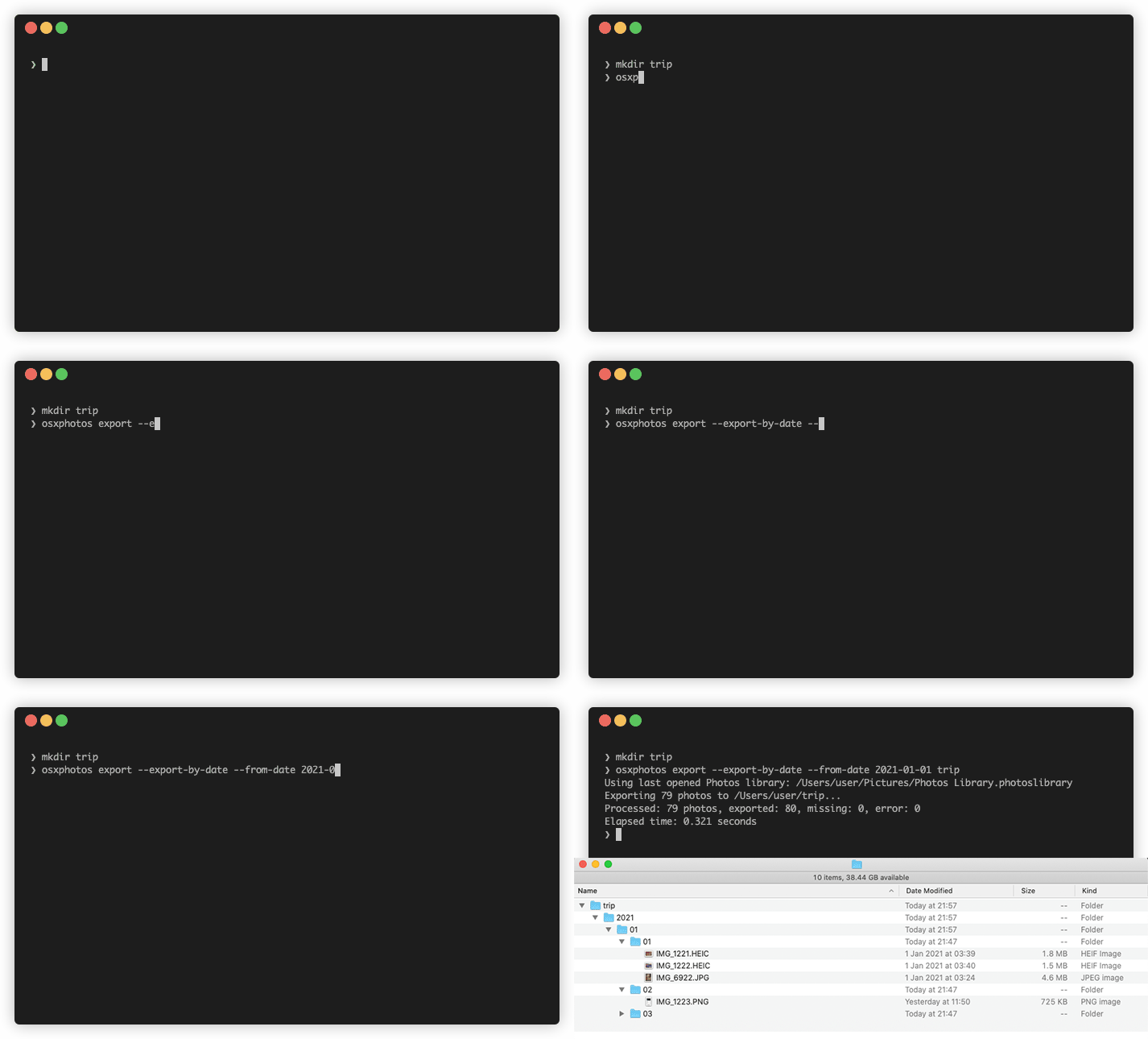
Si bien el comando anterior exportará todas sus fotos (y videos, vea la nota arriba), probablemente no haga exactamente lo que desea. En el ejemplo anterior, todas las fotos se exportarán a una sola carpeta: /path/to/export . Si tiene una gran biblioteca con miles de imágenes y videos, es probable que esto no sea muy útil. Puede usar la opción --export-by-date para exportar fotos a una estructura de carpetas organizada por año, mes, día, por ejemplo, 2021/04/21 :
osxphotos export /path/to/export --export-by-date
Con este comando, una foto que se creó el 31 de mayo de 2015 se exportaría a: /path/to/export/2015/05/31
Si prefiere una estructura de directorio diferente para sus imágenes exportadas, Osxphotos proporciona un sistema de plantilla muy flexible que le permite especificar la estructura del directorio utilizando la opción --directory . Por ejemplo, este comando se exportó a una estructura de directorio que parece: 2015/May (nombre de año / mes de 4 dígitos):
osxphotos export /path/to/export --directory "{created.year}/{created.month}"
La cadena siguiente --directory es una osxphotos template string . Las cadenas de plantillas se usan ampliamente en Osxphotos y vale la pena aprender más sobre ellas. En una cadena de plantilla, los valores entre los aparatos ortopédicos rizados, por ejemplo, {created.year} se reemplazan con metadatos de la foto que se exporta. En este caso, {created.year} es el año de 4 dígitos de la fecha de creación de la foto y {created.month} es el nombre de mes completo en la localidad del usuario (por ejemplo, May , mai , etc.). En el sistema de plantilla OSXPhotos, estos se denominan campos de plantilla. El texto no incluido entre {} pares se interpreta literalmente, en este caso / , es un separador de directorio.
Osxphotos proporciona acceso a casi todos los metadatos conocidos por fotos sobre sus imágenes. Por ejemplo, las fotos realizan una búsqueda de geolocalización inversa en fotos que contienen coordenadas GPS para asignar nombres de lugares a la foto. Usando la plantilla --directory , puede exportar fotos organizadas por el nombre del país:
osxphotos export /path/to/export --directory "{created.year}/{place.name.country}"
Por supuesto, algunas fotos pueden no tener un nombre de lugar asociado, por lo que el sistema de plantilla le permite especificar un valor predeterminado para usar si un campo de plantilla es nulo (no tiene valor).
osxphotos export /path/to/export --directory "{created.year}/{place.name.country,No-Country}"
El valor después del ',' en la cadena de plantilla es el valor predeterminado, en este caso 'no country'. Nota : Si no especifica un valor predeterminado y un campo de plantilla es nulo, OSXPhotos usará "_" (carácter inferior) como el valor predeterminado.
Algunos campos de plantilla, como {keyword} , pueden expandirse a más de un valor. Por ejemplo, si una foto tiene palabras clave de "viajes" y "vacaciones", {keyword} se expandiría a "viajar", "vacaciones". Cuando se usa con --directory , esto resultaría en que la foto se exportara a más de un directorio (por lo tanto, se exportaría más de una copia de la foto). Por ejemplo, si IMG_1234.JPG tiene palabras clave Travel y Vacation y ejecuta el siguiente comando:
osxphotos export /path/to/export --directory "{keyword}"
Los archivos exportados serían:
 /path/to/export/Travel/IMG_1234.JPG
/path/to/export/Vacation/IMG_1234.JPG
Si sus fotos están organizadas en carpetas y álbumes en fotos, puede preservar esta estructura en exportar utilizando el campo de plantilla {folder_album} con la opción --directory . Por ejemplo, si tiene una foto en las Vacation del álbum que se encuentra en la carpeta Travel , el siguiente comando exportaría la foto al directorio Travel/Vacation :
osxphotos export /path/to/export --directory "{folder_album}"
Las fotos pueden pertenecer a más de un álbum. En este caso, el campo de plantilla {folder_album} se expandirá a todos los nombres de álbumes a los que pertenece la foto. Por ejemplo, si una foto pertenece a las Vacation y Travel de los álbumes, el campo de la plantilla {folder_album} se expandiría a Vacation , Travel . Si la foto no pertenece a no álbumes, el campo de plantilla {folder_album} se expandiría a "_" (el valor predeterminado).
Todos los campos de plantilla, incluidos {folder_album} se pueden filtrar aún más utilizando varios filtros diferentes. Para convertir todos los nombres de directorio en minúsculas, por ejemplo, use el filtro lower :
osxphotos export /path/to/export --directory "{folder_album|lower}"
Si todas sus fotos se organizaran en varios álbumes en una carpeta llamadas Events , pero algunas también se incluyeron en otros álbumes de nivel superior y quería exportar solo la carpeta Events , puede usar la opción filter para filtrar los otros álbumes de nivel superior seleccionando solo esas rutas de carpeta/álbum que comienzan con Events :
osxphotos export /path/to/export --directory "{folder_album|filter(startswith Events)}"
Puede obtener más información sobre los otros filtros utilizando osxphotos help export .
Por defecto, OSXPhotos usará el nombre de archivo original de la foto al exportar. Es decir, el nombre de archivo que la foto tenía cuando fue tomada o importada a las fotos. Esto a menudo es algo así como IMG_1234.JPG o DSC05678.dng . OSXPhotos le permite especificar una plantilla de nombre de archivo personalizada utilizando la opción --filename de la misma manera que --directory le permite especificar un nombre de directorio personalizado. Por ejemplo, las fotos le permiten especificar un título o subtítulo para una foto y puede usarlo en lugar del nombre de archivo original:
osxphotos export /path/to/export --filename "{title}"
El comando de arriba exportará fotos usando el título. Tenga en cuenta que no necesita especificar la extensión como parte de la plantilla --filename como OSXPhotos agregará automáticamente la extensión del archivo correcta. Es posible que algunas fotos no tengan un título, por lo que en este caso, puede usar la función de valor predeterminado para especificar un nombre diferente para estas fotos. Por ejemplo, para usar el título como nombre de archivo, pero si no se especifica ningún título, use el nombre de archivo original en su lugar:
 osxphotos export /path/to/export --filename "{title,{original_name}}"
                                              │    ││  │
                                              │    ││  │
     Use photo's title as the filename <──────┘    ││  │
                                                   ││  │
            Value after comma will be used <───────┘│  │
            if title is blank                       │  │
                                                    │  │
                      The default value can be <────┘  │
                      another template field           │
                                                       │
          Use photo's original name if no title <──────┘
El sistema de plantilla de Osxphotos también permite una lógica condicional limitada del tipo "Si una condición es verdadera, entonces haga una cosa, de lo contrario, haga algo diferente". Por ejemplo, puede usar la opción --filename para nombrar archivos que están marcados como "favoritos" en fotos de manera diferente a otros archivos. Por ejemplo, para agregar un "#" al nombre de cada foto que sea la favorita:
 osxphotos export /path/to/export --filename "{original_name}{favorite?#,}"
                                              │              │       │││
                                              │              │       │││
     Use photo's original name as filename <──┘              │       │││
                                                             │       │││
          'favorite' is True if photo is a Favorite, <───────┘       │││
          otherwise, False                                           │││
                                                                     │││
                           '?' specifies a conditional <─────────────┘││
                                                                      ││
                 Value immediately following ? will be used if <──────┘│
                 preceding template field is True or non-blank         │
                                                                       │
              Value immediately following comma will be used if <──────┘
              template field is False or blank (null); in this case
              no value is specified so a blank string "" will be used
Al igual que con --directory , usar un campo de plantilla de valor múltiple como {keyword} puede dar lugar a más de una copia de una foto que se exporta. Por ejemplo, si IMG_1234.JPG tiene palabras clave Travel y Vacation y ejecuta el siguiente comando:
osxphotos export /path/to/export --filename "{keyword}-{original_name}"
Los archivos exportados serían:
 /path/to/export/Travel-IMG_1234.JPG
/path/to/export/Vacation-IMG_1234.JPG
Si se ha editado una foto en fotos (por ejemplo, recortadas, ajustadas, etc.), habrá una imagen original y una imagen editada en la biblioteca de fotos. Por defecto, OSXPhotos exportará la imagen original y editada. Para distinguir entre ellos, Osxphotos agregará "_Editado" a la imagen editada. Por ejemplo, si la imagen original se llamaba IMG_1234.JPG , OSXPHOTOS exportará el original como IMG_1234.JPG y la versión editada como IMG_1234_edited.jpeg . Nota: Las fotos cambian la extensión de las imágenes editadas a ".jpeg" incluso si el original fue nombrado ".jpg". Puede cambiar el sufijo adjunto a las imágenes editadas utilizando la opción --edited-suffix :
osxphotos export /path/to/export --edited-suffix "_EDIT"
En este ejemplo, la imagen editada se llamaría IMG_1234_EDIT.jpeg . Al igual que muchas opciones en Osxphotos, la opción --edited-suffix puede evaluar una cadena de plantilla de Osxphotos para que pueda agregar la fecha de modificación (la fecha en que se editó la foto) a todas las fotos editadas usando este comando:
osxphotos export /path/to/export --edited-suffix "_{modified.year}-{modified.mm}-{modified.dd}"
En este ejemplo, si la foto se editó el 21 de abril de 2021, el nombre del archivo exportado sería: IMG_1234_2021-04-21.jpeg .
Puede decirle a OsxPhotos que no exporte fotos editadas (es decir, solo exporte las fotos originales sin editar) usando --skip-edited :
osxphotos export /path/to/export --skip-edited
También puede decirle a OsxPhotos que exporte la foto original (si la foto no se ha editado) o la foto editada (si se ha editado), pero no ambas, utilizando la opción --skip-original-if-edited :
osxphotos export /path/to/export --skip-original-if-edited
Como se mencionó anteriormente, las fotos renombran las imágenes JPEG que se han editado con la extensión ".jpeg". Algunas aplicaciones usan ".jpg" y otras usan ".jpg" o ".jpeg". Puede usar la opción --jpeg-ext para que Osxphotos renombra todos los archivos JPEG con la misma extensión. Los valores válidos son JPEG, JPG, JPEG, JPG; por ejemplo --jpeg-ext jpg para usar '.jpg' para todos los jpegs.
osxphotos export /path/to/export --jpeg-ext jpg
Todos los comandos anteriores funcionan en la biblioteca de fotos predeterminada. La mayoría de los usuarios solo usan una sola biblioteca de fotos que también se conoce como la biblioteca de fotos del sistema. Es posible usar fotos con más de una biblioteca. Por ejemplo, si mantiene presionado la tecla "Opción" al abrir fotos, puede seleccionar una biblioteca de fotos alternativa. Si no especifica qué biblioteca usar, OSXPhotos intentará encontrar la última biblioteca abierta. Ocasionalmente no puede determinar esto y, en ese caso, usará la biblioteca de fotos del sistema. Si usa más de una biblioteca de fotos y desea especificar explícitamente qué biblioteca usar, puede hacerlo con la opción --library .
osxphotos export /path/to/export --library ~/Pictures/MyAlternateLibrary.photoslibrary
Osxphotos funciona copiando fotos fuera de la carpeta de la biblioteca de fotos para exportarlas. Puede ver a Osxphotos informar que faltan una o más fotos y, por lo tanto, no se puede exportar. Una posible razón para esto es que está utilizando iCloud para sincronizar su biblioteca de fotos y las fotos aún no ha sincronizado la biblioteca de la nube con la Mac local o tiene fotos configuradas para "optimizar el almacenamiento de Mac" en las preferencias de fotos. Otra razón es que incluso si tiene fotos configuradas para descargar originales a la Mac, las fotos no siempre descargan fotos de álbumes compartidos o capturas de pantalla originales a la Mac.
Si se encuentra con las fotos faltantes, puede decirle a Osxphotos que descargue las fotos faltantes de iCloud usando la opción --download-missing . --download-missing utiliza AppleScript para comunicarse con fotos y decirle que descargue las fotos que faltan. La interfaz AppleScript de Photos es algo errónea y puede encontrar que las fotos se bloquean. En este caso, Osxphotos intentará reiniciar fotos para reanudar el proceso de descarga. También hay una opción experimental --use-photokit que se comunicará con fotos utilizando una interfaz "FotOkit" diferente. Esta opción debe usarse junto con --download-missing :
osxphotos export /path/to/export --download-missing
osxphotos export /path/to/export --download-missing --use-photokit
Si está exportando a un dispositivo de almacenamiento adjunto de red externo (NAS), puede encontrar errores si la conexión de red no es confiable. En este caso, puede usar la opción --retry para que OSXPhotos vuelva a intentar automáticamente la exportación. Usar --retry con un número que especifica el número de veces para volver a intentar la exportación:
osxphotos export /path/to/export --retry 3
En este ejemplo, Osxphotos intentará exportar una foto hasta 3 veces si encuentra un error.
Además de --retry , --exportdb y --ramdb pueden mejorar el rendimiento al exportar a un disco externo o un NAS. Cuando Osxphotos exporta fotos, crea un archivo de base de datos de exportación llamado .osxphotos_export.db en la carpeta de exportación que Osxphotos usa para realizar un seguimiento de qué fotos se han exportado. Esto le permite reiniciar y exportar y usar --update para actualizar una exportación existente. Si la conexión con la ubicación de exportación es lenta o escamosa, tener la base de datos de exportación ubicada en el disco de exportación puede disminuir el rendimiento. En este caso, puede usar --exportdb DBPATH para instruir a Osxphotos para almacenar la base de datos de exportación en DBPATH. Si usa esta opción, recomiendo colocar la base de datos de exportación en el disco de su sistema Mac (por ejemplo, en su directorio de inicio). Si tiene la intención de usar --update para actualizar la exportación en el futuro, debe recordar dónde está la base de datos de exportación y usar la opción --exportdb cada vez que actualiza la exportación.
Otra alternativa a usar --exportdb es usar --ramdb . Esta opción instruye a OSXPhotos que use una base de datos RAM en lugar de un archivo en el disco. La base de datos RAM es mucho más rápida que el archivo en el disco y no requiere que OSXPHOTOS acceda a la unidad de red para consultar o escribir en la base de datos. Cuando OSXPhotos complete la exportación, escribirá la base de datos RAM en la ubicación de exportación. Esto puede ofrecer un aumento significativo del rendimiento, pero perderá información de estado si Osxphotos se bloquea o se interrumpe durante la exportación.
Fotos rastrea una gran cantidad de metadatos asociados con fotos en la biblioteca, como palabras clave, caras y personas, datos de geolocalización inversa y etiquetas de clasificación de imágenes. La capacidad de exportación nativa de Photos no preserva la mayor parte de estos metadatos. Sin embargo, Osxphotos puede acceder y preservar casi todos los metadatos asociados con las fotos. Usando la aplicación exiftool gratuita, Osxphotos puede escribir metadatos en fotos exportadas. Siga las instrucciones en el sitio web de ExifTool para instalar ExifTool y luego puede usar la opción --exiftool para escribir metadatos en fotos exportadas:
osxphotos export /path/to/export --exiftool
Esto escribirá metadatos básicos como palabras clave, personas y ubicación GPS en los archivos exportados. OSXPHOTOS incluye varias opciones adicionales que se pueden usar junto con --exiftool para modificar los metadatos escritos por exiftool . Por ejemplo, puede usar la opción --keyword-template para especificar palabras clave personalizadas (nuevamente, a través del sistema de plantilla OSXPhotos). Por ejemplo, para usar la carpeta y el álbum se encuentra una foto para crear palabras clave jerárquicas en el formato utilizado por Lightroom Classic:
 osxphotos export /path/to/export --exiftool --keyword-template "{folder_album(>)}"
                                                                 │            │
                                                                 │            │
                       folder_album results in the folder(s)  <──┘            │
                       and album a photo is contained in                      │
                                                                              │
                       The value in () is used as the path separator  <───────┘
                       for joining the folders and albums.  For example,
                       if photo is in Folder1/Folder2/Album, (>) produces
                       "Folder1>Folder2>Album" which some programs, such as
                       Lightroom Classic, treat as hierarchical keywords
El comando anterior escribirá todos los metadatos regulares que --exiftool normalmente escribe en el archivo al exportar, pero también agregará una palabra clave adicional en los metadatos exportados en el formulario "Carpeta1> carpeta2> álbum". Si no incluyó el (>) en la cadena de plantilla ( {folder_album} Ej.
Una característica poderosa de las fotos es que utiliza algoritmos de aprendizaje automático para clasificar o etiquetar automáticamente las fotos. Estas etiquetas se usan cuando busca imágenes en fotos, pero no está disponible para el usuario. Osxphotos puede leer todas las etiquetas asociadas con una foto y las pone a disposición del sistema de plantilla a través de la {label} . Piense en estas como palabras clave automáticas en lugar de las palabras clave que asigna manualmente en las fotos. Un caso de uso común es usar las etiquetas automáticas para crear nuevas palabras clave al exportar imágenes para que estas etiquetas estén integradas en los metadatos de la imagen:
osxphotos export /path/to/export --exiftool --keyword-template "{label}"
Si algunas de sus fotos contienen una palabra clave con la que no desea que se agregue al archivo exportado con --exiftool , puede usar el sistema de plantilla para eliminar la palabra clave del archivo exportado. Por ejemplo, si desea eliminar la palabra clave "myKeyword" de todas sus fotos:
osxphotos export /path/to/export --exiftool --keyword-template "{keyword|remove(MyKeyword)}" --replace-keywords
En este ejemplo, |remove(MyKeyword) es un filtro que elimina MyKeyword de la lista de palabras clave de cada foto que se procesa. La opción --replace-keywords instruye a Osxphotos que reemplace las palabras clave en el archivo exportado con las palabras clave filtradas desde --keyword-template .
Nota : Al evaluar las plantillas para --directory y --filename , Osxphotos inserta el valor predeterminado automático "_" para cualquier campo de plantilla que esté nulo (vacío o en blanco). Esto es para garantizar que nunca se cree un directorio nulo o nombre de archivo. Para plantillas de metadatos, tales como --keyword-template , OSXPhotos no proporciona un valor predeterminado automático, por lo tanto, si el campo de plantilla es nulo, no se creará ninguna palabra clave. Por supuesto, puede proporcionar un valor predeterminado si lo desea y OSXPhotos lo usará. Por ejemplo, para agregar "Nolabel" como palabra clave para cualquier foto que no tenga etiquetas:
osxphotos export /path/to/export --exiftool --keyword-template "{label,nolabel}"
Otra forma de exportar metadatos sobre sus fotos es mediante el uso de archivos sidecar. Estos son archivos que tienen el mismo nombre que su foto (pero con una extensión diferente) y llevan los metadatos. Muchas aplicaciones de gestión de activos digitales (por ejemplo, Photoprism, Lightroom, Digikam, etc.) pueden leer o escribir archivos sidecar. OSXPHOTOS puede exportar metadatos en formatos JSON y XMP compatibles con ExifTool utilizando la opción --sidecar . Por ejemplo, para emitir metadatos a Sidecars XMP:
osxphotos export /path/to/export --sidecar XMP
A diferencia de --exiftool , no necesita instalar ExifTool para usar la función --sidecar . Muchas de las mismas opciones de configuración a las que se aplican --exiftool para modificar metadatos, por ejemplo, --keyword-template también se pueden usar con --sidecar .
Los archivos sidecar se denominan "Photoname.ext.sidecar_ext". Por ejemplo, si la foto se llama IMG_1234.JPG y el formato sidecar es XMP, el sidecar se llamará IMG_1234.JPG.XMP . Algunas aplicaciones esperan que el sidecar en este caso se llame IMG_1234.XMP . Puede usar la opción --sidecar-drop-ext para forzar a OSXPhotos a nombrar los archivos sidecar de esta manera:
osxphotos export /path/to/export --sidecar XMP --sidecar-drop-ext
Si desea usar OsxPhotos para realizar copias de seguridad periódicas de su biblioteca de fotos en lugar de una exportación única, use la opción --update . Cuando se ejecuta osxphotos export , crea un archivo de base de datos llamado .osxphotos_export.db en la carpeta de exportación. ( Tenga en cuenta que el nombre de archivo comienza con un ".", No lo verá en Finder que trata los "archivos de puntos" como este como oculto. Verá el archivo en el terminal). Si ejecuta OSXPhotos con la opción --update , buscará este archivo de base de datos y, si se encuentra, use para recuperar información de estado de la última vez que se ejecuta solo para exportar archivos nuevos o modificados. Por ejemplo:
osxphotos export /path/to/export --update
leerá la base de datos de exportación ubicada en /path/to/export/.osxphotos_export.db y solo se ha agregado o cambiado fotos que se han agregado o cambiado desde la última vez que se ejecutó Osxphotos. Puede ejecutar OSXPhotos con la opción --update incluso si nunca se había ejecutado antes. Si no se encuentra la base de datos, OSXPhotos la creará. Si ejecuta osxphotos export sin --update en una carpeta donde había exportado fotos previamente, reexportará todas las fotos. Si su intención es mantener actualizado una copia de seguridad periódica de su biblioteca de fotos con OSXPhotos, siempre debe usar --update .
Si su flujo de trabajo implica mover archivos fuera del directorio de exportación (por ejemplo, los mueve a una aplicación de administración de activos digitales) pero desea utilizar las características de --update , puede usar el --only-new con --update para obligar a Osxphotos a exportar solo fotos que son nuevas (agregadas a la biblioteca) desde la última actualización. En este caso, Osxphotos ignorará los archivos exportados previamente que ahora faltan. Sin --only-new , Osxphotos vería que faltan archivos previamente exportados y los reexportan.
osxphotos export /path/to/export --update --only-new
Si su flujo de trabajo implica editar las imágenes que exportó desde las fotos, pero aún desea mantener una copia de seguridad con --update , debe usar la opción --ignore-signature . --ignore-signature instruye a Osxphotos que ignore la firma del archivo (por ejemplo, tamaño y fecha modificados) al decidir qué archivos deben actualizarse con --update . Si edita un archivo en el directorio de exportación y luego ejecuta --update sin --ignore-signature , OSXPhotos verá que el archivo es diferente al de la biblioteca de fotos y lo reexportará.
osxphotos export /path/to/export --update --ignore-signature
Puede usar la opción --dry-run para que Osxphotos se "ejecute en seco" o pruebe una exportación sin exportar realmente ningún archivo. Cuando se combina con la opción --verbose , que hace que Osxphotos imprima los detalles de cada archivo que se exporte, esta puede ser una herramienta útil para probar sus opciones de exportación antes de ejecutar una exportación completa. Por ejemplo, si está aprendiendo el sistema de plantilla y desea verificar que sus plantillas --directory y --filename sean correctas, --dry-run --verbose imprimirá el nombre de cada archivo que se exporta.
osxphotos export /path/to/export --dry-run --verbose
Puede usar la opción --report para crear un informe, en el formato de valores separados por comas (CSV) que enumerará los detalles de todos los archivos que se exportaron, omitieron, faltan, etc. Este formato de archivo es compatible con programas como Microsoft Excel. Proporcione el nombre del informe después de la opción --report :
osxphotos export /path/to/export --report export.csv
También puede crear informes en formato JSON o SQLite cambiando la extensión del nombre de archivo de informe. Por ejemplo, para crear un informe JSON:
osxphotos export /path/to/export --report export.json
Y para crear un informe SQLite:
osxphotos export /path/to/export --report export.sqlite
Por defecto, OSXPhotos exportará toda su biblioteca de fotos. Si desea exportar solo ciertas fotos, Osxphotos proporciona un conjunto rico de "opciones de consulta" que le permiten consultar la base de datos de fotos para filtrar solo ciertas fotos que coinciden con sus criterios de consulta. El tutorial no cubre todas las opciones de consulta, ya que hay más de 50 de ellas: lea el texto de ayuda ( osxphotos help export ) para comprender mejor las opciones de consulta disponibles. No importa qué subconjunto de fotos le gustaría exportar, es casi seguro que hay una forma para que Osxphotos se filtre. Por ejemplo, puede filtrar solo imágenes que contienen ciertas palabras clave o imágenes sin un título, imágenes de una hora específica del día o rango de fechas específico, imágenes contenidas en álbumes específicos, etc.
Por ejemplo, para exportar solo fotos con Travel de palabras clave:
osxphotos export /path/to/export --keyword "Travel"
Al igual que muchas opciones en Osxphotos, --keyword (y la mayoría de las otras opciones de consulta) se pueden repetir para buscar más de un término. Por ejemplo, para encontrar fotos con Travel de palabras clave o Vacation de palabras clave:
osxphotos export /path/to/export --keyword "Travel" --keyword "Vacation"
Para exportar solo fotos contenidas en el álbum "Vacaciones de verano":
osxphotos export /path/to/export --album "Summer Vacation"
En las fotos, es posible tener múltiples álbumes con el mismo nombre. En este caso, Osxphotos exportaría fotos de todos los álbumes que coinciden con el valor pasado al --album . Si desea exportar solo uno de los álbumes y este álbum está en una carpeta, la opción --regex (abreviatura de "expresión regular"), que coincide con el patrón, podría usarse con la plantilla {folder_album} para que coincida con el álbum específico. Por ejemplo, si tuviera un álbum de "Vacaciones de verano" dentro de la carpeta "2018" y también uno con el mismo nombre dentro de la carpeta "2019", podría exportar solo el álbum "2018/Vacaciones de verano" usando este comando:
osxphotos export /path/to/export --regex "2018/Summer Vacation" "{folder_album}"
Este comando coincide con el patrón "2018/Vacaciones de verano" contra la ruta completa de la carpeta/álbum para cada foto.
También hay una serie de opciones de consulta para exportar solo ciertos tipos de fotos. Por ejemplo, para exportar solo fotos tomadas con iPhone "Modo de retrato":
osxphotos export /path/to/export --portrait
También puede exportar fotos en un rango de fechas determinado:
osxphotos export /path/to/export --from-date "2020-01-01" --to-date "2020-02-28"
o fotos agregadas a la biblioteca en la última semana:
osxphotos export /path/to/export --added-in-last "1 week"
Las fotos pueden almacenar imágenes en muchos formatos diferentes. OSXPHOTOS puede convertir imágenes que no sean JPEG (por ejemplo, fotos sin procesar) a JPEG al exportar utilizando la opción --convert-to-jpeg . Puede especificar la calidad JPEG (0: peor, 1.0: mejor) usando --jpeg-quality . Por ejemplo:
osxphotos export /path/to/export --convert-to-jpeg --jpeg-quality 0.9
Además de usar exiftool para escribir metadatos directamente en los metadatos de la imagen, OsxPhotos puede escribir ciertos metadatos disponibles para el Finder y Spotlight, pero no modifica el archivo de imagen real. Esto se hace a través de algo llamado atributos extendidos que se almacenan en el sistema de archivos con un archivo, pero en realidad no modifican el archivo en sí. Las etiquetas de Finder y los comentarios del buscador son ejemplos comunes de estos.
Osxphotos puede, por ejemplo, escribir cualquier palabra clave en la imagen en las etiquetas Finder para que pueda buscar imágenes en Spotlight o el Finder usando la sintaxis tag:tagname :
osxphotos export /path/to/export --finder-tag-keywords
--finder-tag-keywords también funciona con --keyword-template como se describe anteriormente en la sección en exiftool :
osxphotos export /path/to/export --finder-tag-keywords --keyword-template "{label}"
La opción --xattr-template le permite establecer una variedad de otros atributos extendidos. Se utiliza en la --xattr-template ATTRIBUTE TEMPLATE donde el atributo es uno de los 'autores', 'comentario', 'copyright', 'descripción', 'FinteerComment', 'Headline', 'Keywords'.
Por ejemplo, para establecer el comentario del buscador en el título y la descripción de la foto:
osxphotos export /path/to/export --xattr-template findercomment "{title}{newline}{descr}"
In the template string above, {newline} instructs osxphotos to insert a new line character ("n") between the title and description. In this example, if {title} or {descr} is empty, you'll get "titlen" or "ndescription" which may not be desired so you can use more advanced features of the template system to handle these cases:
osxphotos export /path/to/export --xattr-template findercomment "{title,}{title?{descr?{newline},},}{descr,}"
Explanation of the template string:
 {title,}{title?{descr?{newline},},}{descr,}
 │           │      │ │       │ │  │
 │           │      │ │       │ │  │
 └──> insert title (or nothing if no title)
             │      │ │       │ │  │
             └───> is there a title?
                    │ │       │ │  │
                    └───> if so, is there a description?
                      │       │ │  │
                      └───> if so, insert new line
                              │ │  │
                              └───> if descr is blank, insert nothing
                                │  │
                                └───> if title is blank, insert nothing
                                   │
                                   └───> finally, insert description
                                         (or nothing if no description)
In this example, title? demonstrates use of the boolean (True/False) feature of the template system. title? is read as "Is the title True (or not blank/empty)? If so, then the value immediately following the ? is used in place of title . If title is blank, then the value immediately following the comma is used instead. The format for boolean fields is field?value if true,value if false . Either value if true or value if false may be blank, in which case a blank string ("") is used for the value and both may also be an entirely new template string as seen in the above example. Using this format, template strings may be nested inside each other to form complex if-then-else statements.
The above example, while complex to read, shows how flexible the osxphotos template system is. If you invest a little time learning how to use the template system you can easily handle almost any use case you have.
See Extended Attributes section in the help for osxphotos export for additional information about this feature.
If you repeatedly run a complex osxphotos export command (for example, to regularly back-up your Photos library), you can save all the options to a configuration file for future use ( --save-config FILE ) and then load them ( --load-config FILE ) instead of repeating each option on the command line.
To save the configuration:
osxphotos export /path/to/export <all your options here> --update --save-config osxphotos.toml
Then the next to you run osxphotos, you can simply do this:
osxphotos export /path/to/export --load-config osxphotos.toml
The configuration file is a plain text file in TOML format so the .toml extension is standard but you can name the file anything you like.
You can use the --post-command option to run one or more commands against exported files. The --post-command option takes two arguments: CATEGORY and COMMAND. CATEGORY is a string that describes which category of file to run the command against. The available categories are described in the help text available via: osxphotos help export . For example, the exported category includes all exported photos and the skipped category includes all photos that were skipped when running export with --update . COMMAND is an osxphotos template string which will be rendered then passed to the shell for execution.
For example, the following command generates a log of all exported files and their associated keywords:
osxphotos export /path/to/export --post-command exported "echo {shell_quote,{filepath}{comma}{,+keyword,}} >> {shell_quote,{export_dir}/exported.txt}"
The special template field {shell_quote} ensures a string is properly quoted for execution in the shell. For example, it's possible that a file path or keyword in this example has a space in the value and if not properly quoted, this would cause an error in the execution of the command. When running commands, the template {filepath} is set to the full path of the exported file and {export_dir} is set to the full path of the base export directory.
Explanation of the template string:
 {shell_quote,{filepath}{comma}{,+keyword,}}
 │            │         │      │        │
 │            │         │      |        │
 └──> quote everything after comma for proper execution in the shell
              │         │      │        │
              └───> filepath of the exported file
                       │       │        │
                       └───> insert a comma
                               │        │
                               └───> join the list of keywords together with a ","
                                        │
                                        └───> if no keywords, insert nothing (empty string: "")
Another example: if you had exiftool installed and wanted to wipe all metadata from all exported files, you could use the following:
osxphotos export /path/to/export --post-command exported "/usr/local/bin/exiftool -all= {filepath|shell_quote}"
This command uses the |shell_quote template filter instead of the {shell_quote} template because the only thing that needs to be quoted is the path to the exported file. Template filters filter the value of the rendered template field. A number of other filters are available and are described in the help text.
Here's a comprehensive use case from an actual osxphotos user that integrates many of the concepts discussed in this tutorial (thank-you Philippe for contributing this!):
 I usually import my iPhone’s photo roll on a more or less regular basis, and it
includes photos and videos. As a result, the size ot my Photos library may rise
very quickly. Nevertheless, I will tag and geolocate everything as Photos has a
quite good keyword management system.

After a while, I want to take most of the videos out of the library and move them
to a separate "videos" folder on a different folder / volume. As I might want to
use them in Final Cut Pro, and since Final Cut is able to import Finder tags into
its internal library tagging system, I will use osxphotos to do just this.

Picking the videos can be left to Photos, using a smart folder for instance. Then
just add a keyword to all videos to be processed. Here I chose "Quik" as I wanted
to spot all videos created on my iPhone using the Quik application (now part of
GoPro).

I want to retrieve my keywords only and make sure they populate the Finder tags, as
well as export all the persons identified in the videos by Photos.  I also want to
merge any keywords or persons already in the video metadata with the exported
metadata.

Keeping Photo’s edited titles and descriptions and putting both in the Finder
comments field in a readable manner is also enabled.

And I want to keep the file’s creation date (using `--touch-file`).

Finally, use `--strip` to remove any leading or trailing whitespace from processed
template fields.
osxphotos export ~/Desktop/folder for exported videos/ --keyword Quik --only-movies --library /path to my.photoslibrary --touch-file --finder-tag-keywords --person-keyword --xattr-template findercomment "{title}{title?{descr?{newline},},}{descr}" --exiftool-merge-keywords --exiftool-merge-persons --exiftool --strip
Some osxphotos commands such as export use color themes to colorize the output to make it more legible. The theme may be specified with the --theme option. For example: osxphotos export /path/to/export --verbose --theme dark uses a theme suited for dark terminals. If you don't specify the color theme, osxphotos will select a default theme based on the current terminal settings. You can also specify your own default theme. See osxphotos help theme for more information on themes and for commands to help manage themes. Themes are defined in .theme files in the ~/.osxphotos/themes directory and use style specifications compatible with the rich library.
osxphotos is very flexible. If you merely want to backup your Photos library, then spending a few minutes to understand the --directory option is likely all you need and you can be up and running in minutes. However, if you have a more complex workflow, osxphotos likely provides options to implement your workflow. This tutorial does not attempt to cover every option offered by osxphotos but hopefully it provides a good understanding of what kinds of things are possible and where to explore if you want to learn more.
osxphotos help export
Usage: osxphotos export [OPTIONS] DEST
Export photos from the Photos database. Export path DEST is required.
Optionally, query the Photos database using 1 or more search options; if more
than one different option is provided, they are treated as "AND" (e.g. search
for photos matching all options). If the same query option is provided
multiple times, they are treated as "OR" (e.g. search for photos matching any
of the options). If no query options are provided, all photos will be
exported.
For example, adding the query options:
--person "John Doe" --person "Jane Doe" --keyword "vacation"
will export all photos with either person of ("John Doe" OR "Jane Doe") AND
keyword of "vacation"
By default, all versions of all photos will be exported including edited
versions, live photo movies, burst photos, and associated raw images. See
--skip-edited, --skip-live, --skip-bursts, and --skip-raw options to modify
this behavior.
Options:
--library, --db PHOTOS_LIBRARY_PATH
Specify path to Photos library. If not
provided, will attempt to find the library to
use in the following order: 1. last opened
library, 2. system library, 3.
~/Pictures/Photos Library.photoslibrary
-V, --verbose Print verbose output; may be specified
multiple times for more verbose output.
--timestamp Add time stamp to verbose output
--no-progress Do not display progress bar during export.
--keyword KEYWORD Search for photos with keyword KEYWORD. If
more than one keyword, treated as "OR", e.g.
find photos matching any keyword
--no-keyword Search for photos with no keyword.
--person PERSON Search for photos with person PERSON. If more
than one person, treated as "OR", e.g. find
photos matching any person
--album ALBUM Search for photos in album ALBUM. If more than
one album, treated as "OR", e.g. find photos
matching any album
--folder FOLDER Search for photos in an album in folder
FOLDER. If more than one folder, treated as
"OR", e.g. find photos in any FOLDER. Only
searches top level folders (e.g. does not look
at subfolders)
--name FILENAME Search for photos with filename matching
FILENAME. If more than one --name options is
specified, they are treated as "OR", e.g. find
photos matching any FILENAME.
--uuid UUID Search for photos with UUID(s). May be
repeated to include multiple UUIDs.
--uuid-from-file FILE Search for photos with UUID(s) loaded from
FILE. Format is a single UUID per line. Lines
preceded with # are ignored. If FILE is '-',
read UUIDs from stdin.
--title TITLE Search for TITLE in title of photo.
--no-title Search for photos with no title.
--description DESC Search for DESC in description of photo.
--no-description Search for photos with no description.
--place PLACE Search for PLACE in photo's reverse
geolocation info
--no-place Search for photos with no associated place
name info (no reverse geolocation info)
--location Search for photos with associated location
info (e.g. GPS coordinates)
--no-location Search for photos with no associated location
info (e.g. no GPS coordinates)
--label LABEL Search for photos with image classification
label LABEL (Photos 5+ only). If more than one
label, treated as "OR", e.g. find photos
matching any label
--uti UTI Search for photos whose uniform type
identifier (UTI) matches UTI
-i, --ignore-case Case insensitive search for title,
description, place, keyword, person, or album.
--edited Search for photos that have been edited.
--not-edited Search for photos that have not been edited.
--external-edit Search for photos edited in external editor.
--favorite Search for photos marked favorite.
--not-favorite Search for photos not marked favorite.
--hidden Search for photos marked hidden.
--not-hidden Search for photos not marked hidden.
--shared Search for photos in shared iCloud album
(Photos 5+ only).
--not-shared Search for photos not in shared iCloud album
(Photos 5+ only).
--burst Search for photos that were taken in a burst.
--not-burst Search for photos that are not part of a
burst.
--live Search for Apple live photos
--not-live Search for photos that are not Apple live
photos.
--portrait Search for Apple portrait mode photos.
--not-portrait Search for photos that are not Apple portrait
mode photos.
--screenshot Search for screenshot photos.
--not-screenshot Search for photos that are not screenshot
photos.
--screen-recording Search for screen-recording videos.
--not-screen-recording Search for photos that are not screen
recording videos.
--slow-mo Search for slow motion videos.
--not-slow-mo Search for photos that are not slow motion
videos.
--time-lapse Search for time lapse videos.
--not-time-lapse Search for photos that are not time lapse
videos.
--hdr Search for high dynamic range (HDR) photos.
--not-hdr Search for photos that are not HDR photos.
--selfie Search for selfies (photos taken with front-
facing cameras).
--not-selfie Search for photos that are not selfies.
--panorama Search for panorama photos.
--not-panorama Search for photos that are not panoramas.
--has-raw Search for photos with both a jpeg and raw
version
--only-movies Search only for movies (default searches both
images and movies).
--only-photos Search only for photos/images (default
searches both images and movies).
--from-date DATE Search for items created on or after DATE,
e.g. 2000-01-12T12:00:00,
2001-01-12T12:00:00-07:00, or 2000-12-31 (ISO
8601 with/without timezone).
--to-date DATE Search for items created before DATE, e.g.
2000-01-12T12:00:00,
2001-01-12T12:00:00-07:00, or 2000-12-31 (ISO
8601 with/without timezone).
--from-time TIME Search for items created on or after TIME of
day, e.g. 12:00, or 12:00:00.
--to-time TIME Search for items created before TIME of day,
e.g. 12:00 or 12:00:00.
--year YEAR Search for items from a specific year, e.g.
--year 2022 to find all photos from the year
2022. May be repeated to search multiple
years.
--added-before DATE Search for items added to the library before a
specific date/time, e.g. --added-before e.g.
2000-01-12T12:00:00,
2001-01-12T12:00:00-07:00, or 2000-12-31 (ISO
8601 with/without timezone).
--added-after DATE Search for items added to the library on or
after a specific date/time, e.g. --added-after
e.g. 2000-01-12T12:00:00,
2001-01-12T12:00:00-07:00, or 2000-12-31 (ISO
8601 with/without timezone).
--added-in-last TIME_DELTA Search for items added to the library in the
last TIME_DELTA, where TIME_DELTA is a string
like '12 hrs', '1 day', '1d', '1 week',
'2weeks', '1 month', '1 year'. for example,
`--added-in-last 7d` and `--added-in-last '1
week'` are equivalent. months are assumed to
be 30 days and years are assumed to be 365
days. Common English abbreviations are
accepted, e.g. d, day, days or m, min,
minutes.
--has-comment Search for photos that have comments.
--no-comment Search for photos with no comments.
--has-likes Search for photos that have likes.
--no-likes Search for photos with no likes.
--is-reference Search for photos that were imported as
referenced files (not copied into Photos
library).
--not-reference Search for photos that are not references,
that is, they were copied into the Photos
library and are managed by Photos.
--in-album Search for photos that are in one or more
albums.
--not-in-album Search for photos that are not in any albums.
--duplicate Search for photos with possible duplicates.
osxphotos will compare signatures of photos,
evaluating date created, size, height, width,
and edited status to find *possible*
duplicates. This does not compare images byte-
for-byte nor compare hashes but should find
photos imported multiple times or duplicated
within Photos.
--min-size SIZE Search for photos with size >= SIZE bytes. The
size evaluated is the photo's original size
(when imported to Photos). Size may be
specified as integer bytes or using SI or NIST
units. For example, the following are all
valid and equivalent sizes: '1048576'
'1.048576MB', '1 MiB'.
--max-size SIZE Search for photos with size <= SIZE bytes. The
size evaluated is the photo's original size
(when imported to Photos). Size may be
specified as integer bytes or using SI or NIST
units. For example, the following are all
valid and equivalent sizes: '1048576'
'1.048576MB', '1 MiB'.
--missing Search for photos missing from disk.
--not-missing Search for photos present on disk (e.g. not
missing).
--cloudasset Search for photos that are part of an iCloud
library
--not-cloudasset Search for photos that are not part of an
iCloud library
--incloud Search for photos that are in iCloud (have
been synched)
--not-incloud Search for photos that are not in iCloud (have
not been synched)
--syndicated Search for photos that have been shared via
syndication ('Shared with You' album via
Messages, etc.)
--not-syndicated Search for photos that have not been shared
via syndication ('Shared with You' album via
Messages, etc.)
--saved-to-library Search for syndicated photos that have saved
to the library
--not-saved-to-library Search for syndicated photos that have not
saved to the library
--shared-moment Search for photos that are part of a shared
moment
--not-shared-moment Search for photos that are not part of a
shared moment
--shared-library Search for photos that are part of a shared
library
--not-shared-library Search for photos that are not part of a
shared library
--regex REGEX TEMPLATE Search for photos where TEMPLATE matches
regular expression REGEX. For example, to find
photos in an album that begins with 'Beach': '
--regex "^Beach" "{album}"'. You may specify
more than one regular expression match by
repeating '--regex' with different arguments.
--selected Filter for photos that are currently selected
in Photos.
--exif EXIF_TAG VALUE Search for photos where EXIF_TAG exists in
photo's EXIF data and contains VALUE. For
example, to find photos created by Adobe
Photoshop: `--exif Software 'Adobe Photoshop'
`or to find all photos shot on a Canon camera:
`--exif Make Canon`. EXIF_TAG can be any valid
exiftool tag, with or without group name, e.g.
`EXIF:Make` or `Make`. To use --exif, exiftool
must be installed and in the path.
--query-eval CRITERIA Evaluate CRITERIA to filter photos. CRITERIA
will be evaluated in context of the following
python list comprehension: `photos = [photo
for photo in photos if CRITERIA]` where photo
represents a PhotoInfo object. For example:
`--query-eval photo.favorite` returns all
photos that have been favorited and is
equivalent to --favorite. You may specify more
than one CRITERIA by using --query-eval
multiple times. CRITERIA must be a valid
python expression. See
https://rhettbull.github.io/osxphotos/ for
additional documentation on the PhotoInfo
class.
--query-function filename.py::function
Run function to filter photos. Use this in
format: --query-function filename.py::function
where filename.py is a python file you've
created and function is the name of the
function in the python file you want to call.
Your function will be passed a list of
PhotoInfo objects and is expected to return a
filtered list of PhotoInfo objects. You may
use more than one function by repeating the
--query-function option with a different
value. Your query function will be called
after all other query options have been
evaluated. You may also specify a URL to a
python file in the format: --query-function
https://path/to/module.py::function See https:
//github.com/RhetTbull/osxphotos/blob/master/e
xamples/query_function.py for example of a
query function.
--deleted-only Include only photos from the 'Recently
Deleted' folder.
--deleted Include photos from the 'Recently Deleted'
folder.
--update Only export new or updated files. See also
--force-update and notes below on export and
--update.
--force-update Only export new or updated files. Unlike
--update, --force-update will re-export photos
if their metadata has changed even if this
would not otherwise trigger an export. See
also --update and notes below on export and
--update.
--update-errors Update files that were previously exported but
produced errors during export. For example, if
a file produced an error with --exiftool due
to bad metadata, this option will re-export
the file and attempt to write the metadata
again when used with --exiftool and --update.
Without --update-errors, photos that were
successfully exported but generated an error
or warning during export will not be re-
attempted if metadata has not changed. Must be
used with --update.
--ignore-signature When used with '--update', ignores file
signature when updating files. This is useful
if you have processed or edited exported
photos changing the file signature (size &
modification date). In this case, '--update'
would normally re-export the processed files
but with '--ignore-signature', files which
exist in the export directory will not be re-
exported. If used with '--sidecar', '--ignore-
signature' has the following behavior: 1) if
the metadata (in Photos) that went into the
sidecar did not change, the sidecar will not
be updated; 2) if the metadata (in Photos)
that went into the sidecar did change, a new
sidecar is written but a new image file is
not; 3) if a sidecar does not exist for the
photo, a sidecar will be written whether or
not the photo file was written or updated.
--only-new If used with --update, ignores any previously
exported files, even if missing from the
export folder and only exports new files that
haven't previously been exported.
--limit LIMIT Export at most LIMIT photos. Useful for
testing. May be used with --update to export
incrementally.
--dry-run Dry run (test) the export but don't actually
export any files; most useful with --verbose.
--export-as-hardlink Hardlink files instead of copying them. Cannot
be used with --exiftool which creates copies
of the files with embedded EXIF data. Note: on
APFS volumes, files are cloned when exporting
giving many of the same advantages as
hardlinks without having to use --export-as-
hardlink.
--touch-file Sets the file's modification time to match
photo date.
--overwrite Overwrite existing files. Default behavior is
to add (1), (2), etc to filename if file
already exists. Use this with caution as it
may create name collisions on export. (e.g. if
two files happen to have the same name)
--retry RETRY Automatically retry export up to RETRY times
if an error occurs during export. This may be
useful with network drives that experience
intermittent errors.
--export-by-date Automatically create output folders to
organize photos by date created (e.g.
DEST/2019/12/20/photoname.jpg).
--skip-edited Do not export edited version of photo if an
edited version exists.
--skip-original-if-edited Do not export original if there is an edited
version (exports only the edited version).
--skip-bursts Do not export all associated burst images in
the library if a photo is a burst photo.
--skip-live Do not export the associated live video
component of a live photo.
--skip-raw Do not export associated RAW image of a
RAW+JPEG pair. Note: this does not skip RAW
photos if the RAW photo does not have an
associated JPEG image (e.g. the RAW file was
imported to Photos without a JPEG preview).
--skip-uuid UUID Skip photos with UUID(s) during export. May be
repeated to include multiple UUIDs.
--skip-uuid-from-file FILE Skip photos with UUID(s) loaded from FILE.
Format is a single UUID per line. Lines
preceded with # are ignored.
--current-name Use photo's current filename instead of
original filename for export. Note: Starting
with Photos 5, all photos are renamed upon
import. By default, photos are exported with
the the original name they had before import.
--convert-to-jpeg Convert all non-JPEG images (e.g. RAW, HEIC,
PNG, etc) to JPEG upon export. Note: does not
convert the RAW component of a RAW+JPEG pair
as the associated JPEG image will be exported.
You can use --skip-raw to skip exporting the
associated RAW image of a RAW+JPEG pair. See
also --jpeg-quality and --jpeg-ext. Only works
if your Mac has a GPU (thus may not work on
virtual machines).
--jpeg-quality FLOAT RANGE Value in range 0.0 to 1.0 to use with
--convert-to-jpeg. A value of 1.0 specifies
best quality, a value of 0.0 specifies maximum
compression. Defaults to 1.0 [0.0<=x<=1.0]
--fix-orientation Automatically fix image orientation in
exported photos to match orientation in Photos
database. Requires exiftool be installed and
in the path. This is useful mainly for iPhoto
libraries. When an image is rotated in iPhoto,
the image orientation is not actually changed,
instead the image is tagged with an
orientation value in the iPhoto database. This
means that when the image is exported, the
orientation may not be correct. This option
will read the EXIF orientation data and fix
the image's orientation if necessary. If used
with Photos libraries, this option will result
in the original image also being adjusted upon
export.
--preview Export preview image generated by Photos. This
is a lower-resolution image used by Photos to
quickly preview the image. See also --preview-
suffix and --preview-if-missing.
--preview-if-missing Export preview image generated by Photos if
the actual photo file is missing from the
library. This may be helpful if photos were
not copied to the Photos library and the
original photo is missing. See also --preview-
suffix and --preview.
--preview-suffix SUFFIX Optional suffix template for naming preview
photos. Default name for preview photos is in
form 'photoname_preview.ext'. For example,
with '--preview-suffix _low_res', the preview
photo would be named 'photoname_low_res.ext'.
The default suffix is '_preview'. Multi-value
templates (see Templating System) are not
permitted with --preview-suffix. See also
--preview and --preview-if-missing.
--download-missing Attempt to download missing photos from
iCloud. The current implementation uses
Applescript to interact with Photos to export
the photo which will force Photos to download
from iCloud if the photo does not exist on
disk. This will be slow and will require
internet connection. This obviously only works
if the Photos library is synched to iCloud.
Note: --download-missing does not currently
export all burst images; only the primary
photo will be exported--associated burst
images will be skipped.
--export-aae Also export an adjustments file detailing
edits made to the original. The resulting file
is named photoname.AAE. Note that to import
these files back to Photos succesfully, you
also need to export the edited photo and match
the filename format Photos.app expects:
--filename 'IMG_{edited_version?E,}{id:04d}'
--edited-suffix ''
--sidecar FORMAT Create sidecar for each photo exported; valid
FORMAT values: xmp, json, exiftool; --sidecar
xmp: create XMP sidecar used by Digikam, Adobe
Lightroom, etc. The sidecar file is named in
format photoname.ext.xmp The XMP sidecar
exports the following tags: Description,
Title, Keywords/Tags, Subject (set to Keywords
+ PersonInImage), PersonInImage, CreateDate,
ModifyDate, GPSLongitude, Face Regions
(Metadata Working Group and Microsoft Photo).
--sidecar json: create JSON sidecar useable by
exiftool (https://exiftool.org/) The sidecar
file can be used to apply metadata to the file
with exiftool, for example: "exiftool
-j=photoname.jpg.json photoname.jpg" The
sidecar file is named in format
photoname.ext.json; format includes tag groups
(equivalent to running 'exiftool -G -j').
--sidecar exiftool: create JSON sidecar
compatible with output of 'exiftool -j'.
Unlike '--sidecar json', '--sidecar exiftool'
does not export tag groups. Sidecar filename
is in format photoname.ext.json; For a list of
tags exported in the JSON and exiftool
sidecar, see '--exiftool'. See also '--ignore-
signature'.
--sidecar-drop-ext Drop the photo's extension when naming sidecar
files. By default, sidecar files are named in
format 'photo_filename.photo_ext.sidecar_ext',
e.g. 'IMG_1234.JPG.xmp'. Use '--sidecar-drop-
ext' to ignore the photo extension. Resulting
sidecar files will have name in format
'IMG_1234.xmp'. Warning: this may result in
sidecar filename collisions if there are files
of different types but the same name in the
output directory, e.g. 'IMG_1234.JPG' and
'IMG_1234.MOV'.
--sidecar-template MAKO_TEMPLATE_FILE SIDECAR_FILENAME_TEMPLATE OPTIONS
Create a custom sidecar file for each photo
exported with user provided Mako template
(MAKO_TEMPLATE_FILE). MAKO_TEMPLATE_FILE must
be a valid Mako template (see
https://www.makotemplates.org/). The template
will passed the following variables: photo
(PhotoInfo object for the photo being
exported), sidecar_path (pathlib.Path object
for the path to the sidecar being written),
and photo_path (pathlib.Path object for the
path to the exported photo.
SIDECAR_FILENAME_TEMPLATE must be a valid
template string (see Templating System in
help) which will be rendered to generate the
filename of the sidecar file. The `{filepath}`
template variable may be used in the
SIDECAR_FILENAME_TEMPLATE to refer to the
filename of the photo being exported. OPTIONS
is a comma-separated list of strings providing
additional options to the template. Valid
options are: write_skipped, strip_whitespace,
strip_lines, skip_zero, catch_errors, none.
write_skipped will cause the sidecar file to
be written even if the photo is skipped during
export. If write_skipped is not passed as an
option, the sidecar file will not be written
if the photo is skipped during export.
strip_whitespace and strip_lines indicate
whether or not to strip whitespace and blank
lines, respectively, from the resulting
sidecar file. skip_zero causes the sidecar
file to be skipped if the rendered template is
zero-length. catch_errors causes errors in the
template to be caught and logged but not
raised. Without catch_errors, osxphotos will
abort the export if an error occurs in the
template. For example, to create a sidecar
file with extension .xmp using a template file
named 'sidecar.mako' and write a sidecar for
skipped photos and strip blank lines but not
whitespace: `--sidecar-template sidecar.mako
'{filepath}.xmp' write_skipped,strip_lines`.
To do the same but to drop the photo extension
from the sidecar filename: `--sidecar-template
sidecar.mako
'{filepath.parent}/{filepath.stem}.xmp'
write_skipped,strip_lines`. If you are not
passing any options, you must pass 'none' as
the last argument to --sidecar-template:
`--sidecar-template sidecar.mako
'{filepath}.xmp' none`. For an example Mako
file see https://raw.githubusercontent.com/Rhe
tTbull/osxphotos/main/examples/custom_sidecar.
mako
--exiftool Use exiftool to write metadata directly to
exported photos. To use this option, exiftool
must be installed and in the path. exiftool
may be installed from https://exiftool.org/.
Cannot be used with --export-as-hardlink.
Writes the following metadata:
EXIF:ImageDescription, XMP:Description (see
also --description-template); XMP:Title;
XMP:TagsList, IPTC:Keywords, XMP:Subject (see
also --keyword-template, --person-keyword,
--album-keyword); XMP:PersonInImage;
EXIF:GPSLatitudeRef; EXIF:GPSLongitudeRef;
EXIF:GPSLatitude; EXIF:GPSLongitude;
EXIF:GPSPosition; EXIF:DateTimeOriginal;
EXIF:OffsetTimeOriginal; EXIF:ModifyDate (see
--ignore-date-modified); IPTC:DateCreated;
IPTC:TimeCreated; (video files only):
QuickTime:CreationDate; QuickTime:CreateDate;
QuickTime:ModifyDate (see also --ignore-date-
modified); QuickTime:GPSCoordinates;
UserData:GPSCoordinates.
--exiftool-path EXIFTOOL_PATH Optionally specify path to exiftool; if not
provided, will look for exiftool in $PATH.
--exiftool-option OPTION Optional flag/option to pass to exiftool when
using --exiftool. For example, --exiftool-
option '-m' to ignore minor warnings. Specify
these as you would on the exiftool command
line. See exiftool docs at
https://exiftool.org/exiftool_pod.html for
full list of options. More than one option may
be specified by repeating the option, e.g.
--exiftool-option '-m' --exiftool-option '-F'.
--exiftool-merge-keywords Merge any keywords found in the original file
with keywords used for '--exiftool' and '--
sidecar'.
--exiftool-merge-persons Merge any persons found in the original file
with persons used for '--exiftool' and '--
sidecar'.
--favorite-rating When used with --exiftool or --sidecar, set
XMP:Rating=5 for photos marked as Favorite and
XMP:Rating=0 for non-Favorites. If not
specified, XMP:Rating is not set.
--ignore-date-modified If used with --exiftool or --sidecar, will
ignore the photo modification date and set
EXIF:ModifyDate to EXIF:DateTimeOriginal; this
is consistent with how Photos handles the
EXIF:ModifyDate tag.
--person-keyword Use person in image as keyword/tag when
exporting metadata.
--album-keyword Use album name as keyword/tag when exporting
metadata.
--keyword-template TEMPLATE For use with --exiftool, --sidecar; specify a
template string to use as keyword in the form
'{name,DEFAULT}' This is the same format as
--directory. For example, if you wanted to
add the full path to the folder and album
photo is contained in as a keyword when
exporting you could specify --keyword-template
"{folder_album}" You may specify more than one
template, for example --keyword-template
"{folder_album}" --keyword-template
"{created.year}". See '--replace-keywords' and
Templating System below.
--replace-keywords Replace keywords with any values specified
with --keyword-template. By default,
--keyword-template will add keywords to any
keywords already associated with the photo.
If --replace-keywords is specified, values
from --keyword-template will replace any
existing keywords instead of adding additional
keywords.
--description-template TEMPLATE
For use with --exiftool, --sidecar; specify a
template string to use as description in the
form '{name,DEFAULT}' This is the same format
as --directory. For example, if you wanted to
append 'exported with osxphotos on [today's
date]' to the description, you could specify
--description-template "{descr} exported with
osxphotos on {today.date}" See Templating
System below.
--finder-tag-template TEMPLATE Set MacOS Finder tags to TEMPLATE. These tags
can be searched in the Finder or Spotlight
with 'tag:tagname' format. For example, '--
finder-tag-template "{label}"' to set Finder
tags to photo labels. You may specify multiple
TEMPLATE values by using '--finder-tag-
template' multiple times. See also '--finder-
tag-keywords and Extended Attributes below.'.
--finder-tag-keywords Set MacOS Finder tags to keywords; any
keywords specified via '--keyword-template', '
--person-keyword', etc. will also be used as
Finder tags. See also '--finder-tag-template
and Extended Attributes below.'.
--xattr-template ATTRIBUTE TEMPLATE
Set extended attribute ATTRIBUTE to TEMPLATE
value. Valid attributes are: 'authors',
'comment', 'copyright', 'creator',
'description', 'findercomment', 'headline',
'participants', 'projects', 'starrating',
'subject', 'title', 'version'. For example, to
set Finder comment to the photo's title and
description: '--xattr-template findercomment
"{title}; {descr}" See Extended Attributes
below for additional details on this option.
--directory DIRECTORY Optional template for specifying name of
output directory in the form '{name,DEFAULT}'.
See below for additional details on templating
system.
--filename FILENAME Optional template for specifying name of
output file in the form '{name,DEFAULT}'. File
extension will be added automatically--do not
include an extension in the FILENAME template.
See below for additional details on templating
system.
--jpeg-ext EXTENSION Specify file extension for JPEG files. Photos
uses .jpeg for edited images but many images
are imported with .jpg or .JPG which can
result in multiple different extensions used
for JPEG files upon export. Use --jpeg-ext to
specify a single extension to use for all
exported JPEG images. Valid values are jpeg,
jpg, JPEG, JPG; e.g. '--jpeg-ext jpg' to use
'.jpg' for all JPEGs.
--strip Optionally strip leading and trailing
whitespace from any rendered templates. For
example, if --filename template is "{title,}
{original_name}" and image has no title,
resulting file would have a leading space but
if used with --strip, this will be removed.
--edited-suffix SUFFIX Optional suffix template for naming edited
photos. Default name for edited photos is in
form 'photoname_edited.ext'. For example, with
'--edited-suffix _bearbeiten', the edited
photo would be named
'photoname_bearbeiten.ext'. The default
suffix is '_edited'. Multi-value templates
(see Templating System) are not permitted with
--edited-suffix.
--original-suffix SUFFIX Optional suffix template for naming original
photos. Default name for original photos is
in form 'filename.ext'. For example, with '--
original-suffix _original', the original photo
would be named 'filename_original.ext'. The
default suffix is '' (no suffix). Multi-value
templates (see Templating System) are not
permitted with --original-suffix.
--use-photos-export Force the use of AppleScript or PhotoKit to
export even if not missing (see also '--
download-missing' and '--use-photokit').
--use-photokit Use with '--download-missing' or '--use-
photos-export' to use direct Photos interface
instead of AppleScript to export. Highly
experimental alpha feature; does not work with
iTerm2 (use with Terminal.app). This is faster
and more reliable than the default AppleScript
interface.
--report REPORT_FILE Write a report of all files that were
exported. The extension of the report filename
will be used to determine the format. Valid
extensions are: .csv (CSV file), .json (JSON),
.db and .sqlite (SQLite database). REPORT_FILE
may be a template string (see Templating
System), for example, --report
'export_{today.date}.csv' will write a CSV
report file named with today's date. See also
--append.
--append If used with --report, add data to existing
report file instead of overwriting it. See
also --report.
--cleanup Cleanup export directory by deleting any files
which were not included in this export set.
For example, photos which had previously been
exported and were subsequently deleted in
Photos. WARNING: --cleanup will delete *any*
files in the export directory that were not
exported by osxphotos, for example, your own
scripts or other files. Be sure this is what
you intend before using --cleanup. Use --dry-
run with --cleanup first if you're not
certain. To prevent files not generated by
osxphotos from being deleted, you may specify
one or more rules in a file named
`.osxphotos_keep` in the export directory.
This file uses the same format as a .gitignore
file and should contain one rule per line;
lines starting with a `#` will be ignored.
Reference https://git-
scm.com/docs/gitignore#_pattern_format for
details. In addition to the standard
.gitignore rules, the rules may also be the
absolute path to a file or directory. For
example if export destination is
`/Volumes/Photos` and you want to keep all
`.txt` files, in the top level of the export
directory, you can specify `/*.txt"` in the
.osxphotos_keep file. If you want to keep all
`.txt` files in the export directory and all
subdirectories, you can specify `**/*.txt`. If
present, the .osxphotos_keep file will be read
after the export is completed and any rules
found in the file will be added to the list of
rules to keep. See also --keep.
--keep KEEP_RULE When used with --cleanup, prevents file or
directory matching KEEP_RULE from being
deleted when cleanup is run. Use this if there
are files in the export directory that you
don't want to be deleted when --cleanup is
run. KEEP_RULE follows the same format rules a
.gitignore file. Reference https://git-
scm.com/docs/gitignore#_pattern_format for
details. In addition to the standard
.gitignore rules, KEEP_RULE may also be the
absolute path to a file or directory. For
example if export destination is
`/Volumes/Photos` and you want to keep all
`.txt` files, in the top level of the export
directory, you can specify `--keep "/*.txt"`.
If you want to keep all `.txt` files in the
export directory and all subdirectories, you
can specify `--keep "**/*.txt"`. If wild card
is used, KEEP_RULE must be enclosed in quotes
to prevent the shell from expanding the
wildcard. --keep may be repeated to keep
additional files/directories. Rules may also
be included in a file named `.osxphotos_keep`
in the export directory. If present, this file
will be read after the export is completed and
any rules found in the file will be added to
the list of rules to keep. This file uses the
same format as a .gitignore file and should
contain one rule per line; lines starting with
a `#` will be ignored.
--add-exported-to-album ALBUM Add all exported photos to album ALBUM in
Photos. Album ALBUM will be created if it
doesn't exist. All exported photos will be
added to this album. This only works if the
Photos library being exported is the last-
opened (default) library in Photos.
--add-skipped-to-album ALBUM Add all skipped photos to album ALBUM in
Photos. Album ALBUM will be created if it
doesn't exist. All skipped photos will be
added to this album. This only works if the
Photos library being exported is the last-
opened (default) library in Photos.
--add-missing-to-album ALBUM Add all missing photos to album ALBUM in
Photos. Album ALBUM will be created if it
doesn't exist. All missing photos will be
added to this album. This only works if the
Photos library being exported is the last-
opened (default) library in Photos.
--post-command CATEGORY COMMAND
Run COMMAND on exported files of category
CATEGORY. CATEGORY can be one of: exported,
new, updated, skipped, missing, exif_updated,
touched, converted_to_jpeg,
sidecar_json_written, sidecar_json_skipped,
sidecar_exiftool_written,
sidecar_exiftool_skipped, sidecar_xmp_written,
sidecar_xmp_skipped, error. COMMAND is an
osxphotos template string, for example: '--
post-command exported "echo
{filepath|shell_quote} >>
{export_dir}/exported.txt"', which appends the
full path of all exported files to the file
'exported.txt'. You can run more than one
command by repeating the '--post-command'
option with different arguments. See also
--post-command-error and --post-function.See
Post Command below.
--post-command-error ACTION Specify either `continue` or `break` for
ACTION to control behavior when a post-command
fails. If `continue`, osxphotos will log the
error and continue processing. If `break`,
osxphotos will stop processing any additional
--post-command commands for the current photo
but will continue with the export. Without
--post-command-error, osxphotos will abort the
export if a post-command encounters an error.
--post-function filename.py::function
Run function on exported files. Use this in
format: --post-function filename.py::function
where filename.py is a python file you've
created and function is the name of the
function in the python file you want to call.
The function will be passed information about
the photo that's been exported and a list of
all exported files associated with the photo.
You can run more than one function by
repeating the '--post-function' option with
different arguments. You may also specify a
post function using a URL in format --post-
function 'https://path/to/module.py::function'
See Post Function below.
--exportdb EXPORTDB_FILE Specify alternate path for database file which
stores state information for export and
--update. If --exportdb is not specified,
export database will be saved to
'.osxphotos_export.db' in the export
directory. If --exportdb is specified, it
will be saved to the specified file.
--ramdb Copy export database to memory during export;
will improve performance when exporting over a
network or slow disk. See also --checkpoint.
--checkpoint NUMBER_OF_PHOTOS When used with --ramdb, periodically save the
export database back to disk after processing
NUMBER_OF_PHOTOS. When using --ramdb, the
export database will be automatically saved if
there is a crash or interrupt thus you do not
generally need to specify --checkpoint and
doing so may slow down the export if your
export database is large. This is an advanced
feature for those who need to fine-tune the
behavior of osxphotos. [x>=0]
-F, --ignore-exportdb If exporting to a directory that already
contains an export database and --update is
not specified, do not prompt to continue but
instead continue the export. Normally, if you
export to a directory that already contains an
export database and do not specify --update,
osxphotos will prompt you to continue. This is
because you may be inadvertently merging two
export sets. Use --ignore-exportdb to skip
this prompt and continue the export. The
resulting export database will contain the
combined state of both export sets. Short
option is '-F' (mnemonic: force export). See
also --update.
--no-exportdb Do not create an export database. This exports
all photos in the export set but does not save
any state information in the osxphotos export
database. If you use --no-exportdb, you will
not be able to use --update on subsequent
exports. It is recommended that you do not use
this option unless you are certain you
understand the implications.
--tmpdir DIR Specify alternate temporary directory. Default
is system temporary directory. osxphotos needs
to create a number of temporary files during
export. In some cases, particularly if the
Photos library is on an APFS volume that is
not the system volume, osxphotos may run
faster if you specify a temporary directory on
the same volume as the Photos library.
--alt-copy Use alternate copy method that may be more
reliable for some network attached storage
(NAS) devices. Use --alt-copy if you
experience problems exporting to a NAS device
or SMB volume. Unlike the default copy method,
--alt-copy does not support copy-on-write on
APFS volumes nor does it preserve filesystem
metadata.
--alt-db PATH Specify alternate path to Photos library
database. This is an advanced feature you
probably don't need. This may be useful when
exporting from a library on a very slow
external disk. In this case, you could copy
the `/database` folder from the Photos library
to the internal diskand use `--alt-db` to
specify the path to the database file on the
internal disk. then use `--library` to specify
the path to the Photos library root on the
external disk. For example: `--library
/Volumes/ExternalDisk/Photos.photoslibrary
--alt-db /path/to/database/Photos.sqlite`
--load-config CONFIG_FILE Load options from file as written with --save-
config. This allows you to save a complex
export command to file for later reuse. For
example: 'osxphotos export <lots of options
here> --save-config osxphotos.toml' then
'osxphotos export /path/to/export --load-
config osxphotos.toml'. If any other command
line options are used in conjunction with
--load-config, they will override the
corresponding values in the config file.
--save-config CONFIG_FILE Save options to file for use with --load-
config. File format is TOML. See also
--config-only.
--config-only If specified, saves the config file but does
not export any files; must be used with
--save-config.
--print TEMPLATE Render TEMPLATE string for each photo being
exported and print to stdout. TEMPLATE is an
osxphotos template string. This may be useful
for creating custom reports, etc. TEMPLATE
will be printed after the photo is exported or
skipped. May be repeated to print multiple
template strings.
--theme THEME Specify the color theme to use for output.
Valid themes are 'dark', 'light', 'mono', and
'plain'. Defaults to 'dark' or 'light'
depending on system dark mode setting.
-h, --help Show this message and exit.
Export
When exporting photos, osxphotos creates a database in the top-level export
folder called '.osxphotos_export.db'. This database preserves state
information used for determining which files need to be updated when run with
--update. It is recommended that if you later move the export folder tree you
also move the database file.
The --update option will only copy new or updated files from the library to
the export folder. If a file is changed in the export folder (for example,
you edited the exported image), osxphotos will detect this as a difference and
re-export the original image from the library thus overwriting the changes.
If using --update, the exported library should be treated as a backup, not a
working copy where you intend to make changes. If you do edit or process the
exported files and do not want them to be overwritten withsubsequent --update,
use --ignore-signature which will match filename but not file signature when
exporting.
Note: The number of files reported for export and the number actually exported
may differ due to live photos, associated raw images, and edited photos which
are reported in the total photos exported.
Implementation note: To determine which files need to be updated, osxphotos
stores file signature information in the '.osxphotos_export.db' database. The
signature includes size, modification time, and filename. In order to
minimize run time, --update does not do a full comparison (diff) of the files
nor does it compare hashes of the files. In normal usage, this is sufficient
for updating the library. You can always run export without the --update
option to re-export the entire library thus rebuilding the
'.osxphotos_export.db' database.
Extended Attributes
Some options (currently '--finder-tag-template', '--finder-tag-keywords',
'-xattr-template') write additional metadata accessible by Spotlight
to facilitate searching. For example, --finder-tag-keyword writes all
keywords (including any specified by '--keyword-template' or other
options) to Finder tags that are searchable in Spotlight using the syntax:
'tag:tagname'. For example, if you have images with keyword "Travel"
then using '--finder-tag-keywords' you could quickly find those images
in the Finder by typing 'tag:Travel' in the Spotlight search bar.
Finder tags are written to the 'com.apple.metadata:_kMDItemUserTags'
extended attribute. Unlike EXIF metadata, extended attributes do not
modify the actual file; the metadata is written to extended attributes
associated with the file and the Spotlight metadata database. Most
cloud storage services do not synch extended attributes. Dropbox does
sync them and any changes to a file's extended attributes will cause
Dropbox to re-sync the files.
The following attributes may be used with '--xattr-template':
Attribute Description
authors kMDItemAuthors; com.apple.metadata:kMDItemAuthors; The
author, or authors, of the contents of the file.; list of
strings
comment kMDItemComment; com.apple.metadata:kMDItemComment; A comment
related to the file. This differs from the Finder comment,
kMDItemFinderComment.; string
copyright kMDItemCopyright; com.apple.metadata:kMDItemCopyright; The
copyright owner of the file contents.; string
creator kMDItemCreator; com.apple.metadata:kMDItemCreator;
Application used to create the document content (for example
"Word", "Pages", and so on).; string
description kMDItemDescription; com.apple.metadata:kMDItemDescription; A
description of the content of the resource. The description
may include an abstract, table of contents, reference to a
graphical representation of content or a free-text account of
the content.; string
findercomment kMDItemFinderComment;
com.apple.metadata:kMDItemFinderComment; Finder comments for
this file.; string
headline kMDItemHeadline; com.apple.metadata:kMDItemHeadline; A
publishable entry providing a synopsis of the contents of the
file. For example, "Apple Introduces the iPod Photo".; string
participants kMDItemParticipants; com.apple.metadata:kMDItemParticipants;
The list of people who are visible in an image or movie or
written about in a document.; list of strings
projects kMDItemProjects; com.apple.metadata:kMDItemProjects; The list
of projects that this file is part of. For example, if you
were working on a movie all of the files could be marked as
belonging to the project "My Movie".; list of strings
starrating kMDItemStarRating; com.apple.metadata:kMDItemStarRating; User
rating of this item. For example, the stars rating of an
iTunes track.; number
subject kMDItemSubject; com.apple.metadata:kMDItemSubject; Subject of
the this item.; string
title kMDItemTitle; com.apple.metadata:kMDItemTitle; The title of
the file. For example, this could be the title of a document,
the name of a song, or the subject of an email message.;
string
version kMDItemVersion; com.apple.metadata:kMDItemVersion; The
version number of this file.; string
For additional information on extended attributes see: https://developer.apple
.com/documentation/coreservices/file_metadata/mditem/common_metadata_attribute
_keys
Templating System
The templating system converts one or template statements, written in
osxphotos metadata templating language, to one or more rendered values using
information from the photo being processed.
In its simplest form, a template statement has the form: "{template_field}",
for example "{title}" which would resolve to the title of the photo.
Template statements may contain one or more modifiers. The full syntax is:
"pretext{delim+template_field:subfield(field_arg)|filter[find,replace]
conditional&combine_value?bool_value,default}posttext"
Template statements are white-space sensitive meaning that white space
(spaces, tabs) changes the meaning of the template statement.
pretext and posttext are free form text. For example, if a photo has title
"My Photo Title" the template statement "The title of the photo is {title}",
resolves to "The title of the photo is My Photo Title". The pretext in this
example is "The title if the photo is " and the template_field is {title}.
delim: optional delimiter string to use when expanding multi-valued template
values in-place
+: If present before template name, expands the template in place. If delim
not provided, values are joined with no delimiter.
e.g. if Photo keywords are ["foo","bar"]:
• "{keyword}" renders to "foo", "bar"
• "{,+keyword}" renders to: "foo,bar"
• "{; +keyword}" renders to: "foo; bar"
• "{+keyword}" renders to "foobar"
template_field: The template field to resolve. See Template Substitutions for
full list of template fields.
:subfield: Some templates have sub-fields, For example, {exiftool:IPTC:Make};
the template_field is exiftool and the sub-field is IPTC:Make.
(field_arg): optional arguments to pass to the field; for example, with
{folder_album} this is used to pass the path separator used for joining
folders and albums when rendering the field (default is "/" for
{folder_album}).
|filter: You may optionally append one or more filter commands to the end of
the template field using the vertical pipe ('|') symbol. Filters may be
combined, separated by '|' as in: {keyword|capitalize|parens}.
Valid filters are:
• lower: Convert value to lower case, e.g. 'Value' => 'value'.
• upper: Convert value to upper case, e.g. 'Value' => 'VALUE'.
• strip: Strip whitespace from beginning/end of value, e.g. ' Value ' =>
'Value'.
• titlecase: Convert value to title case, e.g. 'my value' => 'My Value'.
• capitalize: Capitalize first word of value and convert other words to lower
case, e.g. 'MY VALUE' => 'My value'.
• braces: Enclose value in curly braces, e.g. 'value => '{value}'.
• parens: Enclose value in parentheses, e.g. 'value' => '(value')
• brackets: Enclose value in brackets, e.g. 'value' => '[value]'
• shell_quote: Quotes the value for safe usage in the shell, e.g. My
file.jpeg => 'My file.jpeg'; only adds quotes if needed.
• function: Run custom python function to filter value; use in format
'function:/path/to/file.py::function_name'. See example at
https://github.com/RhetTbull/osxphotos/blob/master/examples/template_filter
.py
• split(x): Split value into a list of values using x as delimiter, e.g.
'value1;value2' => ['value1', 'value2'] if used with split(;).
• autosplit: Automatically split delimited string into separate values; will
split strings delimited by comma, semicolon, or space, e.g. 'value1,value2'
=> ['value1', 'value2'].
• chop(x): Remove x characters off the end of value, e.g. chop(1): 'Value' =>
'Valu'; when applied to a list, chops characters from each list value, e.g.
chop(1): ['travel', 'beach']=> ['trave', 'beac'].
• chomp(x): Remove x characters from the beginning of value, e.g. chomp(1):
['Value'] => ['alue']; when applied to a list, removes characters from each
list value, e.g. chomp(1): ['travel', 'beach']=> ['ravel', 'each'].
• sort: Sort list of values, e.g. ['c', 'b', 'a'] => ['a', 'b', 'c'].
• rsort: Sort list of values in reverse order, e.g. ['a', 'b', 'c'] => ['c',
'b', 'a'].
• reverse: Reverse order of values, e.g. ['a', 'b', 'c'] => ['c', 'b', 'a'].
• uniq: Remove duplicate values, e.g. ['a', 'b', 'c', 'b', 'a'] => ['a', 'b',
'c'].
• join(x): Join list of values with delimiter x, e.g. join(,): ['a', 'b',
'c'] => 'a,b,c'; the DELIM option functions similar to join(x) but with
DELIM, the join happens before being passed to any filters.May optionally
be used without an argument, that is 'join()' which joins values together
with no delimiter. e.g. join(): ['a', 'b', 'c'] => 'abc'.
• append(x): Append x to list of values, e.g. append(d): ['a', 'b', 'c'] =>
['a', 'b', 'c', 'd'].
• prepend(x): Prepend x to list of values, e.g. prepend(d): ['a', 'b', 'c']
=> ['d', 'a', 'b', 'c'].
• appends(x): Append s[tring] Append x to each value of list of values, e.g.
appends(d): ['a', 'b', 'c'] => ['ad', 'bd', 'cd'].
• prepends(x): Prepend s[tring] x to each value of list of values, e.g.
prepends(d): ['a', 'b', 'c'] => ['da', 'db', 'dc'].
• remove(x): Remove x from list of values, e.g. remove(b): ['a', 'b', 'c'] =>
['a', 'c'].
• slice(start:stop:step): Slice list using same semantics as Python's list
slicing, e.g. slice(1:3): ['a', 'b', 'c', 'd'] => ['b', 'c']; slice(1:4:2):
['a', 'b', 'c', 'd'] => ['b', 'd']; slice(1:): ['a', 'b', 'c', 'd'] =>
['b', 'c', 'd']; slice(:-1): ['a', 'b', 'c', 'd'] => ['a', 'b', 'c'];
slice(::-1): ['a', 'b', 'c', 'd'] => ['d', 'c', 'b', 'a']. See also
sslice().
• sslice(start:stop:step): [s(tring) slice] Slice values in a list using same
semantics as Python's string slicing, e.g. sslice(1:3):'abcd => 'bc';
sslice(1:4:2): 'abcd' => 'bd', etc. See also slice().
• filter(x): Filter list of values using predicate x; for example,
{folder_album|filter(contains Events)} returns only folders/albums
containing the word 'Events' in their path.
• int: Convert values in list to integer, e.g. 1.0 => 1. If value cannot be
converted to integer, remove value from list. ['1.1', 'x'] => ['1']. See
also float.
• float: Convert values in list to floating point number, e.g. 1 => 1.0. If
value cannot be converted to float, remove value from list. ['1', 'x'] =>
['1.0']. See also int.
e.g. if Photo keywords are ["FOO","bar"]:
• "{keyword|lower}" renders to "foo", "bar"
• "{keyword|upper}" renders to: "FOO", "BAR"
• "{keyword|capitalize}" renders to: "Foo", "Bar"
• "{keyword|lower|parens}" renders to: "(foo)", "(bar)"
e.g. if Photo description is "my description":
• "{descr|titlecase}" renders to: "My Description"
e.g. If Photo is in Album1 in Folder1:
• "{folder_album}" renders to ["Folder1/Album1"]
• "{folder_album(>)}" renders to ["Folder1>Album1"]
• "{folder_album()}" renders to ["Folder1Album1"]
[find,replace]: optional text replacement to perform on rendered template
value. For example, to replace "/" in an album name, you could use the
template "{album[/,-]}". Multiple replacements can be made by appending "|"
and adding another find|replace pair. e.g. to replace both "/" and ":" in
album name: "{album[/,-|:,-]}". find/replace pairs are not limited to single
characters. The "|" character cannot be used in a find/replace pair.
conditional: optional conditional expression that is evaluated as boolean
(True/False) for use with the ?bool_value modifier. Conditional expressions
take the form 'not operator value' where not is an optional modifier that
negates the operator. Note: the space before the conditional expression is
required if you use a conditional expression. Valid comparison operators are:
• contains: template field contains value, similar to python's in
• matches: template field contains exactly value, unlike contains: does not
match partial matches
• startswith: template field starts with value
• endswith: template field ends with value
• <=: template field is less than or equal to value
• >=: template field is greater than or equal to value
• <: template field is less than value
• >: template field is greater than value
• ==: template field equals value
• !=: template field does not equal value
The value part of the conditional expression is treated as a bare (unquoted)
word/phrase. Multiple values may be separated by '|' (the pipe symbol).
value is itself a template statement so you can use one or more template
fields in value which will be resolved before the comparison occurs.
For example:
• {keyword matches Beach} resolves to True if 'Beach' is a keyword. It would
not match keyword 'BeachDay'.
• {keyword contains Beach} resolves to True if any keyword contains the word
'Beach' so it would match both 'Beach' and 'BeachDay'.
• {photo.score.overall > 0.7} resolves to True if the photo's overall
aesthetic score is greater than 0.7.
• {keyword|lower contains beach} uses the lower case filter to do
case-insensitive matching to match any keyword that contains the word
'beach'.
• {keyword|lower not contains beach} uses the not modifier to negate the
comparison so this resolves to True if there is no keyword that matches
'beach'.
Examples: to export photos that contain certain keywords with the osxphotos
export command's --directory option:
--directory "{keyword|lower matches
travel|vacation?Travel-Photos,Not-Travel-Photos}"
This exports any photo that has keywords 'travel' or 'vacation' into a
directory 'Travel-Photos' and all other photos into directory
'Not-Travel-Photos'.
This can be used to rename files as well, for example: --filename
"{favorite?Favorite-{original_name},{original_name}}"
This renames any photo that is a favorite as 'Favorite-ImageName.jpg' (where
'ImageName.jpg' is the original name of the photo) and all other photos with
the unmodified original name.
&combine_value: Template fields may be combined with another template
statement to return multiple values. The combine_value is another template
statement. For example, the template {created.year&{folder_album,}} would
resolve to ["1999", "Vacation"] if the photo was created in 1999 and was in
the album Vacation. Because the combine_value is a template statement,
multiple templates may be combined together by nesting the combine operator:
{template1&{template2&{template3,},},}. In this example, a null default value
is used to prevent the default value from being combined if any of the nested
templates does not resolve to a value
?bool_value: Template fields may be evaluated as boolean (True/False) by
appending "?" after the field name (and following "(field_arg)" or
"[find/replace]". If a field is True (e.g. photo is HDR and field is "{hdr}")
or has any value, the value following the "?" will be used to render the
template instead of the actual field value. If the template field evaluates
to False (e.g. in above example, photo is not HDR) or has no value (e.g. photo
has no title and field is "{title}") then the default value following a ","
will be used.
e.g. if photo is an HDR image,
• "{hdr?ISHDR,NOTHDR}" renders to "ISHDR"
and if it is not an HDR image,
• "{hdr?ISHDR,NOTHDR}" renders to "NOTHDR"
,default: optional default value to use if the template name has no value.
This modifier is also used for the value if False for boolean-type fields (see
above) as well as to hold a sub-template for values like {created.strftime}.
If no default value provided, "_" is used.
e.g., if photo has no title set,
• "{title}" renders to "_"
• "{title,I have no title}" renders to "I have no title"
Template fields such as created.strftime use the default value to pass the
template to use for strftime.
e.g., if photo date is 4 February 2020, 19:07:38,
• "{created.strftime,%Y-%m-%d-%H%M%S}" renders to "2020-02-04-190738"
Some template fields such as "{media_type}" use the default value to allow
customization of the output. For example, "{media_type}" resolves to the
special media type of the photo such as panorama or selfie. You may use the
default value to override these in form:
"{media_type,video=vidéo;time_lapse=vidéo_accélérée}". In this example, if
photo was a time_lapse photo, media_type would resolve to vidéo_accélérée
instead of time_lapse.
Either or both bool_value or default (False value) may be empty which would
result in empty string "" when rendered.
If you want to include "{" or "}" in the output, use "{openbrace}" or
"{closebrace}" template substitution.
e.g. "{created.year}/{openbrace}{title}{closebrace}" would result in
"2020/{Photo Title}".
Variables
You can define variables for later use in the template string using the format
{var:NAME,VALUE} where VALUE is a template statement. Variables may then be
referenced using the format %NAME. For example: {var:foo,bar} defines the
variable %foo to have value bar. This can be useful if you want to re-use a
complex template value in multiple places within your template string or for
allowing the use of characters that would otherwise be prohibited in a
template string. For example, the "pipe" (|) character is not allowed in a
find/replace pair but you can get around this limitation like so:
{var:pipe,{pipe}}{title[-,%pipe]} which replaces the - character with | (the
value of %pipe).
Another use case for variables is filtering combined template values. For
example, using the &combine_value mechanism to combine two template values
that might result in duplicate values, you could do the following:
{var:myvar,{template1&{template2,},}}{%myvar|uniq} which allows the use of the
uniq filter against the combined template values.
Variables can also be referenced as fields in the template string, for
example: {var:year,{created.year}}{original_name}-{%year}. In some cases, use
of variables can make your template string more readable. Variables can be
used as template fields, as values for filters, as values for conditional
operations, or as default values. When used as a conditional value or default
value, variables should be treated like any other field and enclosed in braces
as conditional and default values are evaluated as template strings. For
example: {var:name,Katie}{person contains {%name}?{%name},Not-{%name}}.
If you need to use a % (percent sign character), you can escape the percent
sign by using %%. You can also use the {percent} template field where a
template field is required. For example:
{title[:,%%]} replaces the : with % and {title contains
Foo?{title}{percent},{title}} adds % to the title if it contains Foo.
With the --directory and --filename options you may specify a template for the
export directory or filename, respectively. The directory will be appended to
the export path specified in the export DEST argument to export. For example,
if template is '{created.year}/{created.month}', and export destination DEST
is '/Users/maria/Pictures/export', the actual export directory for a photo
would be '/Users/maria/Pictures/export/2020/March' if the photo was created in
March 2020.
The templating system may also be used with the --keyword-template option to
set keywords on export (with --exiftool or --sidecar), for example, to set a
new keyword in format 'folder/subfolder/album' to preserve the folder/album
structure, you can use --keyword-template "{folder_album}" or in the
'folder>subfolder>album' format used in Lightroom Classic, --keyword-template
"{folder_album(>)}".
In the template, valid template substitutions will be replaced by the
corresponding value from the table below. Invalid substitutions will result
in a an error and the script will abort.
Template Substitutions
Substitution Description
{name} Current filename of the photo
{original_name} Photo's original filename when imported to
Photos
{title} Title of the photo
{descr} Description of the photo
{media_type} Special media type resolved in this
precedence: selfie, time_lapse, panorama,
slow_mo, screenshot, screen_recording,
portrait, live_photo, burst, photo, video.
Defaults to 'photo' or 'video' if no special
type. Customize one or more media types
using format: '{media_type,video=vidéo;time_
lapse=vidéo_accélérée}'
{photo_or_video} 'photo' or 'video' depending on what type
the image is. To customize, use default
value as in
'{photo_or_video,photo=fotos;video=videos}'
{hdr} Photo is HDR?; True/False value, use in
format '{hdr?VALUE_IF_TRUE,VALUE_IF_FALSE}'
{edited} True if photo has been edited (has
adjustments), otherwise False; use in format
'{edited?VALUE_IF_TRUE,VALUE_IF_FALSE}'
{edited_version} True if template is being rendered for the
edited version of a photo, otherwise False.
{favorite} Photo has been marked as favorite?;
True/False value, use in format
'{favorite?VALUE_IF_TRUE,VALUE_IF_FALSE}'
{created} Photo's creation date in ISO format, e.g.
'2020-03-22'
{created.date} Photo's creation date in ISO format, e.g.
'2020-03-22'
{created.year} 4-digit year of photo creation time
{created.yy} 2-digit year of photo creation time
{created.mm} 2-digit month of the photo creation time
(zero padded)
{created.month} Month name in user's locale of the photo
creation time
{created.mon} Month abbreviation in the user's locale of
the photo creation time
{created.dd} 2-digit day of the month (zero padded) of
photo creation time
{created.dow} Day of week in user's locale of the photo
creation time
{created.doy} 3-digit day of year (e.g Julian day) of
photo creation time, starting from 1 (zero
padded)
{created.hour} 2-digit hour of the photo creation time
{created.min} 2-digit minute of the photo creation time
{created.sec} 2-digit second of the photo creation time
{created.strftime} Apply strftime template to file creation
date/time. Should be used in form
{created.strftime,TEMPLATE} where TEMPLATE
is a valid strftime template, e.g.
{created.strftime,%Y-%U} would result in
year-week number of year: '2020-23'. If used
with no template will return null value. See
https://strftime.org/ for help on strftime
templates.
{modified} Photo's modification date in ISO format,
e.g. '2020-03-22'; uses creation date if
photo is not modified
{modified.date} Photo's modification date in ISO format,
e.g. '2020-03-22'; uses creation date if
photo is not modified
{modified.year} 4-digit year of photo modification time;
uses creation date if photo is not modified
{modified.yy} 2-digit year of photo modification time;
uses creation date if photo is not modified
{modified.mm} 2-digit month of the photo modification time
(zero padded); uses creation date if photo
is not modified
{modified.month} Month name in user's locale of the photo
modification time; uses creation date if
photo is not modified
{modified.mon} Month abbreviation in the user's locale of
the photo modification time; uses creation
date if photo is not modified
{modified.dd} 2-digit day of the month (zero padded) of
the photo modification time; uses creation
date if photo is not modified
{modified.dow} Day of week in user's locale of the photo
modification time; uses creation date if
photo is not modified
{modified.doy} 3-digit day of year (e.g Julian day) of
photo modification time, starting from 1
(zero padded); uses creation date if photo
is not modified
{modified.hour} 2-digit hour of the photo modification time;
uses creation date if photo is not modified
{modified.min} 2-digit minute of the photo modification
time; uses creation date if photo is not
modified
{modified.sec} 2-digit second of the photo modification
time; uses creation date if photo is not
modified
{modified.strftime} Apply strftime template to file modification
date/time. Should be used in form
{modified.strftime,TEMPLATE} where TEMPLATE
is a valid strftime template, e.g.
{modified.strftime,%Y-%U} would result in
year-week number of year: '2020-23'. If used
with no template will return null value.
Uses creation date if photo is not modified.
See https://strftime.org/ for help on
strftime templates.
{today} Current date in iso format, e.g.
'2020-03-22'
{today.date} Current date in iso format, e.g.
'2020-03-22'
{today.year} 4-digit year of current date
{today.yy} 2-digit year of current date
{today.mm} 2-digit month of the current date (zero
padded)
{today.month} Month name in user's locale of the current
date
{today.mon} Month abbreviation in the user's locale of
the current date
{today.dd} 2-digit day of the month (zero padded) of
current date
{today.dow} Day of week in user's locale of the current
date
{today.doy} 3-digit day of year (e.g Julian day) of
current date, starting from 1 (zero padded)
{today.hour} 2-digit hour of the current date
{today.min} 2-digit minute of the current date
{today.sec} 2-digit second of the current date
{today.strftime} Apply strftime template to current
date/time. Should be used in form
{today.strftime,TEMPLATE} where TEMPLATE is
a valid strftime template, e.g.
{today.strftime,%Y-%U} would result in year-
week number of year: '2020-23'. If used with
no template will return null value. See
https://strftime.org/ for help on strftime
templates.
{place.name} Place name from the photo's reverse
geolocation data, as displayed in Photos
{place.country_code} The ISO country code from the photo's
reverse geolocation data
{place.name.country} Country name from the photo's reverse
geolocation data
{place.name.state_province} State or province name from the photo's
reverse geolocation data
{place.name.city} City or locality name from the photo's
reverse geolocation data
{place.name.area_of_interest} Area of interest name (e.g. landmark or
public place) from the photo's reverse
geolocation data
{place.address} Postal address from the photo's reverse
geolocation data, e.g. '2007 18th St NW,
Washington, DC 20009, United States'
{place.address.street} Street part of the postal address, e.g.
'2007 18th St NW'
{place.address.city} City part of the postal address, e.g.
'Washington'
{place.address.state_province} State/province part of the postal address,
e.g. 'DC'
{place.address.postal_code} Postal code part of the postal address, e.g.
'20009'
{place.address.country} Country name of the postal address, e.g.
'United States'
{place.address.country_code} ISO country code of the postal address, e.g.
'US'
{searchinfo.season} Season of the year associated with a photo,
e.g. 'Summer'; (Photos 5+ only, applied
automatically by Photos' image
categorization algorithms).
{exif.camera_make} Camera make from original photo's EXIF
information as imported by Photos, e.g.
'Apple'
{exif.camera_model} Camera model from original photo's EXIF
information as imported by Photos, e.g.
'iPhone 6s'
{exif.lens_model} Lens model from original photo's EXIF
information as imported by Photos, e.g.
'iPhone 6s back camera 4.15mm f/2.2'
{moment} The moment title of the photo
{uuid} Photo's internal universally unique
identifier (UUID) for the photo, a
36-character string unique to the photo,
e.g. '128FB4C6-0B16-4E7D-9108-FB2E90DA1546'
{shortuuid} A shorter representation of photo's internal
universally unique identifier (UUID) for the
photo, a 22-character string unique to the
photo, e.g. 'JYsxugP9UjetmCbBCHXcmu'
{id} A unique number for the photo based on its
primary key in the Photos database. A
sequential integer, e.g. 1, 2, 3...etc.
Each asset associated with a photo (e.g. an
image and Live Photo preview) will share the
same id. May be formatted using a python
string format code. For example, to format
as a 5-digit integer and pad with zeros, use
'{id:05d}' which results in 00001, 00002,
00003...etc.
{counter} A sequential counter, starting at 0, that
increments each time it is evaluated.To
start counting at a value other than 0,
append append '(starting_value)' to the
field name.For example, to start counting at
1 instead of 0: '{counter(1)}'.May be
formatted using a python string format
code.For example, to format as a 5-digit
integer and pad with zeros, use
'{counter:05d(1)}'which results in 00001,
00002, 00003...etc.You may also specify a
stop value which causes the counter to reset
to the starting valuewhen the stop value is
reached and a step size which causes the
counter to increment bythe specified value
instead of 1. Use the format
'{counter(start,stop,step)}' where
start,stop, and step are integers. For
example, to count from 1 to 10 by 2, use
'{counter(1,11,2)}'.Note that the counter
stops counting when the stop value is
reached and does not return thestop value.
Start, stop, and step are optional and may
be omitted. For example, to countfrom 0 by
2s, use '{counter(,,2)}'.You may create an
arbitrary number of counters by appending a
unique name to the field namepreceded by a
period: '{counter.a}', '{counter.b}', etc.
Each counter will have its own stateand will
start at 0 and increment by 1 unless
otherwise specified. Note: {counter} is not
suitable for use with 'export' and '--
update' as the counter associated with a
photo may change between export sessions.
See also {id}.
{album_seq} An integer, starting at 0, indicating the
photo's index (sequence) in the containing
album. Only valid when used in a '--
filename' template and only when '{album}'
or '{folder_album}' is used in the '--
directory' template. For example '--
directory "{folder_album}" --filename
"{album_seq}_{original_name}"'. To start
counting at a value other than 0, append
append '(starting_value)' to the field name.
For example, to start counting at 1 instead
of 0: '{album_seq(1)}'. May be formatted
using a python string format code. For
example, to format as a 5-digit integer and
pad with zeros, use '{album_seq:05d}' which
results in 00000, 00001, 00002...etc. To
format while also using a starting value:
'{album_seq:05d(1)}' which results in 0001,
00002...etc.This may result in incorrect
sequences if you have duplicate albums with
the same name; see also
'{folder_album_seq}'.
{folder_album_seq} An integer, starting at 0, indicating the
photo's index (sequence) in the containing
album and folder path. Only valid when used
in a '--filename' template and only when
'{folder_album}' is used in the '--
directory' template. For example '--
directory "{folder_album}" --filename
"{folder_album_seq}_{original_name}"'. To
start counting at a value other than 0,
append '(starting_value)' to the field name.
For example, to start counting at 1 instead
of 0: '{folder_album_seq(1)}' May be
formatted using a python string format code.
For example, to format as a 5-digit integer
and pad with zeros, use
'{folder_album_seq:05d}' which results in
00000, 00001, 00002...etc. To format while
also using a starting value:
'{folder_album_seq:05d(1)}' which results in
0001, 00002...etc.This may result in
incorrect sequences if you have duplicate
albums with the same name in the same
folder; see also '{album_seq}'.
{comma} A comma: ','
{semicolon} A semicolon: ';'
{questionmark} A question mark: '?'
{pipe} A vertical pipe: '|'
{percent} A percent sign: '%'
{ampersand} an ampersand symbol: '&'
{openbrace} An open brace: '{'
{closebrace} A close brace: '}'
{openparens} An open parentheses: '('
{closeparens} A close parentheses: ')'
{openbracket} An open bracket: '['
{closebracket} A close bracket: ']'
{newline} A newline: 'n'
{lf} A line feed: 'n', alias for {newline}
{cr} A carriage return: 'r'
{crlf} A carriage return + line feed: 'rn'
{tab} :A tab: 't'
{osxphotos_version} The osxphotos version, e.g. '0.69.2'
{osxphotos_cmd_line} The full command line used to run osxphotos
The following substitutions may result in multiple values. Thus if specified
for --directory these could result in multiple copies of a photo being being
exported, one to each directory. For example: --directory
'{created.year}/{album}' could result in the same photo being exported to each
of the following directories if the photos were created in 2019 and were in
albums 'Vacation' and 'Family': 2019/Vacation, 2019/Family
Substitution Description
{album} Album(s) photo is contained in
{folder_album} Folder path + album photo is contained in. e.g.
'Folder/Subfolder/Album' or just 'Album' if no
enclosing folder
{project} Project(s) photo is contained in (such as greeting
cards, calendars, slideshows)
{album_project} Album(s) and project(s) photo is contained in;
treats projects as regular albums
{folder_album_project} Folder path + album (includes projects as albums)
photo is contained in. e.g.
'Folder/Subfolder/Album' or just 'Album' if no
enclosing folder
{keyword} Keyword(s) assigned to photo
{person} Person(s) / face(s) in a photo
{label} Image categorization label associated with a photo
(Photos 5+ only). Labels are added automatically by
Photos using machine learning algorithms to
categorize images. These are not the same as
{keyword} which refers to the user-defined
keywords/tags applied in Photos.
{label_normalized} All lower case version of 'label' (Photos 5+ only)
{comment} Comment(s) on shared Photos; format is 'Person
name: comment text' (Photos 5+ only)
{exiftool} Format: '{exiftool:GROUP:TAGNAME}'; use exiftool
(https://exiftool.org) to extract metadata, in form
GROUP:TAGNAME, from image. E.g.
'{exiftool:EXIF:Make}' to get camera make, or
{exiftool:IPTC:Keywords} to extract keywords. See
https://exiftool.org/TagNames/ for list of valid
tag names. You must specify group (e.g. EXIF,
IPTC, etc) as used in `exiftool -G`. exiftool must
be installed in the path to use this template.
{searchinfo.holiday} Holiday names associated with a photo, e.g.
'Christmas Day'; (Photos 5+ only, applied
automatically by Photos' image categorization
algorithms).
{searchinfo.activity} Activities associated with a photo, e.g. 'Sporting
Event'; (Photos 5+ only, applied automatically by
Photos' image categorization algorithms).
{searchinfo.venue} Venues associated with a photo, e.g. name of
restaurant; (Photos 5+ only, applied automatically
by Photos' image categorization algorithms).
{searchinfo.venue_type} Venue types associated with a photo, e.g.
'Restaurant'; (Photos 5+ only, applied
automatically by Photos' image categorization
algorithms).
{photo} Provides direct access to the PhotoInfo object for
the photo. Must be used in format
'{photo.property}' where 'property' represents a
PhotoInfo property. For example: '{photo.favorite}'
is the same as '{favorite}' and
'{photo.place.name}' is the same as '{place.name}'.
'{photo}' provides access to properties that are
not available as separate template fields but it
assumes some knowledge of the underlying PhotoInfo
class. See https://rhettbull.github.io/osxphotos/
for additional documentation on the PhotoInfo
class.
{detected_text} List of text strings found in the image after
performing text detection. Using '{detected_text}'
will cause osxphotos to perform text detection on
your photos using the built-in macOS text detection
algorithms which will slow down your export. The
results for each photo will be cached in the export
database so that future exports with '--update' do
not need to reprocess each photo. You may pass a
confidence threshold value between 0.0 and 1.0
after a colon as in '{detected_text:0.5}'; The
default confidence threshold is 0.75.
'{detected_text}' works only on macOS Catalina
(10.15) or later. Note: this feature is not the
same thing as Live Text in macOS Monterey, which
osxphotos does not yet support.
{shell_quote} Use in form '{shell_quote,TEMPLATE}'; quotes the
rendered TEMPLATE value(s) for safe usage in the
shell, e.g. My file.jpeg => 'My file.jpeg'; only
adds quotes if needed.
{strip} Use in form '{strip,TEMPLATE}'; strips whitespace
from begining and end of rendered TEMPLATE
value(s).
{format} Use in form '{format:TYPE:FORMAT,TEMPLATE}';
converts TEMPLATE value to TYPE then formats the
value using Python string formatting codes
specified by FORMAT; TYPE is one of: 'int',
'float', or 'str'. For example,
'{format:float:.1f,{exiftool:EXIF:FocalLength}}'
will format focal length to 1 decimal place (e.g.
'100.0').
{function} Execute a python function from an external file and
use return value as template substitution. Use in
format: {function:file.py::function_name} where
'file.py' is the path/name of the python file and
'function_name' is the name of the function to
call. The file name may also be url to a python
file, e.g. '{function:https://raw.githubusercontent
.com/RhetTbull/osxphotos/main/examples/template_fun
ction.py::example}'. The function will be passed
the PhotoInfo object for the photo. See https://git
hub.com/RhetTbull/osxphotos/blob/master/examples/te
mplate_function.py for an example of how to
implement a template function.
The following substitutions are file or directory paths. You can access
various parts of the path using the following modifiers:
{path.parent}: the parent directory
{path.name}: the name of the file or final sub-directory
{path.stem}: the name of the file without the extension
{path.suffix}: the suffix of the file including the leading '.'
For example, if the field {export_dir} is '/Shared/Backup/Photos':
{export_dir.parent} is '/Shared/Backup'
If the field {filepath} is '/Shared/Backup/Photos/IMG_1234.JPG':
{filepath.parent} is '/Shared/Backup/Photos'
{filepath.name} is 'IMG_1234.JPG'
{filepath.stem} is 'IMG_1234'
{filepath.suffix} is '.JPG'
Substitution Description
{export_dir} The full path to the export directory
{filepath} The full path to the exported file
Post Command
You can run commands on the exported photos for post-processing using the '--
post-command' option. '--post-command' is passed a CATEGORY and a COMMAND.
COMMAND is an osxphotos template string which will be rendered and passed to
the shell for execution. CATEGORY is the category of file to pass to COMMAND.
The following categories are available:
Category Description
exported All exported files
new When used with '--update', all newly exported
files
updated When used with '--update', all files which were
previously exported but updated this time
skipped When used with '--update', all files which were
skipped (because they were previously exported and
didn't change)
missing All files which were not exported because they
were missing from the Photos library
exif_updated When used with '--exiftool', all files on which
exiftool updated the metadata
touched When used with '--touch-file', all files where the
date was touched
converted_to_jpeg When used with '--convert-to-jpeg', all files
which were converted to jpeg
sidecar_json_written When used with '--sidecar json', all JSON sidecar
files which were written
sidecar_json_skipped When used with '--sidecar json' and '--update',
all JSON sidecar files which were skipped
sidecar_exiftool_written When used with '--sidecar exiftool', all exiftool
sidecar files which were written
sidecar_exiftool_skipped When used with '--sidecar exiftool' and '--update,
all exiftool sidecar files which were skipped
sidecar_xmp_written When used with '--sidecar xmp', all XMP sidecar
files which were written
sidecar_xmp_skipped When used with '--sidecar xmp' and '--update', all
XMP sidecar files which were skipped
error All files which produced an error during export
In addition to all normal template fields, the template fields '{filepath}'
and '{export_dir}' will be available to your command template. Both of these
are path-type templates which means their various parts can be accessed using
the available properties, e.g. '{filepath.name}' provides just the file name
without path and '{filepath.suffix}' is the file extension (suffix) of the
file. When using paths in your command template, it is important to properly
quote the paths as they will be passed to the shell and path names may contain
spaces. Both the '{shell_quote}' template and the '|shell_quote' template
filter are available for this purpose. For example, the following command
outputs the full path of newly exported files to file 'new.txt':
--post-command new "echo {filepath|shell_quote} >> {shell_quote,{export_dir}/exported.txt}"
In the above command, the 'shell_quote' filter is used to ensure '{filepath}'
is properly quoted and the '{shell_quote}' template ensures the constructed
path of '{exported_dir}/exported.txt' is properly quoted. If '{filepath}' is
'IMG 1234.jpeg' and '{export_dir}' is '/Volumes/Photo Export', the command
thus renders to:
echo 'IMG 1234.jpeg' >> '/Volumes/Photo Export/exported.txt'
It is highly recommended that you run osxphotos with '--dry-run --verbose'
first to ensure your commands are as expected. This will not actually run the
commands but will print out the exact command string which would be executed.
Post Function
You can run your own python functions on the exported photos for post-
processing using the '--post-function' option. '--post-function' is passed the
name a python file and the name of the function in the file to call using
format 'filename.py::function_name'. See the example function at
https://github.com/RhetTbull/osxphotos/blob/master/examples/post_function.py
You may specify multiple functions to run by repeating the --post-function
option. All post functions will be called immediately after export of each
photo and immediately before any --post-command commands. Post functions will
not be called if the --dry-run flag is set.
The OSXPhotos command line tool creates a number of files during the course of its execution. OSXPhotos adheres to the XDG standard for file locations.
$XDG_CONFIG_HOME or $HOME/.config : osxphotos directory containing configuration files, for example color themes for colorized output.$XDG_DATA_HOME or $HOME/.local/share : osxphotos directory containing local data files, for example, the help files displayed with osxphotos docs .osxphotos_crash.log file containing the stack trace of the last crash if OSXPhotos encounters a fatal error during execution.osxphotos export command): .osxphotos_export.db SQLite database containing information needed to update an export and track metadata changes in exported photos. Note : This file may contain sensitive information such as locations and the names of persons in photos so if you are using osxphotos export to share with others, you may want to delete this file. You can also specify an alternate location for the export database using the --exportdb flag during export. See also osxphotos help exportdb for more information about built in utilities for working with the export database..osxphotos_keep to load a list of file/directory patterns which should be excluded from --cleanup during export. This file uses the same rule format as .gitignore. See osxphotos help export cleanup for more information. In addition to the command line interface, OSXPhotos provides a python API you can use within your own code. For additional information on the API, see API_README.md and the osxphotos documentation.
The templating system converts one or template statements, written in osxphotos metadata templating language, to one or more rendered values using information from the photo being processed.
In its simplest form, a template statement has the form: "{template_field}" , for example "{title}" which would resolve to the title of the photo.
Template statements may contain one or more modifiers. The full syntax is:
"pretext{delim+template_field:subfield(field_arg)|filter[find,replace] conditional&combine_value?bool_value,default}posttext"
Template statements are white-space sensitive meaning that white space (spaces, tabs) changes the meaning of the template statement.
pretext and posttext are free form text. For example, if a photo has title "My Photo Title" the template statement "The title of the photo is {title}" , resolves to "The title of the photo is My Photo Title" . The pretext in this example is "The title if the photo is " and the template_field is {title} .
delim : optional delimiter string to use when expanding multi-valued template values in-place
+ : If present before template name , expands the template in place. If delim not provided, values are joined with no delimiter.
eg if Photo keywords are ["foo","bar"] :
"{keyword}" renders to "foo", "bar""{,+keyword}" renders to: "foo,bar""{; +keyword}" renders to: "foo; bar""{+keyword}" renders to "foobar" template_field : The template field to resolve. See Template Substitutions for full list of template fields.
:subfield : Some templates have sub-fields, For example, {exiftool:IPTC:Make} ; the template_field is exiftool and the sub-field is IPTC:Make .
(field_arg) : optional arguments to pass to the field; for example, with {folder_album} this is used to pass the path separator used for joining folders and albums when rendering the field (default is "/" for {folder_album} ).
|filter : You may optionally append one or more filter commands to the end of the template field using the vertical pipe ('|') symbol. Filters may be combined, separated by '|' as in: {keyword|capitalize|parens} .
Valid filters are:
lower : Convert value to lower case, eg 'Value' => 'value'.upper : Convert value to upper case, eg 'Value' => 'VALUE'.strip : Strip whitespace from beginning/end of value, eg ' Value ' => 'Value'.titlecase : Convert value to title case, eg 'my value' => 'My Value'.capitalize : Capitalize first word of value and convert other words to lower case, eg 'MY VALUE' => 'My value'.braces : Enclose value in curly braces, eg 'value => '{value}'.parens : Enclose value in parentheses, eg 'value' => '(value')brackets : Enclose value in brackets, eg 'value' => '[value]'shell_quote : Quotes the value for safe usage in the shell, eg My file.jpeg => 'My file.jpeg'; only adds quotes if needed.function : Run custom python function to filter value; use in format 'function:/path/to/file.py::function_name'. See example at https://github.com/RhetTbull/osxphotos/blob/master/examples/template_filter.pysplit(x) : Split value into a list of values using x as delimiter, eg 'value1;value2' => ['value1', 'value2'] if used with split(;).autosplit : Automatically split delimited string into separate values; will split strings delimited by comma, semicolon, or space, eg 'value1,value2' => ['value1', 'value2'].chop(x) : Remove x characters off the end of value, eg chop(1): 'Value' => 'Valu'; when applied to a list, chops characters from each list value, eg chop(1): ['travel', 'beach']=> ['trave', 'beac'].chomp(x) : Remove x characters from the beginning of value, eg chomp(1): ['Value'] => ['alue']; when applied to a list, removes characters from each list value, eg chomp(1): ['travel', 'beach']=> ['ravel', 'each'].sort : Sort list of values, eg ['c', 'b', 'a'] => ['a', 'b', 'c'].rsort : Sort list of values in reverse order, eg ['a', 'b', 'c'] => ['c', 'b', 'a'].reverse : Reverse order of values, eg ['a', 'b', 'c'] => ['c', 'b', 'a'].uniq : Remove duplicate values, eg ['a', 'b', 'c', 'b', 'a'] => ['a', 'b', 'c'].join(x) : Join list of values with delimiter x, eg join(,): ['a', 'b', 'c'] => 'a,b,c'; the DELIM option functions similar to join(x) but with DELIM, the join happens before being passed to any filters.May optionally be used without an argument, that is 'join()' which joins values together with no delimiter. eg join(): ['a', 'b', 'c'] => 'abc'.append(x) : Append x to list of values, eg append(d): ['a', 'b', 'c'] => ['a', 'b', 'c', 'd'].prepend(x) : Prepend x to list of values, eg prepend(d): ['a', 'b', 'c'] => ['d', 'a', 'b', 'c'].appends(x) : Append s[tring] Append x to each value of list of values, eg appends(d): ['a', 'b', 'c'] => ['ad', 'bd', 'cd'].prepends(x) : Prepend s[tring] x to each value of list of values, eg prepends(d): ['a', 'b', 'c'] => ['da', 'db', 'dc'].remove(x) : Remove x from list of values, eg remove(b): ['a', 'b', 'c'] => ['a', 'c'].slice(start:stop:step) : Slice list using same semantics as Python's list slicing, eg slice(1:3): ['a', 'b', 'c', 'd'] => ['b', 'c']; slice(1:4:2): ['a', 'b', 'c', 'd'] => ['b', 'd']; slice(1:): ['a', 'b', 'c', 'd'] => ['b', 'c', 'd']; slice(:-1): ['a', 'b', 'c', 'd'] => ['a', 'b', 'c']; slice(::-1): ['a', 'b', 'c', 'd'] => ['d', 'c', 'b', 'a']. See also sslice().sslice(start:stop:step) : [s(tring) slice] Slice values in a list using same semantics as Python's string slicing, eg sslice(1:3):'abcd => 'bc'; sslice(1:4:2): 'abcd' => 'bd', etc. See also slice().filter(x) : Filter list of values using predicate x; for example, {folder_album|filter(contains Events)} returns only folders/albums containing the word 'Events' in their path.int : Convert values in list to integer, eg 1.0 => 1. If value cannot be converted to integer, remove value from list. ['1.1', 'x'] => ['1']. See also float.float : Convert values in list to floating point number, eg 1 => 1.0. If value cannot be converted to float, remove value from list. ['1', 'x'] => ['1.0']. See also int. eg if Photo keywords are ["FOO","bar"] :
"{keyword|lower}" renders to "foo", "bar""{keyword|upper}" renders to: "FOO", "BAR""{keyword|capitalize}" renders to: "Foo", "Bar""{keyword|lower|parens}" renders to: "(foo)", "(bar)"eg if Photo description is "my description":
"{descr|titlecase}" renders to: "My Description" eg If Photo is in Album1 in Folder1 :
"{folder_album}" renders to ["Folder1/Album1"]"{folder_album(>)}" renders to ["Folder1>Album1"]"{folder_album()}" renders to ["Folder1Album1"] [find,replace] : optional text replacement to perform on rendered template value. For example, to replace "/" in an album name, you could use the template "{album[/,-]}" . Multiple replacements can be made by appending "|" and adding another find|replace pair. eg to replace both "/" and ":" in album name: "{album[/,-|:,-]}" . find/replace pairs are not limited to single characters. The "|" character cannot be used in a find/replace pair.
conditional : optional conditional expression that is evaluated as boolean (True/False) for use with the ?bool_value modifier. Conditional expressions take the form ' not operator value ' where not is an optional modifier that negates the operator . Note: the space before the conditional expression is required if you use a conditional expression. Valid comparison operators are:
contains : template field contains value, similar to python's inmatches : template field contains exactly value, unlike contains : does not match partial matchesstartswith : template field starts with valueendswith : template field ends with value<= : template field is less than or equal to value>= : template field is greater than or equal to value< : template field is less than value> : template field is greater than value== : template field equals value!= : template field does not equal value The value part of the conditional expression is treated as a bare (unquoted) word/phrase. Multiple values may be separated by '|' (the pipe symbol). value is itself a template statement so you can use one or more template fields in value which will be resolved before the comparison occurs.
Por ejemplo:
{keyword matches Beach} resolves to True if 'Beach' is a keyword. It would not match keyword 'BeachDay'.{keyword contains Beach} resolves to True if any keyword contains the word 'Beach' so it would match both 'Beach' and 'BeachDay'.{photo.score.overall > 0.7} resolves to True if the photo's overall aesthetic score is greater than 0.7.{keyword|lower contains beach} uses the lower case filter to do case-insensitive matching to match any keyword that contains the word 'beach'.{keyword|lower not contains beach} uses the not modifier to negate the comparison so this resolves to True if there is no keyword that matches 'beach'. Examples: to export photos that contain certain keywords with the osxphotos export command's --directory option:
--directory "{keyword|lower matches travel|vacation?Travel-Photos,Not-Travel-Photos}"
This exports any photo that has keywords 'travel' or 'vacation' into a directory 'Travel-Photos' and all other photos into directory 'Not-Travel-Photos'.
This can be used to rename files as well, for example: --filename "{favorite?Favorite-{original_name},{original_name}}"
This renames any photo that is a favorite as 'Favorite-ImageName.jpg' (where 'ImageName.jpg' is the original name of the photo) and all other photos with the unmodified original name.
&combine_value : Template fields may be combined with another template statement to return multiple values. The combine_value is another template statement. For example, the template {created.year&{folder_album,}} would resolve to ["1999", "Vacation"] if the photo was created in 1999 and was in the album Vacation. Because the combine_value is a template statement, multiple templates may be combined together by nesting the combine operator: {template1&{template2&{template3,},},}. In this example, a null default value is used to prevent the default value from being combined if any of the nested templates does not resolve to a value
?bool_value : Template fields may be evaluated as boolean (True/False) by appending "?" after the field name (and following "(field_arg)" or "[find/replace]". If a field is True (eg photo is HDR and field is "{hdr}" ) or has any value, the value following the "?" will be used to render the template instead of the actual field value. If the template field evaluates to False (eg in above example, photo is not HDR) or has no value (eg photo has no title and field is "{title}" ) then the default value following a "," will be used.
eg if photo is an HDR image,
"{hdr?ISHDR,NOTHDR}" renders to "ISHDR"and if it is not an HDR image,
"{hdr?ISHDR,NOTHDR}" renders to "NOTHDR" ,default : optional default value to use if the template name has no value. This modifier is also used for the value if False for boolean-type fields (see above) as well as to hold a sub-template for values like {created.strftime} . If no default value provided, "_" is used.
eg, if photo has no title set,
"{title}" renders to "_""{title,I have no title}" renders to "I have no title" Template fields such as created.strftime use the default value to pass the template to use for strftime .
eg, if photo date is 4 February 2020, 19:07:38,
"{created.strftime,%Y-%m-%d-%H%M%S}" renders to "2020-02-04-190738" Some template fields such as "{media_type}" use the default value to allow customization of the output. For example, "{media_type}" resolves to the special media type of the photo such as panorama or selfie . You may use the default value to override these in form: "{media_type,video=vidéo;time_lapse=vidéo_accélérée}" . In this example, if photo was a time_lapse photo, media_type would resolve to vidéo_accélérée instead of time_lapse .
Either or both bool_value or default (False value) may be empty which would result in empty string "" when rendered.
If you want to include "{" or "}" in the output, use "{openbrace}" or "{closebrace}" template substitution.
eg "{created.year}/{openbrace}{title}{closebrace}" would result in "2020/{Photo Title}" .
Variables
You can define variables for later use in the template string using the format {var:NAME,VALUE} where VALUE is a template statement. Variables may then be referenced using the format %NAME . For example: {var:foo,bar} defines the variable %foo to have value bar . This can be useful if you want to re-use a complex template value in multiple places within your template string or for allowing the use of characters that would otherwise be prohibited in a template string. For example, the "pipe" ( | ) character is not allowed in a find/replace pair but you can get around this limitation like so: {var:pipe,{pipe}}{title[-,%pipe]} which replaces the - character with | (the value of %pipe ).
Another use case for variables is filtering combined template values. For example, using the &combine_value mechanism to combine two template values that might result in duplicate values, you could do the following: {var:myvar,{template1&{template2,},}}{%myvar|uniq} which allows the use of the uniq filter against the combined template values.
Variables can also be referenced as fields in the template string, for example: {var:year,{created.year}}{original_name}-{%year} . In some cases, use of variables can make your template string more readable. Variables can be used as template fields, as values for filters, as values for conditional operations, or as default values. When used as a conditional value or default value, variables should be treated like any other field and enclosed in braces as conditional and default values are evaluated as template strings. For example: {var:name,Katie}{person contains {%name}?{%name},Not-{%name}} .
If you need to use a % (percent sign character), you can escape the percent sign by using %% . You can also use the {percent} template field where a template field is required. Por ejemplo:
{title[:,%%]} replaces the : with % and {title contains Foo?{title}{percent},{title}} adds % to the title if it contains Foo .
The following template field substitutions are availabe for use the templating system.
| Campo | Descripción |
|---|---|
| {nombre} | Current filename of the photo |
| {original_name} | Photo's original filename when imported to Photos |
| {título} | Title of the photo |
| {descr} | Description of the photo |
| {media_type} | Special media type resolved in this precedence: selfie, time_lapse, panorama, slow_mo, screenshot, screen_recording, portrait, live_photo, burst, photo, video. Defaults to 'photo' or 'video' if no special type. Customize one or more media types using format: '{media_type,video=vidéo;time_lapse=vidéo_accélérée}' |
| {photo_or_video} | 'photo' or 'video' depending on what type the image is. To customize, use default value as in '{photo_or_video,photo=fotos;video=videos}' |
| {hdr} | Photo is HDR?; True/False value, use in format '{hdr?VALUE_IF_TRUE,VALUE_IF_FALSE}' |
| {edited} | True if photo has been edited (has adjustments), otherwise False; use in format '{edited?VALUE_IF_TRUE,VALUE_IF_FALSE}' |
| {edited_version} | True if template is being rendered for the edited version of a photo, otherwise False. |
| {favorito} | Photo has been marked as favorite?; True/False value, use in format '{favorite?VALUE_IF_TRUE,VALUE_IF_FALSE}' |
| {creado} | Photo's creation date in ISO format, eg '2020-03-22' |
| {created.date} | Photo's creation date in ISO format, eg '2020-03-22' |
| {created.year} | 4-digit year of photo creation time |
| {created.yy} | 2-digit year of photo creation time |
| {created.mm} | 2-digit month of the photo creation time (zero padded) |
| {created.month} | Month name in user's locale of the photo creation time |
| {created.mon} | Month abbreviation in the user's locale of the photo creation time |
| {created.dd} | 2-digit day of the month (zero padded) of photo creation time |
| {created.dow} | Day of week in user's locale of the photo creation time |
| {created.doy} | 3-digit day of year (eg Julian day) of photo creation time, starting from 1 (zero padded) |
| {created.hour} | 2-digit hour of the photo creation time |
| {created.min} | 2-digit minute of the photo creation time |
| {created.sec} | 2-digit second of the photo creation time |
| {created.strftime} | Apply strftime template to file creation date/time. Should be used in form {created.strftime,TEMPLATE} where TEMPLATE is a valid strftime template, eg {created.strftime,%Y-%U} would result in year-week number of year: '2020-23'. If used with no template will return null value. See https://strftime.org/ for help on strftime templates. |
| {modified} | Photo's modification date in ISO format, eg '2020-03-22'; uses creation date if photo is not modified |
| {modified.date} | Photo's modification date in ISO format, eg '2020-03-22'; uses creation date if photo is not modified |
| {modified.year} | 4-digit year of photo modification time; uses creation date if photo is not modified |
| {modified.yy} | 2-digit year of photo modification time; uses creation date if photo is not modified |
| {modified.mm} | 2-digit month of the photo modification time (zero padded); uses creation date if photo is not modified |
| {modified.month} | Month name in user's locale of the photo modification time; uses creation date if photo is not modified |
| {modified.mon} | Month abbreviation in the user's locale of the photo modification time; uses creation date if photo is not modified |
| {modified.dd} | 2-digit day of the month (zero padded) of the photo modification time; uses creation date if photo is not modified |
| {modified.dow} | Day of week in user's locale of the photo modification time; uses creation date if photo is not modified |
| {modified.doy} | 3-digit day of year (eg Julian day) of photo modification time, starting from 1 (zero padded); uses creation date if photo is not modified |
| {modified.hour} | 2-digit hour of the photo modification time; uses creation date if photo is not modified |
| {modified.min} | 2-digit minute of the photo modification time; uses creation date if photo is not modified |
| {modified.sec} | 2-digit second of the photo modification time; uses creation date if photo is not modified |
| {modified.strftime} | Apply strftime template to file modification date/time. Should be used in form {modified.strftime,TEMPLATE} where TEMPLATE is a valid strftime template, eg {modified.strftime,%Y-%U} would result in year-week number of year: '2020-23'. If used with no template will return null value. Uses creation date if photo is not modified. See https://strftime.org/ for help on strftime templates. |
| {hoy} | Current date in iso format, eg '2020-03-22' |
| {today.date} | Current date in iso format, eg '2020-03-22' |
| {today.year} | 4-digit year of current date |
| {today.yy} | 2-digit year of current date |
| {today.mm} | 2-digit month of the current date (zero padded) |
| {today.month} | Month name in user's locale of the current date |
| {today.mon} | Month abbreviation in the user's locale of the current date |
| {today.dd} | 2-digit day of the month (zero padded) of current date |
| {today.dow} | Day of week in user's locale of the current date |
| {today.doy} | 3-digit day of year (eg Julian day) of current date, starting from 1 (zero padded) |
| {today.hour} | 2-digit hour of the current date |
| {today.min} | 2-digit minute of the current date |
| {today.sec} | 2-digit second of the current date |
| {today.strftime} | Apply strftime template to current date/time. Should be used in form {today.strftime,TEMPLATE} where TEMPLATE is a valid strftime template, eg {today.strftime,%Y-%U} would result in year-week number of year: '2020-23'. If used with no template will return null value. See https://strftime.org/ for help on strftime templates. |
| {place.name} | Place name from the photo's reverse geolocation data, as displayed in Photos |
| {place.country_code} | The ISO country code from the photo's reverse geolocation data |
| {place.name.country} | Country name from the photo's reverse geolocation data |
| {place.name.state_province} | State or province name from the photo's reverse geolocation data |
| {place.name.city} | City or locality name from the photo's reverse geolocation data |
| {place.name.area_of_interest} | Area of interest name (eg landmark or public place) from the photo's reverse geolocation data |
| {place.address} | Postal address from the photo's reverse geolocation data, eg '2007 18th St NW, Washington, DC 20009, United States' |
| {place.address.street} | Street part of the postal address, eg '2007 18th St NW' |
| {place.address.city} | City part of the postal address, eg 'Washington' |
| {place.address.state_province} | State/province part of the postal address, eg 'DC' |
| {place.address.postal_code} | Postal code part of the postal address, eg '20009' |
| {place.address.country} | Country name of the postal address, eg 'United States' |
| {place.address.country_code} | ISO country code of the postal address, eg 'US' |
| {searchinfo.season} | Season of the year associated with a photo, eg 'Summer'; (Photos 5+ only, applied automatically by Photos' image categorization algorithms). |
| {exif.camera_make} | Camera make from original photo's EXIF information as imported by Photos, eg 'Apple' |
| {exif.camera_model} | Camera model from original photo's EXIF information as imported by Photos, eg 'iPhone 6s' |
| {exif.lens_model} | Lens model from original photo's EXIF information as imported by Photos, eg 'iPhone 6s back camera 4.15mm f/2.2' |
| {momento} | The moment title of the photo |
| {uuid} | Photo's internal universally unique identifier (UUID) for the photo, a 36-character string unique to the photo, eg '128FB4C6-0B16-4E7D-9108-FB2E90DA1546' |
| {shortuuid} | A shorter representation of photo's internal universally unique identifier (UUID) for the photo, a 22-character string unique to the photo, eg 'JYsxugP9UjetmCbBCHXcmu' |
| {identificación} | A unique number for the photo based on its primary key in the Photos database. A sequential integer, eg 1, 2, 3...etc. Each asset associated with a photo (eg an image and Live Photo preview) will share the same id. May be formatted using a python string format code. For example, to format as a 5-digit integer and pad with zeros, use '{id:05d}' which results in 00001, 00002, 00003...etc. |
| {encimera} | A sequential counter, starting at 0, that increments each time it is evaluated.To start counting at a value other than 0, append append '(starting_value)' to the field name.For example, to start counting at 1 instead of 0: '{counter(1)}'.May be formatted using a python string format code.For example, to format as a 5-digit integer and pad with zeros, use '{counter:05d(1)}'which results in 00001, 00002, 00003...etc.You may also specify a stop value which causes the counter to reset to the starting valuewhen the stop value is reached and a step size which causes the counter to increment bythe specified value instead of 1. Use the format '{counter(start,stop,step)}' where start,stop, and step are integers. For example, to count from 1 to 10 by 2, use '{counter(1,11,2)}'.Note that the counter stops counting when the stop value is reached and does not return thestop value. Start, stop, and step are optional and may be omitted. For example, to countfrom 0 by 2s, use '{counter(,,2)}'.You may create an arbitrary number of counters by appending a unique name to the field namepreceded by a period: '{counter.a}', '{counter.b}', etc. Each counter will have its own stateand will start at 0 and increment by 1 unless otherwise specified. Note: {counter} is not suitable for use with 'export' and '--update' as the counter associated with a photo may change between export sessions. See also {id}. |
| {album_seq} | An integer, starting at 0, indicating the photo's index (sequence) in the containing album. Only valid when used in a '--filename' template and only when '{album}' or '{folder_album}' is used in the '--directory' template. For example '--directory "{folder_album}" --filename "{album_seq}_{original_name}"'. To start counting at a value other than 0, append append '(starting_value)' to the field name. For example, to start counting at 1 instead of 0: '{album_seq(1)}'. May be formatted using a python string format code. For example, to format as a 5-digit integer and pad with zeros, use '{album_seq:05d}' which results in 00000, 00001, 00002...etc. To format while also using a starting value: '{album_seq:05d(1)}' which results in 0001, 00002...etc.This may result in incorrect sequences if you have duplicate albums with the same name; see also '{folder_album_seq}'. |
| {folder_album_seq} | An integer, starting at 0, indicating the photo's index (sequence) in the containing album and folder path. Only valid when used in a '--filename' template and only when '{folder_album}' is used in the '--directory' template. For example '--directory "{folder_album}" --filename "{folder_album_seq}_{original_name}"'. To start counting at a value other than 0, append '(starting_value)' to the field name. For example, to start counting at 1 instead of 0: '{folder_album_seq(1)}' May be formatted using a python string format code. For example, to format as a 5-digit integer and pad with zeros, use '{folder_album_seq:05d}' which results in 00000, 00001, 00002...etc. To format while also using a starting value: '{folder_album_seq:05d(1)}' which results in 0001, 00002...etc.This may result in incorrect sequences if you have duplicate albums with the same name in the same folder; see also '{album_seq}'. |
| {coma} | A comma: ',' |
| {punto y coma} | A semicolon: ';' |
| {questionmark} | A question mark: '?' |
| {tubo} | A vertical pipe: '|' |
| {por ciento} | A percent sign: '%' |
| {ampersand} | an ampersand symbol: '&' |
| {openbrace} | An open brace: '{' |
| {closebrace} | A close brace: '}' |
| {openparens} | An open parentheses: '(' |
| {closeparens} | A close parentheses: ')' |
| {openbracket} | An open bracket: '[' |
| {closebracket} | A close bracket: ']' |
| {newline} | A newline: 'n' |
| {lf} | A line feed: 'n', alias for {newline} |
| {cr} | A carriage return: 'r' |
| {crlf} | A carriage return + line feed: 'rn' |
| {pestaña} | :A tab: 't' |
| {osxphotos_version} | The osxphotos version, eg '0.69.2' |
| {osxphotos_cmd_line} | The full command line used to run osxphotos |
| {álbum} | Album(s) photo is contained in |
| {folder_album} | Folder path + album photo is contained in. eg 'Folder/Subfolder/Album' or just 'Album' if no enclosing folder |
| {proyecto} | Project(s) photo is contained in (such as greeting cards, calendars, slideshows) |
| {album_project} | Album(s) and project(s) photo is contained in; treats projects as regular albums |
| {folder_album_project} | Folder path + album (includes projects as albums) photo is contained in. eg 'Folder/Subfolder/Album' or just 'Album' if no enclosing folder |
| {palabra clave} | Keyword(s) assigned to photo |
| {persona} | Person(s) / face(s) in a photo |
| {etiqueta} | Image categorization label associated with a photo (Photos 5+ only). Labels are added automatically by Photos using machine learning algorithms to categorize images. These are not the same as {keyword} which refers to the user-defined keywords/tags applied in Photos. |
| {label_normalized} | All lower case version of 'label' (Photos 5+ only) |
| {comentario} | Comment(s) on shared Photos; format is 'Person name: comment text' (Photos 5+ only) |
| {exiftool} | Format: '{exiftool:GROUP:TAGNAME}'; use exiftool (https://exiftool.org) to extract metadata, in form GROUP:TAGNAME, from image. Eg '{exiftool:EXIF:Make}' to get camera make, or {exiftool:IPTC:Keywords} to extract keywords. See https://exiftool.org/TagNames/ for list of valid tag names. You must specify group (eg EXIF, IPTC, etc) as used in exiftool -G . exiftool must be installed in the path to use this template. |
| {searchinfo.holiday} | Holiday names associated with a photo, eg 'Christmas Day'; (Photos 5+ only, applied automatically by Photos' image categorization algorithms). |
| {searchinfo.activity} | Activities associated with a photo, eg 'Sporting Event'; (Photos 5+ only, applied automatically by Photos' image categorization algorithms). |
| {searchinfo.venue} | Venues associated with a photo, eg name of restaurant; (Photos 5+ only, applied automatically by Photos' image categorization algorithms). |
| {searchinfo.venue_type} | Venue types associated with a photo, eg 'Restaurant'; (Photos 5+ only, applied automatically by Photos' image categorization algorithms). |
| {foto} | Provides direct access to the PhotoInfo object for the photo. Must be used in format '{photo.property}' where 'property' represents a PhotoInfo property. For example: '{photo.favorite}' is the same as '{favorite}' and '{photo.place.name}' is the same as '{place.name}'. '{photo}' provides access to properties that are not available as separate template fields but it assumes some knowledge of the underlying PhotoInfo class. See https://rhettbull.github.io/osxphotos/ for additional documentation on the PhotoInfo class. |
| {detected_text} | List of text strings found in the image after performing text detection. Using '{detected_text}' will cause osxphotos to perform text detection on your photos using the built-in macOS text detection algorithms which will slow down your export. The results for each photo will be cached in the export database so that future exports with '--update' do not need to reprocess each photo. You may pass a confidence threshold value between 0.0 and 1.0 after a colon as in '{detected_text:0.5}'; The default confidence threshold is 0.75. '{detected_text}' works only on macOS Catalina (10.15) or later. Note: this feature is not the same thing as Live Text in macOS Monterey, which osxphotos does not yet support. |
| {shell_quote} | Use in form '{shell_quote,TEMPLATE}'; quotes the rendered TEMPLATE value(s) for safe usage in the shell, eg My file.jpeg => 'My file.jpeg'; only adds quotes if needed. |
| {banda} | Use in form '{strip,TEMPLATE}'; strips whitespace from begining and end of rendered TEMPLATE value(s). |
| {formato} | Use in form '{format:TYPE:FORMAT,TEMPLATE}'; converts TEMPLATE value to TYPE then formats the value using Python string formatting codes specified by FORMAT; TYPE is one of: 'int', 'float', or 'str'. For example, '{format:float:.1f,{exiftool:EXIF:FocalLength}}' will format focal length to 1 decimal place (eg '100.0'). |
| {función} | Execute a python function from an external file and use return value as template substitution. Use in format: {function:file.py::function_name} where 'file.py' is the path/name of the python file and 'function_name' is the name of the function to call. The file name may also be url to a python file, eg '{function:https://raw.githubusercontent.com/RhetTbull/osxphotos/main/examples/template_function.py::example}'. The function will be passed the PhotoInfo object for the photo. See https://github.com/RhetTbull/osxphotos/blob/master/examples/template_function.py for an example of how to implement a template function. |
Contributing is easy! if you find bugs or want to suggest additional features/changes, please open an issue or join the discussion.
I'll gladly consider pull requests for bug fixes or feature implementations.
If you have an interesting example that shows usage of this package, submit an issue or pull request and i'll include it or link to it.
Testing against "real world" Photos libraries would be especially helpful. If you discover issues in testing against your Photos libraries, please open an issue. I've done extensive testing against my own Photos library but that's a single data point and I'm certain there are issues lurking in various edge cases I haven't discovered yet.
Thanks goes to these wonderful people (emoji key):
britiscurious | Michel Wortmann | Pablo 'merKur' Kohan | hshore29 | Daniel M. Drucker ? ? ? | Jean-Yves Stervinou | Thibault Deutsch |
grundsch | Ag Primatic | Horst Höck | Jonathan Strine | finestream ? ? | Aravindo Wingeier | Kristoffer Dalby |
Rott-Apple ? | narensankar0529 ? ? | Martín ? ? | davidjroos | Neil Pankey ? | Aaron van Geffen | ubrandes ? |
Philippe Dewost ? | kaduskj ? | mkirkland4874 ? | Joseph Commisso ? | David Singer ? | oPromessa ? ? | Spencer Chang ? |
David Gleich | Alan de Freitas ? | Andrew Louis | neebah ? | Ahti Liin ? | Xiaoliang Wu | nullpointerninja ? ? |
Kim ? | Christoph ? | franzone ? | John Muccigrosso ? | Thomas K. Running ? | Davlatjon Shavkatov | zephyr325 ? |
drodner ? ? | Ferdia McKeogh ? | Michael Petrochuk ? | Quin Eddy ? ? | John Sturgeon ? | mave2k | Daniel Beadle ? |
Dave Bullock ? ? ? | Pweaver ? ? | aa599 ? ? | Steve Duncan ? | Ian Moir ? | Peking Duck ? ? | Christian Clauss |
dvdkon | wernerzj ? | rajscode ? | MaxLyt ? | ces3001 ? | msolo ? | Trygve Vea ? |
hydrrrrr ? | Javé ? | Kirill A. Korinsky | Nils Breunese ? | 420gofOGKush ? | Tjalve Aarflot ? | mikapietrus ? |
santiagoGPNC ? | nkxco ? | nicad | Mike Kenyon ? ? | LunarLanding ? | mlevin77 ? | Axel Karjalainen |
Eric Mika ? | odedia ? ? ? | Tor Arne Vestbø ? ? | Frederic Garzon ? | Ramon Felciano ? ? | Dion Weston | Andy Blyler |
lasjoe ? | Daniel Vogelnest ? ? | alban73 ? ? | justaLoli ? | arthurward ? | svet-b ? | Syntaxheld ? |
Christian Sievers | Avery Chan ? | dobernhardt ? |
This project follows the all-contributors specification. Contributions of any kind welcome!
My goal is make osxphotos as reliable and comprehensive as possible. The test suite currently has over 800 tests--but there are still some bugs or incomplete features lurking. If you find bugs please open an issue. Please consult the list of open bugs before deciding that you want to use this code on your Photos library. Notable issues include:
--download-missing option for osxphotos export does not work correctly with burst images. It will download the primary image but not the other burst images. See Issue #75. This package works by creating a copy of the sqlite3 database that photos uses to store data about the photos library. The class PhotosDB then queries this database to extract information about the photos such as persons (faces identified in the photos), albums, keywords, etc. If your library is large, the database can be hundreds of MB in size and the copy read then can take many 10s of seconds to complete. Once copied, the entire database is processed and an in-memory data structure is created meaning all subsequent accesses of the PhotosDB object occur much more quickly. The database processing code is rather ugly (though it works and is well tested). Were I to start this project today, I'd likely use something like SQLAlchemy to map Python objects to the underlying SQL database instead of the way osxphotos does things today.
If apple changes the database format this will likely break.
For additional details about how osxphotos is implemented or if you would like to extend the code, see the wiki.
This project was originally inspired by photo-export by Patrick Fältström, Copyright (c) 2015 Patrik Fältström [email protected]
I use py-applescript by "Raymond Yee / rdhyee" to interact with Photos. Rather than import this package, I included the entire package (which is published as public domain code) in a private package to prevent ambiguity with other applescript packages on PyPi. py-applescript uses a native bridge via PyObjC and is very fast compared to the other osascript based packages.





