webpc
v1.3.1

通过HTTP5管理多台远程计算机
英语中文
诸如TeamViewer之类的付费软件可帮助您远程控制多台计算机。 WebPC完成了类似的功能,并且是完全免费的和开源的。同时,WebPC充分利用现代浏览器,只需要使用浏览器即可远程控制计算机,而无需安装其他控制程序。
WebPC主要具有以下特征:
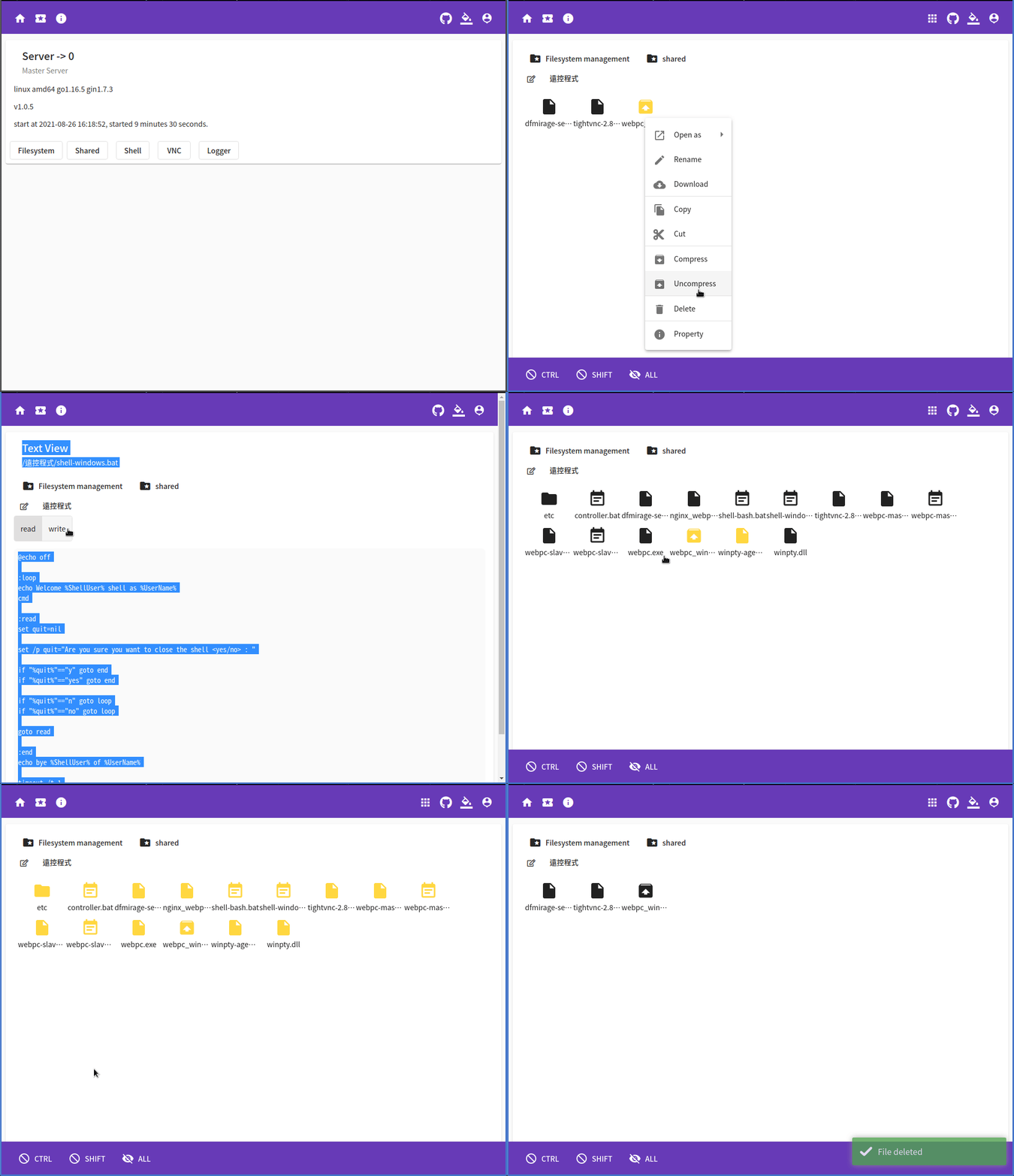
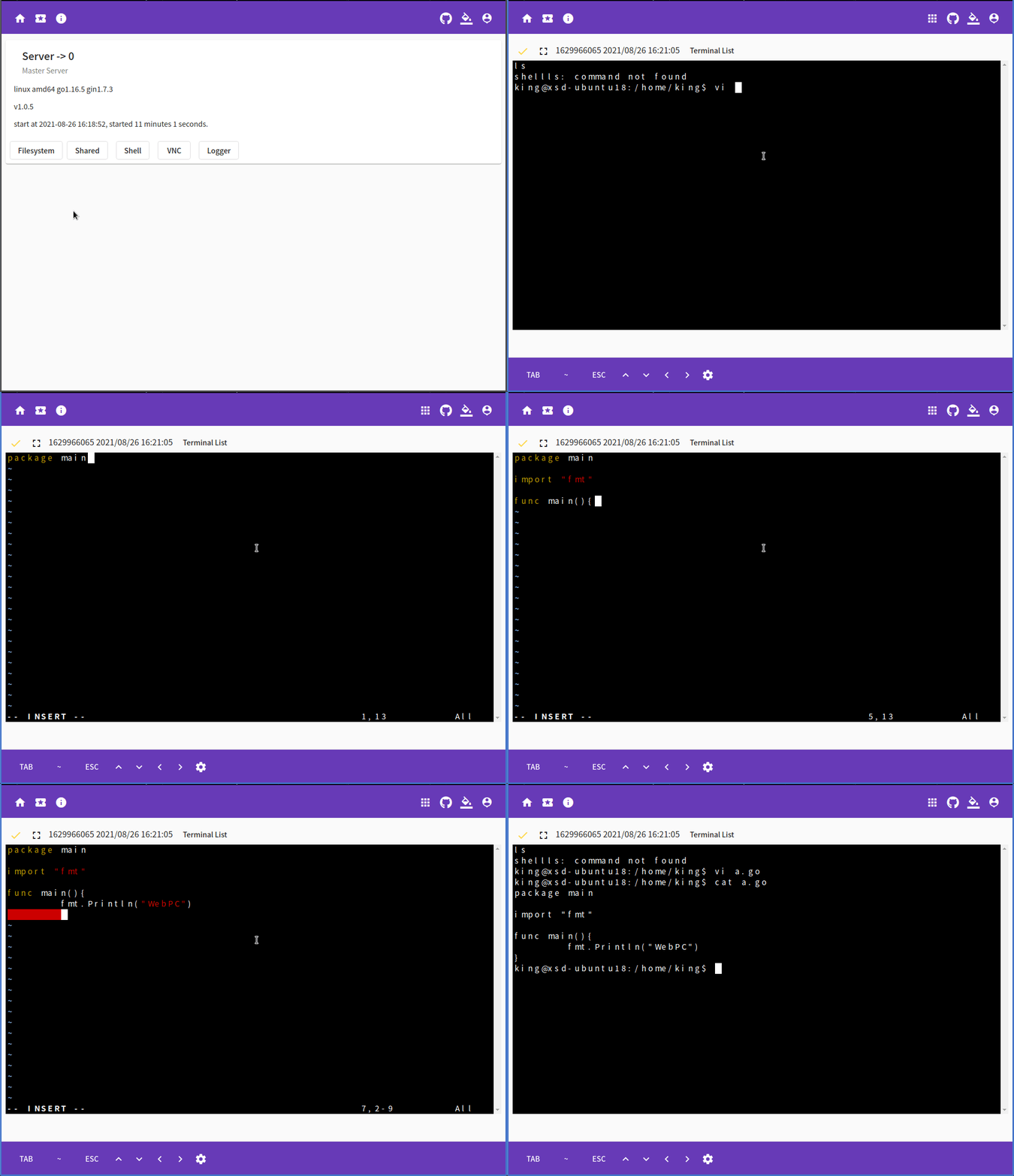
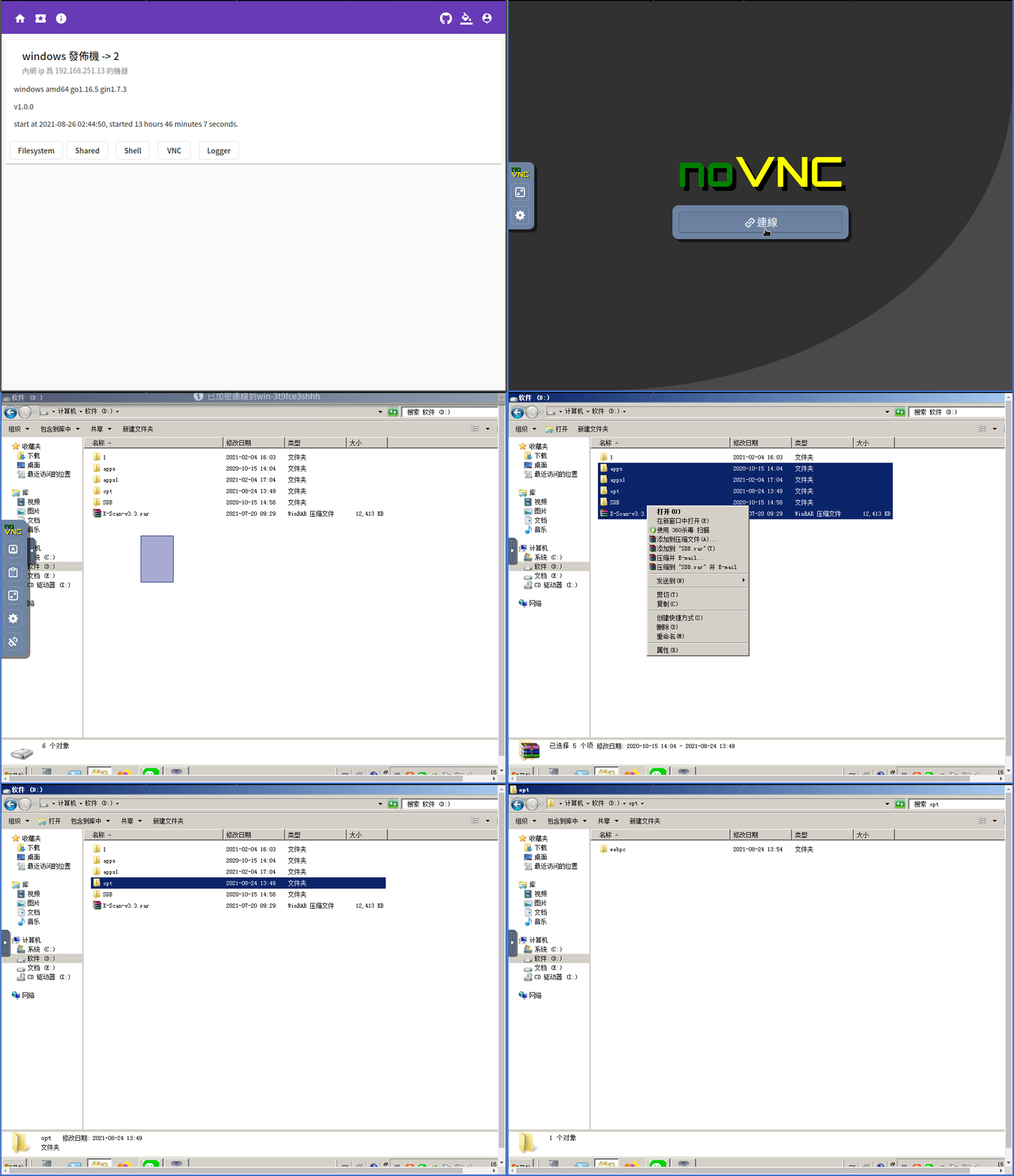
计算机设备的普及和网络的快速开发使计算机的远程操作越来越必要和常见。 SSH和RDP只能控制具有独立外部网络IP的设备,并且每个设备都有其自己的优点和缺点。提供远程管理和控制多种设备(例如TeamViewer)的服务通常不适合非商业用户。通常仅提供远程台式机,但用于Linux和其他设备的远程外壳通常更有用和高效。此外,安装烦人的遥控程序很烦人。因此,我解决了上述需求,并意识到浏览器的所有客户功能都是该项目WebPC。
首先,需要服务器接收用户请求和受控端的注册。我们称此服务器为主服务器,所有受控的末端都是奴隶。
从设备将向主人注册,并将虚拟网络渠道保留给主人。 Salve在此虚拟网络渠道上为主服务提供了GRPC服务,以支持各种遥控功能。
当主收到用户请求时,它找到了注册的从属,并将请求转发到从属上。
对于Linux-AMD64和Windows-AMD64,已经提供了预编译程序,请直接下载并直接安装。对于其他平台,您需要自己编译,并参考以下安装。
下载最新程序并将其解压缩到/opt/webpc/webpc
copy/opt/webpc/webpc-master.service to /etc/systemd/system/webpc-master.service安装SystemD的主服务
sudo cp /opt/webpc/webpc-master.service /etc/systemd/system/webpc-master.service
如果修改安装目录,请记住要修改WebPC-Master中的相应路径。服务。
创建WebPC用户
sudo useradd webpc -Mrs /sbin/nologin
运行服务
sudo systemctl start webpc-master.service
系统创建的随机用户名和密码可以从.//var/logs/master/webpc.log获得第一次运行后:
 $ cat ./var/logs/master/webpc.log
...
{"level":"info","ts":1630285898.3816726,"msg":"init user","user":"king","password":"08ab28ebb369dc15cc2c95dc972348ee"}
...
下载最新程序并将其解压缩到/opt/webpc/webpc
copy/opt/webpc/webpc-slave.service to /etc/systemd/system/webpc-slave.service安装Systemd的从服务服务
sudo cp /opt/webpc/webpc-slave.service /etc/systemd/system/webpc-slave.service
如果修改安装目录,请记住要修改WebPC-SLave.Service中的相应路径。
创建WebPC用户
sudo useradd webpc -Mrs /sbin/nologin
运行服务
sudo systemctl start webpc-slave.service
系统创建的随机用户名和密码可以从.//var/logs/master/webpc.log获得第一次运行后:
 $ cat ./var/logs/master/webpc.log
...
{"level":"info","ts":1630285898.3816726,"msg":"init user","user":"king","password":"08ab28ebb369dc15cc2c95dc972348ee"}
...
http.libsonnet定义了Master如何提供网站服务
 local def = import "def.libsonnet";
local size = def.Size;
local duration = def.Duration;
{
    // http addr
    Addr: ':9000',
    // if not empty use https
    CertFile: '',
    KeyFile: '',
    // enable swagger-ui on /document/
    Swagger: true,
    // grpc server option
    Option: {
        WriteBufferSize: 32*size.KB,
        ReadBufferSize: 32*size.KB,
        InitialWindowSize: 0*size.KB, // < 64k ignored
        InitialConnWindowSize: 0*size.KB, // < 64k ignored
        MaxRecvMsgSize: 0, // <1 6mb
        MaxSendMsgSize: 0, // <1 math.MaxInt32
        MaxConcurrentStreams: 0,
        ConnectionTimeout: 120 * duration.Second,
        Keepalive: {
            MaxConnectionIdle: 0,
            MaxConnectionAge: 0,
            MaxConnectionAgeGrace: 0,
            Time: 0,
            Timeout: 0,
        },
    },
}
system.libsonnet将主本身定义为从属自己注册以提供远程控制的从
Connect.libsonnet设置受控终端可以注册的位置。您需要先将远程控制设备添加到Web服务,然后复制注册的地址并填写此文件的URL属性
 local def = import "def.libsonnet";
local size = def.Size;
local duration = def.Duration;
{
    // http addr
    URL: 'ws://127.0.0.1:9000/api/v1/dialer/64048031f73a11eba3890242ac120064',
    // if true allow insecure server connections when using SSL
    // Insecure: true,
    // grpc server option
    Option: {
        WriteBufferSize: 32*size.KB,
        ReadBufferSize: 32*size.KB,
        InitialWindowSize: 0*size.KB, // < 64k ignored
        InitialConnWindowSize: 0*size.KB, // < 64k ignored
        MaxRecvMsgSize: 0, // <1 6mb
        MaxSendMsgSize: 0, // <1 math.MaxInt32
        MaxConcurrentStreams: 0,
        ConnectionTimeout: 120 * duration.Second,
        Keepalive: {
            MaxConnectionIdle: 0,
            MaxConnectionAge: 0,
            MaxConnectionAgeGrace: 0,
            Time: 0,
            Timeout: 0,
        },
    },
}
system.libsonnet设置从属将提供的功能
 {
    //Shell : "shell-linux", // if empty, linux default value shell-linux.sh
    //Shell : "shell-windows.bat", // if empty, windows default value shell-windows.bat
    // vnc server address
    VNC: "127.0.0.1:5900",
    // mount path to web
    Mount: [
        {
            // web display name
            Name: "s_movie",
            // local filesystem path
            Root: "/home/dev/movie",
            // Set the directory to be readable. Users with read/write permissions can read files
            Read: true,
            // Set the directory to be writable. Users with write permission can write files
            // If Write is true, Read will be forcibly set to true
            Write: true,
            // Set as a shared directory to allow anyone to read the file
            // If Shared is true, Read will be forcibly set to true
            Shared: true,
        },
        {
            Name: "s_home",
            Root: "/home/dev",
            Write: true,
            Read: true,
            Shared: false,
        },
        {
            Name: "s_root",
            Root: "/",
            Write: false,
            Read: true,
            Shared: false,
        },
        {
            Name: "s_media",
            Root: "/media/dev/",
            Write: false,
            Read: true,
            Shared: false,
        },
    ],
}
WebPC后端使用Golang和GRPC开发,前端使用角开发,需要单独编译。
安装必要的开发环境节点打字稿纱
下载项目并将工作目录切换到WebPC/View
git clone [email protected]:powerpuffpenguin/webpc.git && cd webpc/view
安装项目依赖项
yarn install
或者
npm install
编译前端代码
../build.sh view
安装必要的开发环境GCC GOLANG PROTO3 GRPC PROTOC-GEN-GON-GON-GEN-GEN-GEN-GATEWAY PROTOC-GEN-OPENAPIV2
下载项目并将工作目录切换到WebPC
git clone [email protected]:powerpuffpenguin/webpc.git && cd webpc
生成GRPC代码
./build.sh grpc
将前端代码和静态文件嵌入Golang代码
./build.sh view -s
编译GO代码
./build.sh go
WebPC中的所有用户和受控终端都存在于树组的节点下。当用户组是受控终端所属的组的祖先节点时,用户可以控制受控终端。
权限确定用户可以执行的操作包括以下定义:







