fluent xaml theme editor
1.0.0

| page_type | nama | bahasa | produk | keterangan | ||||
|---|---|---|---|---|---|---|---|---|
mencicipi | Editor Tema FLUENT XAML |
|
| Alat dan aplikasi sampel yang menunjukkan kepada Anda bagaimana tema aplikasi Anda dengan mudah. Lembaga ini dengan juga memberi Anda perangkat yang ringan untuk melihat tema khusus Anda menjadi hidup di aplikasi Anda. |
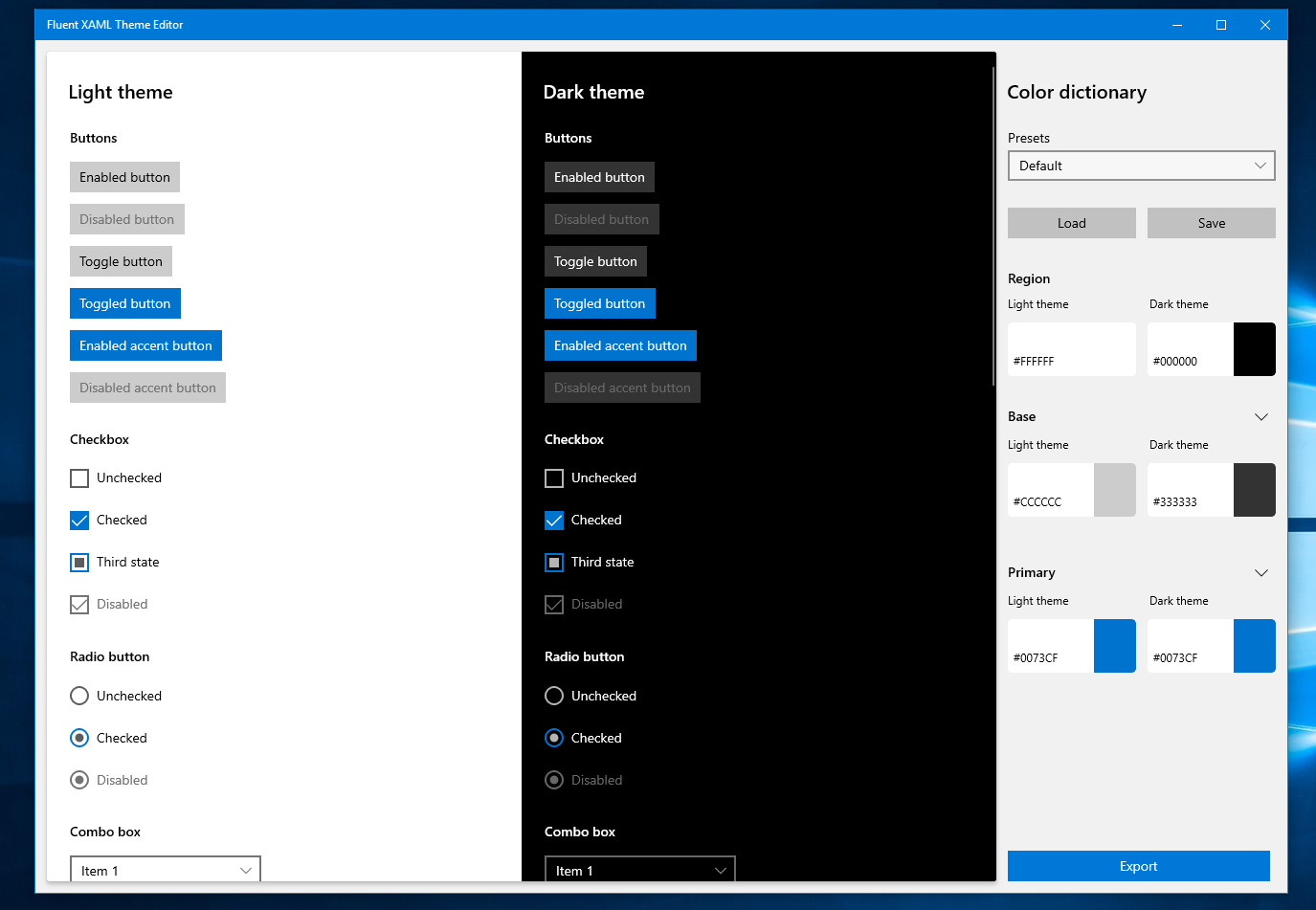
REPO ini berisi solusi penuh dan kode sumber ke Editor Tema XAML FLU - alat yang membantu menunjukkan fleksibilitas sistem desain yang lancar serta mendukung proses pengembangan aplikasi dengan menghasilkan markup XAML untuk kerangka kerja sumber daya kami yang digunakan dalam aplikasi Platform Windows Universal Windows (UWP).
Kode sumber yang terletak di repo ini dibuat dengan platform Universal Windows yang tersedia di Visual Studio dan dirancang untuk berjalan di perangkat desktop, seluler, dan masa depan yang mendukung platform Universal Windows.
Catatan: Jika Anda tidak terbiasa dengan XAML, platform Windows universal, desain atau sumber daya yang lancar dan sumber daya, sangat disarankan agar Anda mengunjungi situs platform Windows universal dan membiasakan diri dengan bahasa dan kerangka kerja yang dimaksudkan oleh alat ini.
Aplikasi ini membutuhkan Visual Studio 2017 Update 4 atau lebih tinggi dan Windows Software Development Kit (SDK) versi 17763 atau lebih tinggi untuk Windows 10.
Dapatkan salinan gratis Visual Studio 2017 Community Edition dengan Dukungan untuk Membangun Aplikasi Platform Windows Universal
Selain itu, untuk tetap di atas pembaruan terbaru ke Windows dan alat pengembangan, menjadi orang dalam Windows dengan bergabung dengan program Windows Insider.
Menjadi orang dalam windows
Jika Anda tidak ingin menjadi terpisah dari proyek open source ini dan sebaliknya hanya ingin menggunakan aplikasi itu sendiri, silakan pergi versi Microsoft Store dari alat ini dan unduh di sana.
Dengan pratinjau build, Anda dapat memilih tiga warna utama untuk tema terang dan gelap di tampilan properti tangan kanan berlabel "Kamus Warna".
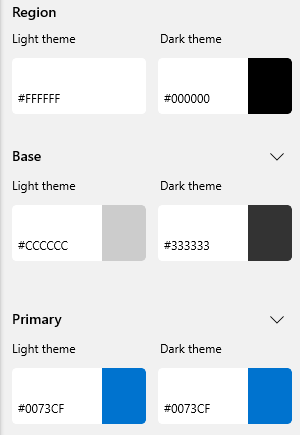
Selain tiga warna utama untuk setiap tema, Anda juga dapat memperluas salah satu warna utama untuk melihat daftar warna kecil yang mengubah tampilan hanya bagian kontrol tertentu - ini pada dasarnya memungkinkan Anda untuk mendapatkan lebih rinci dengan pilihan warna Anda untuk negara bagian.
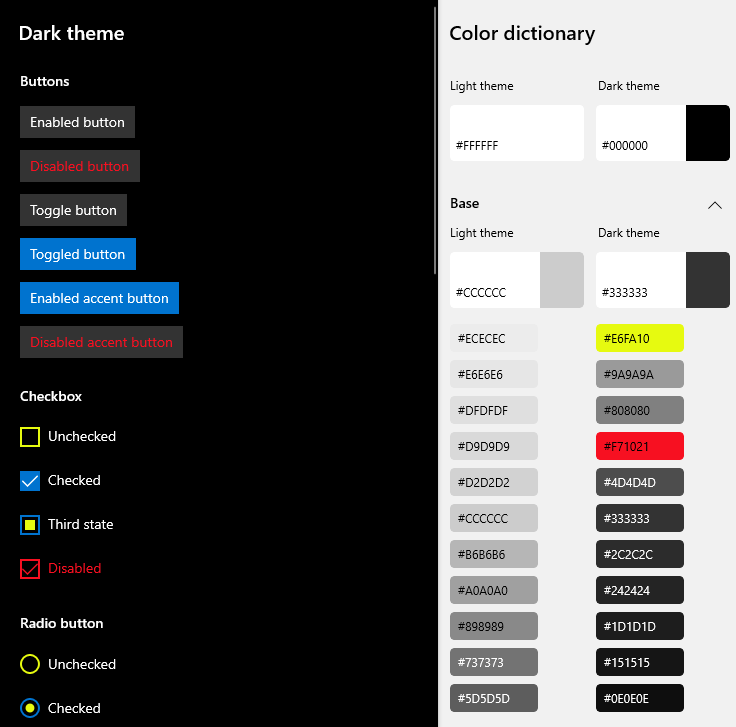
Untuk mengakses tampilan warna yang terperinci, cukup klik chevron di sebelah swatch tombol warna utama.
Editor akan mengirimkan beberapa preset untuk Anda lihat untuk mendapatkan gambaran seperti apa tema di aplikasi. Dropdown preset terletak di bagian atas panel Properti Kamus Warna.
Ketika Anda pertama kali boot, itu akan selalu diatur ke default - yang merupakan default gaya tema terang dan gelap untuk semua kontrol kami. Anda dapat memilih berbagai tema seperti lavender dan malam hari untuk mendapatkan gambaran tentang bagaimana alat ini akan bertema kontrol kami.
Setelah Anda siap untuk mulai membuat tema sendiri, mulailah mengedit warnanya! Setelah Anda mulai mengutak -atiknya, Anda akan melihat bahwa preset ComboBox berubah dari nama preset ke "Custom":
Ini berarti bahwa Anda telah memulai tema sementara baru yang "kebiasaan." Perubahan apa pun yang Anda lakukan tidak akan mempengaruhi preset lain di dalam kotak itu.
Bagian terakhir dari editor tema mungkin adalah salah satu bagian terpenting dari membuat tema Anda, dan itu adalah untuk memastikan bahwa dalam tema masing -masing Anda sesuai dengan kontras. Alat ini memberi Anda daftar kecil informasi kontras di sisi kiri jendela pemilihan warna saat memilih warna Anda.
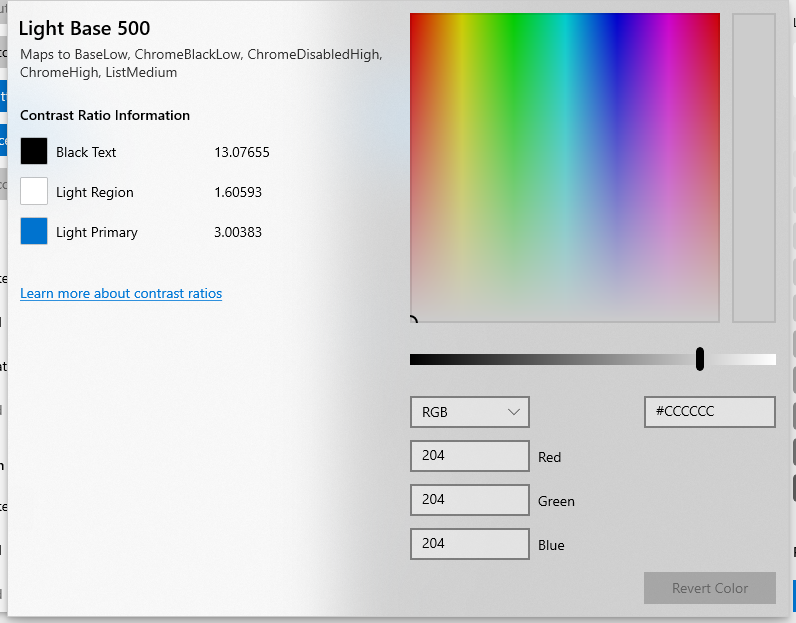
Di jendela ini Anda dapat melihat kontras Anda dengan warna teks yang paling umum dalam tema yang Anda pilih untuk diedit, dalam kasus di atas teks hitam karena Anda sedang mengedit nilai warna tema terang.
Saat Anda memilih warna yang jatuh di bawah rasio kontras standar 4,5: 1 , Anda akan diberitahu dengan teks merah di sebelah nilai kontras Anda.
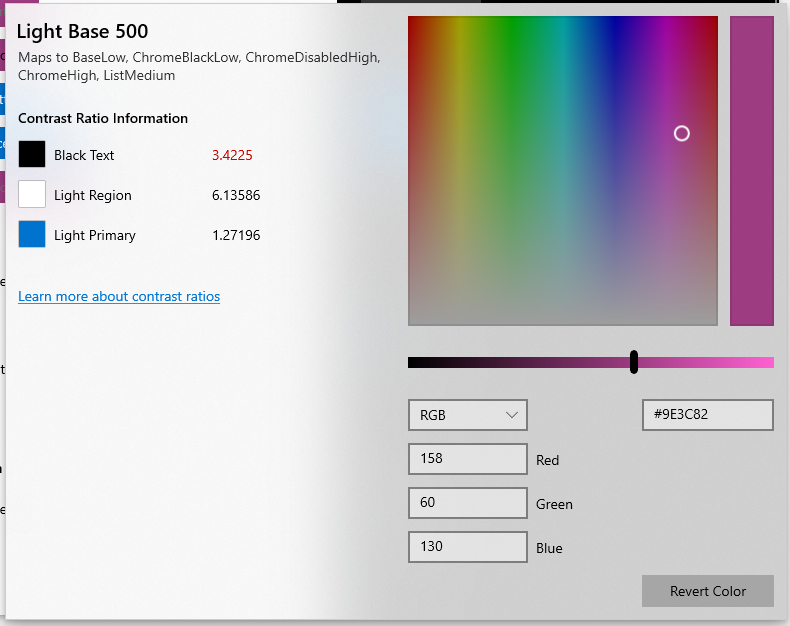
Anda dapat mempelajari lebih lanjut tentang rasio kontras dan pentingnya mereka di sini.
Setelah Anda bertema semuanya, Anda ingin menggunakannya di aplikasi Anda! Untuk melakukan itu, Anda harus mengklik tombol "Ekspor" di bagian bawah panel Properti Kamus Warna.
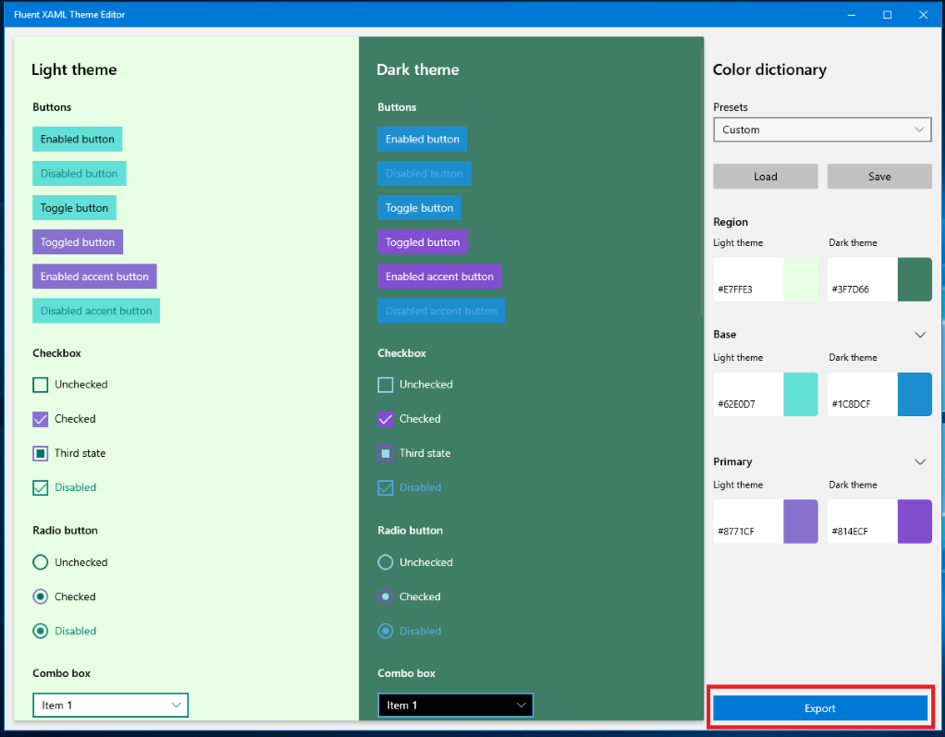
Tombol itu akan membuka jendela popup dengan rintisan sumber daya generik yang tidak disebutkan namanya (terlihat di bawah).
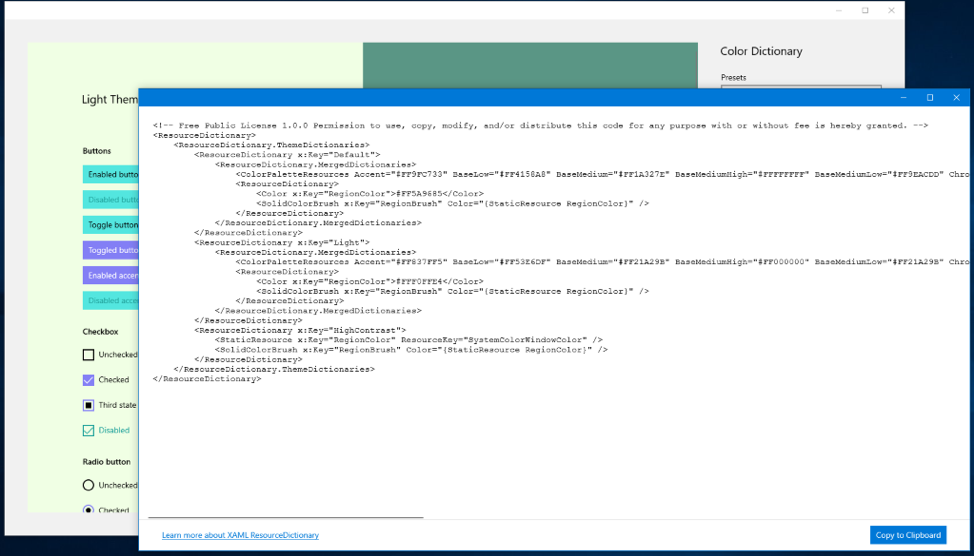
Jendela ini tidak membuat sesuatu yang final, namun, jika Anda ingin membuat beberapa perubahan pada tema dan mengekspornya kembali ke jendela ekspor, itu akan menyegarkan dengan nilai warna yang Anda ganti.
Namun, setelah Anda siap menggunakannya di aplikasi Anda, klik tombol "Salin ke Clipboard" di sudut kanan bawah dan buka solusi UWP Visual Studio.
Setelah di Visual Studio, klik kanan pada solusi proyek, yang terletak di Solution Explorer.
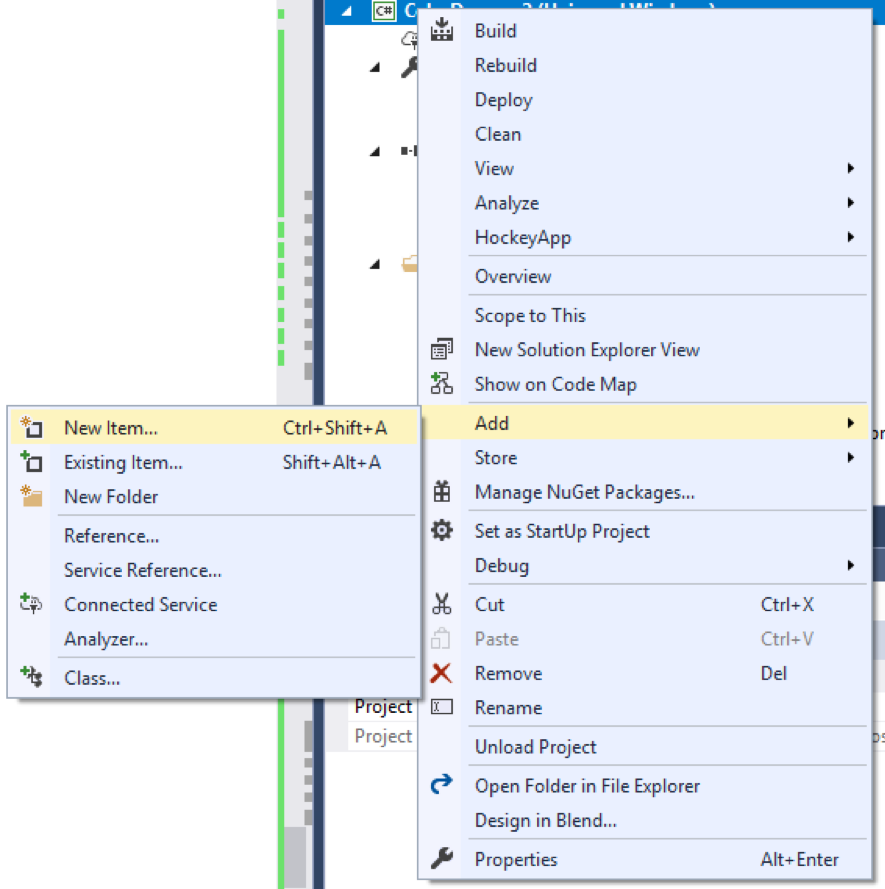
Dan pergi ke Tambah> Item Baru dan kemudian pilih Kamus Sumber Daya.
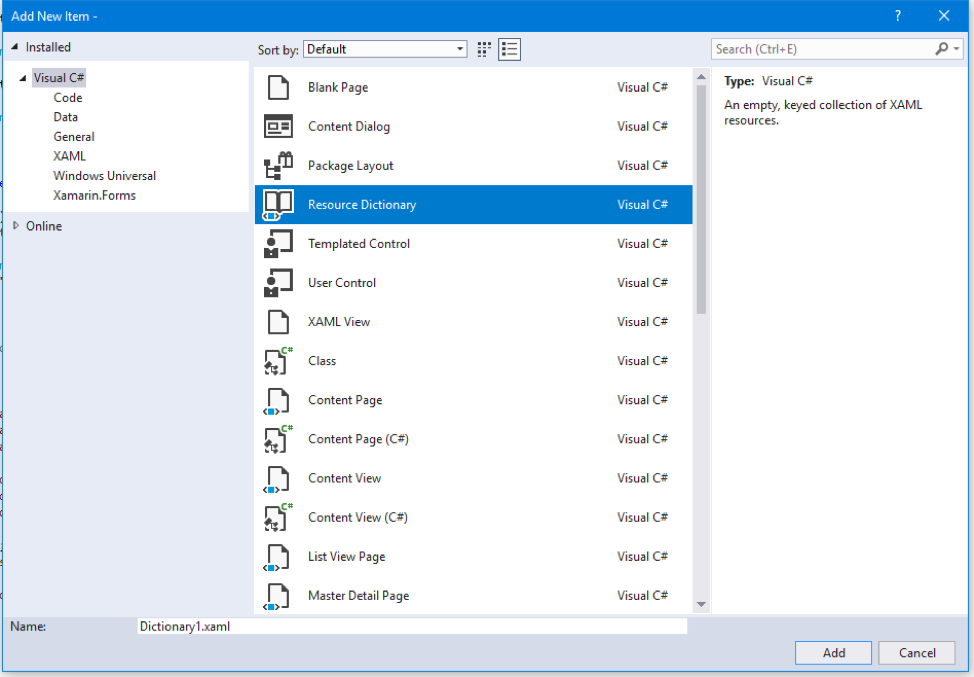
Sebutkan kamus itu apa pun yang masuk akal bagi Anda dan klik Tambah setelah Anda selesai.

Itu harus menghasilkan sumber daya kosong seperti ini:
< ResourceDictionary
    xmlns = " http://schemas.microsoft.com/winfx/2006/xaml/presentation "
    xmlns : x = " http://schemas.microsoft.com/winfx/2006/xaml "
    xmlns : local = " using:MyAppName " >

</ ResourceDictionary >
Sekarang Anda dapat menempelkan kode tema yang diekspor dari editor ke sumber daya itu.
< ResourceDictionary
    xmlns = " http://schemas.microsoft.com/winfx/2006/xaml/presentation "
    xmlns : x = " http://schemas.microsoft.com/winfx/2006/xaml "
    xmlns : local = " using:MyAppName " >

    <!-- Free Public License 1.0.0 Permission to use, copy, modify, and/or distribute this code for any purpose with or without fee is hereby granted. -->
    < ResourceDictionary .ThemeDictionaries>
        < ResourceDictionary x : Key = " Default " >
            < ResourceDictionary .MergedDictionaries>
                < ColorPaletteResources Accent = " #FF0073CF " AltHigh = " #FF000000 " AltLow = " #FF000000 " AltMedium = " #FF000000 " AltMediumHigh = " #FF000000 " AltMediumLow = " #FF000000 " BaseHigh = " #FFFFFFFF " BaseLow = " #FF333333 " BaseMedium = " #FF9A9A9A " BaseMediumHigh = " #FFB4B4B4 " BaseMediumLow = " #FF676767 " ChromeAltLow = " #FFB4B4B4 " ChromeBlackHigh = " #FF000000 " ChromeBlackLow = " #FFB4B4B4 " ChromeBlackMedium = " #FF000000 " ChromeBlackMediumLow = " #FF000000 " ChromeDisabledHigh = " #FF333333 " ChromeDisabledLow = " #FF9A9A9A " ChromeGray = " #FF808080 " ChromeHigh = " #FF808080 " ChromeLow = " #FF151515 " ChromeMedium = " #FF1D1D1D " ChromeMediumLow = " #FF2C2C2C " ChromeWhite = " #FFFFFFFF " ListLow = " #FF1D1D1D " ListMedium = " #FF333333 " />
                < ResourceDictionary >
                    < Color x : Key = " SystemChromeAltMediumHighColor " >#CC000000</ Color >
                    < Color x : Key = " SystemChromeAltHighColor " >#FF000000</ Color >
                    < Color x : Key = " SystemRevealListLowColor " >#FF1D1D1D</ Color >
                    < Color x : Key = " SystemRevealListMediumColor " >#FF333333</ Color >
                    < Color x : Key = " RegionColor " >#FF000000</ Color >
                    < SolidColorBrush x : Key = " RegionBrush " Color = " {StaticResource RegionColor} " />
                </ ResourceDictionary >
            </ ResourceDictionary .MergedDictionaries>
        </ ResourceDictionary >
        < ResourceDictionary x : Key = " Light " >
            < ResourceDictionary .MergedDictionaries>
                < ColorPaletteResources Accent = " #FF0073CF " AltHigh = " #FFFFFFFF " AltLow = " #FFFFFFFF " AltMedium = " #FFFFFFFF " AltMediumHigh = " #FFFFFFFF " AltMediumLow = " #FFFFFFFF " BaseHigh = " #FF000000 " BaseLow = " #FFCCCCCC " BaseMedium = " #FF898989 " BaseMediumHigh = " #FF5D5D5D " BaseMediumLow = " #FF737373 " ChromeAltLow = " #FF5D5D5D " ChromeBlackHigh = " #FF000000 " ChromeBlackLow = " #FFCCCCCC " ChromeBlackMedium = " #FF5D5D5D " ChromeBlackMediumLow = " #FF898989 " ChromeDisabledHigh = " #FFCCCCCC " ChromeDisabledLow = " #FF898989 " ChromeGray = " #FF737373 " ChromeHigh = " #FFCCCCCC " ChromeLow = " #FFECECEC " ChromeMedium = " #FFE6E6E6 " ChromeMediumLow = " #FFECECEC " ChromeWhite = " #FFFFFFFF " ListLow = " #FFE6E6E6 " ListMedium = " #FFCCCCCC " />
                < ResourceDictionary >
                    < Color x : Key = " SystemChromeAltMediumHighColor " >#CCFFFFFF</ Color >
                    < Color x : Key = " SystemChromeAltHighColor " >#FFFFFFFF</ Color >
                    < Color x : Key = " SystemRevealListLowColor " >#FFE6E6E6</ Color >
                    < Color x : Key = " SystemRevealListMediumColor " >#FFCCCCCC</ Color >
                    < RevealBackgroundBrush x : Key = " SystemControlHighlightListLowRevealBackgroundBrush " TargetTheme = " Light " Color = " {ThemeResource SystemRevealListMediumColor} " FallbackColor = " { StaticResource SystemListMediumColor} " />
                    < Color x : Key = " RegionColor " >#FFFFFFFF</ Color >
                    < SolidColorBrush x : Key = " RegionBrush " Color = " {StaticResource RegionColor} " />
                </ ResourceDictionary >
            </ ResourceDictionary .MergedDictionaries>
        </ ResourceDictionary >
        < ResourceDictionary x : Key = " HighContrast " >
            < StaticResource x : Key = " RegionColor " ResourceKey = " SystemColorWindowColor " />
            < SolidColorBrush x : Key = " RegionBrush " Color = " {StaticResource RegionColor} " />
        </ ResourceDictionary >
    </ ResourceDictionary .ThemeDictionaries>

</ ResourceDictionary >
Sekarang Anda memiliki tema warna yang sepenuhnya disesuaikan menunggu untuk digunakan, jadi mari kita terapkan!
Untuk melakukan itu, Anda ingin masuk ke halaman atau app.xaml Anda (tergantung pada seberapa banyak aplikasi Anda ingin tema untuk diterapkan) dan menggabungkan kamus tema Anda ke dalam sumber daya halaman atau aplikasi itu.
< Page .Resources>
   < ResourceDictionary >
      < ResourceDictionary .MergedDictionaries>
         < ResourceDictionary Source = " PurpleGreenTheme.xaml " />
      </ ResourceDictionary .MergedDictionaries>
   </ ResourceDictionary >
</ Page .Resources>
Terakhir, jangan lupa untuk mengatur warna latar belakang halaman Anda ke regionalcolor yang Anda pilih untuk tema Anda. Ini satu -satunya sikat yang tidak akan diatur secara otomatis.
< Grid Background = " {ThemeResource RegionBrush} " >
   <!-- Your page layout/content here -->
</ Grid >
Setelah itu, Anda selesai! Warna tema Anda sekarang akan meresap di seluruh aplikasi atau halaman Anda tergantung.
Untuk mengakses API ColorPaletteresources dalam kode di belakang, dan untuk mengubah salah satu properti warna saat runtime, loop melalui kamus gabungan di app.xaml (atau pada ruang lingkup Anda menggabungkan tema Anda) dan ambil referensi ke sumber daya yang saat ini digunakan sebagai contoh ColorPaletteresource)
Berikut adalah contoh cara meraih dan mengedit properti di ColorPaletteresources di C#:
 public MainPage ( )
{
    this . InitializeComponent ( ) ;

    ColorPaletteResources cpr = FindColorPaletteResourcesForTheme ( "Light" ) ;
    cpr . Accent = Colors . Red ;

    ReloadPageTheme ( this . RequestedTheme ) ;
}

private void ReloadPageTheme ( ElementTheme startTheme )
{
    if ( this . RequestedTheme == ElementTheme . Dark )
        this . RequestedTheme = ElementTheme . Light ;
    else if ( this . RequestedTheme == ElementTheme . Light )
        this . RequestedTheme = ElementTheme . Default ;
    else if ( this . RequestedTheme == ElementTheme . Default )
        this . RequestedTheme = ElementTheme . Dark ;

    if ( this . RequestedTheme != startTheme )
        ReloadPageTheme ( startTheme ) ;
}

private ColorPaletteResources FindColorPaletteResourcesForTheme ( string theme )
{
    foreach ( var themeDictionary in Application . Current . Resources . ThemeDictionaries )
    {
        if ( themeDictionary . Key . ToString ( ) == theme )
        {
            if ( themeDictionary . Value is ColorPaletteResources )
            {
                return themeDictionary . Value as ColorPaletteResources ;
            }
            else if ( themeDictionary . Value is ResourceDictionary targetDictionary )
            {
                foreach ( var mergedDictionary in targetDictionary . MergedDictionaries )
                {
                    if ( mergedDictionary is ColorPaletteResources )
                    {
                        return mergedDictionary as ColorPaletteResources ;
                    }
                }
            }
        }
    }
    return null ;
}
Kami tidak merekomendasikan melakukan ini terlalu sering saat runtime karena Anda dapat mengalami beberapa masalah kinerja, tetapi jika ditempatkan di halaman pengaturan atau area di mana Anda tidak mengharapkan pengguna untuk sering beralih, kinerjanya seharusnya tidak terlalu buruk.
Tip! Anda perlu memuat ulang sumber daya agar sumber daya di dalam untuk mendapatkan perubahan warna baru yang telah Anda terapkan. Anda dapat melakukannya dengan membalikkan tema yang diminta ke tema yang berbeda dan kembali lagi. Itulah yang dilakukan fungsi reloadpagetheme.
Meskipun API yang digunakan dalam kode yang diekspor untuk alat ini adalah untuk versi 17744 atau lebih besar, tidak terlalu rumit untuk membuat tema Anda bekerja pada versi SDK sebelumnya.
Saat Anda mengekspor tema Anda, Anda akan melihat markup sumber daya dengan definisi ColorPaletteresources mirip dengan ini:
< ResourceDictionary .ThemeDictionaries>
    < ResourceDictionary x : Key = " Default " >
        < ResourceDictionary .MergedDictionaries>
            < ColorPaletteResources Accent = " #FF8961CC " AltHigh = " #FF000000 " AltLow = " #FF000000 " AltMedium = " #FF000000 " AltMediumHigh = " #FF000000 " AltMediumLow = " #FF000000 " BaseHigh = " #FFFFFFFF " BaseLow = " #FF64576B " BaseMedium = " #FFB6AABC " BaseMediumHigh = " #FFCBBFD0 " BaseMediumLow = " #FF8D8193 " ChromeAltLow = " #FFCBBFD0 " ChromeBlackHigh = " #FF000000 " ChromeBlackLow = " #FFCBBFD0 " ChromeBlackMedium = " #FF000000 " ChromeBlackMediumLow = " #FF000000 " ChromeDisabledHigh = " #FF64576B " ChromeDisabledLow = " #FFB6AABC " ChromeGray = " #FFA295A8 " ChromeHigh = " #FFA295A8 " ChromeLow = " #FF332041 " ChromeMedium = " #FF3F2E4B " ChromeMediumLow = " #FF584960 " ChromeWhite = " #FFFFFFFF " ListLow = " #FF3F2E4B " ListMedium = " #FF64576B " />
        < ResourceDictionary >
            < Color x : Key = " RegionColor " >#FF262738</ Color >
            < SolidColorBrush x : Key = " RegionBrush " Color = " {StaticResource RegionColor} " />
        </ ResourceDictionary >
    </ ResourceDictionary .MergedDictionaries>
</ ResourceDictionary >
ColorPaletteresources adalah API yang bersahabat untuk SystemColors kami yang duduk di Generic.xaml dan memungkinkan SystemColors tersebut akan dilingkupi di tingkat mana pun.
Jika Anda ingin mengaktifkan tema yang sama ini untuk bekerja di bawah, Anda harus mendefinisikan setiap sistem yang lebih tinggi secara individual dengan setiap warna dari tema Anda:
< ResourceDictionary >
    < ResourceDictionary .ThemeDictionaries>
        < ResourceDictionary x : Key = " Default " >
            < Color x : Key = " SystemAltHighColor " >#FF000000</ Color >
            < Color x : Key = " SystemAltLowColor " >#FF000000</ Color >
            < Color x : Key = " SystemAltMediumColor " >#FF000000</ Color >
            < Color x : Key = " SystemAltMediumHighColor " >#FF000000</ Color >
            < Color x : Key = " SystemAltMediumLowColor " >#FF000000</ Color >
            < Color x : Key = " SystemBaseHighColor " >#FFFFFFFF</ Color >
            < Color x : Key = " SystemBaseLowColor " >#FF64576B</ Color >
            < Color x : Key = " SystemBaseMediumColor " >#FFB6AABC</ Color >
            < Color x : Key = " SystemBaseMediumHighColor " >#FFCBBFD0</ Color >
            < Color x : Key = " SystemBaseMediumLowColor " >#FF8D8193</ Color >
            < Color x : Key = " SystemChromeAltLowColor " >#FFCBBFD0</ Color >
            < Color x : Key = " SystemChromeBlackHighColor " >#FF000000</ Color >
            < Color x : Key = " SystemChromeBlackLowColor " >#FFCBBFD0</ Color >
            < Color x : Key = " SystemChromeBlackMediumLowColor " >#FF000000</ Color >
            < Color x : Key = " SystemChromeBlackMediumColor " >#FF000000</ Color >
            < Color x : Key = " SystemChromeDisabledHighColor " >#FF64576B</ Color >
            < Color x : Key = " SystemChromeDisabledLowColor " >#FFB6AABC</ Color >
            < Color x : Key = " SystemChromeHighColor " >#FFA295A8</ Color >
            < Color x : Key = " SystemChromeLowColor " >#FF332041</ Color >
            < Color x : Key = " SystemChromeMediumColor " >#FF3F2E4B</ Color >
            < Color x : Key = " SystemChromeMediumLowColor " >#FF584960</ Color >
            < Color x : Key = " SystemChromeWhiteColor " >#FFFFFFFF</ Color >
            < Color x : Key = " SystemChromeGrayColor " >#FFA295A8</ Color >
            < Color x : Key = " SystemListLowColor " >#FF3F2E4B</ Color >
            < Color x : Key = " SystemListMediumColor " >#FF64576B</ Color >
            < Color x : Key = " SystemAccentColor " >#FF8961CC</ Color >

            < Color x : Key = " RegionColor " >#FF262738</ Color >
            < SolidColorBrush x : Key = " RegionBrush " Color = " {StaticResource RegionColor} " />
         </ ResourceDictionary >
    </ ResourceDictionary .ThemeDictionaries>
</ ResourceDictionary >
Dalam hal ini kami menggunakan tema Lavendar untuk menunjukkan transisi downlevel ini.
PERINGATAN: Meskipun perubahan format markup ini akan memungkinkan tema Anda diterapkan di seluruh kontrol di versi SDK sebelumnya, itu tidak akan bekerja pada halaman, wadah, atau level cakupan kontrol. ColorPaletteresources adalah API yang memungkinkan perilaku pelingkupan . Format markup ini hanya akan berfungsi di level App.xaml untuk SDK sebelumnya.
Alat ini dibuat langsung dari tim fitur dan meskipun kami menyambut input dan saran Anda untuk perbaikan pada alat, kami tidak menerima fitur atau perubahan apa pun dari publik saat ini. Silakan periksa kembali secara teratur karena kami dapat mengembangkan model kontribusi kami di masa depan.
Proyek ini telah mengadopsi kode perilaku open source Microsoft. Untuk informasi lebih lanjut, lihat FAQ Kode Perilaku atau hubungi [email protected] dengan pertanyaan atau komentar tambahan.
Untuk kode sumber Windows tambahan, alat dan sampel, silakan lihat Windows di GitHub.





