atsamr34_rn487x_lorawan_ble
1.0.0

“Wireless Made Easy!" - Adding BLE features & provisioning to an existing LoRaWAN Application
THE SOFTWARE ARE PROVIDED "AS IS" AND GIVE A PATH FOR SELF-SUPPORT AND SELF-MAINTENANCE.
This repository contains unsupported example code intended to help accelerate client product development. It is not validated for production nor audited for security best-practices.
Note that while this repository is unsupported, Microchip welcome community contributions, and all pull-requests will be considered for inclusion into the repository.
Interact with peers in the community at LoRa Forum.
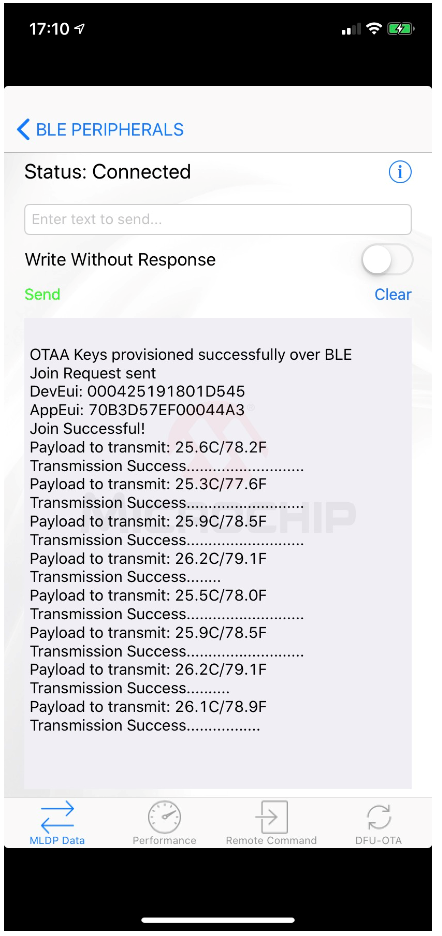
This sample code demonstrates how to provision & control a LoRaWAN end-device over a BLE connection between Smartphone App and a RN4870/71 module.
Clone/Download the current repo to get the software.
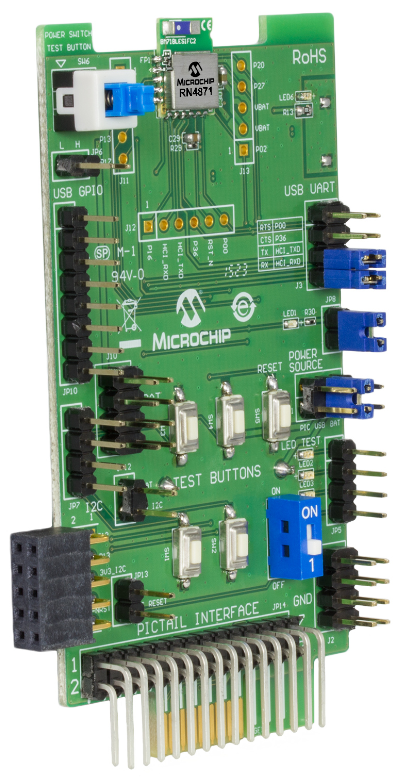
Purchase the RN4871-PICTAIL evaluation kit
The RN-4871-PICtail is a development board based on the ultra-compact Bluetooth 5 Low Energy RN4871 module. The RN4871 uses a simple ASCII command interface over the UART.
OR
Alternatively, you can use a RN4870 or RN4871 click board from Mikroe.
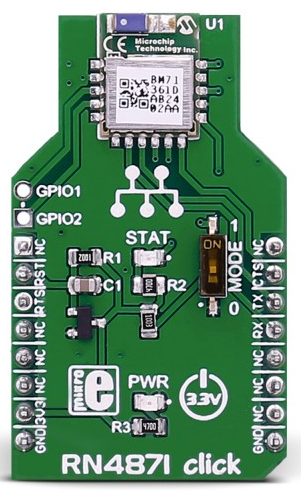
https://www.mikroe.com/rn4870-click https://www.mikroe.com/rn4871-click
And use mikroBUS Xplained-Pro board (ATMBUSADAPTER-XPRO).
https://www.microchip.com/Developmenttools/ProductDetails/ATMBUSADAPTER-XPRO
With or without wiring...
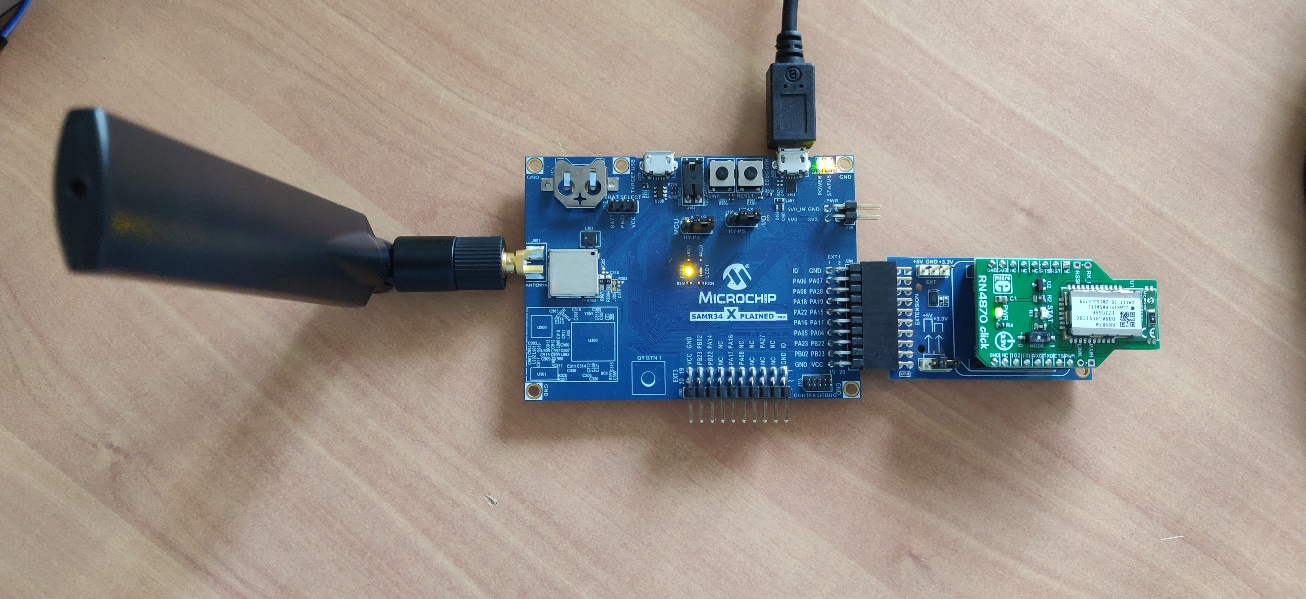
For this tutorial, the RN487x module is loaded with Firmware version 1.41
Purchase the SAM R34 Xplained Pro Evaluation Kit
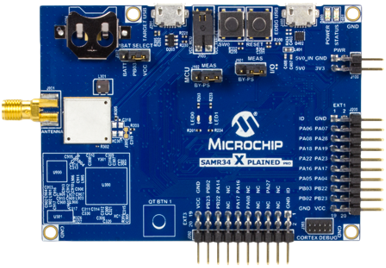
OR
Purchase the WLR089U0 Xplained Pro Evaluation Kit
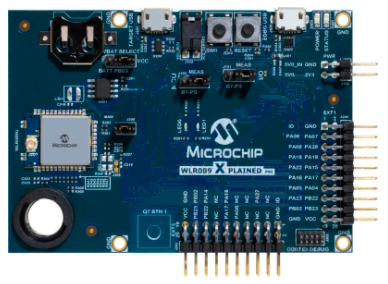
Purchase a LoRa(r) Gateway from The Things Network
Download and install Microchip Studio 7.0 IDE.
Open Microchip Studio 7.0 IDE.
From Tools - > Extensions and updates, install Advanced Software Framework (ASFv3) v3.49.1 release or upper release.
Restart Microchip Studio
Download and install a serial terminal program like Tera Term.
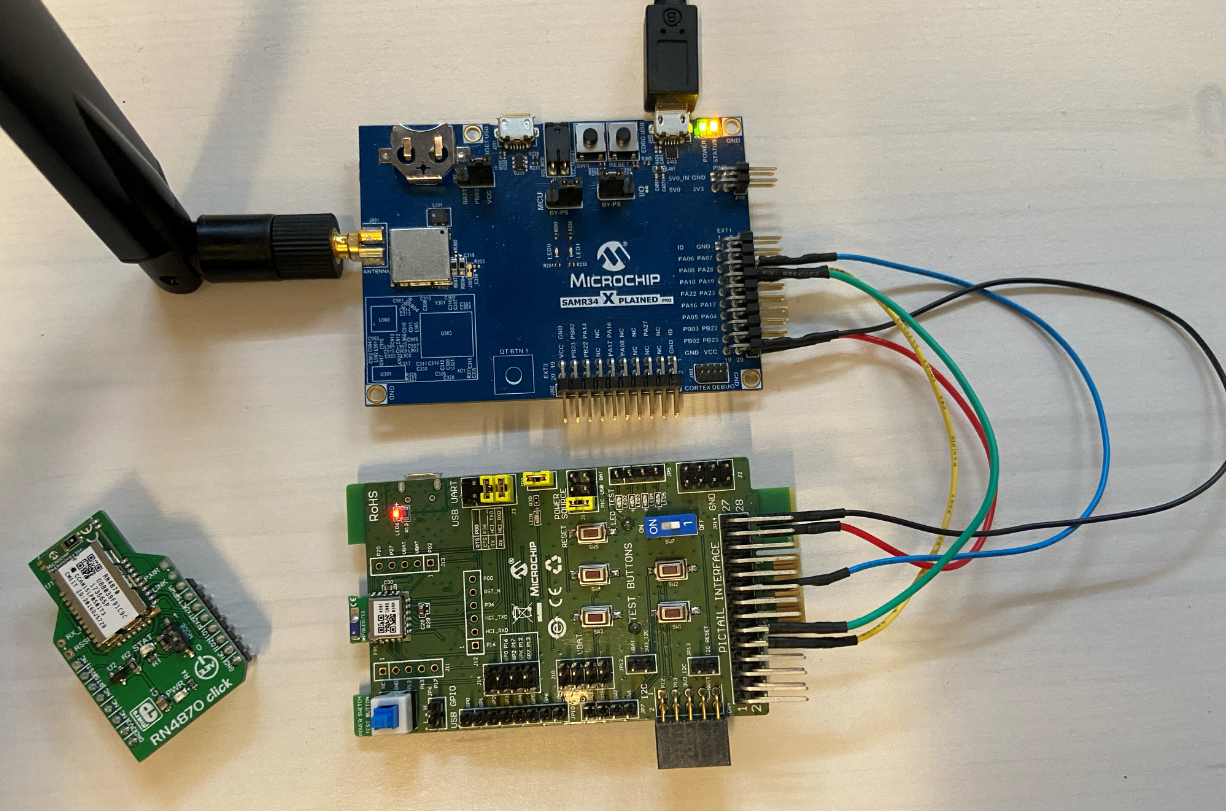
To demonstrate BLE applications as well as LoRaWAN end-device provisioning, follow the connection below :
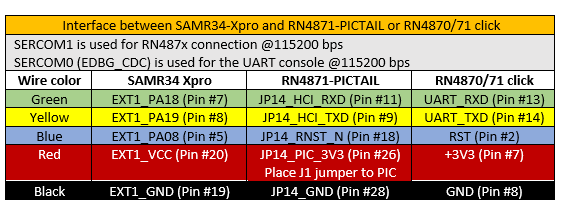
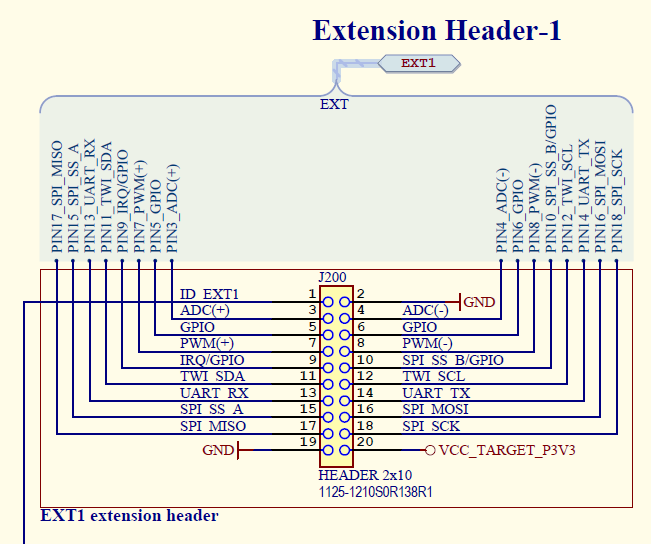
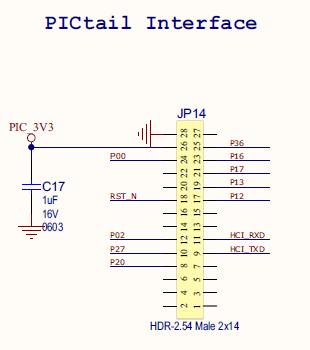
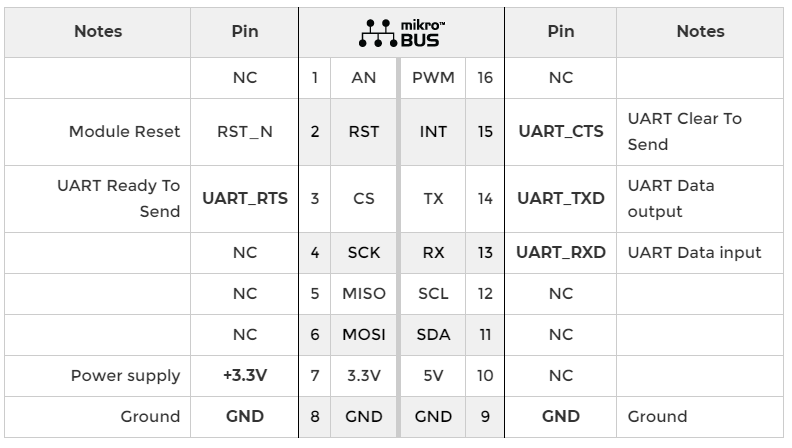
If you are using a WLR089U0 Xplained Pro board, the hardware setup is exactly the same as for the SAMR34 Xpro board.
This demo requires:
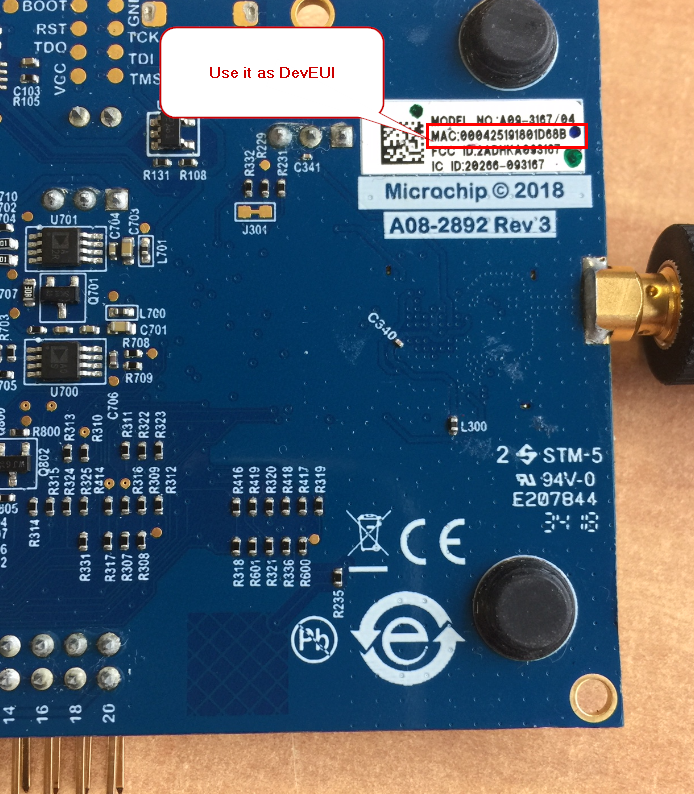
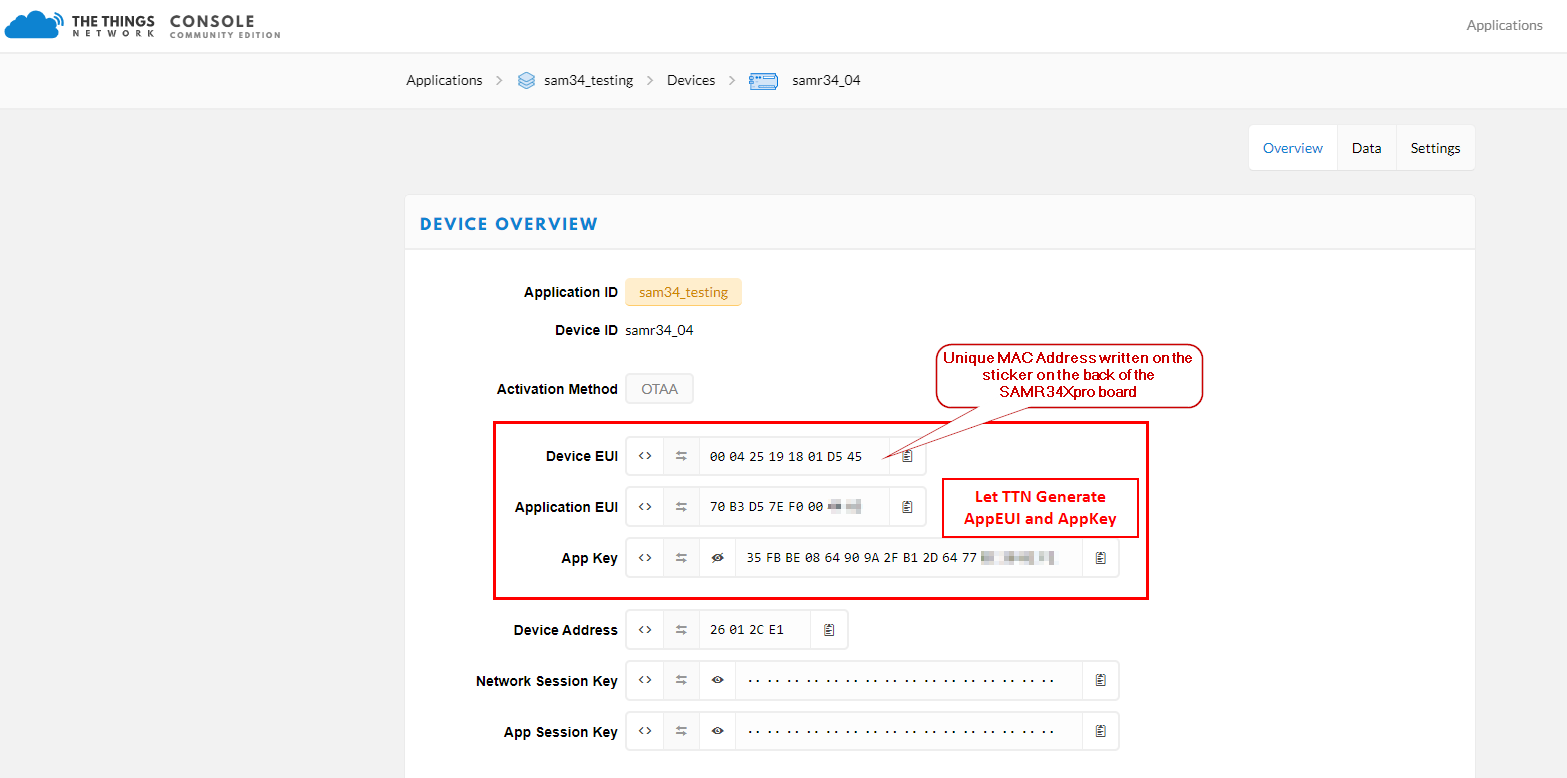
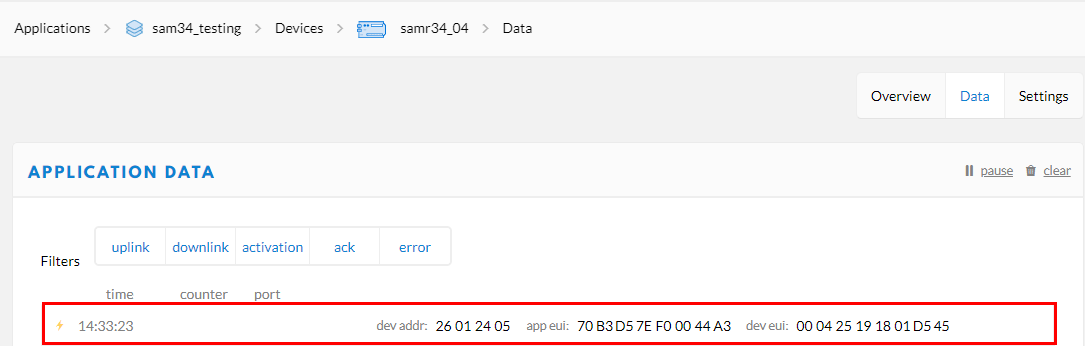
When the device is created, note carrefully the OTAA credentials (DevEUI, AppEUI, AppKey). You will needed later to generate the QR Code.
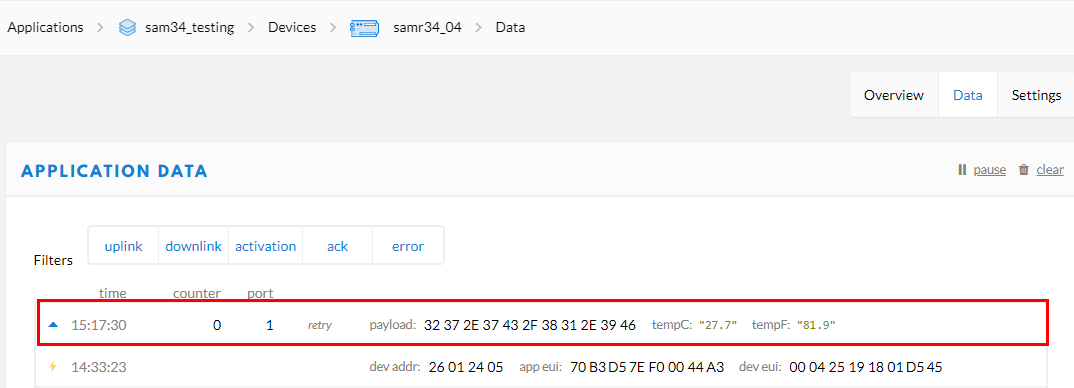
You have done the provisioning of the end-device within the TTN Console.
A QR Code will be used to provision the LoRaWAN OTAA parameters (DevEUI, AppEUI, AppKey) over BLE.
To be recognized by the SAMR34 sample application, the QR code must contains a string of characters which respect the following format:

Create your own QR Code from: https://www.unitag.io/qrcode
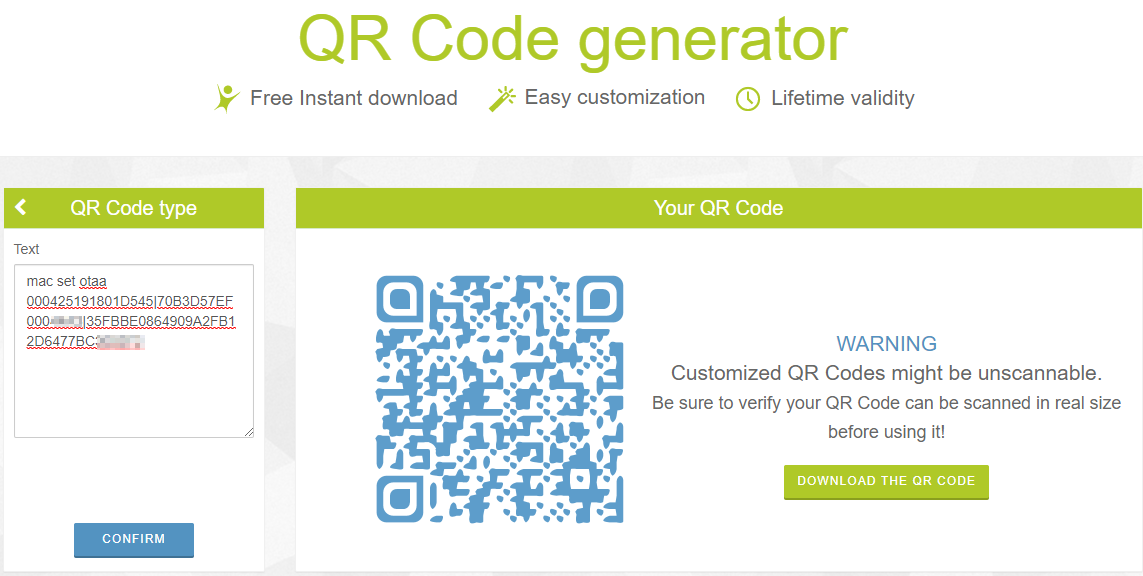
You can download and print your QR Code.
From your smartphone, Open the QRbot apps and scan your QR Code.
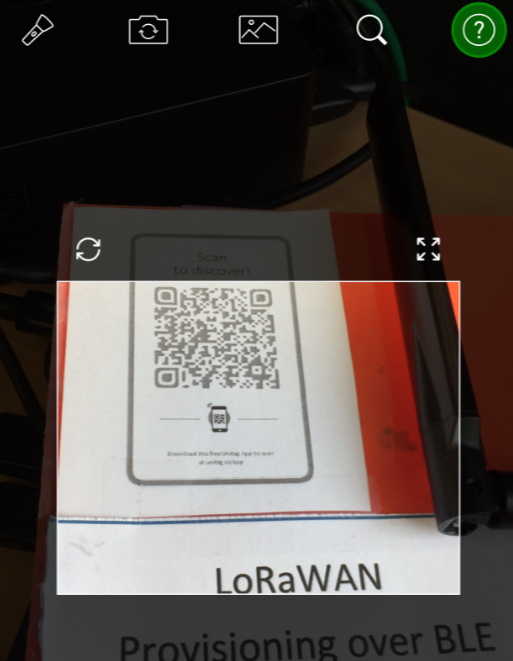
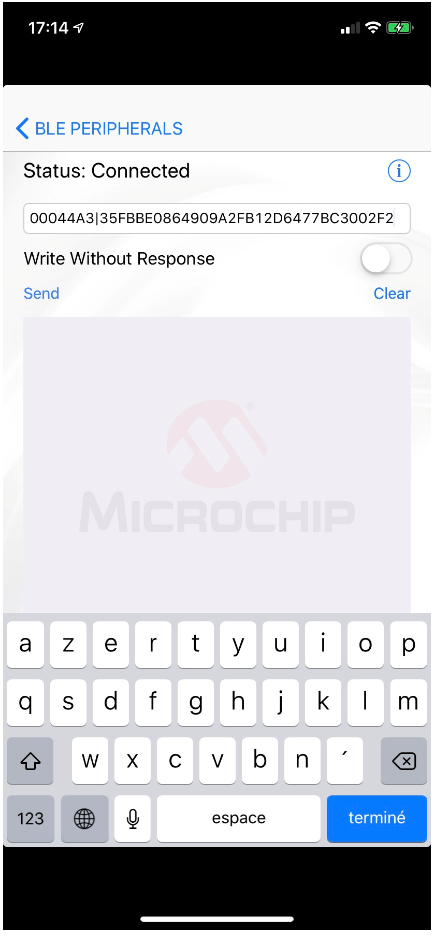
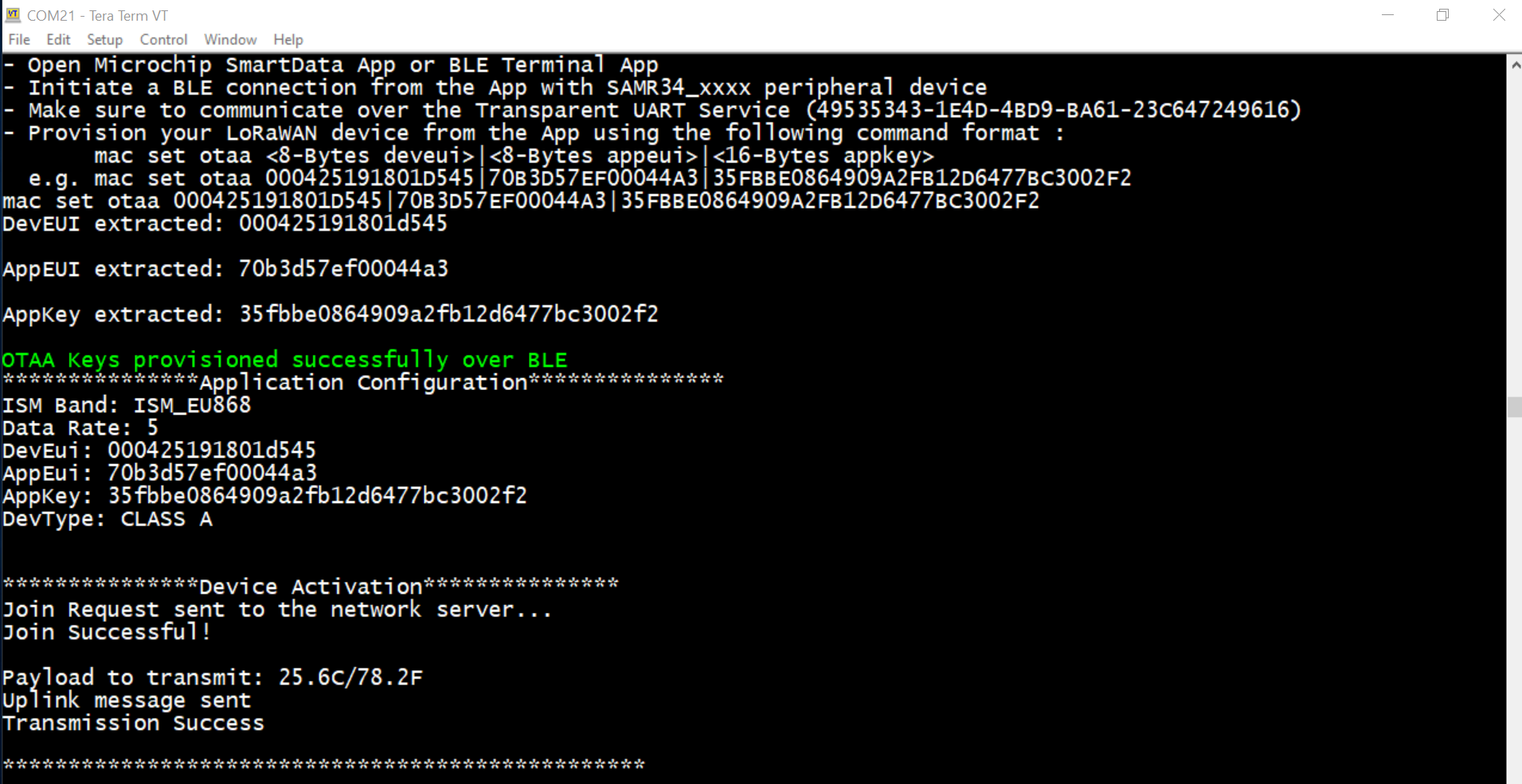
You should retrieve the "mac set otaa" command with your credentials. Copy the text.
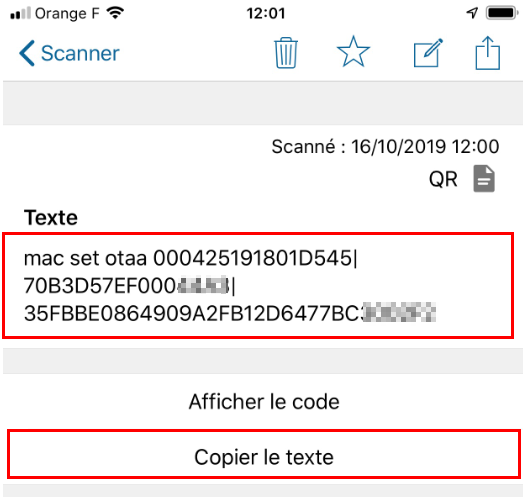
This project integrates the Microchip LoRaWAN Stack (MLS) Software API which provide an interface to the different software modules.
This application is based on LoRaWAN Mote Application generated from ASFv3 and already contains drivers required to interface the RN4870/71 module.
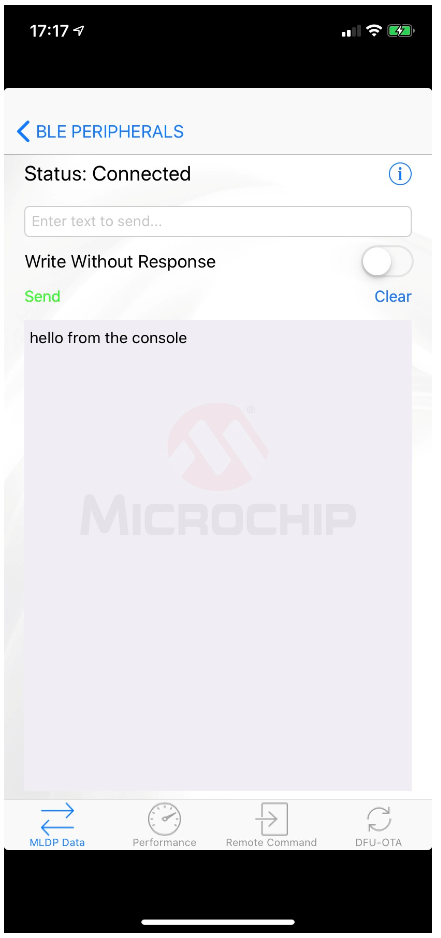
It implements the Transparent UART service. This service exposes the characteristics to transfer serial data on both direction.
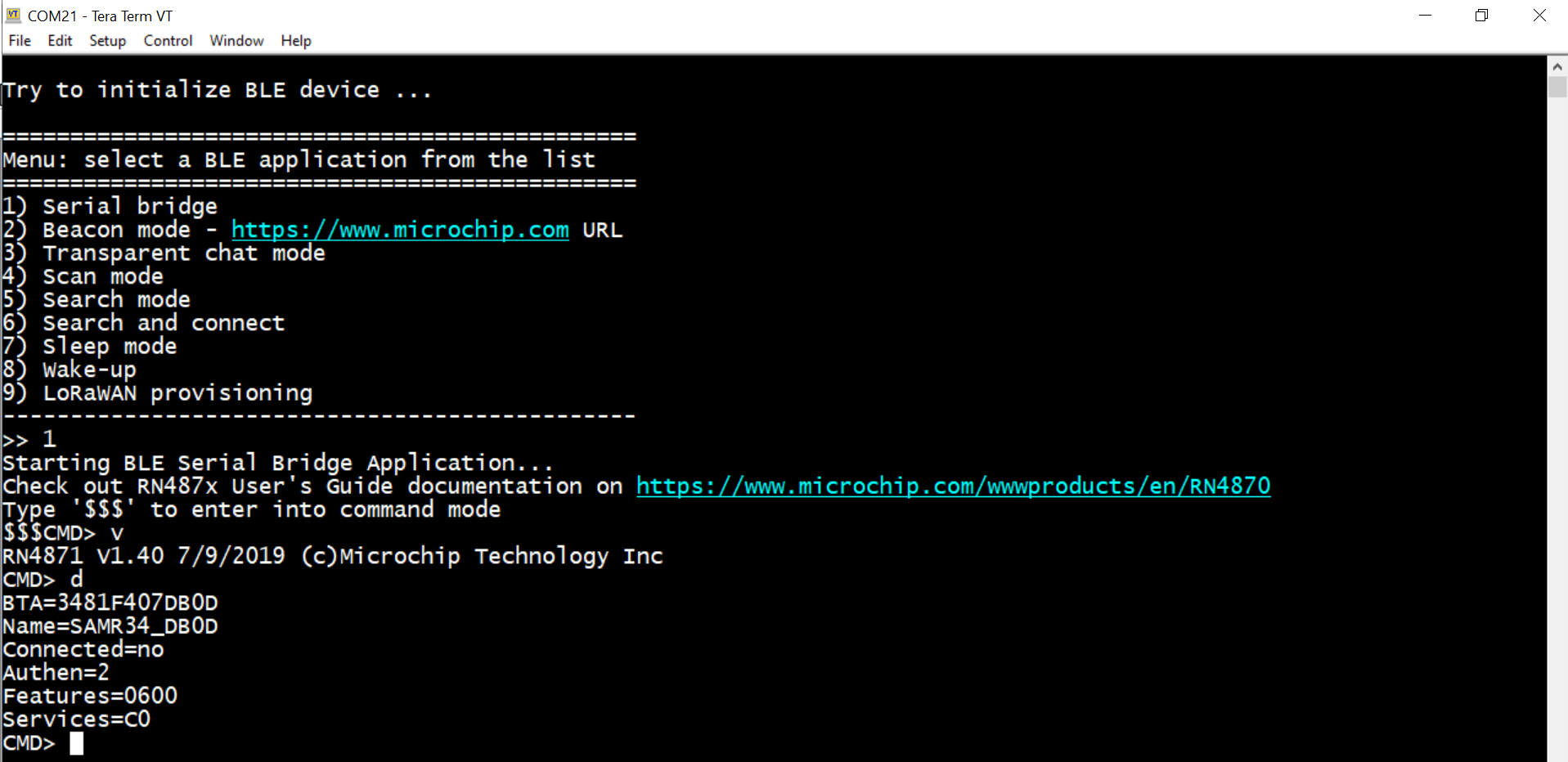
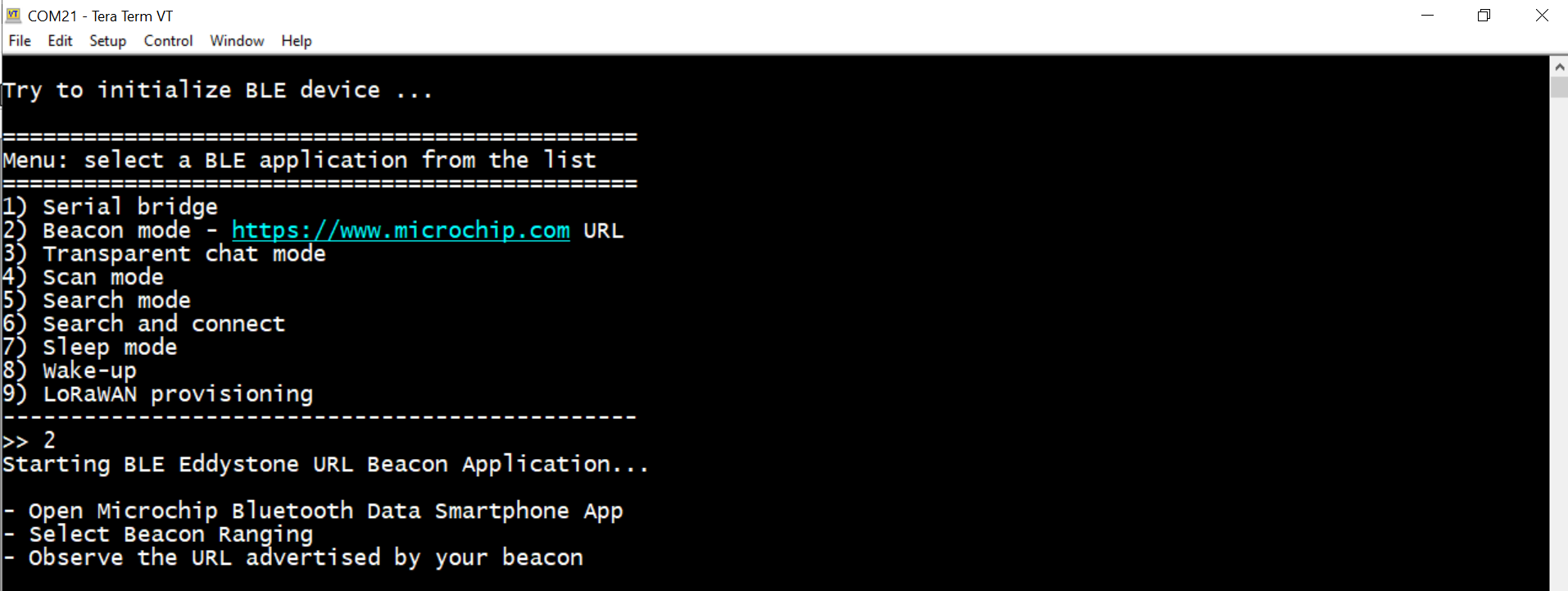
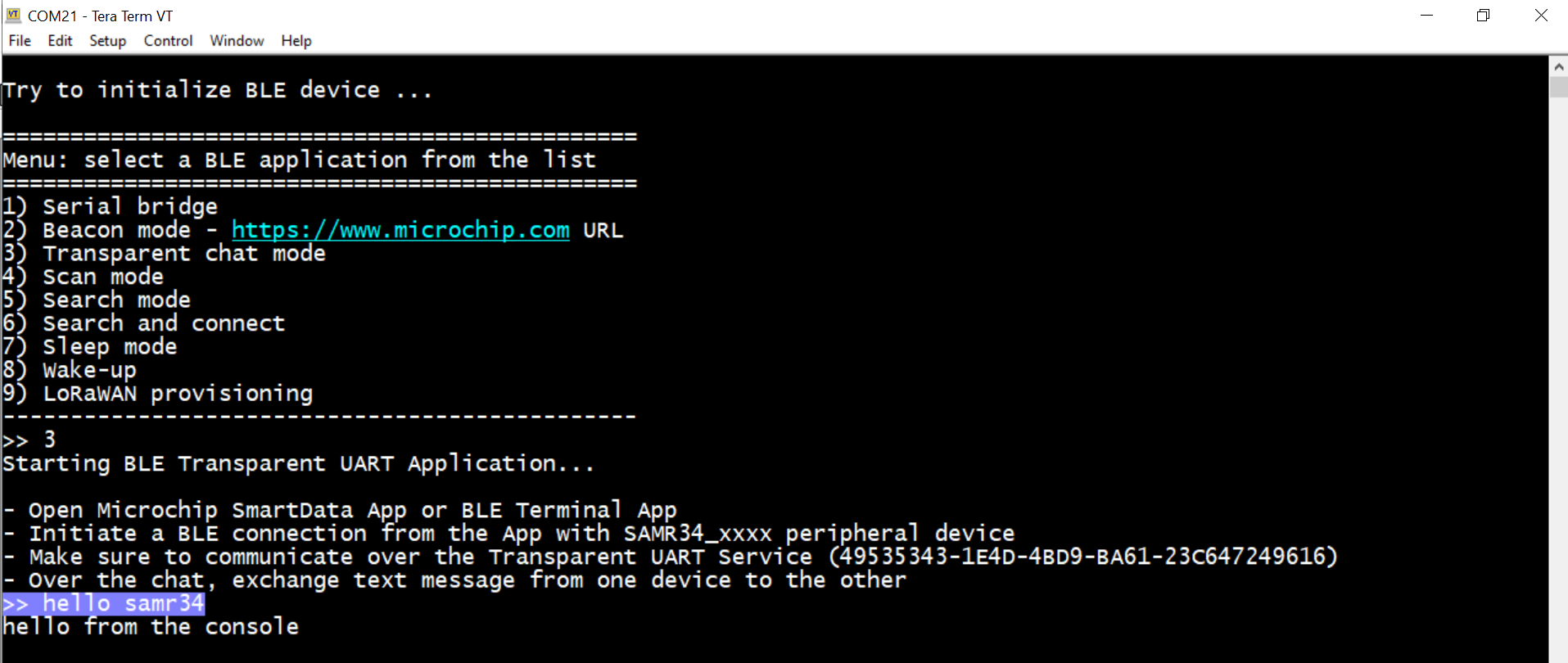
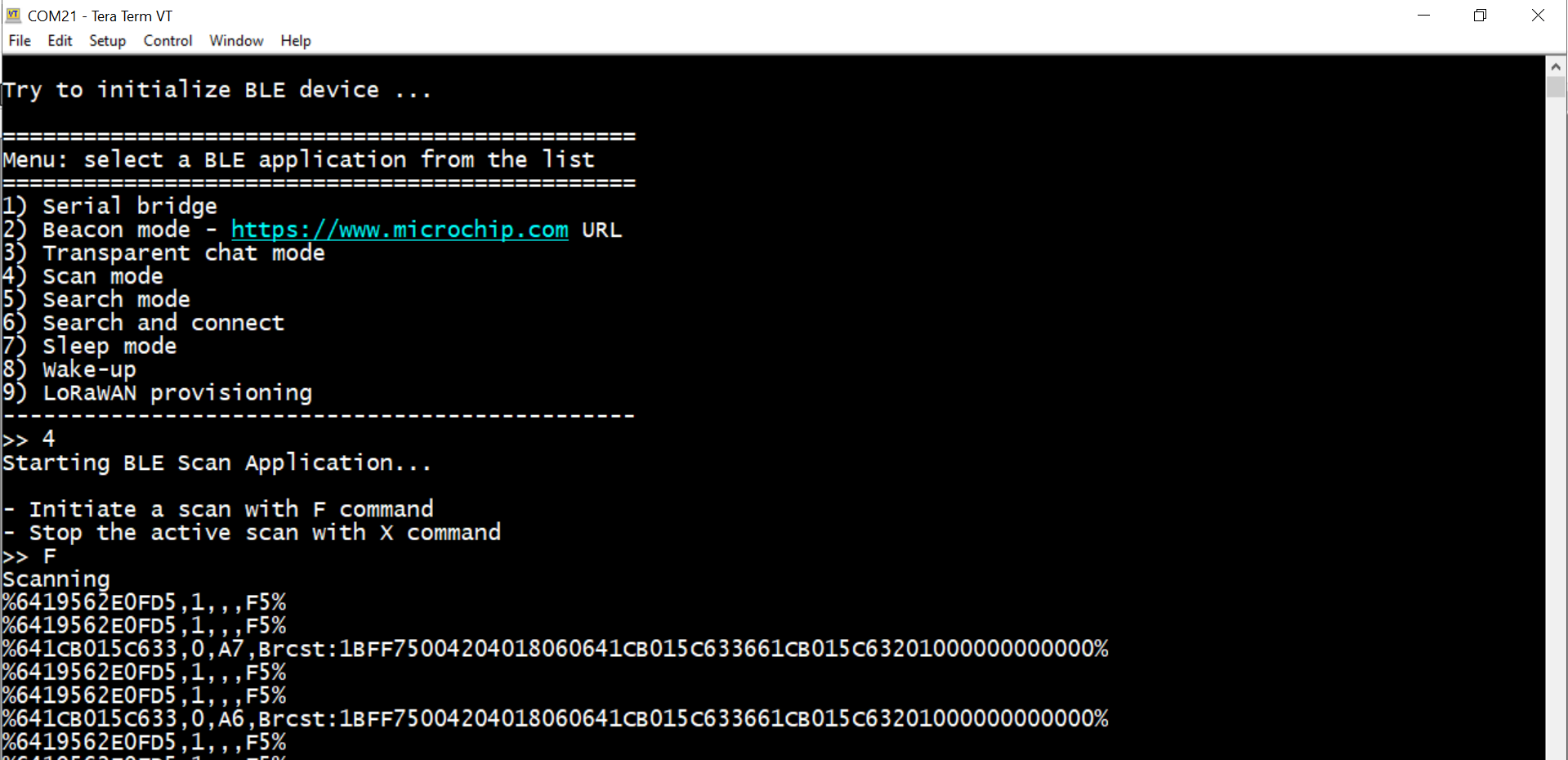
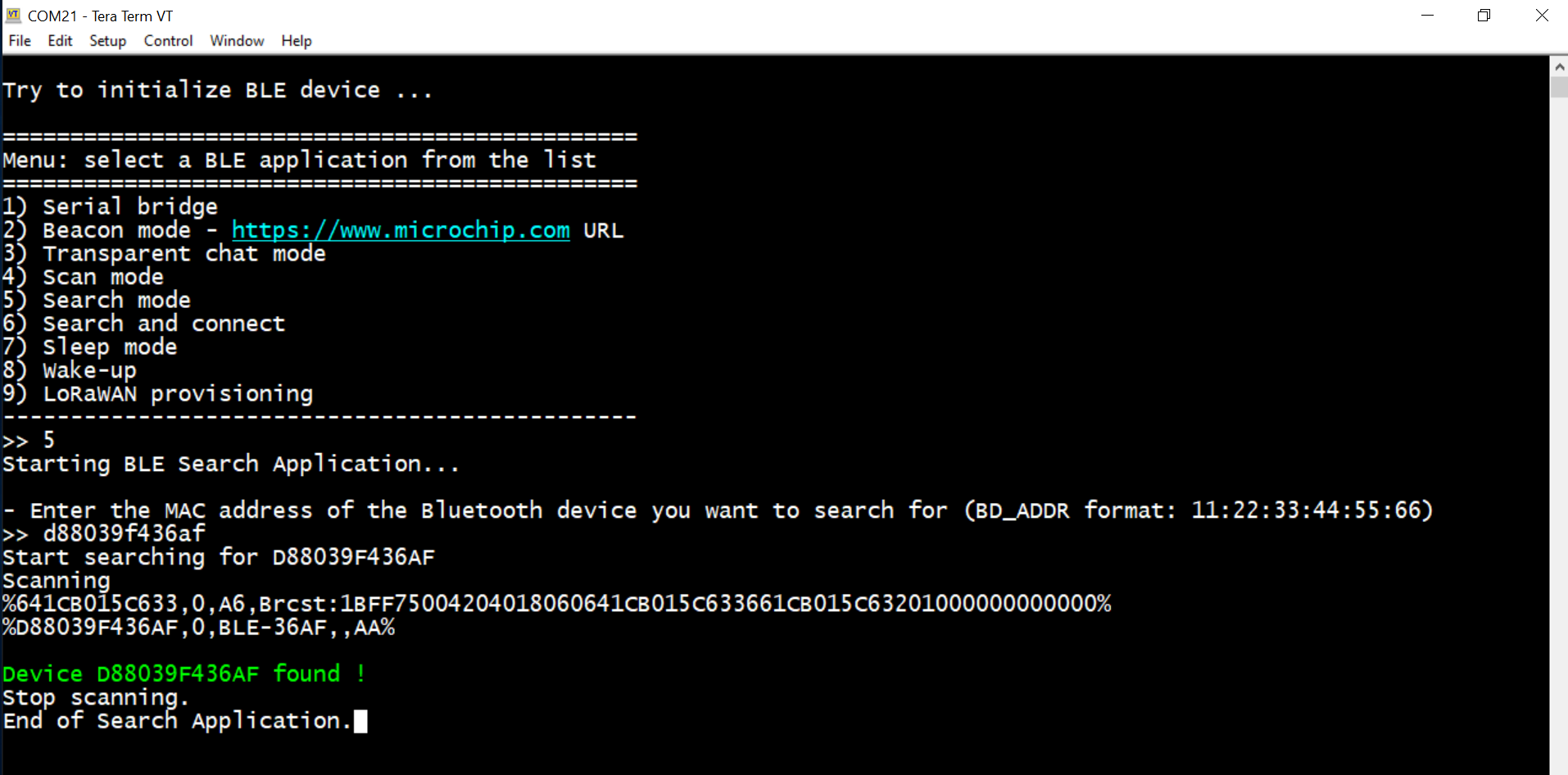
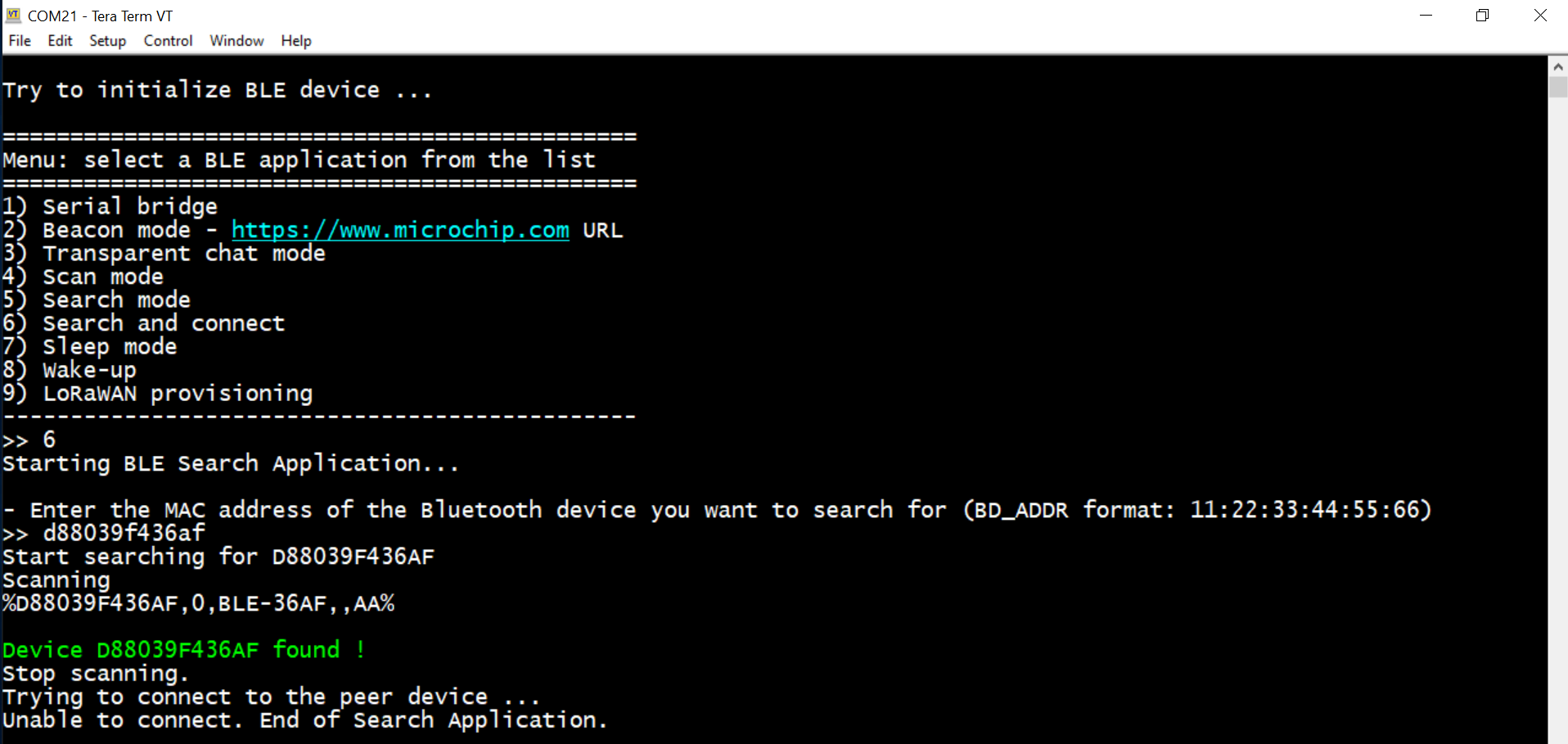
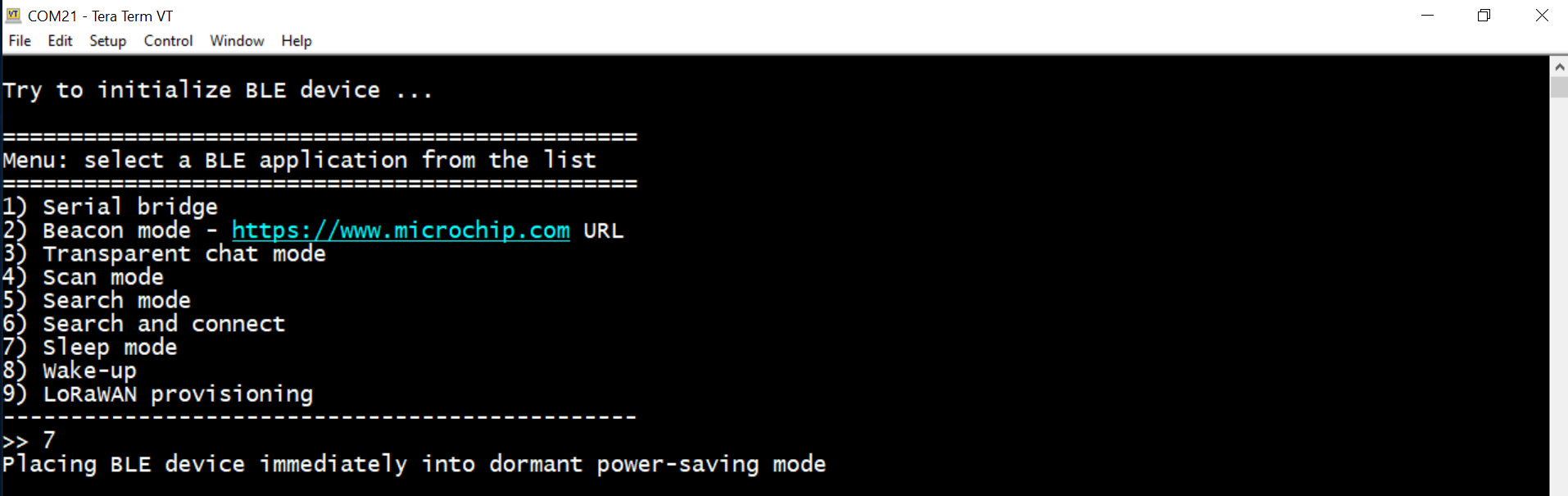
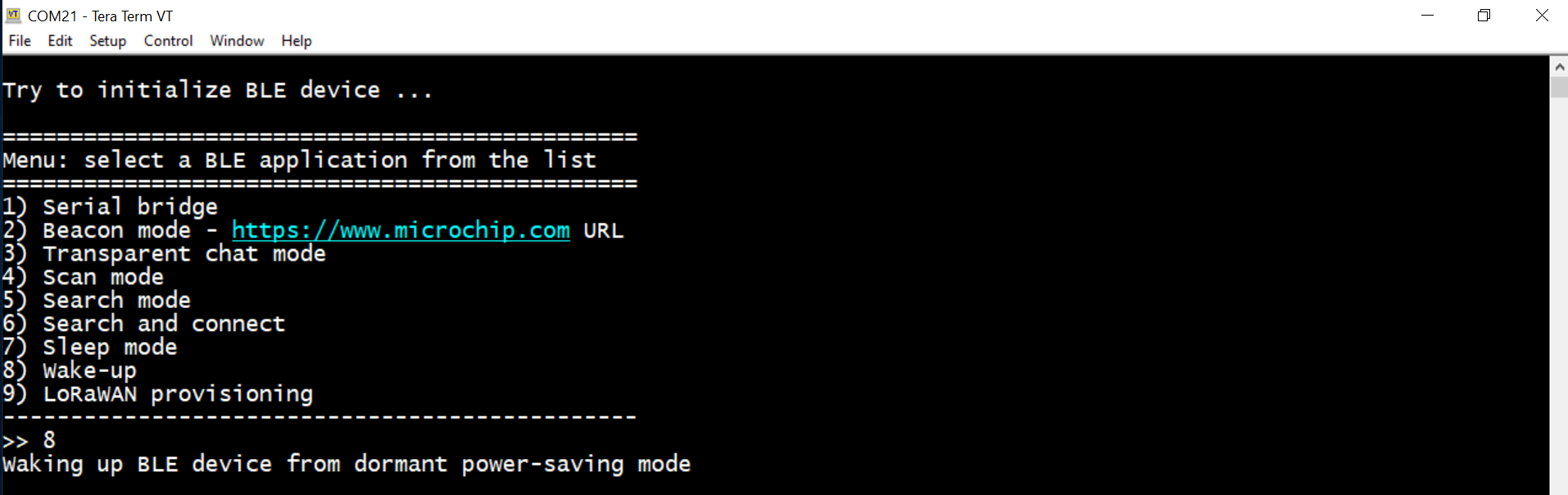
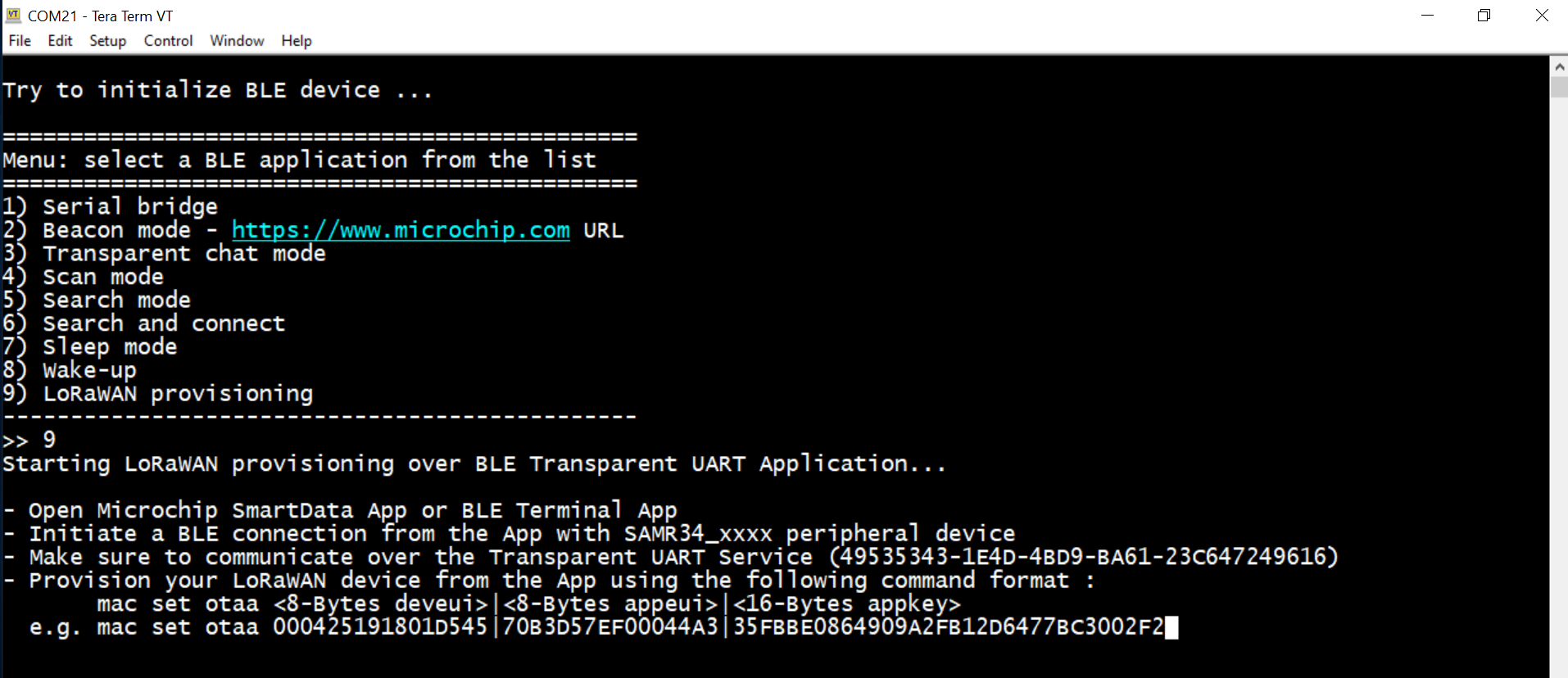
From the menu, you have the choice of the application:
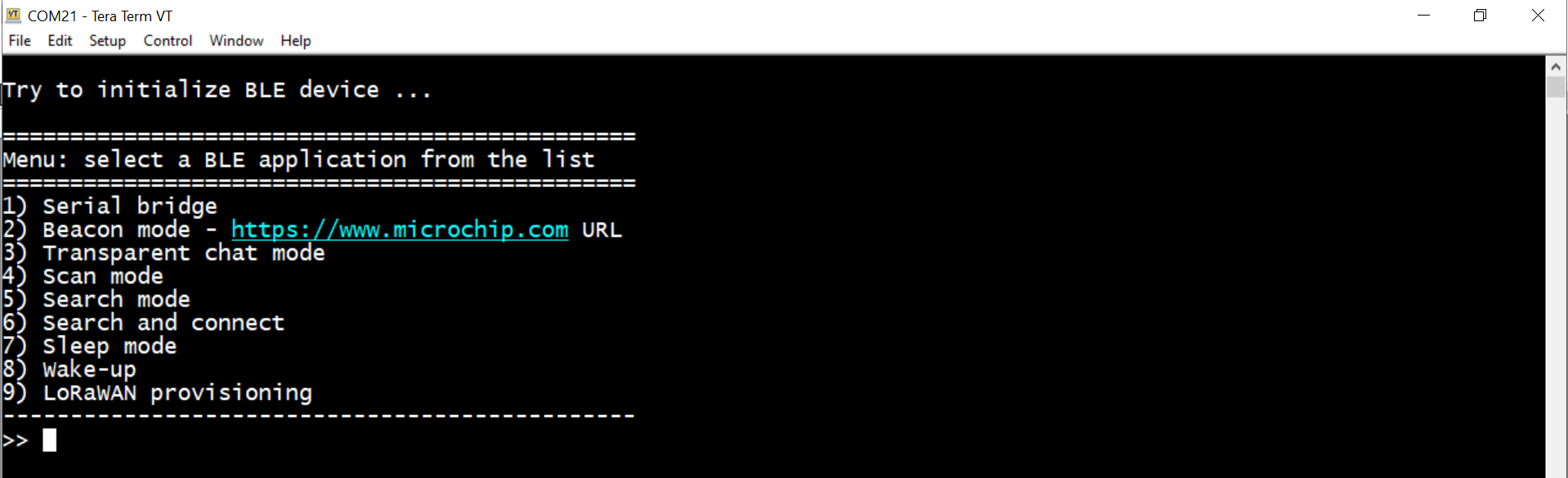
Try to initialize BLE device ...

===============================================
Menu: select a BLE application from the list
===============================================
1) Serial bridge
2) Beacon mode - https://www.microchip.com URL
3) Transparent chat mode
4) Scan mode
5) Search mode
6) Search and connect
7) Sleep mode
8) Wake-up
9) LoRaWAN provisioning
-----------------------------------------------
>>