vim go ide
v2.0.0

Due to special reasons, I haven't touched the computer for more than a year. I'm ready to write code. I'll configure the environment first.
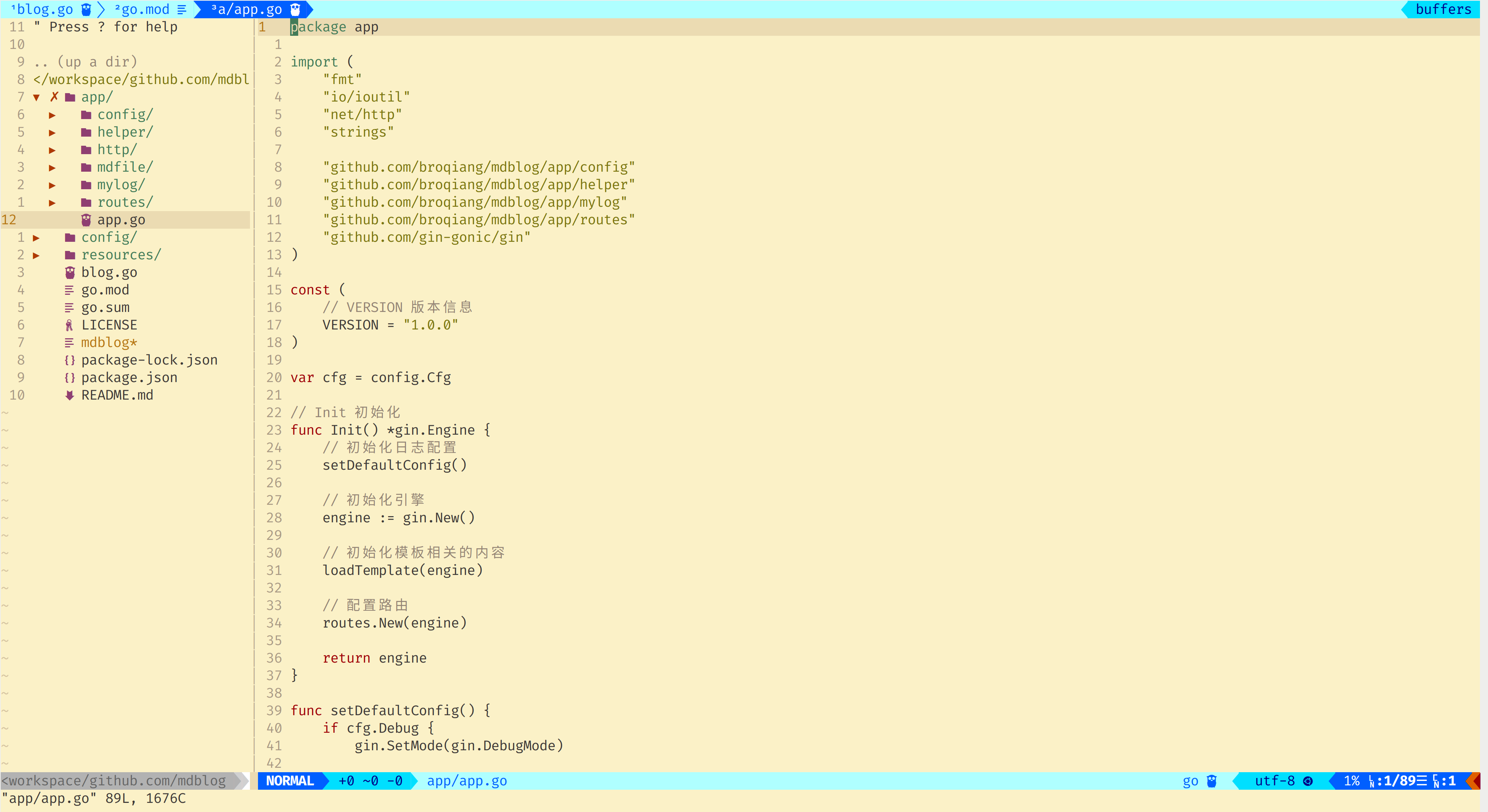
Based on Ubuntu 20.04, other releases have not been tested. The following is the effect after the configuration is completed.
vim-plug
curl -fLo ~ /.vim/autoload/plug.vim --create-dirs
    https://raw.githubusercontent.com/junegunn/vim-plug/master/plug.vim
Edit vim ~/.vimrc and write the following content
 " 插件开始的位置
call plug#begin('~/.vim/plug')

" 此处放准备安装的插件

" 插件结束的位置,插件全部放在此行上面
call plug#end()
After the configuration is completed, save the .vimrc file, open it again, and then enter :PlugInstall to install it
PS: Check the results during installation, because the packages are all downloaded from github, and it may not be successful due to network reasons.
When installing plug-ins, just place them between begin and end in this format, such as:
Plug ' morhetz/gruvbox 'morhetz/gruvbox theme color matching
For more topics, please refer to here
vim-airline vim window status bar
vim-airline-themes status bar theme
Preservim/nerdtree vim file system browser
Xuyuanp/nerdtree-git-plugin Show git status in NERDTree
ryanoasis/vim-devicons Display icons, including navigation bar and status bar
airblade/vim-gitgutter document displays git information
iamcco/markdown-preview.nvim markdown document preview
SirVer/ultisnips and honza/vim-snippets are used to generate code snippets.
coc.nvim code is automatically completed
See the vimrc file where the configuration needs to be done in the plug-in, which contains detailed comments.
For detailed documentation, please see https://github.com/neoclide/coc.nvim
coc.nvim requires nodejs support.
:CocInstall coc-json coc-tsserverIf this plugin is used, the above SirVer/ultisnips will no longer be used
For detailed configuration, please refer to the coc.nvim plug-in configuration section of the vimrc file.
go language support
You need to configure the go environment in advance, see https://golang.google.cn/ and https://goproxy.cn/
Install gopls and execute in the terminal:
go get golang.org/x/tools/gopls@latest:CocInstall coc-go:CocInstall coc-sh " 基于 Ubuntu 20.04 的配置, 其他发行版本未做测试
" ==============================================================================
" 处理 Gnome 终端不能使用 alt 快捷键, 不做这个处理无法在 vim 中映射 alt的快捷键
" ==============================================================================
let c= ' a '
while c < = ' z '
exec " set <A- " .c. " >=e " .c
exec " imap e " .c. " <A- " .c. " > "
let c = nr2char(1+char2nr(c))
endw
set timeout ttimeoutlen=50
" ==============================================================================
" ======================== 一些初始配置 ===========================
" 关闭兼容模式, 如果需要使用原始的 vi 模式, 配置: set compatible
" 默认就是关闭的, 如果不关,就无法使用 vim 的高级功能,包括下面的配置
set nocompatible
" 打开文件类型检测
filetype plugin indent on
" 定义快捷键的前缀,即< Leader > , 默认是 , 按的时候不太方便
let mapleader= " ; "
" 记住上次文件打开位置
if has( " autocmd " )
au BufReadPost * if line( " ' "") > 1 && line(" ' " " ) <= line( " $" ) | exe " normal ! g ' "" | endif
endif
" 行列相关配置
set number " 显示绝对行号
set relativenumber " 显示相对行号, 会覆盖上面选项
" 设置切换绝对行号和相对行号的快捷键, 这个需要的时候切换提高效率
" 这里默认是相对行号, 需要绝对行号时候可以通过快捷键修改
nmap <Leader>nn :set relativenumber<CR>
nmap <Leader>nu :set norelativenumber<CR>
set cursorline " 突出显示当前所在行
" set cursorcolumn " 突出显示当前列
" 设置Tab长度为4空格, 只是显示, 真实的还是一个 tab
set tabstop=4
" 设置输入的 tab 转换成 4 个空格,这里只允许指定文件启用这个设置
au BufRead,BufNewFile *.md call SetTabToSpace()
function SetTabToSpace()
set shiftwidth=4 " 转换 4 个空格
set expandtab " 实时生效,配合 shiftwidth
set softtabstop=4 " 删除时候的行为, 也会同时删除 4 个空格
endfunction
" 继承前一行的缩进方式
set autoindent
" 开启实时搜索,随着你输入查询字串,显示不同的搜索结果
set incsearch
" 搜索时大小写不敏感
set ignorecase
" 退出插入模式指定类型的文件自动保存
au InsertLeave *.go,*.md write
" 全选当前文档
nmap <leader>a ggvG$
" 系统剪切板复制粘贴, vim 使用系统剪切板需要 vim 支持
" 查询可以通过 vim --version | grep clipboard 查看
" 如果显示 +clipboard 就是支持, 如果是 -clipboard 就是不支持
" ubuntu 可以直接安装 gui 包提供支持: sudo apt install vim-gtk
" normal 模式下复制到系统剪切板, 这里没有 "+yy 这样只能复制一行
" 使用的时候可以 alt + c , 然后再输入 yy , 就是一行
" 也可以在文件顶部, alt + c , 然后再输入 yG , 就是全部内容
" 粘贴可以 alt + c ,然后输入 p, 就是为了省略不太好按的 "+ 组合
nmap <M-c> "+
" 复制 v 模式的选中区域
vmap <M-c> "+y
" =================================================================
"==============================================================================
" 插件开始的位置
"==============================================================================
call plug#begin( ' ~/.vim/plug ' )
set encoding=UTF-8
" 主题配色
Plug ' morhetz/gruvbox '
" 状态栏插件,包括显示行号,列号,文件类型,文件名,以及Git状态
Plug ' vim-airline/vim-airline '
" 状态栏目插件的主题,使用后可以使颜色看起来更加突出一点
Plug ' vim-airline/vim-airline-themes '
" 用来提供一个导航目录的侧边栏
Plug ' preservim/nerdtree '
" nerdtree 中显示 git 状态
Plug ' Xuyuanp/nerdtree-git-plugin '
" 可以在导航中显示图标, 不过需要有字体支持,否则就是乱码
" https://github.com/ryanoasis/nerd-fonts
" 终端也需要字体配合,如我使用的是 firacode nerd font Regular
" 喜欢其他字体也可以,不过要使用带 nerd font 的字体
Plug ' ryanoasis/vim-devicons '
" 可以在文档中显示 git 信息
Plug ' airblade/vim-gitgutter '
" markdown 预览
Plug ' iamcco/markdown-preview.nvim ' , { ' do ' : { -> mkdp#util#install() }, ' for ' : [ ' markdown ' , ' vim-plug ' ]}
" markdown 中 latex 数学公式支持
" Plug ' iamcco/mathjax-support-for-mkdp '
" 下面两个插件要配合使用,可以自动生成代码块
" B
" Plug ' SirVer/ultisnips ' " 插件本身, 使用 coc-snippets 替换了
Plug ' honza/vim-snippets ' " 代码片段仓库
" 代码自动完成插件
Plug ' neoclide/coc.nvim ' , { ' branch ' : ' release ' }
" 插件结束的位置,插件全部放在此行上面
call plug#end()
"==============================================================================
" ======================== 主题配色设置 ===========================
" 开启24bit的颜色,开启这个颜色会更漂亮一些
set termguicolors
" 主题配色
colorscheme gruvbox
" 主题背景 dark-深色; light-浅色
set background=light
" =================================================================
" ======================== nerdtree 插件配置 ======================
" 设置一个打开的快捷键, 如我的就是 " + b 打开, 再按一次关闭
nnoremap <leader>b :NERDTreeToggle<CR>
" 导航目录展开的符号
let g:NERDTreeDirArrowExpandable = ' ▸ '
" 导航目录关闭的符号
let g:NERDTreeDirArrowCollapsible = ' ▾ '
" 默认显示行号
let NERDTreeShowLineNumbers=1
" 打开文件时是否显示目录, 1- 显示 0- 不显示
let NERDTreeAutoCenter=1
" 是否显示隐藏文件
let NERDTreeShowHidden=1
" 设置宽度
" let NERDTreeWinSize=31
" 忽略一下文件的显示, 可以定义只隐藏指定文件或目录
let NERDTreeIgnore=[ ' . pyc ' , ' ~ $' , ' . swp ' , ' . git ' ]
" =================================================================
" ======================== nerdtree-git-plugin 插件 ===============
" 是否显示忽略文件 1- 显示 0- 不显示 默认 0
" let g:NERDTreeGitStatusShowIgnored = 1
" =================================================================
" ======================== vim-airline 插件配置 ===================
" 状态栏目使用主题, 还可以使用 dark, simple, solarized light 等
" 更多主题 https://github.com/vim-airline/vim-airline/wiki/Screenshots
let g:airline_theme= ' light '
" 安装字体后,启用这个选项后在状态栏可以看到图标
" 需要先安装 powerline 字体才可以 sudo apt-get install fonts-powerline
" 如果没有安装 powerline 字体不要启用这个选项,否则会显示乱码
" 如果 vim-devicons 插件配置好了就可以忽略 powerline 字体,这个插件包含
" 了字体图标,并且更加漂亮
let g:airline_powerline_fonts = 1
" 启动顶部的 tabline , 可以显示打开的 buffers, 显示多 tab 标签
let g:airline#extensions#tabline#enabled = 1
" 设置切换 tab 标签(buffer)的快捷键
let g:airline#extensions#tabline#buffer_idx_mode = 1
nmap <leader>1 <Plug>AirlineSelectTab1
nmap <leader>2 <Plug>AirlineSelectTab2
nmap <leader>3 <Plug>AirlineSelectTab3
nmap <leader>4 <Plug>AirlineSelectTab4
nmap <leader>5 <Plug>AirlineSelectTab5
nmap <leader>6 <Plug>AirlineSelectTab6
nmap <leader>7 <Plug>AirlineSelectTab7
nmap <leader>8 <Plug>AirlineSelectTab8
nmap <leader>9 <Plug>AirlineSelectTab9
nmap <leader>0 <Plug>AirlineSelectTab0
nmap <leader>h <Plug>AirlineSelectPrevTab
nmap <leader>l <Plug>AirlineSelectNextTab
" =================================================================
" ======================== markdwon 插件配置 ======================
" 更多的配置见 https://github.com/iamcco/markdown-preview.nvim
" vim 打开markdown 文档是否自动预览, 0 - 否, 1 - 是, 默认: 0
" let g:mkdp_auto_start = 1
" 关闭 markdown 是否自动关闭预览文件, 0 - 否, 1 - 是, 默认: 1
" let g:mkdp_auto_close = 1
" 在启动 markdown 预览时是否在终端回显 url
" 如显示: Preview page: http://127.0.0.1:8472/page/1
let g:mkdp_echo_preview_url = 1
" markdwon 的快捷键
map <silent> <F5> <Plug>MarkdownPreview
map <silent> <F6> <Plug>StopMarkdownPreview
" =================================================================
" ======================== coc.nvim 插件配置 ======================
" 详细见 https://github.com/neoclide/coc.nvim#example-vim-configuration
" 不清楚作用,推荐配置里面有,详细见 https://github.com/neoclide/coc.nvim/issues/649
set nobackup
set nowritebackup
" 更改更新时间, 默认是 4000 ms
set updatetime=300
" 为消息留出更多的空间
set cmdheight=2
" 追踪到定义的位置
nmap <silent> gd <Plug>(coc-definition)
nmap <silent> gy <Plug>(coc-type-definition)
nmap <silent> gi <Plug>(coc-implementation)
" 查看被谁引用
nmap <silent> gr <Plug>(coc-references)
" 预览窗口显示文档
nnoremap <silent> K :call <SID>show_documentation()<CR>
function! s:show_documentation()
if (index([ ' vim ' , ' help ' ], &filetype) >= 0)
execute ' h ' .expand( ' < cword > ' )
elseif (coc#rpc#ready())
call CocActionAsync( ' doHover ' )
else
execute ' ! ' . &keywordprg . " " . expand( ' < cword > ' )
endif
endfunction
autocmd CursorHold * silent call CocActionAsync( ' highlight ' )
" 重命名的快捷操作
nmap <leader>rn <Plug>(coc-rename)
" 关闭提示后手动唤醒提示
inoremap <silent><expr> <c-l> coc#refresh()
" 通过回车展开代码片段
inoremap <silent><expr> <cr> pumvisible() ? coc#_select_confirm()
: "<C-g>u<CR><c-r>=coc#on_enter()<CR>"
" 可以通过 tab 键来切换提示列表选择
inoremap <silent><expr> <TAB>
pumvisible() ? "<C-n>" :
<SID>check_back_space() ? "<TAB>" :
coc#refresh()
inoremap <expr><S-TAB> pumvisible() ? "<C-p>" : "<C-h>"
function! s:check_back_space() abort
let col = col( ' . ' ) - 1
return !col || getline( ' . ' )[col - 1] =~# ' s '
endfunction
" 代码提示列表选择, 将原本的 c-p 和 c-n 添加更习惯的方式
inoremap <silent><expr> <M-k> "<C-p>"
inoremap <silent><expr> <M-j> "<C-n>"
" 格式化代码, 需要 lsp 支持
xmap <leader>f <Plug>(coc-format-selected)
nmap <leader>f <Plug>(coc-format-selected)
" 修复当前选中的代码
nmap <leader>qf <Plug>(coc-fix-current)
" 显示错误信息
nmap <silent> <M-k> <Plug>(coc-diagnostic-prev)
nmap <silent> <M-j> <Plug>(coc-diagnostic-next)
" coc-go 的配置
" 在保存的时候自动导包
autocmd BufWritePre *.go :silent call CocAction( ' runCommand ' , ' editor.action.organizeImport ' )
" =================================================================This document may not be updated in time in the future. You can view the vimrc file in the repository.
[coc.nvim] build/index.js not foundReport this error
[coc.nvim] build/index.js not found, please install dependencies and compile coc.nvim by: yarn installThere are node and yarn environments in this machine, but this error still occurs. The reason is not studied. Manually installing the coc.nvim dependency can be solved
 # 如果没有 yarn 环境可以安装,有的话就跳过
sudo apt install nodejs
sudo npm install -g yarn

# 下面是手动解决依赖
cd ~ /.vim/plugged/coc.nvim/
yarn install
yarn build





