HP Omen Power Profile Selector
1.0.0

Selecting HP Omen power Profiles
| ❗ Compatible with Kernel Version >= 5.15 |
|---|
sudo apt install linux-generic-5.17sudo visudoAdd this line inside visudo
username ALL=(ALL) NOPASSWD: /path/to/powergui.sh| ❗ You have to change username and /path/to/powergui.sh |
|---|
After saving with F2 and exiting with F10, you are able to run sudo ./powergui.sh without the need of a password.
This is needed to be able to use sudo ./powergui.sh -p -g as an keyboard shortcut, or on startup
-t, --txtonly 		 Text only mode
-g, --gui 		 GUI Mode
-h, --help 		 This help
-s, --profile <PROFILE>  Set to profile without user selection. <PROFILE>=['cool', 'balanced', 'performance']
-c, --cool 		 Select cool profile
-b, --balanced 		 Select balanced profile
-p, --performance 	 Select performance profile
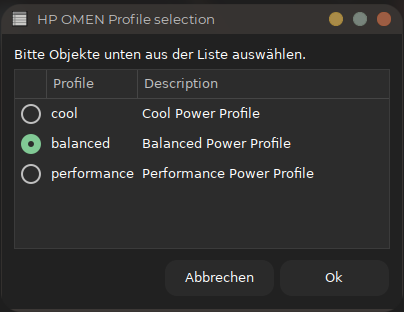
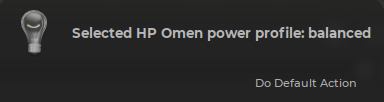
sudo ./powergui.sh -g                      #Select via gui & Notification
sudo ./powergui.sh -g -t                   #Select via gui & Notification & Text output
sudo ./powergui.sh -g -p                   #Select performance mode & Notification
sudo ./powergui.sh -g -b                   #Select balanced mode & Notification
sudo ./powergui.sh -g -c                   #Select cool mode & Notification
sudo ./powergui.sh -g -s performance       #Select performance mode & Notification
sudo ./powergui.sh -g -s balanced          #Select balanced mode & Notification
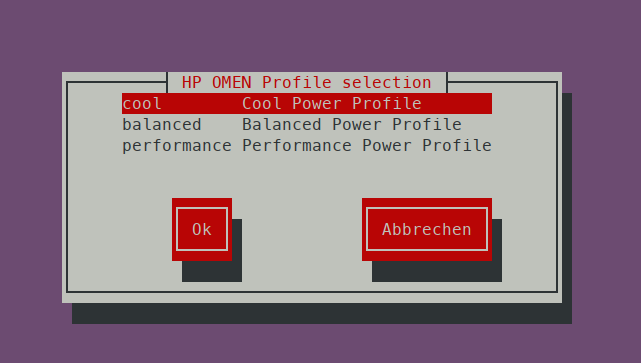
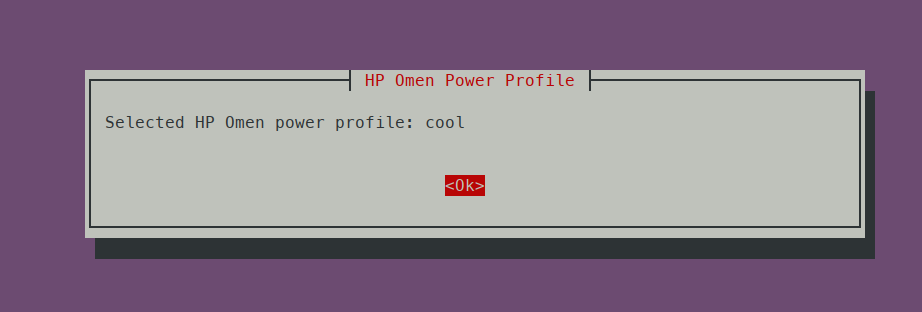
sudo ./powergui.sh -g -s cool #Select cool mode & Notificationsudo ./powergui.sh #Select via Terminal & Terminal Notification
sudo ./powergui.sh -t #Select via Terminal & Text output
sudo ./powergui.sh -p #Select performance mode & Terminal Notification
sudo ./powergui.sh -b #Select balanced mode & Terminal Notification
sudo ./powergui.sh -c #Select cool mode & Terminal Notification
sudo ./powergui.sh -s performance #Select performance mode & Terminal Notification
sudo ./powergui.sh -s balanced #Select balanced mode & Terminal Notification
sudo ./powergui.sh -s cool #Select cool mode & Terminal Notification sudo ./powergui.sh -t #Select via Terminal & Text output
sudo ./powergui.sh -t -g #Select via Gui & Text output
sudo ./powergui.sh -t -p #Select performance mode & Text output
sudo ./powergui.sh -t -b #Select balanced mode & Text output
sudo ./powergui.sh -t -c #Select cool mode & Text output
sudo ./powergui.sh -t -s performance #Select performance mode & Text output
sudo ./powergui.sh -t -s balanced #Select balanced mode & Text output
sudo ./powergui.sh -t -s cool #Select cool mode & Text outputsudo ./powergui.sh -h