kiewtai
v0.5

Kiewtai is a HEM (aka plugin) for the Hiew hex editor that makes all the binary parsers from the Kaitai project available. This means you can get all the fields marked and decoded for dozens of popular file formats. You can also use the Kaitai format to write a new template for a file format you're analyzing.
Click here to see a list of all the formats supported by Kaitai.
Want to see it in action? See some Screenshots!
If you don't want to build it yourself, check out the releases tab
Copy kiewtai.hem to your hem folder, which should be where you installed
hiew.
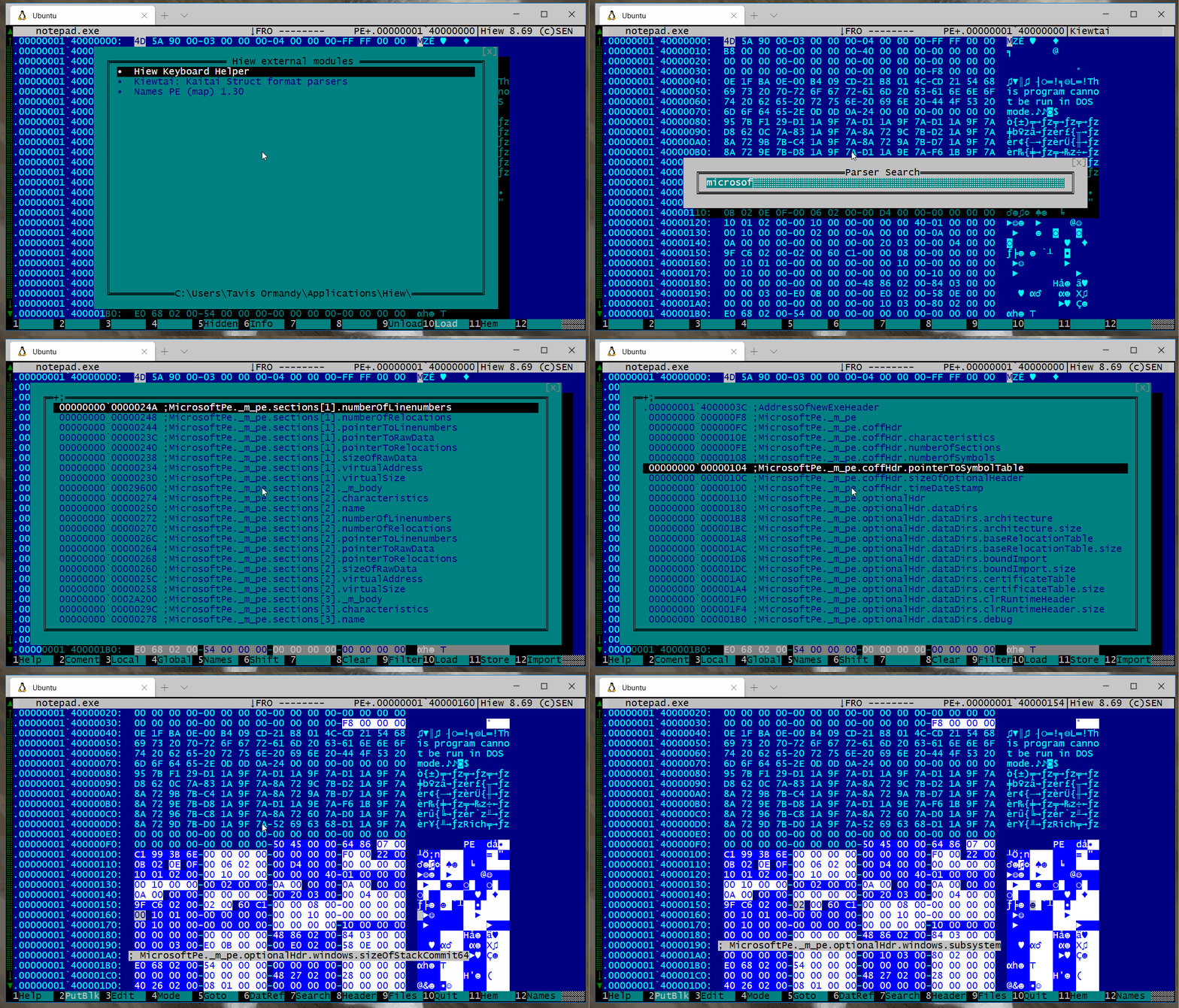
Press F11 and Select Kiewtai: Kaitai Struct format parsers.
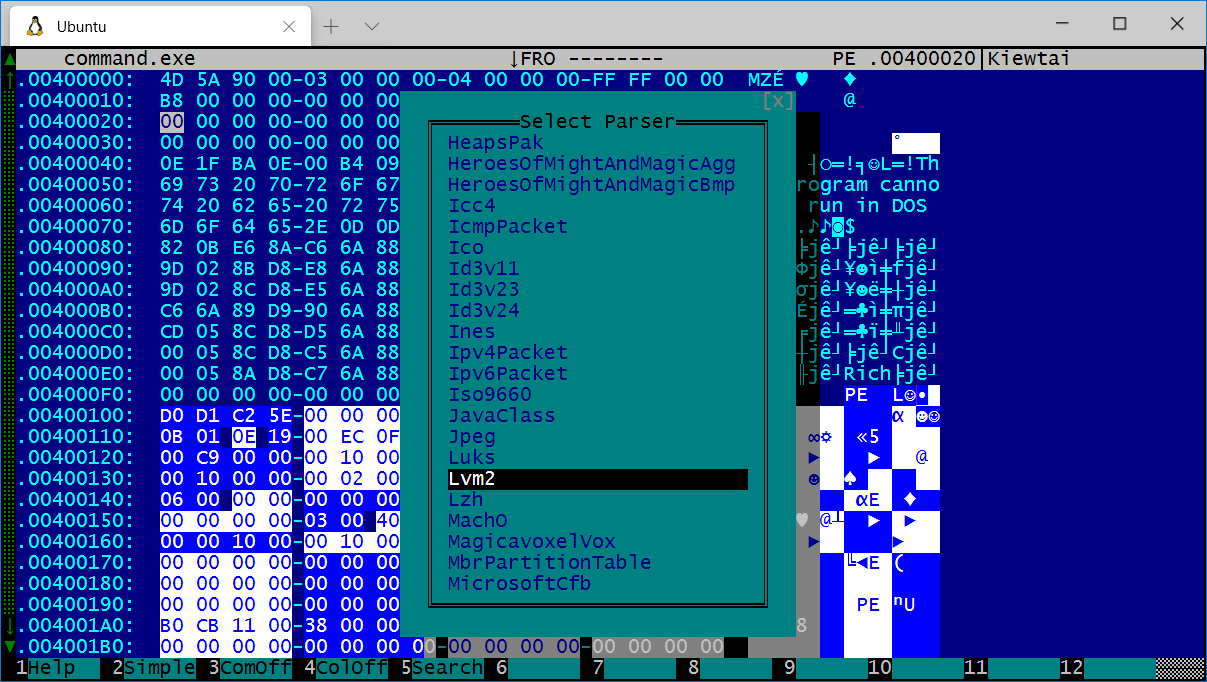
You will be shown a list of all supported parsers, select the one you want.
Kiewtai will highlight the different fields, and add a comment describing the field.
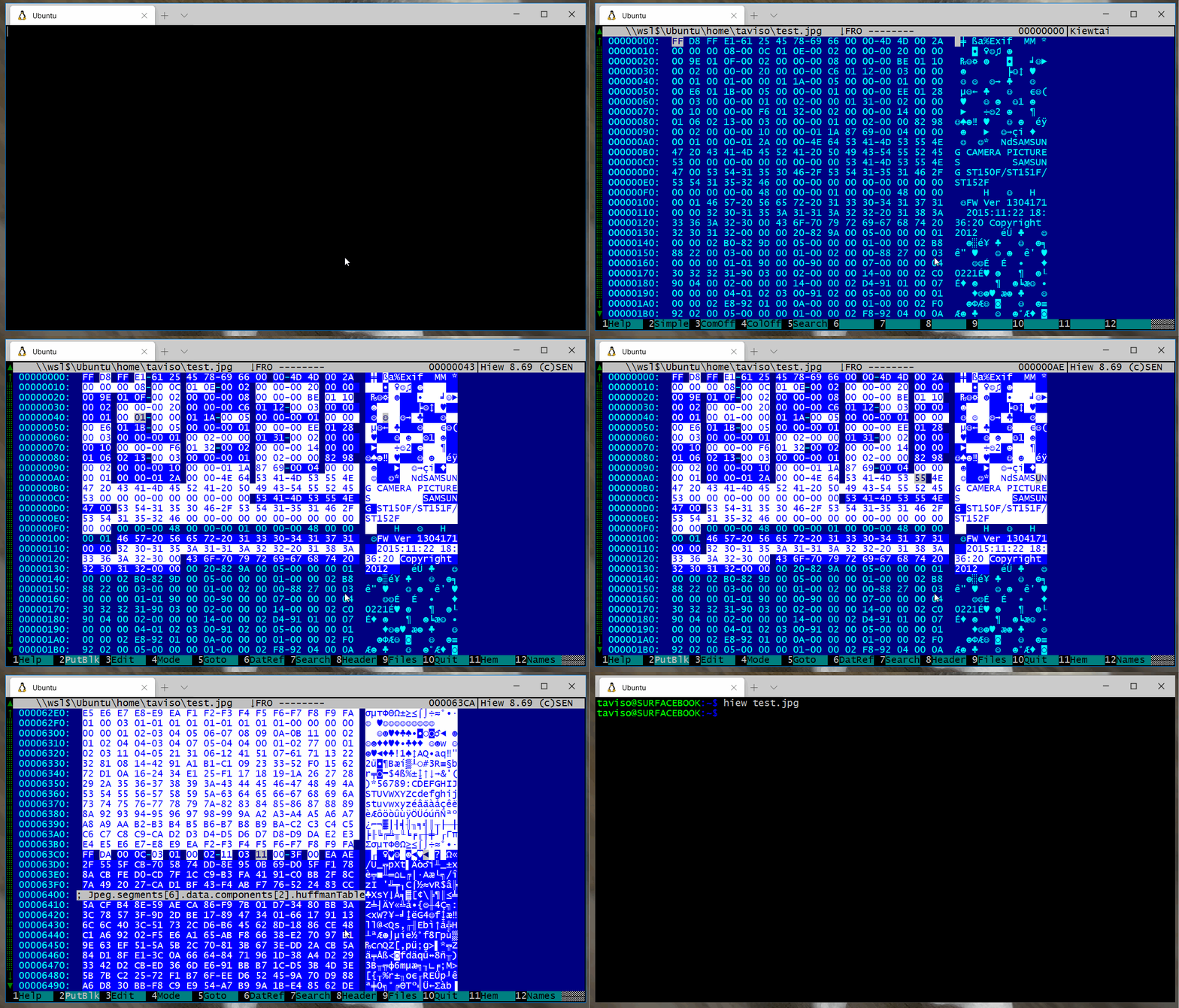
If you want Kiewtai to analyze a section of a larger file, for example you have a firmware blob or filesystem image, Simply mark the section you want analyzed. If you work in DFIR, you probably call this "carving".
F2 to toggle between Simple and Detailed parsing.The default parsing mode is verbose, try this if you prefer.
F3 to enable or disable comments.Kiewtai will add comments to Hiew describing each field, these are displayed as
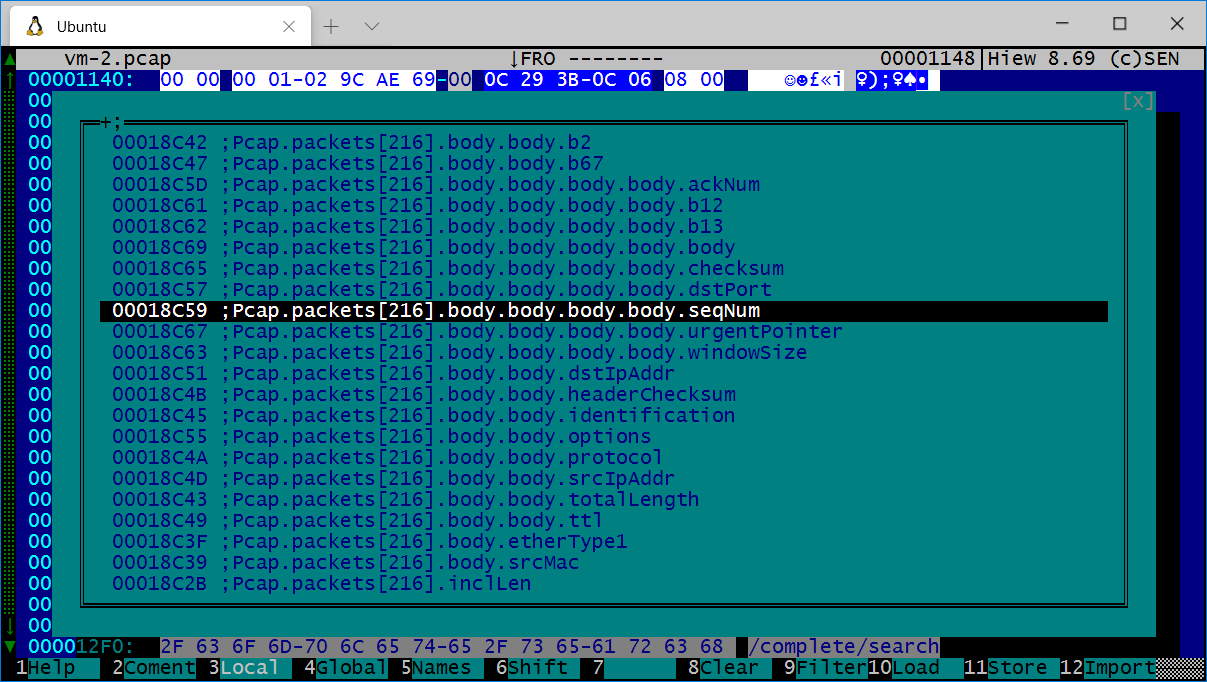
you navigate around. You can also browse and search them with F12.
F4 to enable or disable markers.Kiewtai will add color
markers by
default so you can easily see where the different fields are. Press F4 if you
don't like this.
F5 to search for a parser.The list of parsers is quite long, press F5 and enter some search terms if
you like.
If you're a Hiew user and want to help make better documentation, click here!
This project uses the following third party libraries:
Please feel free to file an issue for any bugs, missing features or documentation!
Oh, and I prounounce Kiewtai "cue-tie". ?
Here are some screenshots of different Kiewtai screens.
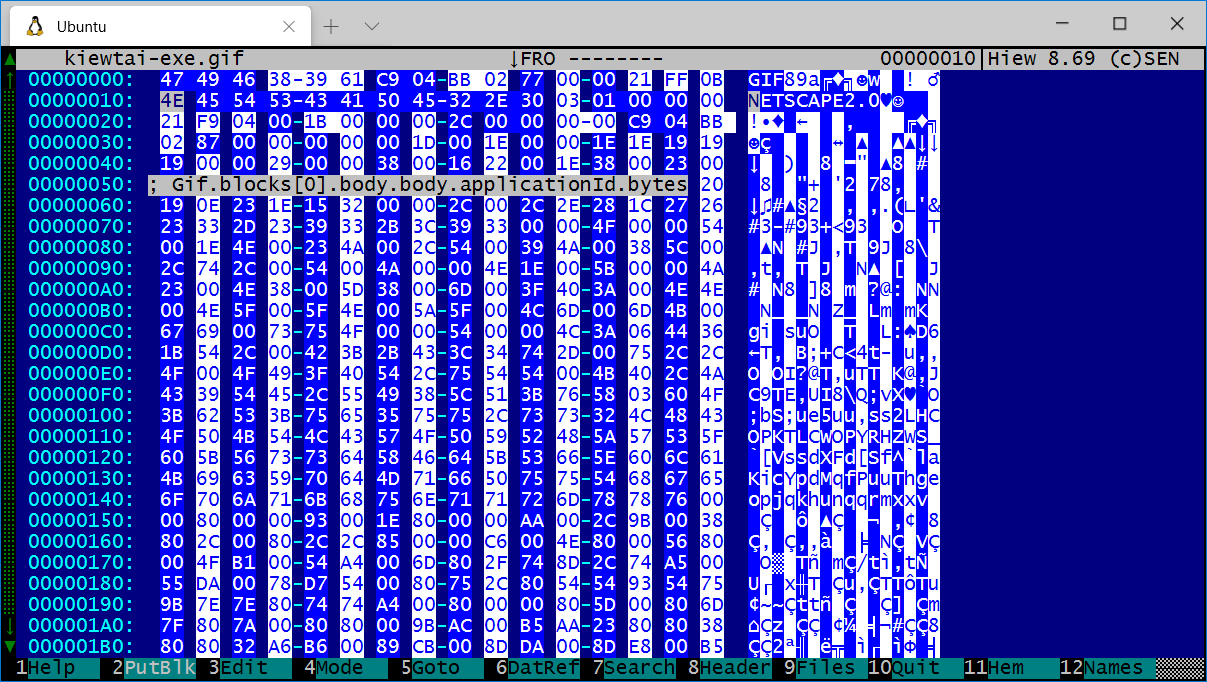
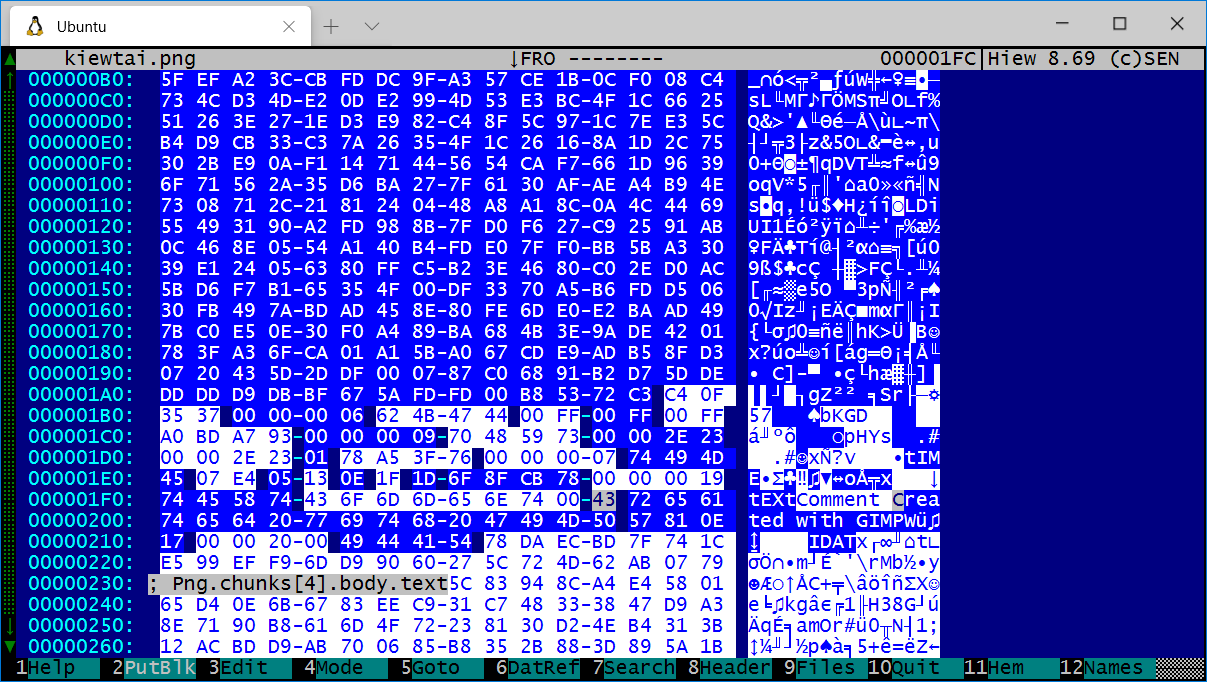
You can see the magic, version, descriptors, dimensions are all identified.
The comment shows Kiewtai knows the cursor is on the applicationId field.
The individual R/G/B bytes are hilighted, which makes the data look stripey. If that's too much verbosity, press
F2on the parser list and Kiewtai will reduce the level of detail it generates.
You can load multiple Kaitai parsers at once, this screenshot shows the DosMz and MicrosoftPE parsers loaded simultaneously.
If you have an embedded file, simply mark it and Kiewtai will only analyze that block.
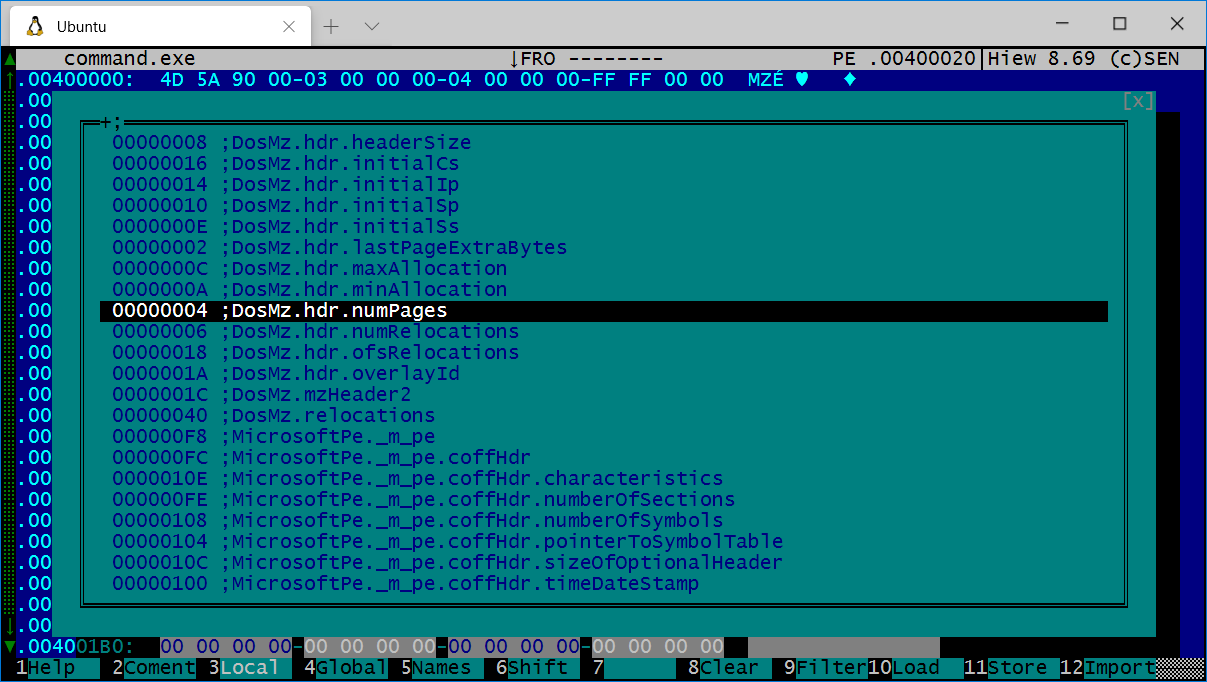
The field names display as comments as you navigate around a file.
Kaitai has parsers for dozens of popular formats already made, you can see the
full list online here. The list is long, you type
F5 to serach it.
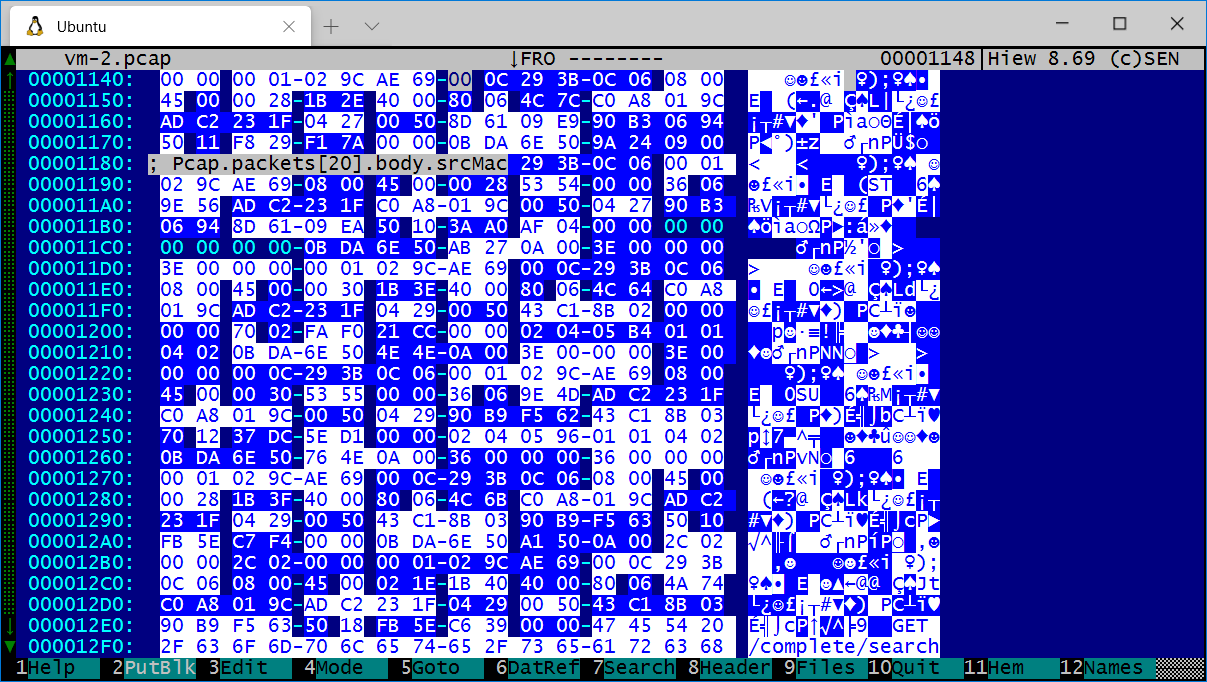
Here Kiewtai parsed a pcap file, and all the Tcp, Udp, Icmp, packets and Ethernet frames inside the pcap are automatically recognized. This all happened automatically when loading the Pcap parser!
If you don't want to build it yourself, check out the releases tab
I used Visual Studio 2019 to develop Kiewtai.
This project uses submodules for some of the dependencies, be sure that you're using a command like this to fetch all the required code.
git submodule update --init --recursive
If you use chocolatey, this command should be enough:
> choco install make openjdk mingw
make.exeIf everything worked, you should have a file called kiewtai.hem
If you get
The system cannot find the file specifiederrors, verifyobjcopy.exe,make.exeandkaitai-struct-compiler.batare all in your%PATH%.
There are some simple tests in the test directory that verify some common
formats are working as expected.
Simply type make in the test directory to run them.
Tavis Ormandy [email protected]