Rails Practice
The steps below assume that you're using MacOS. Ruby installation, Rails installation, and general commands and filepaths with be different for Windows. Please reference the video that I followed while studying for Rails/Ruby installation steps specific to Windows
Rails Installation Prerequisites
- Ruby version >= v2.5.0
- Ruby installation guide
- Check your version with
ruby -v
- sqlite3 (v3.32.3 worked for me)
- Preinstalled on MacOS
- Check your version with
sqlite3 --version
- Node version >= v8.16.0
- I used Homebrew to install node
- npm is another option
- Check your version with
node -v
- Yarn (v1.22.10w worked for me)
- Check your version with
yarn -v
Rails Installation
- Follow the prerequisite checks listed above OR use the Rails Guides "Getting Started" tutorial
- Run
gem install rails and wait for the dependencies to be installed
- Don't be worried if it looks like the process is stalled or stuck. There's a ton of tasks being performed in the background
Project Setup
Storing Locally Only
- Pick the name you want to use for your project's directory (I'll use
sample_app for the example)
- Open up your console of choice (VS Code's built-in, iTerm, Terminal, etc)
- Type
mkdir sample_app and hit return (using your choice for your project's name instead)
- Type
cd sample_app and hit return
- Type
rails new . and hit return
- This command will generate a rails template app and a bunch of files and install gem dependencies
Pairing with Github Repository
- Pick the name you want to use for your project's directory (I'll use
sample_app for the example)
- Create a new repository in Github and name it
sample_app
- Copy the clone URL (should be
https://github.com/<your_username>/sample_app.git)
- In your local console of choice, navigate to the parent directory under which you want to clone your new repository
- Type
git clone https://github.com/<your_username>/sample_app.git replacing the URL with the URL to your new repository
- Type
cd sample_app and hit return
- Type
rails new . and hit return
- This command will generate a rails template app and a bunch of files and install gem dependencies
Starting a Rails Server
- [Optional] Open up your
sample_app project in your text editor of choice
- In your console of choice, run
rails s
- Your console output should indicate the URL where your Rails server is running. It should be
localhost:3000
- In your web browser of choice, open up
localhost:3000
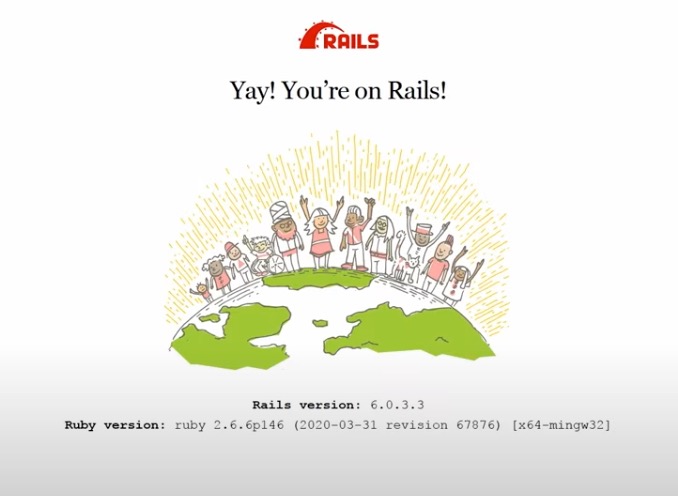
- If everything is running successfully, then you should see the Rails success image