Internship Management System
1.0.0

Internship information system user manual login 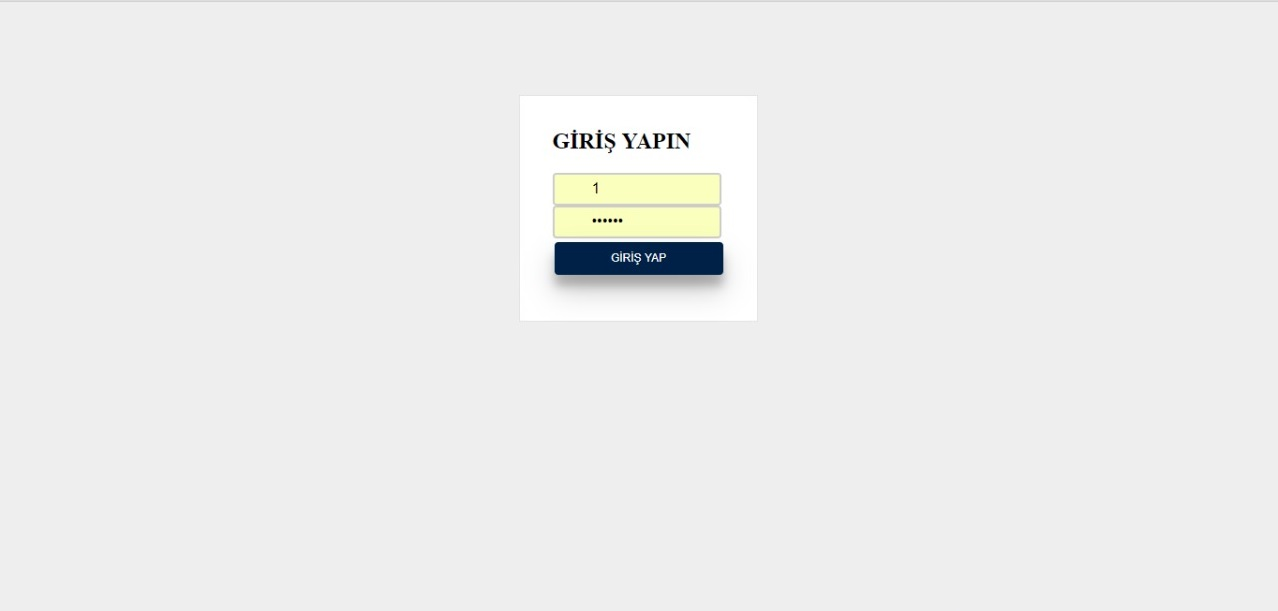
Add internship for DGS and horizontal transfer students> DGS and horizontal transfer 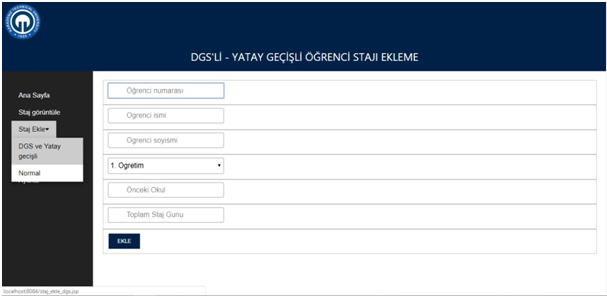
Add Internship Internship for Normal Students> Normal 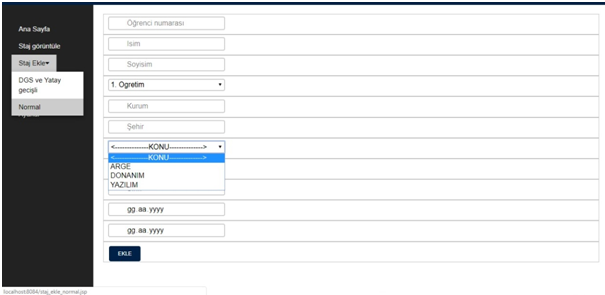
History, time and commission appointment for the students to be interviewed> Add Interview> Add> Add 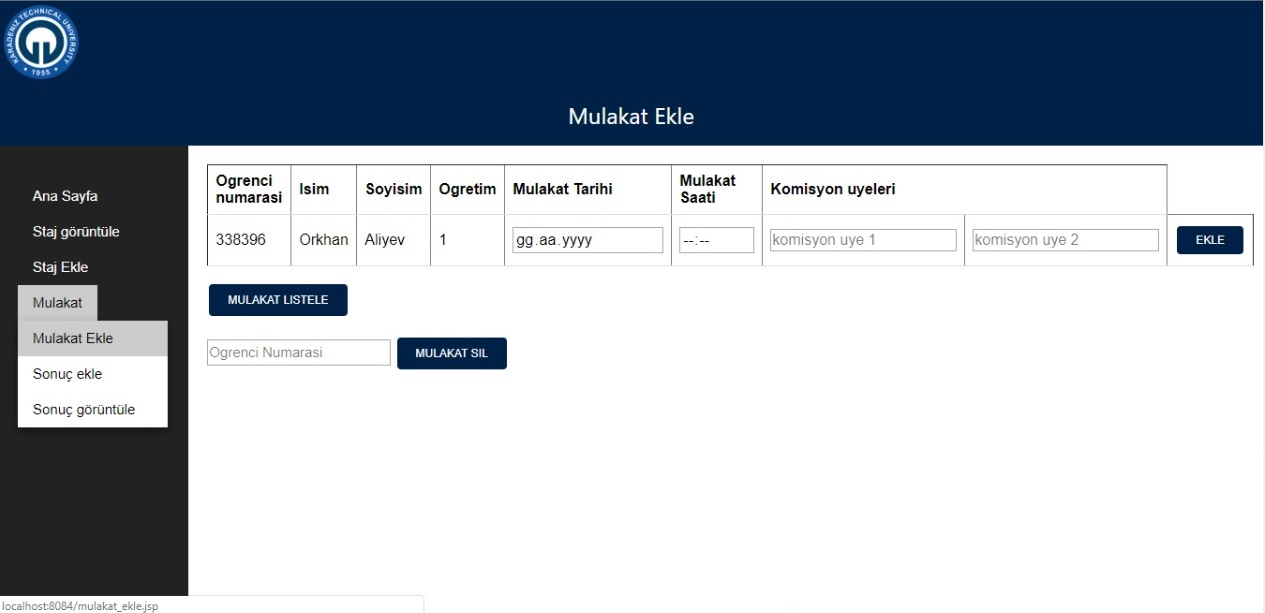
After the interview assignments are made, you can download the Excel file to your computer by clicking the “Interview List” button after entering the excel document. 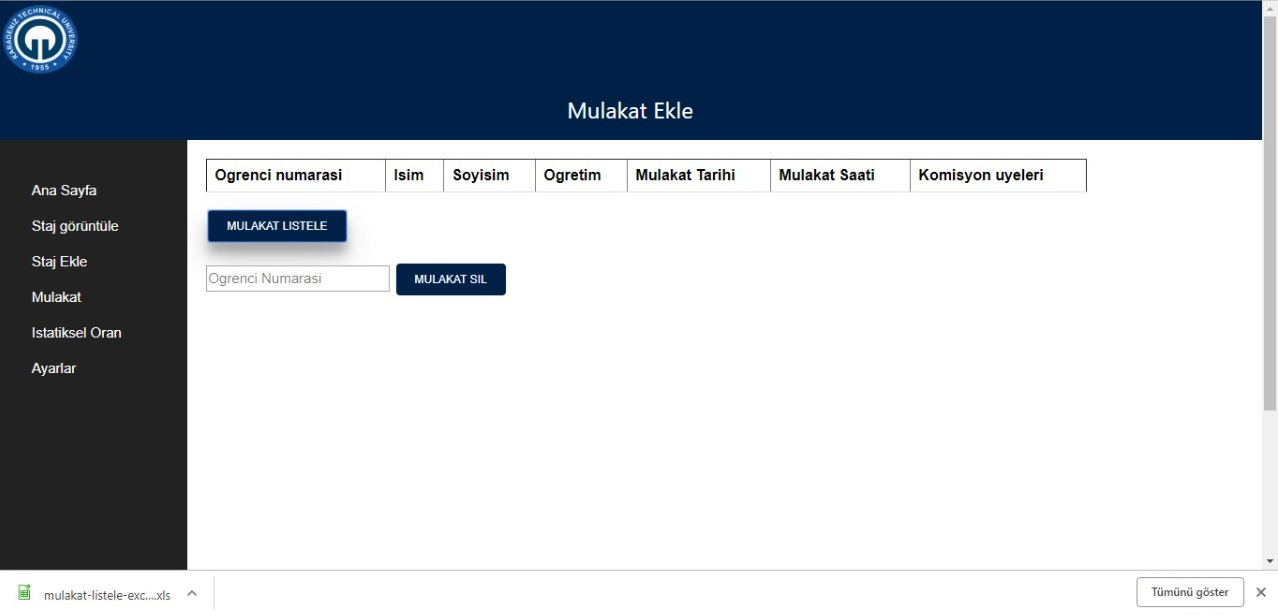
Deleting the interview information missing or incorrect interview assignment is made by typing the student number of the student you want to delete and click on the “Delete Interview” button. 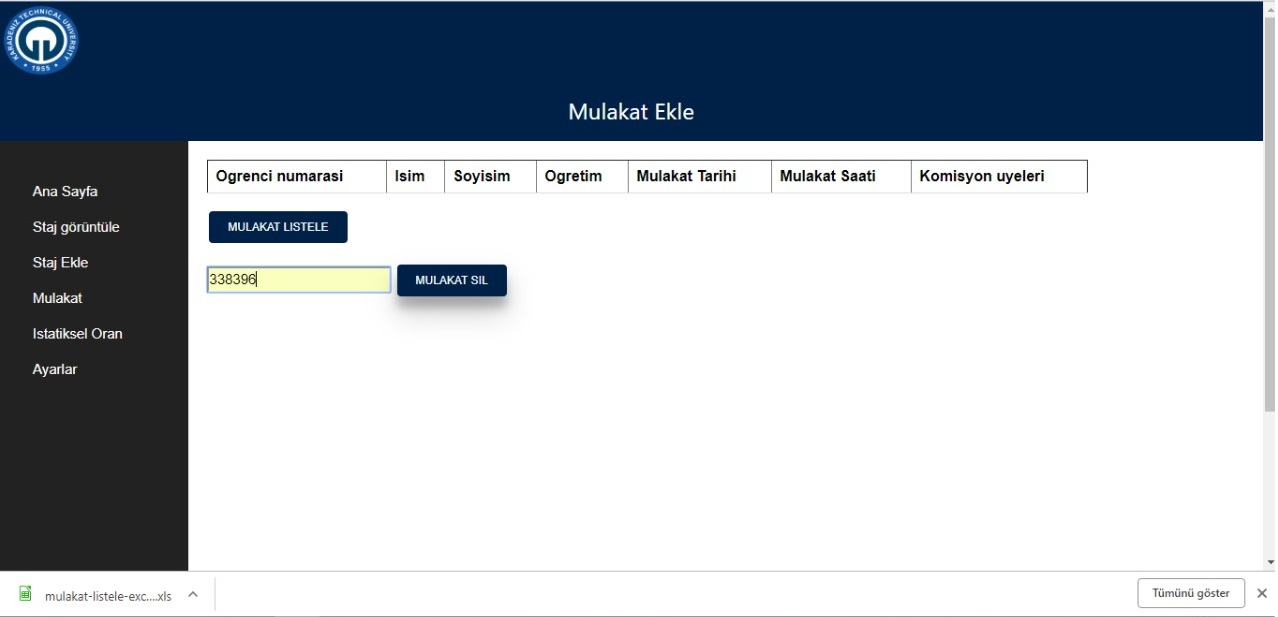
Entering interview results interview> Add Result> Add 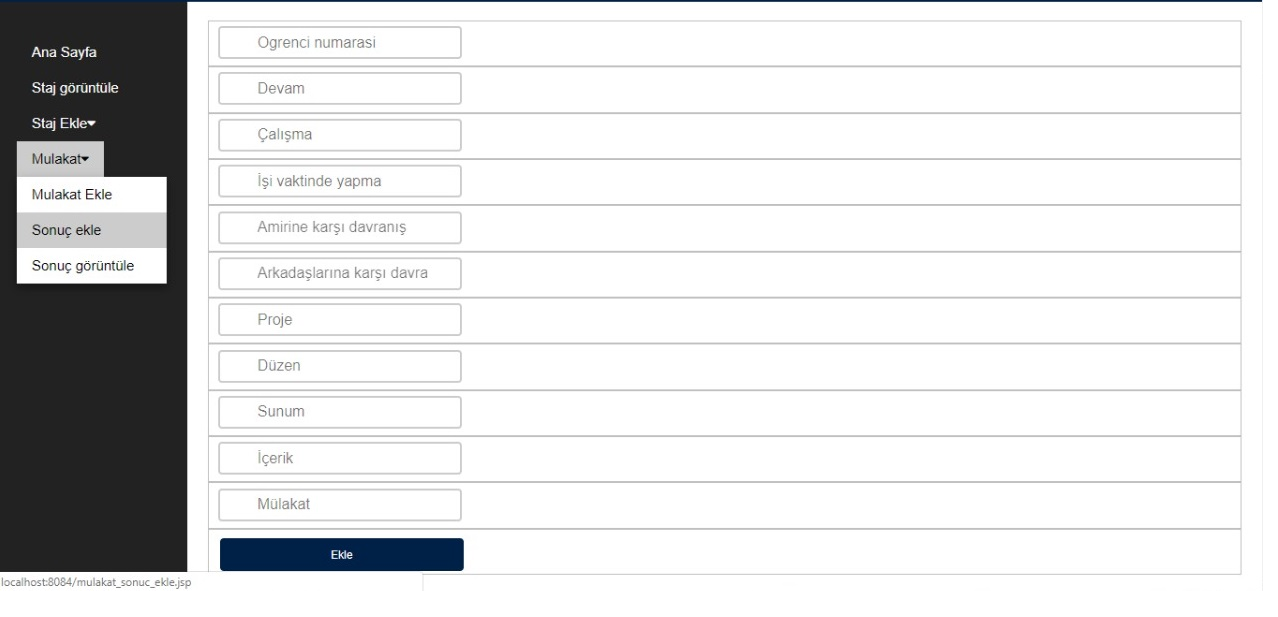
Interview> View the year you want to see on the opened page by clicking the “See Result” button after you can see the results of the interviews that have been held in the relevant year. 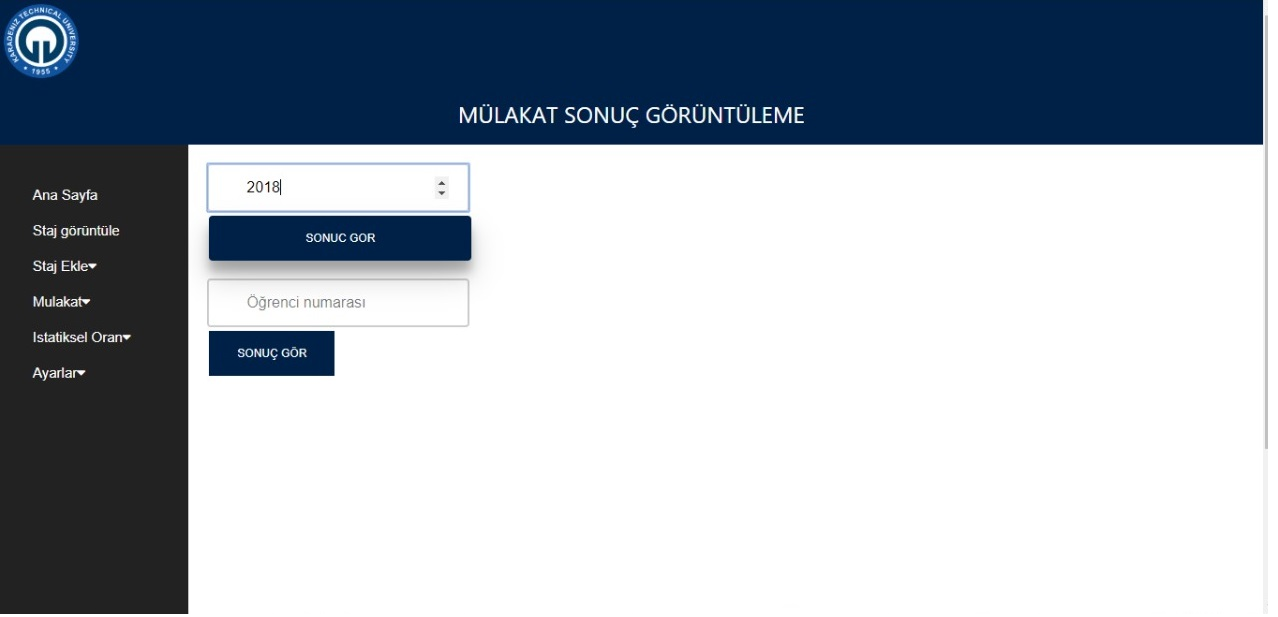
Transferring the results of the interview to the Excel environment, you can download the results to your computer by clicking the “Transfer to Excel” button on the View results by years. 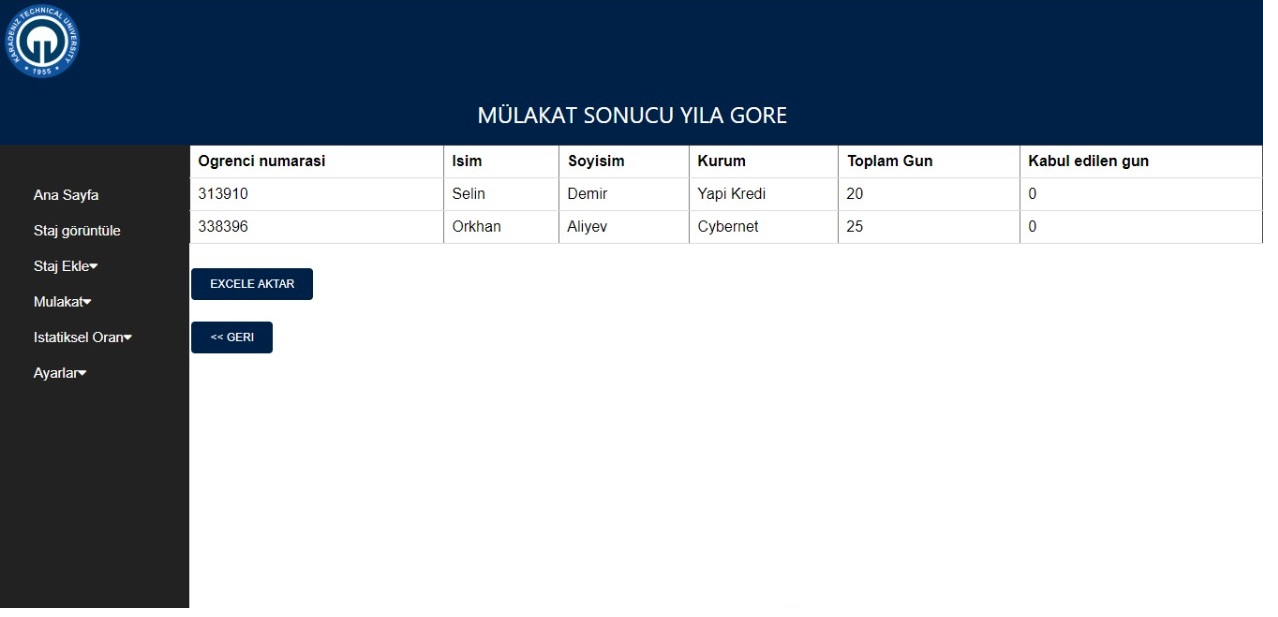
Imaging of the interview result according to the student number interview> View Result on the page opened and then you can obtain the results by clicking the “See Result” button after writing the number of the student you want to see. 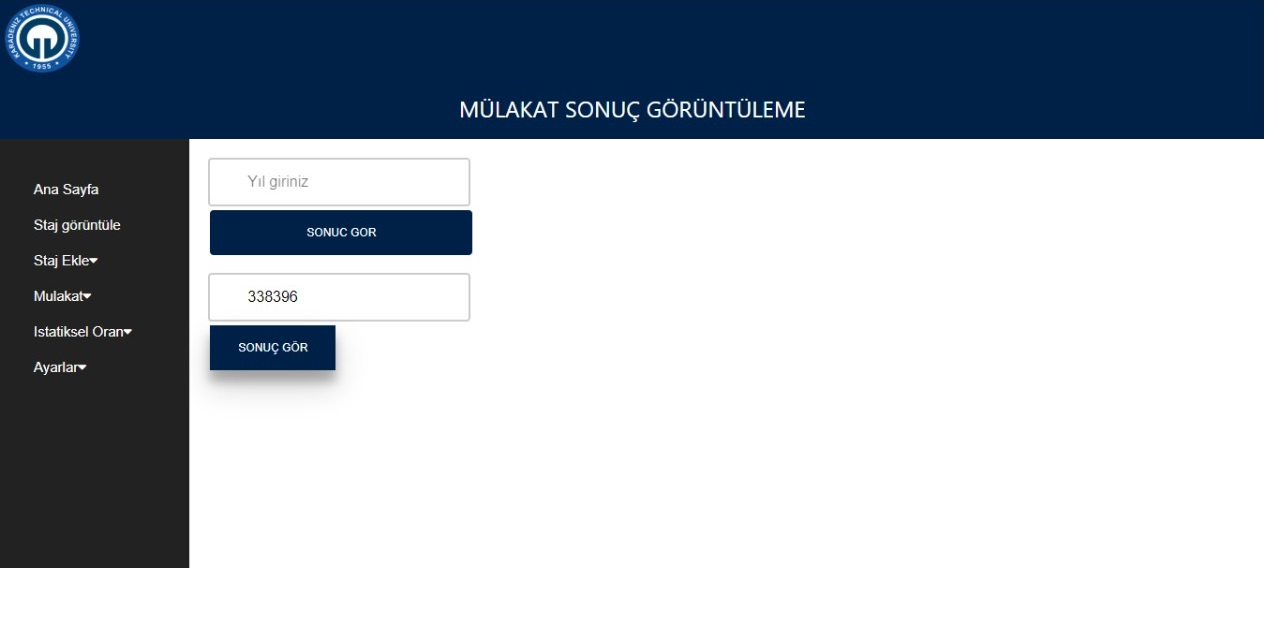
According to the student number, you can call the student's number of the student you want after you come to the Internship Menu from the Internship menu and call all the internships of the student. 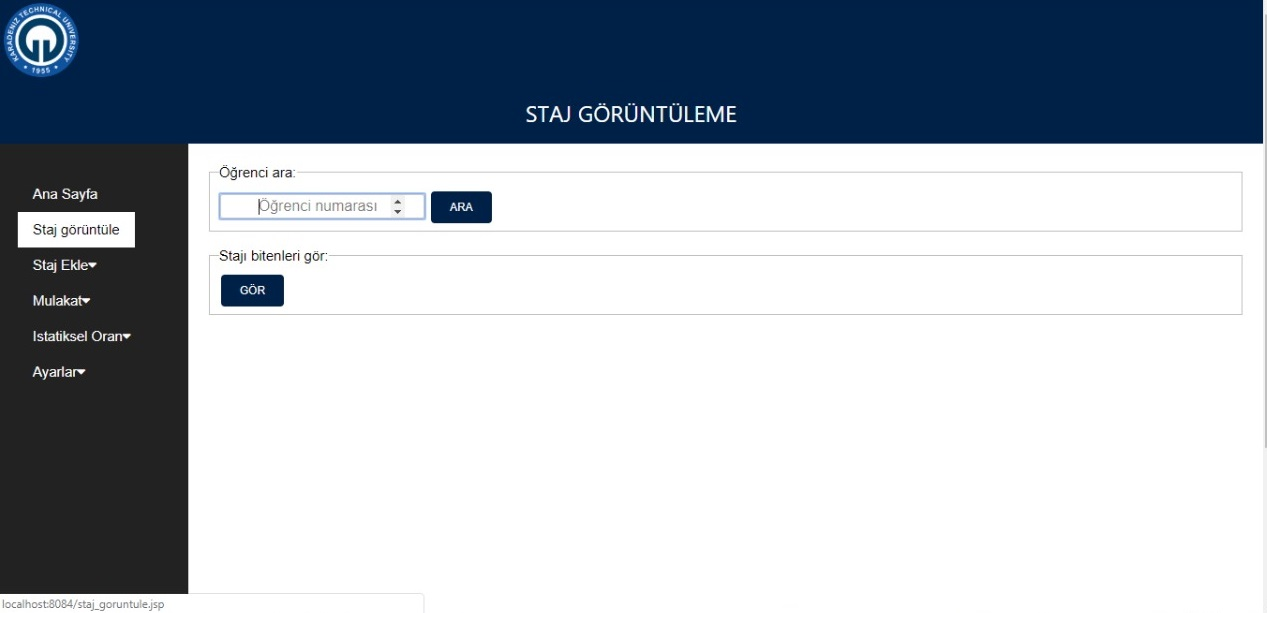
You can see all the students who have finished internship by clicking on the “See” button under the OR SCREEN UNDER THE INTERNSHIP OF THE STUDENTS INTERNSHIP. 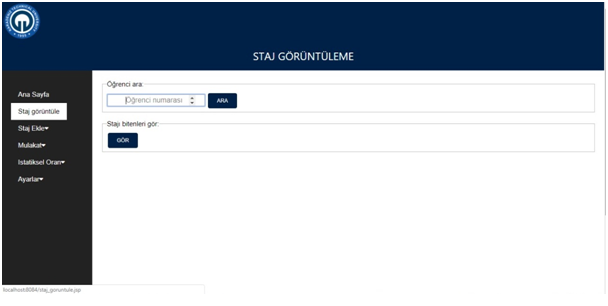
Imaging of Success Rate in Province Basis Statistical Ratio> Success Rate in Province 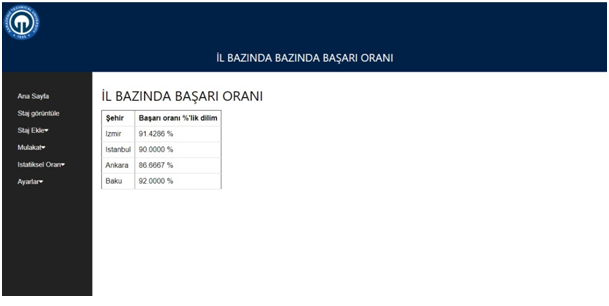
Success rate by internship subjects statistical ratio> Subject distribution at the top of the page on the top of the page under the title of “Subject Distribution” under the title 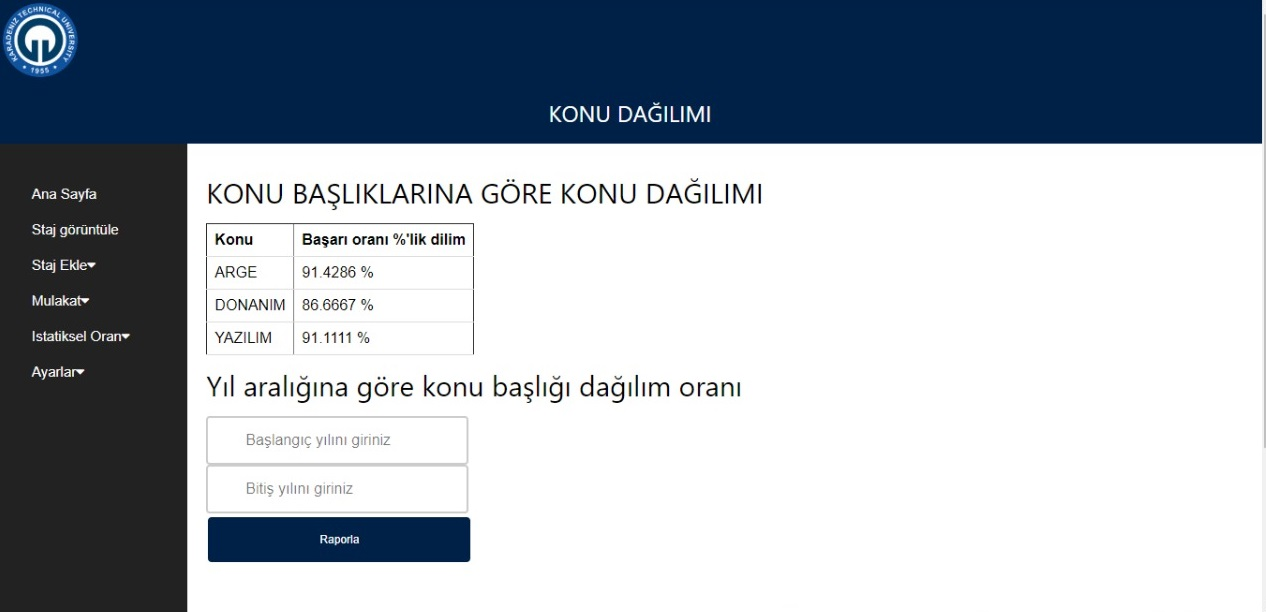
Statistical Ratio> Subject Distribution The page is opened and you can list the results by clicking on the “Report” button after entering the years under the title “Decreased Title Distribution Rate”. 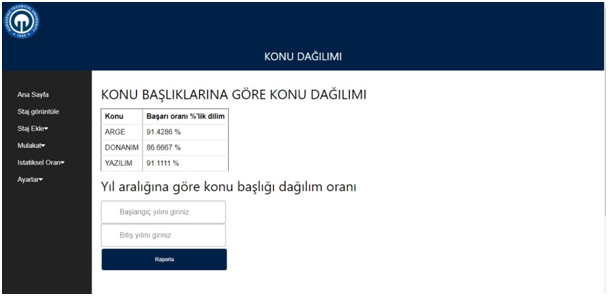
Commission identification: Adding, subtraction Settings> Commission Definition You can define the new commission member on the opened page, and at the same time, you can perform the process of subtracting from the commission number. 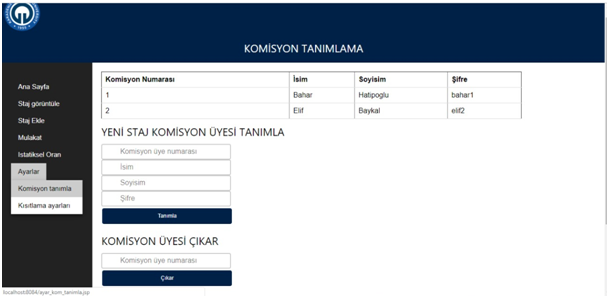
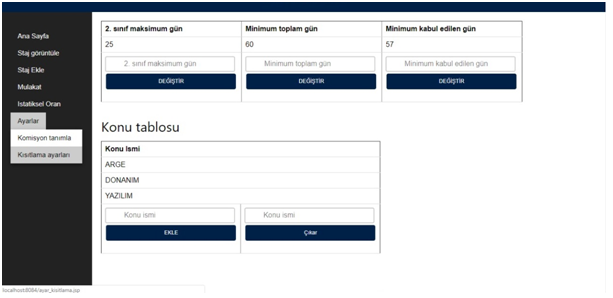
Determination of the minimum amount of day to complete the students Settings> Restriction Settings can be updated on the page where the desired information can be updated.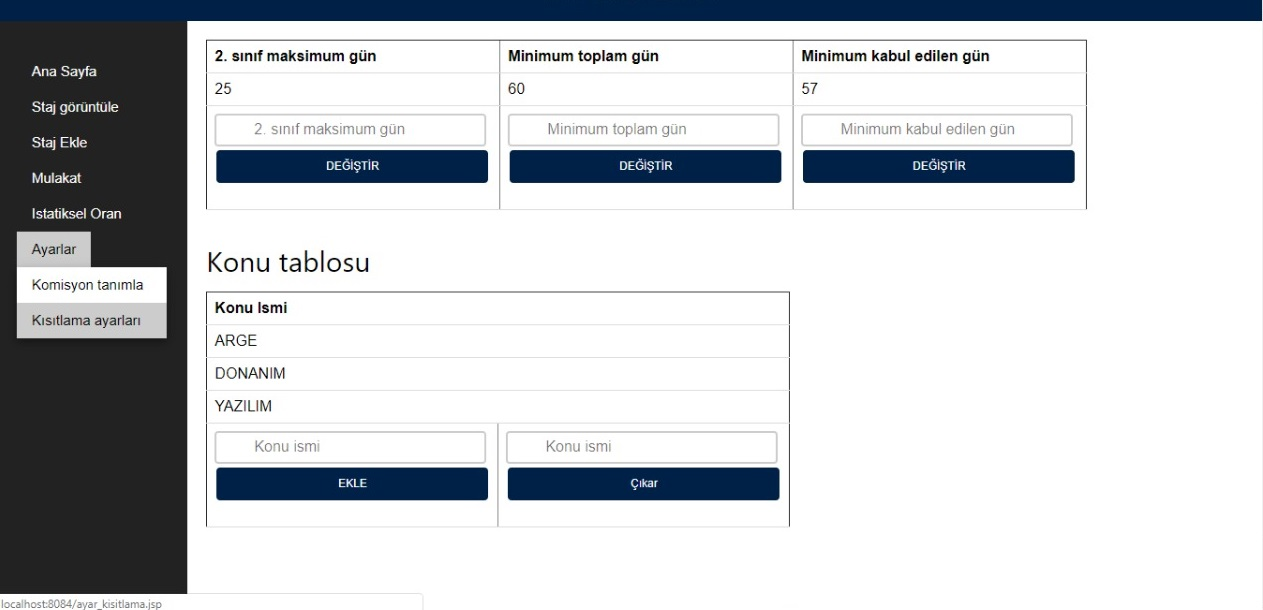
Adding, extraction of the subject names Settings> Restriction Settings You can add a new topic under the title “Subject Table or on the page where you can or remove an existing topic.