cloud note
1.0.0

Front-end: Bootstrap
Development tools; IDEA
Database: MySQL
Data visualization: Echarts
Backend framework: Spring + SpringMVC + Mybatis
Security Framework: Shiro
PDF Converter: Aspose
PDF preview: PDF.js
Global Search: Lucene
SMS service: Alibaba Cloud
Comment: Valine
Social Sharing: Jiathis
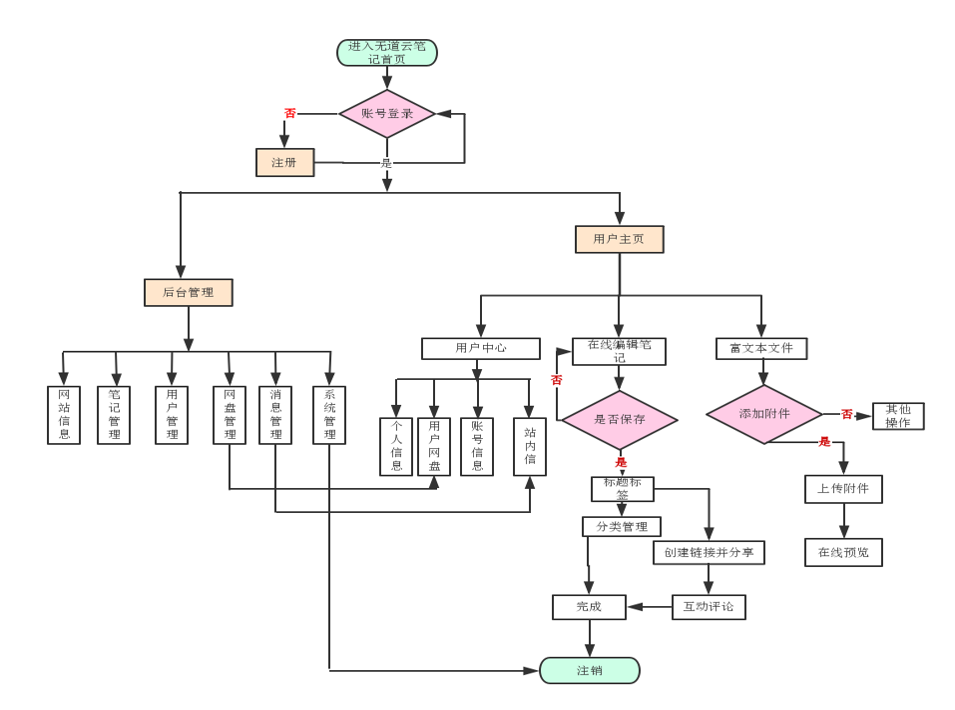
Overall flow chart:
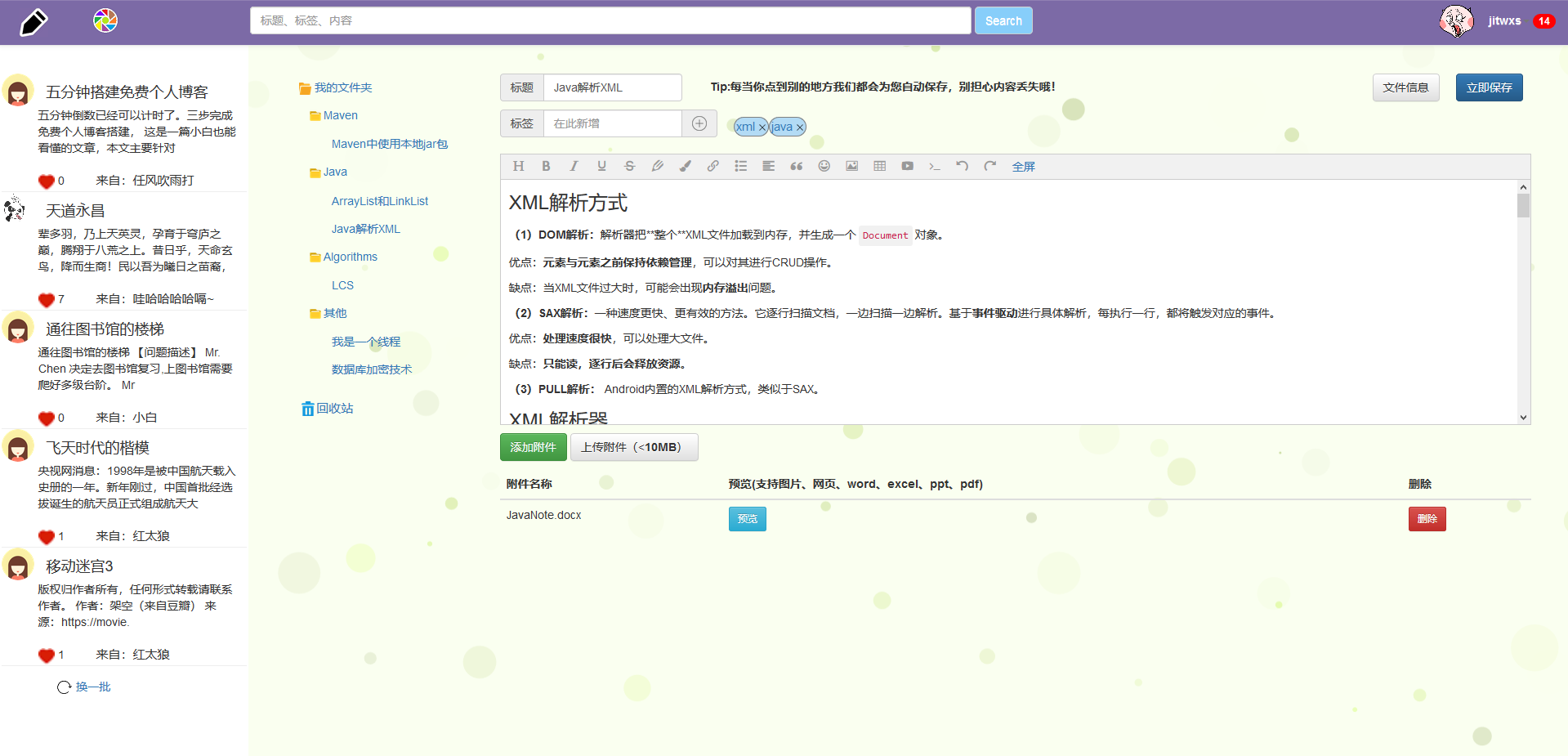
User homepage:
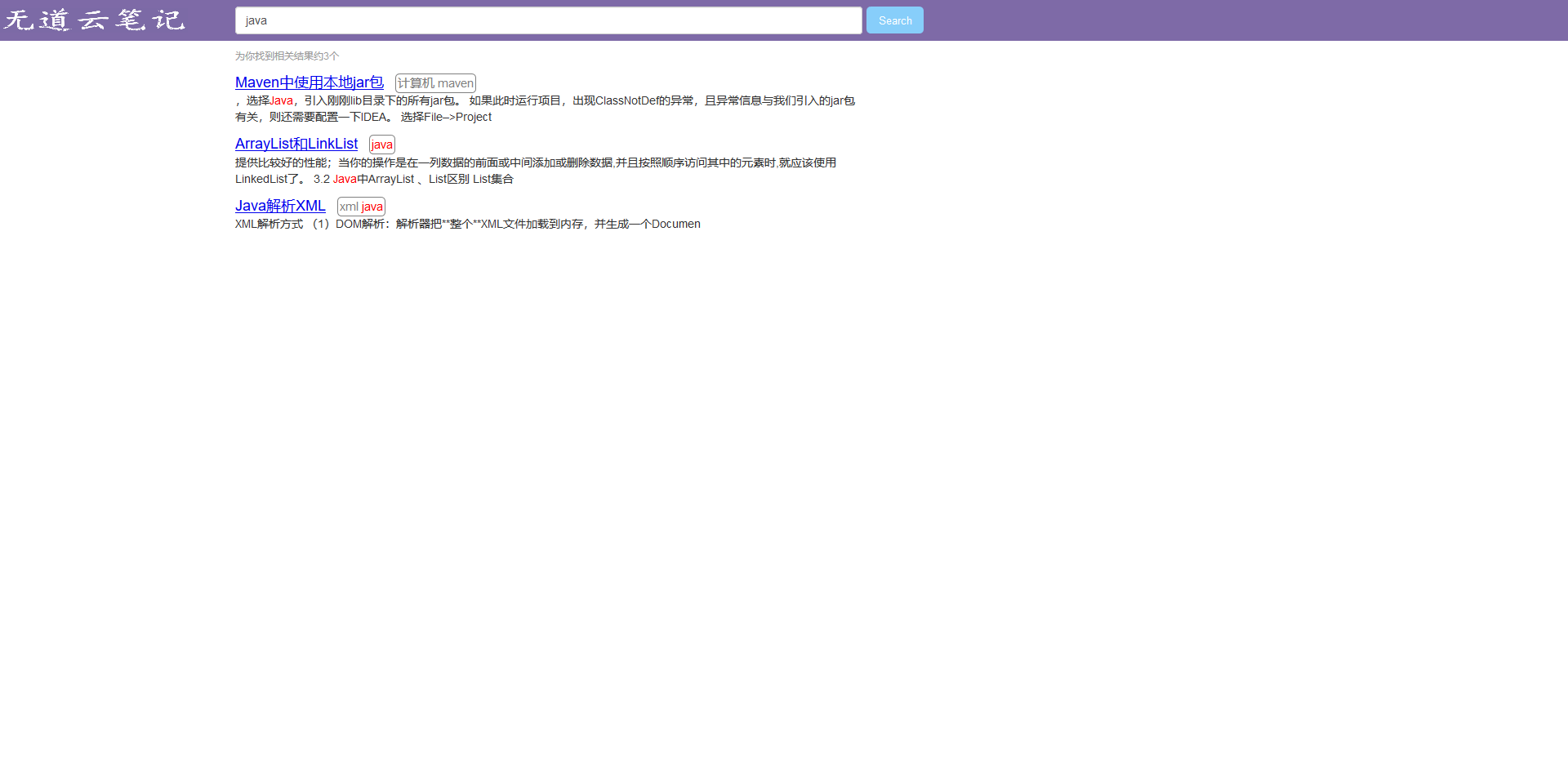
Note search:
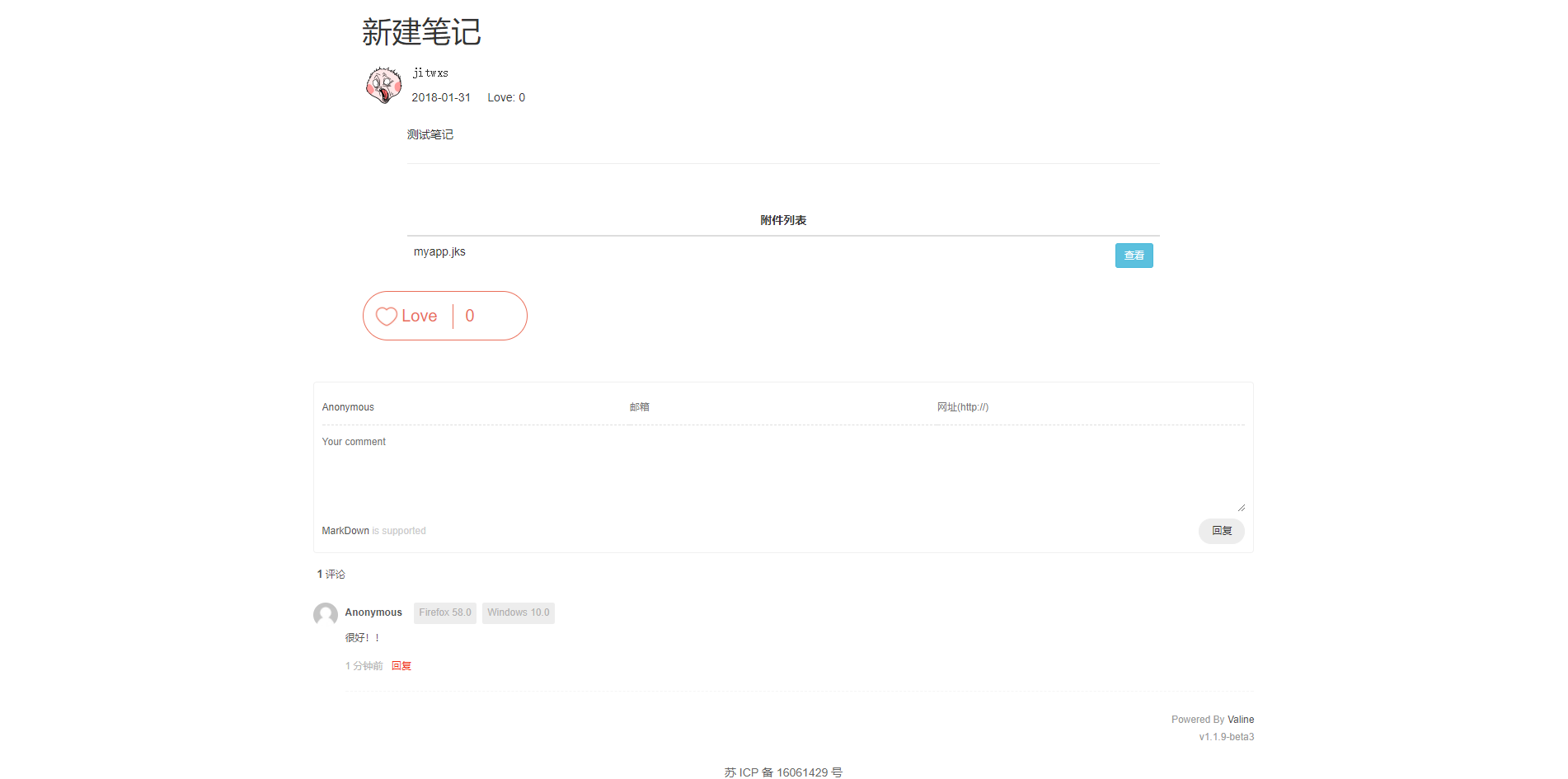
Note sharing:
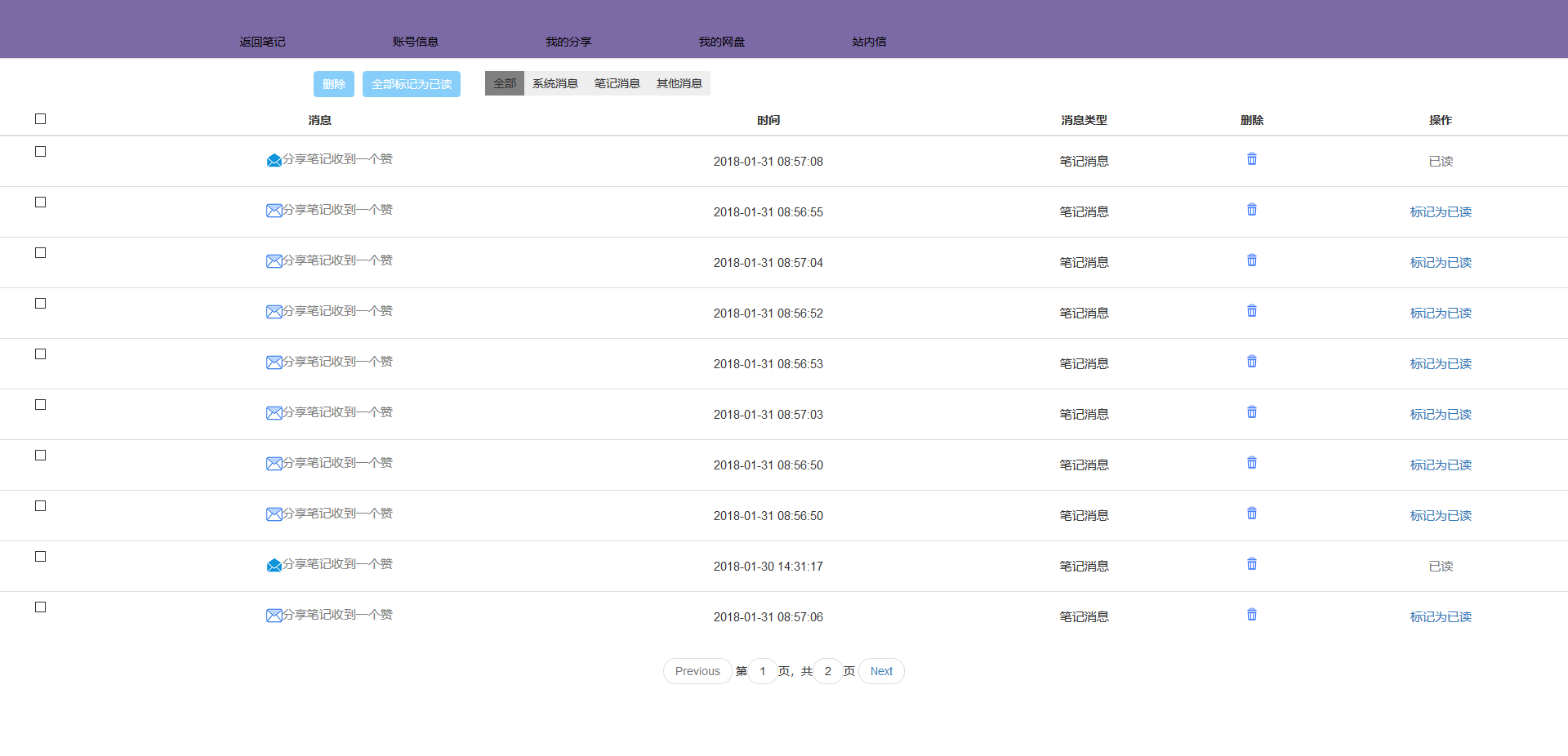
Message Center:
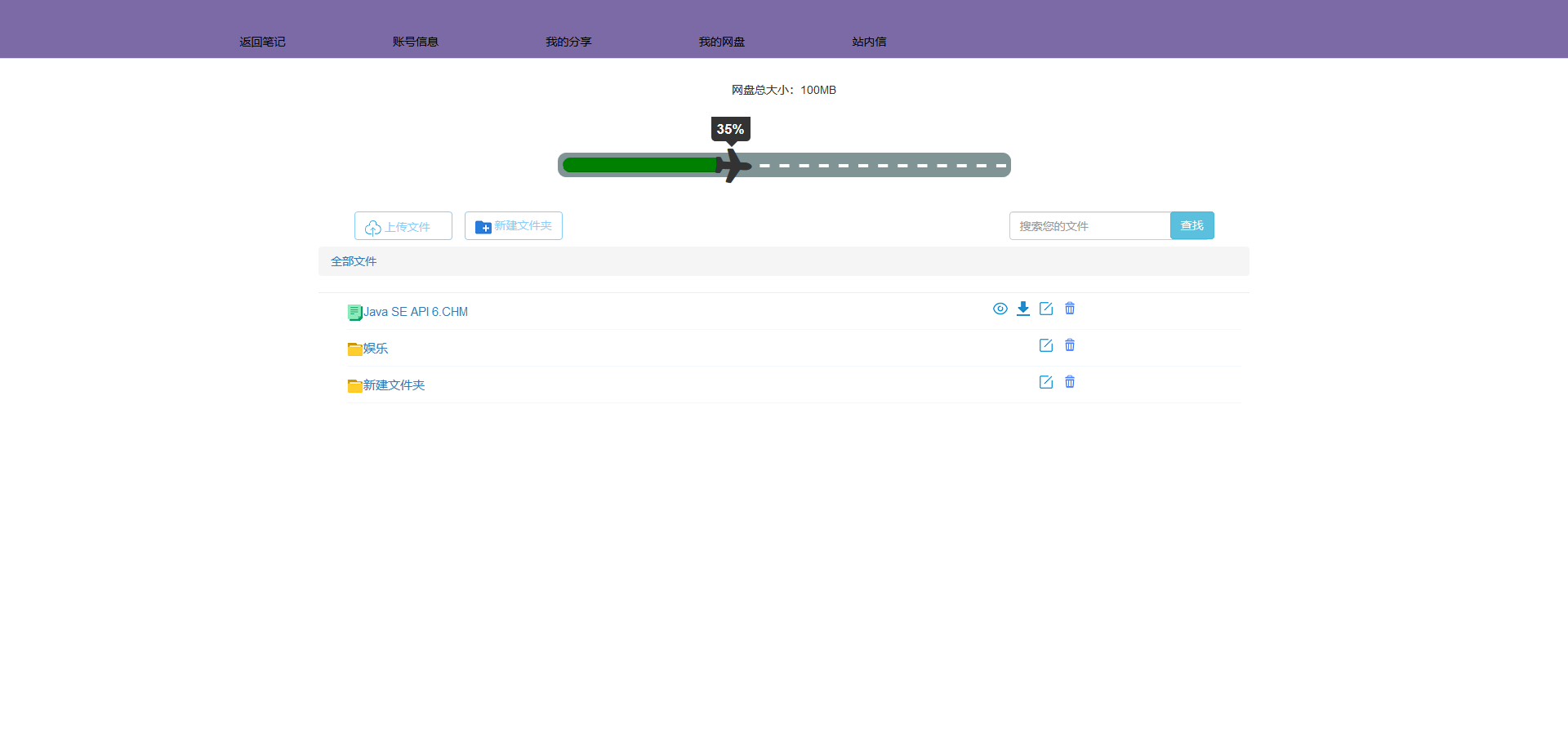
Personal network disk:
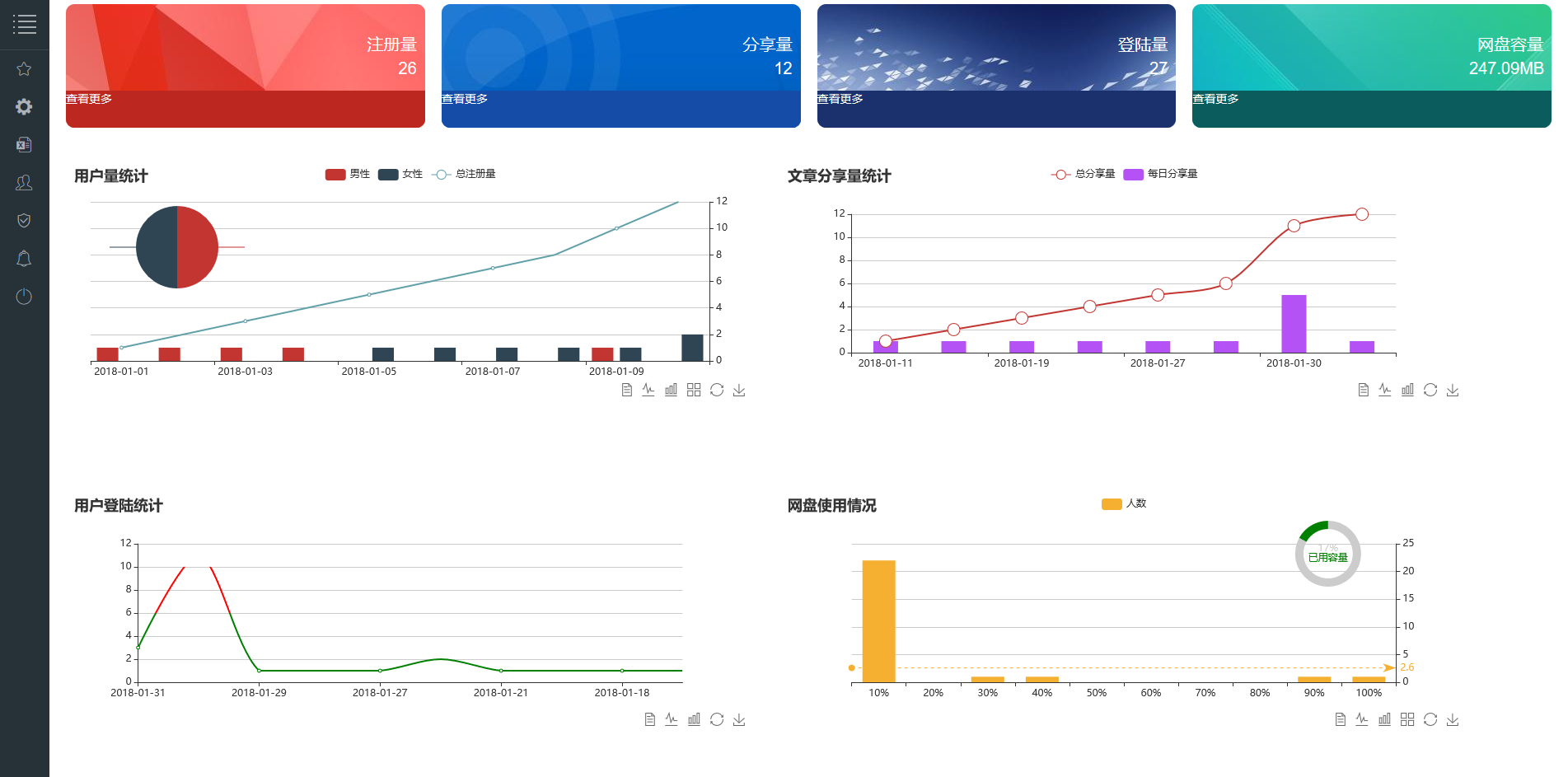
Administrator homepage:
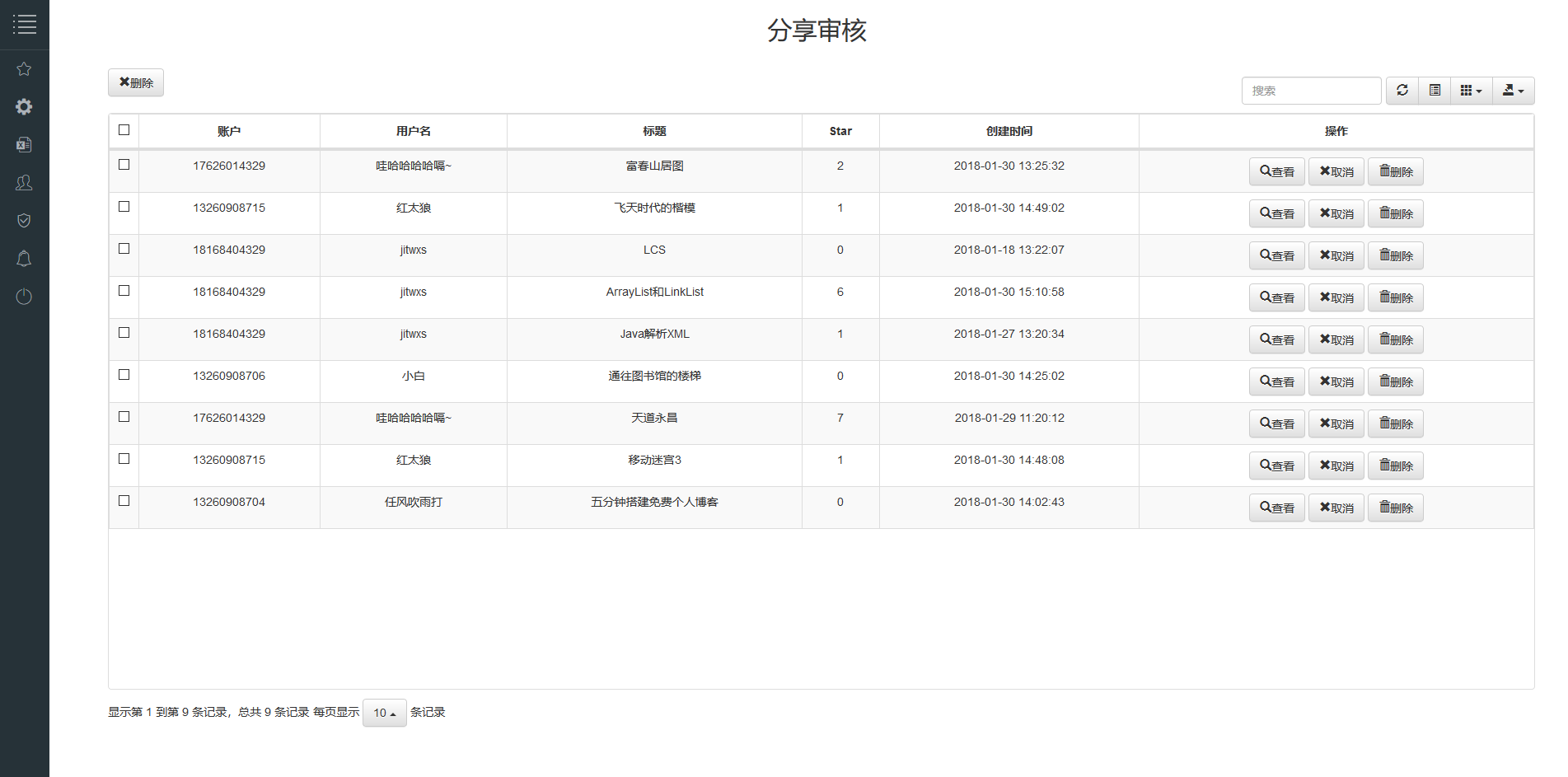
Share review:
For Alibaba Cloud SMS service, please register by yourself, and then edit
MOULD_ID,ACCESS_KEY_IDandACCESS_KEY_SECRETproperties of thesystem.propertiesfile.
(1) First, please create a database:
CREATE DATABASE IF NOT EXISTS ` cloud_note ` /* !40100 DEFAULT CHARACTER SET utf8 */ (2) Import the cloud_note.sql file under the project sql folder.
(3) Edit the src/main/resources/db.properties file in the project and modify the database connection information:
 jdbc.driver=com.mysql.jdbc.Driver
jdbc.url=jdbc:mysql://localhost:3306/cloud_note?useUnicode=true&characterEncoding=utf-8
jdbc.username=root # 用户名
jdbc.password=root # 密码
After installing IDEA Ultimate version on the computer, and installing Tomcat and Maven (you can omit it, you can also use IDEA in person).
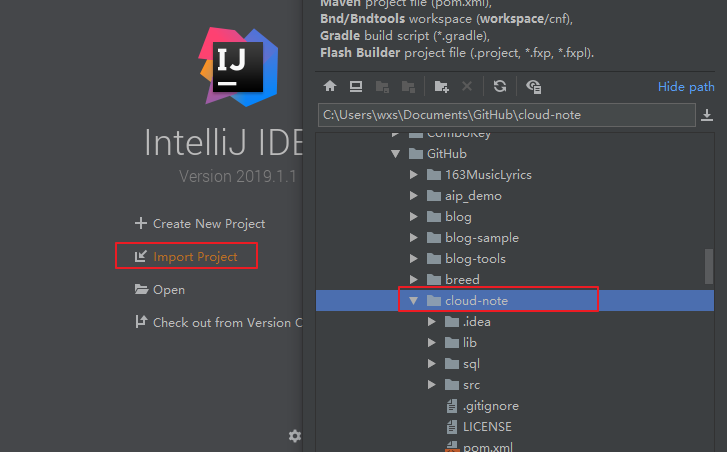
(1) Run IDEA, click the Import Project button to import the project.
(2) Click File -> Settings -> Build,Execution... -> Application Servers to add the path to Tomcat.
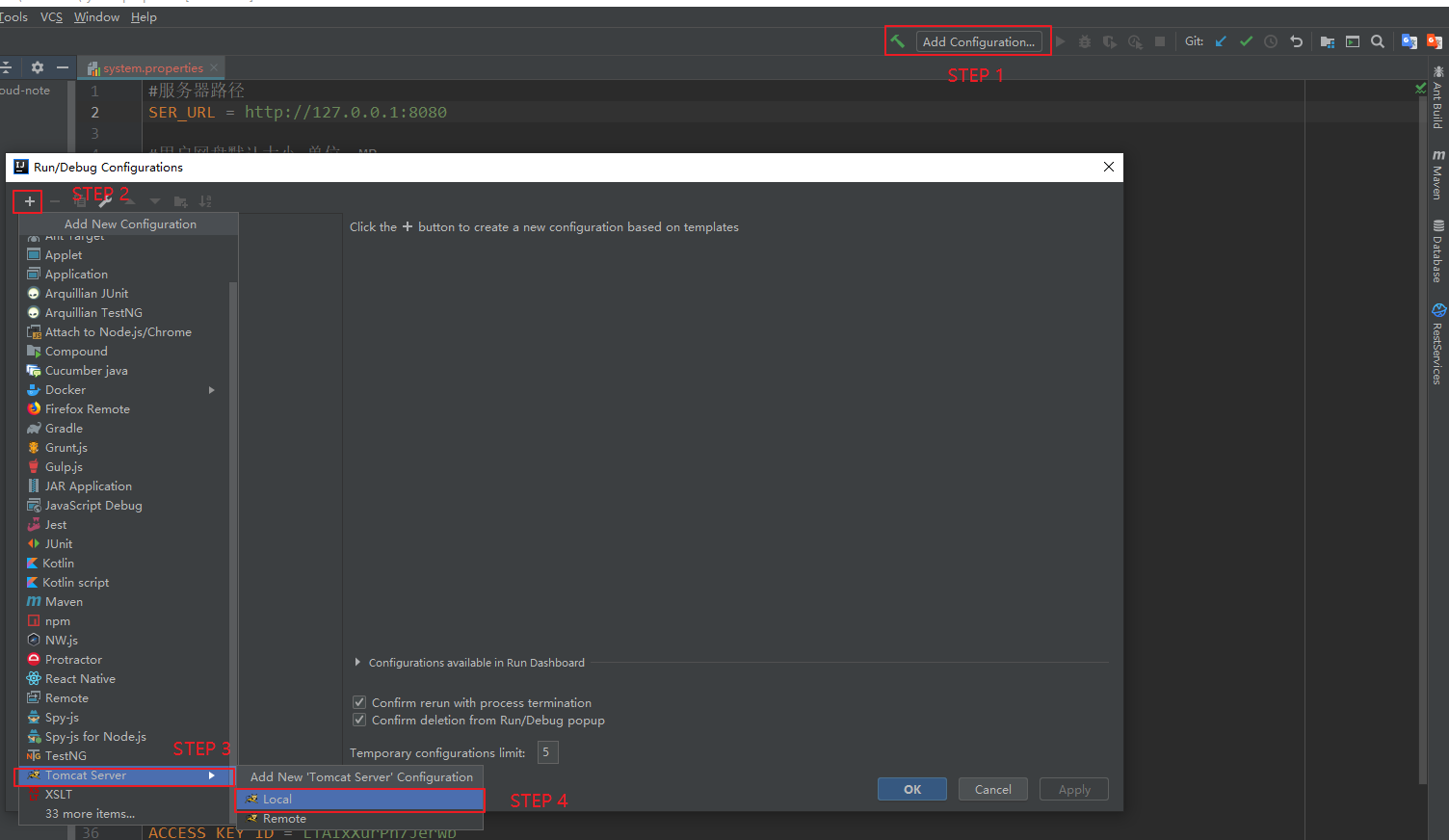
After adding, click Add Configuation... in the main window to add the Tomcat startup item, as shown in the figure.
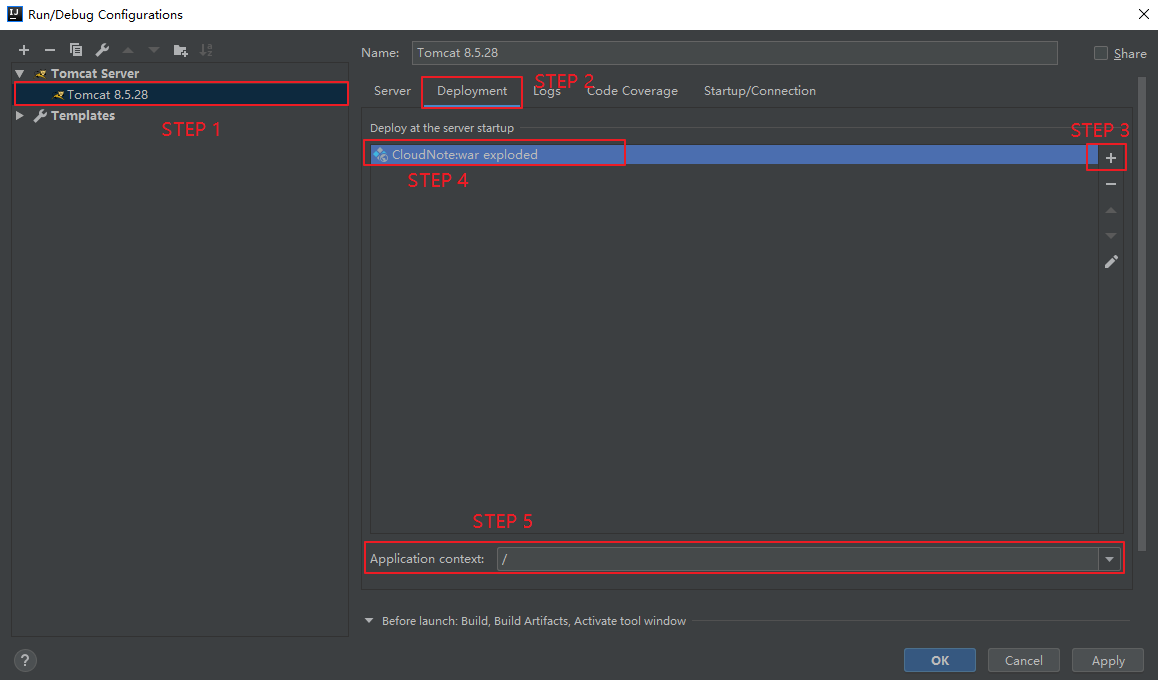
(3) After adding, add the item to Tomcat, as shown in the figure.
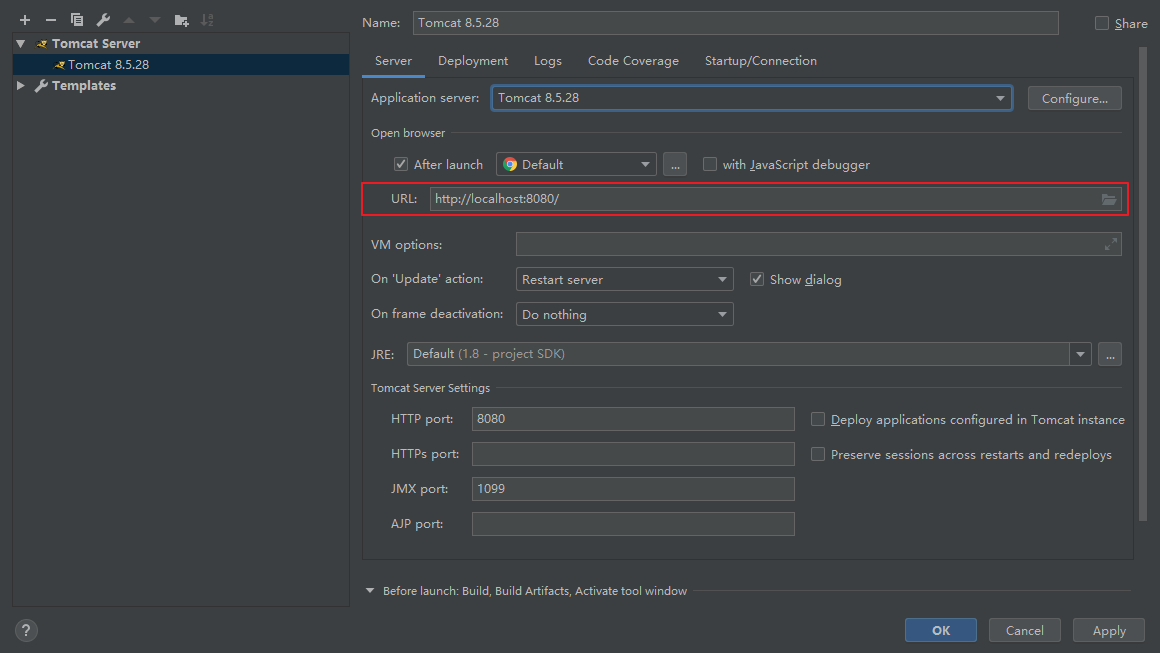
(5) Make sure the URL is correct, as shown in the figure
(6) After the configuration is completed, click the Apply , OK buttons, and then click the green triangle button next to Tomcat .

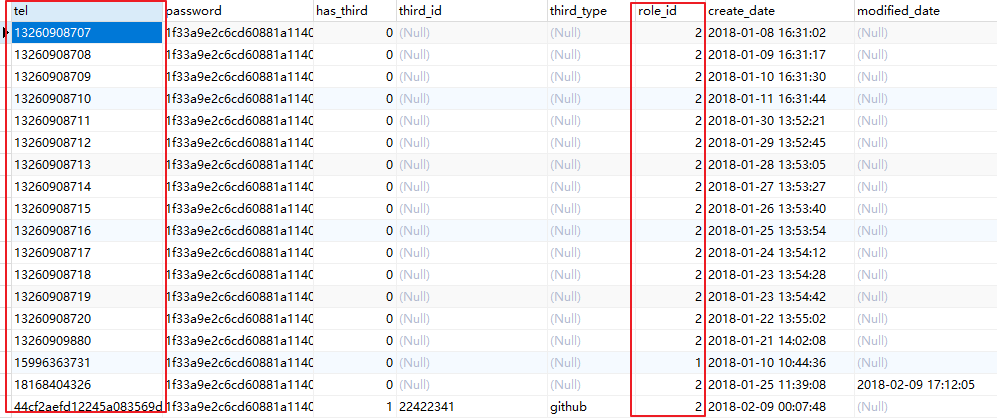
Check the login table record, the login name is tel column record, and the password is 123 . The user role is role_id column, please change it yourself:
According to the requirements of the question, the overall business logic is displayed in the form of flow charts, etc., and the system ER diagram is given.
Select technology and give relevant technologies
Establish front-end communication protocols and write front-end communication interface documents
Use your mobile phone number and third-party app to log in and register (registration information includes avatar, nickname, email, gender, region, etc.)
Authentication and authorization of user access resources
You can create and modify notes online after logging in
Notes include basic attributes such as tags, titles, contents, attachments, etc. The note editing area has basic rich text editing functions.
Notes have functions of modifying and deleting
After the notes are edited, you can manually synchronize the notes, or automatically synchronize the notes when you jump to another interface.
After the notes are edited, classify and archive the notes.
Note folders can be created, renamed and deleted
Index notes titles, tags, and content for quick searches
Only the owner has the permission to view and edit. When sharing notes, you can share the note link to WeChat, QQ, Weibo, and friends.
Create rich text notes by uploading rich text files such as word, execel, ppt, and pdf.
Requires online preview
Message push
Backend management (users, notes, messages, network disks)
Notes and comments
Personal network disk
Data visualization
Take a look (view and share within the site)