SmartOpenCV
发布初始版本


With the rapid development of artificial intelligence and the continuous improvement of the hardware level of terminal equipment, it is possible to directly run intelligent systems on terminal equipment. The end-side intelligence has the characteristics of low latency, privacy and security. At the same time, it reduces the risk of unreliable network transmission in cloud intelligence, making end-side intelligence more and more attention. The more mature areas of end-side intelligence are NLP and CV. In the field of CV, OpenCV is an open source and powerful cross-platform computer vision library, and has been widely used in image processing and image recognition. However, the official Android platform OpenCV SDK has many flaws in image preview.
SmartOpenCV是一个OpenCV在Android端的增强库,解决了OpenCV Android SDK在图像预览方面存在的诸多问题,而且无需修改OpenCV SDK源码,与OpenCV的SDK解耦,只需替换xml中原OpenCV的JavaCameraView / JavaCamera2View即可It has the original functions of the official OpenCV SDK and the enhanced functions of SmartOpenCV.
Although the OpenCV Android SDK is easy to use and use, there are many problems with the preview, and the common problems are as follows:
The default horizontal screen is displayed, and the preview direction cannot be modified through the interface
预览绘制存在黑边:OpenCV默认绘制算法在绘制预览帧图像到Canvas时存在一定的偏移,在视觉上表现就是预览帧只会占SurfaceView控件的一部分区域,偏移部分区域会显示为黑色
 if ( mScale != 0 ) {
    canvas . drawBitmap ( mCacheBitmap , new Rect ( 0 , 0 , mCacheBitmap . getWidth (), mCacheBitmap . getHeight ()),
            new Rect (( int ) (( canvas . getWidth () - mScale * mCacheBitmap . getWidth ()) / 2 ),
                    ( int ) (( canvas . getHeight () - mScale * mCacheBitmap . getHeight ()) / 2 ),
                    ( int ) (( canvas . getWidth () - mScale * mCacheBitmap . getWidth ()) / 2 + mScale * mCacheBitmap . getWidth ()),
                    ( int ) (( canvas . getHeight () - mScale * mCacheBitmap . getHeight ()) / 2 + mScale * mCacheBitmap . getHeight ())), null );
} else {
    canvas . drawBitmap ( mCacheBitmap , new Rect ( 0 , 0 , mCacheBitmap . getWidth (), mCacheBitmap . getHeight ()),
            new Rect (( canvas . getWidth () - mCacheBitmap . getWidth ()) / 2 ,
                    ( canvas . getHeight () - mCacheBitmap . getHeight ()) / 2 ,
                    ( canvas . getWidth () - mCacheBitmap . getWidth ()) / 2 + mCacheBitmap . getWidth (),
                    ( canvas . getHeight () - mCacheBitmap . getHeight ()) / 2 + mCacheBitmap . getHeight ()), null );
}预览帧大小选择算法不符合实际场景要求:对于预览帧大小的选择,OpenCV默认算法是选择小于预览控件(或设置的最大帧大小)的最大预览,这将导致在很多情况下预览图像的显示不能Spread the entire control even much smaller than the control size. In most business scenarios, this algorithm cannot meet the actual needs.
 protected Size calculateCameraFrameSize ( List <?> supportedSizes , ListItemAccessor accessor , int surfaceWidth , int surfaceHeight ) {
        int calcWidth = 0 ;
        int calcHeight = 0 ;

        int maxAllowedWidth = ( mMaxWidth != MAX_UNSPECIFIED && mMaxWidth < surfaceWidth )? mMaxWidth : surfaceWidth ;
        int maxAllowedHeight = ( mMaxHeight != MAX_UNSPECIFIED && mMaxHeight < surfaceHeight )? mMaxHeight : surfaceHeight ;

        for ( Object size : supportedSizes ) {
            int width = accessor . getWidth ( size );
            int height = accessor . getHeight ( size );
            Log . d ( TAG , "trying size: " + width + "x" + height );

            if ( width <= maxAllowedWidth && height <= maxAllowedHeight ) {
                if ( width >= calcWidth && height >= calcHeight ) {
                    calcWidth = ( int ) width ;
                    calcHeight = ( int ) height ;
                }
            }
        }
        if (( calcWidth == 0 || calcHeight == 0 ) && supportedSizes . size () > 0 )
        {
            Log . i ( TAG , "fallback to the first frame size" );
            Object size = supportedSizes . get ( 0 );
            calcWidth = accessor . getWidth ( size );
            calcHeight = accessor . getHeight ( size );
        }

        return new Size ( calcWidth , calcHeight );
}易使用:如果你项目中之前使用的是OpenCV的官方SDK,那么引入SmartOpenCV后只需将xml文件中的JavaCameraView / JavaCamera2View替换为SmartOpenCV的CamerPreview / Camera2Preview即可达到与使用官方SDK相同的效果
功能增强:
提供更友好的API接口:在继承OpenCV官方接口的同时,SmartOpenCV将众多繁杂操作统一通过CameraConfiguration来配置,提供更友好的Fluent API接口,让开发者能够更灵活的控制预览显示相关参数与配置
不直接依赖官方SDK,方便升级官方SDK :与OpenCV官方SDK解耦,只要官方SDK内部核心逻辑未做修改,那么SmartOpenCV可以兼容所有版本的官方SDK,使用SmartOpenCV后如果以后打算升级依赖的OpenCV为更新Version, just update OpenCV's dependencies to the new version, and the code does not need to be changed.
| Horizontal screen | Vertical screen | |
|---|---|---|
| OpenCV | Even if both width and height are set to match_parent, the full screen cannot be full screen, and there is a black edge. 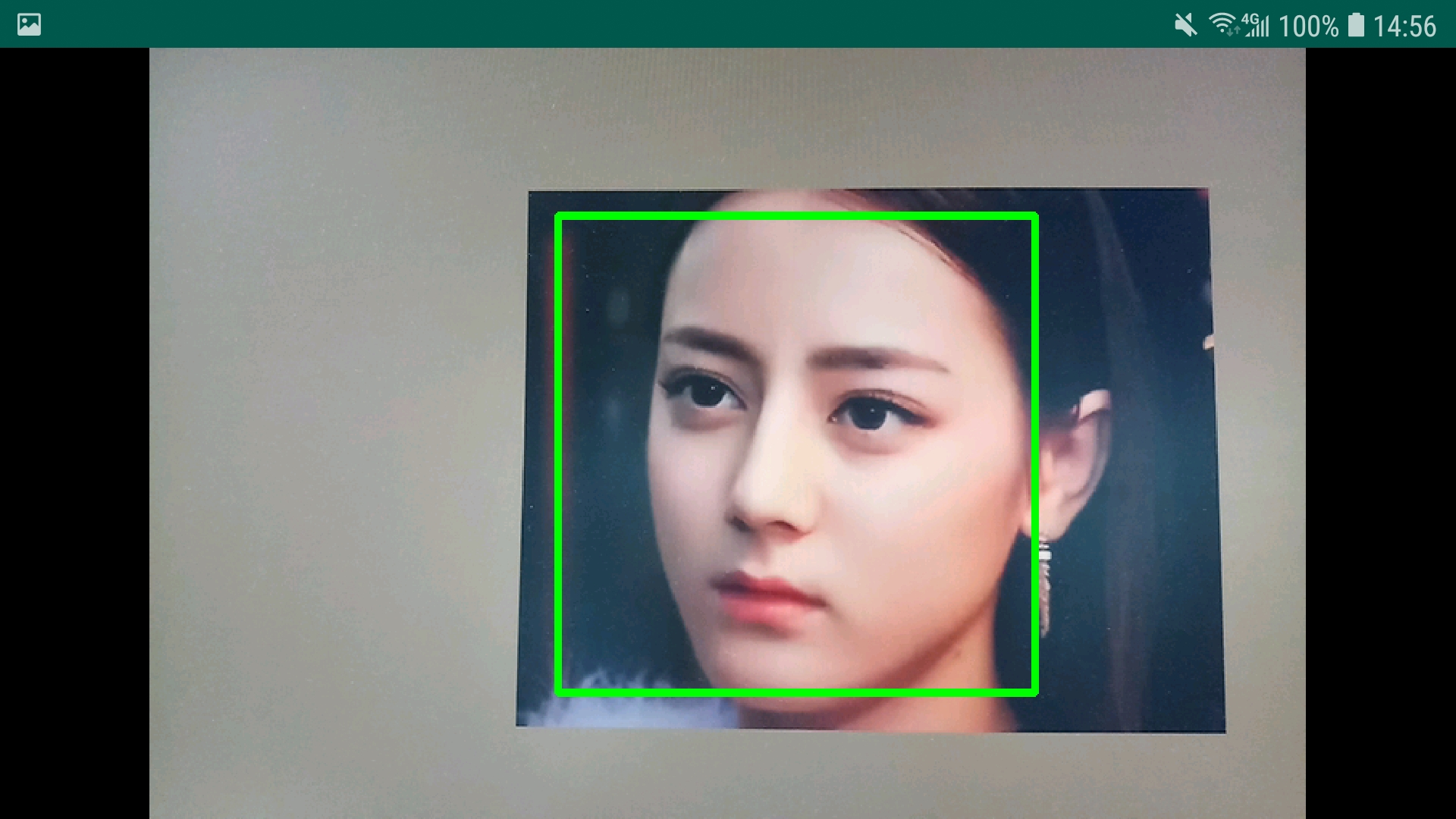 | There is a black edge, and the vertical screen is not supported by default 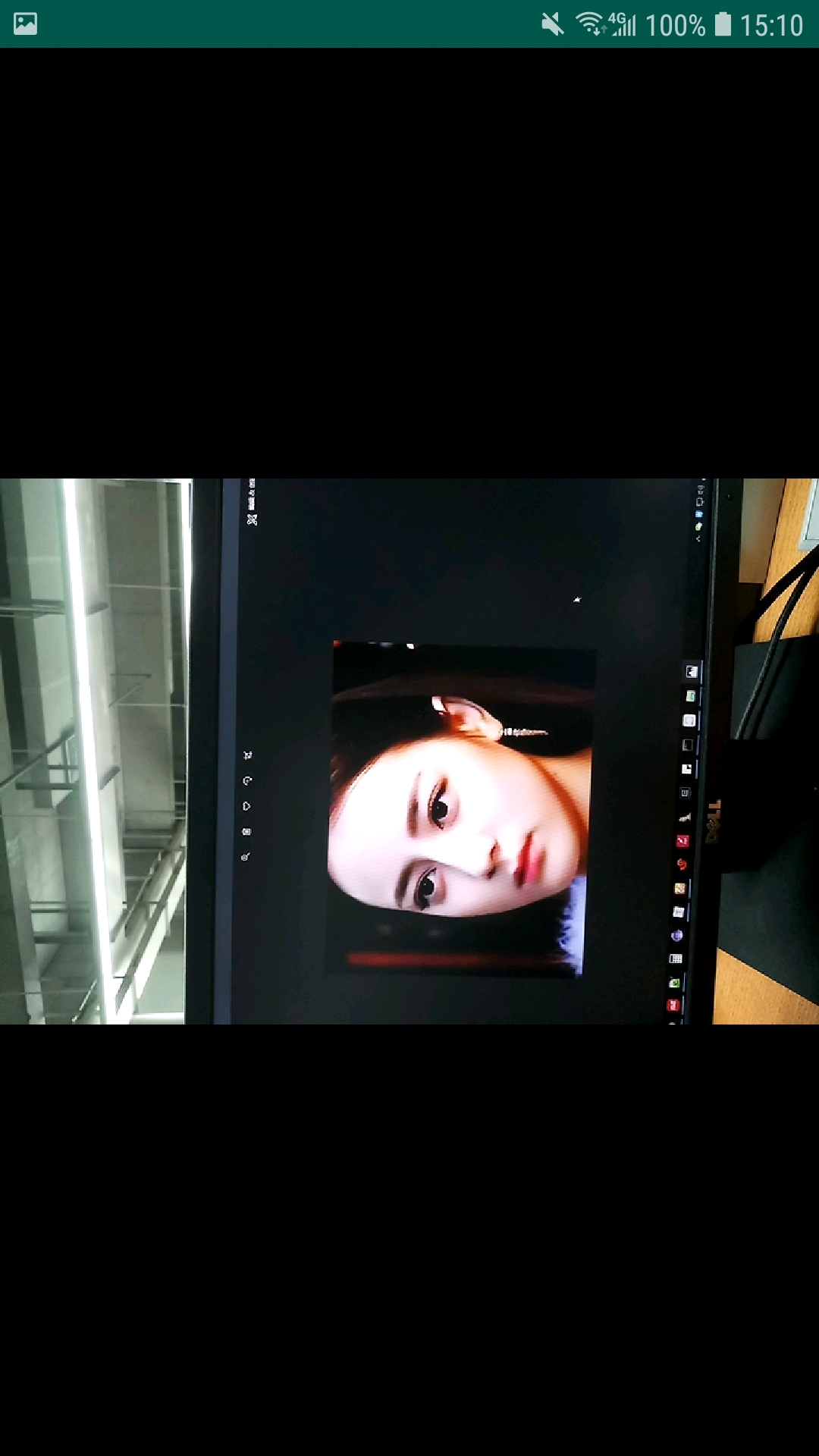 |
| SmartOpenCV | 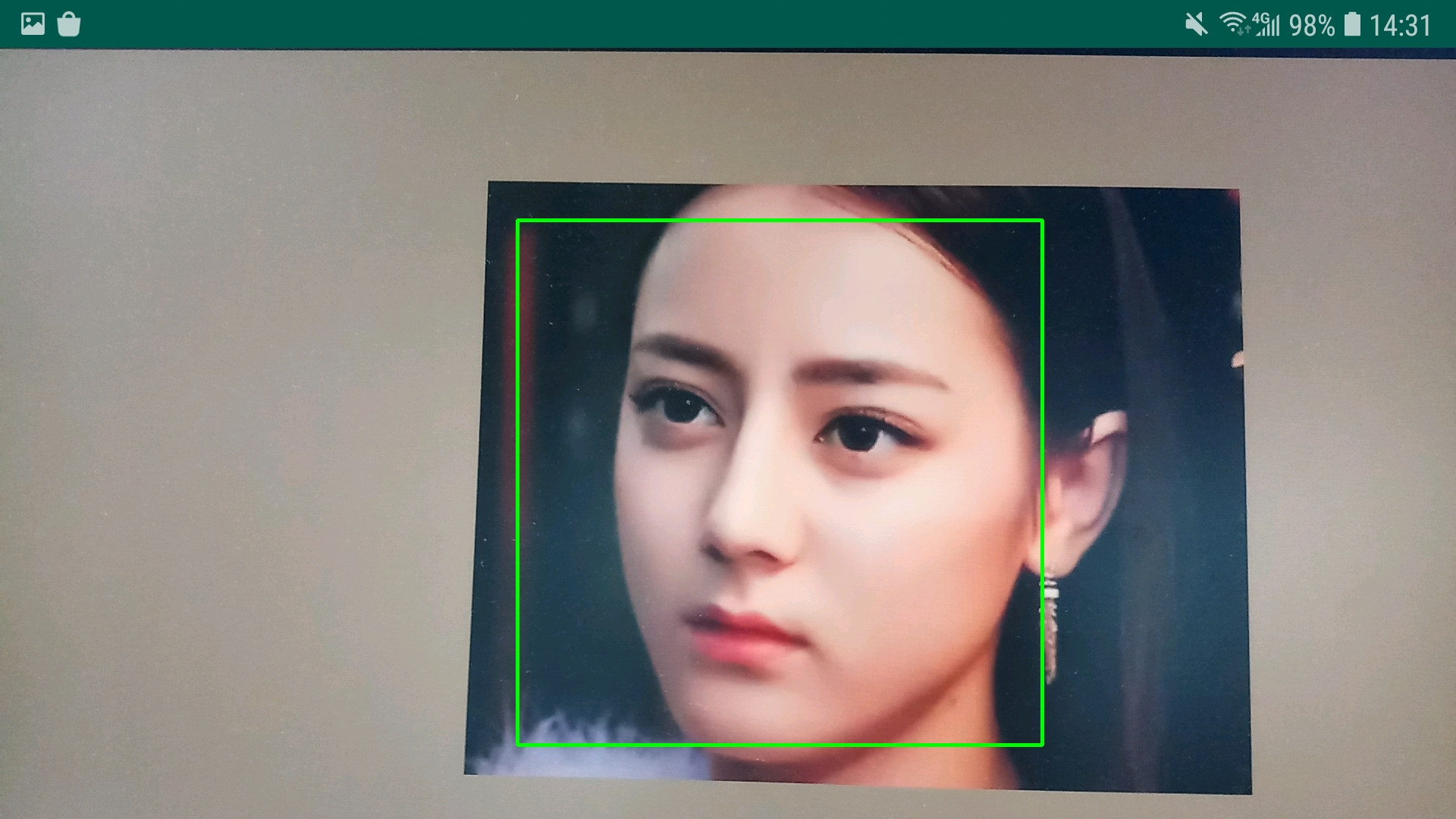 | 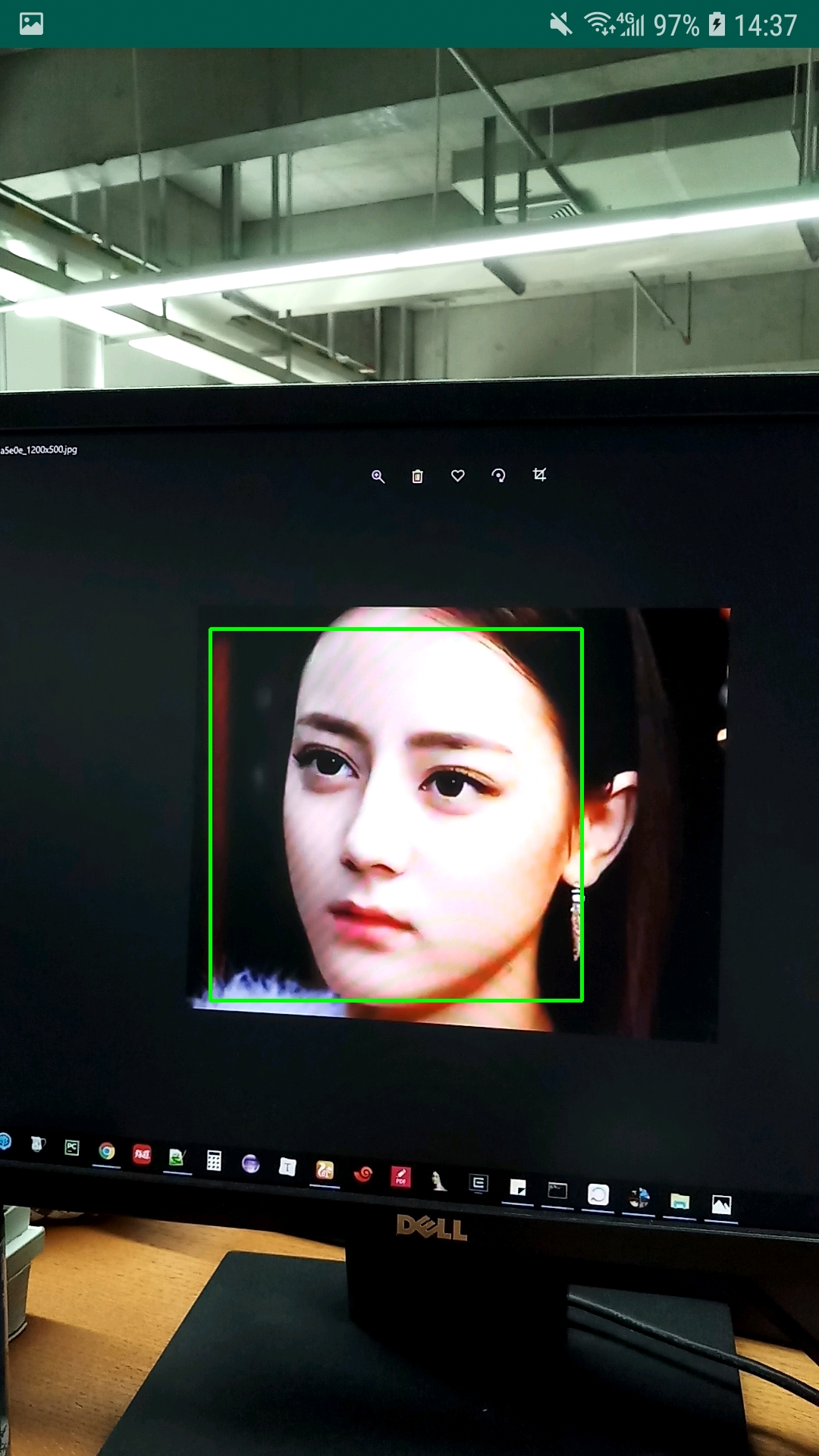 |
smartopencv-app-debug.apk
opencv-app-debug.apk
Step1: Add configuration to the jitpack repository in the build.gradle in the project root directory
 allprojects {
    repositories {
        ...
        maven { url 'https://jitpack.io' }
    }
}
Step2:在需要使用SmartOpenCV库的模块中添加依赖
 dependencies {
	implementation('com.github.HuTianQi:SmartOpenCV:1.0.1') { // 版本号建议使用已release的最新版本
        exclude module: 'openCVLibrary411' // 由于目前多模块依赖时jitpack打包存在bug,排除打包时依赖的该模块
    }
}
在项目中需要使用预览的xml中用SmartOpenCV的CameraPreview / Camera2Preview替换OpenCV的JavaCameraView / JavaCamera2View即可,就这么简单,其余的什么都不用做
< LinearLayout xmlns : android = " http://schemas.android.com/apk/res/android "
    android : layout_width = " match_parent "
    android : layout_height = " match_parent " >

    <!-- <org.opencv.android.JavaCameraView -->
    <!-- android:id="@+id/fd_activity_surface_view" -->
    <!-- android:layout_width="match_parent" -->
    <!-- android:layout_height="match_parent" /> -->

    < tech .huqi.smartopencv.core.preview.CameraPreview
        android : id = " @+id/fd_activity_surface_view "
        android : layout_width = " match_parent "
        android : layout_height = " match_parent " />
</ LinearLayout >如果打算通过SmartOpenCV提供的接口来更灵活的控制预览显示相关参数与配置,那么调用SmartOpenCV.getInstance().init()传入前面获取的预览控件对象即可,用法如下:
 SmartOpenCV . getInstance (). init ( mOpenCvCameraView , new CameraConfiguration . Builder ()
    . debug ( true )
    . cameraIndex ( 0 )      // 设置摄像头索引,主要用于多摄像头设备,优先级低于frontCamera
    . keepScreenOn ( false ) // 是否保持屏幕常亮
    . frontCamera ( true )   // 是否使用前置摄像头
    . openCvDefaultDrawStrategy ( false )      // 是否使用OpenCV默认的预览图像绘制策略
    . openCvDefaultPreviewCalculator ( false ) // 是否使用OpenCV默认的预览帧大小计算策略
    . landscape ( false )     // 是否横屏显示
    . enableFpsMeter ( true ) // 开启预览帧率的显示
    . usbCamera ( false )     // 是否使用USB摄像头,当设备接入的是USB摄像头时将其设置为true
    . maxFrameSize ( 400 , 300 )     // 设置预览帧的最大大小
    . cvCameraViewListener ( this ) // 设置OpenCV回调监听器
    . previewSizeCalculator ( new IPreviewSizeCalculator () { // 自定义预览帧大小计算策略
        @ Override
        public Size calculateCameraFrameSize ( List < Size > supportedSizes , int surfaceWidth , int surfaceHeight ) {
            // 若需要根据自己的具体业务场景改写览帧大小,覆写该方法逻辑
            return new Size ( 1080 , 1920 );
        }
    })
    . drawStrategy ( new IDrawStrategy () { // 自定义绘制策略
        @ Override
        public void drawBitmap ( Canvas canvas , Bitmap frameBitmap , int surfaceWidth , int surfaceHeight ) {
            // 若需根据自己的具体业务场景绘制预览帧图像,覆写该方法逻辑
        }
    })
    . build ());
LICENSE