stable diffusion prompt reader
1.3.5


简体中文 | English
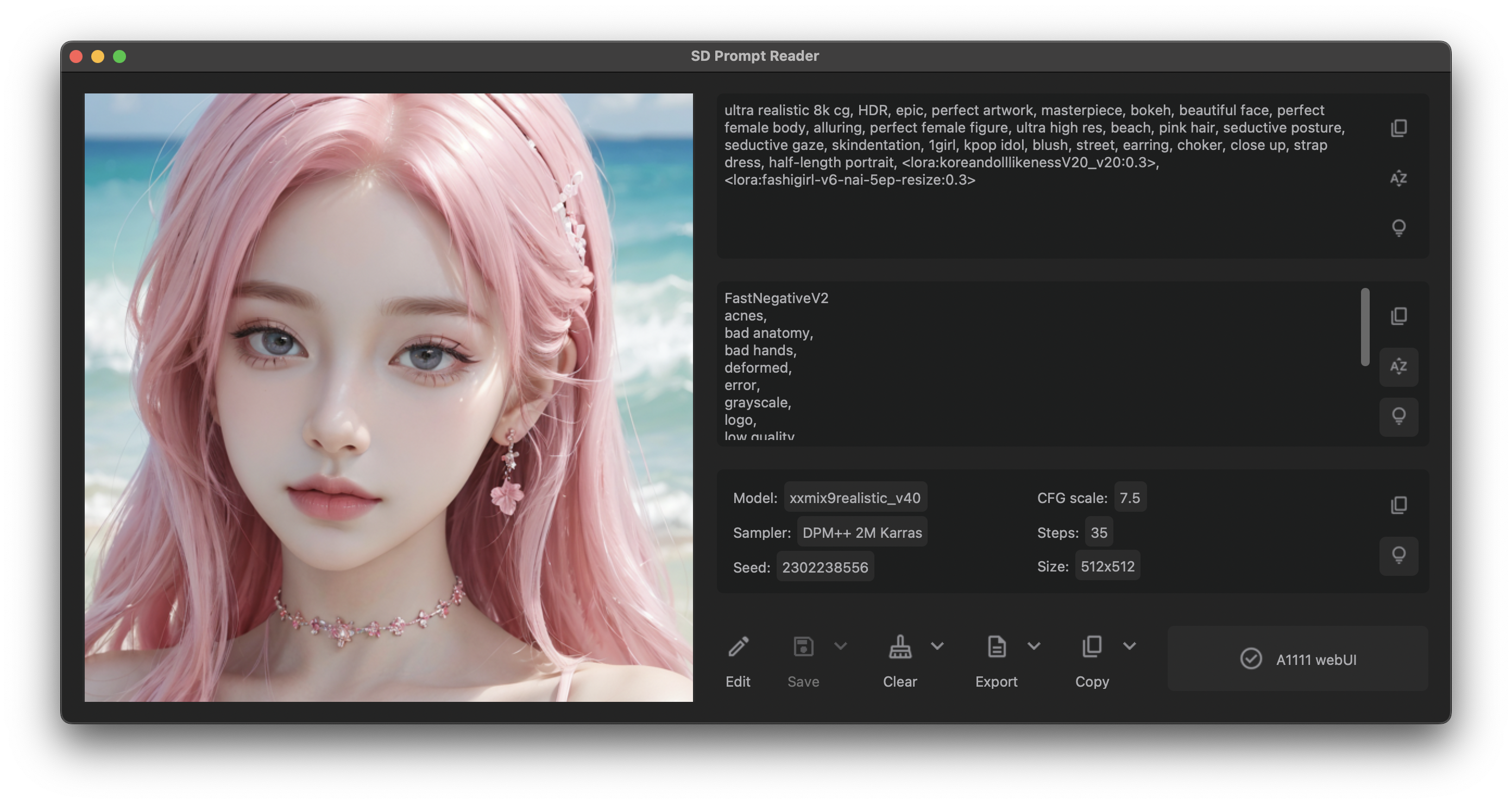
A simple standalone viewer for reading prompt from Stable Diffusion generated image outside the webui.
Features • Supported Formats • Download • Usage • CLI • ComfyUI Node • FAQ • Credits
Tip
The SD Prompt Reader is now available as a ComfyUI node. Check out the ComfyUI Prompt Reader Node for more information.
| PNG | JPEG | WEBP | TXT* | |
|---|---|---|---|---|
| A1111's webUI | ✅ | ✅ | ✅ | ✅ |
| Easy Diffusion | ✅ | ✅ | ✅ | |
| StableSwarmUI* | ✅ | ✅ | ||
| StableSwarmUI (prior to 0.5.8-alpha)* | ✅ | ✅ | ||
| Fooocus-MRE* | ✅ | ✅ | ||
| NovelAI (stealth pnginfo) | ✅ | ✅ | ||
| NovelAI (legacy) | ✅ | |||
| InvokeAI | ✅ | |||
| InvokeAI (prior to 2.3.5-post.2) | ✅ | |||
| InvokeAI (prior to 1.15) | ✅ | |||
| ComfyUI* | ✅ | |||
| Draw Things | ✅ | |||
| Naifu(4chan) | ✅ |
* Limitations apply. See format limitations.
Note
If you are using a tool or format that is not on this list, please help me to support your format by uploading the original file generated by your tool to the issues, thx.
Tip
For ComfyUI users, the SD Prompt Reader is now available as a ComfyUI node. The ComfyUI Prompt Reader Node is a subproject of this project, and it is recommended to embed the Prompt Saver node in the ComfyUI Prompt Reader Node within your workflow to ensure maximum compatibility.
Download executable from GitHub Releases
Download executable from GitHub Releases
You may also install SD Prompt Reader via Homebrew cask.
brew install --no-quarantine receyuki/sd-prompt-reader/sd-prompt-readerThe parameter --no-quarantine is used since the SD Prompt Reader is currently unsigned as I mentioned here
I'm pretty sure linux users can figure things out without an executable.
sudo apt-get install python3-tk for Debian-based distributionsYou can choose to install with pip or run it manually
pip install sd-prompt-readeror
pipx install sd-prompt-readerTo launch the GUI just enter sd-prompt-reader in the terminal.
For the CLI, please use sd-prompt-reader-cli.
git clone https://github.com/receyuki/stable-diffusion-prompt-reader.gitcd stable-diffusion-prompt-reader
pip install -r requirements.txtpython -m sd_prompt_reader.appOR
OR
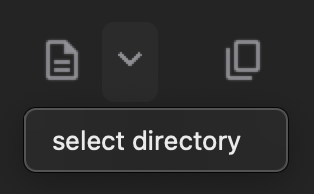
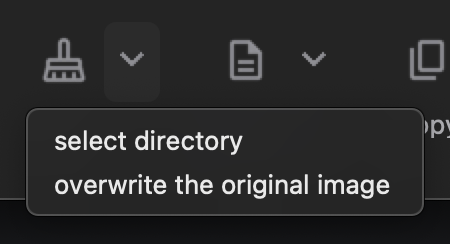
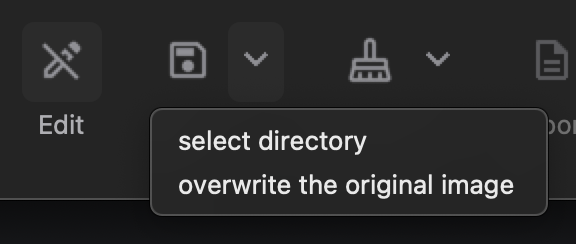
Note
The edited image will be written in A1111 format, meaning that image in any format will become A1111 format after editing.
Copy image prompt and setting in a format that can be read by Prompts from file or textbox The following parameters are supported:
| Setting | Parameter |
|---|---|
| Seed | --seed |
| Variation seed strength | --subseed_strength |
| Seed resize from | --seed_resize_from_h |
| Seed resize from | --seed_resize_from_w |
| Sampler | --sampler_name |
| Steps | --steps |
| CFG scale | --cfg_scale |
| Size | --width |
| Size | --height |
| Face restoration | --restore_faces |
Note
The SDXL workflow does not support editing. If necessary, please remove prompts from image before edit.
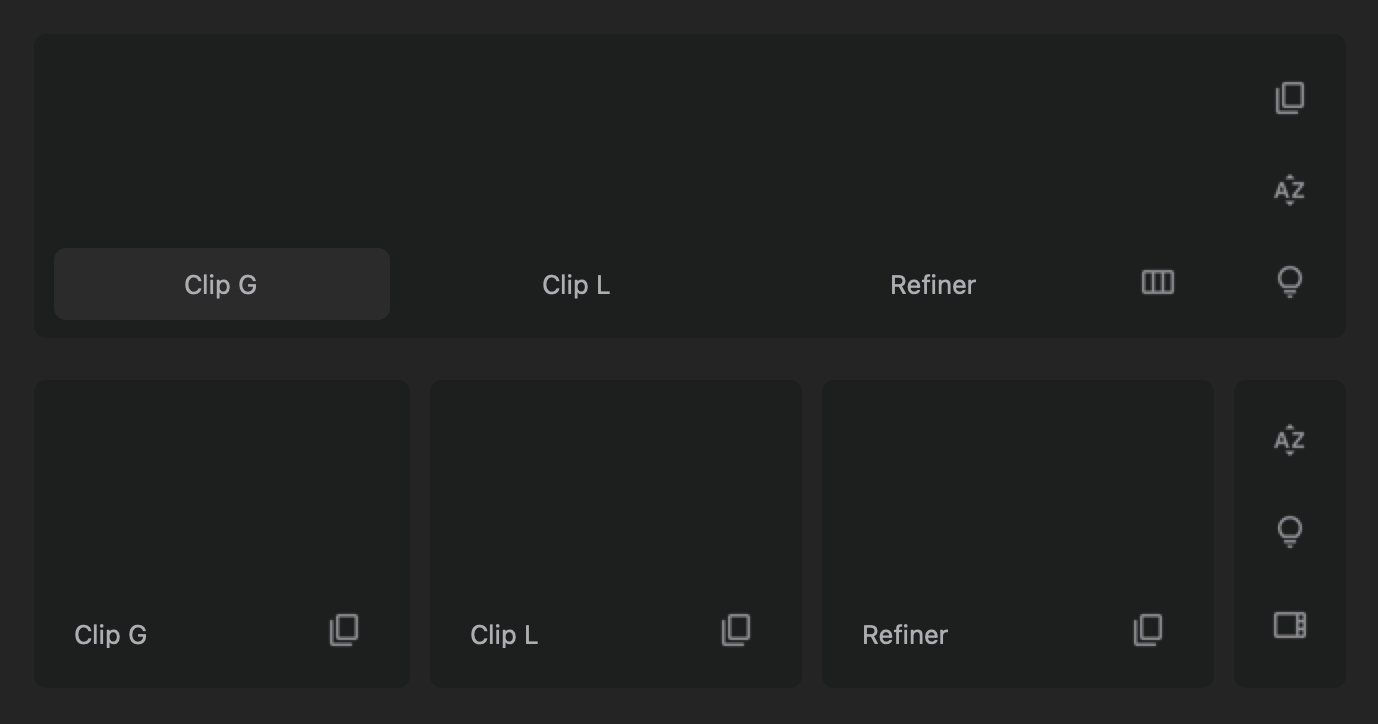
If the image's workflow includes multiple sets of SDXL prompts,
namely Clip G(text_g), Clip L(text_l), and Refiner, the SD Prompt Reader will switch to the multi-set prompt display mode as shown in the image below.
There are two interface options available for the multi-set prompt display mode, and you can switch between them using buttons.
A CLI tool for reading, modifying, and clearing metadata is provided.
SD Prompt Reader CLI.exe will be placed in the zip package as a separate executable.
Examples:
"SD Prompt Reader CLI.exe" -i example.png
The executable is located at SD Prompt Reader.app/Contents/MacOS/SD Prompt Reader.
Examples:
/Applications/SD Prompt Reader.app/Contents/MacOS/SD Prompt Reader -i example.png
Examples:
sd-prompt-reader-cli -i example.png
-r or --read flag.-w or --write flag.-c or --clear flag.-i, --input-path: Path to the input image file or directory containing image files, required parameter.-o, --output-path: Path to the output file or directory where the processed files will be saved.-l, --log-level: Specify the log verbosity level (e.g.DEBUG, INFO, WARN, ERROR).-f, --format-type: Specifies the output metadata format, choices are "TXT" or "JSON". Default format is "TXT"-m, --metadata: Provides a metadata file for writing.-p, --positive: Provides a positive prompt string for writing.-n, --negative: Provides a negative prompt string for writing.-s, --setting: Provides a setting string for writing.sd-prompt-reader-cli [-r] -i <input_path> [--format-type <format>] [-o <output_path>]
sd-prompt-reader-cli -i example.pngsd-prompt-reader-cli -i example.png -o metadata.txtsd-prompt-reader-cli -r -i example.png -f TXT -o output_folder/sd-prompt-reader-cli -r -i input_folder/ -f JSON -o output_folder/
sd-prompt-reader-cli -w -i <input_path> -m <metadata_path> [-o <output_path>]
sd-prompt-reader-cli -w -i example.png -m new_metadata.txtsd-prompt-reader-cli -w -i example.png -m new_metadata.txt -o output.pngsd-prompt-reader-cli -w -i example.png -m new_metadata.json -o output_folder/
sd-prompt-reader-cli -c -i <input_path> [-o <output_path>]
sd-prompt-reader-cli -c -i example.pngsd-prompt-reader-cli -c -i example.png -o output.pngsd-prompt-reader-cli -c -i example.png -o output_folder/sd-prompt-reader-cli -c -i input_folder/ -o output_folder/
Important
StableSwarmUI is still in the Alpha testing phase, and its format may change in the future. I will keep track of upcoming updates of StableSwarmUI.
Important
When custom nodes are used or when the workflow becomes overly complex, there is a high probability that metadata may not be correctly read. This is because ComfyUI does not store metadata but only the complete workflow. SD Prompt Reader can only handle basic workflows. It is recommended to embed the Prompt Saver node in the ComfyUI Prompt Reader Node within your workflow to ensure maximum compatibility.
By default, Easy Diffusion does not write metadata to images. Please change the Metadata format in settings to embed to write the metadata to images
Since the original version of Fooocus does not support writing metadata to image files, SD Prompt Reader only supports images generated by Fooocus MoonRide Edition.
Warning
The false positive reported by some anti-malwares is caused by the packaging tool pyinstaller which is a common issue for pyinstaller users. I spent a lot of time trying to fix the Windows Defender false positive before, but I couldn't do it for every antivirus software. So, you can either trust Windows Defender or use the instruction for Linux users to use this app.
Important
This is a very common macOS issue when you run unsigned non-appstore apps, and developers must pay $99 per year to Apple to eliminate this issue. You can choose to Allow Apps from Anywhere in security & privacy settings which can be dangerous. The way I prefer is to remove the quarantine attributes.
Open Terminal from the Applications folder.
Type in the following command and hit Enter.
xattr -r -d com.apple.quarantine /path/to/app.app
In my case it's
xattr -r -d com.apple.quarantine /Applications/SD Prompt Reader.app
If you are still concerned about the security of the app you can use the instruction for Linux users to use this app.





