
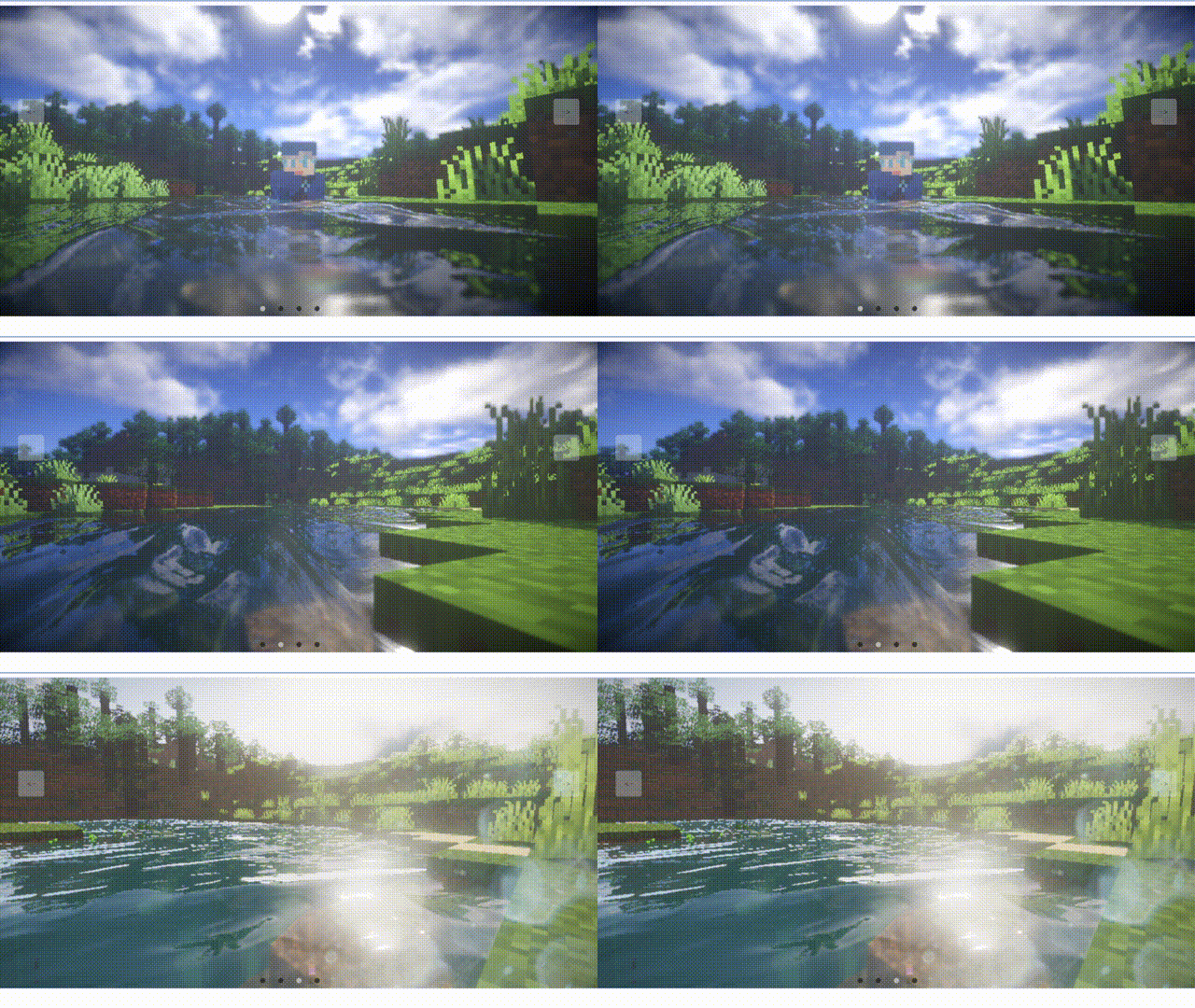
實現了一個簡單的網頁佈局,其中包含了五個不同的盒子,每個盒子都有一個不同的背景圖片,並且它們之間有一些間距。當滑鼠懸停在某個盒子上時,它的背景圖片會變暗,並且文字會變成白色。這些盒子和按鈕都被放在一個容器中,整個頁面看起來像一個畫廊。
 <div class="container">
    <div id="slide">
        <div class="item" style="background-image:url('./img/章若楠01.jpg')"></div>
        <div class="item" style="background-image:url('./img/鞠婧禕01.jpg')"></div>
        <div class="item" style="background-image:url('./img/鞠婧禕02.jpg')"></div>
        <div class="item" style="background-image:url('./img/鞠婧禕06.jpg')"></div>
        <div class="item" style="background-image:url('./img/鞠婧禕04.jpg')"></div>
        <div class="item" style="background-image:url('./img/鞠婧禕07.jpg')"></div>
    </div>
    <div class="buttons">
        <div class="left">
            < Prev</div>
                <div class="center">下載桌布</div>
                <div class="right">Next ></div>
        </div>
    </div>
</div>
* {
margin: 0;
padding: 0;
box-sizing: border-box;
}
 .container {
  width: 100vw;
  height: 100vh;
  position: relative;
  overflow: hidden;
}
 .item {
  width: 240px;
  height: 160px;
  position: absolute;
  top: 50%;
  left: 0;
  transform: translateY(-50%);
  border-radius: 10px;
  box-shadow: 0 30px 50px #505050;
  background-size: cover;
  background-position: center;
  transition: 1s;
}
 .item:nth-child(1),
.item:nth-child(2) {
  left: 0;
  top: 0;
  width: 100%;
  height: 100%;
  transform: translateY(0);
  box-shadow: none;
  border-radius: 0;
}
 .item:nth-child(3) {
  left: 70%;
}
 .item:nth-child(4) {
  left: calc(70% + 250px);
}
 .item:nth-child(5) {
  left: calc(70% + 500px);
}
 .item:nth-child(n+6) {
  left: calc(70% + 750px);
  opacity: 0;
}
 .buttons {
  width: 100%;
  position: absolute;
  bottom: 50px;
  margin-left: -50px;
  text-align: center;
  display: flex;
  justify-content: center;
}
.buttons div {
width: 120px;
height: 50px;
line-height: 50px;
text-align: center;
border-radius: 5px;
margin: 0 25px;
transition: .5s;
cursor: pointer;
user-select: none;
font-size: 20px;
color: #fff;
background-color: rgba(0, 0, 0, 0.4);
box-shadow: 2px 2px 2px rgba(0, 0, 0, 0.2);
} const leftBtn = document.querySelector(".buttons .left")
const rightBtn = document.querySelector(".buttons .right")
const slide = document.querySelector("#slide")
let openClick = true // 節流處理(保證動畫執行過程,按鈕不被重複點擊)
leftBtn.addEventListener("click", () => {
if (openClick) {
openClick = false // 觸發點擊後,停用按鈕const items = document.querySelectorAll(".item")
slide.prepend(items[items.length - 1])
setTimeout(() => openClick = true, 1000) // 1s 再開放按鈕的點擊}
})
rightBtn.addEventListener("click", () => {
if (openClick) {
openClick = false
const items = document.querySelectorAll(".item")
slide.appendChild(items[0])
setTimeout(() => openClick = true, 1000)
}
})* {
margin: 0;
padding: 0;
box-sizing: border-box;
}這段程式碼是設定全域的CSS樣式,包含設定元素的盒子模型為border-box,即盒模型的寬度和高度包含了元素的邊框和內邊距,而不是只包含元素的內容。
.container {
width: 100vw;
height: 100vh;
position: relative;
overflow: hidden;
}這段程式碼是設定容器的CSS樣式,包括設定容器的寬度和高度為100vw和100vh,即視窗的寬度和高度。同時,設定容器的定位為相對定位,即相對於其父元素進行定位。最後,設定容器的溢出屬性為隱藏,即超出容器範圍的元素不會被顯示出來。
.item {
width: 240px;
height: 160px;
position: absolute;
top: 50%;
left: 0;
transform: translateY(-50%);
border-radius: 10px;
box-shadow: 0 30px 50px #505050;
background-size: cover;
background-position: center;
transition: 1s;
}這段程式碼是設定盒子的CSS樣式,包括設定盒子的寬度和高度為240px和160px,即盒子的大小。同時,設置盒子的定位為絕對定位,即相對於其父元素進行定位。最後,設定盒子的邊框半徑為10px,即盒子的圓角。盒子的背景圖片大小為cover,即覆蓋整個盒子。背景圖片的位置為居中對齊。最後,設定盒子的過渡效果為1秒,即過渡效果的時間為1秒。
.item:nth-child(1),
.item:nth-child(2) {
left: 0;
top: 0;
width: 100%;
height: 100%;
transform: translateY(0);
box-shadow: none;
border-radius: 0;
}這段程式碼是設定第一個和第二個盒子的CSS樣式,包括將它們的位置設為0,即它們覆蓋在容器的最上層。同時,將它們的高度設定為100%,即它們覆蓋在容器的整個高度。最後,將它們的變換屬性設為translateY(0),即它們不會向下移動。同時,將它們的陰影和邊框半徑設為0,即它們沒有陰影和邊框。
.item:nth-child(3) {
left: 70%;
}這段程式碼是設定第三個盒子的CSS樣式,包括將它的位置設定為距離容器左側70%的位置。
.item:nth-child(4) {
left: calc(70% + 250px);
}這段程式碼是設定第四個盒子的CSS樣式,包括將它的位置設定為距離第三個盒子右側250px的位置。
.item:nth-child(5) {
left: calc(70% + 500px);
}這段程式碼是設定第五個盒子的CSS樣式,包括將它的位置設定為距離第三個盒子右側500px的位置。
.item:nth-child(n+6) {
left: calc(70% + 750px);
opacity: 0;
}這段程式碼是設定所有盒子的CSS樣式,包括將它們的位置設定為距離第三個盒子右側750px的位置。同時,將它們的不透明度設為0,即它們不可見。
.buttons {
width: 100%;
position: absolute;
bottom: 50px;
margin-left: -50px;
text-align: center;
display: flex;
justify-content: center;
}這段程式碼是設定按鈕的CSS樣式,包括設定按鈕的寬度為100%,即按鈕的大小與容器相同。同時,將按鈕的位置設定為距離容器底部50px的位置。最後,將按鈕的對齊方式設定為居中對齊,即按鈕在水平方向上居中對齊。
 .buttons div {
    width: 120px;
    height: 50px;
    line-height: 50px;
    text-align: center;
    border-radius: 5px;
    margin: 0 25px;
    transition:.5s;
    cursor: pointer;
    user-select: none;
    font-size: 20px;
    color: #fff;
    background-color: rgba(0, 0, 0, 0.4);
    box-shadow: 2px 2px 2px rgba(0, 0, 0, 0.2);
}
這段程式碼是設定按鈕的CSS樣式,包括設定按鈕的寬度為120px,高度為50px,即按鈕的大小。同時,設定按鈕的行高為50px,即按鈕的高度。按鈕的文字對齊方式為居中對齊,即文字在水平方向上居中對齊。按鈕的邊框半徑為5px,即按鈕的圓角。按鈕的外邊距為0 25px,即按鈕在水平方向上左右兩側的距離為25px。按鈕的過渡效果為0.5秒,即過渡效果的時間為0.5秒。按鈕的遊標屬性為pointer,即滑鼠懸停在按鈕上時,滑鼠的形狀會變成手型。按鈕的使用者選擇屬性為none,即使用者無法選取按鈕中的文字。按鈕的字體大小為20px,即按鈕的文字大小。按鈕的文字顏色為白色,即按鈕的文字顏色。按鈕的背景顏色為rgba(0, 0, 0, 0.4),即按鈕的背景顏色為黑色,透明度為0.4。按鈕的陰影屬性為2px 2px 2px rgba(0, 0, 0, 0.2),即按鈕的陰影為2px 2px 2px黑色,透明度為0.2。
到此這篇關於HTML+CSS實現全景輪播的示例代碼的文章就介紹到這了,更多相關HTML CSS全景輪播內容請搜索downcodes.com以前的文章或繼續瀏覽下面的相關文章,希望大家以後多多支援downcodes.com!