Plush
1.0.0

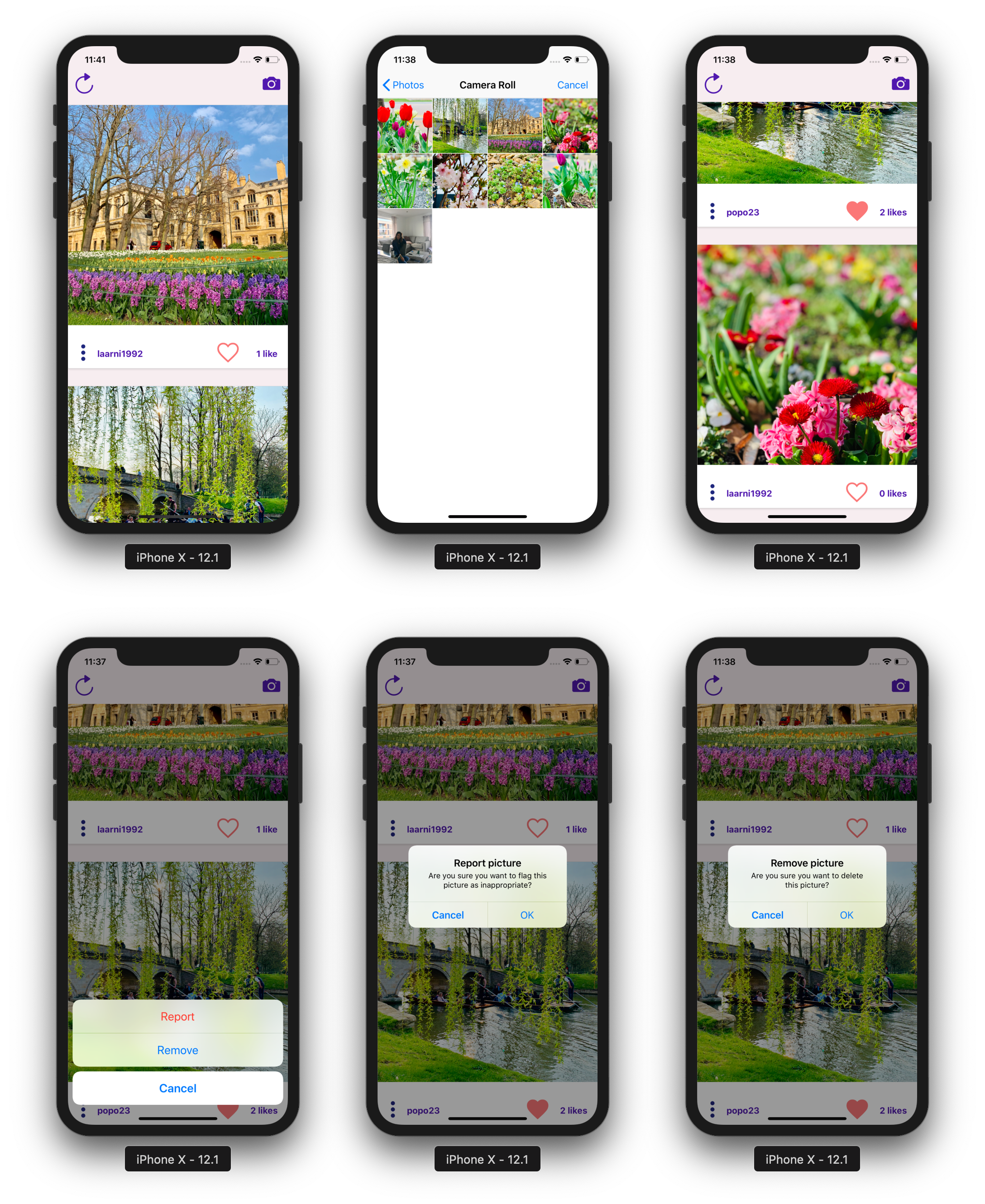
Plush是用於圖片共享的全棧移動應用程序。它使用Expo並在前端進行反應本機,AWS放大為後端服務,並且API服務是使用GraphQL構建的。
此處的應用程序功能的演示視頻。
註冊/登錄後,用戶可以執行以下操作:
用戶使用開箱即用的AWS放大身份驗證流進行身份驗證。
用戶將重定向到應用程序的唯一屏幕:feed。
當用戶上傳圖片時:
當用戶標記不適當的內容時:
當用戶喜歡/不利於圖片時:
當用戶刪除圖片時:
當用戶刷新提要時:
要在本地計算機上運行此應用程序,您需要以下工具:
博覽會CLI
npm install -g expo-cliAWS帳戶
NPM節點JS
AWS放大CLI
npm install -g @aws-amplify/cliamplify configure (鏈接逐步視頻)。 git clone https://github.com/yhenni1989/plush
cd plush
 yarn add aws-amplify aws-amplify-react-native

# or

npm install aws-amplify aws-amplify-react-native
amplify init
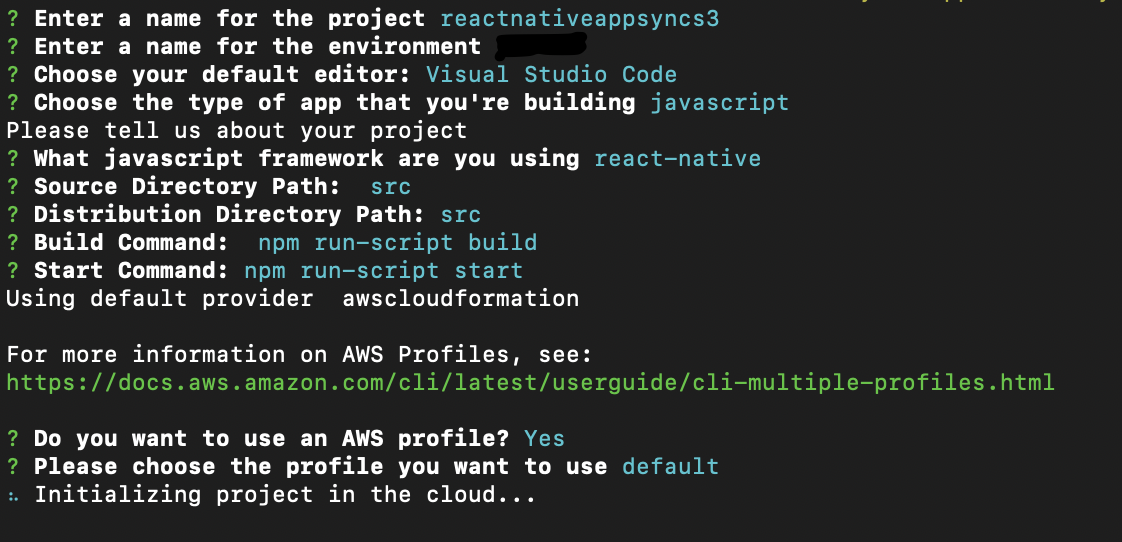
 amplify add auth

# When prompt, choose: Yes, use the default configuration.
 amplify add storage

# Choose: Content (Images, audio, video, etc.)
# Give access to only authenticated users.
# Give users read/write acces.
 amplify add api

# Choose GraphQL as the API service.
# Choose an authorization type for the API: Amazon Cognito User Pool
# Do you have an annotated GraphQL schema? Yes
# Provide your schema file path: src/graphQL/schema.graphql
 type Picture @model {
  id : ID !
  pictureOwnerId : String !
  pictureOwnerUsername : String !
  visibility : Visibility
  file : S3Object
  likes : [ Like ] @connection ( name : " PictureLikes " )
  flags : [ Flag ] @connection ( name : " PictureFlags " )
}

type Like @model {
  id : ID !
  likeOwnerId : String !
  likeOwnerUsername : String !
  picture : Picture @connection ( name : " PictureLikes " )
}

type Flag @model {
  id : ID !
  flagOwnerId : String !
  flagOwnerUsername : String !
  picture : Picture @connection ( name : " PictureFlags " )
}

type S3Object {
  bucket : String !
  region : String !
  key : String !
  uri : String !
}

enum Visibility {
  public
  private
} amplify push
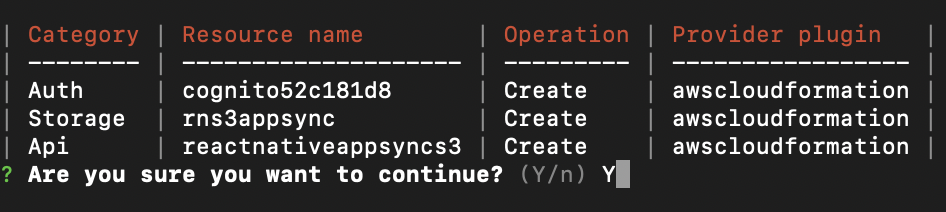
Do you want to generate code for your newly created GraphQL API: No.
AWS Amplify CLI將創建一個Amazon Cognito用戶池和身份池,一個Amazon S3存儲桶,用於存儲每個用戶圖片和AWS AppSync GraphQL API,該AppSync GraphQl API使用Amazon DynamedoDB存儲元數據有關圖片的元數據(即,桶名,喜歡,flags,flags,flags,flags,flags,land,所有者,日期創建日期等)。
 yarn

# or

npm install
src/myKeys.js文件中復制您的訪問權限和秘密鍵。 const keys = {
accessKey : 'blablabla' ,
secretKey : 'blablabla' ,
}
export default keys expo start --ios
# or
expo start --android
如果應用程序成功運行,您應該能夠按下相機圖標,允許訪問設備庫,然後從設備中選擇圖片。這將將圖片上傳到S3,然後進行GraphQl調用,將記錄輸入DynamoDB。
然後,您可以按“刷新”按鈕在屏幕上顯示圖片。
您可以喜歡/不同,並標記其他用戶圖片,並刪除自己的圖片。





