cropperjs
v1.6.2

JavaScript圖像作物。這是v1.x的分支,對於v2.x,請查看
v2分支。
 dist/
├── cropper.css
├── cropper.min.css   (compressed)
├── cropper.js        (UMD)
├── cropper.min.js    (UMD, compressed)
├── cropper.common.js (CommonJS, default)
└── cropper.esm.js    (ES Module)
npm install cropperjs在瀏覽器中:
 < link  href =" /path/to/cropper.css " rel =" stylesheet " >
< script src =" /path/to/cropper.js " > </ script >
CDNJS為Cropper.js的CSS和JavaScript提供了CDN支持。您可以在這裡找到鏈接。
new Cropper ( element [ , options ] )元素
HTMLImageElement或HTMLCanvasElement選項(可選)
Object <!-- Wrap the image or canvas element with a block element (container) -->
< div >
< img id =" image " src =" picture.jpg " >
</ div > /* Make sure the size of the image fits perfectly into the container */
img {
display : block;
/* This rule is very important, please don't ignore this */
max-width : 100 % ;
} // import 'cropperjs/dist/cropper.css';
import Cropper from 'cropperjs' ;
const image = document . getElementById ( 'image' ) ;
const cropper = new Cropper ( image , {
aspectRatio : 16 / 9 ,
crop ( event ) {
console . log ( event . detail . x ) ;
console . log ( event . detail . y ) ;
console . log ( event . detail . width ) ;
console . log ( event . detail . height ) ;
console . log ( event . detail . rotate ) ;
console . log ( event . detail . scaleX ) ;
console . log ( event . detail . scaleY ) ;
} ,
} ) ; 放大或放大後如何裁剪新區域?
只需雙擊鼠標即可進入作物模式。
裁剪區域後如何移動圖像?
只需雙擊鼠標即可進入移動模式。
如何以自由比模式固定縱橫比?
調整裁剪盒大小時只需握住
Shift鍵即可。
如何以自由比模式裁剪平方區域?
當您在圖像上裁剪時,只需握住
Shift鍵即可。
農作物的大小從圖像的父元素(包裝器)的大小繼承,因此請確保用可見的塊元素包裹圖像。
如果您在模態中使用Cropper,則應在完全顯示模態後初始化農作物。否則,您將無法獲得正確的農作物。
輸出的裁剪數據基於原始圖像大小,因此您可以使用它們直接裁剪圖像。
如果您嘗試在交叉原始圖像上啟動農作物,請確保您的瀏覽器支持HTML5 CORS設置屬性,並且您的Image Server支持Access-Control-Allow-Origin選項(請參閱HTTP訪問控制(CORS))。
已知的iOS資源限制:隨著iOS設備限制內存,當您裁剪大圖像(iPhone攝像頭分辨率)時,瀏覽器可能會崩潰。為了避免這種情況,您可以在開始農作物之前先調整圖像(最好低於1024像素)。
已知的圖像大小增加:使用HTMLCanvasElement.toDataURL方法在瀏覽器側導出裁剪的圖像時,導出的圖像的大小可能大於原始圖像的大小。這是因為導出圖像的類型與原始圖像不同。因此,只需將原始圖像的類型作為第一個參數傳遞給toDataURL即可解決此問題。例如,如果原始類型是jpeg,則使用cropper.getCroppedCanvas().toDataURL('image/jpeg')導出圖像。
⬆回到頂部
您可以設置具有new Cropper(image, options)的農作物選項。如果要更改全局默認選項,則可以使用Cropper.setDefaults(options) 。
Number00 :無限制1 :限制農作物盒不超過畫布的大小。2 :限制最小畫布大小以適合容器內。如果畫布的比例和容器的比例不同,則最小畫布將被其中一個尺寸的額外空間所包圍。3 :限制最小帆布尺寸以填充容器。如果畫布和容器的比例不同,則容器將無法將整個畫布安裝在其中一個尺寸中。定義農作物的視圖模式。如果將viewMode設置為0 ,則裁剪盒可以在畫布外面延伸,而1或3 2值將裁剪盒限制為畫布的大小。 2或3的viewMode將額外將畫布限制在容器中。當畫布和容器的比例相同時, 2和3之間沒有區別。
String'crop''crop' :創建一個新的農作物盒'move' :移動畫布'none' :什麼都不做定義農作物的拖動模式。
NumberNaN定義農作物盒的初始長寬比。默認情況下,它與畫布(圖像包裝器)的長寬比相同。
僅在將
aspectRatio選項設置為NaN時可用。
NumberNaN定義農作物盒的固定縱橫比。默認情況下,農作物盒的自由比率。
Objectnull初始化時,您存儲的先前的裁剪數據將自動傳遞到setData方法。
僅當
autoCrop選項設置為true時才可用。
Element , Array (元素), NodeList或String (選擇器)''添加額外的元素(容器)進行預覽。
筆記:
aspectRatio選項,請確保將相同的長寬比設置為預覽容器。overflow: hidden樣式到預覽容器。Booleantrue調整窗口時,重新渲染農作物。
Booleantrue調整窗戶後,恢復了裁剪區域。
Booleantrue檢查當前圖像是否是交叉原始圖像。
如果是這樣,則將crossOrigin屬性添加到克隆的圖像元素中,並將時間戳參數添加到src屬性中以重新加載源圖像,以避免瀏覽器緩存錯誤。
在圖像元素中添加crossOrigin屬性將停止在圖像URL中添加時間戳,並停止重新加載圖像。但是,請求(XMLHTTPREQUEST)要讀取圖像數據以進行方向檢查,將需要時間戳破壞緩存,以避免瀏覽器緩存錯誤。您可以將checkOrientation選項設置為false以取消此請求。
如果圖像的crossOrigin屬性屬性的值是"use-credentials" ,則當通過xmlhttprequest讀取圖像數據時, withCredentials屬性將設置為true 。
Booleantrue檢查當前圖像的EXIF方向信息。請注意,只有JPEG圖像可以包含EXIF方向信息。
確切地說,讀取旋轉或翻轉圖像的方向值,然後用1 (默認值)覆蓋方向值,以避免iOS設備上的某些問題(1,2)。
要求將rotatable和scalable選項同時設置為true 。
注意:不要一直信任這個,因為某些JPG圖像可能具有不正確(非標準)方向值
需要打字陣列支持(即10+)。
Booleantrue在圖像上方和農作物盒下方顯示黑色模態。
Booleantrue在農作物盒上方顯示虛線。
Booleantrue在農作物盒上方顯示中心指示器。
Booleantrue在農作物盒上方顯示白色模態(突出顯示農作物盒)。
Booleantrue顯示容器的網格背景。
Booleantrue初始化時可以自動裁剪圖像。
Number0.8 (圖像的80%)它應該是0到1之間的數字。定義自動裁剪區域的大小(百分比)。
Booleantrue使圖像移動。
Booleantrue使圖像旋轉。
Booleantrue啟用可以擴展圖像。
Booleantrue啟用可以縮放圖像。
Booleantrue通過拖動觸摸來啟用圖像。
Booleantrue啟用鼠標輪轂縮放圖像。
Number0.1通過鼠標旋轉縮放圖像時定義縮放比率。
Booleantrue可以通過拖動移動裁剪盒。
Booleantrue可以通過拖動來調整裁剪盒的大小。
Booleantrue在單擊裁剪者兩次時,可以在"crop"和"move"之間切換拖動模式。
需要
dblclick事件支持。
Number200容器的最小寬度。
Number100容器的最小高度。
Number0畫布的最小寬度(圖像包裝器)。
Number0畫布的最小高度(圖像包裝紙)。
Number0農作物盒的最小寬度。
注意:此大小相對於頁面而不是圖像。
Number0農作物盒的最小高度。
注意:此大小相對於頁面而不是圖像。
Functionnull ready事件的快捷方式。
Functionnull cropstart活動的快捷方式。
Functionnull cropmove活動的快捷方式。
Functionnull cropend事件的快捷方式。
Functionnull crop事件的快捷方式。
Functionnull zoom事件的快捷方式。
⬆回到頂部
由於加載圖像時存在異步過程,因此您應該在準備就緒後調用大多數方法,除了setAspectRatio , replace和destroy 。
如果方法不需要返回任何值,則它將返回鏈構成的Cropper實例(
this)。
 new Cropper ( image , {
  ready ( ) {
    // this.cropper[method](argument1, , argument2, ..., argumentN);
    this . cropper . move ( 1 , - 1 ) ;

    // Allows chain composition
    this . cropper . move ( 1 , - 1 ) . rotate ( 45 ) . scale ( 1 , - 1 ) ;
  } ,
} ) ;手動顯示農作物盒。
 new Cropper ( image , {
  autoCrop : false ,
  ready ( ) {
    // Do something here
    // ...

    // And then
    this . cropper . crop ( ) ;
  } ,
} ) ;將圖像和裁剪盒重置為初始狀態。
清除農作物盒。
URL :
StringHassamesize (可選):
Booleanfalse更換圖像的SRC並重建農作物。
啟用(解凍)農作物。
禁用(凍結)農作物。
破壞農作物並從圖像中刪除實例。
OffSetX :
NumberOffsety (可選):
NumberoffsetX 。用相對偏移移動畫布(圖像包裝器)。
 cropper . move ( 1 ) ;
cropper . move ( 1 , 0 ) ;
cropper . move ( 0 , - 1 ) ;X :
Numberleft值y (可選):
Numbertop價值x 。將畫布(圖像包裝器)移至絕對點。
Number縮放以相對比率的畫布(圖像包裝器)。
 cropper . zoom ( 0.1 ) ;
cropper . zoom ( - 0.1 ) ;比率:
Number樞軸(可選):
Object{ x: Number, y: Number }將畫布(圖像包裝器)縮小到絕對比率。
 cropper . zoomTo ( 1 ) ; // 1:1 (canvasData.width === canvasData.naturalWidth)

const containerData = cropper . getContainerData ( ) ;

// Zoom to 50% from the center of the container.
cropper . zoomTo ( .5 , {
  x : containerData . width / 2 ,
  y : containerData . height / 2 ,
} ) ;Number將圖像旋轉至相對程度。
需要CSS3 2D變換支持(即9+)。
 cropper . rotate ( 90 ) ;
cropper . rotate ( - 90 ) ;Number將圖像旋轉至絕對程度。
Scalex :
Number11 ,它無濟於事。比例尺(可選):
NumberscaleX 。縮放圖像。
需要CSS3 2D變換支持(即9+)。
 cropper . scale ( - 1 ) ; // Flip both horizontal and vertical
cropper . scale ( - 1 , 1 ) ; // Flip horizontal
cropper . scale ( 1 , - 1 ) ; // Flip verticalNumber11 ,它無濟於事。縮放圖像的腹部。
Number11 ,它無濟於事。縮放圖像的縱縱尺。
圓形(可選):
Booleanfalsetrue以獲取圓形值。(返回值):
Objectx :裁剪區域的左偏置y :裁剪區域的偏移頂部width :裁剪區域的寬度height :裁剪區域的高度rotate :圖像的旋轉度scaleX :應用於圖像的橫坐標的縮放係數scaleY :應用於圖像的縱坐標的縮放係數輸出最終的裁剪區域位置和大小數據(基於原始圖像的自然尺寸)。
您可以將數據發送到服務器端以直接裁剪圖像:
- 用
rotate屬性旋轉圖像。- 用
scaleX和scaleY屬性縮放圖像。- 用
x,y,width和height特性裁剪圖像。
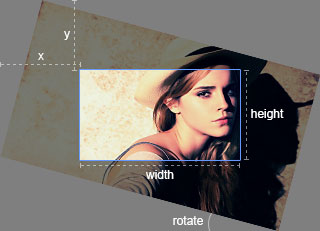
ObjectgetData方法。使用新數據(基於原始圖像)更改裁剪的區域位置和大小。
注意:僅當
viewMode選項的值大於或等於1,此方法才可用。
Objectwidth :容器的當前寬度height :容器的當前高度輸出容器大小數據。
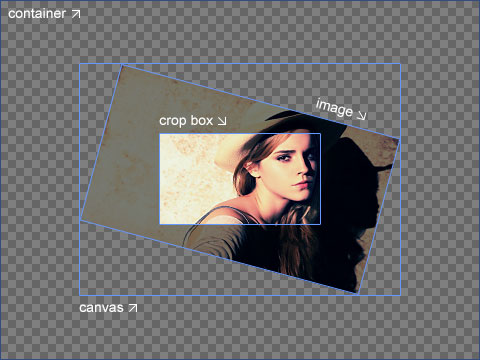
Objectleft :圖像左側的偏移top :圖像的偏置頂部width :圖像的寬度height :圖像的高度naturalWidth :圖像的自然寬度naturalHeight :圖像的自然高度aspectRatio :圖像的縱橫比rotate :圖像的旋轉程度如果旋轉scaleX :如果縮放,則適用於圖像的橫坐標的縮放係數scaleY :如果縮放,則適用於圖像的縱柱的縮放係數輸出圖像位置,大小和其他相關數據。
Objectleft :畫布的左偏置top :畫布的偏移頂width :畫布的寬度height :畫布的高度naturalWidth :畫布的自然寬度(僅讀)naturalHeight :畫布的自然高度(僅讀)輸出畫布(圖像包裝器)位置和大小數據。
 const imageData = cropper . getImageData ( ) ;
const canvasData = cropper . getCanvasData ( ) ;

if ( imageData . rotate % 180 === 0 ) {
  console . log ( canvasData . naturalWidth === imageData . naturalWidth ) ;
  // > true
}Objectleft :畫布的新偏移量top :新的偏移頂部width :畫布的新寬度height :畫布的新高度使用新數據更改畫布(圖像包裝器)位置和大小。
Objectleft :農作物盒的左偏置top :農作物盒的偏移頂部width :農作物盒的寬度height :農作物盒的高度輸出農作物盒的位置和尺寸數據。
Objectleft :農作物盒的新偏移量top :新的偏移量的裁剪盒頂部width :農作物盒的新寬度height :農作物盒的新高度使用新數據更改農作物盒的位置和大小。
選項(可選):
Objectwidth :輸出畫布的目標寬度。height :輸出畫布的目的地高度。minWidth :輸出畫布的最小目標寬度,默認值為0 。minHeight :輸出畫布的最小目的地高度,默認值為0 。maxWidth :輸出畫布的最大目標寬度,默認值是Infinity 。maxHeight :輸出畫布的最大目標高度,默認值是Infinity 。fillColor :填充輸出畫布中任何Alpha值的顏色,默認值是transparent 。imageSmoothingEnabled :如果圖像平滑( true ,默認)( false ),則設置為更改。imageSmoothingQuality :設置圖像平滑的質量,是“低”(默認),“中”或“高”之一。rounded : true為使用圓形值(裁剪的區域位置和尺寸數據),默認值為false 。(返回值):
HTMLCanvasElement筆記:
fillColor選項,如果不是,則默認情況下,JPEG圖像中的透明部分將變為黑色。瀏覽器支持:
從裁剪圖像(有損壓縮)中獲取畫布。如果沒有裁剪,則返回繪製整個圖像的畫布。
之後,您可以將畫布直接顯示為圖像,也可以使用htmlcanvaselement.todataurl獲取數據URL,或使用htmlcanvaselement.toblob獲取blob並使用formdata上傳,如果瀏覽器支持這些API,則使用formdata上傳。
避免獲得空白(或黑色)輸出圖像,您可能需要將maxWidth和maxHeight屬性設置為有限的數字,因為畫布元素的尺寸限制。另外,出於相同的原因,您應該限制最大縮放比率(在zoom事件中)。
 cropper . getCroppedCanvas ( ) ;

cropper . getCroppedCanvas ( {
  width : 160 ,
  height : 90 ,
} ) ;

cropper . getCroppedCanvas ( {
  minWidth : 256 ,
  minHeight : 256 ,
  maxWidth : 4096 ,
  maxHeight : 4096 ,
} ) ;

cropper . getCroppedCanvas ( {
  fillColor : '#fff' ,
  imageSmoothingEnabled : false ,
  imageSmoothingQuality : 'high' ,
} ) ;

// Upload cropped image to server if the browser supports `HTMLCanvasElement.toBlob`.
// The default value for the second parameter of `toBlob` is 'image/png', change it if necessary.
cropper . getCroppedCanvas ( ) . toBlob ( ( blob ) => {
  const formData = new FormData ( ) ;

  // Pass the image file name as the third parameter if necessary.
  formData . append ( 'croppedImage' , blob /*, 'example.png' */ ) ;

  // Use `jQuery.ajax` method for example
  $ . ajax ( '/path/to/upload' , {
    method : 'POST' ,
    data : formData ,
    processData : false ,
    contentType : false ,
    success ( ) {
      console . log ( 'Upload success' ) ;
    } ,
    error ( ) {
      console . log ( 'Upload error' ) ;
    } ,
  } ) ;
} /*, 'image/png' */ ) ;Number更改農作物盒的縱橫比。
String'none''none' , 'crop' , 'move'更改阻力模式。
提示:您可以雙擊裁剪器來切換“作物”和“移動”模式。
⬆回到頂部
當已加載目標圖像並準備好操作時,此事件會發射。
 let cropper ;

image . addEventListener ( 'ready' , function ( ) {
  console . log ( this . cropper === cropper ) ;
  // > true
} ) ;

cropper = new Cropper ( image ) ;event.detail.originalevent :
Eventpointerdown , touchstart和mousedownevent.detail.action :
String'crop' :創建一個新的農作物盒'move' :移動畫布(圖像包裝器)'zoom' :通過觸摸縮放 /輸入 /輸出畫布(圖像包裝器)。'e' :調整裁剪盒的東側大小'w' :調整裁剪盒的西側大小's' :調整裁剪盒的南側大小'n' :調整裁剪盒的北側大小'se' :調整裁剪盒的東南側'sw' :調整了農作物盒的西南側'ne' :調整裁剪盒的東北側'nw' :調整裁剪盒西北的大小'all' :移動農作物盒(所有方向)當畫布(圖像包裝紙)或作物盒開始改變時,此事件會發射。
 image . addEventListener ( 'cropstart' , ( event ) => {
  console . log ( event . detail . originalEvent ) ;
  console . log ( event . detail . action ) ;
} ) ;event.detail.originalevent :
Eventpointermove , touchmove和mousemove 。event.detail.action :與“ cropstart”相同。
當畫布(圖像包裝紙)或農作物盒發生變化時,此事件會發射。
event.detail.originalevent :
Eventpointerup , pointercancel , touchend , touchcancel和mouseup 。event.detail.action :與“ cropstart”相同。
當畫布(圖像包裝紙)或農作物盒停止更改時,此事件會發射。
關於這些屬性,請參閱
getData方法。
當畫布(圖像包裝紙)或裁剪盒變化時,此事件會發射。
筆記:
autoCrop選項設置為true ,將在ready事件之前觸發crop事件。data選項後,將在ready事件之前觸發另一個crop事件。event.detail.originalevent :
Eventwheel , pointermove , touchmove和mousemove 。event.detail.oldratio :
Numberevent.detail.ratio :
NumbercanvasData.width / canvasData.naturalWidth )當農作物實例開始放大或縮放其畫布(圖像包裝器)時,此事件會發射。
 image . addEventListener ( 'zoom' , ( event ) => {
  // Zoom in
  if ( event . detail . ratio > event . detail . oldRatio ) {
    event . preventDefault ( ) ; // Prevent zoom in
  }

  // Zoom out
  // ...
} ) ;
⬆回到頂部
如果您必須使用另一個具有相同名稱空間的農作物,只需調用Cropper.noConflict靜態方法即可恢復。
 < script src =" other-cropper.js " > </ script >
< script src =" cropper.js " > </ script >
< script >
  Cropper . noConflict ( ) ;
  // Code that uses other `Cropper` can follow here.
</ script > 請閱讀我們的貢獻指南。
根據語義版本指南維護。
麻省理工學院©Chen Fengyuan
⬆回到頂部





