cmdk
v1.0.4

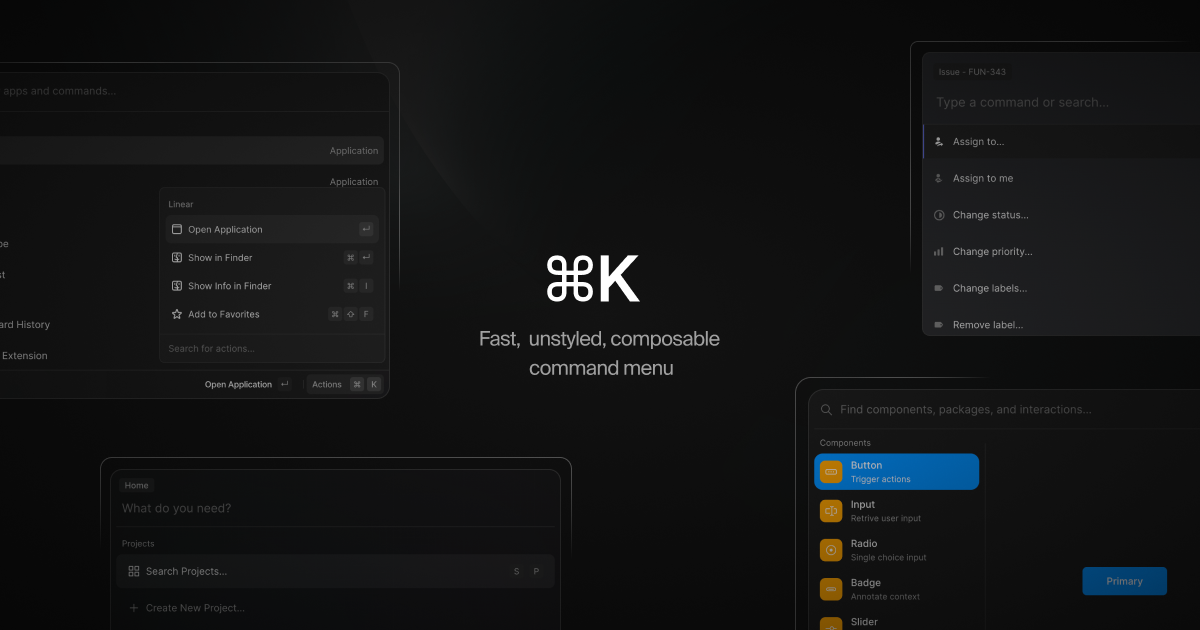
⌘K是命令菜单React组件,也可以用作可访问的ComboBox。您渲染项目,它会自动过滤和分类。 ⌘K支持完全合并的API ? ,因此您可以将项目包裹在其他组件中,甚至可以作为静态JSX。
演示和示例:cmdk.paco.me
pnpm install cmdk import { Command } from 'cmdk'
const CommandMenu = ( ) => {
return (
< Command label = "Command Menu" >
< Command . Input / >
< Command . List >
< Command . Empty > No results found. < / Command . Empty >
< Command . Group heading = "Letters" >
< Command . Item > a < / Command . Item >
< Command . Item > b < / Command . Item >
< Command . Separator / >
< Command . Item > c < / Command . Item >
< / Command . Group >
< Command . Item > Apple < / Command . Item >
< / Command . List >
< / Command >
)
}或在对话框中:
 import { Command } from 'cmdk'

const CommandMenu = ( ) => {
  const [ open , setOpen ] = React . useState ( false )

  // Toggle the menu when ⌘K is pressed
  React . useEffect ( ( ) => {
    const down = ( e ) => {
      if ( e . key === 'k' && ( e . metaKey || e . ctrlKey ) ) {
        e . preventDefault ( )
        setOpen ( ( open ) => ! open )
      }
    }

    document . addEventListener ( 'keydown' , down )
    return ( ) => document . removeEventListener ( 'keydown' , down )
  } , [ ] )

  return (
    < Command . Dialog open = { open } onOpenChange = { setOpen } label = "Global Command Menu" >
      < Command . Input / >
      < Command . List >
        < Command . Empty > No results found. < / Command . Empty >

        < Command . Group heading = "Letters" >
          < Command . Item > a < / Command . Item >
          < Command . Item > b < / Command . Item >
          < Command . Separator / >
          < Command . Item > c < / Command . Item >
        < / Command . Group >

        < Command . Item > Apple < / Command . Item >
      < / Command . List >
    < / Command . Dialog >
  )
} 所有零件向前的道具(包括ref )到适当的元素。每个部分都有一个特定的数据属性(从cmdk-开始),可用于样式。
[cmdk-root]渲染以显示内联命令菜单,或使用对话框在高架上下文中渲染。可以用value和onValueChange道具来控制。
笔记
始终使用Trim()方法对值进行修剪。
 const [ value , setValue ] = React . useState ( 'apple' )

return (
  < Command value = { value } onValueChange = { setValue } >
    < Command . Input / >
    < Command . List >
      < Command . Item > Orange < / Command . Item >
      < Command . Item > Apple < / Command . Item >
    < / Command . List >
  < / Command >
)您可以提供一个自定义filter功能来对每个项目进行排名。请注意,该值将被修剪。
 < Command
  filter = { ( value , search ) => {
    if ( value . includes ( search ) ) return 1
    return 0
  } }
/ >
第三个参数, keywords ,也可以向过滤器函数提供。关键字充当项目值的别名,也可能影响项目的排名。关键字被修剪。
 < Command
  filter = { ( value , search , keywords ) => {
    const extendValue = value + ' ' + keywords . join ( ' ' )
    if ( extendValue . includes ( search ) ) return 1
    return 0
  } }
/ >
或完全禁用过滤和分类:
 < Command shouldFilter = { false } >
  < Command . List >
    { filteredItems . map ( ( item ) => {
      return (
        < Command . Item key = { item } value = { item } >
          { item }
        < / Command . Item >
      )
    } ) }
  < / Command . List >
< / Command >您可以通过设置loop道具将箭头键包裹在列表周围(当您到达末端时,它将返回到第一个项目):
< Command loop / >[cmdk-dialog] [cmdk-overlay]道具被转发为指挥。组成Radix UI的对话框组件。覆盖层总是呈现的。有关更多信息,请参见Radix文档。可以通过open和onOpenChange道具来控制。
 const [ open , setOpen ] = React . useState ( false )

return (
  < Command . Dialog open = { open } onOpenChange = { setOpen } >
    ...
  < / Command . Dialog >
)您可以提供一个接受HTML元素的container支架,该元素被转发到Radix UI的对话框门户网站组件,以指定对话框应将其输入到哪个元素(默认为body )。有关更多信息,请参见Radix文档。
 const containerElement = React . useRef ( null )

return (
  < >
    < Command . Dialog container = { containerElement . current } / >
    < div ref = { containerElement } / >
  < / >
)[cmdk-input]所有道具都转发到基础input元素。可以用value和onValueChange道具来控制。
 const [ search , setSearch ] = React . useState ( '' )

return < Command . Input value = { search } onValueChange = { setSearch } / >[cmdk-list]包含项目和组。使用--cmdk-list-height CSS变量进行动画高度。
[ cmdk-list ] {
  min-height : 300 px ;
  height : var ( --cmdk-list-height );
  max-height : 500 px ;
  transition : height 100 ms ease;
}
要在视口边缘附近滚动项目滚动到视图中,请使用滚动填充:
[ cmdk-list ] {
  scroll-padding-block-start : 8 px ;
  scroll-padding-block-end : 8 px ;
}[cmdk-item] [data-disabled?] [data-selected?]在指针Enter上活跃的项目。您应该为每个项目提供一个唯一的value ,但会自动从.textContent推断出来。
 < Command . Item
  onSelect = { ( value ) => console . log ( 'Selected' , value ) }
  // Value is implicity "apple" because of the provided text content
>
  Apple
< / Command . Item >您还可以提供一个keywords道具来帮助过滤。关键字被修剪。
< Command . Item keywords = { [ 'fruit' , 'apple' ] } > Apple < / Command . Item > < Command . Item
onSelect = { ( value ) => console . log ( 'Selected' , value ) }
// Value is implicity "apple" because of the provided text content
>
Apple
< / Command . Item >您可以通过传递forceMount Prop强迫物品始终渲染,无论其过滤如何。
[cmdk-group] [hidden?]将项目与给定的heading ( [cmdk-group-heading] )组合在一起。
 < Command . Group heading = "Fruit" >
  < Command . Item > Apple < / Command . Item >
< / Command . Group >组不会从DOM卸载,而是应用hidden属性将其隐藏在视图中。这可能与您的样式有关。
您可以通过通过forceMount Prop迫使团队始终渲染,无论其过滤如何。
[cmdk-separator]当搜索查询为空或alwaysRender时可见,否则会隐藏。
[cmdk-empty]当搜索查询没有结果时,会自动渲染。
[cmdk-loading]在加载异步项目时,您应该有条件地以progress渲染这一点。
 const [ loading , setLoading ] = React . useState ( false )

return < Command . List > { loading && < Command . Loading > Hang on… < / Command . Loading > } < / Command . List >
useCommandState(state => state.selectedField)组成useSyncExternalStore钩子。传递一个函数,该函数将命令菜单状态的切片返回以重新渲染时,切片更改。此挂钩是为高级用例提供的,不应常用。
一个好的用例是渲染一个更详细的空状态,这样的用例:
 const search = useCommandState ( ( state ) => state . search )
return < Command . Empty > No results found for " { search } ". < / Command . Empty > 常见用例的代码片段。
通常,选择一个项目应更深入地导航,并具有更精致的项目。例如,选择“更改主题…”应该显示新项目“深色主题”和“光主题”。我们将这些项目称为“页面”,可以以简单的状态实现:
 const ref = React . useRef ( null )
const [ open , setOpen ] = React . useState ( false )
const [ search , setSearch ] = React . useState ( '' )
const [ pages , setPages ] = React . useState ( [ ] )
const page = pages [ pages . length - 1 ]

return (
  < Command
    onKeyDown = { ( e ) => {
      // Escape goes to previous page
      // Backspace goes to previous page when search is empty
      if ( e . key === 'Escape' || ( e . key === 'Backspace' && ! search ) ) {
        e . preventDefault ( )
        setPages ( ( pages ) => pages . slice ( 0 , - 1 ) )
      }
    } }
  >
    < Command . Input value = { search } onValueChange = { setSearch } / >
    < Command . List >
      { ! page && (
        < >
          < Command . Item onSelect = { ( ) => setPages ( [ ... pages , 'projects' ] ) } > Search projects… < / Command . Item >
          < Command . Item onSelect = { ( ) => setPages ( [ ... pages , 'teams' ] ) } > Join a team… < / Command . Item >
        < / >
      ) }

      { page === 'projects' && (
        < >
          < Command . Item > Project A < / Command . Item >
          < Command . Item > Project B < / Command . Item >
        < / >
      ) }

      { page === 'teams' && (
        < >
          < Command . Item > Team 1 < / Command . Item >
          < Command . Item > Team 2 < / Command . Item >
        < / >
      ) }
    < / Command . List >
  < / Command >
)如果您的项目具有仅在搜索时要揭示的嵌套子项目,请根据搜索状态进行渲染:
 const SubItem = ( props ) => {
  const search = useCommandState ( ( state ) => state . search )
  if ( ! search ) return null
  return < Command . Item { ... props } / >
}

return (
  < Command >
    < Command . Input / >
    < Command . List >
      < Command . Item > Change theme… < / Command . Item >
      < SubItem > Change theme to dark < / SubItem >
      < SubItem > Change theme to light < / SubItem >
    < / Command . List >
  < / Command >
)渲染物品可用。过滤和排序将自动发生。
 const [ loading , setLoading ] = React . useState ( false )
const [ items , setItems ] = React . useState ( [ ] )

React . useEffect ( ( ) => {
  async function getItems ( ) {
    setLoading ( true )
    const res = await api . get ( '/dictionary' )
    setItems ( res )
    setLoading ( false )
  }

  getItems ( )
} , [ ] )

return (
  < Command >
    < Command . Input / >
    < Command . List >
      { loading && < Command . Loading > Fetching words… < / Command . Loading > }
      { items . map ( ( item ) => {
        return (
          < Command . Item key = { `word- ${ item } ` } value = { item } >
            { item }
          < / Command . Item >
        )
      } ) }
    < / Command . List >
  < / Command >
)我们建议使用Radix UI弹出组件。 ⌘K依赖于Radix UI对话框组件,因此由于共享依赖关系,这将稍微降低您的捆绑包大小。
$ pnpm install @radix-ui/react-popover弹出内容内部的渲染Command :
 import * as Popover from '@radix-ui/react-popover'

return (
  < Popover . Root >
    < Popover . Trigger > Toggle popover < / Popover . Trigger >

    < Popover . Content >
      < Command >
        < Command . Input / >
        < Command . List >
          < Command . Item > Apple < / Command . Item >
        < / Command . List >
      < / Command >
    < / Popover . Content >
  < / Popover . Root >
)您可以找到可以放置的全球样式表作为样式的起点。有关示例,请参见网站/样式/CMDK。
可以访问?是的。标记,ARIA属性和DOM排序用语音和Chrome DevTools测试。对话框组成了可访问的对话框实现。
虚拟化?不。不过,良好的性能高达2,000-3,000件。在下面阅读以携带自己的。
过滤/分类项目?是的。通过shouldFilter={false}命令。更好的内存使用和性能。以这种方式带上自己的虚拟化。
反应18安全吗?是的,需要。使用React 18挂钩,例如useId和useSyncExternalStore 。
不风格?是的,使用列出的CSS选择器。
水合不匹配?不,您的代码可能是一个错误。确保服务器上的Command.Dialog的open prop.dialog是false 。
反应严格模式安全吗?是的。如果您注意到一个问题,请打开问题。
怪异/错误的行为?确保您的Command.Item具有key和独特的value 。
并发模式安全?也许,但是并发模式尚不真实。使用诸如手动DOM排序之类的风险方法。
React服务器组件?不,这是客户端组件。
自动听⌘K?不,请自己完全控制钥匙扣上下文。
反应天然?不,也没有支持它的计划。如果您构建了React Native版本,请告诉我们,我们将在此处链接您的存储库。
Paco(@pacocoursey)在2019年撰写,以查看是否有可能组合组合API。用于Vercel命令菜单,并于2020年由Rauno(@raunofreiberg)自动完成。在2022年独立重写,采用更简单,更具性能的方法。 Shu(@shuding_)的想法和帮助。
从2019年版中提取了使用降低者。
首先,安装依赖项和剧作家浏览器:
pnpm install
pnpm playwright install
然后确保您已经构建了库:
pnpm build然后使用您的本地构建对实际浏览器引擎进行测试:
pnpm test




