The main purpose of crawlers is to collect some specific data that is publicly available on the Internet. Using this data, we can analyze some trends and compare them, or train models for deep learning, etc. In this issue, we will introduce a node.js package specifically used for web crawling - node-crawler , and we will use it to complete a simple crawler case to crawl images on web pages and download them locally.
node-crawler is a lightweight node.js crawler tool that takes into account both efficiency and convenience. It supports distributed crawler systems, hard coding, and http front-end agents. Moreover, it is entirely written in nodejs and inherently supports non-blocking asynchronous IO, which provides great convenience for the crawler's pipeline operation mechanism. At the same time, it supports quick selection of DOM (you can use jQuery syntax), which can be said to be a killer feature for the task of crawling specific parts of web pages. There is no need to hand-write regular expressions, which improves the efficiency of crawler development.
, we first create a new project and create index.js as the entry file.
Then install the crawler library node-crawler .
#PNPM
pnpm add crawler
#NPM
npm i -S crawler
#yarn
yarn add crawler
and then use require to introduce it.
// index.js
const Crawler = require("crawler"); // index.js
let crawler = new Crawler({
timeout:10000,
jQuery: true,
})
function getImages(uri) {
crawler.queue({
uri,
callback: (err, res, done) => {
if (err) throw err;
}
})
} From now on we will start to write a method to get the image of the html page. After crawler is instantiated, it is mainly used to write links and callback methods in its queue. This callback function will be called after each request is processed.
It should also be noted here that Crawler uses the request library, so the parameter list available for Crawler configuration is a superset of the parameters of the request library, that is, all configurations in request library are applicable to Crawler .
Maybe you also saw the jQuery parameter just now. You guessed it right, it can use jQuery syntax to capture DOM elements.
// index.js
let data = []
function getImages(uri) {
    crawler.queue({
        uri,
        callback: (err, res, done) => {
            if (err) throw err;
            let $ = res.$;
            try {
                let $imgs = $("img");
                Object.keys($imgs).forEach(index => {
                    let img = $imgs[index];
                    const { type, name, attributes = {} } = img;
                    let src = attribs.src || "";
                    if (type === "tag" && src && !data.includes(src)) {
                        let fileSrc = src.startsWith('http') ? src : `https:${src}`
                        let fileName = src.split("/")[src.split("/").length-1]
                        downloadFile(fileSrc, fileName) // How to download pictures data.push(src)
                    }
                });
            } catch (e) {
                console.error(e);
                done()
            }
            done();
        }
    })
}
You can see that you just used $ to capture the img tag in the request. Then we use the following logic to process the link to the completed image and strip out the name so that it can be saved and named later. An array is also defined here, its purpose is to save the captured image address. If the same image address is found in the next capture, the download will not be processed repeatedly.
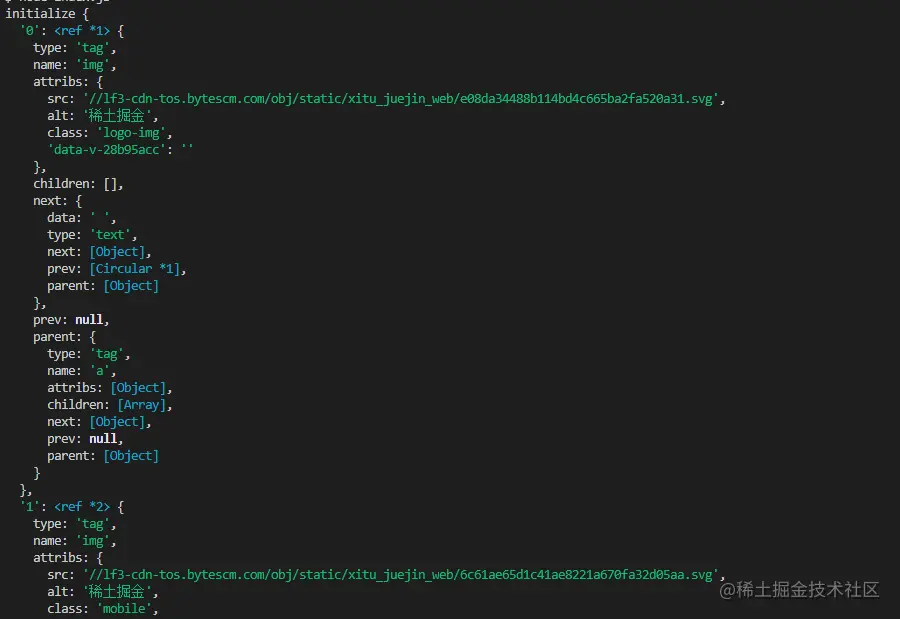
The following is the information printed using $("img") to capture the Nuggets home page HTML:
downloading the image,
we need to install a nodejs package - axios . Yes, you read it right. axios is not only provided for the front end, it can also be used by the back end. But because downloading pictures needs to be processed into a data stream, responseType is set to stream . Then you can use the pipe method to save the data flow file.
const { default: axios } = require("axios");
const fs = require('fs');

async function downloadFile(uri, name) {
    let dir = "./imgs"
    if (!fs.existsSync(dir)) {
        await fs.mkdirSync(dir)
    }
    let filePath = `${dir}/${name}`
    let res = await axios({
        url: uri,
        responseType: 'stream'
    })
    let ws = fs.createWriteStream(filePath)
    res.data.pipe(ws)
    res.data.on("close",()=>{
        ws.close();
    })
}
Because there may be a lot of pictures, so if you want to put them in one folder, you need to determine whether there is such a folder. If not, create one. Then use the createWriteStream method to save the obtained data stream to the folder in the form of a file.
Then we can try it. For example, we capture the image under the html of the Nuggets homepage:
// index.jsAfter executing
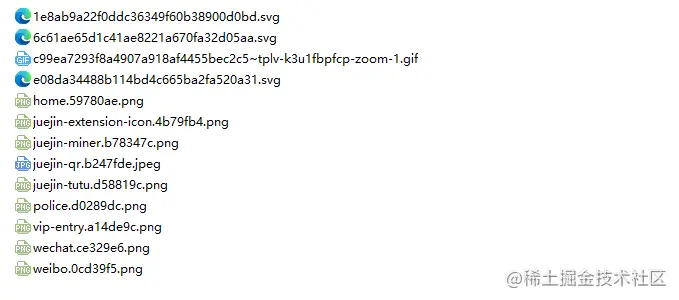
getImages("https://juejin.cn/"), you can find that all the images in the static html have been captured.
node index.js
Conclusion
At the end, you can also see that this code may not work for SPA (Single Page Application). Since there is only one HTML file in a single-page application, and all the content on the web page is dynamically rendered, it remains the same. No matter what, you can directly handle its data request to collect the information you want. No.
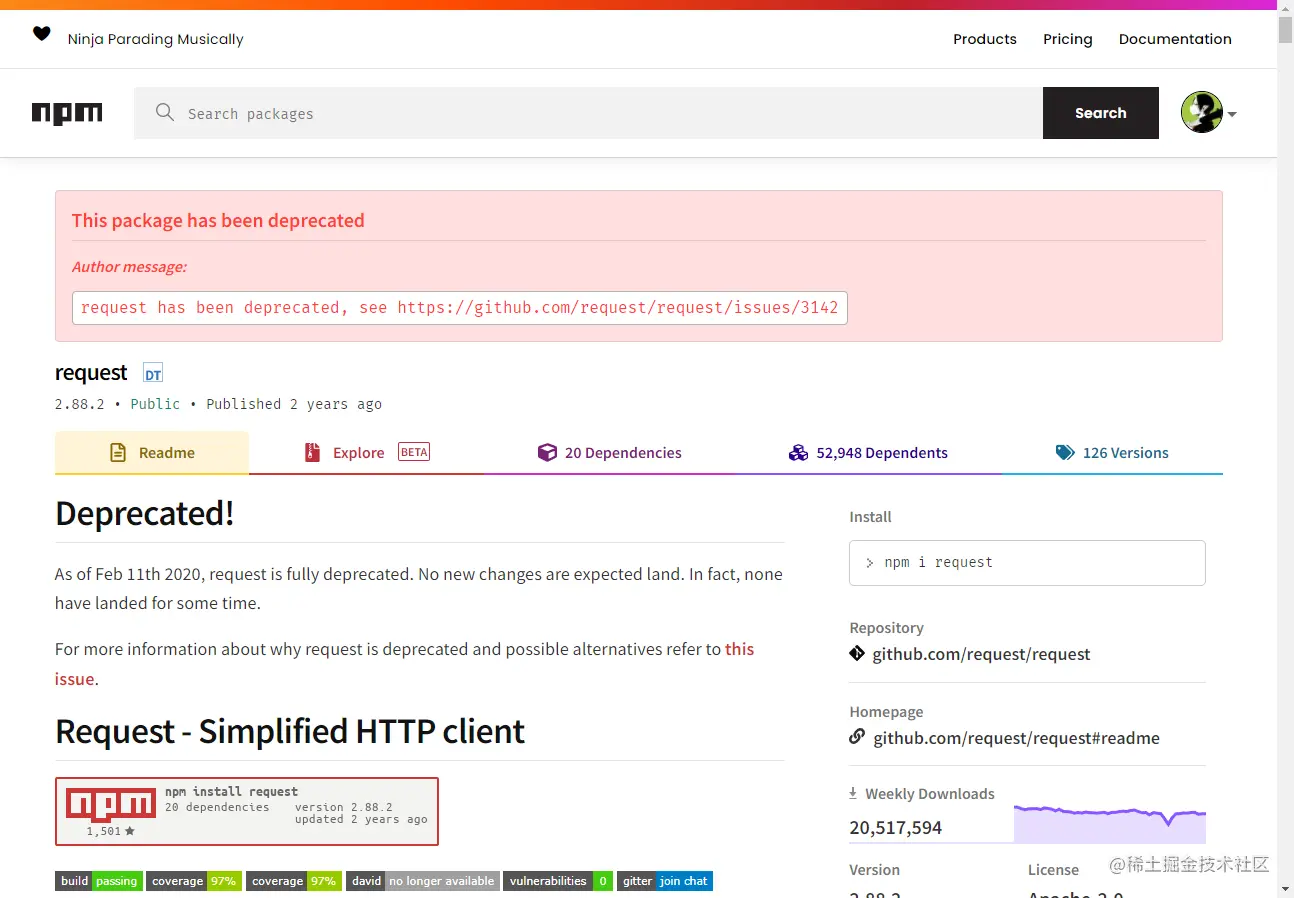
Another thing to say is that many friends use request.js to process requests to download images. Of course, this is possible, and even the amount of code is smaller. However, what I want to say is that this library has already been used in 2020. It is deprecated. It is better to change to a library that is constantly being updated and maintained.