
Honeyview is also called Honey Browser. Don’t underestimate it. In fact, it can do some processing on pictures. The following is a tutorial on how to crop pictures with Honeyview . Friends who need it, please come and take a look.

1. First we need to open honeyview, then right-click on the page and select [Open Image] from the pop-up menu option.

2. A local folder page will pop up. Find the folder where the pictures are saved, then select the pictures you want to import. After selecting them, click the [Open] button to import.

3. The imported pictures will be displayed in the software. Then click the [Edit] drop-down button in the upper right corner with the mouse and select [Convert Pictures].
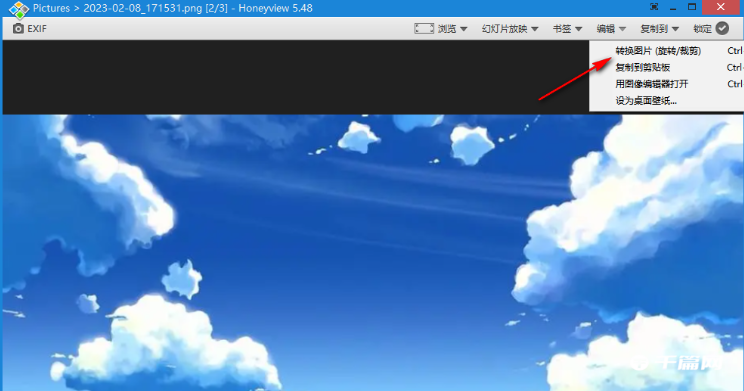
4. Then click on the drop-down option of [Crop] on the left to open it, and select [Crop].

5. Then enter a new size for the cropped image in the box behind [New Size], then click the drop-down button of [Format Settings] to open it, and select the image format you want to save.

6. Then set the [Quality]. The higher the value, the better the quality. Set the location to save the picture according to your preference, and then click the [Start] button.

7. Then you can check the effect of the cropped image on the page where you save the image.
