BlazorDatasheet
1.0.0

표식 데이터를 편집하기위한 간단한 데이터 시트 구성 요소.
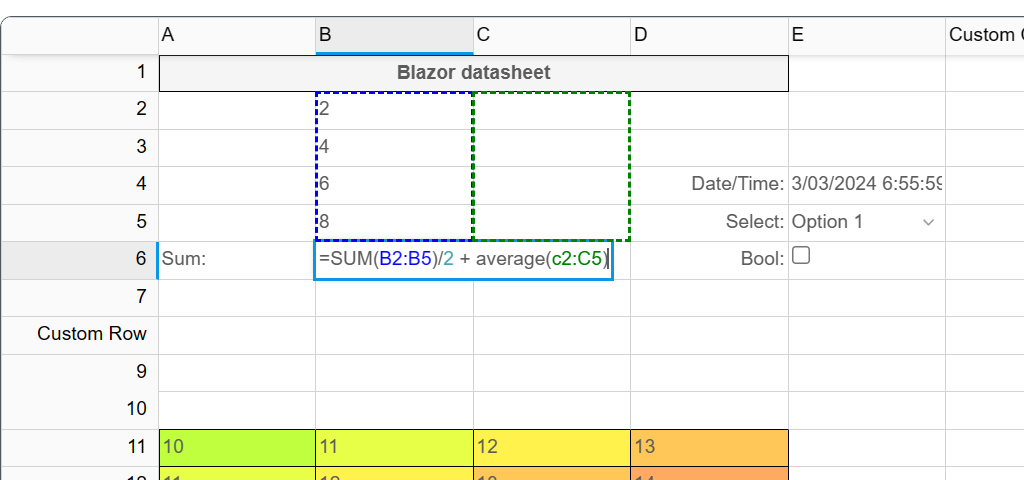
데모 : https://anmcgrath.github.io/blazordatasheet/
dotnet add package BlazorDatasheet프로그램에서 필요한 서비스를 추가하십시오.
builder . Services . AddBlazorDatasheet ( ) ; _layout.cshtml 또는 index.html에서
<link href="_content/BlazorDatasheet/sheet-styles.css" rel="stylesheet"/>
그리고
<script src="_content/BlazorDatasheet/blazor-datasheet.js" type="text/javascript"></script>
Blazor Datasheet은 시트를 수용하는 데이터 시트 Blazor 구성 요소를 제공합니다.
시트는 데이터 시트의 데이터 및 구성을 보유합니다. 데이터는 셀당 설정되거나 ObjectreditorBuilder를 사용하여 구축 할 수 있으며, 이는 객체 목록을 기반으로 데이터 시트를 만듭니다.
다음 코드는 빈 3 x 3 데이터 그리드를 표시합니다.
 < Datasheet
    Sheet = "sheet" / >

@code {

    private Sheet sheet ;

    protected override void OnInitialized ( )
    {
        sheet = new Sheet ( 3 , 3 ) ;
    }

}
기본 편집기는 텍스트 편집기이지만 각 셀의 유형 속성을 정의하여 변경할 수 있습니다.
셀 값은 몇 가지 방법으로 설정할 수 있습니다.
 sheet . Cells [ 0 , 0 ] . Value = "Test"
sheet . Range ( "A1" ) . Value = "Test" ;
sheet . Cells . SetValue ( 0 , 0 , "Test" ) ;
sheet . Commands . ExecuteCommand ( new SetCellValueCommand ( 0 , 0 , "Test" ) ) ;
셀 값은 셀 CellValue 래퍼 내부에 내부적으로 저장됩니다. 위를 설정할 때 값은 암시 적으로 변환되고 CellValueType 셀에 할당됩니다.
CellValueType 은 공식 평가에 사용되며 다음 중 하나 일 수 있습니다.
    Empty = 0,
    Error = 1,
    Array = 2,
    Unknown = 3,
    Sequence = 4,
    Reference = 5,
    Number = 6,
    Date = 7,
    Text = 8,
    Logical = 9,
이 변환은 예를 들어 셀 유형을 "텍스트"로 설정할 때 제어 할 수 있으며, 값은 항상 문자열로 저장되며 변환은 없습니다.
Sheet.Cells.BeforeCellValueConversion 사용하여 전환을 추가로 수정할 수 있습니다. 인수의 NewValue 속성을 변경하면 저장된 값이 수정됩니다.
공식은 세포에 적용될 수 있습니다. 세포 또는 공식 셀이 기준으로 변경되는 경우, 세포 값은 재 계산됩니다.
sheet . Cells [ 0 , 0 ] . Formula = "=10+A2"셀 형식은 다음과 같은 방식으로 설정할 수 있습니다.
 sheet . Range ( "A1:A2" ) . Format = new CellFormat ( ) { BackgroundColor = "red" } ;
sheet . Commands . ExecuteCommand (
    new SetFormatCommand ( new RowRegion ( 10 , 12 ) , new CellFormat ( ) { ForegroundColor = "blue" } ) ) ;
sheet . SetFormat ( sheet . Range ( new ColumnRegion ( 5 ) ) , new CellFormat ( ) { FontWeight = "bold" } ) ;
sheet . Cells [ 0 , 0 ] . Format = new CellFormat ( ) { TextAlign = "center" } ;
셀 형식이 설정되면 적용되는 영역의 기존 셀 형식으로 병합됩니다. 널 비 널 형식 패러 미터가 병합됩니다.
 sheet . Range ( "A1" ) . Format = new CellFormat ( ) { BackgroundColor = "red" } ;
sheet . Range ( "A1:A2" ) . Format = new CellFormat ( ) { ForegroundColor = "blue" } ;
var format = sheet . Cells [ 0 , 0 ] . Format ; // backroundColor = "red", foreground = "blue"
var format2 = sheet . Cells [ 1 , 0 ] . Format ; // foreground = "blue"셀 유형은 셀에 사용되는 렌더러와 편집기를 지정합니다. 셀 유형은 또한 셀 값이 설정 될 때 명시적인 전환을 도와줍니다.
sheet . Range ( "A1:B5" ) . Type = "boolean" ; // renders a checkbox사용자 정의 편집기 및 렌더러를 정의 할 수 있습니다. 자세한 내용은 예제를 참조하십시오.
데이터 검증은 셀/범위에서 설정할 수 있습니다. 두 가지 유효성 검사 모드가 있습니다 : 엄격함과 비 스트릭. 유효성 검사기가 엄격하면 유효성 검사에 실패하면 편집기가 셀 값을 설정하지 않습니다.
유효성 검사가 엄격하지 않으면 편집 중에 값을 설정할 수 있지만 렌더링 될 때 유효성 검사 오류가 표시됩니다.
셀에서 엄격한 검증이 설정 될 수 있지만 값은 프로그래밍 방식으로 변경 될 수 있지만 유효성 검사 오류로 표시됩니다.
sheet . Validators . Add ( new ColumnRegion ( 0 ) , new NumberValidator ( isStrict : true ) ) ;영역은 예를 들어 기하학적 구성입니다.
 var region = new Region ( 0 , 5 , 0 , 5 ) ; // r0 to r5, c0 to c5
var cellRegion = new Region ( 0 , 0 ) ; // cell A1
var colRegion = new ColumnRegion ( 0 , 4 ) ; // col region spanning A to D
var rowRegion = new RowRegion ( 0 , 3 ) ; // row region spanning 1 to 4
범위는 시트에 대해 알고있는 영역입니다. 범위는 시트의 특정 부분을 설정하는 데 사용될 수 있습니다.
 var range = sheet . Range ( "A1:C5" ) ;
var range = sheet . Range ( new ColumnRegion ( 0 ) ) ;
var range = sheet . Range ( 0 , 0 , 4 , 5 ) ;





