vscode element helper
1.0.0

VSCode-Element-Helper는 Element-UI용 VS Code 확장입니다. ATOM Editor를 사용하시는 경우 ATOM 버전으로 이동해주세요.
Element-UI는 훌륭한 라이브러리입니다. 점점 더 많은 프로젝트에서 이를 사용하고 있습니다. 그래서 개발자가 Element-UI를 통해 보다 효율적으로 작성할 수 있도록 돕기 위해 VSCode-Element-Helper가 탄생했습니다.
문서
자동완성
vue, html 및 jade/pug 언어 지원
짧은 발췌
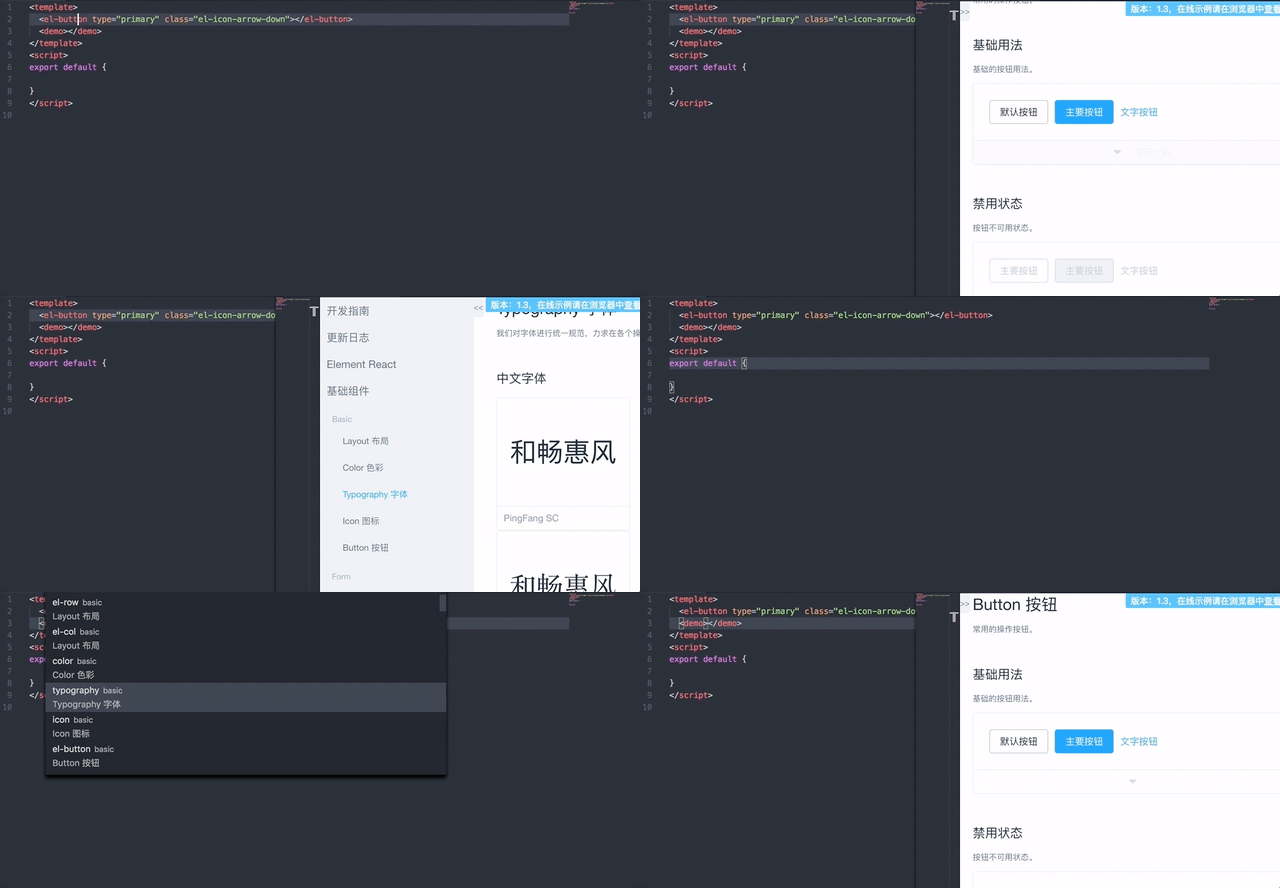
1 - 커서를 Element-UI 태그로 이동하거나 선택
2 - 기본 단축키 ctrl + cmd + z (windows: ctrl + win + z )를 누르거나 ⇧⌘P를 눌러 명령 팔레트를 불러온 다음 element-helper.search 입력하세요.
3 - 문서 보기 표시 일치가 완료되면 검색하려는 태그를 선택해야 합니다.
4 - 문서 브라우저 입력 및 실행
1 - Preferences 입력 -> setting 또는 단축키 cmd + ,
2 - 언어, 버전 또는 들여쓰기 크기 수정
  "element-helper.language" : "zh-CN" ,
  "element-helper.version" : "1.3" ,
  "element-helper.indent-size" : 2 ,
  "element-helper.quotes" : "double" ,    // html vue qoutes
"element-helper.pug-quotes" : "single" // jade/pug quotes문서는 오프라인이며 Element-UI 공식 사이트와 자동 동기화됩니다.
기본 단축키는 ctrl + cmd + z (창: ctrl + win + z )입니다. 다른 소프트웨어의 단축키와 충돌한 경우. 사용자 정의할 수 있습니다. 키바인딩 보기
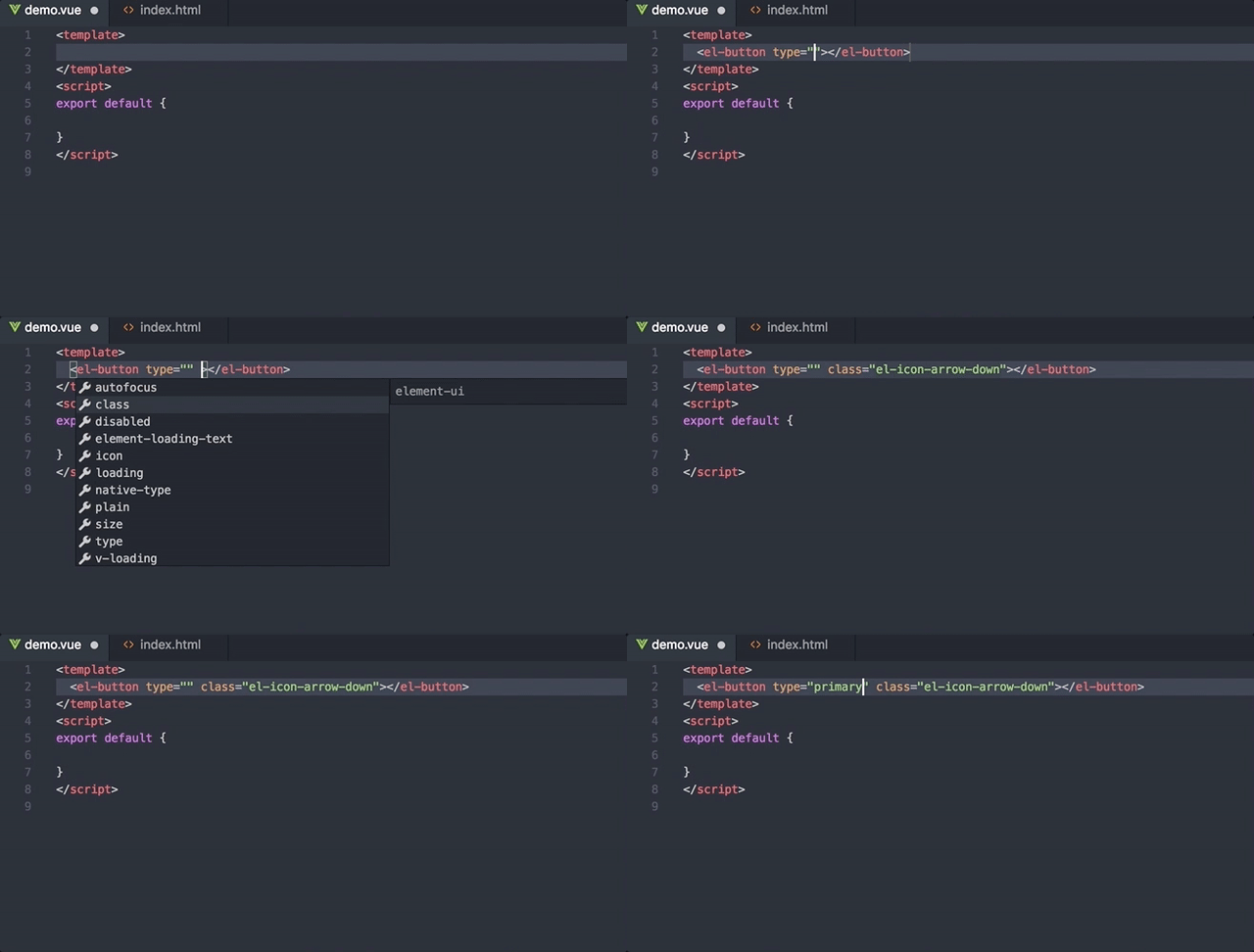
모든 Element-UI 태그의 속성과 메서드를 구별하고 자동 완성합니다.
값이 Boolean 또는 ICON과 같은 특수 유형인 경우 값을 프롬프트합니다.
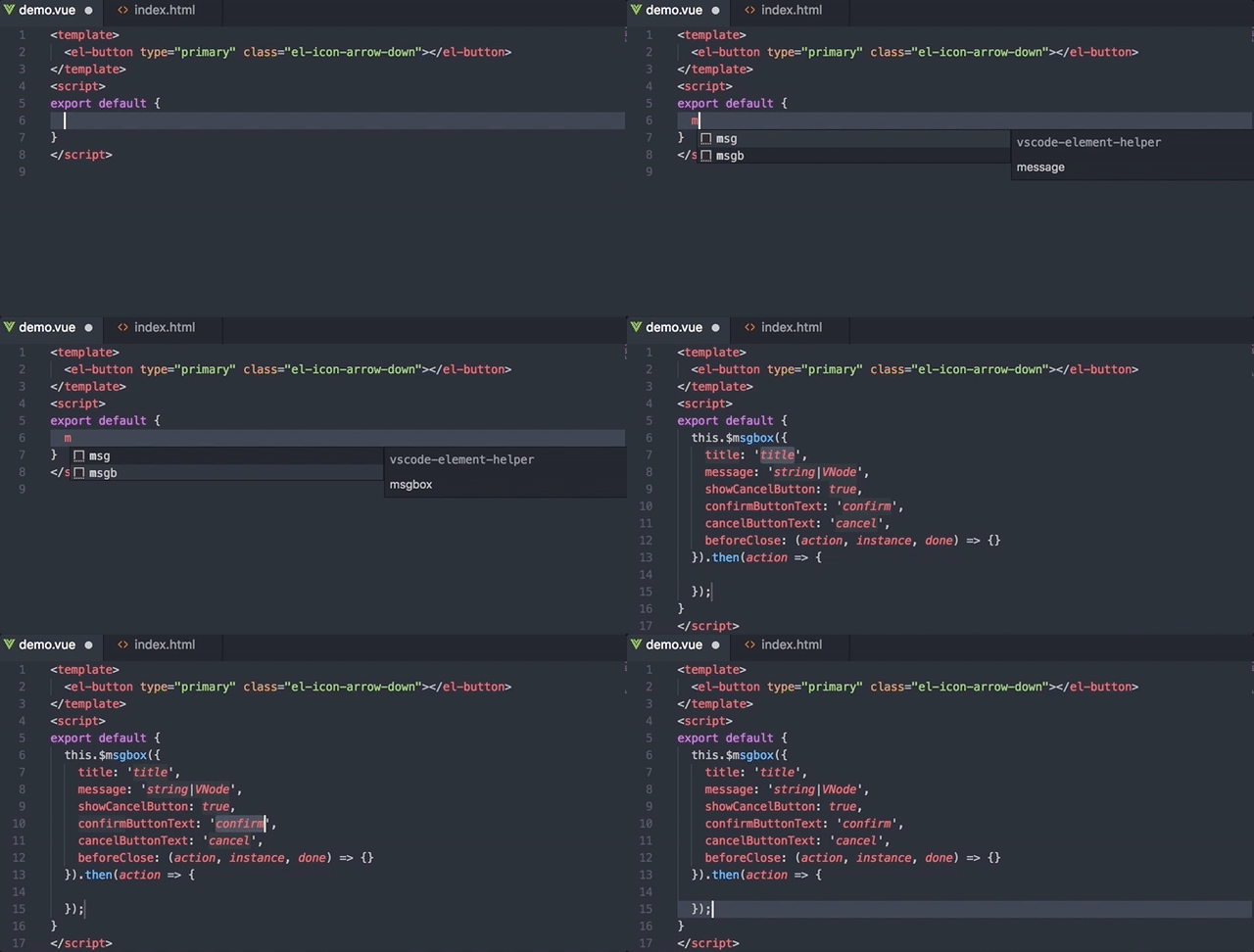
지원 조각 목록:
msg
 this.$message({
  message: '',
  type: ''
})
alert
 this.$alert('', '', {
  confirmButtonText: '',
  callback: () => {}
});
confirm
 this.$confirm('', '', {
  confirmButtonText: '',
  cancelButtonText: '',
  type: ''
}).then(() => {})
  .catch(() => {});
prompt
 this.$prompt('', '', {
  confirmButtonText: '',
  cancelButtonText: '',
  inputPattern: //,
  inputErrorMessage: ''
}).then(({ value }) => {})
  .catch(() => {});
msgb
 this.$msgbox({
  title: '',
  message: '',
  showCancelButton: '',
  confirmButtonText: '',
  cancelButtonText: '',
  beforeClose: (action, instance, done) => {}
}).then(action => {});
notify
 this.$notify({
  title: '',
  message: ''
});
귀하의 끌어오기 요청으로 인해 VSCode-Element-Helper가 더 좋아질 것입니다.
MIT