communitylive avatar
1.0.0

このプロジェクトは、ウェブカメラまたはアップロードされたファイルでキャプチャされたヘッドショットからアバターを生成するWebアプリケーションを提供します。安定した拡散WebUIを介して統合された安定した拡散REST APIのimg2img機能を活用します。
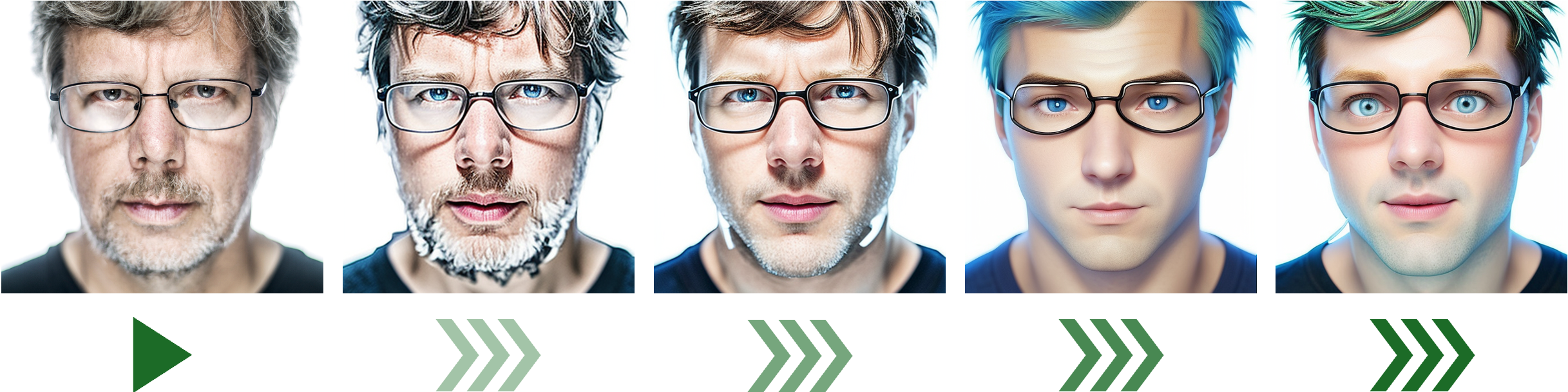
このプロジェクトは、REST APIを公開するPythonアプリケーション( app.py )を中心としています。このAPIは、オプションのパラメーター(ファンタジーレベルと性別の好み)とともに元の画像を処理し、生成されたアバターを返します。次のディレクトリとファイルが含まれています。
 .
├── app.py           # Main application file exposing REST API
├── static           # Static resources for the web application
│   ├── Hyland_logo.png
│   └── style.css
└── templates        # HTML templates
└── index.htmlPythonアプリケーションは、デフォルトでhttp://localhost:7861/sdapi/v1/img2imgで安定した拡散REST APIに接続するように構成されています。これらの手順に従って、REST APIをローカルにインストールしてセットアップします。
安定した拡散WebUIリポジトリをクローンします
git clone https://github.com/AUTOMATIC1111/stable-diffusion-webui
cd stable-diffusion-webui
顔を抱きしめる安定した拡散モデルをダウンロードしてください
 cd models/Stable-diffusion
wget https://huggingface.co/lllyasviel/fav_models/resolve/main/fav/realisticVisionV51_v51VAE.safetensors
cd ../..
仮想環境を作成します
python3 -m venv venv
source venv/bin/activate
依存関係をインストールし、WebUIを開始します
スクリプトを実行して要件をインストールし、アプリケーションを開始します。
./webui.shアプリケーションがhttp://127.0.0.1:7860で実行されたら、 Ctrl+Cで停止できます。
注:このステップは、最初のセットアップ中にのみ必要です。
REST APIを開始します
GPUをお持ちでない場合は、CPUを使用してAPIを開始できます。
python3 launch.py --nowebui --skip-python-version-check --always-cpu --skip-torch-cuda-test APIはhttp://localhost:7861/docs#/default/img2imgapi_sdapi_v1_img2img_postでブラウザからアクセスできます。
アプリケーションをローカルでテストするには:
安定した拡散REST APIを起動し、 http://localhost:7861/sdapi/v1/img2imgに到達可能になります。
Webアプリケーションを開始します
Python環境をセットアップし、アプリケーションを実行します。
python3 -m venv venv
source venv/bin/activate
pip install flask requests Pillow boto3
python3 app.py
Webアプリケーションにアクセスします
Webブラウザーを開き、 http://localhost:5000に移動して、アバタージェネレーターを使用します。
AWS EC2インスタンスにアプリケーションを展開するには、サーバーのセットアップの通常のプロセスに従って、Python 3.10、安定した拡散WebUI、およびその他の依存関係が適切にインストールされるようにします。 GPUを使用しているかどうかに基づいて、セキュリティグループとインスタンスタイプを調整します。詳細な手順については、AWSドキュメントを参照してください。
このガイドは、GPUを装備したAWS EC2インスタンスにアバタージェネレーターアプリケーションを展開する手順の概要を説明します。
g4dn.xlargeシステムパッケージを更新します
sudo apt-get update
sudo apt-get upgrade -y
NVIDIAデバイスの存在を確認します
sudo lshw -c video次のようなNVIDIA GPUの存在を示す出力を確認する必要があります。
  *-display:1
       description: 3D controller
       product: TU104GL [Tesla T4]
       vendor: NVIDIA Corporation
nvidiaドライバーをインストールします
sudo apt install -y ubuntu-drivers-common
sudo ubuntu-drivers autoinstall
インスタンスを再起動します
sudo reboot再起動後、NVIDIAドライバーが正しくインストールされていることを確認してください。
nvidia-smi予想される出力は、NVIDIAドライバーバージョンとCUDAバージョンを表示する必要があります。
Nvidiaドライバーのインストールの詳細については、Ubuntuのドキュメントを参照してください。
安定した拡散WebUIリポジトリをクローンします
git clone https://github.com/AUTOMATIC1111/stable-diffusion-webui
cd stable-diffusion-webui
安定した拡散モデルをダウンロードします
 cd models/Stable-diffusion
wget https://huggingface.co/lllyasviel/fav_models/resolve/main/fav/realisticVisionV51_v51VAE.safetensors
cd ../..
Pythonパッケージインストーラーをインストールします
sudo apt install python3-pip仮想環境を作成してアクティブ化します
python3 -m venv venv
source venv/bin/activate
依存関係をインストールし、WebUIを開始します
./webui.sh http://127.0.0.1:7860で実行を開始した後、 Ctrl+Cでアプリケーションを停止できます。
REST APIを開始します
python3 launch.py --nowebui --skip-python-version-check --skip-torch-cuda-testREST APIのスタートアップスクリプトを作成します
将来的にAPIを簡単に開始するスクリプトを作成します。
$ cat start_api.sh
#! /bin/bash

# Navigate to the stable-diffusion-webui directory
cd stable-diffusion-webui

# Create a virtual environment if it doesn't exist
if [ ! -d " venv " ] ; then
    python3 -m venv venv
fi

# Activate the virtual environment
source venv/bin/activate

# Launch the application and write output to api.log
python3 launch.py --nowebui --skip-python-version-check --skip-torch-cuda-test > ../api.log 2>&1 &

# Print a message indicating the application has started
echo " API has started. Output is being written to api.log " Webアプリケーションリポジトリをクローンします
git clone https://github.com/aborroy/communitylive-avatar.git
cd communitylive-avatar
仮想環境を作成し、アプリケーションを開始します
python3 -m venv venv
source venv/bin/activate
pip install flask requests Pillow boto3
python3 app.py
Webアプリケーションのスタートアップスクリプトを作成します
Webアプリケーションを簡単に開始するスクリプトを作成します。
$ cat start_app.sh
#! /bin/bash

# Navigate to the app directory
cd communitylive-avatar

# Create a virtual environment if it doesn't exist
if [ ! -d " venv " ] ; then
    python3 -m venv venv
fi

# Activate the virtual environment
source venv/bin/activate

# Launch the application and write output to app.log
python3 app.py > ../app.log 2>&1 &

# Print a message indicating the application has started
echo " Application has started. Output is being written to app.log " アプリケーションはウェブカメラを使用するため、安全なHTTPS接続が必要です。 AWSルート53を使用して、トラフィックをEC2インスタンスにルーティングします。例DNS: communitylive-avatar.alfdemo.com 。
nginxをインストールします
sudo apt-get install nginxCERTBOTおよびNGINXプラグインをインストールします
sudo apt-get install certbot python3-certbot-nginxnginxを構成します
nginx構成ファイルを作成します。
sudo vi /etc/nginx/sites-available/app次の構成を追加します。
 server {
    listen 80 ;
    server_name communitylive-avatar.alfdemo.com;

    client_max_body_size 64M ;

    location / {
        proxy_pass http://127.0.0.1:5000;
        proxy_set_header Host $host ;
        proxy_set_header X-Real-IP $remote_addr ;
        proxy_set_header X-Forwarded-For $proxy_add_x_forwarded_for ;
        proxy_set_header X-Forwarded-Proto $scheme ;
    }
}
nginx構成を有効にします
sudo ln -s /etc/nginx/sites-available/app /etc/nginx/sites-enablednginx構成をテストし、リロードします
sudo nginx -t
sudo systemctl reload nginx
SSL証明書を取得します
sudo certbot --nginx -d communitylive-avatar.alfdemo.comCERTBOTは、ポート443でTLSを使用するようにNginxを自動的に構成します。
AWS SES(簡単な電子メールサービス)を使用してアバターの電子メール配信を有効にするには、次の手順に従ってください。
AWS CLIをインストール:
AWS CLIを構成します:
aws configureAWS SESをセットアップ:
aws ses verify-email-identity --email-address [email protected]SES電子メールの送信をテスト:
aws ses send-email --from [email protected] --destination [email protected] --message " Subject={Data=Test Email},Body={Text={Data=Hello!}} " AWS SESを構成すると、アプリケーションは、指定された受信者に電子メールで生成されたアバターを送信できます。
すべての手順が正常に完了した場合、アプリケーションはhttps://communitylive-avatar.alfdemo.comでアクセス可能になります。





