YouCompleteMe
1.0.0

助け、アドバイス、またはサポートをお探しですか? YCMを機能させるのに問題がありますか?
まず、OSのインストール手順を注意深くお読みください。供給されたinstall.py使用することをお勧めします。「完全な」インストールガイドは、まれで高度なユースケース用であり、ほとんどのユーザーはinstall.py使用する必要があります。
サーバーが起動しておらず、「youcompletemeが利用できない」エラーを取得している場合は、トラブルシューティングガイドを確認してください。
次に、使用しているセマンティック完了者のユーザーガイドセクションを確認します。 C/C ++/Objective-C/Objective-C ++/CUDAについては、このセクションを読む必要があります。
最後に、FAQを確認してください。
インストールとユーザーガイドを読んで、FAQをチェックした後、あなたはまだ問題を抱えている場合は、以下の連絡先セクションをチェックしてください。
サポートのためにFreeNodeの#vimに行かないでください。以下の連絡先の詳細を使用して、youcompletemeメンテナーに直接連絡してください。
以下の指示は、Vundleを使用することを示唆していることに注意してください。現在、Vundleに問題があるため、VIMパッケージを使用した代替手順をいくつか紹介します。
YouCompleTemeは、VIMの高速で、視覚型のファジー検索コードの完了、理解度、リファクタリングエンジンです。
いくつかの完了エンジンが組み込まれており、プロトコルに準拠した言語サーバーをサポートするため、実質的にあらゆる言語で動作できます。 youcompletemeが含まれます:
上記の最後のGIFデモで何が起こったのかの説明は次のとおりです。
まず、デモの任意の時点で完了候補のリストを取得するためにキーボードショートカットを押す必要がないことを認識してください。ユーザーが入力するだけで、提案が自分でポップアップします。ユーザーが関連性のある完了の提案を見つけられない場合、および/または単に入力したい場合は、そうすることができます。完了エンジンは干渉しません。
ユーザーが便利な完了文字列が提供されていると表示されると、タブキーを押して受け入れます。これにより、完了文字列が挿入されます。提供された完了を通して、タブキーサイクルの繰り返しプレス。
提供された完了が十分に関連していない場合、ユーザーはタイピングを続けて不要な完了をさらに除外できます。
注意すべき重要なことは、完了フィルタリングが完了の文字列プレフィックスであることに基づいていないことです(ただし、それも機能します)。入力は、完了のサブシーケンスマッチである必要があります。これは、入力文字が入力に表示される順序で完了文字列に存在する必要があると言う派手な方法です。したがって、 abc xaybgcのサブシーケンスですが、 xbyxaxxcのサブシーケンスです。フィルターの後、複雑なソートシステムが完了文字列をランク付けして、最も関連性の高いものがメニューの一番上に上がるようにします(通常、タブを1回だけ押す必要があります)。
識別子ベースの完了エンジンのため、上記のすべてがプログラミング言語で動作します。現在のファイルのすべての識別子と、アクセスする他のファイル(およびタグファイル)を収集し、入力するときにそれらを検索します(識別子はフィレタイプごとのグループに配置されます)。
デモには、使用中のセマンティックエンジンも表示されます。ユーザーが押したとき. 、 ->または::挿入モード(C ++の場合、他の言語では異なるトリガーが使用されます)を入力すると、セマンティックエンジンがトリガーされます(キーボードショートカットでトリガーすることもできます。残りのドキュメントを参照してください)。
デモで最後に見ることができるのは、YCMの診断ディスプレイ機能(左溝に表示されるリトルレッドX、シンタスティックに触発された)です。 Completer Engineがファイルをコンパイルし、警告やエラーを検出すると、さまざまな方法で表示されます。ファイルを保存したり、キーボードショートカットを押してこれをトリガーする必要はありません。
そして、それだけではありません...
YCMは、正しいUnicodeサポートを備えた唯一のVIM完了エンジンかもしれません。私たちはどこでもUTF-8を想定していますが。
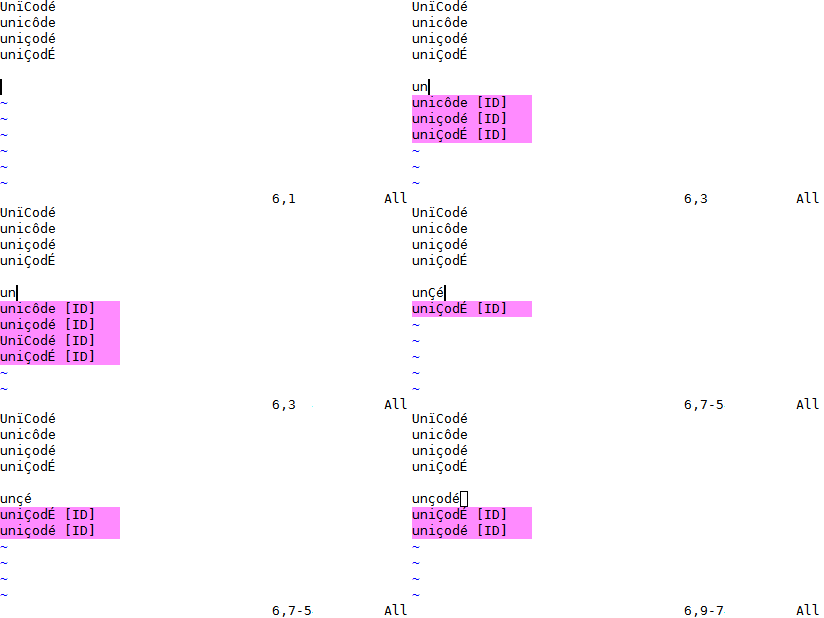
YCMは、以下を含む多くの言語でセマンティックIDEのような機能も提供します。
たとえば、署名ヘルプのデモは次のとおりです。
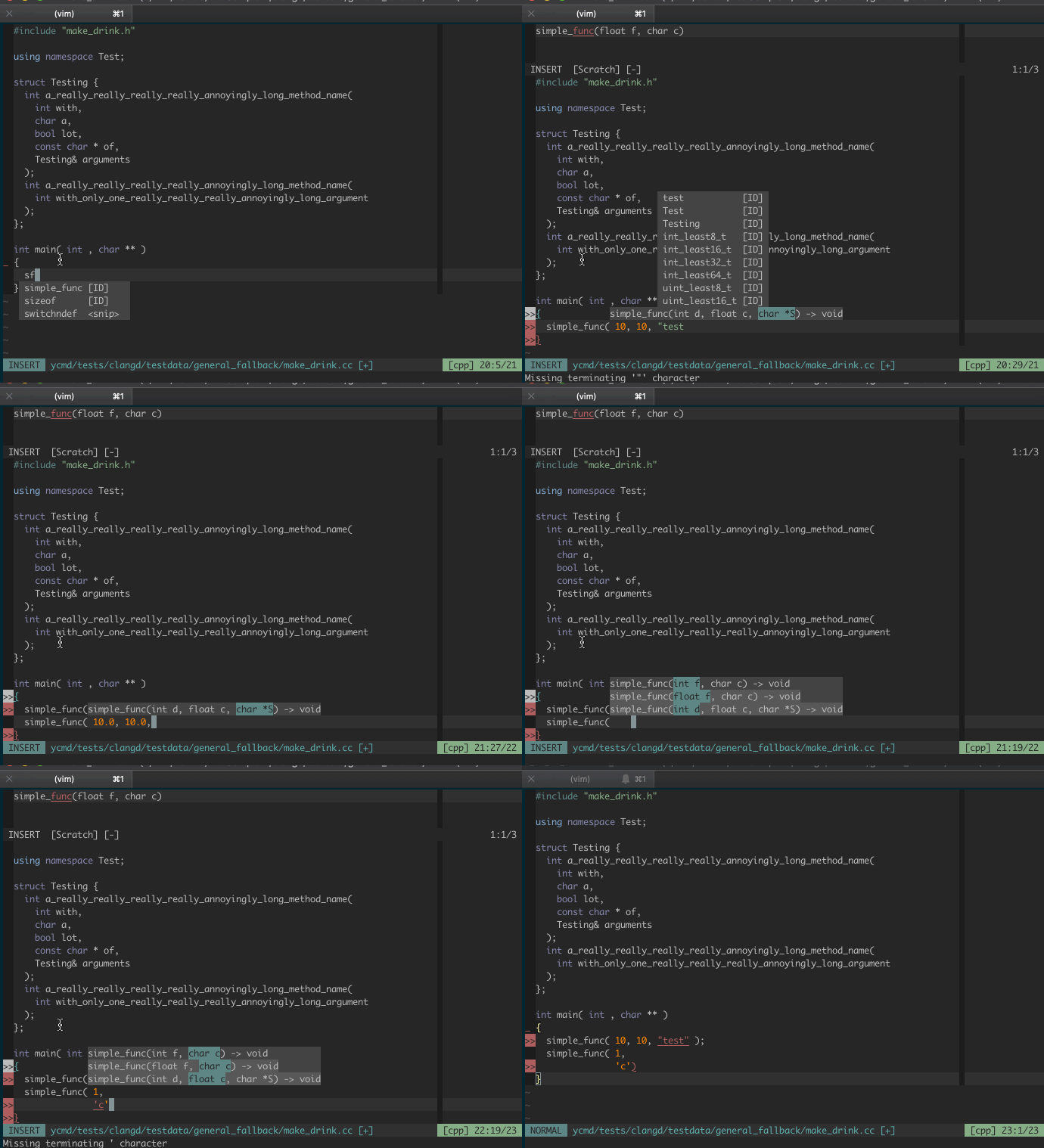
以下に、YCMがいくつかのことをすることができることがわかります。
autoを展開しますFixItで提供しますGoToImplementationとGoToTypeです。そして、ここにホバーポップアップで自動的に手動で表示されているドキュメントがあります。
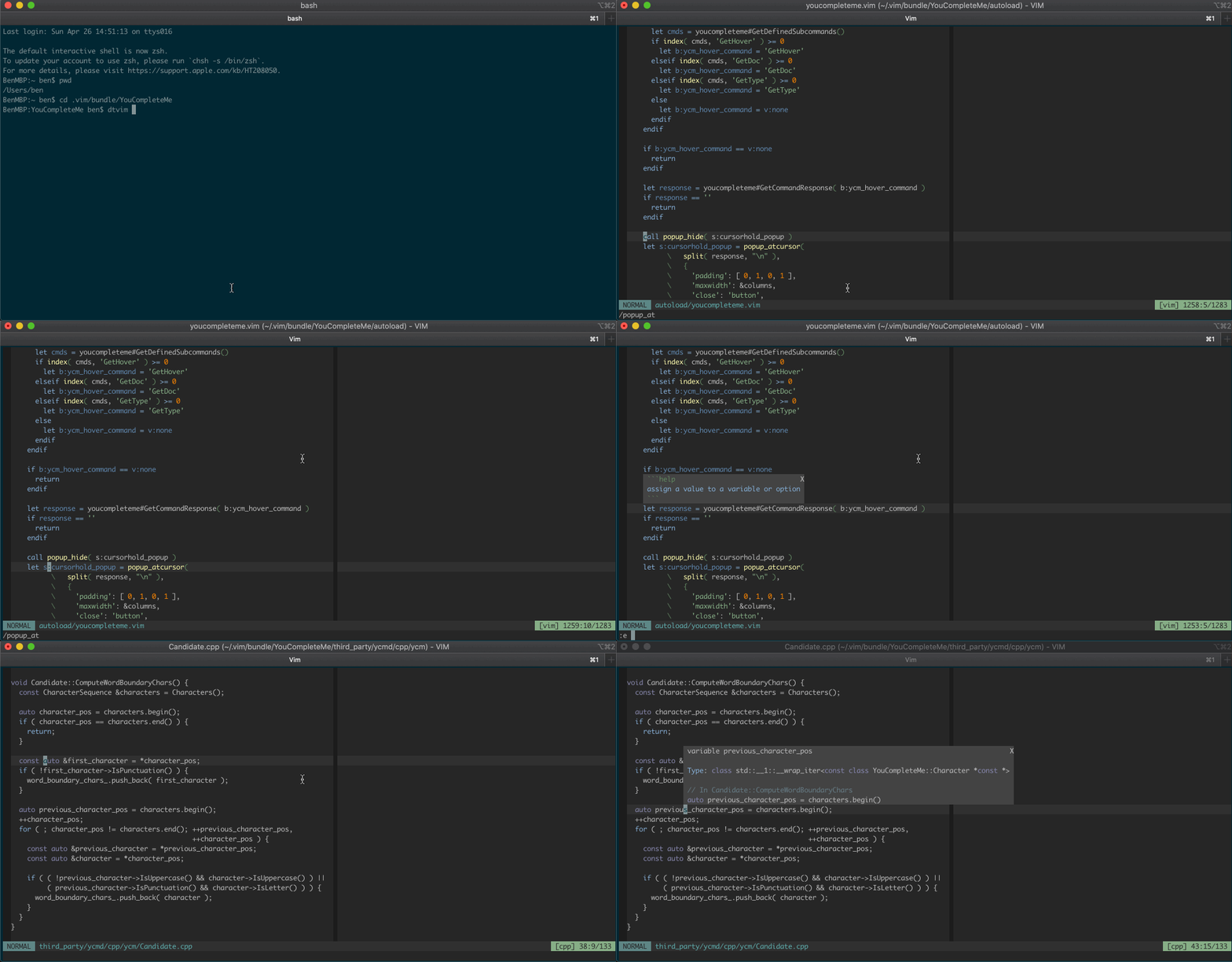
機能はファイルタイプによって異なるため、ファイルタイプの機能の概要と完全なサブコマンドの完全なリストをチェックして、お気に入りの言語で利用できるものを確認してください。
また、YCMにはFilepath Completers(ファイルで./ Typingを試してみてください)とUltiSnipsと統合する完了者がいることがわかります。
| ランタイム | 最小バージョン | 推奨バージョン(完全なサポート) | Python |
|---|---|---|---|
| vim | 9.1.0016 | 9.1.0016 | 3.8 |
| Neovim | 0.5 | VIM 9.1.0016 | 3.8 |
私たちのポリシーは、Ubuntuの最新のLTにあるVIMバージョンをサポートすることです。
VIMには、Python 3ランタイムが機能する必要があります。
Neovimユーザーの場合、私たちのポリシーは、最新のリリースバージョンを要求することです。現在、Neovim 0.5.0が必要です。一部の機能はNeovimでは利用できず、Neovimは正式にサポートされていないことに注意してください。
YCMには、サーバーとクライアントの2つのコンポーネントがあります。サーバーとクライアントの両方がPython 3.8以降3.xリリースを必要とします。
VIMクライアントの場合、VIMは、 --enable-shared (またはMacOSでの--enable-framework )でコンパイルされている必要があります。これが動作しているかどうかを確認できます:py3 import sys; print( sys.version) 。 3.8.2 (...)のようなことを言う必要があります。
Neovimの場合、Python 3.8ランタイムとNeovim Python拡張機能が必要です。 Neovim's :help provider-python参照してください。
サーバーの場合、Python 3.8(または後の)ランタイムでinstall.pyスクリプトを実行する必要があります。アナコンダなどはサポートされていません。 YCMは、 install.py実行していたランタイムを覚えており、サーバーを起動するときにそれを使用するため、通常Anacondaを使用する場合は、実際のcpython3、EG /usr/bin/python3 install.py --allなど
私たちのポリシーは、最新のUbuntu LTSで利用可能なPython3バージョンをサポートすることです(VIMバージョンポリシーと同様)。ただし、理由もなくPythonランタイムバージョンを増やしません。通常、私たちが使用している現在のPythonバージョンがサポートから外れている場合にこれを行います。その時点で、通常、何年もサポートされるバージョンを選択します。
可能な限り最高のパフォーマンスと安定性を提供するために、YCMDはそのコードをC ++ 17に更新しました。これには、最小サポートされたコンパイラのバージョンバンプが必要です。新しい要件は次のとおりです。
| コンパイラ | 現在の分 |
|---|---|
| GCC | 8 |
| クラン | 7 |
| MSVC | 15.7(vs 2017) |
YCMにはCmake 3.13以上が必要です。 cmakeが古すぎる場合は、単にpip install --user cmake本当に新しいバージョンを取得できる場合があります。
特定の言語の言語サポートを有効にする場合、Javaサポートのために非常に最近のJava開発キットを必要とするなど、ランタイム要件がある場合があります。一般に、YCMはダウンストリームコンパイラに必要なバージョンを制御していませんが、それらを知っている場所を知らせるために最善を尽くしています。
$ brew install cmake python go nodejs
Mono ProjectからMonoをインストールします(注:Intel Macでは、 brew install monoもできます。
Javaサポートの場合、JDKをインストールする必要があります。これを行う方法の1つは、HomeBrewを使用することです。
 $ brew install java
$ sudo ln -sfn $(brew --prefix java)/libexec/openjdk.jdk /Library/Java/JavaVirtualMachines/openjdk.jdk
プリインストールされたMacOSシステムVIMはPython 3をサポートしていません。したがって、Python 3をサポートするVIMまたはHomeBrewでMacVIMをインストールする必要があります。
brew install vim
brew install macvim
YCMをコンパイルします。
IntelおよびARM64 Macの場合、バンドルされたLibclang/Clangd作品:
 cd ~/.vim/bundle/YouCompleteMe
python3 install.py --all
システムフレームワークまたはC ++標準ライブラリを見つけるのに問題がある場合は、HomeBrew LLVMを使用してみてください。
 brew install llvm
cd ~/.vim/bundle/YouCompleteMe
python3 install.py --system-libclang --all
VIMRCを編集して、次の行を追加して、HomeBrew LLVMのClangdを使用します。
 " Use homebrew's clangd
let g: ycm_clangd_binary_path = trim ( system ( ' brew --prefix llvm ' )). ' /bin/clangd '
任意のLSPサーバーを使用するには、関連するセクションを確認します
これらの指示( install.pyを使用)は、youcompletemeをインストールする最も迅速な方法ですが、すべての人には機能しない場合があります。次の手順が機能しない場合は、完全なインストールガイドをご覧ください。
Python 3を使用したサポートされているVIMバージョンが必要です。 MacVimは、端末のみを使用している場合でも、良いオプションです。 YCMは、Pythonのサポートが壊れているため、Appleの事前にインストールされたVIMで動作しません。 Python 3またはMacVimをサポートするVIMをまだ使用していない場合は、HomeBrewでインストールしてください。 cmakeもインストールします:
brew install vim cmake
または
brew install macvim cmake
vundleでyoucompletemeをインストールします。
覚えておいてください: YCMはコンパイルされたコンポーネントを備えたプラグインです。 Vundleを使用してYCMを更新し、 ycm_coreライブラリAPIが変更された場合(まれに発生しません)、YCMはそれを再コンパイルするように通知します。その後、インストールプロセスを再実行する必要があります。
注: Cファミリーの完了が必要な場合は、最新のXcodeを最新のコマンドラインツールとともにインストールする必要があります( clang xcode-select --install実行するときに自動的にインストールされます。
Clangdを介してC-Family言語のセマンティックサポートでYCMをコンパイルする:
 cd ~/.vim/bundle/YouCompleteMe
./install.py --clangd-completer
Cファミリー言語のセマンティックサポートなしでYCMをコンパイルします。
 cd ~/.vim/bundle/YouCompleteMe
./install.py
次の追加の言語サポートオプションが利用可能です。
install.py呼び出すときに--cs-completerを追加します。install.py呼び出すときにgo and add --go-completerインストールします。install.py呼び出すときに--ts-completerを追加します。install.py呼び出すときに--rust-completerを追加します。install.py呼び出すときに--java-completerを追加します。有効になっているすべてのものを単純にコンパイルするために、 --allフラグがあります。したがって、すべての言語機能をインストールするには、 xbuild 、 go 、 node 、 npmツールがインストールされ、 PATHにインストールされていることを確認してから、単純に実行してください。
 cd ~/.vim/bundle/YouCompleteMe
./install.py --all
それでおしまい。あなたは終わった。 YCMの使用方法に関するユーザーガイドセクションを参照してください。 C-Family Semantic Complete Engineを動作させたい場合は、プロジェクトのコンピレーションフラグをYCMに提供する必要があることを忘れないでください。それはすべてユーザーガイドにあります。
YCMにはオプションの正気のデフォルトが付属していますが、構成に利用できるものを見てみたいと思うかもしれません。デフォルトで控えめにオフにされているいくつかの興味深いオプションがあります。
以下は、Ubuntu 24.04を使用していると仮定します。
apt install build-essential cmake vim-nox python3-dev
apt install mono-complete golang nodejs openjdk-17-jdk openjdk-17-jre npm
 cd ~/.vim/bundle/YouCompleteMe
python3 install.py --all
これらの指示( install.pyを使用)は、youcompletemeをインストールする最も迅速な方法ですが、すべての人には機能しない場合があります。次の手順が機能しない場合は、完全なインストールガイドをご覧ください。
Python 3サポートとサポートされているコンパイラを備えたVimのサポートバージョンがあることを確認してください。 Ubuntuの最新のLTSは、簡単なインストールの最小プラットフォームです。以前のリリースまたはその他の分布については、依存関係を獲得するために何らかの作業を行う必要がある場合があります。
VIMバージョンが古すぎる場合は、ソースからVIMをコンパイルする必要がある場合があります(心配しないでください、簡単です)。
vundleでyoucompletemeをインストールします。
覚えておいてください: YCMはコンパイルされたコンポーネントを備えたプラグインです。 Vundleを使用してYCMを更新し、 ycm_coreライブラリAPIが変更された場合(まれに発生しません)、YCMはそれを再コンパイルするように通知します。その後、インストールプロセスを再実行する必要があります。
開発ツール、cmake、およびpythonヘッダーをインストールします。
sudo dnf install cmake gcc-c++ make python3-devel
sudo apt install build-essential cmake3 python3-dev
Clangdを介してC-Family言語のセマンティックサポートでYCMをコンパイルする:
 cd ~/.vim/bundle/YouCompleteMe
python3 install.py --clangd-completer
Cファミリー言語のセマンティックサポートなしでYCMをコンパイルします。
 cd ~/.vim/bundle/YouCompleteMe
python3 install.py
次の追加の言語サポートオプションが利用可能です。
install.py呼び出すときに--cs-completerを追加します。install.py呼び出すときにgo and add --go-completerインストールします。install.py呼び出すときに--ts-completerを追加します。install.py呼び出すときに--rust-completerを追加します。install.py呼び出すときに--java-completerを追加します。有効になっているすべてのものを単純にコンパイルするために、 --allフラグがあります。したがって、すべての言語機能をインストールするには、 xbuild 、 go 、 node 、およびnpmツールがインストールされ、 PATHにインストールされてから、実行してください。
 cd ~/.vim/bundle/YouCompleteMe
python3 install.py --all
それでおしまい。あなたは終わった。 YCMの使用方法に関するユーザーガイドセクションを参照してください。 C-Family Semantic Complete Engineを動作させたい場合は、プロジェクトのコンピレーションフラグをYCMに提供する必要があることを忘れないでください。それはすべてユーザーガイドにあります。
YCMにはオプションの正気のデフォルトが付属していますが、構成に利用できるものを見てみたいと思うかもしれません。デフォルトで控えめにオフにされているいくつかの興味深いオプションがあります。
 cd YouCompleteMe
python3 install.py --all
set encoding=utf-8を追加しますこれらの指示( install.pyを使用)は、youcompletemeをインストールする最も迅速な方法ですが、すべての人には機能しない場合があります。次の手順が機能しない場合は、完全なインストールガイドをご覧ください。
重要: cmd.exeコマンドプロンプトを使用していること、およびPath環境変数に実行可能ファイルを追加する方法を知っていると想定しています。
Python 3サポートを備えたサポートされているVIMバージョンがあることを確認してください。バージョンを確認でき、VIM内のタイピング:versionによってサポートされているPythonを確認できます。 +python3/dyn for Python 3をご覧ください。VIMアーキテクチャ、つまり32または64ビットに注意してください。 Pythonインストーラーを選択する際には重要です。 64ビットクライアントを使用することをお勧めします。 Python 3サポートを備えた32ビットと64ビットVIMの毎日の更新されたインストーラーが利用可能です。
まだ存在していない場合は、次の行をVIMRCに追加します。
set encoding = utf - 8このオプションはYCMで必要です。 UTF-8よりも別のエンコードでファイルを編集することを妨げないことに注意してください。 ++enc引数を:eコマンドに指定することで、それを行うことができます。
vundleでyoucompletemeをインストールします。
覚えておいてください: YCMはコンパイルされたコンポーネントを備えたプラグインです。 Vundleを使用してYCMを更新し、 ycm_coreライブラリAPIが変更された場合(まれに発生しません)、YCMはそれを再コンパイルするように通知します。その後、インストールプロセスを再実行する必要があります。
次のソフトウェアをダウンロードしてインストールします。
:versionとコンパイラフラグのリストのページの下部を見てください。 -DDYNAMIC_PYTHON3_DLL="python36.dll"に似たフラグを探します。これは、VIMがPython 3.6を探していることを示しています。バージョン番号を正確に一致させる必要があります。Clangdを介してC-Family言語のセマンティックサポートでYCMをコンパイルする:
 cd %USERPROFILE%/vimfiles/bundle/YouCompleteMe
python install.py --clangd-completer
Cファミリー言語のセマンティックサポートなしでYCMをコンパイルします。
 cd %USERPROFILE%/vimfiles/bundle/YouCompleteMe
python install.py
次の追加の言語サポートオプションが利用可能です。
install.py呼び出すときに--cs-completerを追加します。ビルドユーティリティmsbuildがあなたのパスにあることを確認してください。install.py呼び出すときにgo and add --go-completerインストールします。install.py呼び出すときに--ts-completerを追加します。install.py呼び出すときに--rust-completerを追加します。install.py呼び出すときに--java-completerを追加します。有効になっているすべてのものを単純にコンパイルするために、 --allフラグがあります。したがって、すべての言語機能をインストールするには、 msbuild 、 go 、 node 、 npmツールがインストールされ、 PATHにインストールされてから、実行してください。
 cd %USERPROFILE%/vimfiles/bundle/YouCompleteMe
python install.py --all
--msvcオプションを使用して、Microsoft Visual C ++(MSVC)バージョンを指定できます。 YCMは、MSVC 15(2017)、MSVC 16(Visual Studio 2019)、MSVC 17(Visual Studio 17 2022)を正式にサポートしています。
それでおしまい。あなたは終わった。 YCMの使用方法に関するユーザーガイドセクションを参照してください。 C-Family Semantic Complete Engineを動作させたい場合は、プロジェクトのコンピレーションフラグをYCMに提供する必要があることを忘れないでください。それはすべてユーザーガイドにあります。
YCMにはオプションの正気のデフォルトが付属していますが、構成に利用できるものを見てみたいと思うかもしれません。デフォルトで控えめにオフにされているいくつかの興味深いオプションがあります。
完全なインストールガイドがWikiに移動されました。
GoToなど)に移動しますGoToAlternateFileなど)に移動しますGoToSymbol )を見つけますGoToDocumentOutline )GetDoc )GetType )FixIt )FixIt )GoToReferences )RefactorRename <new name> )Format )GoToなど)に移動しますGoToImplementation )GoToSymbol )を見つけますGetDoc )GetType )FixIt )FixIt )RefactorRename <new name> )Format )GoTo )GoToSymbol )を見つけますGoToReferences )GetDoc )GetType )RefactorRename <new name> )GoToなど)に移動しますGoToType )に移動するGoToImplementation )GoToDocumentOutline )FixIt )FixIt )GetDoc )GetType )Format )goplsサーバーインスタンスの管理GoTo 、 GoToDefinition 、 GoToDeclarationは同一です)GoToType )に移動するGoToImplementation )GoToSymbol )を見つけますGoToReferences )GetDoc )GetType )FixIt )FixIt )RefactorRename <new name> )Format )OrganizeImports )TSServerサーバーインスタンスの管理GoToなど)に移動しますGoToImplementation )GoToReferences )GoToDocumentOutline )GetDoc )FixIt )FixIt )GetType )RefactorRename <new name> )Format )rust-analyzerサーバーインスタンスの管理GoTo 、 GoToDefinition 、 GoToDeclarationは同一です)GoToType )に移動するGoToImplementation )GoToSymbol )を見つけますGoToReferences )GoToDocumentOutline )GetDoc )GetType )FixIt )を含む特定のエラーを自動的に修正RefactorRename <new name> )Format )OrganizeImports )ExecuteCommand <args> )jdt.lsサーバーインスタンスの管理提供された完了が広すぎる場合は、文字を入力し続けてください。 YCMは、入力に基づいて提供された完了を改善し続けます。
フィルタリングは「スマートケース」および「スマートダイアチティック」に敏感です。小文字のみを入力している場合、それはケースでは無関心です。入力に大文字が含まれている場合、クエリの大文字は、完成文字列の大文字に一致する必要があります(下級文字は両方とも一致します)。それに加えて、ディークリティックマークのない文字がマークの有無にかかわらずその文字と一致します。
| マッチ | foo | フォー | foo | フォー |
|---|---|---|---|---|
| foo | ✔✔️ | ✔✔️ | ✔✔️ | ✔✔️ |
| フォー | ✔✔️ | ✔✔️ | ||
| foo | ✔✔️ | ✔✔️ | ||
| フォー | ✔✔️ |
タブキーを使用して完了を受け入れ、[押し]タブを続行して完了をサイクリングします。 Shift-Tabを使用して後方にサイクリングします。コンソールVIM(つまり、GVIMやMacVIMではなく)を使用している場合、コンソールがVIMに渡されないため、シフトTABバインディングが機能しない可能性が高いことに注意してください。キーを再マッピングできます。以下のオプションセクションを参照してください。
YCMが内部的にどのように機能するかについて少し知ることは、混乱を防ぎます。 YCMにはいくつかの完了エンジンがあります。現在のファイルのすべての識別子と、アクセスする他のファイル(およびタグファイル)を収集し、入力するときにそれらを検索する識別子ベースの完了者です(識別子はフィレタイプグループごとに配置されます)。
YCMにはいくつかのセマンティックエンジンもあります。 LibclangベースのClangdベースの完了者は、Cファミリー言語のセマンティック完了を提供します。 Pythonのセマンティック完了のためのジェダイベースの完了者があります。また、VIMのOmnicompleteシステムからのデータを使用して、YCMにその言語のネイティブ完了者が存在しない場合にセマンティックコンプリートを提供するOmnifuncベースの完了者もあります。
UltisNips CompleterやFilepath Completerなど、他の完成エンジンもあります。
YCMは、どのような状況でどの完了エンジンが最高になるかを自動的に検出します。時々、それらのいくつかを一度に照会し、出力をマージし、結果を提示します。
YCMにはクライアントサーバーアーキテクチャがあります。 YCMのVIM部分は、YCMのロジックと機能の大部分を備えたYCMD HTTP+JSONサーバーと話し合う薄いクライアントにすぎません。サーバーは開始され、VIMを起動および停止すると自動的に停止します。
サブシーケンスフィルターは、入力と一致しない完全な完了を削除しますが、ソートシステムは実際には非常に複雑で多くの要因を使用しますが、「単語境界」(WB)サブセンセンス文字の一致は「価値がある」と言うだけで十分です。 「WB以外の試合以上。実際には、「GUA」の入力を与えられた場合、「getUserAccount」の完了は、「フォーグーサ」の完了(どちらもサブセイセンスマッチである)よりもリストの上位にランクされることを意味します。単語境界の文字はすべて、キャピタル文字、アンダースコアが先行する文字、および完了文字列の最初の文字文字です。
有効な署名が2番目のポップアップメニューに表示され、現在の署名が現在の引数とともに強調表示されます。
signatureヘルプは、 g:ycm_auto_triggerが有効になると、挿入モードで自動的にトリガーされ、有効になっていない場合はサポートされません。
署名ポップアップは、一致する署名がない場合、または挿入モードを離れるときに非表示になります。表示されているときに手動で制御する場合は、 <plug>YCMToggleSignatureHelpに何かをマッピングできます(以下を参照)。
この機能といくつかのデモの詳細については、提案したPRをご覧ください。
署名のヘルプポップアップが時々邪魔になります。マッピングで可視性を切り替えることができます。 YCMは、これに「プラグ」マッピング<Plug>(YCMToggleSignatureHelp)を提供します。
たとえば、挿入モードでctrl+Lを押すことにより、署名ヘルプポップアップを非表示/表示するには: imap <silent> <Cl> <Plug>(YCMToggleSignatureHelp) 。
注:既存の機能を破壊またはオーバーライドすることなく、挿入マッピングを作成するのが非常に困難であるため、デフォルトのマッピングは提供されていません。 Ctrl-Lは提案ではなく、単なる例です。
セマンティックハイライトは、正規表現に基づいて強調表示されるクラシックな構文ではなく、根本的なセマンティックタイプの単語に従ってバッファテキストが色付けされるプロセスです。これは、非常に迅速に処理できる強力な追加データになる可能性があります。
この機能はVIMでのみサポートされています。
たとえば、ここにクラシックハイライトの関数があります。
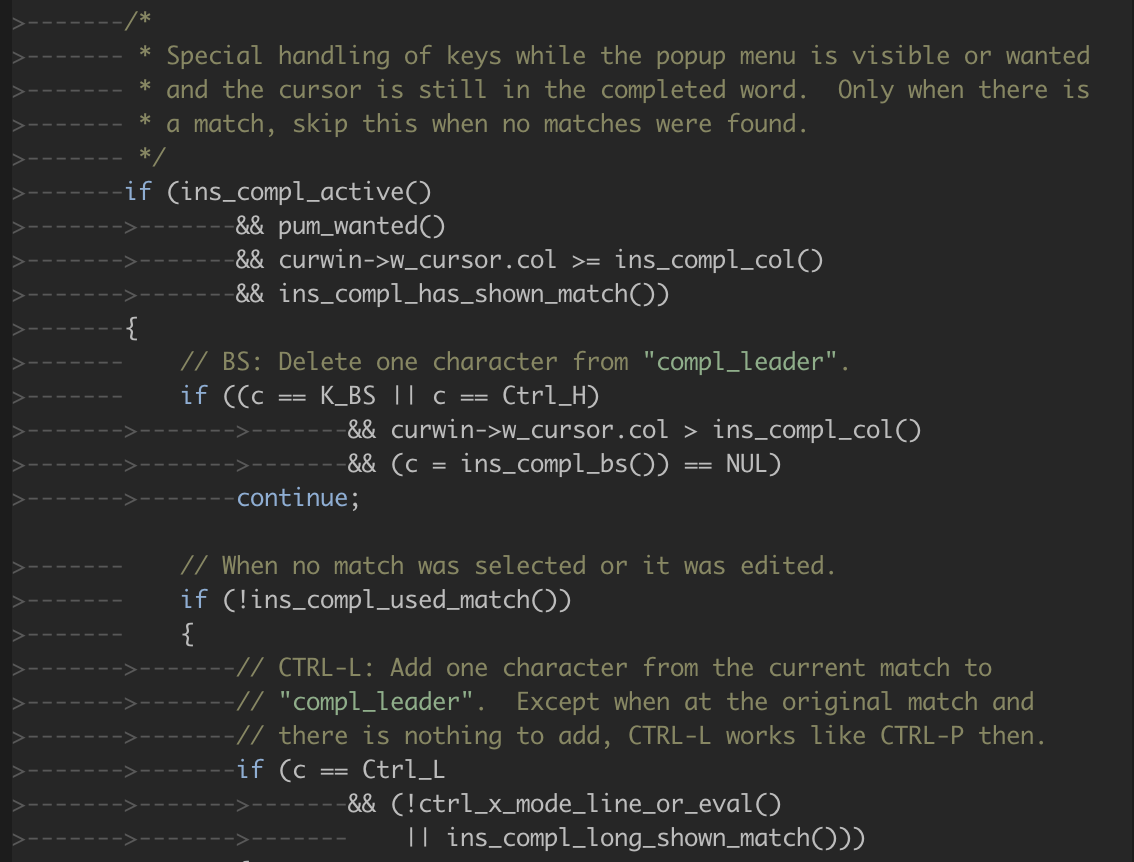
そして、ここにセマンティックハイライトを持つ同じ関数があります:
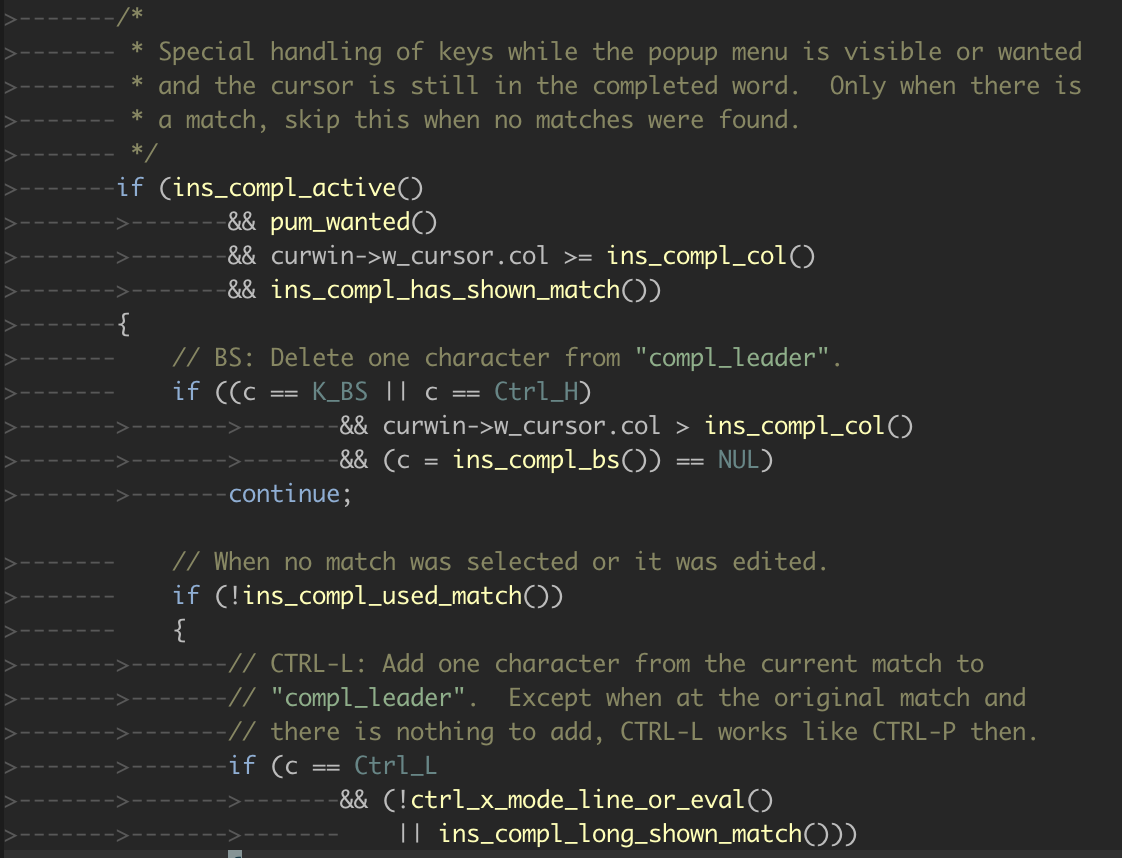
ご覧のとおり、関数呼び出し、マクロなどが正しく識別されます。
これは、 b:ycm_enable_semantic_highlightingを設定することにより、 let g:ycm_enable_semantic_highlighting=1またはバッファーごとにグローバルに有効にすることができます。
YCMは、セマンティックハイライトのためにテキストプロパティを使用しています(テキストプロップイントロを:help text-prop-intro )。着色をカスタマイズするために、使用されているテキストプロパティを定義できます。
YCM_HL_<token type>という名前のテキストプロパティを定義すると、デフォルトの代わりに使用されます。 <token type>は、LSP仕様で定義されている言語サーバープロトコルセマンティックトークンタイプとして定義されます。
一部のサーバーもカスタム値を使用しています。この場合、YCMは、カスタマイズできるトークンタイプ名を含む警告を印刷します。
たとえば、 Normalハイライトグループを使用してparameterトークンをレンダリングするには、これを行うことができます。
call prop_type_add ( ' YCM_HL_parameter ' , { ' highlight ' : ' Normal ' } )より一般的には、このパターンはグループのカスタマイズに役立ちます。
 let MY_YCM_HIGHLIGHT_GROUP = {
         ' typeParameter ' : ' PreProc ' ,
         ' parameter ' : ' Normal ' ,
         ' variable ' : ' Normal ' ,
         ' property ' : ' Normal ' ,
         ' enumMember ' : ' Normal ' ,
         ' event ' : ' Special ' ,
         ' member ' : ' Normal ' ,
         ' method ' : ' Normal ' ,
         ' class ' : ' Special ' ,
         ' namespace ' : ' Special ' ,
       }

for tokenType in keys ( MY_YCM_HIGHLIGHT_GROUP )
  call prop_type_add ( ' YCM_HL_ ' . tokenType,
                     { ' highlight ' : MY_YCM_HIGHLIGHT_GROUP[ tokenType ] } )
endfor 注:VIM 9.0.214以降を必要とする高度に実験的な機能(Neovimではサポートされていません)。
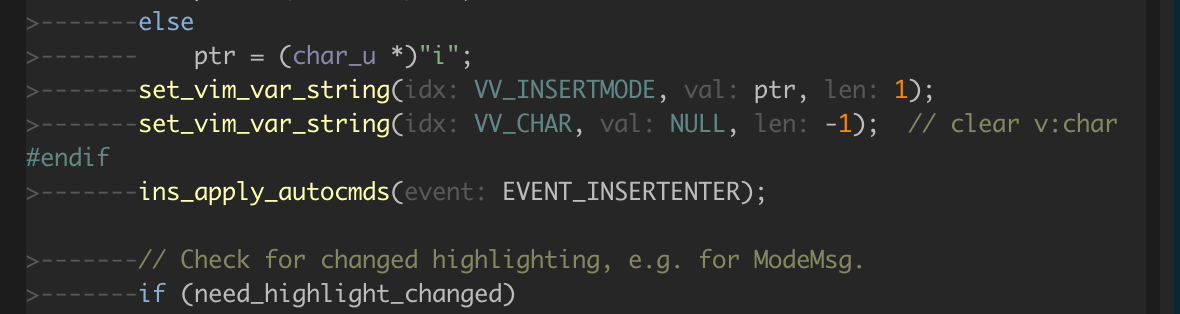
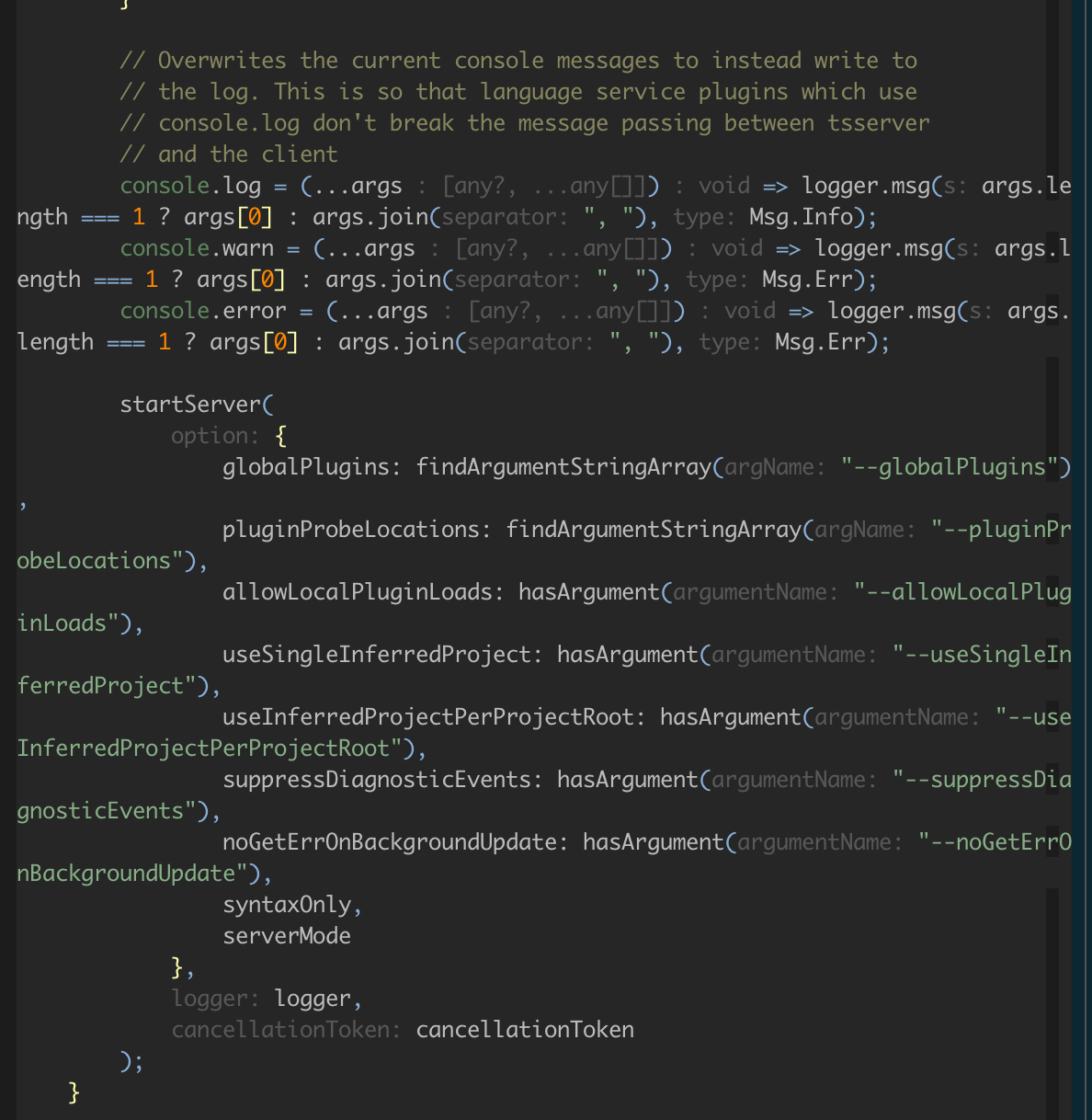
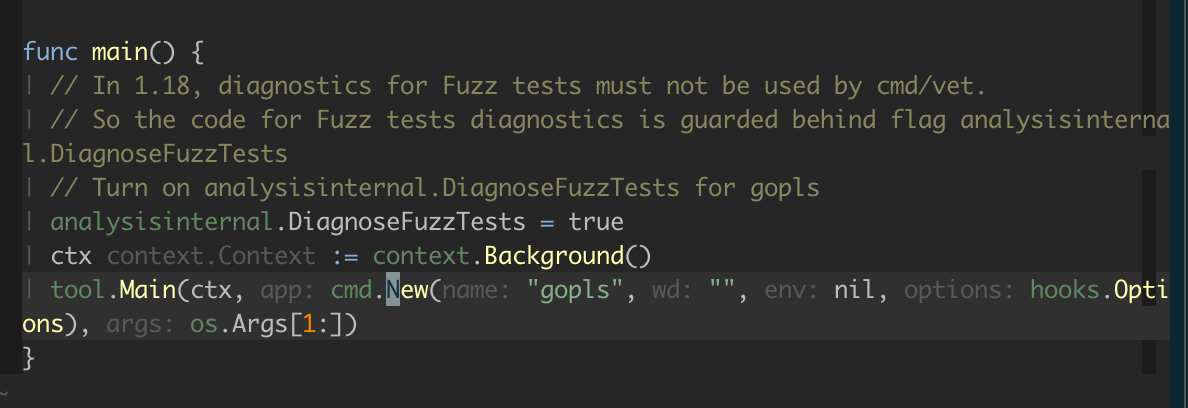
g:ycm_enable_inlay_hints (グローバル)またはb:ycm_enable_inlay_hints (特定のバッファー用)が1に設定されている場合、YCMは言語セマンティックエンジンでサポートされているようにインレイヒントを挿入します。
インレイヒントは、バッファの一部ではない画面にレンダリングされ、多くの場合、引数、パラメーターなどのタイプまたは名前をマークアップするためによく使用されるテキストです。
ここにいくつかの例があります:
デフォルトでは、YCMはNonTextハイライトグループでインレイヒントをレンダリングします。これをオーバーライドするには、 YcmInlayHintハイライトを定義します。たとえば、 .vimrc :
hi link YcmInlayHint Comment上記のセマンティックハイライトと同様に、インレイヒントの種類にちなんで名付けられたテキストプロパティを定義することにより、さまざまなインレイヒントタイプの特定のハイライトをオーバーライドできます。
call prop_type_add ( ' YCM_INLAY_Type ' , #{ highlight : ' Comment ' } )インレイヒントの種類のリストはpython/ycm/inlay_hints.pyにあります
g:ycm_enable_inlay_hintsまたはb:ycm_enable_inlay_hintsグローバルまたはローカルバッファーの有効化/無効化g:ycm_clear_inlay_hints_in_insert_mode 1に設定して、挿入モードを入力するときにすべてのインレイヒントを削除し、挿入モードを離れるときにそれらを復活させるInlayのヒントは、画面に多くのテキストを追加することができ、気を散らす可能性があります。何かを<Plug>(YCMToggleInlayHints)にマッピングすることで、すぐにオン/オフを切り替えることができます。
nnoremap <silent> <localleader> h <Plug> (YCMToggleInlayHints)マッピングの個人的な性質により、これにはデフォルトマッピングは提供されません。
Ctrl+Spaceを使用して、文字列のプレフィックスがなくても、どこでも完了の提案をトリガーできます。これは、どのトップレベル関数が使用できるかを確認するのに役立ちます。
注: YCMは元々、 libclangベースのエンジンをCファミリーに使用していましたが、ユーザーはより多くの機能とより良いパフォーマンスを提供するため、Clangdに移行する必要があります。 .ycm_extra_conf.pyのoverride_filenameに依存しているユーザーは、古いlibclangエンジンにとどまる必要があります。古いエンジンにとどまる方法に関する指示は、Wikiで利用できます。
Clangdの機能のいくつか:
#include insertions for those items.On supported architectures, the install.py script will download a suitable clangd ( --clangd-completer ) or libclang ( --clang-completer ) for you. Supported architectures are:
clangd :
Typically, clangd is installed by the YCM installer (either with --all or with --clangd-completer ). This downloads a pre-built clangd binary for your architecture. If your OS or architecture is not supported or is too old, you can install a compatible clangd and use g:ycm_clangd_binary_path to point to it.
libclang :
libclang can be enabled also with --all or --clang-completer . As with clangd , YCM will try and download a version of libclang that is suitable for your environment, but again if your environment can't be supported, you can build or acquire libclang for yourself and specify it when building, as:
$ EXTRA_CMAKE_ARGS='-DPATH_TO_LLVM_ROOT=/path/to/your/llvm' ./install.py --clang-completer --system-libclang
Please note that if using custom clangd or libclang it must match the version that YCM requires. Currently YCM requires clang 17.0.1 .
In order to perform semantic analysis such as code completion, GoTo , and diagnostics, YouCompleteMe uses clangd , which makes use of clang compiler, sometimes also referred to as LLVM. Like any compiler, clang also requires a set of compile flags in order to parse your code. Simply put: If clang can't parse your code, YouCompleteMe can't provide semantic analysis.
There are 2 methods that can be used to provide compile flags to clang:
The easiest way to get YCM to compile your code is to use a compilation database. A compilation database is usually generated by your build system (eg CMake ) and contains the compiler invocation for each compilation unit in your project.
For information on how to generate a compilation database, see the clang documentation.要するに:
-DCMAKE_EXPORT_COMPILE_COMMANDS=ON when configuring (or add set( CMAKE_EXPORT_COMPILE_COMMANDS ON ) to CMakeLists.txt ) and copy or symlink the generated database to the root of your project.compdb tool ( -t compdb ) in its docs..ycm_extra_conf.py below. If no .ycm_extra_conf.py is found, YouCompleteMe automatically tries to load a compilation database if there is one.
YCM looks for a file named compile_commands.json in the directory of the opened file or in any directory above it in the hierarchy (recursively); when the file is found before a local .ycm_extra_conf.py , YouCompleteMe stops searching the directories and lets clangd take over and handle the flags.
If you don't have a compilation database or aren't able to generate one, you have to tell YouCompleteMe how to compile your code some other way.
Every C-family project is different. It is not possible for YCM to guess what compiler flags to supply for your project. Fortunately, YCM provides a mechanism for you to generate the flags for a particular file with arbitrary complexity . This is achieved by requiring you to provide a Python module that implements a trivial function that, given the file name as an argument, returns a list of compiler flags to use to compile that file.
YCM looks for a .ycm_extra_conf.py file in the directory of the opened file or in any directory above it in the hierarchy (recursively); when the file is found, it is loaded (only once!) as a Python module. YCM calls a Settings method in that module which should provide it with the information necessary to compile the current file. You can also provide a path to a global configuration file with the g:ycm_global_ycm_extra_conf option, which will be used as a fallback. To prevent the execution of malicious code from a file you didn't write YCM will ask you once per .ycm_extra_conf.py if it is safe to load. This can be disabled and you can white-/blacklist files. See the g:ycm_confirm_extra_conf and g:ycm_extra_conf_globlist options respectively.
This system was designed this way so that the user can perform any arbitrary sequence of operations to produce a list of compilation flags YCM should hand to Clang.
NOTE : It is highly recommended to include -x <language> flag to libclang. This is so that the correct language is detected, particularly for header files. Common values are -xc for C, -x c++ for C++, -x objc for Objective-C, and -x cuda for CUDA.
To give you an impression, if your C++ project is trivial, and your usual compilation command is: g++ -Wall -Wextra -Werror -o FILE.o FILE.cc , then the following .ycm_extra_conf.py is enough to get semantic analysis from YouCompleteMe:
 def Settings ( ** kwargs ):
  return {
    'flags' : [ '-x' , 'c++' , '-Wall' , '-Wextra' , '-Werror' ],
  }
As you can see from the trivial example, YCM calls the Settings method which returns a dictionary with a single element 'flags' . This element is a list of compiler flags to pass to libclang for the current file. The absolute path of that file is accessible under the filename key of the kwargs dictionary.それでおしまい! This is actually enough for most projects, but for complex projects it is not uncommon to integrate directly with an existing build system using the full power of the Python language.
For a more elaborate example, see ycmd's own .ycm_extra_conf.py . You should be able to use it as a starting point . Don't just copy/paste that file somewhere and expect things to magically work; your project needs different flags . Hint: just replace the strings in the flags variable with compilation flags necessary for your project. That should be enough for 99% of projects.
You could also consider using YCM-Generator to generate the ycm_extra_conf.py file.
If Clang encounters errors when compiling the header files that your file includes, then it's probably going to take a long time to get completions. When the completion menu finally appears, it's going to have a large number of unrelated completion strings (type/function names that are not actually members). This is because Clang fails to build a precompiled preamble for your file if there are any errors in the included headers and that preamble is key to getting fast completions.
Call the :YcmDiags command to see if any errors or warnings were detected in your file.
Ensure that you have enabled the Java completer. See the installation guide for details.
Create a project file (gradle or maven) file in the root directory of your Java project, by following the instructions below.
(Optional) Configure the LSP server. The jdt.ls configuration options can be found in their codebase.
If you previously used Eclim or Syntastic for Java, disable them for Java.
Edit a Java file from your project.
In order to provide semantic analysis, the Java completion engine requires knowledge of your project structure. In particular, it needs to know the class path to use, when compiling your code. Fortunately jdt.ls supports eclipse project files, maven projects and gradle projects.
NOTE: Our recommendation is to use either Maven or Gradle projects.
The native support for Java includes YCM's native real-time diagnostics display. This can conflict with other diagnostics plugins like Syntastic, so when enabling Java support, please manually disable Syntastic Java diagnostics .
Add the following to your vimrc :
let g: syntastic_java_checkers = []The native support for Java includes YCM's native real-time diagnostics display. This can conflict with other diagnostics plugins like Eclim, so when enabling Java support, please manually disable Eclim Java diagnostics .
Add the following to your vimrc :
let g: EclimFileTypeValidate = 0 NOTE : We recommend disabling Eclim entirely when editing Java with YCM's native Java support. This can be done temporarily with :EclimDisable .
Eclipse-style projects require two files: .project and .classpath.
If your project already has these files due to previously being set up within Eclipse, then no setup is required. jdt.ls should load the project just fine (it's basically eclipse after all).
However, if not, it is possible (easy in fact) to craft them manually, though it is not recommended. You're better off using Gradle or Maven (see below).
A simple eclipse style project example can be found in the ycmd test directory. Normally all that is required is to copy these files to the root of your project and to edit the .classpath to add additional libraries, such as:
  < classpathentry kind = " lib " path = " /path/to/external/jar " />
  < classpathentry kind = " lib " path = " /path/to/external/java/source " />
It may also be necessary to change the directory in which your source files are located (paths are relative to the .project file itself):
< classpathentry kind = " src " output = " target/classes " path = " path/to/src/ " />NOTE : The eclipse project and classpath files are not a public interface and it is highly recommended to use Maven or Gradle project definitions if you don't already use Eclipse to manage your projects.
Maven needs a file named pom.xml in the root of the project. Once again a simple pom.xml can be found in the ycmd source.
The format of pom.xml files is way beyond the scope of this document, but we do recommend using the various tools that can generate them for you, if you're not familiar with them already.
Gradle projects require a build.gradle. Again, there is a trivial example in ycmd's tests.
The format of build.gradle files are way beyond the scope of this document, but we do recommend using the various tools that can generate them for you if you're not familiar with them already.
Some users have experienced issues with their jdt.ls when using the Groovy language for their build.gradle. As such, try using Kotlin instead.
If you're not getting completions or diagnostics, check the server health:
:YcmDebugInfo . Ensure that the following lines are present: -- jdt.ls Java Language Server running
-- jdt.ls Java Language Server Startup Status: Ready
:YcmToggleLogs . The jdt.ls log file is called .log (for some reason).If you get a message about "classpath is incomplete", then make sure you have correctly configured the project files.
If you get messages about unresolved imports, then make sure you have correctly configured the project files, in particular check that the classpath is set correctly.
YCM relies on OmniSharp-Roslyn to provide completion and code navigation. OmniSharp-Roslyn needs a solution file for a C# project and there are two ways of letting YCM know about your solution files.
YCM will scan all parent directories of the file currently being edited and look for a file with .sln extension.
If YCM loads .ycm_extra_conf.py which contains CSharpSolutionFile function, YCM will try to use that to determine the solution file. This is useful when one wants to override the default behaviour and specify a solution file that is not in any of the parent directories of the currently edited file.例:
 def CSharpSolutionFile ( filepath ):
  # `filepath` is the path of the file user is editing
  return '/path/to/solution/file' # Can be relative to the `.ycm_extra_conf.py`
If the path returned by CSharpSolutionFile is not an actual file, YCM will fall back to the other way of finding the file.
YCM ships with older version of OmniSharp-Roslyn based on Mono runtime. It is possible to use it with .NET 6.0 and newer, but it requires manual setup.
g:ycm_roslyn_binary_path to the unpacked executable OmniSharpdotnet new sln at the root of your projectdotnet sln add <project1.csproj> <project2.csproj> ... for all of your projects:YcmRestartServer YCM relies on the Jedi engine to provide completion and code navigation. By default, it will pick the version of Python running the ycmd server and use its sys.path . While this is fine for simple projects, this needs to be configurable when working with virtual environments or in a project with third-party packages. The next sections explain how to do that.
A common practice when working on a Python project is to install its dependencies in a virtual environment and develop the project inside that environment. To support this, YCM needs to know the interpreter path of the virtual environment. You can specify it by creating a .ycm_extra_conf.py file at the root of your project with the following contents:
 def Settings ( ** kwargs ):
  return {
    'interpreter_path' : '/path/to/virtual/environment/python'
  }
Here, /path/to/virtual/environment/python is the path to the Python used by the virtual environment you are working in. Typically, the executable can be found in the Scripts folder of the virtual environment directory on Windows and in the bin folder on other platforms.
If you don't like having to create a .ycm_extra_conf.py file at the root of your project and would prefer to specify the interpreter path with a Vim option, read the Configuring through Vim options section.
Another common practice is to put the dependencies directly into the project and add their paths to sys.path at runtime in order to import them. YCM needs to be told about this path manipulation to support those dependencies. This can be done by creating a .ycm_extra_conf.py file at the root of the project. This file must define a Settings( **kwargs ) function returning a dictionary with the list of paths to prepend to sys.path under the sys_path key. For instance, the following .ycm_extra_conf.py adds the paths /path/to/some/third_party/package and /path/to/another/third_party/package at the start of sys.path :
 def Settings ( ** kwargs ):
  return {
    'sys_path' : [
      '/path/to/some/third_party/package' ,
      '/path/to/another/third_party/package'
    ]
  }
If you would rather prepend paths to sys.path with a Vim option, read the Configuring through Vim options section.
If you need further control on how to add paths to sys.path , you should define the PythonSysPath( **kwargs ) function in the .ycm_extra_conf.py file. Its keyword arguments are sys_path which contains the default sys.path , and interpreter_path which is the path to the Python interpreter. Here's a trivial example that inserts the /path/to/third_party/package path at the second position of sys.path :
 def PythonSysPath ( ** kwargs ):
  sys_path = kwargs [ 'sys_path' ]
  sys_path . insert ( 1 , '/path/to/third_party/package' )
  return sys_path
A more advanced example can be found in YCM's own .ycm_extra_conf.py .
You may find it inconvenient to have to create a .ycm_extra_conf.py file at the root of each one of your projects in order to set the path to the Python interpreter and/or add paths to sys.path and would prefer to be able to configure those through Vim options. Don't worry, this is possible by using the g:ycm_extra_conf_vim_data option and creating a global extra configuration file. Let's take an example. Suppose that you want to set the interpreter path with the g:ycm_python_interpreter_path option and prepend paths to sys.path with the g:ycm_python_sys_path option. Suppose also that you want to name the global extra configuration file global_extra_conf.py and that you want to put it in your HOME folder. You should then add the following lines to your vimrc:
 let g: ycm_python_interpreter_path = ' '
let g: ycm_python_sys_path = []
let g: ycm_extra_conf_vim_data = [
    ' g:ycm_python_interpreter_path ' ,
    ' g:ycm_python_sys_path '
  ]
let g: ycm_global_ycm_extra_conf = ' ~/global_extra_conf.py '
Then, create the ~/global_extra_conf.py file with the following contents:
 def Settings ( ** kwargs ):
  client_data = kwargs [ 'client_data' ]
  return {
    'interpreter_path' : client_data [ 'g:ycm_python_interpreter_path' ],
    'sys_path' : client_data [ 'g:ycm_python_sys_path' ]
  }
それでおしまい。 You are done. Note that you don't need to restart the server when setting one of the options. YCM will automatically pick the new values.
YCM uses rust-analyzer for Rust semantic completion.
NOTE: Previously, YCM used rls for rust completion. This is no longer supported, as the Rust community has decided on rust-analyzer as the future of Rust tooling.
Completions and GoTo commands within the current crate and its dependencies should work out of the box with no additional configuration (provided that you built YCM with the --rust-completer flag; see the Installation section for details). The install script takes care of installing the Rust source code, so no configuration is necessary.
rust-analyzer supports a myriad of options. These are configured using LSP configuration, and are documented here.
Completions and GoTo commands should work out of the box (provided that you built YCM with the --go-completer flag; see the Installation section for details). The server only works for projects with the "canonical" layout.
gopls also has a load of documented options.
You can set these in your .ycm_extra_conf.py . For example, to set the build tags:
 def Settings ( ** kwargs ):
  if kwargs [ 'language' ] == 'go' :
    return {
       'ls' : {
         'build.buildFlags' : [ '-tags=debug' ] }
       }
} NOTE: YCM originally used the Tern engine for JavaScript but due to Tern not being maintained anymore by its main author and the TSServer engine offering more features, YCM is moving to TSServer. This won't affect you if you were already using Tern but you are encouraged to do the switch by deleting the third_party/ycmd/third_party/tern_runtime/node_modules directory in YCM folder. If you are a new user but still want to use Tern, you should pass the --js-completer option to the install.py script during installation. Further instructions on how to set up YCM with Tern are available on the wiki.
All JavaScript and TypeScript features are provided by the TSServer engine, which is included in the TypeScript SDK. To enable these features, install Node.js 18+ and npm and call the install.py script with the --ts-completer flag.
TSServer relies on the jsconfig.json file for JavaScript and the tsconfig.json file for TypeScript to analyze your project. Ensure the file exists at the root of your project.
To get diagnostics in JavaScript, set the checkJs option to true in your jsconfig.json file:
{
    "compilerOptions" : {
        "checkJs" : true
    }
}C-family, C#, Go, Java, Python, Rust, and JavaScript/TypeScript languages are supported natively by YouCompleteMe using the Clang, OmniSharp-Roslyn, Gopls, jdt.ls, Jedi, rust-analyzer, and TSServer engines, respectively. Check the installation section for instructions to enable these features if desired.
Similar to other LSP clients, YCM can use an arbitrary LSP server with the help of g:ycm_language_server option. An example of a value of this option would be:
 let g: ycm_language_server =
   [
     {
       ' name ' : ' yaml ' ,
       ' cmdline ' : [ ' /path/to/yaml/server/yaml-language-server ' , ' --stdio ' ],
       ' filetypes ' : [ ' yaml ' ]
     },
     {
       ' name ' : ' csharp ' ,
       ' cmdline ' : [ ' OmniSharp ' , ' -lsp ' ],
       ' filetypes ' : [ ' csharp ' ],
       ' project_root_files ' : [ ' *.csproj ' , ' *.sln ' ]
     },
     {
       ' name ' : ' godot ' ,
       ' filetypes ' : [ ' gdscript ' ],
       ' port ' : 6008 ,
       ' project_root_files ' : [ ' project.godot ' ]
      }
   ]
Each dictionary contains the following keys:
name (string, mandatory): When configuring a LSP server the value of the name key will be used as the kwargs[ 'language' ] . Can be anything you like.filetypes (list of string, mandatory): List of Vim filetypes this server should be used for.project_root_files (list of string, optional): List of filenames to search for when trying to determine the project's root. Uses python's pathlib for glob matching.cmdline (list of strings, optional): If supplied, the server is started with this command line (each list element is a command line word). Typically, the server should be started with STDIO communication. If not supplied, port must be supplied.port (number, optional): If supplied, ycmd will connect to the server at localhost:<port> using TCP (remote servers are not supported).capabilities (dict, optional): If supplied, this is a dictionary that is merged with the LSP client capabilities reported to the language server. This can be used to enable or disable certain features, such as the support for configuration sections ( workspace/configuration ).See the LSP Examples project for more examples of configuring the likes of PHP, Ruby, Kotlin, and D.
Many LSP servers allow some level of user configuration. YCM enables this with the help of .ycm_extra_conf.py files. Here's an example of jdt.ls user examples of configuring the likes of PHP, Ruby, Kotlin, D, and many, many more.
 def Settings ( ** kwargs ):
  if kwargs [ 'language' ] == 'java' :
    return {
      'ls' : {
        'java.format.onType.enabled' : True
      }
    }
The ls key tells YCM that the dictionary should be passed to the LSP server. For each of the LSP server's configuration, you should look up the respective server's documentation.
Some servers request settings from arbitrary 'sections' of configuration. There is no concept of configuration sections in Vim, so you can specify an additional config_sections dictionary which maps section to a dictionary of config required by the server.例えば:
 def Settings ( ** kwargs ):
  if kwargs [ 'language' ] == 'java' :
    return {
      'ls' : {
        'java.format.onType.enabled' : True
      },
      'config_sections' : {
        'some section' : {
          'some option' : 'some value'
        }
    }
The sections and options/values are completely server-specific and rarely well documented.
omnifunc for semantic completion YCM will use your omnifunc (see :h omnifunc in Vim) as a source for semantic completions if it does not have a native semantic completion engine for your file's filetype. Vim comes with rudimentary omnifuncs for various languages like Ruby, PHP, etc. It depends on the language.
You can get a stellar omnifunc for Ruby with Eclim. Just make sure you have the latest Eclim installed and configured (this means Eclim >= 2.2.* and Eclipse >= 4.2.* ).
After installing Eclim remember to create a new Eclipse project within your application by typing :ProjectCreate <path-to-your-project> -n ruby inside Vim and don't forget to have let g:EclimCompletionMethod = 'omnifunc' in your vimrc. This will make YCM and Eclim play nice; YCM will use Eclim's omnifuncs as the data source for semantic completions and provide the auto-triggering and subsequence-based matching (and other YCM features) on top of it.
You have two options here: writing an omnifunc for Vim's omnicomplete system that YCM will then use through its omni-completer, or a custom completer for YCM using the Completer API.
Here are the differences between the two approaches:
If you want to use the omnifunc system, see the relevant Vim docs with :h complete-functions . For the Completer API, see the API docs.
If you want to upstream your completer into YCM's source, you should use the Completer API.
YCM will display diagnostic notifications for the C-family, C#, Go, Java, JavaScript, Rust, and TypeScript languages. Since YCM continuously recompiles your file as you type, you'll get notified of errors and warnings in your file as fast as possible.
Here are the various pieces of the diagnostic UI:
gvim and a red background in vim ).The new diagnostics (if any) will be displayed the next time you press any key on the keyboard. So if you stop typing and just wait for the new diagnostics to come in, that will not work . You need to press some key for the GUI to update.
Having to press a key to get the updates is unfortunate, but cannot be changed due to the way Vim internals operate; there is no way that a background task can update Vim's GUI after it has finished running. You have to press a key. This will make YCM check for any pending diagnostics updates.
You can force a full, blocking compilation cycle with the :YcmForceCompileAndDiagnostics command (you may want to map that command to a key; try putting nnoremap <F5> :YcmForceCompileAndDiagnostics<CR> in your vimrc). Calling this command will force YCM to immediately recompile your file and display any new diagnostics it encounters. Do note that recompilation with this command may take a while and during this time the Vim GUI will be blocked.
YCM will display a short diagnostic message when you move your cursor to the line with the error. You can get a detailed diagnostic message with the <leader>d key mapping (can be changed in the options) YCM provides when your cursor is on the line with the diagnostic.
You can also see the full diagnostic message for all the diagnostics in the current file in Vim's locationlist , which can be opened with the :lopen and :lclose commands (make sure you have set let g:ycm_always_populate_location_list = 1 in your vimrc). A good way to toggle the display of the locationlist with a single key mapping is provided by another (very small) Vim plugin called ListToggle (which also makes it possible to change the height of the locationlist window), also written by yours truly.
You can change the styling for the highlighting groups YCM uses. For the signs in the Vim gutter, the relevant groups are:
YcmErrorSign , which falls back to group SyntasticErrorSign and then error if they existYcmWarningSign , which falls back to group SyntasticWarningSign and then todo if they existYou can also style the line that has the warning/error with these groups:
YcmErrorLine , which falls back to group SyntasticErrorLine if it existsYcmWarningLine , which falls back to group SyntasticWarningLine if it exists Finally, you can also style the popup for the detailed diagnostics (it is shown if g:ycm_show_detailed_diag_in_popup is set) using the group YcmErrorPopup , which falls back to ErrorMsg .
Note that the line highlighting groups only work when the g:ycm_enable_diagnostic_signs option is set. If you want highlighted lines but no signs in the Vim gutter, set the signcolumn option to no in your vimrc:
set signcolumn = noThe syntax groups used to highlight regions of text with errors/warnings:
YcmErrorSection , which falls back to group SyntasticError if it exists and then SpellBadYcmWarningSection , which falls back to group SyntasticWarning if it exists and then SpellCapHere's how you'd change the style for a group:
highlight YcmErrorLine guibg = # 3 f0000This feature requires Vim and is not supported in Neovim
YCM provides a way to search for and jump to a symbol in the current project or document when using supported languages.
You can search for symbols in the current workspace when the GoToSymbol request is supported and the current document when GoToDocumentOutline is supported.
Here's a quick demo:
As you can see, you can type and YCM filters down the list as you type. The current set of matches are displayed in a popup window in the centre of the screen and you can select an entry with the keyboard, to jump to that position. Any matches are then added to the quickfix list.
To enable:
nmap <something> <Plug>(YCMFindSymbolInWorkspace)nmap <something> <Plug>(YCMFindSymbolInDocument)例えば
nmap <leader>yfw <Plug>(YCMFindSymbolInWorkspace)nmap <leader>yfd <Plug>(YCMFindSymbolInDocument) When searching, YCM opens a prompt buffer at the top of the screen for the input and puts you in insert mode. This means that you can hit <Esc> to go into normal mode and use any other input commands that are supported in prompt buffers. As you type characters, the search is updated.
Initially, results are queried from all open filetypes. You can hit <Cf> to switch to just the current filetype while the popup is open.
While the popup is open, the following keys are intercepted:
<Cj> , <Down> , <Cn> , <Tab> - select the next item<Ck> , <Up> , <Cp> , <S-Tab> - select the previous item<PageUp> , <kPageUp> - jump up one screenful of items<PageDown> , <kPageDown> - jump down one screenful of items<Home> , <kHome> - jump to first item<End> , <kEnd> - jump to last item<CR> - jump to the selected item<Cc> cancel/dismiss the popup<Cf> - toggle results from all file types or just the current filetype The search is also cancelled if you leave the prompt buffer window at any time, so you can use window commands <Cw>... for example.
NOTE : Pressing <Esc> does not close the popup - you must use Ctrl-c for that, or use a window command (eg <Ctrl-w>j ) or the mouse to leave the prompt buffer window.
This feature requires Vim and is not supported in Neovim
NOTE : This feature is highly experimental and offered in the hope that it is useful. Please help us by reporting issues and offering feedback.
YCM provides a way to view and navigate hierarchies. The following hierarchies are supported:
<Plug>(YCMTypeHierarchy) : Display subtypes and supertypes of the symbol under cursor. Expand down to subtypes and up to supertypes.<Plug>(YCMCallHierarchy) : Display callees and callers of the symbol under cursor. Expand down to callers and up to callees.Take a look at this for brief demo.
Hierarchy UI can be initiated by mapping something to the indicated plug mappings, for example:
 nmap <leader> yth <Plug> (YCMTypeHierarchy)
nmap <leader> ych <Plug> (YCMCallHierarchy)
This opens a "modal" popup showing the current element in the hierarchy tree. The current tree root is aligned to the left and child and parent nodes are expanded to the right. Expand the tree "down" with <Tab> and "up" with `.
The "root" of the tree can be re-focused to the selected item with <S-Tab> and further <S-Tab> will show the parents of the selected item. This can take a little getting used to, but it's particularly important with multiple inheritance where a "child" of the current root may actually have other, invisible, parent links. <S-Tab> on that row will show these by setting the display root to the selected item.
When the hierarchy is displayed, the following keys are intercepted:
<Tab> : Drill into the hierarchy at the selected item: expand and show children of the selected item.<S-Tab> : Show parents of the selected item. When applied to sub-types, this will re-root the tree at that type, so that all parent types (are displayed). Similar for callers.<CR> : Jump to the symbol currently selected.<Down> , <Cn> , <Cj> , j : Select the next item<Up> , <Cp> , <Ck> , k ; Select the previous itemNote: you might think the call hierarchy tree is inverted, but we think this way round is more intuitive because this is the typical way that call stacks are displayed (with the current function at the top, and its callers below).
:YcmRestartServer commandIf the ycmd completion server suddenly stops for some reason, you can restart it with this command.
:YcmForceCompileAndDiagnostics commandCalling this command will force YCM to immediately recompile your file and display any new diagnostics it encounters. Do note that recompilation with this command may take a while and during this time the Vim GUI will be blocked.
You may want to map this command to a key; try putting nnoremap <F5> :YcmForceCompileAndDiagnostics<CR> in your vimrc.
:YcmDiags command Calling this command will fill Vim's locationlist with errors or warnings if any were detected in your file and then open it. If a given error or warning can be fixed by a call to :YcmCompleter FixIt , then (FixIt available) is appended to the error or warning text. See the FixIt completer subcommand for more information.
NOTE: The absence of (FixIt available) does not strictly imply a fix-it is not available as not all completers are able to provide this indication. For example, the c-sharp completer provides many fix-its but does not add this additional indication.
The g:ycm_open_loclist_on_ycm_diags option can be used to prevent the location list from opening, but still have it filled with new diagnostic data. See the Options section for details.
:YcmShowDetailedDiagnostic commandThis command shows the full diagnostic text when the user's cursor is on the line with the diagnostic.
An options argument can be passed. If the argument is popup the diagnostic text will be displayed in a popup at the cursor position.
If you prefer the detailed diagnostic to always be shown in a popup, then let g:ycm_show_detailed_diag_in_popup=1 .
:YcmDebugInfo commandThis will print out various debug information for the current file. Useful to see what compile commands will be used for the file if you're using the semantic completion engine.
:YcmToggleLogs command This command presents the list of logfiles created by YCM, the ycmd server, and the semantic engine server for the current filetype, if any. One of these logfiles can be opened in the editor (or closed if already open) by entering the corresponding number or by clicking on it with the mouse. Additionally, this command can take the logfile names as arguments. Use the <TAB> key (or any other key defined by the wildchar option) to complete the arguments or to cycle through them (depending on the value of the wildmode option). Each logfile given as an argument is directly opened (or closed if already open) in the editor. Only for debugging purposes.
:YcmCompleter commandThis command gives access to a number of additional IDE-like features in YCM, for things like semantic GoTo, type information, FixIt, and refactoring.
This command accepts a range that can either be specified through a selection in one of Vim's visual modes (see :h visual-use ) or on the command line. For instance, :2,5YcmCompleter will apply the command from line 2 to line 5. This is useful for the Format subcommand.
Call YcmCompleter without further arguments for a list of the commands you can call for the current completer.
See the file type feature summary for an overview of the features available for each file type. See the YcmCompleter subcommands section for more information on the available subcommands and their usage.
Some commands, like Format accept a range, like :%YcmCompleter Format .
Some commands like GetDoc and the various GoTo commands respect modifiers, like :rightbelow YcmCompleter GetDoc , :vertical YcmCompleter GoTo .
NOTE: See the docs for the YcmCompleter command before tackling this section.
The invoked subcommand is automatically routed to the currently active semantic completer, so :YcmCompleter GoToDefinition will invoke the GoToDefinition subcommand on the Python semantic completer if the currently active file is a Python one and on the Clang completer if the currently active file is a C-family language one.
You may also want to map the subcommands to something less verbose; for instance, nnoremap <leader>jd :YcmCompleter GoTo<CR> maps the <leader>jd sequence to the longer subcommand invocation.
These commands are useful for jumping around and exploring code. When moving the cursor, the subcommands add entries to Vim's jumplist so you can use CTRL-O to jump back to where you were before invoking the command (and CTRL-I to jump forward; see :h jumplist for details). If there is more than one destination, the quickfix list (see :h quickfix ) is populated with the available locations and opened to the full width at the bottom of the screen. You can change this behavior by using the YcmQuickFixOpened autocommand.
GoToInclude subcommandLooks up the current line for a header and jumps to it.
Supported in filetypes: c, cpp, objc, objcpp, cuda
GoToAlternateFile subcommandJump to the associated file, as defined by the language server. Typically this will jump you to the associated header file for a C or C++ translation unit.
Supported in filetypes: c, cpp, objc, objcpp, cuda (clangd only)
GoToDeclaration subcommandLooks up the symbol under the cursor and jumps to its declaration.
Supported in filetypes: c, cpp, objc, objcpp, cuda, cs, go, java, javascript, python, rust, typescript
GoToDefinition subcommandLooks up the symbol under the cursor and jumps to its definition.
NOTE: For C-family languages this only works in certain situations , namely when the definition of the symbol is in the current translation unit. A translation unit consists of the file you are editing and all the files you are including with #include directives (directly or indirectly) in that file.
Supported in filetypes: c, cpp, objc, objcpp, cuda, cs, go, java, javascript, python, rust, typescript
GoTo subcommandThis command tries to perform the "most sensible" GoTo operation it can. Currently, this means that it tries to look up the symbol under the cursor and jumps to its definition if possible; if the definition is not accessible from the current translation unit, jumps to the symbol's declaration. For C-family languages, it first tries to look up the current line for a header and jump to it. For C#, implementations are also considered and preferred.
Supported in filetypes: c, cpp, objc, objcpp, cuda, cs, go, java, javascript, python, rust, typescript
GoToImprecise subcommandWARNING: This command trades correctness for speed!
Same as the GoTo command except that it doesn't recompile the file with libclang before looking up nodes in the AST. This can be very useful when you're editing files that take time to compile but you know that you haven't made any changes since the last parse that would lead to incorrect jumps. When you're just browsing around your codebase, this command can spare you quite a bit of latency.
Supported in filetypes: c, cpp, objc, objcpp, cuda
GoToSymbol <symbol query> subcommandFinds the definition of all symbols matching a specified string. Note that this does not use any sort of smart/fuzzy matching. However, an interactive symbol search is also available.
Supported in filetypes: c, cpp, objc, objcpp, cuda, cs, java, javascript, python, typescript
GoToReferences subcommandThis command attempts to find all of the references within the project to the identifier under the cursor and populates the quickfix list with those locations.
Supported in filetypes: c, cpp, objc, objcpp, cuda, java, javascript, python, typescript, rust
GoToImplementation subcommandLooks up the symbol under the cursor and jumps to its implementation (ie non-interface). If there are multiple implementations, instead provides a list of implementations to choose from.
Supported in filetypes: cs, go, java, rust, typescript, javascript
GoToImplementationElseDeclaration subcommandLooks up the symbol under the cursor and jumps to its implementation if one, else jump to its declaration. If there are multiple implementations, instead provides a list of implementations to choose from.
Supported in filetypes: cs
GoToType subcommandLooks up the symbol under the cursor and jumps to the definition of its type eg if the symbol is an object, go to the definition of its class.
Supported in filetypes: go, java, javascript, typescript
GoToDocumentOutline subcommandProvides a list of symbols in the current document, in the quickfix list. See also interactive symbol search.
Supported in filetypes: c, cpp, objc, objcpp, cuda, go, java, rust
GoToCallers and GoToCallees subcommandsNote: A much more powerful call and type hierarchy can be viewd interactively. See interactive type and call hierarchy.
Populate the quickfix list with the callers, or callees respectively, of the function associated with the current cursor position. The semantics of this differ depending on the filetype and language server.
Only supported for LSP servers that provide the callHierarchyProvider capability.
These commands are useful for finding static information about the code, such as the types of variables, viewing declarations, and documentation strings.
GetType subcommandEchos the type of the variable or method under the cursor, and where it differs, the derived type.
例えば:
std::string s; Invoking this command on s returns std::string => std::basic_string<char>
NOTE: Causes re-parsing of the current translation unit.
Supported in filetypes: c, cpp, objc, objcpp, cuda, java, javascript, go, python, typescript, rust
GetTypeImprecise subcommandWARNING: This command trades correctness for speed!
Same as the GetType command except that it doesn't recompile the file with libclang before looking up nodes in the AST. This can be very useful when you're editing files that take time to compile but you know that you haven't made any changes since the last parse that would lead to incorrect type. When you're just browsing around your codebase, this command can spare you quite a bit of latency.
Supported in filetypes: c, cpp, objc, objcpp, cuda
GetParent subcommandEchos the semantic parent of the point under the cursor.
The semantic parent is the item that semantically contains the given position.
例えば:
 class C {
    void f ();
};

void C::f () {

}
In the out-of-line definition of C::f , the semantic parent is the class C , of which this function is a member.
In the example above, both declarations of C::f have C as their semantic context, while the lexical context of the first C::f is C and the lexical context of the second C::f is the translation unit.
For global declarations, the semantic parent is the translation unit.
NOTE: Causes re-parsing of the current translation unit.
Supported in filetypes: c, cpp, objc, objcpp, cuda
GetDoc subcommandDisplays the preview window populated with quick info about the identifier under the cursor. Depending on the file type, this includes things like:
The documentation is opened in the preview window, and options like previewheight are respected. If you would like to customise the height and position of this window, we suggest a custom command that:
previewheight temporarilyGetDoc command with supplied modifierspreviewheight .例えば:
 command - count ShowDocWithSize
   let g: ph = & previewheight
   <bar> set previewheight = <count>
   <bar> <mods> YcmCompleter GetDoc
   <bar> let & previewheight = g: ph
You can then use something like :botright vertical 80ShowDocWithSize . Here's an example of that: https://asciinema.org/a/hE6Pi1gU6omBShwFna8iwGEe9
Supported in filetypes: c, cpp, objc, objcpp, cuda, cs, go, java, javascript, python, typescript, rust
GetDocImprecise subcommandWARNING: This command trades correctness for speed!
Same as the GetDoc command except that it doesn't recompile the file with libclang before looking up nodes in the AST. This can be very useful when you're editing files that take long to compile but you know that you haven't made any changes since the last parse that would lead to incorrect docs. When you're just browsing around your codebase, this command can spare you quite a bit of latency.
Supported in filetypes: c, cpp, objc, objcpp, cuda
These commands make changes to your source code in order to perform refactoring or code correction. YouCompleteMe does not perform any action which cannot be undone, and never saves or writes files to the disk.
FixIt subcommandWhere available, attempts to make changes to the buffer to correct diagnostics, or perform refactoring, on the current line or selection. Where multiple suggestions are available (such as when there are multiple ways to resolve a given warning, or where multiple diagnostics are reported for the current line, or multiple refactoring tweaks are available), the options are presented and one can be selected.
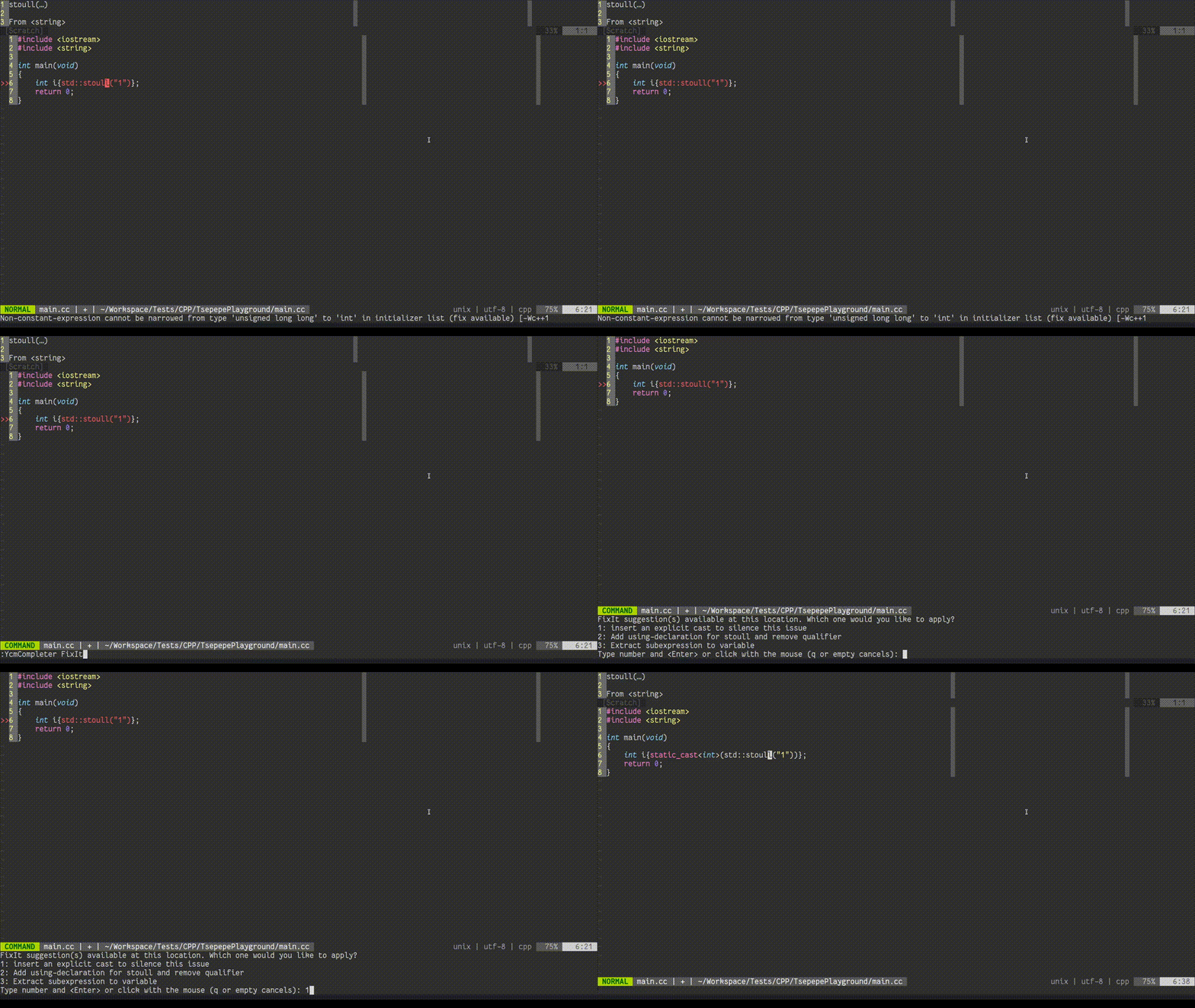
Completers that provide diagnostics may also provide trivial modifications to the source in order to correct the diagnostic. Examples include syntax errors such as missing trailing semi-colons, spurious characters, or other errors which the semantic engine can deterministically suggest corrections. A small demo presenting how diagnostics can be fixed with clangd:
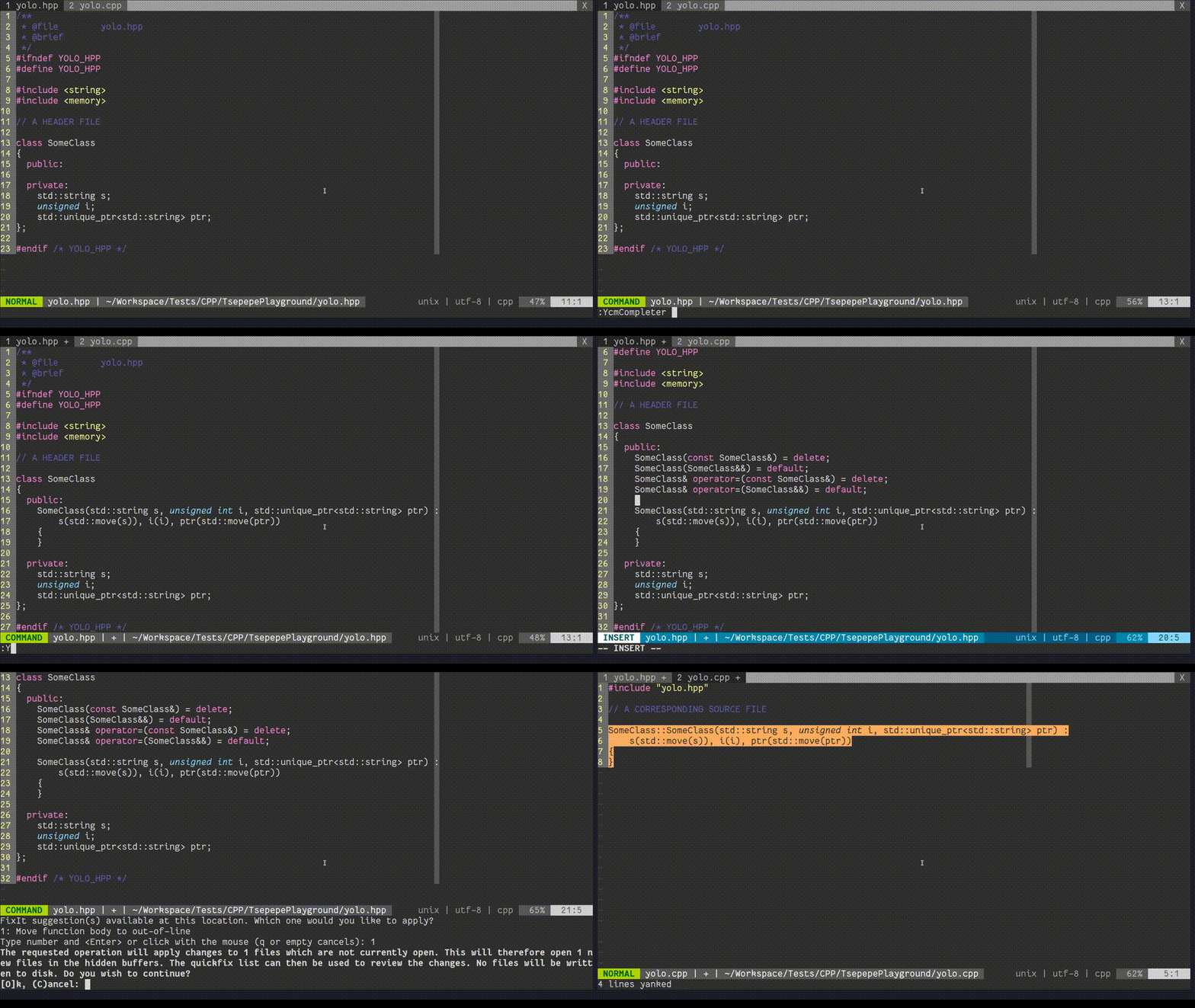
Completers (LSPs) may also provide refactoring tweaks, which may be available even when no diagnostic is presented for the current line. These include function extraction, variable extraction, switch population, constructor generation, ... The tweaks work for a selection as well. Consult your LSP for available refactorings. A demonstration of refactoring capabilities with clangd:
If no fix-it is available for the current line, or there is no diagnostic on the current line, this command has no effect on the current buffer. If any modifications are made, the number of changes made to the buffer is echo'd and the user may use the editor's undo command to revert.
When a diagnostic is available, and g:ycm_echo_current_diagnostic is enabled, then the text (FixIt) is appended to the echo'd diagnostic when the completer is able to add this indication. The text (FixIt available) is also appended to the diagnostic text in the output of the :YcmDiags command for any diagnostics with available fix-its (where the completer can provide this indication).
NOTE: Causes re-parsing of the current translation unit.
Supported in filetypes: c, cpp, objc, objcpp, cuda, cs, go, java, javascript, rust, typescript
RefactorRename <new name> subcommandIn supported file types, this command attempts to perform a semantic rename of the identifier under the cursor. This includes renaming declarations, definitions, and usages of the identifier, or any other language-appropriate action. The specific behavior is defined by the semantic engine in use.
Similar to FixIt , this command applies automatic modifications to your source files. Rename operations may involve changes to multiple files, which may or may not be open in Vim buffers at the time. YouCompleteMe handles all of this for you. The behavior is described in the following section.
Supported in filetypes: c, cpp, objc, objcpp, cuda, java, javascript, python, typescript, rust, cs
The following additional commands are supported for Python:
RefactorInlineRefactorExtractVariableRefactorExtractFunctionSee the jedi docs for what they do.
Supported in filetypes: python
When a Refactor or FixIt command touches multiple files, YouCompleteMe attempts to apply those modifications to any existing open, visible buffer in the current tab. If no such buffer can be found, YouCompleteMe opens the file in a new small horizontal split at the top of the current window, applies the change, and then hides the window. NOTE: The buffer remains open, and must be manually saved. A confirmation dialog is opened prior to doing this to remind you that this is about to happen.
Once the modifications have been made, the quickfix list (see :help quickfix ) is populated with the locations of all modifications. This can be used to review all automatic changes made by using :copen . Typically, use the CTRL-W <enter> combination to open the selected file in a new split. It is possible to customize how the quickfix window is opened by using the YcmQuickFixOpened autocommand.
The buffers are not saved automatically. That is, you must save the modified buffers manually after reviewing the changes from the quickfix list. Changes can be undone using Vim's powerful undo features (see :help undo ). Note that Vim's undo is per-buffer, so to undo all changes, the undo commands must be applied in each modified buffer separately.
NOTE: While applying modifications, Vim may find files that are already open and have a swap file. The command is aborted if you select Abort or Quit in any such prompts. This leaves the Refactor operation partially complete and must be manually corrected using Vim's undo features. The quickfix list is not populated in this case. Inspect :buffers or equivalent (see :help buffers ) to see the buffers that were opened by the command.
Format subcommand This command formats the whole buffer or some part of it according to the value of the Vim options shiftwidth and expandtab (see :h 'sw' and :h et respectively). To format a specific part of your document, you can either select it in one of Vim's visual modes (see :h visual-use ) and run the command or directly enter the range on the command line, eg :2,5YcmCompleter Format to format it from line 2 to line 5.
Supported in filetypes: c, cpp, objc, objcpp, cuda, java, javascript, go, typescript, rust, cs
OrganizeImports subcommandThis command removes unused imports and sorts imports in the current file. It can also group imports from the same module in TypeScript and resolve imports in Java.
Supported in filetypes: java, javascript, typescript
These commands are for general administration, rather than IDE-like features. They cover things like the semantic engine server instance and compilation flags.
ExecuteCommand <args> subcommandSome LSP completers (currently only Java completers) support executing server-specific commands. Consult the jdt.ls documentation to find out what commands are supported and which arguments are expected.
The support for ExecuteCommand was implemented to support plugins like Vimspector to debug java, but isn't limited to that specific use case.
RestartServer subcommandRestarts the downstream semantic engine server for those semantic engines that work as separate servers that YCM talks to.
Supported in filetypes: c, cpp, objc, objcpp, cuda, cs, go, java, javascript, rust, typescript
ReloadSolution subcommandInstruct the Omnisharp-Roslyn server to clear its cache and reload all files from the disk. This is useful when files are added, removed, or renamed in the solution, files are changed outside of Vim, or whenever Omnisharp-Roslyn cache is out-of-sync.
Supported in filetypes: cs
youcompleteme#GetErrorCount functionGet the number of YCM Diagnostic errors. If no errors are present, this function returns 0.
例えば:
call youcompleteme#GetErrorCount () Both this function and youcompleteme#GetWarningCount can be useful when integrating YCM with other Vim plugins. For example, a lightline user could add a diagnostics section to their statusline which would display the number of errors and warnings.
youcompleteme#GetWarningCount functionGet the number of YCM Diagnostic warnings. If no warnings are present, this function returns 0.
例えば:
call youcompleteme#GetWarningCount ()youcompleteme#GetCommandResponse( ... ) function Run a completer subcommand and return the result as a string. This can be useful for example to display the GetDoc output in a popup window, eg:
 let s: ycm_hover_popup = -1
function s: Hover ()
  let response = youcompleteme#GetCommandResponse ( ' GetDoc ' )
  if response == ' '
    return
  endif

  call popup_hide ( s: ycm_hover_popup )
  let s: ycm_hover_popup = popup_atcursor ( balloon_split ( response ), {} )
endfunction

" CursorHold triggers in normal mode after a delay
autocmd CursorHold * call s: Hover ()
" Or, if you prefer, a mapping:
nnoremap <silent> <leader> D :call <SID> Hover() <CR>
NOTE : This is only an example, for real hover support, see g:ycm_auto_hover .
If the completer subcommand result is not a string (for example, it's a FixIt or a Location), or if the completer subcommand raises an error, an empty string is returned, so that calling code does not have to check for complex error conditions.
The arguments to the function are the same as the arguments to the :YcmCompleter ex command, eg the name of the subcommand, followed by any additional subcommand arguments. As with the YcmCompleter command, if the first argument is ft=<filetype> the request is targeted at the specified filetype completer. This is an advanced usage and not necessary in most cases.
NOTE: The request is run synchronously and blocks Vim until the response is received, so we do not recommend running this as part of an autocommand that triggers frequently.
youcompleteme#GetCommandResponseAsync( callback, ... ) function This works exactly like youcompleteme#GetCommandResponse , except that instead of returning the result, you supply a callback argument. This argument must be a FuncRef to a function taking a single argument response . This callback will be called with the command response at some point later, or immediately.
As with youcompleteme#GetCommandResponse() , this function will call the callback with '' (an empty string) if the request is not sent, or if there was some sort of error.
Here's an example that's similar to the one above:
 let s: ycm_hover_popup = -1
function ! s: ShowDataPopup ( response ) abort
  if response == ' '
    return
  endif

  call popup_hide ( s: ycm_hover_popup )
  let s: ycm_hover_popup = popup_atcursor ( balloon_split ( response ), {} )
endfunction

function ! s: GetData () abort
  call youcompleteme#GetCommandResponseAsync (
     function ( ' s:ShowDataPopup ' ),
     ' GetDoc ' )
endfunction

autocommand CursorHold * call s: GetData ()
Again, see g:ycm_auto_hover for proper hover support.
NOTE : The callback may be called immediately, in the stack frame that called this function.
NOTE : Only one command request can be outstanding at once. Attempting to request a second response while the first is outstanding will result in the second callback being immediately called with '' .
YcmLocationOpened autocommand This User autocommand is fired when YCM opens the location list window in response to the YcmDiags command. By default, the location list window is opened to the bottom of the current window and its height is set to fit all entries. This behavior can be overridden by using the YcmLocationOpened autocommand which is triggered while the cursor is in the location list window.例えば:
 function ! s: CustomizeYcmLocationWindow ()
  " Move the window to the top of the screen.
  wincmd K
  " Set the window height to 5.
  5 wincmd _
  " Switch back to the working window.
  wincmd p
endfunction

autocmd User YcmLocationOpened call s: CustomizeYcmLocationWindow ()YcmQuickFixOpened autocommand This User autocommand is fired when YCM opens the quickfix window in response to the GoTo* and RefactorRename subcommands. By default, the quickfix window is opened to full width at the bottom of the screen and its height is set to fit all entries. This behavior can be overridden by using the YcmQuickFixOpened autocommand which is triggered while the cursor is in the quickfix window.例えば:
 function ! s: CustomizeYcmQuickFixWindow ()
  " Move the window to the top of the screen.
  wincmd K
  " Set the window height to 5.
  5 wincmd _
endfunction

autocmd User YcmQuickFixOpened call s: CustomizeYcmQuickFixWindow ()All options have reasonable defaults so if the plug-in works after installation you don't need to change any options. These options can be configured in your vimrc script by including a line like this:
let g: ycm_min_num_of_chars_for_completion = 1 Note that after changing an option in your vimrc script you have to restart ycmd with the :YcmRestartServer command for the changes to take effect.
g:ycm_min_num_of_chars_for_completion option This option controls the number of characters the user needs to type before identifier-based completion suggestions are triggered. For example, if the option is set to 2 , then when the user types a second alphanumeric character after a whitespace character, completion suggestions will be triggered. This option is NOT used for semantic completion.
Setting this option to a high number like 99 effectively turns off the identifier completion engine and just leaves the semantic engine.
Default: 2
let g: ycm_min_num_of_chars_for_completion = 2g:ycm_min_num_identifier_candidate_chars optionThis option controls the minimum number of characters that a completion candidate coming from the identifier completer must have to be shown in the popup menu.
A special value of 0 means there is no limit.
NOTE: This option only applies to the identifier completer; it has no effect on the various semantic completers.
Default: 0
let g: ycm_min_num_identifier_candidate_chars = 0g:ycm_max_num_candidates option This option controls the maximum number of semantic completion suggestions shown in the completion menu. This only applies to suggestions from semantic completion engines; see the g:ycm_max_identifier_candidates option to limit the number of suggestions from the identifier-based engine.
A special value of 0 means there is no limit.
NOTE: Setting this option to 0 or to a value greater than 100 is not recommended as it will slow down completion when there is a very large number of suggestions.
Default: 50
let g: ycm_max_num_candidates = 50g:ycm_max_num_candidates_to_detail option Some completion engines require completion candidates to be 'resolved' in order to get detailed info such as inline documentation, method signatures, etc. This information is displayed by YCM in the preview window, or if completeopt contains popup , in the info popup next to the completion menu.
By default, if the info popup is in use, and there are more than 10 candidates, YCM will defer resolving candidates until they are selected in the completion menu. Otherwise, YCM must resolve the details upfront, which can be costly.
If neither popup nor preview are in completeopt , YCM disables resolving altogether as the information would not be displayed.
This setting can be used to override these defaults and controls the number of completion candidates that should be resolved upfront. Typically users do not need to change this, as YCM will work out an appropriate value based on your completeopt and g:ycm_add_preview_to_completeopt settings. However, you may override this calculation by setting this value to a number:
-1 - Resolve all candidates upfront0 - Never resolve any candidates upfront.> 0 - Resolve up to this many candidates upfront. If the number of candidates is greater than this value, no candidates are resolved. In the latter two cases, if completeopt contains popup , then candidates are resolved on demand asynchronously.
デフォルト:
0 if neither popup nor preview are in completeopt .10 if popup is in completeopt.-1 if preview is in completeopt.例:
let g: ycm_max_num_candidates_to_detail = 0g:ycm_max_num_identifier_candidates optionThis option controls the maximum number of completion suggestions from the identifier-based engine shown in the completion menu.
A special value of 0 means there is no limit.
NOTE: Setting this option to 0 or to a value greater than 100 is not recommended as it will slow down completion when there is a very large number of suggestions.
Default: 10
let g: ycm_max_num_identifier_candidates = 10g:ycm_auto_trigger option When set to 0 , this option turns off YCM's identifier completer (the as-you-type popup) and the semantic triggers (the popup you'd get after typing . or -> in say C++). You can still force semantic completion with the <C-Space> shortcut.
If you want to just turn off the identifier completer but keep the semantic triggers, you should set g:ycm_min_num_of_chars_for_completion to a high number like 99 .
When g:ycm_auto_trigger is 0 , YCM sets the completefunc , so that you can manually trigger normal completion using Cx Cu .
If you want to map something else to trigger completion, such as Cd , then you can map it to <plug>(YCMComplete) .例えば:
 let g: ycm_auto_trigger = 0
imap <c-d> <plug> (YCMComplete)
NOTE: It's not possible to map one of the keys in g:ycm_key_list_select_completion (or similar) to <plug>(YCMComplete) . In practice that means that you can't use <Tab> for this.
Default: 1
let g: ycm_auto_trigger = 1g:ycm_filetype_whitelist option This option controls for which Vim filetypes (see :h filetype ) should YCM be turned on. The option value should be a Vim dictionary with keys being filetype strings (like python , cpp , etc.) and values being unimportant (the dictionary is used like a hash set, meaning that only the keys matter).
The * key is special and matches all filetypes. By default, the whitelist contains only this * key.
YCM also has a g:ycm_filetype_blacklist option that lists filetypes for which YCM shouldn't be turned on. YCM will work only in filetypes that both the whitelist and the blacklist allow (the blacklist "allows" a filetype by not having it as a key).
For example, let's assume you want YCM to work in files with the cpp filetype. The filetype should then be present in the whitelist either directly ( cpp key in the whitelist) or indirectly through the special * key. It should not be present in the blacklist.
Filetypes that are blocked by either of the lists will be completely ignored by YCM, meaning that neither the identifier-based completion engine nor the semantic engine will operate in them.
You can get the filetype of the current file in Vim with :set ft? 。
Default: {'*': 1}
let g: ycm_filetype_whitelist = { ' * ' : 1 }** Completion in buffers with no filetype **
There is one exception to the above rule. YCM supports completion in buffers with no filetype set, but this must be explicitly whitelisted. To identify buffers with no filetype, we use the ycm_nofiletype pseudo-filetype. To enable completion in buffers with no filetype, set:
 let g: ycm_filetype_whitelist = {
   ' * ' : 1 ,
   ' ycm_nofiletype ' : 1
}g:ycm_filetype_blacklist option This option controls for which Vim filetypes (see :h filetype ) should YCM be turned off. The option value should be a Vim dictionary with keys being filetype strings (like python , cpp , etc.) and values being unimportant (the dictionary is used like a hash set, meaning that only the keys matter).
See the g:ycm_filetype_whitelist option for more details on how this works.
Default: [see next line]
 let g: ycm_filetype_blacklist = {
       ' tagbar ' : 1 ,
       ' notes ' : 1 ,
       ' markdown ' : 1 ,
       ' netrw ' : 1 ,
       ' unite ' : 1 ,
       ' text ' : 1 ,
       ' vimwiki ' : 1 ,
       ' pandoc ' : 1 ,
       ' infolog ' : 1 ,
       ' leaderf ' : 1 ,
       ' mail ' : 1
      }
In addition, ycm_nofiletype (representing buffers with no filetype set) is blacklisted if ycm_nofiletype is not explicitly whitelisted (using g:ycm_filetype_whitelist ).
g:ycm_filetype_specific_completion_to_disable option This option controls for which Vim filetypes (see :h filetype ) should the YCM semantic completion engine be turned off. The option value should be a Vim dictionary with keys being filetype strings (like python , cpp , etc.) and values being unimportant (the dictionary is used like a hash set, meaning that only the keys matter). The listed filetypes will be ignored by the YCM semantic completion engine, but the identifier-based completion engine will still trigger in files of those filetypes.
Note that even if semantic completion is not turned off for a specific filetype, you will not get semantic completion if the semantic engine does not support that filetype.
You can get the filetype of the current file in Vim with :set ft? 。
Default: [see next line]
 let g: ycm_filetype_specific_completion_to_disable = {
       ' gitcommit ' : 1
}g:ycm_filepath_blacklist option This option controls for which Vim filetypes (see :h filetype ) should filepath completion be disabled. The option value should be a Vim dictionary with keys being filetype strings (like python , cpp , etc.) and values being unimportant (the dictionary is used like a hash set, meaning that only the keys matter).
The * key is special and matches all filetypes. Use this key if you want to completely disable filepath completion:
let g: ycm_filepath_blacklist = { ' * ' : 1 } You can get the filetype of the current file in Vim with :set ft? 。
Default: [see next line]
 let g: ycm_filepath_blacklist = {
       ' html ' : 1 ,
       ' jsx ' : 1 ,
       ' xml ' : 1 ,
}g:ycm_show_diagnostics_ui optionWhen set, this option turns on YCM's diagnostic display features. See the Diagnostic display section in the User Manual for more details.
Specific parts of the diagnostics UI (like the gutter signs, text highlighting, diagnostic echo, and auto location list population) can be individually turned on or off. See the other options below for details.
Note that YCM's diagnostics UI is only supported for C-family languages.
When set, this option also makes YCM remove all Syntastic checkers set for the c , cpp , objc , objcpp , and cuda filetypes since this would conflict with YCM's own diagnostics UI.
If you're using YCM's identifier completer in C-family languages but cannot use the clang-based semantic completer for those languages and want to use the GCC Syntastic checkers, unset this option.
Default: 1
let g: ycm_show_diagnostics_ui = 1g:ycm_error_symbol optionYCM will use the value of this option as the symbol for errors in the Vim gutter.
This option is part of the Syntastic compatibility layer; if the option is not set, YCM will fall back to the value of the g:syntastic_error_symbol option before using this option's default.
Default: >>
let g: ycm_error_symbol = ' >> 'g:ycm_warning_symbol optionYCM will use the value of this option as the symbol for warnings in the Vim gutter.
This option is part of the Syntastic compatibility layer; if the option is not set, YCM will fall back to the value of the g:syntastic_warning_symbol option before using this option's default.
Default: >>
let g: ycm_warning_symbol = ' >> 'g:ycm_enable_diagnostic_signs option When this option is set, YCM will put icons in Vim's gutter on lines that have a diagnostic set. Turning this off will also turn off the YcmErrorLine and YcmWarningLine highlighting.
This option is part of the Syntastic compatibility layer; if the option is not set, YCM will fall back to the value of the g:syntastic_enable_signs option before using this option's default.
Default: 1
let g: ycm_enable_diagnostic_signs = 1g:ycm_enable_diagnostic_highlighting optionWhen this option is set, YCM will highlight regions of text that are related to the diagnostic that is present on a line, if any.
This option is part of the Syntastic compatibility layer; if the option is not set, YCM will fall back to the value of the g:syntastic_enable_highlighting option before using this option's default.
Default: 1
let g: ycm_enable_diagnostic_highlighting = 1g:ycm_echo_current_diagnostic option When this option is set to 1, YCM will echo the text of the diagnostic present on the current line when you move your cursor to that line. If a FixIt is available for the current diagnostic, then (FixIt) is appended.
If you have a Vim that supports virtual text, you can set this option to the string virtual-text , and the diagnostic will be displayed inline with the text, right aligned in the window and wrapping to the next line if there is not enough space 、 例えば:


NOTE : It's strongly recommended to also set g:ycm_update_diagnostics_in_insert_mode to 0 when using virtual-text for diagnostics. This is due to the increased amount of distraction provided by drawing diagnostics next to your input position.
This option is part of the Syntastic compatibility layer; if the option is not set, YCM will fall back to the value of the g:syntastic_echo_current_error option before using this option's default.
Default: 1
Valid values:
0 - disabled1 - echo diagnostic to the command area'virtual-text' - display the dignostic to the right of the line in the window using virtual text let g: ycm_echo_current_diagnostic = 1
" Or, when you have Vim supporting virtual text
let g: ycm_echo_current_diagnostic = ' virtual-text 'g:ycm_auto_hover optionThis option controls whether or not YCM shows documentation in a popup at the cursor location after a short delay. Only supported in Vim.
When this option is set to 'CursorHold' , the popup is displayed on the CursorHold autocommand. See :help CursorHold for the details, but this means that it is displayed after updatetime milliseconds. When set to an empty string, the popup is not automatically displayed.
In addition to this setting, there is the <plug>(YCMHover) mapping, which can be used to manually trigger or hide the popup (it works like a toggle).例えば:
nmap <leader> D <plug> (YCMHover) After dismissing the popup with this mapping, it will not be automatically triggered again until the cursor is moved (ie CursorMoved autocommand).
The displayed documentation depends on what the completer for the current language supports. It's selected heuristically in this order of preference:
GetHover with markdown syntaxGetDoc with no syntaxGetType with the syntax of the current file. You can customise this by manually setting up b:ycm_hover to your liking. This buffer-local variable can be set to a dictionary with the following keys:
command : The YCM completer subcommand which should be run on hoversyntax : The syntax to use (as in set syntax= ) in the popup window for highlighting.popup_params : The params passed to a popup window which gets opened.For example, to use C/C++ syntax highlighting in the popup for C-family languages, add something like this to your vimrc:
 augroup MyYCMCustom
  autocmd !
  autocmd FileType c,cpp let b: ycm_hover = {
     ' command ' : ' GetDoc ' ,
     ' syntax ' : & filetype
     }
augroup END
You can also modify the opened popup with popup_params key. For example, you can limit the popup's maximum width and add a border to it:
 augroup MyYCMCustom
  autocmd !
  autocmd FileType c,cpp let b: ycm_hover = {
     ' command ' : ' GetDoc ' ,
     ' syntax ' : & filetype
     ' popup_params ' : {
         ' maxwidth ' : 80 ,
         ' border ' : [],
         ' borderchars ' : [ ' ─ ' , ' │ ' , ' ─ ' , ' │ ' , ' ┌ ' , ' ┐ ' , ' ┘ ' , ' └ ' ],
       },
     }
augroup END
See :help popup_create-arguments for the list of available popup window options.
Default: 'CursorHold'
g:ycm_filter_diagnostics optionThis option controls which diagnostics will be rendered by YCM. This option holds a dictionary of key-values, where the keys are Vim's filetype strings delimited by commas and values are dictionaries describing the filter.
A filter is a dictionary of key-values, where the keys are the type of filter, and the value is a list of arguments to that filter. In the case of just a single item in the list, you may omit the brackets and just provide the argument directly. If any filter matches a diagnostic, it will be dropped and YCM will not render it.
The following filter types are supported:
re.search , not re.match )level: "error" will remove all errors from the diagnostics.NOTE: The regex syntax is NOT Vim's, it's Python's.
デフォルト: {}
The following example will do, for Java filetype only:
ta<something>co let g: ycm_filter_diagnostics = {
" java " : {
" regex " : [ " ta.+co " , ... ],
" level " : " error " ,
...
}
}g:ycm_always_populate_location_list optionWhen this option is set, YCM will populate the location list automatically every time it gets new diagnostic data. This option is off by default so as not to interfere with other data you might have placed in the location list.
See :help location-list in Vim to learn more about the location list.
This option is part of the Syntastic compatibility layer; if the option is not set, YCM will fall back to the value of the g:syntastic_always_populate_loc_list option before using this option's default.
Note: if YCM's errors aren't visible, it might be that YCM is updating an older location list. See :help :lhistory and :lolder .
Default: 0
let g: ycm_always_populate_location_list = 0g:ycm_open_loclist_on_ycm_diags option When this option is set, :YcmDiags will automatically open the location list after forcing a compilation and filling the list with diagnostic data.
See :help location-list in Vim to learn more about the location list.
Default: 1
let g: ycm_open_loclist_on_ycm_diags = 1g:ycm_complete_in_comments option When this option is set to 1 , YCM will show the completion menu even when typing inside comments.
Default: 0
let g: ycm_complete_in_comments = 0g:ycm_complete_in_strings option When this option is set to 1 , YCM will show the completion menu even when typing inside strings.
Note that this is turned on by default so that you can use the filename completion inside strings. This is very useful for instance in C-family files where typing #include " will trigger the start of filename completion. If you turn off this option, you will turn off filename completion in such situations as well.
Default: 1
let g: ycm_complete_in_strings = 1g:ycm_collect_identifiers_from_comments_and_strings option When this option is set to 1 , YCM's identifier completer will also collect identifiers from strings and comments. Otherwise, the text in comments and strings will be ignored.
Default: 0
let g: ycm_collect_identifiers_from_comments_and_strings = 0g:ycm_collect_identifiers_from_tags_files option When this option is set to 1 , YCM's identifier completer will also collect identifiers from tags files. The list of tags files to examine is retrieved from the tagfiles() Vim function which examines the tags Vim option. See :h 'tags' for details.
YCM will re-index your tags files if it detects that they have been modified.
The only supported tag format is the Exuberant Ctags format. The format from "plain" ctags is NOT supported. Ctags needs to be called with the --fields=+l option (that's a lowercase L , not a one) because YCM needs the language:<lang> field in the tags output.
See the FAQ for pointers if YCM does not appear to read your tag files.
This option is off by default because it makes Vim slower if your tags are on a network directory.
Default: 0
let g: ycm_collect_identifiers_from_tags_files = 0g:ycm_seed_identifiers_with_syntax option When this option is set to 1 , YCM's identifier completer will seed its identifier database with the keywords of the programming language you're writing.
Since the keywords are extracted from the Vim syntax file for the filetype, all keywords may not be collected, depending on how the syntax file was written. Usually at least 95% of the keywords are successfully extracted.
Default: 0
let g: ycm_seed_identifiers_with_syntax = 0g:ycm_extra_conf_vim_data option If you're using semantic completion for C-family files, this option might come handy; it's a way of sending data from Vim to your Settings function in your .ycm_extra_conf.py file.
This option is supposed to be a list of VimScript expression strings that are evaluated for every request to the ycmd server and then passed to your Settings function as a client_data keyword argument.
For instance, if you set this option to ['v:version'] , your Settings function will be called like this:
 # The '801' value is of course contingent on Vim 8.1; in 8.0 it would be '800'
Settings ( ..., client_data = { 'v:version' : 801 } )
So the client_data parameter is a dictionary mapping Vim expression strings to their values at the time of the request.
The correct way to define parameters for your Settings function:
def Settings ( ** kwargs ): You can then get to client_data with kwargs['client_data'] .
デフォルト: []
let g: ycm_extra_conf_vim_data = []g:ycm_server_python_interpreter optionYCM will by default search for an appropriate Python interpreter on your system. You can use this option to override that behavior and force the use of a specific interpreter of your choosing.
NOTE: This interpreter is only used for the ycmd server. The YCM client running inside Vim always uses the Python interpreter that's embedded inside Vim.
デフォルト: ''
let g: ycm_server_python_interpreter = ' 'g:ycm_keep_logfiles option When this option is set to 1 , YCM and the ycmd completion server will keep the logfiles around after shutting down (they are deleted on shutdown by default).
To see where the log files are, call :YcmDebugInfo .
Default: 0
let g: ycm_keep_logfiles = 0g:ycm_log_level optionThe logging level that YCM and the ycmd completion server use. Valid values are the following, from most verbose to least verbose:
debuginfowarningerrorcritical Note that debug is very verbose.
Default: info
let g: ycm_log_level = ' info 'g:ycm_auto_start_csharp_server option When set to 1 , the OmniSharp-Roslyn server will be automatically started (once per Vim session) when you open a C# file.
Default: 1
let g: ycm_auto_start_csharp_server = 1g:ycm_auto_stop_csharp_server option When set to 1 , the OmniSharp-Roslyn server will be automatically stopped upon closing Vim.
Default: 1
let g: ycm_auto_stop_csharp_server = 1g:ycm_csharp_server_port option When g:ycm_auto_start_csharp_server is set to 1 , specifies the port for the OmniSharp-Roslyn server to listen on. When set to 0 uses an unused port provided by the OS.
Default: 0
let g: ycm_csharp_server_port = 0g:ycm_csharp_insert_namespace_expr option By default, when YCM inserts a namespace, it will insert the using statement under the nearest using statement. You may prefer that the using statement is inserted somewhere, for example, to preserve sorting. If so, you can set this option to override this behavior.
When this option is set, instead of inserting the using statement itself, YCM will set the global variable g:ycm_namespace_to_insert to the namespace to insert, and then evaluate this option's value as an expression. The option's expression is responsible for inserting the namespace - the default insertion will not occur.
デフォルト: ''
let g: ycm_csharp_insert_namespace_expr = ' 'g:ycm_add_preview_to_completeopt option When this option is set to 1 , YCM will add the preview string to Vim's completeopt option (see :h completeopt ). If your completeopt option already has preview set, there will be no effect. Alternatively, when set to popup and your version of Vim supports popup windows (see :help popup ), the popup string will be used instead. You can see the current state of your completeopt setting with :set completeopt? (yes, the question mark is important).
When preview is present in completeopt , YCM will use the preview window at the top of the file to store detailed information about the current completion candidate (but only if the candidate came from the semantic engine). For instance, it would show the full function prototype and all the function overloads in the window if the current completion is a function name.
When popup is present in completeopt , YCM will instead use a popup window to the side of the completion popup for storing detailed information about the current completion candidate. In addition, YCM may truncate the detailed completion information in order to give the popup sufficient room to display that detailed information.
Default: 0
let g: ycm_add_preview_to_completeopt = 0g:ycm_autoclose_preview_window_after_completion option When this option is set to 1 , YCM will auto-close the preview window after the user accepts the offered completion string. If there is no preview window triggered because there is no preview string in completeopt , this option is irrelevant. See the g:ycm_add_preview_to_completeopt option for more details.
Default: 0
let g: ycm_autoclose_preview_window_after_completion = 0g:ycm_autoclose_preview_window_after_insertion option When this option is set to 1 , YCM will auto-close the preview window after the user leaves insert mode. This option is irrelevant if g:ycm_autoclose_preview_window_after_completion is set or if no preview window is triggered. See the g:ycm_add_preview_to_completeopt option for more details.
Default: 0
let g: ycm_autoclose_preview_window_after_insertion = 0g:ycm_max_diagnostics_to_display optionThis option controls the maximum number of diagnostics shown to the user when errors or warnings are detected in the file. This option is only relevant for the C-family, C#, Java, JavaScript, and TypeScript languages.
A special value of 0 means there is no limit.
Default: 30
let g: ycm_max_diagnostics_to_display = 30g:ycm_key_list_select_completion optionThis option controls the key mappings used to select the first completion string. Invoking any of them repeatedly cycles forward through the completion list.
Some users like adding <Enter> to this list.
Default: ['<TAB>', '<Down>']
let g: ycm_key_list_select_completion = [ ' <TAB> ' , ' <Down> ' ]g:ycm_key_list_previous_completion optionThis option controls the key mappings used to select the previous completion string. Invoking any of them repeatedly cycles backward through the completion list.
Note that one of the defaults is <S-TAB> which means Shift-TAB. That mapping will probably only work in GUI Vim (Gvim or MacVim) and not in plain console Vim because the terminal usually does not forward modifier key combinations to Vim.
Default: ['<S-TAB>', '<Up>']
let g: ycm_key_list_previous_completion = [ ' <S-TAB> ' , ' <Up> ' ]g:ycm_key_list_stop_completion option This option controls the key mappings used to close the completion menu. This is useful when the menu is blocking the view, when you need to insert the <TAB> character, or when you want to expand a snippet from UltiSnips and navigate through it.
Default: ['<Cy>']
let g: ycm_key_list_stop_completion = [ ' <C-y> ' ]g:ycm_key_invoke_completion option This option controls the key mapping used to invoke the completion menu for semantic completion. By default, semantic completion is triggered automatically after typing characters appropriate for the language, such as . , -> , :: , etc. in insert mode (if semantic completion support has been compiled in). This key mapping can be used to trigger semantic completion anywhere. Useful for searching for top-level functions and classes.
Console Vim (not Gvim or MacVim) passes <Nul> to Vim when the user types <C-Space> so YCM will make sure that <Nul> is used in the map command when you're editing in console Vim, and <C-Space> in GUI Vim. This means that you can just press <C-Space> in both the console and GUI Vim and YCM will do the right thing.
Setting this option to an empty string will make sure no mapping is created.
Default: <C-Space>
let g: ycm_key_invoke_completion = ' <C-Space> 'g:ycm_key_detailed_diagnostics option This option controls the key mapping used to show the full diagnostic text when the user's cursor is on the line with the diagnostic. It basically calls :YcmShowDetailedDiagnostic .
Setting this option to an empty string will make sure no mapping is created.
If you prefer the detailed diagnostic to be shown in a popup, then let g:ycm_show_detailed_diag_in_popup=1 .
Default: <leader>d
let g: ycm_key_detailed_diagnostics = ' <leader>d 'g:ycm_show_detailed_diag_in_popup option Makes :YcmShowDetailedDiagnostic always show in a popup rather than echoing to the command line.
Default: 0
let g: ycm_show_detailed_diag_in_popup = 0g:ycm_global_ycm_extra_conf option Normally, YCM searches for a .ycm_extra_conf.py file for compilation flags (see the User Guide for more details on how this works). This option specifies a fallback path to a config file which is used if no .ycm_extra_conf.py is found.
You can place such a global file anywhere in your filesystem.
デフォルト: ''
let g: ycm_global_ycm_extra_conf = ' 'g:ycm_confirm_extra_conf option When this option is set to 1 YCM will ask once per .ycm_extra_conf.py file if it is safe to be loaded. This is to prevent the execution of malicious code from a .ycm_extra_conf.py file you didn't write.
To selectively get YCM to ask/not ask about loading certain .ycm_extra_conf.py files, see the g:ycm_extra_conf_globlist option.
Default: 1
let g: ycm_confirm_extra_conf = 1g:ycm_extra_conf_globlist option This option is a list that may contain several globbing patterns. If a pattern starts with a ! all .ycm_extra_conf.py files matching that pattern will be blacklisted, that is they won't be loaded and no confirmation dialog will be shown. If a pattern does not start with a ! all files matching that pattern will be whitelisted. Note that this option is not used when confirmation is disabled using g:ycm_confirm_extra_conf and that items earlier in the list will take precedence over the later ones.
ルール:
* matches everything? matches any single character[seq] matches any character in seq[!seq] matches any char not in seq例:
let g: ycm_extra_conf_globlist = [ ' ~/dev/* ' , ' !~/* ' ]~/dev directory so .ycm_extra_conf.py files from there will be loaded..ycm_extra_conf.py file from there won't be loaded.~/dev directory will be blacklisted. NOTE: The glob pattern is first expanded with Python's os.path.expanduser() and then resolved with os.path.abspath() before being matched against the filename.
デフォルト: []
let g: ycm_extra_conf_globlist = []g:ycm_filepath_completion_use_working_dir option By default, YCM's filepath completion will interpret relative paths like ../ as being relative to the folder of the file of the currently active buffer. Setting this option will force YCM to always interpret relative paths as being relative to Vim's current working directory.
Default: 0
let g: ycm_filepath_completion_use_working_dir = 0g:ycm_semantic_triggers optionThis option controls the character-based triggers for the various semantic completion engines. The option holds a dictionary of key-values, where the keys are Vim's filetype strings delimited by commas and values are lists of strings, where the strings are the triggers.
Setting key-value pairs on the dictionary adds semantic triggers to the internal default set (listed below). You cannot remove the default triggers, only add new ones.
A "trigger" is a sequence of one or more characters that trigger semantic completion when typed. For instance, C++ ( cpp filetype) has . listed as a trigger. So when the user types foo. , the semantic engine will trigger and serve foo 's list of member functions and variables. Since C++ also has -> listed as a trigger, the same thing would happen when the user typed foo-> .
It's also possible to use a regular expression as a trigger. You have to prefix your trigger with re! to signify it's a regex trigger. For instance, re!w+. would only trigger after the w+. regex matches.
NOTE: The regex syntax is NOT Vim's, it's Python's.
Default: [see next line]
 let g: ycm_semantic_triggers =  {
     ' c ' : [ ' -> ' , ' . ' ],
     ' objc ' : [ ' -> ' , ' . ' , ' re![[_a-zA-Z]+w*s ' , ' re!^s*[^Wd]w*s ' ,
              ' re![.*]s ' ],
     ' ocaml ' : [ ' . ' , ' # ' ],
     ' cpp,cuda,objcpp ' : [ ' -> ' , ' . ' , ' :: ' ],
     ' perl ' : [ ' -> ' ],
     ' php ' : [ ' -> ' , ' :: ' ],
     ' cs,d,elixir,go,groovy,java,javascript,julia,perl6,python,scala,typescript,vb ' : [ ' . ' ],
     ' ruby,rust ' : [ ' . ' , ' :: ' ],
     ' lua ' : [ ' . ' , ' : ' ],
     ' erlang ' : [ ' : ' ],
}g:ycm_cache_omnifunc optionSome omnicompletion engines do not work well with the YCM cache—in particular, they might not produce all possible results for a given prefix. By unsetting this option you can ensure that the omnicompletion engine is re-queried on every keypress. That will ensure all completions will be presented but might cause stuttering and lag if the omnifunc is slow.
Default: 1
let g: ycm_cache_omnifunc = 1g:ycm_use_ultisnips_completer optionBy default, YCM will query the UltiSnips plugin for possible completions of snippet triggers. This option can turn that behavior off.
Default: 1
let g: ycm_use_ultisnips_completer = 1g:ycm_goto_buffer_command option Defines where GoTo* commands result should be opened. Can take one of the following values: 'same-buffer' , 'split' , or 'split-or-existing-window' . If this option is set to the 'same-buffer' but current buffer can not be switched (when buffer is modified and nohidden option is set), then result will be opened in a split. When the option is set to 'split-or-existing-window' , if the result is already open in a window of the current tab page (or any tab pages with the :tab modifier; see below), it will jump to thatウィンドウ。 Otherwise, the result will be opened in a split as if the option was set to 'split' .
To customize the way a new window is split, prefix the GoTo* command with one of the following modifiers: :aboveleft , :belowright , :botright , :leftabove , :rightbelow , :topleft , and :vertical . For instance, to split vertically to the right of the current window, run the command:
: rightbelow vertical YcmCompleter GoTo To open in a new tab page, use the :tab modifier with the 'split' or 'split-or-existing-window' options eg:
: tab YcmCompleter GoTo Default: 'same-buffer'
let g: ycm_goto_buffer_command = ' same-buffer 'g:ycm_disable_for_files_larger_than_kb optionDefines the max size (in Kb) for a file to be considered for completion. If this option is set to 0 then no check is made on the size of the file you're opening.
Default: 1000
let g: ycm_disable_for_files_larger_than_kb = 1000g:ycm_use_clangd option This option controls whether clangd should be used as a completion engine for C-family languages. Can take one of the following values: 1 , 0 , with meanings:
1 : YCM will use clangd if clangd binary exists in third party or it was provided with ycm_clangd_binary_path option.0 : YCM will never use clangd completer. Default: 1
let g: ycm_use_clangd = 1g:ycm_clangd_binary_path option When ycm_use_clangd option is set to 1 , this option sets the path to clangd binary.
デフォルト: ''
let g: ycm_clangd_binary_path = ' 'g:ycm_clangd_args optionThis option controls the command line arguments passed to the clangd binary. It appends new options and overrides the existing ones.
デフォルト: []
let g: ycm_clangd_args = []g:ycm_clangd_uses_ycmd_caching optionThis option controls which ranking and filtering algorithm to use for completion items. It can take values:
1 : Uses ycmd's caching and filtering logic.0 : Uses clangd's caching and filtering logic. Default: 1
let g: ycm_clangd_uses_ycmd_caching = 1g:ycm_language_server optionThis option lets YCM use an arbitrary Language Server Protocol (LSP) server, not unlike many other completion systems. The officially supported completers are favoured over custom LSP ones, so overriding an existing completer means first making sure YCM won't choose that existing completer in the first place.
A simple working example of this option can be found in the section called "Semantic Completion for Other Languages".
Many working examples can be found in the YCM lsp-examples repo.
デフォルト: []
let g: ycm_language_server = []g:ycm_disable_signature_help optionThis option allows you to disable all signature help for all completion engines. There is no way to disable it per-completer.
Default: 0
 " Disable signature help
let g: ycm_disable_signature_help = 1g:ycm_signature_help_disable_syntax optionSet this to 1 to disable syntax highlighting in the signature help popup. Thiis can help if your colourscheme doesn't work well with the default highliting and inverse video.
Default: 0
 " Disable signature help syntax highliting
let g: ycm_signature_help_disable_syntax = 1g:ycm_gopls_binary_path option In case the system-wide gopls binary is newer than the bundled one, setting this option to the path of the system-wide gopls would make YCM use that one instead.
If the path is just gopls , YCM will search in $PATH .
g:ycm_gopls_args option Similar to the g:ycm_clangd_args , this option allows passing additional flags to the gopls command line.
デフォルト: []
let g: ycm_gopls_args = []g:ycm_rls_binary_path and g:ycm_rustc_binary_path optionsYCM no longer uses RLS for rust, and these options are therefore no longer supported.
To use a custom rust-analyzer, see g:ycm_rust_toolchain_root .
g:ycm_rust_toolchain_root option Optionally specify the path to a custom rust toolchain including at least a supported version of rust-analyzer .
g:ycm_tsserver_binary_path option Similar to the gopls path, this option tells YCM where is the TSServer executable located.
g:ycm_roslyn_binary_path option Similar to the gopls path, this option tells YCM where is the Omnisharp-Roslyn executable located.
g:ycm_update_diagnostics_in_insert_mode optionWith async diagnostics, LSP servers might send new diagnostics mid-typing. If seeing these new diagnostics while typing is not desired, this option can be set to 0.
When this option is set to 0 , diagnostic signs, virtual text, and highlights are cleared when entering insert mode and replaced when leaving insert mode. This reduces visual noise while editing.
In addition, this option is recommended when g:ycm_echo_current_diagnostic is set to virtual-text as it prevents updating the virtual text while you are typing.
Default: 1
let g: ycm_update_diagnostics_in_insert_mode = 1 The FAQ section has been moved to the wiki.
Please note that this project is released with a Contributor Code of Conduct. By participating in this project you agree to abide by its terms.
If you have questions about the plugin or need help, please join the Gitter room or use the ycm-users mailing list.
If you have bug reports or feature suggestions, please use the issue tracker. Before you do, please carefully read CONTRIBUTING.md as this asks for important diagnostics which the team will use to help get you going.
The latest version of the plugin is available at https://ycm-core.github.io/YouCompleteMe/.
The author's homepage is https://val.markovic.io.
Please do NOT go to #vim, Reddit, or Stack Overflow for support. Please contact the YouCompleteMe maintainers directly using the contact details.
This software is licensed under the GPL v3 license. © 2015-2018 YouCompleteMe contributors
If you like YCM so much that you're willing to part with your hard-earned cash, please consider donating to one of the following charities, which are meaningful to the current maintainers (in no particular order):
Please note: The YCM maintainers do not specifically endorse nor necessarily have any relationship with the above charities. Disclosure: It is noted that one key maintainer is a family with Trustees of Greyhound Rescue Wales.





