TarakoTalk
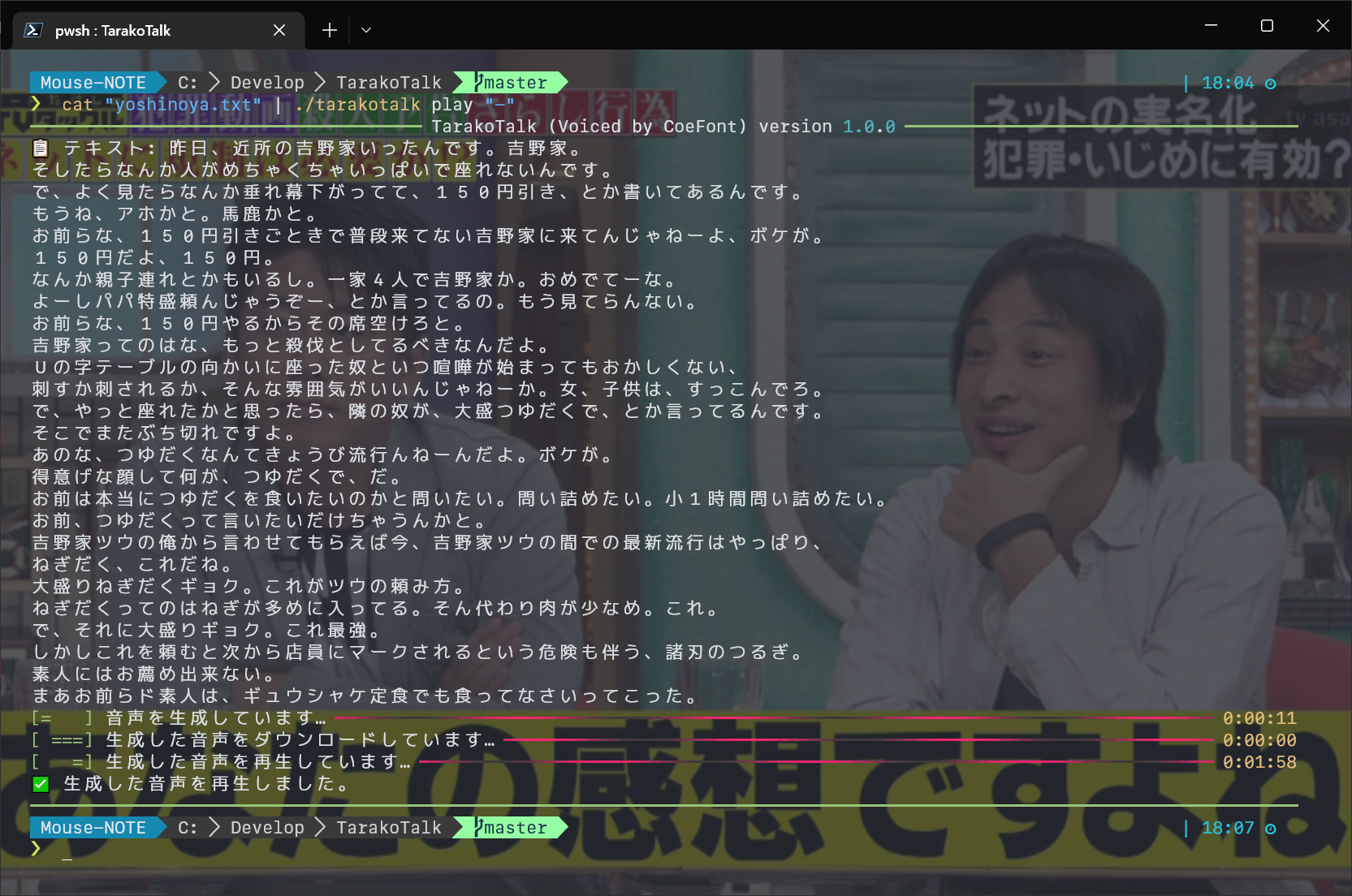
This is an unofficial CLI TTS (Text-to-Speech) tool that lets Hiroyuki speak appropriate things from the CLI using Ochari Hiroyuki Maker.
Features
It implements two subcommands: save , which saves the generated audio to a file, and play , which plays the generated audio as is on a PC.
Unlike websites with a limit of 140 characters, TarakoTalk allows Hiroyuki to speak up text up to 1000 characters (based on the API specifications as of September 6, 2022).
You can also copy and paste or have Hiroyuki read short stories aloud.
It seems that the shortest one takes about 5 seconds, and up to 15 seconds to generate audio (may be more if the server is busy).
- Save generated audio to a file (
save )- The text you want to be spoken can be entered from either command line arguments, text files, or standard input (passing through pipe).
- Save the generated audio in wav format to the specified file path
- The generated audio is output to standard output (through pipe) in wav format.
- If you install FFmpeg separately, you can convert from wav to mp3 or other audio formats with
tarakotalk save "それって、あなたの感想ですよね?" "-" | ffmpeg -i - test.mp3 .
- Play the generated audio on your PC (
play )- The text you want to be spoken can be entered from either command line arguments, text files, or standard input (passing through pipe).
- The generated audio is played directly from the PC speaker (cross-platform compatible)
How to Use
Download the latest TarakoTalk from Releases and place it in the folder where your PATH passes.
TarakoTalk is a Python tool, but it is built into a single binary using Nuitka.
- Windows (x64): TarakoTalk.exe
- macOS (x64): tarakotalk-macos
- It's only for the Intel Mac version, but it should work on an Apple Silicon (M1) Mac if Rosetta 2 is included...?
- Linux (x64): tarakotalk-linux
- Linux (arm64): tarakotalk-linux-arm
There are four builds above. Please download it according to your OS.
 usage: ./tarakotalk [-h] {save,play} ...

Cross-platform CLI TTS Tools for Hiroyuki's Voice

positional arguments:
  {save,play}
    save       生成した音声をファイルに保存する
    play       生成した音声を PC 上で再生する

options:
  -h, --help   show this help message and exit
tarakotalk save
 usage: ./tarakotalk save [-h] input output

positional arguments:
  input       ひろゆきに喋らせるテキスト (文字列 or ファイルパス、"-" で標準入力から読み込み)
  output      生成した音声ファイル (wav) の保存先のファイルパス ("-" で標準出力に出力)

options:
  -h, --help  show this help message and exit
 # コマンドライン引数からテキストを入力し、生成した音声を /path/to/test.wav に保存
. / tarakotalk save "それって、あなたの感想ですよね? " " /path/to/test.wav "

# ファイルからテキストを入力し、生成した音声を標準出力に出力したあと、FFmpeg に渡して mp3 に変換
. / tarakotalk save " /path/to/yoshinoya.txt " " - " | ffmpeg - i - - c:a libmp3lame / path / to / test.mp3

# 標準入力からテキストを読み上げ、生成した音声を /path/to/test.wav に保存
echo "それって、あなたの感想ですよね? " | . / tarakotalk save " - " " /path/to/test.wav "
tarakotalk play
 usage: ./tarakotalk play [-h] input

positional arguments:
  input       ひろゆきに喋らせるテキスト (文字列 or ファイルパス、"-" で標準入力から読み込み)

options:
  -h, --help  show this help message and exit
 # コマンドライン引数からテキストを読み上げ
. / tarakotalk play "それって、あなたの感想ですよね? "

# ファイルからテキストを読み上げ
. / tarakotalk play " /path/to/yoshinoya.txt "

# 標準入力からテキストを読み上げ
echo "それって、あなたの感想ですよね? " | . / tarakotalk play " - "
Examples of Use
I've just given a random example that seems to be usable for now (reference required), and it has not been verified whether it can actually be used.
- Have Hiroyuki read a copy and paste of Yoshinoya
- Have them read comments from live chat like Boyomi-chan
- You will need a separate tool that allows you to execute commands along with the comment content when you receive a comment from Live Chat. I don't know if there's something like that.
- Even short comments take a few seconds to generate audio, so real-time performance will inevitably decrease.
- I installed TarakoTalk on my Raspberry Pi and let Hiroyuki read out the weather and news of today from the speaker connected to my Raspberry Pi at 8am.
- The generation is (of course) left to CoeFont's server, so even a weak machine like Raspberry Pi should be able to generate it fairly quickly.
- The generated audio can be played to standard output, so if you receive the standard input that has been piped through FFmpeg (
-i - ), you can convert it to another audio format or change the playback speed depending on the FFmpeg command. - You can also use FFmpeg to add background music or filter the audio.
- Use the video as narration to read Hiroyuki
- If you want to use it for video creation, Hiroyuki is officially included in CoeFont, which is free and unlimited use within CoeFont Cloud, so I think it's more convenient to use that, as it allows you to play intonation and speed (for some reason it's not much advertised...).
- You must be logged in to use CoeFont Cloud.
- Some CoeFont have paid items, but Hiroyuki seems to be the free tier, following Arial Mial. The drop is huge...
- For sound MAD materials, the lyrics of the original song are sent to Hiroyuki, and then trained and made to sing separately in REAPER or VocalShifter.
- Since it is a CLI tool, it is possible to create a shell script or something to split the lyrics into multiple wav files to generate them.
Disclaimer
- TarakoTalk is an unofficial tool. It has nothing to do with the CoeFont official.
- TarakoTalk gets Hiroyuki's audio from the CLI by directly accessing the private APIs used internally by Ochari Hiroyuki Maker.
- Please stop contacting CoeFont officially about TarakoTalk.
- No guarantee.
Please use CoeFont officially or Hiroyuki himself as a secret solution.- We cannot take any responsibility for any offences that arise from anywhere. Please use it at your own risk.
- This is not a tool that is originally a good thing when accessing private APIs, so please stop using it in a way that puts too much strain on CoeFont servers.
- Because NG words are validated on the API side, the same applies to NG words, whether via TarakoTalk or not.
- There is a possibility that it may suddenly become unusable due to changes in the API specifications on CoeFont side or the service termination.
License
MIT License








