GLFontRenderer
1.0.0

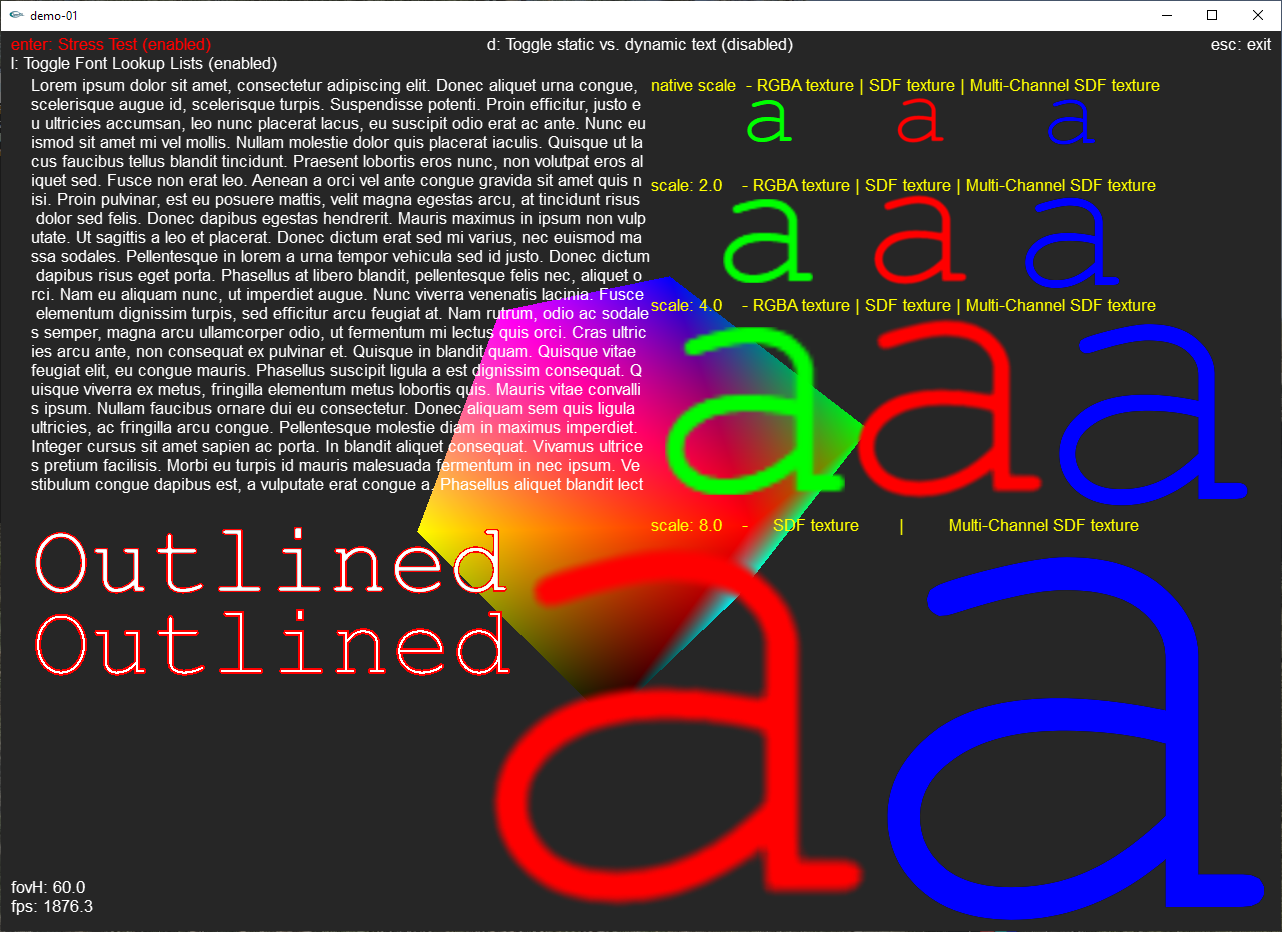
This code allows you to render high performance text in your own OpenGL application. The font rendering library was designed with ease of use and render performance in mind. I've written it in ~2010 and updated it every now and then. The font files read by this library follow the format developed for the BM Font Generator: http://angelcode.com/products/bmfont/. The font file is accompanied by a texture file. The library supports standard RGBA textures, as well as single channel SDF, and even multi channel SDFs.
Stay tuned.
The font library is divided into the following files:
The DrawString function call does the following: receives string → parses string → creates list of quads → translates that into a vertex buffer array -> draws all textured triangles. During the parsing, the string to draw is checked for characters that are not drawable by the current font, those chars will be drawn as question marks. For each character in the string, a quad is created and added to the final quad-list, this quad contains information about the position and size on the screen(2D, orthogonal!) and the texture coordinate for that one character within the bitmap font. The position of a quad depends on the starting position of the string and the position of the previous character. The specific relation between the spacing of one character and the next is called kerning. The font config file contains a table with all kerning information for that specific font. E.g. it could be, that if an “a” follows a “M” it needs to be one pixel apart, however when an “o” follows an “M” it is minus one pixel, or zero pixels. These information are stored internally in a two dimensional array for fast access. To make this drawing fast enough, all information about the characters and character-relations(like kerning), as well as the textures are loaded on program start. The texts can be stored so that vertex buffers don't have to be created on each render loop iteration.
The easiest way to check how the library works and how you can use it in your project is by checking out the example implementation supplied with this repo. In case you need more information though, please read the rest of this chapter.
You will need to copy the 10 files mentioned in the Overiew into your project folder.
In your code, create a global font library object, before opening a rendering context, like so:
//load openGL fonts
m_fontLibrary = new CFontLibrary(<PathToFontFolder>);
if(!m_fontLibrary->ParseAllFontsInFolder())
    return; //no fonts found!
This will load all fonts that are stored in the folder you've specified as input parameter. After the rendering context is created, the textures need to get loaded, like so:
//init font library from the current rendering context!
theApp.m_fontLibrary->InitGLFonts();
This can be done in a one time Init function of that render context for example. Keep in mind that you can't share textures between two or more contexts with this library (I didn’t implement it because at the time there was no efficient way of doing it, only some Nvidia cards could and only sort of). So you have to call this for each new rendering context. Once this is done, the font library is ready to use, which means you can call the DrawString() method from the FontLibrary object.
(Note: this chapter needs an overhaul, its only roughly correct, some function parameters are missing, but mostly self explanatory anyways) The header of the draw call reads:
void DrawString(const std::string& textToDraw, int x, int y, float color[4], const std::string& font, float scale = 1.0f);The parameters are described below in the table.
| Parameter | Description |
|---|---|
| const std::string& textToDraw | The string to draw as std::string, not recognized characters are drawn as '?'. Which characters are valid depends on the font used and can be defined when creating the font-bitmap. |
| int x | X-Position of the beginning of the string in screen coordinates. 0 - width |
| int y | Y-Position of the beginning of the string in screen coordinates. 0 - height |
| float color[4] | float array containing the color information that will be used to modulate the texture. Color information are values from 0.0 to 1.0(inclusive), in the following standard order: {R, G, B, Alpha} obviously.. |
| const std::string& font | This parameter defines the font type to use. Only font types can be used that are in the Folder and were there at loading time. You may pass in the file name of that font, without the extension or for more code readability and safety use the define from file: FontLibrary.h. Note: if you want to print bold or italic, then you have to use a font that is setup to do that. |
| float scale | For RGBA textures it is highly recommended to use the default: 1.0f. You can scale up or down, but it should be clear that this will result in blur. However, with SDF and MSDF you should be able to scale up and down further before seeing artifacts. |
Note that there are more functions with additional features, such as automatic line breaks. See font library header file. Also note that the string to draw will be cut off after 10922 characters. If you need more character for whatever odd reason, simply use additional draw calls and split the string into parts.
This chapter is concerned with adding your own fonts to the font library.
Note that I focus on non-SDF fonts here. The steps for SDF fonts are quite similar, however Bm-Font-Gen does not suffice. You can still use that tool, but you will need to perform a post processing step with tools like ImageMagick. Tutorial below.
Only three steps are necessary to integrate a new font: 1. Create the font-config and font-bitmap using BM-Font-Generator 2. Copy the two resulting files into your fonts folder 3. (optional) add the font string as define to FontLibrary.h so you can use it more easily in your app
In the following section, the use of BM-Font Generator is described in detail, but first a few notes. Each font-file you produce contains only a font of a fixed size, also it is already defined by the file whether it is bold or italic, etc. Same counts for outline, smoothness of the font, etc. This matter will become more clear with the following section.
For producing the font-config as well as the actual font bitmap, I use the “Bitmap Font Generator” from AngelCode. Which can be obtained from their website: http://angelcode.com/products/bmfont/ After installation, open the program, it should look like in the following figure.
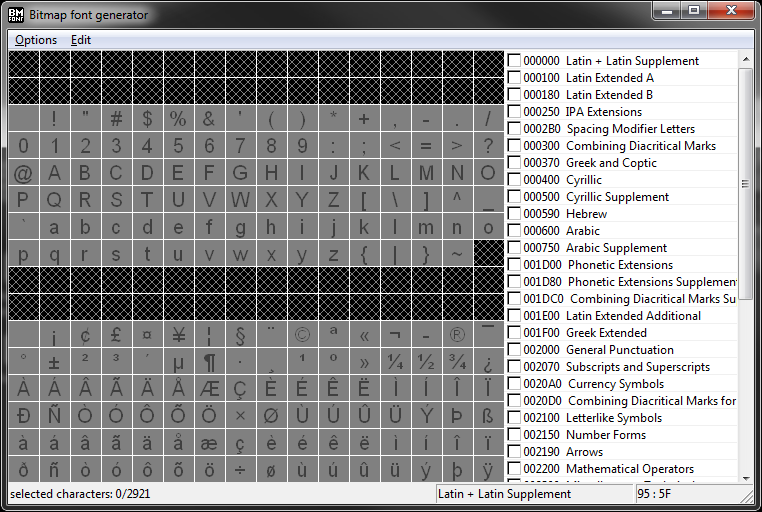
As a first step, open the Font-Settings, by clicking on Options → Font Settings or by hitting [F], which will open a new window, as shown by the next figure.
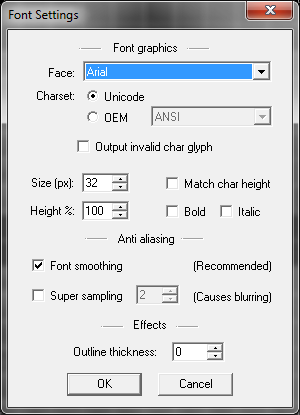
After you made these setups, close the Font Settings window and proceed to the next step.
Back in the main window of the program, you can now select the character sets you'd like to include. You can either select full sets or select only specific characters of a set. As an example see next figure.
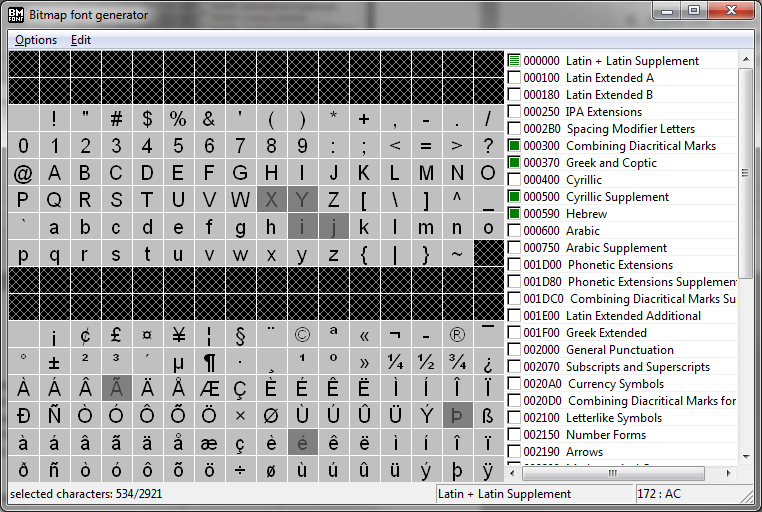
As a basic rule, only select the characters that you are likely to use, this saves processing time and most of all memory, not just one character, but a lot more(kerning, bitmap size, array sizes in our code, etc.). After you selected all characters your font shall include, proceed to the next section.
It is now time to export the font as a bitmap and a create a config file for it. Open the Export Options my hitting either [T], or clicking Options → Export Options. A new window should pop up, looking like in the following figure.
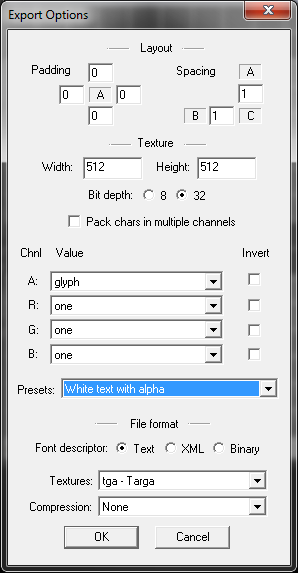
Once these settings are done, close the window and proceed to the next step.
To make sure that your texture is neither too large or too small, hit [V] while in the main window or click Options → Visualize. If the window title says anything but “Preview 1/1” your texture is too small for all your characters and the program would produce more than one bitmap. In that case, open the Export Options and increase your texture size. Note: it doesn't need to be squared or a power of two anymore, this was only in OpenGL Version 1, the case. However, I would still recommend it to make it as such, since some texture related functions may be still optimized for it. The FontLibrary intentionally doesn't handle more than one “page” or texture, as this would mean to bind/unbind the texture during one DrawString call, which is slow! So make it exactly one page. If on the other hand you see that the characters only fill a portion of the bitmap, reduce the texture size, if possible, but this isnt as important as the other way around. Once you are satisfied with the texture space usage, proceed to the next step.
Now that all settings are made, its time to export the font. Click on Options → Save Bitmap-Font as.. .
The filename you specify here will affect the name for the font in the font library, so choose it wisely. For convenience and readability reasons, I suggest the following naming convention:
<italic?><bold><_outlined?size?>
here are a few examples:
Hit Save to complete the process. All there is to do now, is to copy the two files for that font into the fonts folder of your software. You may convert the tga to png with another tool, just remember to change the file extension in the fnt file correctly.
This is a 3 step process.
First, use the BMFont Generator as described above. However, then use the following settings that may differ form what you've used before.
Lastly, you need to use ImageMagick (https://imagemagick.org/index.php) or a similar tool to convert the texture file to an SDF. Once you have ImageMagick installed run the following from the command line (example is for windows power shell, but is very similar for Unix):
magick convert --% Arial400_0.tga -filter Jinc ( +clone -negate -morphology Distance Euclidean -level 50%,-50% ) -morphology Distance Euclidean -compose Plus -composite -level 45%,55% -resize 25% Arial400_0.png
Next, we need to edit the fnt file. Add the following to the fnt header my hand before the chars definition:
fieldType=sdf
This will tell the Font Lib to use the single channel SDF shader when this font is used.
For Multi-Channel SDFs you can't use the BM Font Generator, instead use: https://soimy.github.io/msdf-bmfont-xml/ With this tool, you need to start from a ttf file, but you will receive the usual fnt plus a png file. Once installed, run the following from the command line:
msdf-bmfont -o multisdf.png cour.ttf
Note that you can supply the font size and other parameters through the commandline as well.
This is optional: Make a define for each new font you add to the FontLibrary.h, this should make coding easier though!
//font type defines, string must match the filename without extension in your fonts folder!
#define GLFONT_COURIER42_MSDF "Courier42_msdf"
#define GLFONT_ARIAL20 "Arial20"
#define GLFONT_DINNEXTLTPROMED_SDF "DINNextLTProMED_SDF"
.. add your own defines here!