DisCard
Hackathon Submission


Worried about your wallet bulge? Remembering which credit card to use for which situation is difficult, but it doesn't have to be. DisCard missed opportunity costs so you can spend with confidence!
Explore the docs »
View Demo
·
Report Bug
·
Request Feature
DisCard your inefficient credit card spending!
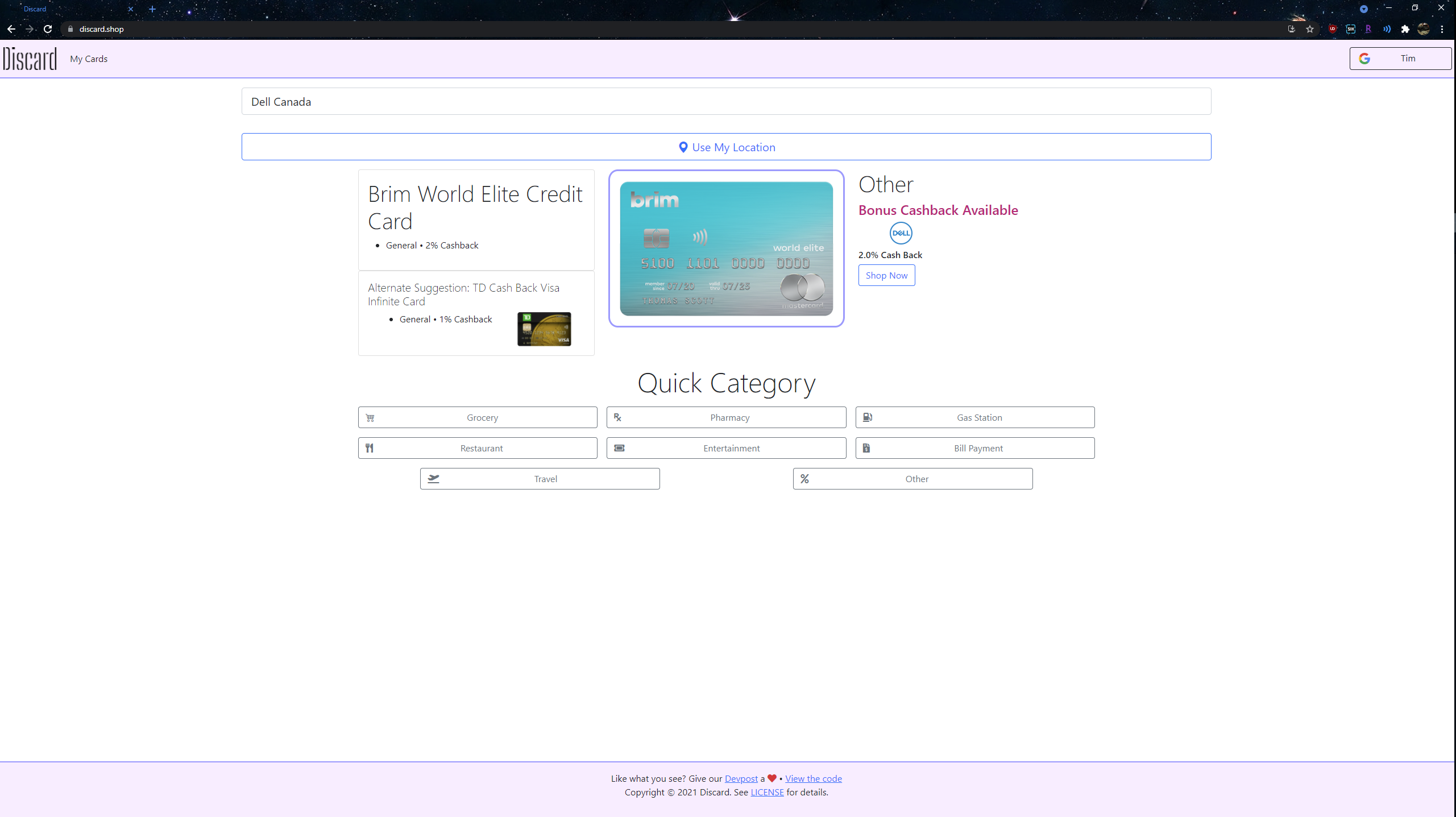
DisCard is a web app built to help users manage their creditcards and maximize cash back rewards. Using a database of all Canadian creditcards and cash back deals from Rakuten, DisCard can tell you the best credit card to use based on your shopping needs with a sleek and responsive UI.
Simply login to DisCard with Google and add your cards to the app. You can then use the search function to find a store or directly use your location with Google Maps to find nearby stores. DisCard will then use its large database of credit cards and deals to select the best card to use from your set of cards. Just like that, you'll be set to maximize your cashback rewards!
To get a local copy up and running follow these simple steps.
This is an example of how to list things you need to use the software and how to install them.
3.9, pip3Update before installing new packages
sudo apt-get updateCheck Python version
python3 --versionIf Python version < 3.9
sudo apt install python3.9Validate
python3.9 --versionInstall pip3
sudo apt-get -y install python3-pipValidate
pip3 --versiongit clone https://github.com/Ti1mmy/DisCardApp.gitcd into repo directory
cd DisCardApppip3 install -r requirements.txt*.html*.htmllocalhost:8000cd site
python -m http.servercd ..
cd scrape
cd rakuten
python schedule.pyAt the top of every page, you'll be able to navigate between the main page, the credit card list, and info about the project. There's also an option for you to login to DisCard with Google so that you can save your cards on the app.
On the main page, you will be greeted by a few different options:
After using any of these options, you'll be told which card is the best to use.
This is the page where you can view and add to your set of credit cards on DisCard. Clicking on a card shows details for the card like its name and cashback details. To add a card, you can click on the search button or the manual add button.
Search:
Manual Add:
For more examples, please refer to the Demo
Contributions are what make the open source community such an amazing place to be learn, inspire, and create. Any contributions you make are greatly appreciated.
git checkout -b feature/AmazingFeature)git commit -m 'Add some AmazingFeature')git push origin feature/AmazingFeature)Distributed under the MIT License. See LICENSE for more information.
Eric Ji - Linkedin - [email protected]
Katherine Li Linkedin - [email protected]
Timothy Zheng - Linkedin - [email protected]
Sean Gordon
Devpost Link: https://devpost.com/software/discard







