TurtleGraphicsVBA
1.0.0

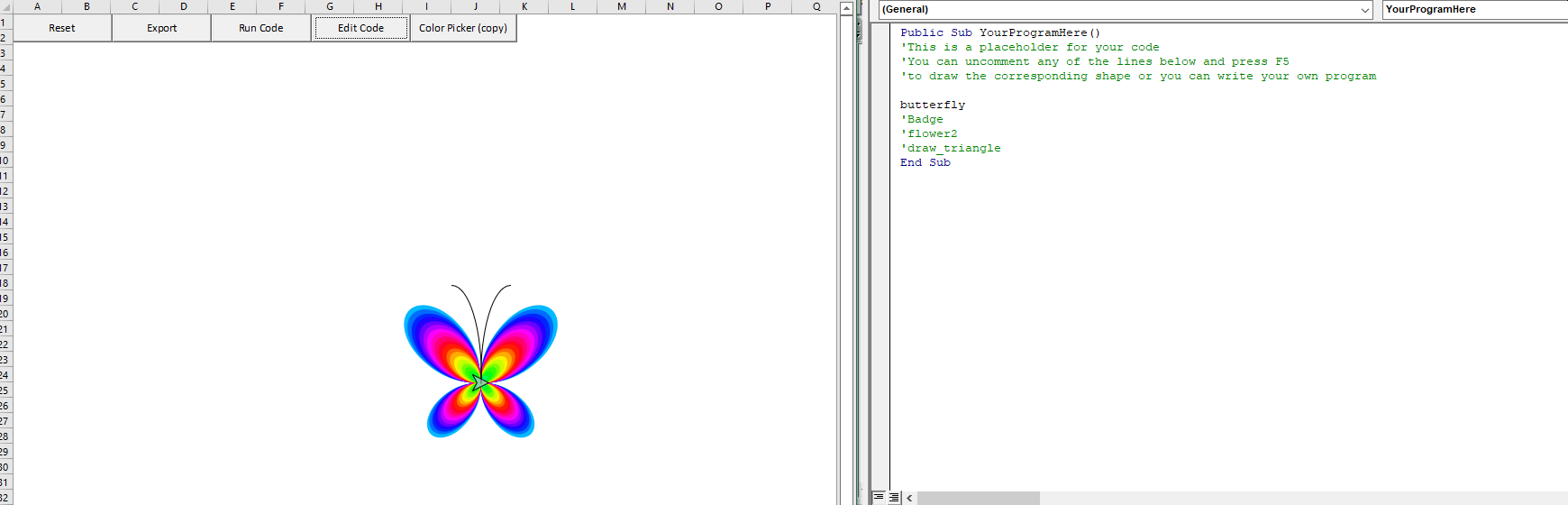
Turtle Graphics using VBA in Excel. An add-in created for the purpose of teaching basic programming to young students. The advantage of using Excel is that if Excel is already on the computer, no additional installation is required besides these two files. The graphics generated are in vector format. They can easily copied and resized in any Office application and they can be exported to emf and converted to svg using Inkscape, for example.
Besides the normal straight line movement, this library has a moveCurved function and moveBezier function that allow moving through a curved path, producing with low effort much visually pleasant shapes than traditional turtle-graphics shapes, allowing the creation of mandalas, batik patterns and pookkalams.
Between a penDown and a penUp instruction, the move instruction will create a polyline (all segments will belong to the same shape). Similarly, between a penDown and a penUp instruction, the moveCurved will produce a Bezier curve, but without having to worry about the control points. Both methods cannot be mixed, though. If you need a straight line within a moveCurved path, use ttLine as CurveType for moveCurved third parameter.
In addition to the traditional turtle drawing, there is also a transformer object that allows translating, rotating and resizing any shape, including the default Excel ones.
Note that the TurtleGraphics.xlam file is locked for visualization so that VBA errors made by students do not jump to lines in that module. To actually edit or view the module, the password is "turtle".
You can see some sample drawings in the samples-png and samples-svg folder.
DiameterAcross DiameterFrontBack StartAngle EndAngle ArcType
DiameterAcross DiameterFrontBack
X Y
steps
Steps angle1 distance1 angle2 distance2
Steps radius curveType
angle
fileName ImageFormat
angle
angle
milliseconds
txt
Whether the shape is drawn upon pen up (to speed up the drawing) or while it is being drawn.





