AS Desktop Calendar
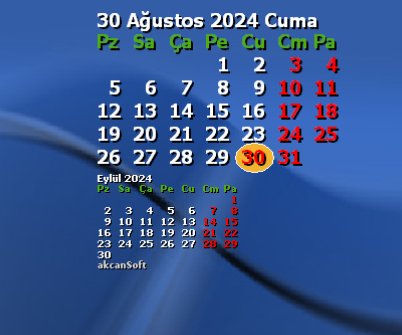
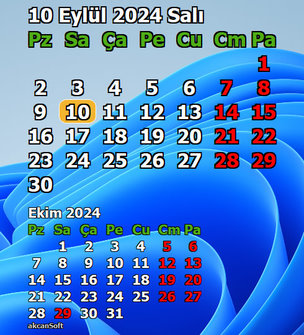
This application generates a desktop background with calendars for the current and next month, displayed in the system’s locale language.
Overview
The AS Desktop Calendar is a Visual Basic 6 (VB6) application that dynamically overlays a calendar onto the desktop wallpaper. It includes functionality for showing holidays and weekends and offers customization options for appearance.
What's New in v1.2
- Startup Option: The application can be configured to run at Windows startup by setting
runAtStartup = True in settings.ini.
- Text Outline Effect: New option added to apply an outline effect to calendar text. Configure this by setting
textEffect = outline in settings.ini.
- textEffect options:
none, shadow and outline
- Bug Fixes and Performance Improvements: Several optimizations to improve memory usage and stability during wallpaper generation.
Key Features
- Dynamic Wallpaper Generation: Generates custom wallpapers based on calendar data, allowing for a personalized desktop experience.
- Holiday Highlighting: Automatically highlights holidays in the calendar, making it easy to keep track of important dates.
- Weekend Highlighting: Automatically highlights weekends.
- Existing Wallpaper Integration: Integrates with existing wallpaper files, ensuring a seamless blend with your current desktop background.
- Customizable Appearance: Customize the calendar's appearance, including font, color, and shape settings via an INI file.
- Locale Support: Uses the system locale to display the calendar’s months and weekdays in the local language.
- Multi-format Support: Supports generating calendars with desktop wallpapers in JPG, BMP, GIF, PNG, and TIF file formats.
- Startup Option: The application can be configured to run at Windows startup by setting
runAtStartup = True in settings.ini.
- Text Outline Effect: New option added to apply an outline effect to calendar text. Configure this by setting
textEffect = outline in settings.ini.
Usage
1. Installation
- Copy the compiled executable file,
holidays.txt, and setting.ini file to the desired directory.
Note: Windows Defender may flag the executable as a potential threat because it registers the program to run at startup.
2. Configuring Holidays
- Add your holidays to the
holidays.txt file in the dd/mm format, with one date per line (e.g., 25/12 for December 25th).
3. Configuring Settings
The settings.ini file allows you to customize various aspects of the calendar displayed on your desktop wallpaper. Below are the configuration options available:
[APP]
- runAtStartup Set to True to run the program at Windows startup, False to disable.
[FONT]
- fontName: The name of the font used for the calendar text. Default is
Tahoma.
- fontBold: Set to
True to enable bold text, or False for regular text.
- fontItalic: Set to
True to enable italic text, or False for normal text.
- fontColor: The color of the calendar text in hexadecimal format (e.g.,
&HFFFFFF for white).
- shadowColor: The color of the shadow effect on the text in hexadecimal format (e.g.,
&H000000 for black).
- weekdayColor: The color used for weekdays text in hexadecimal format.
- holidayColor: The color used for holidays text in hexadecimal format.
- textEffect: ; Defines the visual effect applied to the text.
none No effect is applied.shadow Adds a shadow behind the text.outlineAdds an outline around the text.
- fontRatio_1: The ratio of the current month’s font height to the screen height. Default is
45.
- fontRatio_2: The ratio of the next month’s font height to the screen height. Default is
65.
[SHAPE]
- currentDayShape: Determines the shape used to highlight the current day. Options include
Circle, Ellipse, Rectangle, and RoundRectangle.
- shapeFillColor: The fill color of the shape used for the current day, specified in hexadecimal format (e.g.,
&H30B4F3).
[CALENDAR POSITION]
- startOffsetX: The horizontal offset from the top center of the screen. Use positive or negative values to adjust the calendar’s position.
- startOffsetY: The vertical offset from the top center of the screen. Adjust the position by using positive or negative values.
These settings allow you to tailor the appearance and positioning of the calendar to match your preferences and desktop setup.
4. Running the Application
- Launch the executable to generate the wallpaper with the embedded calendar. The application automatically applies the generated wallpaper as the desktop background.
- To keep the calendar updated at each startup, place a shortcut of the executable in the Windows Startup folder.
Files
wallpaper.bmp: The generated wallpaper file.holidays.txt: A text file containing a list of holidays.settings.ini: Contains customizable settings like font size, colors, and calendar position on the desktop.
Dependencies
- Windows OS
- Visual Basic 6 Runtime
Version History
- First Release: 16/04/2004
- v1.0: 30/08/2024
- v1.1: 06/09/2024
- v1.2: 10/09/2024
Contribution
Contributions are welcome! You can submit a pull request for improvements or new features.
License
This project is licensed under the GPL-3.0 License.
Author
- Mesut AKCAN
- Blog: akcansoft.blogspot.com
- YouTube: youtube.com/mesutakcan
- Email: [email protected]






