open f1
1.0.0

open-f1 is a open source F1 Live Timing client.
openf1-console is a TUI application which uses OpenF1.Data to show a Live Timing screen during sessions, and records the data for future session replays.
The OpenF1.Data library is provided to facilitate connectivity with the F1 Live Timing data stream, and handle all the processing of the incoming data. It also allows for "simulated" streams, where previously recorded data streams can be played back to allow for easy development/testing.
Feature Highlights:
openf1-console
This project is heavily inspired by the FastF1 project by theOehrly. They did a lot of the work understanding the SignalR stream coming from the F1 Live Timing service. Visit their project if you'd like to do any sort of data analysis on past F1 events, or gather live timing data using their module.
openf1-console
openf1-console is available as a dotnet tool from NuGet, which means it can be installed system-wide simply by running:
# Install globally using the -g flag
dotnet tool install -g openf1-console

# Assuming the dotnet tools directory is on your path, simply execute openf1-console
openf1-console
This method is recommended as it is easy to keep the app updated using dotnet tool update -g openf1-console.
Standalone executables are attached to each GitHub release. Download the executable for your system OS/architecture and simply run it directly. The list of artifacts are available on the release page for the latest release.
# Download the latest executable (in this case for osx-arm64)
curl https://github.com/JustAman62/open-f1/releases/latest/download/openf1-console-osx-arm64 -o ./openf1-console -L

# Execute openf1-console to start the TUI
./openf1-console# Checkout the git repository
git clone [email protected]:JustAman62/open-f1.git
# Run the console project with `dotnet run`
dotnet run --project OpenF1.Console/OpenF1.Console.csprojopenf1-console as described aboveSession ScreenStart Live Session action.Timing Tower actionDuring the session, streamed timing data will be written to ~/open-f1/data/<session-name>. This will allow for future replays of this recorded data.
Data for pre-recorded sessions should be stored in the ~/open-f1/data/<session-name> directory. Sample data can be found in this repos Sample Data folder. To use this sample data, copy one of the folders to ~/open-f1/data and then it will be visible in step 4 below.
openf1-console as described aboveSession ScreenStart Simulation action.Timing Tower actionF1 provide static timing data files for already completed sessions. This data can be downloaded and converted into the same format openf1-console uses to save live recorded data.
openf1-console import <year> list
openf1-console import <year> list --meeting-key <meeting-key>
openf1-console import <year> --meeting-key <meeting-key> --session-key <session-key>
All session data, whether live or pre-recorded, is sent to a Channel that acts as a delayed-queue. After a short delay, data points are pulled from the queue and processed, leading to updates on the timing screens. The amount of this delay can be changed with the M/N Delay actions whilst on the timing screens. Hold ⇧ Shift to change the delay by 30 seconds instead of 5. When using openf1-console during a live session, you may wish to increase this delay to around ~50 seconds (actual number may vary) to match with the broadcast delay and avoid being spoiled about upcoming action.
Simulated session start with a calculated delay equal to the amount of time between the start of the actual session and now. This means you can decrease the delay with the N Delay action to fast-forward through the session.
There is a global cursor that is controlled with the ▼/▲ Cursor actions. What this cursor does depends on the screen, for example is can be used in the Timing Tower screen to scroll through Race Control Messages, or to select a driver on the Tower to see comparative intervals.
OpenF1 can be configured using a simple config.json file, through the command line at startup, or using environment variables. JSON configuration will be loaded from ~/open-f1/config.json.
| JSON Path | Command Line | Environment Variable | Description |
|---|---|---|---|
dataDirectory |
--data-directory |
OPENF1_DATADIRECTORY |
The directory in which JSON timing data is read or written from. |
verbose |
-v|--verbose |
OPENF1_VERBOSE |
Whether verbose logging should be enabled. Default: false. Values: true or false. |
apiEnabled |
--with-api |
OPENF1_APIENABLED |
Whether the app should expose an API at http://localhost:61937. Default: false. Values: true or false. |
OpenF1.Data writes logs using the standard ILogger implementation. SignalR client logs are also passed to the standard ILoggerProvider.
When running openf1-console logs are available in two places:
Logs screen. Logs can be scrolled on this screen, and the minimum level of logs shown can be changed with the M Minimum Log Level action.~/open-f1/logs.Default log level is set to Information. More verbose logging can be enabled with the verbose config option.
F1 live timing is streamed using SignalR 2. The OpenF1.Data simply connects to this endpoint, subscribes to the data feed, and listens for messages. It subscribes to the following "topics":
HeartbeatExtrapolatedClockTopThreeTimingStatsTimingAppDataWeatherDataTrackStatusDriverListRaceControlMessagesSessionInfoSessionDataLapCountTimingDataCarData.zPosition.zChampionshipPredictionTeamRadioAll events received by the live timing client will be written to the configured Data Directory, see see Configuration for details. Files will be written to a subdirectory named using the current sessions name, e.g. ~/open-f1/data/Jeddah_Race/. In this directory, two files will be written:
subscribe.txt contains the data received at subscription time (i.e. when the live timing client connected to the stream)live.txt contains an append-log of every message received in the streamBoth of these files are required for future simulations/replays. The IJsonTimingClient supports loading these files and processing them in the same way live data would be. Data points will be replayed in real time, using a calculated delay.
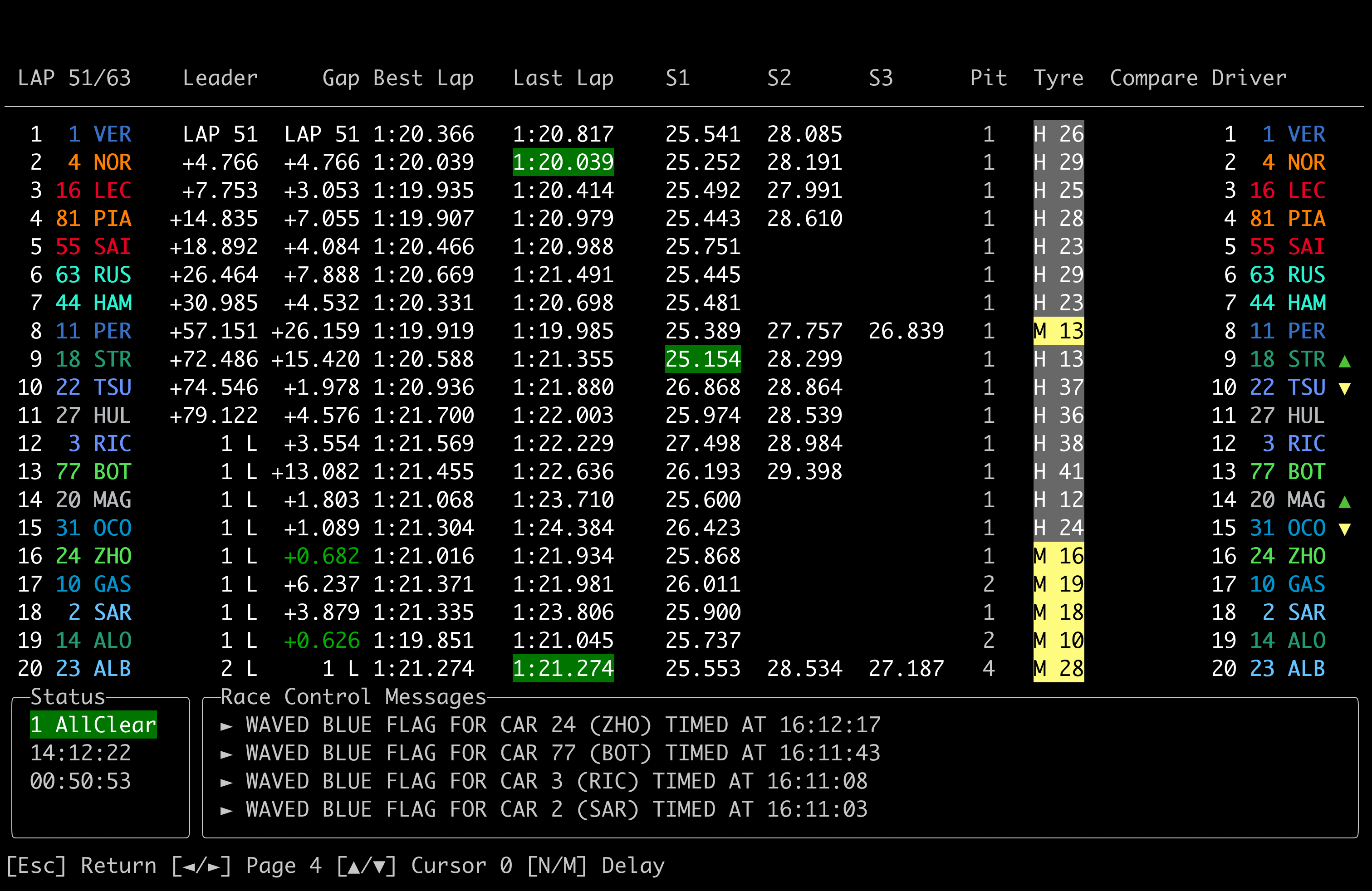
Monitor sector times and gaps, see recent race control messages, capture position changes, observe pit strategies, and more with the standard Timing Tower view.
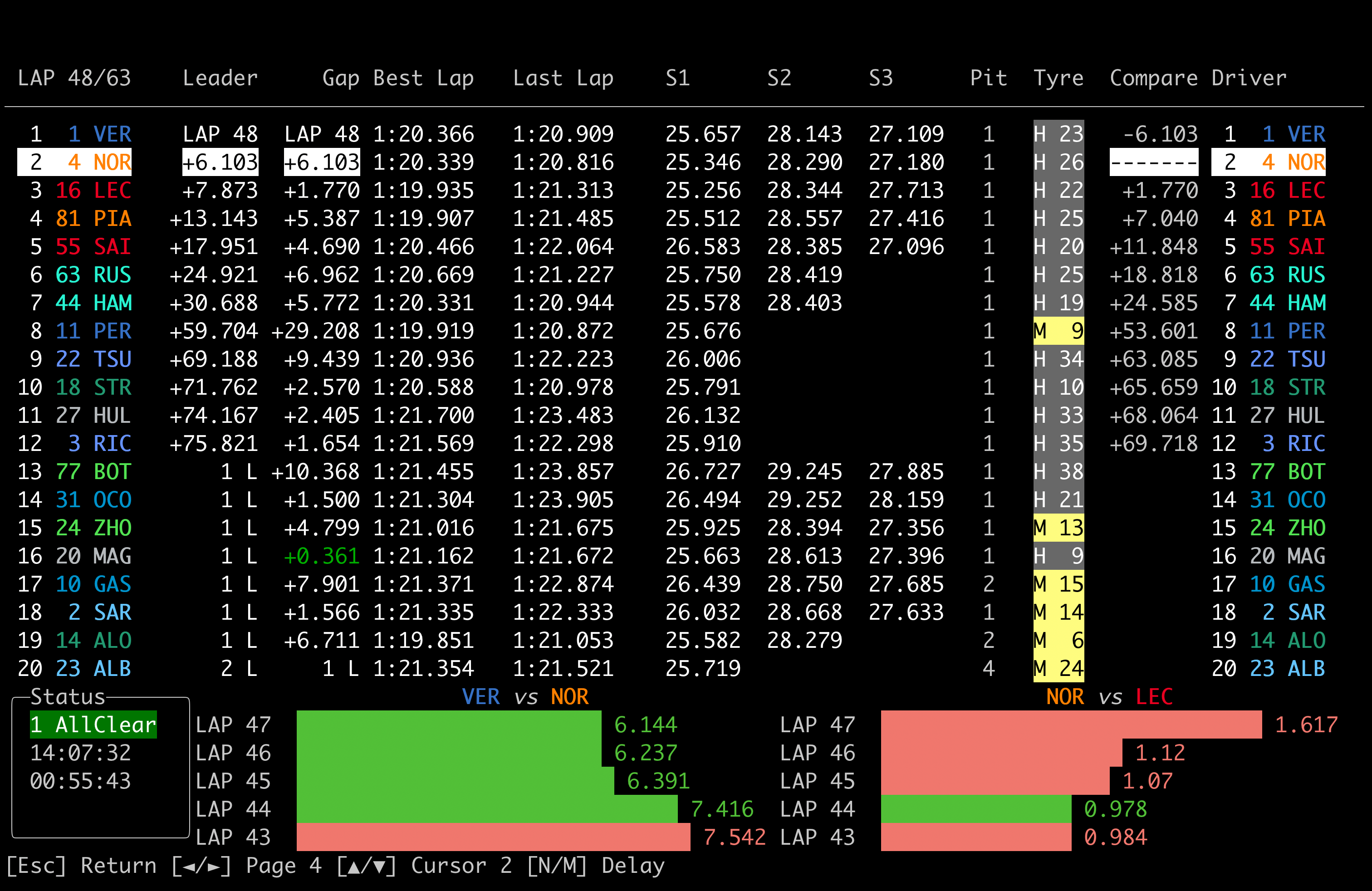
Use the cursor controlled by the ▼/▲ Cursor actions in the O Timing Tower screen to select a specific driver (in this case Norris) to see the relative interval between that driver and all other. This is useful for determining where a driver will fall to after a pit stop, or looking at pit windows during under cuts.
Additionally, the gap between the selected drivers and those around them over the last four laps will be displayed at the bottom of the screen. This allows you to easily see evolving gaps over time and evaluate how soon a driver may catch up or pull away.
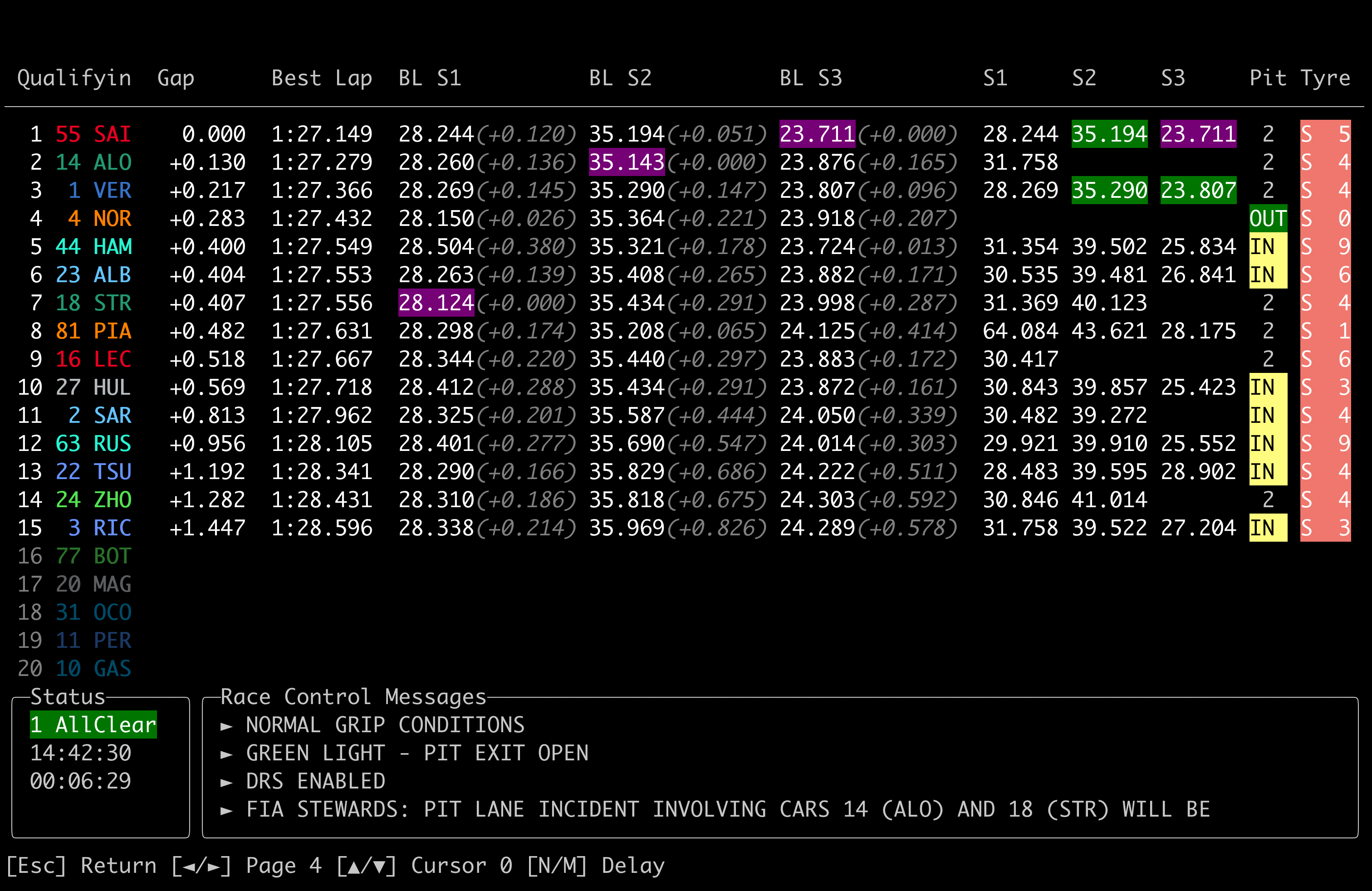
Monitor live/best sector times, gaps, tyres, and lap deletions easily with the specialized timing tower for non-race sessions.
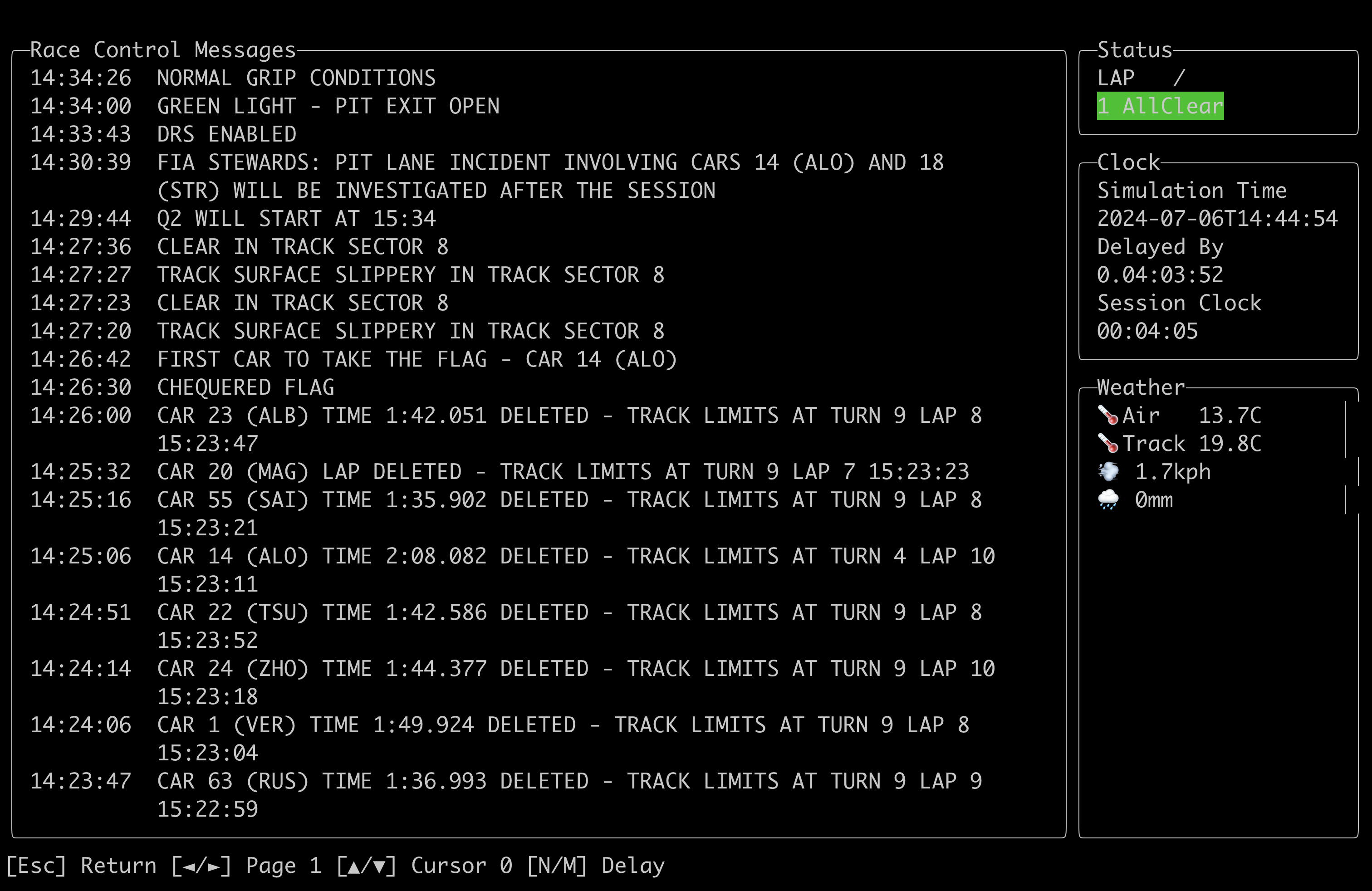
The Race Control page shows all Race Control Messages for the session, along with other session data such as the Weather.
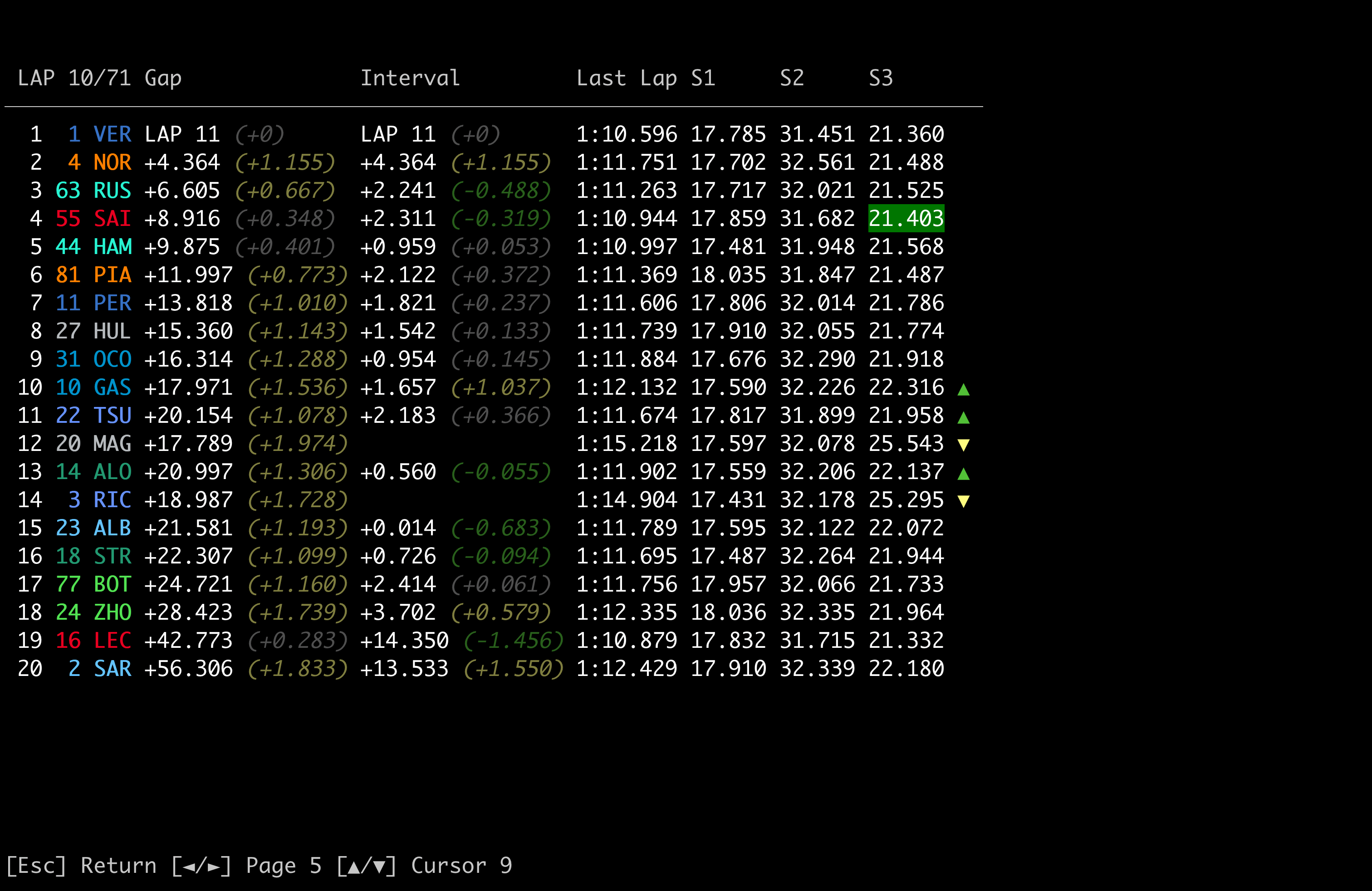
In the Timing by Lap page, you can use the cursor controlled by the ▼/▲ Cursor actions to view historical snapshots of the timing tower at the end of every lap. This view will show position changes during that lap, and relative changes in Gap and Interval. Scrolling through laps allows you to build a picture of how the race is unfolding.
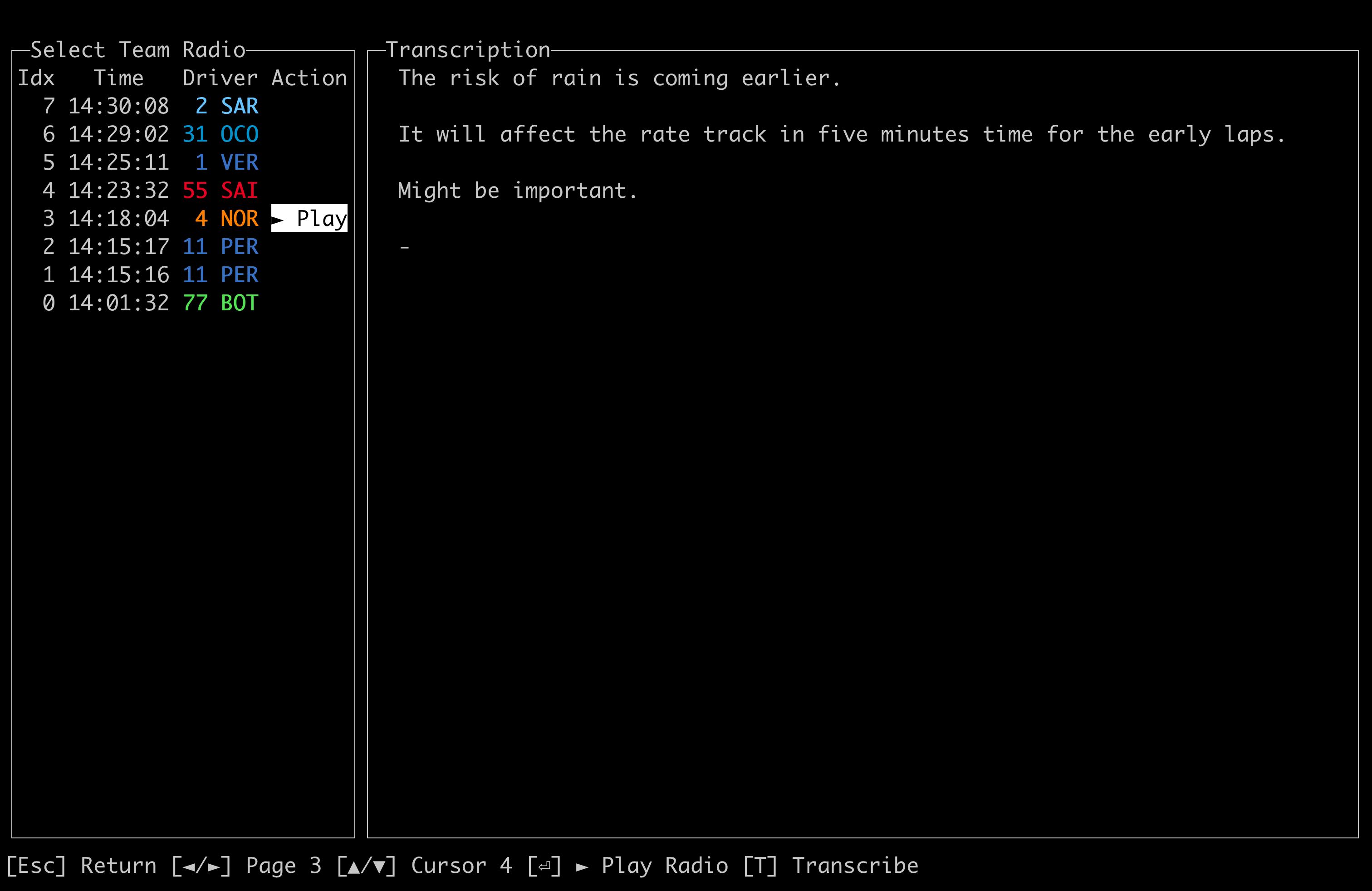
Listen to team radio clips from anytime in the session, and use a local ML model (Whisper) to transcribe the audio on demand.
open-f1 is unofficial and are not associated in any way with the Formula 1 companies. F1, FORMULA ONE, FORMULA 1, FIA FORMULA ONE WORLD CHAMPIONSHIP, GRAND PRIX and related marks are trade marks of Formula One Licensing B.V.





